Posted on 18 Comments

Let’s Explore v4 – Flexi Shapes

Flexishapes

*This post may contain affiliate links.

New with the Silhouette Studio v4.2 software is a feature called FlexiShapes.
What are they?

FlexiShapes are another Tool in the Silhouette Software to help you create or add to a design.

Let’s take a look at the Silhouette Studio v4 layout. There are 2 side menus in the Silhouette software. The left side menu is where the Tools in the software can be found. Drawing tools, edit points, lasso tool, line drawing tools, shape drawing tools, text tool, notes, eraser, knife, and transfer properties eye dropper tool.
The right side menu is composed of Panels which control the properties of an object. Using the Panels on the right side, an object can be customized and the properties of it altered. This includes things such as fill color, line color, rotation, scale, font style, cropping, rhinestones, sketch, warp, etc.

Tools vs Panels copy.jpg
Check out the “Let’s Explore v4” series HERE or in the menu at the top of the blog to see a breakdown of the Panels on the right side.

FlexiShapes are available in the Silhouette Software v4.2 software version with the Designer Edition Plus or Business Edition upgrade.
The FlexiShapes can be found under the left side of the Silhouette software where all the Tools are found.

FlexiShapes copy

Look at all those new shapes that are now available with a few clicks of the mouse to start your own creations in the Silhouette software.

Each of the FlexiShapes will have different properties and ways that you can alter each one. Let’s take a look at a few FlexiShapes and how they can be adjusted.

On the left side I chose the flower FlexiShape, left clicked and moved my mouse out.
This creates the initial shape.

FlexiShapes Flower copy.jpg

Next, you will notice that each FlexiShape will vary in the edit nodes that it may have.

Zoom in on Shape white node

White nodes adjust the size of the shape or rotate the shape from the point of the white node.

Zoom in on Shape red node 1

Red nodes adjust the definition of the shape. In this flower shape, moving the red node will adjust the petal definition of the flower.

Zoom in Shape red node 2 copy

The slider bar in the center of the design will adjust the edges of the shape. In this flower example, it will decrease or increase the number of petals on the flower.

Zoom in Shape center adjustment copy
*Note – I have increased the line thickness in the photos to make it easier to see.

Each FlexiShape that you choose will have different options that can be adjusted to change the outcome. Some shapes may have more nodes or less.

Want a star? Start with the star shape and it can quickly become something else.

Star shape copy.jpg

Want a tear drop shape?

Tear drop copy

Create shapes and add them to your designs like these teardrops in the corners of this design created for the Curio Boot Camp for the June 2019 All Things Silhouette Conference.

Flamingo design copy

Both the teardrops and the scalloped rectangle frame are created using the FlexiShapes.

With the FlexiShapes there are so many options that you can create in the software.

Frames copy

Create a frame by adjusting the FlexiShape nodes and then make an Internal Offset, next select both the original shape & the offset and Make a Compound Path. This will take the 2 shapes and compress them into 1, creating the frame.
Fill the shape with color using the Color Fill Panel to see how it will look.

Create arrows of all shapes and sizes or create a picket fence from adjusting the nodes and replicating the shape. This are all created from the same starting arrow shape.

Arrow design copy

And once you start playing, it’s hard to stop.

I am in no way a designer, but you never know what you might create by combining a few shapes or playing around with some FlexiShape nodes today.

What can you think to create using the new FlexiShapes available in the Silhouette Studio v4.2 software?
I would love to see it!
Feel free to post photos on my Facebook group – Silhouette Secrets+ by EllyMae.

Save this for future reference by pinning the image below.

Pinterest

Enjoy!

Check out all of my online Silhouette classes on my Teachable site HERE.

SS_Signature copySS Logo snip it

**This post may contain affiliate links. What that means is that I may receive compensation if you purchase through the links I have provided. The price you pay for the product or service is not higher but I may get compensated for sharing.

Posted on 4 Comments

Print and Cut with Heat Transfer Paper

Print and Cut with Heat Transfer Paper

*This post may contain Affiliate links.

For the June 2019 All Things Silhouette Conference, I taught a class called “Let’s Explore Print & Cut with Printable Heat Transfer”. I had so much fun creating this class and want to share that with all of you. While I cannot pass around all the demos I made like I did in class, I hope a photo blog post will do.

Silhouette_Secrets+PNC

First, I set up the Print & Cut design using the Summer Flowers bundle by Echo Park – Design #186925 from the Silhouette Design Store.

PNC Set up copy

When setting up a Print & Cut project, I follow the same steps each time. In this post – Print & Cut – Part 3 – Images, I go through every step I take to set up the file for the best success.
This is what I would also recommend for a beginner who is doing this for the first time or for anyone who is having issues with the Print and Cut not registering or not cutting accurately.
While you can adjust several things on a Print & Cut file, I find most users get the best results and have less headache if they first start with a baseline
For more troubleshooting tips, see this post – Print & Cut – Part 1.

This is exactly what I walked through in class step by step.

Now to the fun part, Show & Tell!

This class was sponsored by Specialty Materials and I used a product called Colorjet III Light and Dark Heat Transfer Paper. ColorJet III comes in packages of either 8-1/2″ x 11″ or 11″ x 17″ sheets. I loved the 11″ x 17″ sheets with my Canon TS9521C large format printer, then I could fit several print and cut projects on one page and do larger designs as well.
You can request a free sample on the website HERE.

First, I started with a few shirts.

Unicorn tshirt

As soon as this shirt came off the press, it was my 6 year old daughter’s favorite shirt.
I had to go searching for it in order to take it to the ATS Conference with me.
I used Colorject III Dark on this shirt with a design that is part of a print & cut sticker file called ML Unicorn Cute Stickers by MiniLou – Design #285420 from the Silhouette Design Store.

Now, if you read the directions on the Colorjet III it says “Care – Hand wash and air dry. Do not dry clean. No bleach or aggressive detergents” (Specialty Materials) but, I have 3 kids and “hand wash” does not really happen in my house. But, I am happy to report that it has been through the washer & dryer at least 3 times since I made it and it still looks great. And I brought it with me to Conference to show everyone how it held up.
What do I recommend? You have to test it yourself! The manufacturer gives you care instructions and for best results, I’d recommend those to get the most life out of it.
Me….. well, you guessed it. I throw everything in the washer & dryer with the thought that I can always remake it if I need to.  That is probably not the best advice for everyone.

IMG_20190327_154041760_HDR
I used the Colorjet III Dark on this blue shirt with a design called Justice League by DC Justice League – Design #201137.
*This is an older design that is no longer in the Silhouette Design Store.

IMG_20190524_100919036
For this shirt, I used the Colorject III Light with designs Painted Purple Bouquet by Loni Harris – Design #139067 and the words are cut with Siser Easyweed HTV using the Live Life in Full Bloom by Silhouette – Design #129071.

And then I moved on to other objects and things I could find that wouldn’t necessarily need to be washed often.

eZy_watermark_31-05-2019_04-31-15
This one is using the Colorjet III Light pressed onto a Canvas panel & framed. Created with Enjoy Today Painted Floral by Loni Harris – Design #134285 from the Silhouette Design Store.

eZy_watermark_31-05-2019_04-31-34
Here is another one created with Colorjet III Light then pressed onto a Canvas panel & framed. Created with Floral Monogram K by Angie Makes – Design #173599 from the Silhouette Design Store.

IMG_20190330_101825027
This time, I used a framed canvas and the Colorject III Light. In order to get a good pressure on the framed canvas, I had a wood board cut to fit in the back side of the frame and placed it inside when I pressed the design. I’ve been eyeing these watercolor designs and love that I’ve found a way to use them. This was created with Multicolored Prism Heart by Rhonna Farrer – Design #248413 from the Silhouette Design Store.

IMG_20190330_101856280
This is using Colorjet III Light on a zippered cotton canvas bag from Craft Chameleon. It  was created with Watercolor Heart by Rhonna Farrer – Design #248434 from the Silhouette Design Store.

eZy_watermark_20-05-2019_03-56-10 copy
I used Colorjet III Dark on this garden flag from Craft Chameleon for the American Flag of United States by Echo Park – Design #269732 (Silhouette Design Store). The words are cut with HTV and I used a design by BasicGrey called Home of the Free Because of the Brave – Design #204727.

And now some of my favorites – photos!

 This one should be hung on my wall for many years to come, memorializing that I managed to get all 3 of them smiling together without some crazy face.

eZy_watermark_24-05-2019_10-16-45
I used the Colorjet III Light printed through the Silhouette software on a canvas panel, which I then put in a 8″ x 10″ frame. While these are not UV treated like others you get at a professional photo shop, you can change the photo out each year or several times a year if you like for a lot less expense. I love having options!

eZy_watermark_24-05-2019_10-18-04
Another photo on a canvas panel using Colorjet III Dark.

And what about a one of a kind gift?

eZy_watermark_24-05-2019_10-16-06
I used Colorjet III Light to add my favorite photo to a canvas tote bag from Craft Chameleon.

Now, did all of my test projects turn out? No, they did not. And that is what comes when developing a class for an event. There will be things that work and things that don’t. But, even the things that don’t turn out are all learning experiences.

IMG_20190618_120525499 copy

Here are a couple of projects that didn’t turn out quite as I expected them to. I always recommend reading the instructions for any brand of product you are using. In those instructions for the Colorjet III it states “Be advised that dye migration has occurred with low energy dyes in polyester and poly-blend fabrics.” What does this mean?
This means to test it and that not all fabrics may work as you want them to. Not because of the product but because you cannot always predict how the dye in a material is going to react. For instance, if you have white HTV and press it on a red shirt, the white HTV may look pink. This is dye migration.

In the case of the apron and the sleeping mask above, the color of the fabric came through the Colorjet III Dark, even though I used the correct material. I tried, it didn’t work. I moved on to another project.

The zippered canvas bag on the right side, is an example of using the Colorjet III Light on a dark fabric. Complete user error on this one as I just wasn’t thinking when I grabbed my blank to press it on to. My daughter still loves it and now it’s her “money bag” she says.

I hope this post has given you some new ideas to use in your creations with Heat Transfer paper. It’s not just for shirts anymore!

A big thank you to Specialty Materials for sponsoring my class at the June 2019 All Things Silhouette Conference! For more information on future check out Terri Johnson Creates blog and click on the Events tab.

PNC Heat Transfer

I would love to see what you create – feel free to post on my Facebook group at
Silhouette Secrets+ with EllyMae.

Enjoy!

SS_Signature copySS Logo snip it

**This post may contain affiliate links. What that means is that I may receive compensation if you purchase through the links I have provided. The price you pay for the product or service is not higher but I may get compensated for sharing.

Posted on 3 Comments

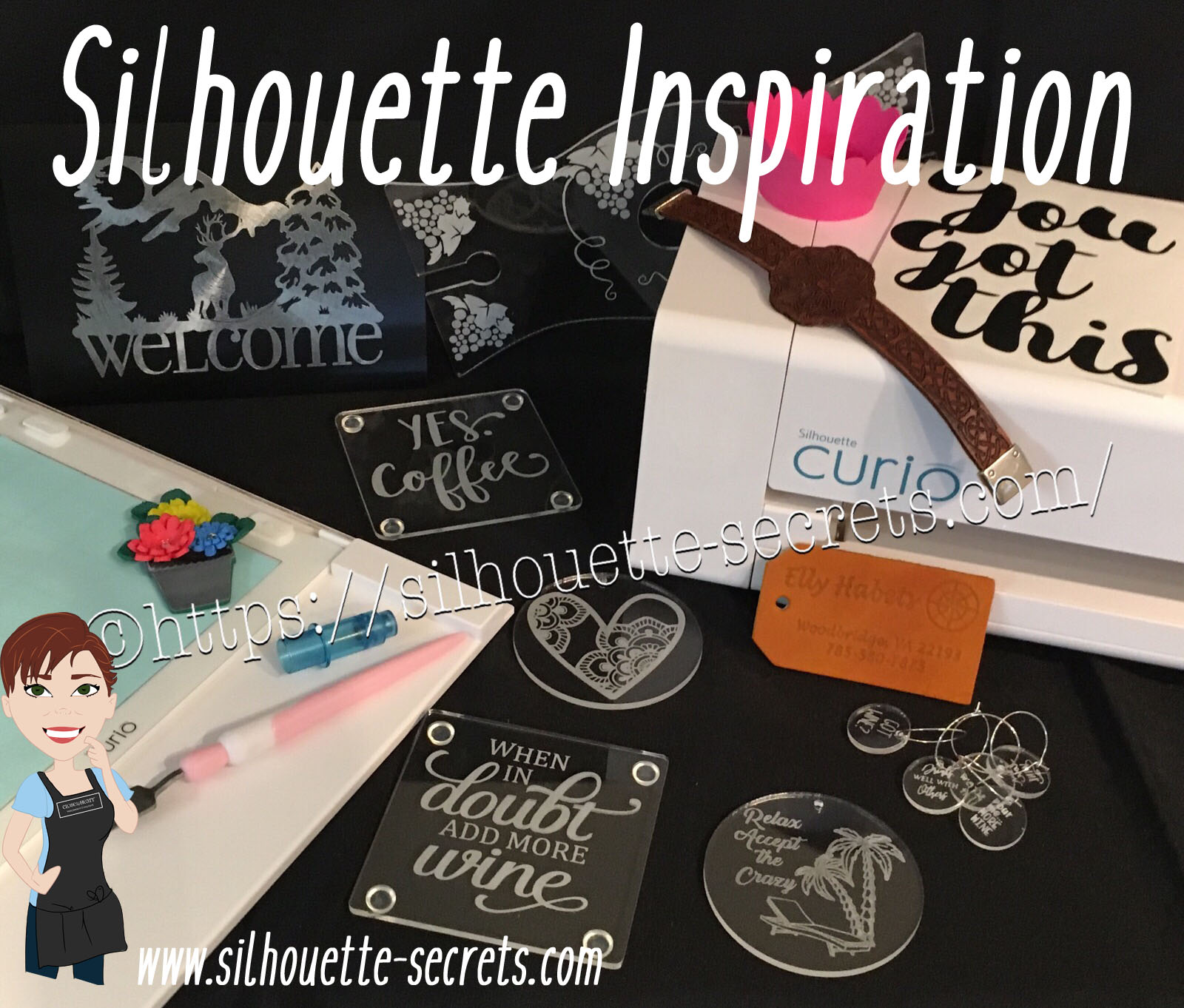
Silhouette Inspiration

Today I am headed out to the June 2019 All Things Silhouette conference and I have to tell you while it may be a lot of work to prep and set up for the conference, I always come back knowing more than I did before & feeling inspired by all that I see at this conference.

So today, I’m going to share a few projects I’ve been working on and hope I can pass on some of this inspiration that I feel when I attend the conference.

First, here are a few acrylic etching projects that I’ve completed with my Silhouette Curio in preparation for the classes I’m teaching at the All Things Silhouette Conference & for display during classes.

SilhouetteSecrets_Coaster_ATS19 copy

This is an acrylic coaster from Craft Chameleon and I created a design and added text to it to be etched on the backside of the coaster. These come in a set of 4 coasters and it is the perfect gift to customize.

Curio template coaster copy

I love that Craft Chameleon has Curio templates that have been created to work specifically with their acrylic shapes. While the Curio is amazing in the fact that it can return to the exact spot & continue working even after the platform is unloaded (if the platform is loaded correctly), these templates are so helpful in being able to make sure the designs are in the same place the material is placed.

SilhouetteSecrets_Phone_ATS19

An Acrylic phone stand etched with the Silhouette Curio.

These are another great gift idea as pretty much everyone has a phone. And if any of you are like me, I will set my phone down on my desk and it is soon under some notebook or stack of papers. It even has a slot for the charging cord to keep your phone charging as it’s on the stand. And both pieces of the acrylic stand can be etched as the Curio template has a space to fit both pieces.

I love that there are so many possibilities and the ability to create custom items with the Silhouette machines.

Acrylic disc

This is a 5″ acrylic disc that is etched with a Beach Blessing by Deborah Stine – Design #62386 from the Silhouette Design Store.

Something to keep in mind when you are etching acrylic or any raised surface, is to keep the Silhouette tool away from the edges or any holes in the material. This 5″ disc has a hole in the top for adding a means to hang or attach it to an item. If the Silhouette tool comes near the hole or edge, it can hang up on it and cause the blade housing to move out of alignment, which can alter where the design etches. The more you design & work with the Curio, you will get a feel for what that safety zone is and how the tool housing moves.

Since I could not etch close to the edges and hole of the acrylic disc, I cut a Rope Frame from adhesive vinyl to add to the front of the disc. Once the vinyl was added, I took a little round file and poked out the hole so the disc could still be hung.

This is just another way you can mix and match different materials.

The Curio can accommodate thicker materials with it’s unique platform system. This means that not only can it etch on acrylic & metal but it can still cut paper, vinyl & HTV. The difference is in how you stack the platforms. For thin materials under 1 mm, all of the platforms must be stacked in order for the machine to cut properly. That means that a 2+2+1+cutting mat are all required to get a clean cut.

For more tips on getting started with the Silhouette Curio, check out this post HERE.

Here are a couple more items I created this week before packing my Curio up for the trip. It never fails that I want to get “just one more” project done before I have to pack.

These are 15/16” clear discs that work well as bracelet charms or wine charms, they are also from Craft Chameleon.

IMG_20190605_084648543 copy

This is a Honu Turtle design by Suzanne Cannon from the Design Store.
The Honu turtle is a symbol of wisdom and good luck. Who doesn’t need more of that?

I found this design while trying to decide what to put on my beach tote bag for my recent trip to the Silhouette Summit. I love that you can use the designs in many ways and for more than 1 project.
Check out all the neat things I experienced at the 2019 Silhouette Summit HERE.

IMG_20190505_192112821

Here is another charm I created for my new bracelet. This one is a design that LeighBee Designs created specifically for my class attendees at the All Things Silhouette Conference.

IMG_20190605_095913145 copy

Make sure to grab the Curio template for these discs too! It makes it so easy to line up the project.

There are so many fun things you can create. For anyone with a Silhouette Curio machine, I would suggest just getting it out and playing with it. It is the best way to learn.

Silhouettesecrets+Curio_projects

Now while so far, most of the photos shown have all been created with the Curio, I love all my Silhouette machines equally (shhhhhh don’t tell them).

Another one of my favorite things to do is print and cut projects. I have had so much fun creating with Colorjet III printable Heat Transfer material by Specialty Materials in preparation for my class at the ATS conference.

Silhouette_Secrets+PNC

This tote bag was created by using Colorjet III Heat Transfer paper for light materials and the Silhouette Cameo 3. I used the Summer Flower Bundle by Echo Park from the Silhouette Design Store and set the project up as a Print and Cut project. Check out these tips HERE on this Print and Cut Part 3 – Images post to see exactly how I set it up.

I’ll be sharing more projects I created with this Colorjet III Heat Transfer next week after my class at the June 2019 All Things Silhouette Conference.

I hope that this post has inspired you in some way and you get time to create with your Silhouette machines soon!

Feel free to post your comments and questions below or on my Facebook group at Silhouette Secrets with EllyMae.

Enjoy!

SS_Signature copySS Logo snip it

**This post may contain affiliate links. What that means is that I may receive compensation if you purchase through the links I have provided. The price you pay for the product or service is not higher but I may get compensated for sharing.
Posted on 16 Comments

Let’s Explore v4 – Recovered Documents

Recovered Documents

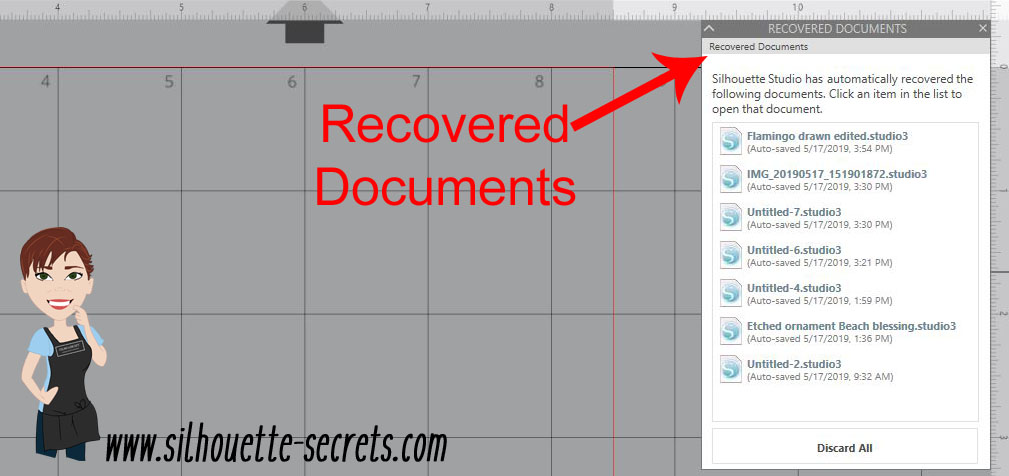
Did you know that the Silhouette software has an Auto-save feature?
When you open the Silhouette Studio program, is there a Recovered Documents Panel that pops up?
Recovered documents copy

This Panel can also be found under the File menu in the top left corner, then Open Recovered.

File Open Recovered copy

The Auto save feature will save a copy of the files you have open if for some reason the software closes unexpectedly or perhaps the computer decides to do an update and shuts everything down.
Windows updates have been getting me lately when I leave my computer on and I come back and notice that my Silhouette software is no longer open.

While this is a great feature, I would not rely on it to keep your files safe. It is a nice feature to have as a back up, but it may not save it exactly where you would want it to and some work may be lost. So it is recommended to save your work often.

But, this is something I see often when I’m in a lesson or teaching at an event. A student opens the software and has a lot of files in the Recovered Documents Panel.

This takes up precious computer power!

Every time that the software is opened, those files in the Recovered Documents Panel have to load. The software is remembering those files and that can eat up computer power and make the software run slower because it has all those files open.

Each of the files can be clicked on and opened. This way you can check to make sure that all the changes you’ve made have been saved before the software last closed.

Discard Recovered Documents

Discard those Recovered Documents and the software should run a lot smoother because it is not having to load those files each time.

Discard All copy

I always recommend this to my students in our lessons and they are amazed at how much they notice a difference in how the Silhouette software reacts.

Just like making a library back up, this is a good habit to get into and help keep the software running smoothly.
A few clicks and you will be ready to create your next Silhouette project with the software all ready to go.

Feel free to post your comments and questions below or on my Facebook group at Silhouette Secrets with EllyMae.

Enjoy!

SS_Signature copySS Logo snip it

**This post may contain affiliate links. What that means is that I may receive compensation if you purchase through the links I have provided. The price you pay for the product or service is not higher but I may get compensated for sharing.
Posted on 8 Comments

Using multiple Silhouette machines

Using multiple Silhouette machines simultaneously

One of the great features of the Silhouette Business Edition upgrade is being able to run multiple Silhouette machines at the same time. The Business Edition upgrade has many great features and you do not have to have a business to use it or have a need for it. However, if you do have a business it has several features that may come in handy.

Check out the Silhouette Edition Comparison chart for all the features that are available with each software upgrade.

Now let’s jump in to how do you use multiple machines at once.

First, plug all the Silhouette machines in to the computer and then turn them on. With the Business Edition upgrade active, the software will recognize the machines that are plugged in.

Set up the file(s) you want to be sent to the Silhouette machines.

Once it is ready to go, then click on the Send tab in the top right corner.

Cameo job multiple machine copy

The file that is active on the design mat is what will be sent to the machine selected.

Click on the machine icon in the bottom right corner of the Send tab.

Machine icon copy
Note: depending on the software version being used, the machine icon may be farther on the right side of the tool bar. Screen shots are in v4.2.279

This will bring up a list of all the Silhouette machines that are recognized by the Silhouette software.

Icon definition copy

There are 2 connection designations – Bluetooth or USB.

There are several more things that you can see here too.
Status – Under the machine name, it will tell you the status of the machine – Available, Unavailable, Ready, etc.
Firmware – what version of firmware is on the Silhouette machine.

Status Firmware copy

Choose the machine that you want the design on the screen to be sent to.

The machine menu will disappear and the machine selected will now be the active machine.

Name change copy

Another neat feature is that you can name the machine. This is very helpful if you are running multiple machines and trying to keep track of which a job is being sent to.

Double click on the name above the machine photo and it will allow you to type a new name or right click and choose Rename from the menu.

Rename copy.jpg

I am sure you can come up with a cool name for your Cameo. I was in the middle of a big project when I named mine and just went with the color of my machine. One of these days I’ll rename it something different, but this works to help me keep track of which machine I am sending my job to.

Next, verify that all the cut settings are how they should be, do a test cut if needed and it is ready to Send the job to the Pink Cameo.

If you are cutting the same design and want to change to another machine, click on the machine icon again to select the next machine and verify everything is set up properly and click Send. You can do this for as many machines as you have ready to go.

Don’t forget to load your mat or material in the machine before you click on the Send button.

IMG_20190520_101723193 copy

Tip: If I am using a mat, then I cut my materials down with a paper trimmer to the size I need, this helps extend the life of my Silhouette mats as I’m not covering the full adhesive and pulling a material off of it each time. Check out this post with more tips on Getting the Most out of the Silhouette mat – HERE.

The above works if you are sending the same design to multiple machines, but what if you want to send different jobs to different machines?

Sending a new design to another Silhouette machine

I mentioned above that the design that is showing on the design mat is the one that will be sent to the machine selected.

If you want to send a different design job to a new machine, click back on the Design tab in the top right corner, open a new design mat & place the design on it, set it up how you like and click back on the Send tab. Repeat the steps above.

New design copy

Now, a difference here is if when switching between a Cameo or Portrait and the Curio. Currently, the software is set up that the machine that is selected on the Send tab, is the current Page Size and Cutting mat selection options on the Page Setup Panel.

This is changing with the upcoming v4.3 software updates and it is in Closed Beta testing now.

I love having this option to send to multiple machines with the Business Edition because I can set up one job to etch on my Curio and while it’s etching, I can still be using my Cameo, Portrait or even another Curio.

There is no numerical limit to the number of machines that you can running with the Silhouette Business Edition, however, you may be limited by the processing power of the computer. Keep in mind that each design sent to cut is sending data back and forth the Silhouette machines, the more files that are working equals more data being sent.

Curio etching copy

For instance, when etching a file, that has a lot more data involved than just a regular cut job. If the computer can handle the amount of data being processed, then you are all good. If it gets bogged down, you may experience the Silhouette machine stuttering or slowing down. Most times this will still cut or etch just fine. However, if you reach a certain point and the computer is maxed out, it could lead to a software crash. Make sure to save the file often. The only way to know what a computer can handle is to test it.

Etch fill zoom copy

When you do an etch or sketch fill, each of the red lines is now the equivalent of a cut line, the more cut lines (etch lines) the more data is in the file. For best results when using the Sketch or Emboss features, save often.

For tips on getting started with your Curio, check out this post –
The Curio – Getting Started.

This is amazing for large projects like wedding favors, cutting for classes or events like the All Things Silhouette Conference.

Note: in the process of writing this blog post, I did find that there is no difference when you are using the same type of Silhouette machine. However, the mat size does change to the current machine selected when you switch to a different machine. For instance, when I switched to my Curio, my cut border changed to the Curio cut border on all the projects open in my software. Even if I had already sent the file to be cut, it changed the cut border & the project did not cut outside of the border.
In the past, I have never had an issue with this and used my Curio & Cameo both simultaneously. But, it is something to make a note of because it could affect the way a Cameo cuts a project, if a smaller machine is activated at the same time.
The good news on this is that a solution is coming to this issue with the release of the v4.3 software, which is currently in closed Beta testing.

This is a time lapse video of using multiple Cameo 3 machines at the same time to cut cardstock. This works great when you have 100 wedding favor boxes to cut out.

These 2 projects below were created simultaneously from 1 computer with the Silhouette Studio v4.2.279 Business Edition upgrade.

On the left side, the HTV for this Cotton Canvas Garden flag was cutting on a Cameo 3, while the Curio was etching the circle acrylic.

Designs used:
American Flag of United States by Echo Park printed on ColorJet III Dark Printable Heat Transfer Paper by Specialty Materials
Home of the Free Because of the Brave by BasicGrey
Sunflower Mandala by Sweet Afton

Have you tried cutting with multiple machines? Did you know you could?
What would you use this feature for?

Feel free to post your comments and questions below or on my Facebook group at Silhouette Secrets with EllyMae.

Enjoy!

SS_Signature copySS Logo snip it

**This post may contain affiliate links. What that means is that I may receive compensation if you purchase through the links I have provided. The price you pay for the product or service is not higher but I may get compensated for sharing.
Posted on 14 Comments

Silhouette Summit 2019 Show & Tell

IMG_20190507_141951776 copy

By now, you’ve probably seen somewhere online that there are new Silhouette machines and products being released in Fall 2019 and into 2020.
You can see a few photos & some details I posted (with permission) on my Silhouette Secrets+ Facebook pageHERE.
All the new things coming are amazing!

IMG_20190508_150848269

Not only was it exciting to see views of the new products that are being released, but the projects in the demo room that the Silhouette team had created were jaw dropping.
I have so many new ideas & things to try.

I started using my Silhouette as a paper crafter, so these amazing 3-D animals made me stop & admire them.

Find these designs here:
Balloon Dog by Mesh & Craft – Design #287225
Chameleon by Mesh&Craft – Design #287227

While there are many new specialty materials being released, there was also projects that caught my eye with existing products as well.

SilSecrets_Agate

This faux agate was in a shadow box & stopped me in my tracks. Maybe I’m partial to pretty rocks from growing up in Montana (and from my rock loving mom), but this one I had to seek out a Silhouette employee & ask how it was created. I was lucky enough to grab the right person & it turned out she made it, so I was able to get the information from the artist. Hint: It is created with Silhouette Shrink Plastic.
I am looking forward to seeing this in more detail on the Silhouette 101 blog soon.

SilSecrets_Earrings copy

And, these fabulous earrings were made with Silhouette Shrink Plastic too!
I am just amazed at all the possibilities & ideas. Check out the Silhouette 101 blog HERE to see how these are created.
I mean WOW!

SilSecrets_Alta copy

The Silhouette Alta 3D printer is not a machine I currently have in my collection. But after seeing so many projects created with it & the new features being released on the 3-D software, I am pretty sure the Silhouette 3-D software will find it’s way to my computer in the near future
(maybe after I’m done teaching at the All Things Silhouette Conference in June).

SilSecrets_Trex copy

Did I say amazing projects? Take a look at these flowers!!!

SilSecrets_Flowers copy

Fabulous projects of all medias & categories!

SilSecrets_HTV Shirt copy

Now while the release of new products is exciting news, the best part of Silhouette Summit for me is….
the people!
Connecting with those I have met along the way, meeting many face to face that I’ve only conversed with online, and making new connections too!
This is priceless to me and I cherish it more than words can describe.

IMG_20190507_144156478_HDR
My traveling companions, friends and colleagues
Libby Ashcraft, Julie Huggins & Lycia Evanoff.

SilSecrets_Designers
I turn around and ask some random strangers in my excursion group to include me in their sunscreen spray and they happen to see my tote bag I made for the trip. It takes a lot for me to decide on a design for items for myself and then you have a moment like this where you meet the 2 designers that you used to create it. Sophie Gallo is the designer of the Hibiscus Monogram – Design #135110 and Rivka Wilkins is the designer of the Monogram Script font.
I mean how cool is that! It was a highlight of my day!

IMG_20190510_101536468
Excursion day at Sea Life Park with friends – Libby Ashcraft, Jared Barbosa – Heat Press Nation & Julie Huggins

60337498_898295980515618_4610103254259335168_n
Photo with: Lycia Evanoff, Lori Whitlock, Julie Huggins, Libby Ashcraft

SilSecrets_Lia
Photo with Lia Griffith who has amazing paper flowers – find her on Instagram HERE

60070434_869566136714186_1042396224960856064_n
Photo with Lori Whitlock & Mr. Yasutaka Arakawa, President & CEO of Silhouette America

I met so many more fabulous people than just pictured above & if you have ever gathered together with other Silhouette users, it is a energizing experience.

It was an amazing opportunity to grow my Silhouette Ohana!

And what gorgeous views!

SilSecrets_Coast1 copy

SilSecrets_Coast2

SilSecrets_Coast3 copy

And I can’t forget these friends I made at the Sea Life Park.

334900419

335007932

When I attended the TJC Licensing in Sept 2016, I did not know where it would take me… I have met so many great people & made life long friends through it all.

IMG_8806
Photo with: Lycia Evanoff, Mandy Graham – Sparkleberry Ink, Terri Johnson – Terri Johnson Creates, Libby Ashcraft & Julie Huggins

It was my dream to attend Silhouette Summit & I am grateful for that opportunity!
Thank you Silhouette America!
What an amazing memory!

Summit photo

I can’t wait to share all the new Silhouette products with everyone & continue to share my love of Silhouette & all the amazing things it can do.

Waikiki shore copy

Now, while not everyone could be on the shores of Waikiki, the All Things Silhouette conference is coming up quickly & it is an unforgettable experience.
Less than 3 weeks now, so after that little break in Hawaii, it’s back to work I go.
The All Things Silhouette Conference has classes taught by Silhouette industry leaders – many of whom attended Silhouette Summit, chances to meet Silhouette staff, vendor shopping, make & takes, and a first glimpse at some of the new products being released in the Fall of 2019.
I hope to see you there!

ATS-logo.slider.2019-1024x419

Feel free to post your comments and questions below or on my Facebook group at Silhouette Secrets with EllyMae.

Enjoy!

SS_Signature copySS Logo snip it

**This post may contain affiliate links. What that means is that I may receive compensation if you purchase through the links I have provided. The price you pay for the product or service is not higher but I may get compensated for sharing.
Posted on 1 Comment

Aloha Tuesday!

As this post is being published, I will be somewhere over the United States making my way from the East Coast to the islands of Hawaii to attend the Silhouette Summit!

Summit photo

I am so excited & honored to be attending the Silhouette Summit 2019 and it is a dream come true for me.

This will be my first time in Hawaii and I had to make a new tote to carry stuff to the beach in.

Honu Turtle by Suzanne Cannon Design #291495
Hibiscus Monogram by Sophie Gallo Design #135110
Monogram Script Arrow by Rivka Wilkins Design #82335

What is the Silhouette Summit?

It is Silhouette America’s annual partner event that is held in Honolulu, Hawaii. This year Silhouette, Inc. is celebrating it’s 10th year as a company and has exciting announcements planned.

I am so excited to meet many others in the Silhouette Industry and I love networking with others who share my same love for the Silhouette products.

As an attendee we will attend presentations and meetings about what is coming up this next year for Silhouette, Inc.
I can’t wait to share with you all that is coming!
And as soon as we have been given permission, I will share with all of you!

I will be traveling with several of my friends/colleagues and I know we are all so very excited for this opportunity.
While I’m away I encourage you to check out their sites as well.

Libby Ashcraft with Libby’s Loft
Libby's Loft

Lycia Evanoff with Caught By Design
Caught by Design

Julie Huggins with Sew Craft N’Spired
Sew Craft NSpired

and alphabetically last but not least is my good friend and mentor
Terri Johnson with Terri Johnson Creates
Terri Johnson Creates

And don’t forget to pop into the “Let’s Explore v4” series section at the top of this blog to get some tips on the Silhouette Studio v4.
My main focus in teaching Silhouette is the software. I believe learning the ins and outs of the software is key. It opens up endless possibilities.

What I have learned being in this Silhouette industry is that no one person can do it all. We each come from different backgrounds, which means that each one brings a new perspective to the wide, open world of what the Silhouette can do.

We can all learn from each other and I can’t wait to see what I can learn at this year’s Silhouette Summit.

While not everyone can be in Hawaii, there are still a few seats remaining at the All Things Silhouette Conference coming up in June. But hurry, it is almost sold out again. Only 3 weeks after returning from Summit, I’ll be headed for the ATS Conference!
I can’t wait to show everyone what I’ve been working on for classes!

ATS-logo.slider.2019-1024x419

This is an amazing conference with many Silhouette Industry leaders teaching lecture and hands on classes. Plus, attendees will be one of the first to see some of the new Silhouette products being released!! What a bonus!

The All Things Silhouette Conference is a gathering of Silhouette enthusiasts with lecture classes, hands on classes, vendor shopping, a Silhouette Showcase, T-shirt contest, make and takes, prizes, and so much more! I would highly recommend it to everyone!

Lots of information is this post! I hope you have time to check it out this week!

IMG_20190505_192203756
Hawaii Explosion Box by Daniela Moscone – Design #253510

Aloha for now!

Feel free to post your comments and questions below or on my Facebook group at Silhouette Secrets with EllyMae.

Enjoy!

SS_Signature copySS Logo snip it

**This post may contain affiliate links. What that means is that I may receive compensation if you purchase through the links I have provided. The price you pay for the product or service is not higher but I may get compensated for sharing.

Posted on 4 Comments

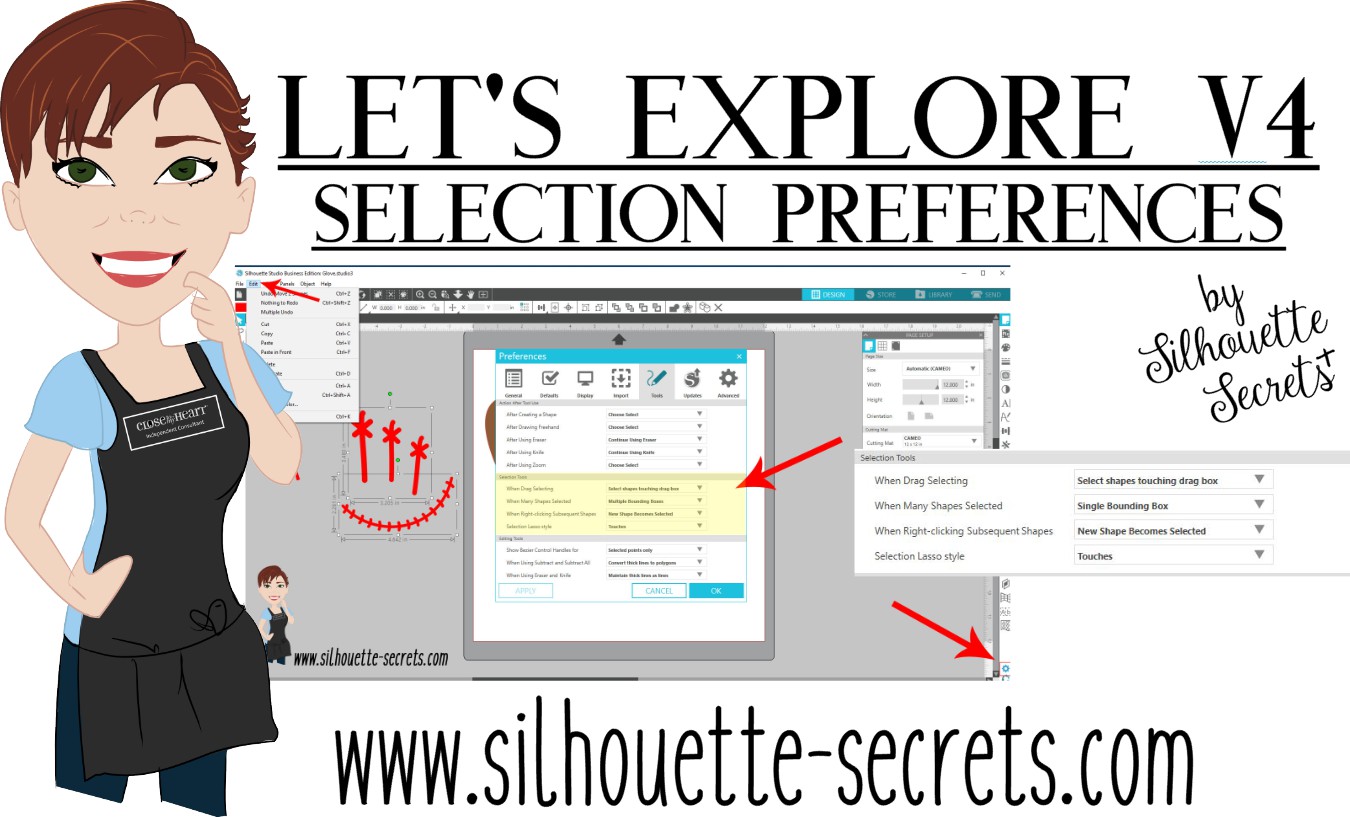
Let’s Explore v4 – Selection Preferences

Did you know that you can change your Selection Preferences in the Silhouette software?

To open the Preference Panel, click on the gear icon in the bottom right corner of the Design tab or click on the Edit menu in the top right corner and choose Preferences.

Selection Preferences copy

Selecting an Object

There are several ways to select objects on the Silhouette design mat.

1. Click on the object to select it.
To select multiple objects at the same time, hold down the Shift key and click on each object you want selected.

2. Click and hold the left mouse button, then drag a selection box around all the objects you want selected.

3. Use the Lasso tool (Designer Edition & v4.2 feature).
Click the Lasso Tool on the left side and lasso the objects you want to select.
Lasso Tool copy copy

Selection box

One way to know the object is selected is a selection box appears around the object.

Selection box copy

Measurements – on the left & bottom side of the object are the height & width of the object or selected designs as a whole.

Control Points – these points can be grabbed and adjust the scale of the design. Grabbing the corners of the design will scale it proportionally versus grabbing the middle control point which will only change one direction of the design.

Rotate – the green circle at the top of the design can be grabbed and the design can be rotated manually.

Preferences Panel Selections

Here are the different options under the Selection Tools in the Preferences Panel.

Selection Preferences1 copy

Selection Tools: When Drag Selecting
When Drag Selecting copy
When the left mouse button is held down and a drag box is drawn across the objects on the screen, you can choose to have them selected by the drag box only touching the object or being fully enclosed by the drag box.

Touching the object:
Drag Selection Touching copy

Enclosed:
Drag Selection Enclosed copy
Notice that the glove is not selected because the drag box has not fully enclosed it.

Selection Tools: When Many Shapes Selected
Many shapes copy

Single Bounding Box
Many Shapes Selected single selection box copy
Notice that there is one large selection box and the measurements are of all the objects selected as one.

Multiple Selection Boxes
If I want to size the glove and know exactly what size it is while still having all the objects selected, then choose Multiple Selection boxes as the option.
Many Shapes Selected multiple selection box copy
Now, each object has the individual selection boxes around it and each has the measurements of that object. So I could grab one of the control points and enlarge the design while knowing exactly how big the glove is. This way I could make a glove 8″ and still have all the other pieces sized at the same time to keep the proportions correct.

Selection Tools: When Right-clicking Subsequent Shapes

When Right clicking copy

New Shape becomes selected – the object that you right click on will be the selected object and the right click menu appears.
Right Click object selected copy

Original Shape Remains Selected – right clicking anywhere on the design mat, the original shape is still selected and the right click menu appears. So if the glove is the selected object, even if I right click on the stitches, the glove is still the selected object and the right click menu appears.
Right Click Original Shape selected copy
Notice how the menu appears on top of the stitches that I right clicked on, but the glove is still the selected object. This means that the features in the right click menu that are chosen will apply to the selected object – in this case, the glove.

Selection Tools: Selection Lasso style
Selection lasso tool copy.jpg

The Lasso Tool is a new v4.2 feature that is available with the Designer Edition upgrade or higher. It is found on the left tool bar in the Silhouette v4.2 software.
Lasso Tool copy copy

The options for the Lasso tool include: touches or enclosed. To use this tool, click on the Lasso tool on the left side and then hold down the left mouse button and move the mouse on the design mat. A dotted line will appear that shows where the Lasso is.

Touches – the lasso tool selects any object that it touches.
Lasso Tool touches copy

Enclosed – the lasso tool will only select the objects that are completely enclosed by the lasso dotted line.
Lasso Enclosed copy
The Lasso tool can be very helpful if you have a lot of pieces of a design on the screen and only want to select certain ones in an area.

For instance, on this Paw Print Mandala design, if I want to select only the pieces that make up the inner half circle of this shape, I would set the Lasso Tool to Touches and then draw the lasso around the inner circle.
Lasso Tool example copy

Instead of holding down the Shift key and then clicking on each piece, I can use the Lasso tool to select all those in the center very easily.
Lasso Tool Example selected copy

It is all a matter of personal preference and how you use the software.

What are my Selection preferences set at:
My Preferences copy
This is how I keep mine. I know I can change them at anytime by opening up the Preferences menu, choosing a new option, clicking Apply, and then OK.

I used it this week in sizing and cutting the glove for my Spring door decorations, as I wanted the glove to be close to real size.

I changed the Selection option of the When Many Shapes are Selected to Multiple Bounding Boxes & was able to see the size of the glove, instead of the size of all the objects selected together.

Many Shapes Selected multiple selection box copy

Spring flowers brings Solicitors and Softball in our neck of the woods.

IMG_20190429_144932346_HDR

Did you know the Preferences Panel existed? It is full of great choices and we will be exploring more of it in the future.

Designs used in this post are from the Silhouette Design Store:
Baseball Set by Studio Illustrado – Design #60502
Watering Can by Silhouette – Design #291326
No Soliciting by Jillibean Soup – Design #276179
Lori Whitlock Background Shapes – Design #42924
Baseball Hat by Snapdragon Snippets – Design #39347
Positionable Skeleton by Samantha Walker – Design #4828

Feel free to post your comments and questions below or on my Facebook group at Silhouette Secrets with EllyMae.

Enjoy!

SS_Signature copySS Logo snip it

**This post may contain affiliate links. What that means is that I may receive compensation if you purchase through the links I have provided. The price you pay for the product or service is not higher but I may get compensated for sharing.

Posted on 3 Comments

Let’s Explore v4 – Designing with shapes Part 2

Last week, in Part 1 of Designing with shapes, we used the tools in the Silhouette software to draw an egg shape. Now, we will use those same tools to draw decorations for that egg.
Check out the previous post HERE to see 2 different ways to draw an egg shape.

Draw Oval copy

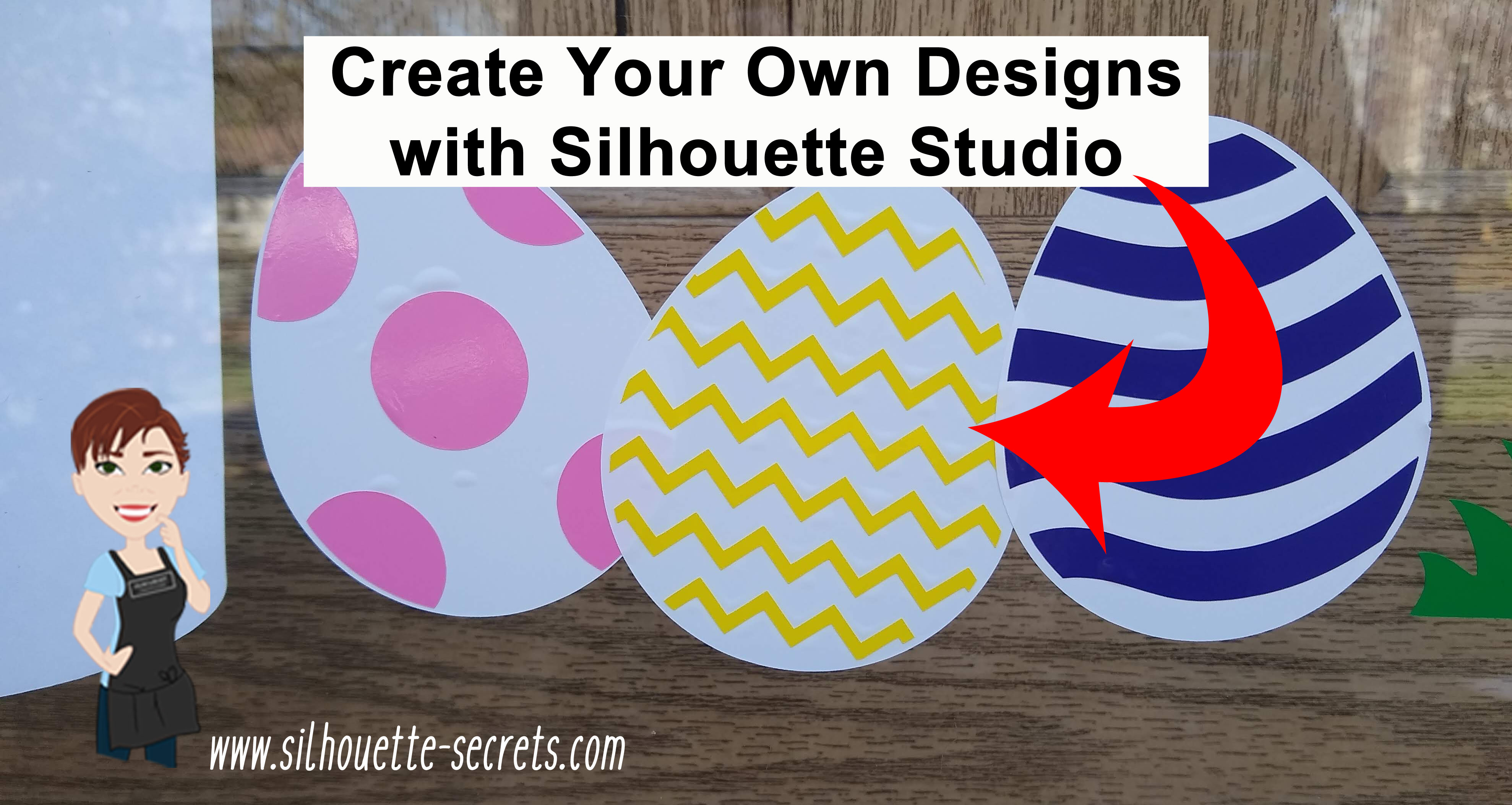
I had 3 eggs from the Easter Eggs by Echo Park – Design #187432, but I wanted another option. So I drew the zig-zag design inside the egg and created it to match the other eggs.

Easter Egg Design Store file copy

Just like in the last post, we will go through 2 ways to create this – with the Flexi-shapes  or by using the basic drawing tools.

First, let’s start by opening the egg file that we’ve created from Part 1.

In the original eggs, the design is offset internally from the outer edge of the egg.

Select the Egg design, click the Offset Panel, choose Internal Offset, and change the Distance to 0.80 inches.

Offset copy

The exact distance is a matter of personal preference, it will vary by the project you are creating.

We will be using the inner offset shape to create the design. Move the original egg shape off the design mat.

*Note: The line thickness of the designs has been increased to make it easier to see for the blog post.

Part 2 – Decorating the Egg 

Drawing with Flexi-shapes

Flexi-shapes are a newly released feature with the v4.2 software and are available if you have the Designer Edition Plus or Business Edition upgrade.
*check out the end of this post for a coupon code for the upgrades too!

The Flexi-shape option is in the toolbar on the left side of the v4.2 software.

Flexi shapes copy.jpg

Select the zig-zag option. Click on the design mat to start the shape and then move the mouse to where you want it to end and click again.

Adjust the Flexi-shape by using the slider bar in the middle to increase or decrease the number of  points in the zig-zag. Use the red dots to adjust the width of the the zig-zag.

Once you are happy with the design, right click and choose Convert to Path. This will change the design from an editable shape to a fixed shape.

Now, to fill the egg, either continue drawing more zig-zag patterns or copy and paste the zig-zag to fill the rest of the egg.

Zig Zag copied copy

My favorite way to copy and paste is to hold down the Alt button on the keyboard and click and drag a copy away.

To space the zig-zag pattern evenly, select all the zig-zags & use the Align option – vertical spacing that is found either in the QAT (Quick Access Toolbar) or under the Transform Panel – Tab 1.

Align option copy

Once the zig-zags are spaced how you like, right click and choose Group.

Now, make a copy of the entire design and move it off the design mat. This way there is an original to go back to if needed.

Select both the egg shape and the zig-zag shape, open the Modify Panel, choose Crop.

Modify Panel copy.jpg

Group all the pieces together before clicking off the design.

If there is a stray part of the design that you see, delete that before grouping.

Stray copy.jpg

Move the original egg shape back and then use the Center Align tool to center the zig-zag on top of the egg.

Center Egg copy

You have just created your own design to cut out of any colors you want using the Flexi-shape option.

Do you want to get the vinyl lined up exactly?
Check out this post – Layering Vinyl – to find out more on using layering marks.

Using the Drawing Tools to create the egg decoration

For those that do not have v4.2 or the Designer Edition Plus or Business Edition upgrade, let’s use the drawing tools and make the egg decoration.

Start with the inner offset egg shape.

On the Page Setup Panel – Tab 2, check the Show Grid & Snap to Grid options.

Choose the Draw Polygon tool on the left side. Click onto the design mat and start drawing the zig-zag shape. With the Snap to Grid option turned on, it will snap the points to each grid spacing as you move the Polygon tool.

Draw Polygon copy

Continue drawing the polygon until you get back to the starting point and then connect the dots.

Edit points copy

Once the polygon shape is closed, changes can be made by double clicking on the shape and bringing up the edit points. Each of these points can be selected and moved. To select multiple points at the same time, hold down the Shift key and click on the points or left click on the mouse and drag the cursor across the edit points to select any that are enclosed in the selection box.

Turn off the Snap to Grid & Show Grid options under the Page Setup Panel – Tab 2, if you choose to. I prefer to design without all the distraction of the lines, unless I need something to be exact and then I turn them on.

Make copies of the zig-zag pattern and fill the egg.

Draw - Align vertical copy

Select all of the zig-zag designs, then use the Vertical Spacing Alignment tool to space the design evenly vertically.

Group the zig-zag pattern together.
To group the design – select all the zig-zag designs, right click and choose Group or use Ctrl + G as the keyboard shortcut (Command+G = MAC).

Group copy

Now, make a copy of the entire design and move it off the design mat. It is always a good idea to have a copy of the original of any design or font to go back to, in case you have to start fresh.

Select both the egg shape and the zig-zag shape, open the Modify Panel, choose Crop.

Draw - Modify - crop copy

With all the pieces selected, right click and choose Group.

Move the Original egg shape back onto the Design mat and use the Align Center tool to line the egg with the pattern.

Draw - Align Center copy

And that is how I created my own chevron patterned egg for the door decor.

Eggs photo

While I could have just found another egg design to buy, drawing my own means it is my own creation. The Silhouette software is such a powerful graphics program, you are only limited by what you know how to do. The more you use these tools, the quicker it will become to create your own designs.

I would highly recommend upgrading the software to the full Business Edition upgrade to have the full power and all the features that the Silhouette software has to offer.
I think it is a great investment and I love not having to question if something is available to me.

Use my code SECRETS10 to save on the Software upgrades from Swing Design.

Software upgrades copy

*Prices in photo above are current as of 4-17-19

Want to know what features are unlocked with each upgrade?
Check out this comparison chart at Silhouette America HERE.

I love being able to customize and change things around. My kids love that I can create different scenes for them, birthday gifts, or almost any other thing they can imagine.
They are already thinking up ideas on how to decorate the skeleton after Easter.

Silhouette_Secrets_skeleton

What designs can you think to create today?

Feel free to post your comments and questions below or on my Facebook group at Silhouette Secrets with EllyMae.

Enjoy!

SS_Signature copySS Logo snip it

**This post may contain affiliate links. What that means is that I may receive compensation if you purchase through the links I have provided. The price you pay for the product or service is not higher but I may get compensated for sharing.

Posted on 3 Comments

Let’s Explore v4 – Designing with shapes

In October of 2018, I put up a vinyl skeleton on our front door. After Halloween, my kids & husband asked me to leave it up because they thought it would be fun to decorate all year long.
They tell me the ideas that they would like to accessorize the skeleton with and I cut and apply it from vinyl.

Silhouette_Secrets_skeleton

While I was cutting the eggs for the door, I had 3 shapes from the Silhouette Design Store but I wanted a fourth egg with a different design.

With the Silhouette software and the tools in it, you can create pretty much anything you can imagine.

Part 1 – Drawing the Egg

Let’s start with the egg shape.

Now, the easiest way would be to use the Flexi-shapes with the v4.2 software. But, we will discuss both ways.

Drawing with Flexi-shapes

Flexi-shapes are a newly released feature with the v4.2 software and are available if you have the Designer Edition Plus or Business Edition upgrade.

The Flexi-shape option is in the toolbar on the left side of the v4 software.

Flexi shapes copy

Check out all these shapes!

Flexi shapes 2 copy

Click on the oval shape and then click and drag the mouse on the design mat.

Egg flexishape copy

To adjust the shape after the original drawing, grab one of the white circles and move it. The shape will adjust as these points are moved.

Once the shape is to your liking, right click on it and choose Convert to Path.

Convert to Path copy

Now, that is one way to get an oval shape.

Using the Drawing Tools to create shapes

For those that do not have v4.2 or the Designer Edition Plus or Business Edition upgrade, let’s use the drawing tools and draw an egg shape.

Since the egg is wide at the bottom than at the top, I am going to use 2 shapes.
First, on the left toolbar, select the Draw Ellipse tool.

Draw Ellipse tool copy

Hold down the Shift key and drag the mouse to draw a perfect circle.

Choose the Draw Ellipse tool again and draw an oval.

Draw Oval copy

Select both the circle and the oval, using the Transform Panel – Align Tab to align the horizontal centers.

Align Oval copy

Then right click and choose Weld.

Weld copy

Next, double click on the welded shape and this will bring up the edit points. By deleting a few edit points we can change the shape of this design.

Delete Edit points copy

Alter the edit points to achieve the desired effect.

Delete Edit points2 copy.jpg

Still not the exact shape or as symmetrical as you’d like? Take it one step farther.

Alignment for knife copy

Open the Page Setup – Panel Grid Options.
Move the oval shape so that the top bounding box is centered on one of the grid lines.
Click on the Knife Tool on the left tool bar.
Make sure the Solid option is selected in the Quick Access Toolbar at the top left.

Knife tool copy

Hold down the Shift key and draw a line from the top to the bottom on the grid line with the bounding box.

Select the right side of the oval and delete it.

Open the Replicate Panel. Select the left side of the oval and choose Mirror Right.

Replicate Panel copy

Select the right side and press the left arrow key 1 time. This will move the design slightly so it is overlapping the left side of the oval.

Select both sides, right click and choose Weld.
The weld option can also be found under the Modify Panel on the right side too.

Weld2 copy

Now you have a symmetrical shape.

This can be done with all kinds of designs. You can create and draw anything in the software by breaking it down into basic shapes or using the Flexi-shapes.

How about a heart? Draw your own with 2 circles & a square and then edit using the same techniques listed above or use the Flexi-shape if available.

Heart shape copy

Or a flower?
Draw an oval and use the Advanced Replicate Panel to replicate and rotate the oval.
I chose 8 copies and 30 degrees for the rotation.

Flower copy

In the next blog post, we will take a look at how to create shapes to decorate the egg.
Part II – Decorating the Egg Shape

Eggs photo

What will you use the software to draw and experiment with today?

Feel free to post your comments and questions below or on my Facebook group at Silhouette Secrets with EllyMae.

Enjoy!

SS_Signature copySS Logo snip it

**This post may contain affiliate links. What that means is that I may receive compensation if you purchase through the links I have provided. The price you pay for the product or service is not higher but I may get compensated for sharing.