
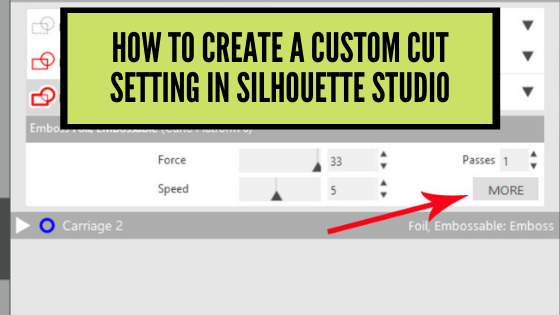
Just a quick post to let you know there is a new video tutorial up on my YouTube channel HERE
This one is showing how you can create custom cut settings in the Silhouette Studio software. I also share some tips on what the icons mean and how to export & import those settings as well for safe keeping.
Check it out HERE
In my video tutorial I reference cut settings, but you can use this same method for any action in the Silhouette software – sketch, cut, etch, etc.
I hope you have a fabulous day and get time to play in your Silhouette software soon!
Save this for future reference by pinning the image below.

Enjoy!

THANK YOU for your support! How can you help? Click HERE & buy a coffee.
Every little bit helps with the cost of running the site.
Or if you are looking for more in-depth, step-by-step classes, check out all of my online Silhouette classes on my Teachable site HERE.


**This post may contain affiliate links. What that means is that I may receive compensation if you purchase through the links I have provided. The price you pay for the product or service is not higher but I may get compensated for sharing.
Discover more from Silhouette Secrets-Swift Creek Customs
Subscribe to get the latest posts sent to your email.












[…] For more details, check out the video on Let’s Explore v4 – Custom Cut Settings found HERE. […]
[…] On the Send tab, select Score & Emboss paper to have the settings for embossing. If you want the emboss settings with any other material, you would need to create your own custom setting. […]
[…] cut settings for your material, you can create a custom setting in Silhouette for your materials. Find out more on Custom Cut Settings HERE. And if you do use custom cut settings, make sure you are backing those up or writing them down […]