Posted on Leave a comment

DIY Glass Etching with Etchall on a Floating Frame

Silhouette Secrets+ with EllyMae

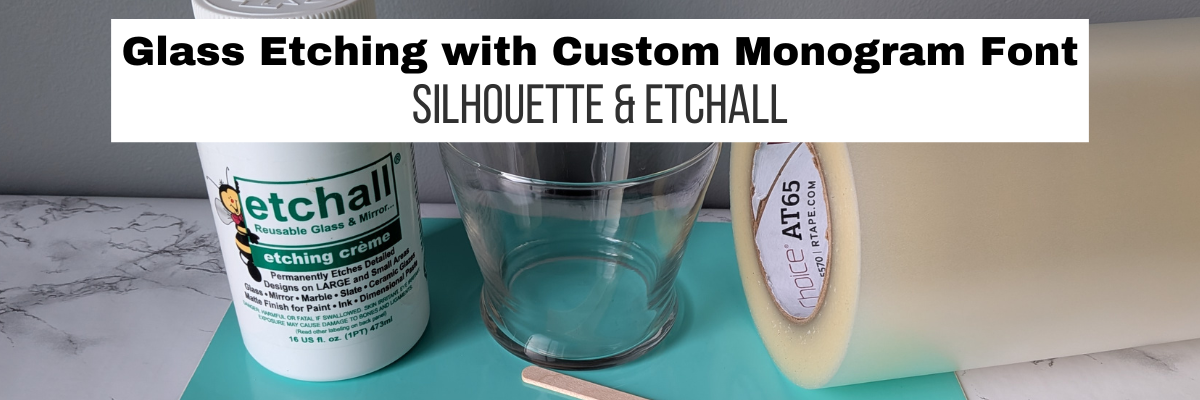
Looking for a creative way to personalize your home decor projects? Glass etching is a fun and easy technique that can completely transform simple glass surfaces into beautiful custom pieces! In this post, I’m sharing how I used Etchall etching creme on a floating glass floral frame to create a unique one-of-a-kind decor project perfect for displaying photos, pressed flowers, inspirational quotes, and more. The frosted etched finish adds an elegant touch while still allowing the beauty of the floating frame design to shine through. Whether you’re new to glass etching or looking for fresh DIY project ideas, this custom etched glass frame is a great way to create personalized decor with a professional look.

Affiliate links may be present in the following blog post and as an Amazon Associate, I earn from qualifying purchases.

A decorative glass frame with etched floral designs and the word 'beautiful' featuring three images of bright orange hibiscus flowers.

Steps to Etched Glass Projects

  1. Create a stencil for etching.
  2. Clean glass blank with alcohol and allow to dry.
  3. Apply stencil.
  4. Mask off edge of stencil to prevent bleeding
  5. Apply Etchall Etching Creme and allow to sit for 20 minutes.
  6. Remove any excess Etching Creme and place back in the bottle.
  7. Wipe off remaining excess with a paper towel and safely discard paper towel.
  8. Run water in the sink and rinse off decal thoroughly.
  9. Remove masking tape and adhesive vinyl under running water.
  10. Rinse blank thoroughly.
  11. Dry and Enjoy!

Glass Etching Supplies

Gather the supplies. I am using a floating frame which has 2 panels of glass and the photos will be sandwiched in between the glass panels.

A silhouette cutting machine positioned on a work surface, with a package of an 8x10 float photo frame and several sheets of colored paper in coral and light blue.

I cut the adhesive vinyl with the Silhouette Cameo and weeded out the design for my stencil. Then applied it to the backside of the glass frame. I also taped off the glass panel edges with painters tape to make it easier to handle and not cut myself.

A creative workspace featuring a peach-colored cardstock with floral designs and the word 'beautiful' in script, surrounded by crafting materials including etching cream, a scraper, and a wooden stick.

Since there were some small details and pieces, I did apply a bit of heat to set the adhesive vinyl and give it a good seal. Be very careful here and let the glass cool before handling.

A person using a heat gun on a coral-colored stencil that features floral designs and blank rectangular spaces on a fabric surface.

Then apply a generous layer of Etchall etching creme and let it sit for 20 minutes.

An overhead view of a crafting workspace featuring a pink base with a brown adhesive design, a bottle of etching cream, tools, and a heat gun.

Scrape off any excess Etchall creme and put it back in the bottle. I scrape as much as I can and then use a paper towel carefully to wipe away any excess. Then rinse with a generous amount of running water until the glass is clean. Remove the adhesive vinyl stencil and rinse again.

A hand holding a transparent acrylic sheet with floral design and the word 'beautiful' inscribed, positioned over a wooden surface.

I add some of the bright, colorful flower photos that I had taken from my front yard a few years ago and it really made it pop!

Decorative photo frame featuring three images of hibiscus flowers, with the word 'beautiful' etched below and floral designs on top.

Take this idea and make it your own! What supplies do you have in your craft stash that you could make a custom glass etched

Save this for future reference by pinning the image below.

A DIY glass etching floating frame featuring three images of vibrant flowers, with decorative floral patterns and the word 'beautiful' etched into the glass.

Enjoy !

THANK YOU for your support! How can you help? Click HERE & buy a coffee.
Every little bit helps with the cost of running the site.

Silhouette Classes

Never stop learning! Let me help you take the anxiety out of learning with Silhouette and get to creating faster! My Silhouette classes are heavily focused on software, so you can take the skills & techniques taught and apply them to many future projects!

Silhouette step-by-step Classes by Silhouette Secrets+

Silhouette Secrets+ with EllyMae
**This post may contain affiliate links. What that means is that I may receive compensation if you purchase through the links I have provided. The price you pay for the product or service is not higher, but I may get compensated for sharing.

Posted on Leave a comment

Silhouette Cameo Pro MK II Tips for Cutting Large and Long Vinyl Projects Successfully

Silhouette Secrets+ with EllyMae

The Silhouette Cameo Pro MK II opens up a whole new world of possibilities for makers who love working on a larger scale. From oversized decals and statement wall designs to banners, signage, and long-format heat transfer vinyl projects, this machine is built to handle it all—but success with long cuts comes down to more than just size. In this deep dive tutorial, you’ll discover practical, real-world techniques that help you get smoother feeds, more accurate alignment, and consistently clean cuts across extended lengths of vinyl.

Inside this post, you’ll find a quick breakdown of the key strategies covered in the full video, along with actionable tips you can start using right away. These insights are designed to help reduce common issues like material shifting, tracking errors, and uneven cutting—so your larger projects feel just as manageable as smaller ones. Whether you’re brand new to the Cameo Pro MK II or looking to refine your workflow, this guide will help you cut with more confidence and control on every long-format project.

Affiliate links may be present in the following blog post and as an Amazon Associate, I earn from qualifying purchases.

Watch the full deep dive video on the Silhouette Secrets+ YouTube channel HERE and see a quick nutshell of tips below.

EllyMae with Silhouette Secrets+ showing a Silhouette Cameo Pro MK II machine in a crafting workspace, featuring tips for large and long vinyl cuts.

Tips for Success in a Nutshell – Cameo Pro MK II

Do you really need to cut 10 feet of material at one time?

If the design is one long design, then maybe yes. But, if it’s a bunch of designs, cutting it in smaller chunks can be more successful and less wasted materials and time in the long run.

Make sure the leading edge of the material is completely straight.

Set yourself up for success from the start. If the leading edge is crooked or uneven, then it will have a greater chance of failure because it will be more difficult to load straight.

Here is a look at my vinyl roll before I started. High rate of failure trying to use an uneven edge like this.

A Silhouette Cameo Pro MK II cutting machine with a large rolling blade and control panel, placed on a turquoise work surface.

    I have a large self healing sewing mat and use a rotary cutter with an acrylic ruler to straighten out my vinyl edge.

    Flat lay of a crafting workspace featuring a roll of black vinyl, a cutting mat with grid lines, a rotary cutter, and various crafting supplies in the background.

    Silhouette Cameo Pro models do not like bulk rolls.

    Bulk rolls can be very heavy and not easy to pull the vinyl off of.

    Silhouette Roll Feeder Setup Properly

    Make sure the roll is properly set up in the roll feeder on the front of the machine and is secure and moving freely.

    Adjust the roll feeder screws to accommodate different roll thicknesses, but the vinyl should always sit on top of the roller of the roll feeder and roll freely. The roll should not be down in the roll feeder or resting on the table top inside the roll feeder.

    The photo below shows improper setup of the roll feeder for this size of a roll. It is sitting down in the roll feeder and not on top of the rollers of the feeder.

    A close-up view of a Silhouette Cameo Pro MK II machine with a red roll of vinyl installed on a teal surface, accompanied by a pair of scissors.

    Adjust the screws and lengthen the roller support as needed to fully support the size roll being used.

    Close-up of a Silhouette Cameo Pro MK II machine with a red roll of material beneath it, highlighting the settings and adjustments for material feeding.

    For best results, always use the roll feeder stability bar. If the material roll hits the stability bar, then the roll is too big and can have issues with feeding properly.

    Fully Support Vinyl the Full Length in front and behind the machine.

    Vinyl that is hanging off a table is working against gravity to pull up and into the machine.

    Load Material Properly

    The line on the far left of the Silhouette Cameo Pro MK II is for use with a 24″ cutting mat. The line on the right side that the arrow points to is for all other widths of materials or mats.

    Close-up view of a Silhouette Cameo Pro MK II machine showing the load lines on the machine.

    The left edge of the material should be next to the proper load line and the left roller completely on the material.

    Close-up view of a Silhouette Cameo Pro MK II machine showing the proper loading of 24" material.

    The right roller should be securely on the right edge of the material and in a location it can be locked in place.

    Close-up view of the right side of a Silhouette Cameo Pro MK II with material loaded.

    Listen to Your Machine When Loading Materials

    You will be able to hear it more than see it if the material catches on something as it is loading. There are multiple areas where materials can get hung up in the machine such as the bottom roller bar, the channel in front of the cutting strip, and the channel on the cross cutter on the backside of the machine.

    Materials catching can affect the feed and if the vinyl is loaded straight. Crooked vinyl from the start will only get worse the greater distance it goes into the machine.

    Settings that Affect the Feed in Silhouette Studio

    On the Send tab in the Silhouette software, click on the gear icon in the bottom right corner. If you are having issues with feed and cutting specific designs, try adjusting the Cut Order Sorting settings to see if it helps.

    Screenshot of Silhouette Studio graphic design software displaying the cut setup on the Send tab.

    Feed the Vinyl Through the Machine for the Full Length

    This can help identify if there are going to be any issues before you even put the blade in to cut. It can save you time and money in materials by doing this.

    If you continue to have issues with a material catching in the machine, feed in 4″+ to advance the leading edge of the material past all of the areas it may be catching on. 4″ of material can save you time and material in the long run. Use that 4″ for scrap later for other projects.

    Test Cut, Test Cut, Test Cut!!!

    Cut settings that are too deep can affect the feed and whether the cuts will connect and complete. It will save a lot of materials, time, and money

    Get Extra Vinyl

    It’s always a good idea to have extra vinyl on hand for any mistakes or errors, especially if working on a deadline.

    I share additional tips in the Silhouette Cameo Pro Unboxing as well.

    Save this for future reference by pinning the image below.

    EllyMae with Silhouette Secrets+ demonstrating the Silhouette Cameo Pro MK II cutting machine with a roll of vinyl at her crafting workstation.

    Enjoy !

    THANK YOU for your support! How can you help? Click HERE & buy a coffee.
    Every little bit helps with the cost of running the site.

    Silhouette Classes

    Never stop learning! Let me help you take the anxiety out of learning with Silhouette and get to creating faster! My Silhouette classes are heavily focused on software, so you can take the skills & techniques taught and apply them to many future projects!

    Silhouette step-by-step Classes by Silhouette Secrets+

    Silhouette Secrets+ with EllyMae
    **This post may contain affiliate links. What that means is that I may receive compensation if you purchase through the links I have provided. The price you pay for the product or service is not higher, but I may get compensated for sharing.

    Posted on 3 Comments

    How to Make a Kentucky Derby Hat at Home | Easy DIY Derby Fascinator

    Silhouette Secrets+ with EllyMae

    If you would have asked me last week if I was going to be making a Kentucky Derby hat, I would have said that it wasn’t even on my radar. And then we were given a challenge at work and my brain just started working on the idea. And pretty soon I had a summer beach hat in my shopping cart, and the idea was coming together.

    First, before I go farther into how I made this, please know this hat would be for indoor use. Since it’s made from paper the designs would fall apart if it were rained on or splashed with water.

    Kentucky Derby hats are unique and do not have to be identical to each other. This is one of those projects that you can really add your own personal details to and just have fun!

    Affiliate links may be present in the following blog post and as an Amazon Associate, I earn from qualifying purchases.

    Next up was to start gathering the rest of the supplies.

    I’ve had this large flower hanging around in my studio since I was working with the 3-D Flower Flamingo Design by Tanya Batrak in June of 2024. This file was one of the Crafting Creativity collaborations that I do each month with a new designer. Find more details on the projects created with that file HERE.

    And I had some pink tulle from an adult fairy tutu I made about 16 years ago. Yes, that’s right, I keep supplies around a long time just in case. Except I purged the little flamingo flowers a couple weeks ago when I was cleaning. It never fails that when I let something go, I will want to use it the next week. I grabbed some ribbon and had the start to my supplies.

    A crafting workspace featuring a large straw hat adorned with a pink tulle decoration, paper flowers, and various crafting supplies including scissors and decorative elements.

    I didn’t want to buy any additional supplies even though I did look at some feathers, but I ended up cutting a feather design and then painting it with a metallic paint by DecoArts.

    A crafting workspace featuring white paper feather cutouts on a grid cutting mat, surrounded by various art supplies like glue, paint, and tools.

    I took the black ribbon off of the hat and then added a green ribbon and hot glued it in place to secure it on the hat.

    Flat lay of crafting materials including a large straw hat with a teal ribbon, white decorative feathers, pink tulle, and a large pink paper flower on a wooden table cluttered with various craft supplies.

    Next, I cut some lengths of the pink tulle and bunched it together and secured it with zip ties. Then glued it in place on top of the green ribbon.

    A crafting workspace featuring a large yellow straw hat adorned with pink tulle fabric and decorative elements like feathers, surrounded by various crafting supplies.

    Once the glue was dry on the tulle, I added more hot glue and secured the large flower. Then let that cool completely so it was set.

    A wide-brimmed straw hat decorated with a large pink paper flower and pink tulle, placed on a crafting surface with various crafting supplies in the background.

    Then I just started adding the feathers, securing them with hot glue and letting it set up before moving it around.

    A handcrafted straw hat adorned with a large pink paper flower and white feather-like accents, placed on a crafting workspace with various supplies.

    I thought about adding more. I cut some strips of papers in 2 shades of pink and white and then curled them, but when I started adding them to the hat, it didn’t feel right. So, for now, this project is finished.

    A woman smiling while wearing a large, decorative straw hat adorned with a pink flower and feathers, paired with a pearl necklace.

    Now, I will admit that I’m not a “hat” person typically. However, I put this on and looked in the mirror and I love the hat. I think it’s because it’s over-the-top and there really isn’t a wrong way. Kentucky Derby hats are big & bold.

    A woman wearing a large decorative hat with a pink flower and tulle, paired with a black sleeveless dress and a pearl necklace, standing outdoors with greenery in the background.

    Maybe someday I’ll make it to the real Kentucky Derby, but for now, this hat will be on display at work for the 152nd Kentucky Derby Day.

    A woman in a large, decorative hat with pink flowers and tulle stands on a balcony, wearing a black dress with a geometric pattern. She has a necklace and visible tattoos, with green trees in the background.

    It was fun to make, used up some of my previous projects sitting around, and went together very quickly. And I saved the black ribbon exactly how it was so if I can also turn it back into a summer hat to use pool side too when Derby Day is over.

    Supplies for DIY Derby Hat:

    Save this for future reference by pinning the image below.

    A woman wearing a large, decorated DIY derby hat featuring a pink flower and tulle, dressed in a black patterned outfit and pearls, standing outdoors with green trees in the background.

    Enjoy !

    THANK YOU for your support! How can you help? Click HERE & buy a coffee.
    Every little bit helps with the cost of running the site.

    Silhouette Classes

    Never stop learning! Let me help you take the anxiety out of learning with Silhouette and get to creating faster! My Silhouette classes are heavily focused on software, so you can take the skills & techniques taught and apply them to many future projects!

    Silhouette step-by-step Classes by Silhouette Secrets+

    Silhouette Secrets+ with EllyMae
    **This post may contain affiliate links. What that means is that I may receive compensation if you purchase through the links I have provided. The price you pay for the product or service is not higher, but I may get compensated for sharing.

    Posted on Leave a comment

    4 Confusing Silhouette Studio Tools that Surprise Users Most

    Silhouette Secrets+ with EllyMae

    I have been troubleshooting with Silhouette users since 2016, and we have answered a lot of questions during the years. One of the most common questions is “What is this?” and “Why did it just appear?” In this blog post, I’m sharing more details on 4 of the tools that are often confused with each other, how they get turned on, how to turn them off, and where to find more information on each of the tools. These 4 tools can be useful when designing in Silhouette Studio, but not all users utilize them or will use them all of the time. That is one of the great things about Silhouette is the choice of having the options to use a tool or feature. This is also one of those cases where if a user doesn’t know what a tool does specifically, they may never know that it can actually be really useful to them in their workflow.

    Affiliate links may be present in the following blog post and as an Amazon Associate, I earn from qualifying purchases.

    The 4 tools in Silhouette Studio that are often confused are:

    • Crosshairs
    • Center of Rotation
    • Guides
    • Text to Path Control Point

    Watch the YouTube video on this topic on the Silhouette Secrets+ YouTube channel HERE and scroll down below to see additional information on each as well.

    Crosshairs in Silhouette Studio

    Crosshairs usually appear for 2 reasons.

    1. Pressing the letter ‘H’ on the keyboard toggles it on and off.
    2. A file is opened that the designer saved it with crosshairs on.

    Typically we see crosshairs appear because a user thinks that they have activated Text Mode and it did not take. So when the letter ‘H’ is pressed on the keyboard, it toggles it on.

    Crosshairs can be turned on and off 3 ways:

    1. Press the letter ‘H’ key. If they don’t turn on and off, click on the design mat and then press ‘H’ again.
    2. Open the Page Setup Panel, click on Tab 2, and click the Crosshairs button.
    3. In the top left menu, under View, select Turn on Crosshairs.

    Crosshairs are a Designer Edition upgrade feature and those on Basic will not see this available.

    Find additional details on Crosshairs in Silhouette in this tutorial HERE.

    Center of Rotation in Silhouette Studio

    Center of Rotation looks like a little circle with crosshairs in the middle of it and appears in the center of a design typically.

    This tool typically appears for 2 reasons also:

    1. It can be toggled on and off by pressing the letter ‘O’ key with a design selected.
    2. A design was saved with Center of Rotation on and was opened.

    Again, if a user thinks they are in text mode and a design was selected, if the letter ‘O’ key is pressed it will toggle it on and off.

    Center of Rotation is a Designer Edition feature and those using Basic will not have this option.

    Center of Rotation can be activated or deactivated in 2 ways:

    1. Press the letter ‘O’ key with an object selected.
    2. Under Preferences, in the Defaults tab, Center of Rotation can be toggled on and off.

    See additional information on the Center of Rotation in Silhouette Studio HERE.

    Preferences can be found in 2 places in Silhouette:

    1. On the Design tab, gear icon in the bottom right corner.
    2. Top left menu, under Edit, then Preferences.

    Additional information on Preferences can be found in these tutorials:

    Guides in Silhouette Studio

    Guides can be pulled from the rulers on the top or right side of Silhouette Studio. Guides are a Designer Edition upgrade feature along with Rulers.

    These can be accidentally activated if clicking the mouse on top of the rulers or click & pull from the ruler area onto the design mat.

    Guides can be deleted by clicking on one to activate it, it will turn dark blue, then press delete. Light blue color means it is not the active Guide selected.

    Guide settings can be found under the Page Setup Panel, under Tab 2. Snap to Guides is by default always active, but unless you have a Guide placed on the file, you won’t see it work. Guides can be toggled on and off under this tab too.

    Guides can also be found in the top left menu under View, then select the option desired.

    Additional details on Guides in Silhouette can be found HERE.

    Text to Path Control Point in Silhouette Studio

    This control point appears any time there is editable text activated.

    This is the control handle that is used to drag text to a path and have it snap to the path. This feature is always available on editable text and there is no way to turn it off.

    Find more details on Text to Path HERE.

    The April 2026 member exclusive tutorial for the Creative Community is an in-depth tutorial on Text to Path with advanced techniques too! Check out more details on the Creative Community HERE.

    *Creative Community members watch for a cheat sheet on these tools coming soon to April’s forum!

    Graphic showcasing the interface of Silhouette Studio with the title '4 Confusing Tools in Silhouette Studio', highlighting design tools and features.

    Save this for future reference by pinning the image below.

    Enjoy !

    THANK YOU for your support! How can you help? Click HERE & buy a coffee.
    Every little bit helps with the cost of running the site.

    Silhouette Classes

    Never stop learning! Let me help you take the anxiety out of learning with Silhouette and get to creating faster! My Silhouette classes are heavily focused on software, so you can take the skills & techniques taught and apply them to many future projects!

    Silhouette step-by-step Classes by Silhouette Secrets+

    Silhouette Secrets+ with EllyMae
    **This post may contain affiliate links. What that means is that I may receive compensation if you purchase through the links I have provided. The price you pay for the product or service is not higher, but I may get compensated for sharing.

    Posted on Leave a comment

    Unboxing the Silhouette Cameo Pro MK II & Tips for Success

    Silhouette Secrets+ with EllyMae

    The Silhouette Cameo Pro MK II is officially in my studio and I’ve been testing it. I am one of the original testers for the Cameo Pro 4 and am happy to share that a lot of the information will carry over to the Silhouette Cameo Pro MK II model as well. There are a few updates to the Cameo Pro MK II, but the tips I’ve provided on the previous model can help you be successful as well. In this blog post you’ll find the link to the Silhouette Cameo Pro MK II unboxing video as well as still shots below and some additional tips to help users be successful and troubleshoot the Cameo Pro MK II.

    Find additional resources on the Cameo Pro HERE.

    EllyMae at Silhouette Secrets+ with a Silhouette Cameo Pro MK II cutting machine box, surrounded by crafting supplies and colorful storage containers.

    Affiliate links may be present in the following blog post and as an Amazon Associate, I earn from qualifying purchases.

    Watch the unboxing video for the Silhouette Cameo Pro MK II on the Silhouette Secrets+ YouTube channel HERE.

    EllyMae with Silhouette Secrets+ unboxing the Silhouette Cameo Pro MK II machine, showcasing the product in a well-organized craft space with various supplies in the background.

    Find the Silhouette Cameo Pro MK II at Silhouette America HERE.

    Silhouette Cameo Pro MK II Machine Photos and Tips

    While unboxing any new machine, make sure to inspect it carefully for any packing materials that secures the device during shipping. It can be hiding around some corners as shown in the photo below. Before plugging the power cord into the machine, make sure to carefully slide the housing to the right side and remove all the packing materials in and around where the housing was located during shipping.

    The Silhouette Cameo Pro MK II machine open with the packing materials still in place. Remove all packing materials before use.

    Silhouette machines are shipped worldwide from the manufacturer, so the machine is not set up properly for first use when the box is opened. After removing the packing material, unlock the right roller and slide the roller mechanism to the right side to lock into the correct location according to whether you are using a cutting mat or the width of the vinyl.

    There are 5 auxiliary rollers in between the left and right rollers. These rollers can be removed. If removed, make sure to store them in a safe location as they currently do not have replacements of this same style. These auxiliary rollers do not provide any firm pressure like the left and right rollers and do not feed the material into the machine. They all have a spring located on the roller that helps to keep materials from bubbling up in the middle.

    The Silhouette Cameo Pro MK II machine unboxed and ready for use.

    Here is a closer look at the auxiliary rollers on the Silhouette Cameo Pro MK II.

    Close-up view of the Silhouette Cameo Pro MK II cutting machine's interior, showcasing rollers and tracks, with a black base on a wooden surface.

    The Silhouette Cameo Pro MK II has additional locations that the right roller can be locked in place compared to the previous Cameo 4 Pro model. On the backside of the roller bar there are little sections with notches where the right roller will settle in and can be locked in place.

    The roller bar has been redesigned on this model, which allows the rollers to be visible and grip the materials better than the previous Cameo 4 Pro.

    In a nutshell, the Silhouette Cameo Pro MK II is a Cameo 4 Pro body with the guts and updates of the Cameo 5 model. This includes a redesigned chassis and the new roller bar and roller system. On the older Cameo 4 Pro model, the rollers were located underneath the roller bar and difficult to see. The rollers are approximately 1/4″ in width on all Silhouette machines. On the older Cameo 4 Pro model, the rollers had very, very specific locations that they could be locked into place and even 1/16″ to the left or right could make a big difference in how the material feed through the machine.

    Here is a look at everything that is included in the Silhouette Cameo Pro MK II box. There is also a 24″ Silhouette cutting mat in the box, that is out of the bounds of this photo.

    A Silhouette Cameo Pro MK II  cutting machine displayed on a wooden table with various components, including a power adapter and additional accessories.

    Inside the Silhouette Cameo Pro MK II box you should find: a 24″ Silhouette cutting mat, 2-part power cord, plastic bag with the Silhouette Type B Autoblade, a Silhouette tool, sketch pen adapter, and the parts for the roll feeder and mat support. There are also several pamphlets included in the box too.

    The photo below shows a look at the front of the Silhouette Cameo Pro MK II with the mat support and roll feeder setup. For additional details on installing these parts check out the unboxing video on the Silhouette Secrets+ YouTube channel HERE.

    Close-up view of the Silhouette Cameo Pro MK II cutting machine on a wooden surface, showing the open mechanism with rollers and housing.

    Tips for Success with the Silhouette Cameo Pro MK II

    Make sure that the leading edge of the material is completely straight. If it is not, it can be difficult to load the vinyl correctly and the material can skew as it is being cut and fed through. The photo below is an example of how much my 24″ roll of adhesive vinyl was off from straight. Once I cut the leading edge it was easier to load in the machine and did not bunch up.

    A black cutting mat with a transparent ruler aligned on top, placed on a wooden table, surrounded by crafting tools including a rotary cutter and other supplies.

    Once the material is inside the machine, use the arrows on the touchscreen to feed the vinyl all through the machine the length of the cut to see how it will feed and if it will stay straight. On the touchscreen, after the vinyl is already loaded the down arrow on the 4 directional arrows is the one that will advance the vinyl through the machine. The arrows on the touchscreen move the actual blade housing left and right as well as down the material and back.

    The photo below shows a close up look at the backside of the machine and the crosscutter. If the vinyl is advanced to the backside, it can then be cut off in a straight line. Flip the levers down on both sides of the crosscutter and then slide the blade across to the other side to slice the material.

    Make sure to flip the levers back up after the cut is complete and to move the crosscutting blade to the very edge of the crosscutter. If these steps are not taken, it can interfere with the proper feeding of the vinyl on the next cut as it can block the material from advancing through the machine.

    Close-up view of the Silhouette CAMEO Pro MK II cutting machine with focus on the crosscutter on the backside of the machine.

    The crosscutter is a removable and replaceable part should the blade become dull. If the crosscutter is not installed correctly and secure, you may get an error in the Silhouette software. The photo below shows a look at the crosscutter when removed from the machine.

    A person holding the crosscutter on a Silhouette Cameo Pro MK II machine, with a wooden surface in the background.

    If the leading edge of the material is curled down, it can catch on the channel of the crosscutter. This can affect the feed and results of the cuts being made. This is often something you can hear first before you see the results of the miscuts or misfeed. Any catching inside the machine can affect the feed and cause miscuts on the design.

    Straighten out the edge of the material so it’s not curled down to prevent this. However, if you do use the crosscutter to slice the vinyl after a cut is complete, it can create that curled edge.

    Close-up the Silhouette crosscutter for the Silhouette Cameo Pro MK II, with an arrow pointing downwards to indicate a specific part.

    Make sure to zoom in on the design being used on the Send tab and check the design before you send a large design to cut. I did not before I made my first cuts and ended up with 24″ of wasted vinyl. This was a design that I purchased and thought it would be a quick cut as my first test and that’s not how it ended up. Several parts of this design were not welded correctly. If you zoom in really close on the Send tab prior to cutting, you can hopefully catch something like this before it happens.

    A close-up of a decorative sign featuring the phrase 'LIFE IS SHORT LICK THE SPOON' with decorative lettering.

    I ended up choosing a different design – I’d Smoke That – by Unique Designs by Monica and now have a new sign for our kitchen.

    EllyMae with Silhouette Secrets+ holding a completed sign cut with the Silhouette Cameo Pro MK II.

    If you do run into issues, start first with looking at the setup and watching the machine. That’s how I find a lot of the issues we troubleshoot is by looking at photos and video of how the machine operates. And I listen to the machine. As I mentioned above, I can often hear something is wrong before I see what the issue is.

    Find the Silhouette Cameo Pro MK II at Silhouette America and check out the unboxing video on the Silhouette Secrets+ YouTube channel HERE for additional information.

    Save this for future reference by pinning the image below.

    A person smiling while unboxing the Silhouette Cameo Pro MK II on a workspace, surrounded by crafting materials.

    Enjoy !

    THANK YOU for your support! How can you help? Click HERE & buy a coffee.
    Every little bit helps with the cost of running the site.

    Silhouette Classes

    Never stop learning! Let me help you take the anxiety out of learning with Silhouette and get to creating faster! My Silhouette classes are heavily focused on software, so you can take the skills & techniques taught and apply them to many future projects!

    Silhouette step-by-step Classes by Silhouette Secrets+

    Silhouette Secrets+ with EllyMae
    **This post may contain affiliate links. What that means is that I may receive compensation if you purchase through the links I have provided. The price you pay for the product or service is not higher, but I may get compensated for sharing.

    Posted on 2 Comments

    Brilliant Living Digital Kit by Nitwit Collections – Crafting Creativity

    Silhouette Secrets+ with EllyMae

    A digital design preview featuring a card cluster with floral elements, butterflies, and a colorful plaid pattern, promoting 'Brilliant Living' by Nitwit Collections.

    A handcrafted greeting card featuring colorful floral designs, a purple butterfly, and the text 'brightest wishes for you' from the Brilliant Living digital kit. The card is placed on a wooden surface in front of a cutting machine.

    Here is a look at the print and cut page printed out ready to cut around each of the layers.

    Crafting project featuring a colorful card design with floral elements, a butterfly, and text that reads 'brightest wishes'. The card design is on a mint green cutting mat placed on a wooden surface.

    There are so many options with a digital kit and you can mix and match, add more layers, decrease the layers, or only print one layer for a project as well.

    If you are mailing the card, you may need to keep the thickness of the layers in mind when creating it.

    So for the next cards, I stacked elements together and then was able to print 2 card fronts on one sheet of paper. Each of these designs have different elements that can be layered together.

    A printed design featuring two cards with the message 'brightest wishes,' surrounded by colorful flowers, butterflies, and ladybugs, set against a white background.

    Here is a look at the final results from this printed page.

    Two greeting cards featuring colorful butterflies and flowers from the Brilliant Living Digital Kit, with the text 'brightest wishes for you' prominently displayed.

    The card on the left side only has the “for you” and the “ladybug layered”, while the card on the right has the “wishes, for you, and the ladybug layered”.

    Two colorful ladybug cutouts with red bodies and black spots, placed on a grid background.

    There were a couple intricate areas that may not cut well for all users. I was able to get these ladybugs with their antennae’s to cut, but had to be extremely careful removing them off the cutting mat.
    However the butterfly antennae’s were just too delicate, which is another reason you may want to add that layer directly to the card background instead of trying to add it as a 3-D layer.
    But you never know until you try. The Silhouette machine might amaze you in the cut it can get.

    Three greeting cards featuring colorful floral designs, butterflies, and the text 'brightest wishes for you' on a wooden surface. 
Created with the Brilliant Living Digital Kit

    Watch how I created these layered card designs with Silhouette in this video on the Silhouette Secrets+ YouTube channel – Layered Card Design with Brilliant Living Digital Kit – Step-by-step Silhouette tutorial

    Video tutorial HERE

    Being able to create your own designs means that you can make them any size you want and create as many as you need in the moment. I started with the idea to create only 2 tags, but it ended up being 4 complete designs.

    A crafting workspace featuring a cutting machine, several colorful tags with floral designs and text, a roll of tape, scissors, and decorative embellishments on a wooden surface.
Tags created with the Brilliant Living Digital Kit

    I used 2 sheets of paper to print and created 1 layered tag and one simple print and cut tag on each sheet.

    A colorful greeting card design featuring floral elements and the text 'wishes' displayed on a crafting machine workspace.

    Here is a look at one of the layered tags using the foam tape to pop up the dimension.

    The great part about creating your own tags is there are no rules. Flower hangs off the edge, no problem! Want the design to be flush on the edges – no problem! Or mix and match. And using a digital kit allows you to mock it up first in the Silhouette software before you even cut the elements out.

    Four decorative tags with floral designs and the word 'wishes' displayed on a wooden surface, alongside a cutting machine, promoting a step-by-step tutorial in Silhouette Studio.

    Video tutorial HERE

    I used the same techniques I shared in the step-by-step video tutorial – Layered Card Design on the Silhouette Secrets+ YouTube channel and created a little bit different layout for two 5″ x 7″ cards.

    Two greeting cards displayed on a wooden surface, featuring floral designs, butterflies, and the word 'wishes'. The left card has a striped border while the right card showcases a different layout with a colorful pattern.
Created with the Brilliant Living Digital Kit

    Here is a look at the card designs in Silhouette Studio.

    A digital design featuring two greeting card layouts with floral patterns, featuring butterflies, ladybugs, and the word 'wishes'. The left card has a white background with pink and red flowers, while the right card displays a blue background with a plaid pattern.

    And then I simply chose letter size paper and rotated the designs 90 degrees so I could print 2 on a page.

    A screenshot of Silhouette Studio software displaying the design for a card featuring floral motifs, butterflies, and the word 'wishes'. The design area shows two card layouts and various setup options on the right.

    A few slices with my paper trimmer and my card front were ready to attach to a base.

    Quick and easy cards in minutes with the Brilliant Living Knick Knack kit by Nitwit Collections.

    Digital designs worked perfectly for sublimation projects! I created 4 sublimation project designs on 1 sheet of sublimation paper.

    A collection of crafting materials including a decorative metal panel, multiple colorful greeting cards featuring flowers and butterflies, and bookmarks, arranged on a wooden table next to a cutting machine.
Created with the Brilliant Living Digital Kit

    I made a decorative panel, cover for a compact mirror case, a bookmark, and a coaster.

    The colors are so bright and brilliant with these projects, except the center of the coaster turned out a bit washed out. This can happen with hardboard at times and moisture affecting the outcome.

    A colorful decorative panel featuring floral patterns, a purple butterfly, and bold text that reads 'brightest wishes' alongside an arrow and additional decorative elements.
Created with the Brilliant Living Digital Kit

    Watch how I created these sublimation projects with Silhouette and sublimation blanks on the Silhouette Secrets+ YouTube channel HERE.

    An image showcasing a decorative card with floral and butterfly designs, featuring the text 'brightest wishes' and other colorful embellishments, alongside crafting materials on a wooden table.

    Video tutorial HERE

    Supplies Used:

    Make sure to follow Nitwit Collections for more amazing designs:

    Sign up for the Silhouette Secrets+ newsletter HERE so you don’t miss out on future collaborations.

    A flat lay of various sublimation projects including a decorative coaster, a compact mirror, tags, and a greeting card featuring colorful floral designs and the text 'brightest wishes'.

    Silhouette step-by-step Classes by Silhouette Secrets+

    Silhouette Secrets+ with EllyMae
    **This post may contain affiliate links. What that means is that I may receive compensation if you purchase through the links I have provided. The price you pay for the product or service is not higher but I may get compensated for sharing.

    Posted on Leave a comment

    Crafting Creativity: 1 Bunny File, 5 Creative Projects with Studio Ilustrado

    Silhouette Secrets+ with EllyMae

    A cute paper craft scene featuring a gray bunny in a hot air balloon shaped like a carrot, surrounded by colorful flowers and pastel eggs on a checkered tablecloth.

    Collage of spring-themed crafts featuring bunny and carrot designs, including greeting cards, decorative items, and crafting tools.

    A colorful paper craft depicting a bunny in a hot air balloon shaped like a carrot, with a basket and flowers in a grassy landscape.

    I had the Silhouette Curio 2 out from testing with the Silhouette Leather Carving Knife, so it was the machine I used to cut this card. Almost all the pieces were cut out using scraps from my stash. I love being able to use my scraps!

    Look at these tiny details!

    A hand holding a gray paper cutout of a smiling bunny with long ears.

    To be honest, I wasn’t sure if it would cut well with the electrostatic mat on the Curio 2, but it did! Especially using a scrap piece of cardstock with the Silhouette Electrostatic Mat.

    Sometimes we all just need a little bit of help and taping down the cardstock scraps on the Electrostatic Mat can be that help. It just added a little bit more security to hold my scraps in place and get a successful cut with the Electrostatic Mat. I love this new technology that Silhouette has. While it does not work with all materials, it has saved me hours of time cutting cardstock.

    Close-up of a cutting machine with two tool holders, one equipped with a blade and the other empty, and a piece of gray material on the cutting mat.

    While I used the Silhouette Curio 2 to cut the projects, any Silhouette machine could be used to create these projects.

    Watch a bit of the behind-the-scenes on creating this project in this video – Creative Projects with Studio Ilustrado Designs – Bunny Carrot Balloon Card HERE

    A colorful, three-dimensional craft display featuring a bunny in a basket, surrounded by green grass and flowers, with a large carrot above.

    A yellow gift box shaped like a carton with a bunny illustration on the front, placed on a crafting table alongside a roll of adhesive tape, a tape dispenser, and a crafting tool.

    The bunny made the perfect peeking addition to this gable box card. Don’t let the name of a design fool you either. The title of the box is called Christmas Gable Box by Studio Ilustrado, but it can be used for so much more!

    Now here is one of my “secrets” – while the Silhouette machines can cut acetate for the window of this box card, I can cut it faster and with less headache.

    Digital design software interface showing a cut template with instructions to cut a shape from cardstock.

    I cut the window shape from a piece of cardstock using the Silhouette machine and then used it as a template to make a few quick snips with scissors and I was on my way to assembly. It doesn’t have to be perfect since it will be hidden inside the box. And I saved myself time, headache, and didn’t dull my blade.

    Crafting workspace with a yellow paper cutout featuring bunny designs, scissors, and various crafting supplies including glue and other tools.

    I used my laser to cut this out of wood, but you could also use other materials such as cardstock too! Even though I have a laser machine, I started with a 12 inch wood round blank, which you could use as your backing board too.

    A decorative wall hanging featuring a cartoon bunny in a hot air balloon shaped like a carrot, with the words 'Hoppy Spring' at the bottom, set against a blue background.

    I used the SVG file, opened it in Silhouette and made a few modifications to the file to be able to create the layers for cutting on wood. Since the wood has more thickness to it than a material such as cardstock, I had to add a layer behind the bunny and cut multiples to make it sit flush with the sign and balloon basket. The knife tool in Silhouette helped me to cut the bunny’s little feet off so it would sit flush on the balloon for this design. That sounds so bad when I type it out, but if you have designed in Silhouette, you’ll know exactly what I mean.

    A workspace with various craft supplies including a blue sign that says 'SPRING', a cute wooden bunny cutout, and several Uni Posca markers in different colors.

    I used a combination of Posca Paint Markers and Deco Arts Paint for finishing out the sign.

    A decorative wall hanger featuring a cute gray bunny with pink ears peeking over a white picture frame. The word 'SPRING' is spelled out in yellow letters beside the frame.

    I drew out a skinny rectangle, made a copy and rotated it 90 degrees. Aligned the right edges and welded it together to make the corner. Then sized the bunny and welded the bunny background to the rectangles to sit on top. Next, I added letters down the right side. Before welding the letters, I made a copy so I could cut them out and layer on top for color and dimension.

    Before you go to cut the design, make sure it’s all flush. I forgot to cut the bunny’s feet with the knife tool, but I didn’t realize it until after he was all cut out, so he sits a little bit higher on the top of the door. In this case, it wasn’t worth recutting the design simply because you can’t really tell on our door frame.

    I love these little door corner designs, even if we only have a few door frames that I can add them to in our house because the previous owner used the wrong trim to frame out the doors or the frame is too close to the wall. It is a fun way to add a bit of decoration without putting another hole in the wall.

    Supplies Used:

    I used the knife tool again, but not to cut off any bunny feet. Instead I cut the carrot off the design and used it to create a couple corny cards.

    Four handmade cards featuring carrot designs and playful phrases, displayed on a crafting mat with various crafting tools in the background.

    I used a Silhouette Black Glitter sketch pen and a font called BFC Rustic Cherry Farmhouse to sketch out the sentiment. I love the look of this glitter black pen, but it’s very difficult to photograph and show how it really looks.

    A craft workspace featuring a Silhouette cutting machine, with a blank page laid out displaying fun carrot-themed quotes and phrases, alongside two markers.

    I used the Silhouette Curio 2 to sketch this design using the electrostatic mat because that was the machine on my desk this week, but sketching can be done with any Silhouette machine model.

    Two handmade cards on a crafting desk. The left card features a carrot with the text 'I CARROT FOR YOU'. The right card depicts a potted plant with the text 'BLOOM WHERE YOU ARE PLANTED'.

    The clay pot was drawn in Silhouette Studio using basic shapes and adjusting the bottom edit points on a rectangle too!

    Unlock your creativity by learning more about Silhouette. You never know where it will take you! Even making cards with carrots.

    Four greeting cards featuring playful carrot designs and puns. The cards read: 'YOU'RE ONE IN A BUNCH', 'BLOOM WHERE YOU ARE PLANTED', 'THANKS A BUNCH!', and 'I CARROT FOR YOU', showcasing colorful carrot illustrations.

    Collage of five craft projects featuring bunnies, plants, and colorful decorations, with a central text overlay reading '5 projects 5 1 file'.

    Silhouette step-by-step Classes by Silhouette Secrets+

    Silhouette Secrets+ with EllyMae
    **This post may contain affiliate links. What that means is that I may receive compensation if you purchase through the links I have provided. The price you pay for the product or service is not higher but I may get compensated for sharing.

    Posted on Leave a comment

    Silhouette Cameo5α (Alpha) Unboxing

    Silhouette Secrets+ with EllyMae

    The Silhouette Cameo5α (Alpha) model is the latest machine released by Silhouette America. It was announced at the Silhouette Summit 2025 in Japan in September 2025 and was released shortly after the Summit.

    A boxed Silhouette Cameo 5 cutting machine, labeled with dimensions and brand, placed on a concrete surface.

    Affiliate links may be present in the following blog post and as an Amazon Associate, I earn from qualifying purchases.

    I was not able to attend the Silhouette Summit in Japan, but did order the Silhouette Cameo5α as soon as it was available on the Silhouette America website. At the time of the release, only the white Silhouette Cameo5α models were available and there was no timeline on the other colors being released, so I grabbed it. However, if I would have had choices, I would have selected the Bianco Carrara pattern. When this pattern was first released, I was not impressed, until I had one in my hands and it is my new favorite pattern.

    I released 2 unboxing videos on the Silhouette Secrets+ YouTube channel sharing a quick setup as well as an in-depth look at the new machine model. So far the in-depth unboxing and setup has been the most popular.

    A person demonstrating the unboxing and setup of a Silhouette Cameo 5 cutting machine, surrounded by various craft supplies and a laptop on a desk.

    Watch the Full Unboxing & Setup of the Silhouette Cameo5α video HERE

    A woman wearing a hoodie stands in front of a desk with crafting supplies and a Silhouette Cameo 5 machine, with text overlay reading 'Quick Unboxing + Setup' and the Silhouette logo.

    Watch the Quick Unboxing & Setup of the Silhouette Cameo5α HERE

    I did not get a blog post out at the time of releasing the unboxing, but sometimes a delay can also be a good thing as I’ve had some time to work with the Silhouette Cameo5α and really test it out. This means that I can add more information and real world experience to the blog post.

    Here is one of the first projects I cut out after unboxing the Silhouette Cameo5α.

    Crafting materials laid out on a wooden table, including cutouts of a skeleton, coffin, and various decorative pieces, with a Silhouette cutting machine in the background.

    This project had many intricate cuts from the wood layers to the small skeleton hands. At this size, the cardstock makes a huge difference too! The first one I cut, the cardstock paper layers were separating and I had to switch to a higher quality smooth cardstock for these details.

    Three white paper cutouts of hands placed on a brown surface, with a crafting tool nearby.

    Here is a close up look at this finished project of the 3-D Skeleton Coffin with all of the details.

    A decorative wooden chest with chains and a padlock, featuring skull and bony hands, set against the backdrop of a cutting machine.

    This was just one piece to my Halloween busted canvas project, but it was a great test to really see what the Silhouette Cameo5α was capable of.

    A decorative coffin with a skeleton figure inside, resting next to a white cutting machine on a wooden surface.

    But, of course, I couldn’t stop there! The coffin was only the first piece of my Halloween busted canvas project.

    A Halloween-themed decoration featuring a skeleton seated in a spooky graveyard setting, surrounded by a decorative wreath made of black netting, yellow and black patterned ribbons, and faux bones, with a miniature coffin and tombstone that reads 'R.I.P.'

    I continued to cut out pieces for the 3-D Tombstone and put the Silhouette Cameo5α to the test. Within a short amount of time from unboxing the machine, I had a lot of cut hours into testing it out.

    Watch the video – 3D Tombstone & Skeleton Halloween Art | Creative Process with Silhouette HERE.

    A 3D Halloween-themed display featuring a skull behind wooden planks with chains and a padlock on one side, and a gravestone marked 'R.I.P.' on the other side, surrounded by paint supplies.

    How Is This Model Different?

    The Silhouette Cameo5α is an updated model of the original Cameo 5. The original Silhouette Cameo 5 model is no longer manufactured.

    The Silhouette Cameo5α features a new roller design and I do like how it is much more visible to see the rollers and if ever there is a need, easier to clean them as well. It also has a pinch pressure button locking mechanism on the right roller that is so much nicer than the original model design.

    Close-up view of the interior of a Silhouette cutting machine, showcasing the rollers and blade holders on a wooden surface.

    It also has an additional 0.3 mm clearance on the roller bar for the Silhouette Cameo5α. At the Silhouette Summit, they mentioned this in reference to use with the Silhouette Electrostatic Mat. With the Silhouette Electrostatic Mat, there is a protective sheet that goes on top of the mat before you place your materials on it to be cut. This protective sheet adds height to what is rolling through the machine. I have not had any issues with this, however, they must have received some feedback from users who were using multiple layers of materials, such as stickers with a laminate on top of it which is thicker than your average cardstock. So the clearance was increased a tad bit.

    Keep in mind that when you are talking about clearance, the material also has to “clear” the bottom of the tool that is being used. So even if it clears the bottom of the roller bar, thicker materials also have to allow the blade or tool to clear it as well. And even if a material can clear both the roller bar and tool tip, that does not guarantee that it is a cuttable material with the Silhouette. There are many factors that go into whether a material is going to cut well with a Silhouette.

    Close-up image of a cutting machine with a white exterior, displaying the interior components and cutting blade holder system.

    With the Silhouette Cameo5α, you do have to use a Silhouette software version of 5.0.402 in order for the machine to be recognized. As I type this up, there are still many bugs and issues with version 5 and I am not recommending version 5 for all users. But, if you are a Silhouette Cameo5α owner, you do have to use version 5 and there is no way around that. I recommend using version 5.0.402 at this time and not the current version (5.0.414) as we have seen some issues with the current version. We have seen some issues of machines being bricked or recognized as a regular Cameo 5 and not a Silhouette Cameo5α. If you encounter any of those issues, please contact Silhouette Support and be as detailed as possible in your request for assistance. Including photos and video can help them help you faster as well.

    The Silhouette Cameo5α also uses the 4 point registration marks for print and cut projects. This was first released with the Silhouette Cameo Pro MK II model and now is available with the Silhouette Cameo5α model. Silhouette states that this is supposed to improve accuracy of the print and cut results. However, I have not seen any significant improvements in my testing. The biggest issues we see with print and cut are still due to setup and user errors.

    Screenshot of a design project in Silhouette Studio, featuring two card designs with floral and butterfly elements, along with text 'wishes' and 'for you'. The page setup settings are displayed on the right.

    I shared a little more on using the 4 point registration marks and testing it with the same design on both the older style marks and the newer style marks in this video – Layered Card Design with Brilliant Living Digital Kit – a Step-by-Step Silhouette Tutorial.

    Image shows two layered greeting cards featuring floral designs and butterflies, with crafting materials like tape and scissors in the background. The text above indicates a step-by-step tutorial using a digital kit.

    This 4 point registration mark system is only available if the Silhouette software has recognized a Silhouette Cameo5α or a Silhouette Cameo Pro MK II has been connected.

    What Do I Use?

    I use both the Silhouette Cameo 5 original model and the Silhouette Cameo5α. It really just depends on what I am doing and what the project might be.

    Anytime I get a new machine, I like to put it through the paces to see what works and what doesn’t. This means testing both the machine and the Silhouette Studio software.

    Here are some print and cut projects I did while testing it.

    A crafting workspace featuring a cutting machine, colorful papers, printed floral designs, and various crafting tools arranged on a wooden table.

    I do love that I can create meaningful cards and gifts for friends and family, no matter what the circumstances are.

    A greeting card featuring a floral design with the text: 'May you find comfort in sweet memories, strength in those you love & hope in each new day,' placed next to a crafting machine on a wooden table.

    Check out more projects I cut using the Silhouette Cameo5α in this blog post – 5 Card Designs from One Template with Quietfire Designs.

    A collage featuring five unique card designs made with one template, showcasing themes like winter, birthdays, flowers, Halloween, and a friendly ghost.

    I really do wish cutting machines came with a cut hours timer. Within the first few weeks of owning the machine, I racked up a lot of cut hours.

    Save this for future reference by pinning the image below.

    A woman wearing a black shirt with the word 'create' is standing at a table, pointing towards a Silhouette Cameo 5 cutting machine. The background features various craft supplies and organizational tools.

    Enjoy !

    THANK YOU for your support! How can you help? Click HERE & buy a coffee.
    Every little bit helps with the cost of running the site.

    Silhouette Classes

    Never stop learning! Let me help you take the anxiety out of learning with Silhouette and get to creating faster! My Silhouette classes are heavily focused on software, so you can take the skills & techniques taught and apply them to many future projects!

    Silhouette step-by-step Classes by Silhouette Secrets+

    Silhouette Secrets+ with EllyMae
    **This post may contain affiliate links. What that means is that I may receive compensation if you purchase through the links I have provided. The price you pay for the product or service is not higher, but I may get compensated for sharing.

    Posted on 2 Comments

    Custom Etching Martini Glasses with Silhouette

    Silhouette Secrets+ with EllyMae

    Glass etching is a great way to make unique projects and combine that with a Silhouette cutting machine and you have endless possibilities of customization. In this blog post I’m sharing a look at custom etched martini glasses I made while creating the March 2026 exclusive video tutorial for the Creative Community.

    Two etched glass cups on a dark surface. The left cup reads 'Espresso yourself!' and features coffee bean illustrations. The right cup says 'Drink happy thoughts!' in a playful font.

    Affiliate links may be present in the following blog post and as an Amazon Associate, I earn from qualifying purchases.

    Steps to Etched Glass Projects

    1. Create a stencil for etching.
    2. Clean glass blank with alcohol and allow to dry.
    3. Apply stencil.
    4. Mask off edge of stencil to prevent bleeding
    5. Apply Etchall Etching Creme and allow to sit for 20 minutes.
    6. Remove any excess Etching Creme and place back in the bottle.
    7. Wipe off remaining excess with a paper towel and safely discard paper towel.
    8. Run water in the sink and rinse off decal thoroughly.
    9. Remove masking tape and adhesive vinyl under running water.
    10. Rinse blank thoroughly.
    11. Dry and Enjoy!

    Glass Etching Supplies

    Custom Glass Etched Martini Glasses

    I started with created the stencil design in the Silhouette software using the Conical Warp Panel.

    I shared an in-depth look at the Conical Warp Panel and step-by-step instructions for several projects, including these stencils in the March 2026 Creative Community exclusive video tutorial. For more details on the Creative Community, check it out HERE.

    Design software interface displaying a black etched design that reads 'Drink Happy Thoughts' for a stubby martini glass.

    I wanted the design visible when drinking from the glass, so I flipped the design in the software prior to cutting the stencil.

    A digital design software interface displaying a black and white graphic that reads 'Drink Coffee, Stay Thoughtful.' The design is upside down on the screen, with additional tools and options visible in the software.

    Then sent the design to cut from Oracal 651 adhesive vinyl. Scraps are great for making stencils and I have a whole drawer full of adhesive vinyl scraps.

    A black Silhouette cutting machine positioned on a wooden surface, with a light blue cutting mat partially inserted into the machine.

    After weeding the design, I applied transfer tape and applied the adhesive vinyl as smooth as possible to the cleaned martini glass.

    A clear glass with a black label featuring the phrase 'Drink Responsibly' displayed on a wooden surface, alongside a vinyl sheet and cutting machine in the background.

    Here is a look at the stencil and how it will read after the design is etched.

    A person holding a glass with the phrase 'Drink happy thoughts' in front of a silhouette cutting machine on a wooden surface.

    Then, I created and cut a few more designs.

    A silhouette cutting machine is in the background, with two freshly cut vinyl designs placed on a blue cutting mat. One design reads 'sip sip hooray' and the other 'don't ask just pour'.

    If I am etching one glass, might as well etch a few more at the same time.

    Four uniquely designed glassware pieces with black bases featuring decorative text, placed on a wooden surface next to a cutting machine.

    Adding painters’ tape to the edges of the stencil can prevent any bleeding. Etching is permanent and it never fails that if the etching creme touches a spot you don’t want etched for even just a second, it will etch it. One of those craft project oopsies.

    Four etched wine glasses with names and designs covered in blue painter's tape, a bottle of etching cream, and a cutting machine in the background.

    Apply the Etchall etching creme and let it sit for 20 minutes.

    A workspace featuring four glass containers with etching cream applied and blue tape around their rims, a jar of etching cream, and a pair of white gloves on a table.

    Carefully scrape off any excess Etchall etching creme and put it back in the bottle. It can be reused over and over again. Make sure not to scrape too hard to dislodge any small bits of the stencil or etching creme can get in areas that you don’t want to be etched.

    A setup for glass etching featuring three glassware pieces taped with blue painter's tape and etched designs. A bottle of etching cream is displayed alongside the glasses, with a small cap and a wooden stick for application on a dark surface.

    I also like to take a paper towel and carefully remove any other excess etching creme and then discard the paper towel. Then I run water in the sink and begin rinsing and removing the painter’s tape and adhesive vinyl.
    Rinse the glass thoroughly and dry.

    Enjoy your custom etched martini glasses.

    A bottle of etchall etching cream next to a clear glass bowl etched with the phrase 'Drink happy thoughts'.
    Drink Happy Thoughts Etched Martini Glass

    A bottle of Etchall etching creme next to a clear glass bowl etched with the phrase 'Espresso yourself!' and coffee bean illustrations.
    Espresso Yourself Etched Martini Glass

    Two etched glassware pieces on a dark background. One glass features the phrase 'DON'T ASK just pour,' and the other displays 'sip sip HOORAY.'
    Don’t Ask Just Pour & Sip Sip Hooray! Etched Martini Glass

    Save this for future reference by pinning the image below.

    A bottle of etching cream next to a custom etched martini glass with the phrase 'Drink Happy Thoughts' on it.

    Enjoy !

    THANK YOU for your support! How can you help? Click HERE & buy a coffee.
    Every little bit helps with the cost of running the site.

    Silhouette Classes

    Never stop learning! Let me help you take the anxiety out of learning with Silhouette and get to creating faster! My Silhouette classes are heavily focused on software, so you can take the skills & techniques taught and apply them to many future projects!

    Silhouette step-by-step Classes by Silhouette Secrets+

    Silhouette Secrets+ with EllyMae
    **This post may contain affiliate links. What that means is that I may receive compensation if you purchase through the links I have provided. The price you pay for the product or service is not higher, but I may get compensated for sharing.

    Posted on Leave a comment

    Silhouette Tutorial: Layered Card Design with Brilliant Digital Kit

    Silhouette Secrets+ with EllyMae

    New video out on the Silhouette Secrets+ YouTube channel!!
    In this video I share step-by-step how I created a layered card design in the Silhouette Studio software using a digital kit by Nitwit Collections.

    A colorful greeting card featuring a purple butterfly, a red tulip, and the text 'brightest wishes for you' on a floral background, positioned in front of a cutting machine.

    Affiliate links may be present in the following blog post and as an Amazon Associate, I earn from qualifying purchases.

    This is the first Crafting Creativity project for the month of March that I shared with newsletter subscribers.

    Watch this new video tutorial HERE.

    A crafting setup showcasing two layered cards adorned with floral and butterfly designs, alongside crafting materials including tape and scissors. The text on the image promotes a step-by-step guide to designing layered cards with a digital kit.

    I love the bright colors Knick Knack kit by Nitwit Collections. This kit is exclusive to newsletter subscribers for the month of March and then will be available in their shop for purchase later.

    Image showcasing a collection of card designs featuring floral elements, butterflies, and decorative layers. The layout includes a bright and colorful card cluster with the text 'brightest wishes for you', accompanied by matching envelopes and various themed graphics.

    Subscribe to the weekly newsletter HERE. It comes straight to your inbox each Friday.

    Two decorative greeting cards featuring the text 'brightest wishes for you,' adorned with purple butterflies, red roses, and colorful floral patterns.

    This Brilliant Living Knick Knack kit coordinates with the Brilliant Living Collection that can be found on the Nitwit Collections shop.

    A colorful collage featuring various decorative elements and phrases related to celebration, joy, and friendship from the NitWit Collections' Brilliant Living Collection.

    View this tutorial on creating a layered card in Silhouette Studio on the Silhouette Secrets+ YouTube channel HERE.

    Save this for future reference by pinning the image below.

    Two layered greeting cards featuring floral designs and butterflies, with the text 'brightest wishes for you.' A Silhouette cutting machine is visible in the background.

    Enjoy !

    THANK YOU for your support! How can you help? Click HERE & buy a coffee.
    Every little bit helps with the cost of running the site.

    Silhouette Classes

    Never stop learning! Let me help you take the anxiety out of learning with Silhouette and get to creating faster! My Silhouette classes are heavily focused on software, so you can take the skills & techniques taught and apply them to many future projects!

    Silhouette step-by-step Classes by Silhouette Secrets+

    Silhouette Secrets+ with EllyMae
    **This post may contain affiliate links. What that means is that I may receive compensation if you purchase through the links I have provided. The price you pay for the product or service is not higher, but I may get compensated for sharing.