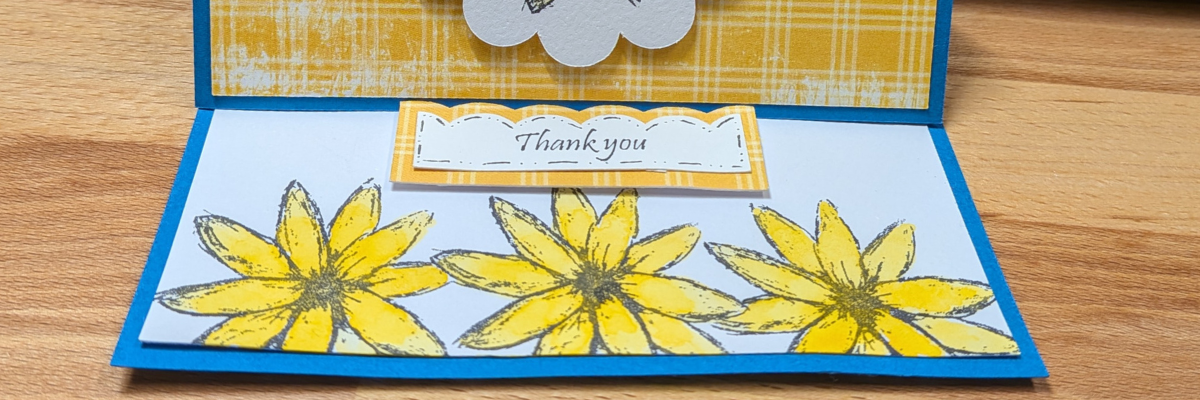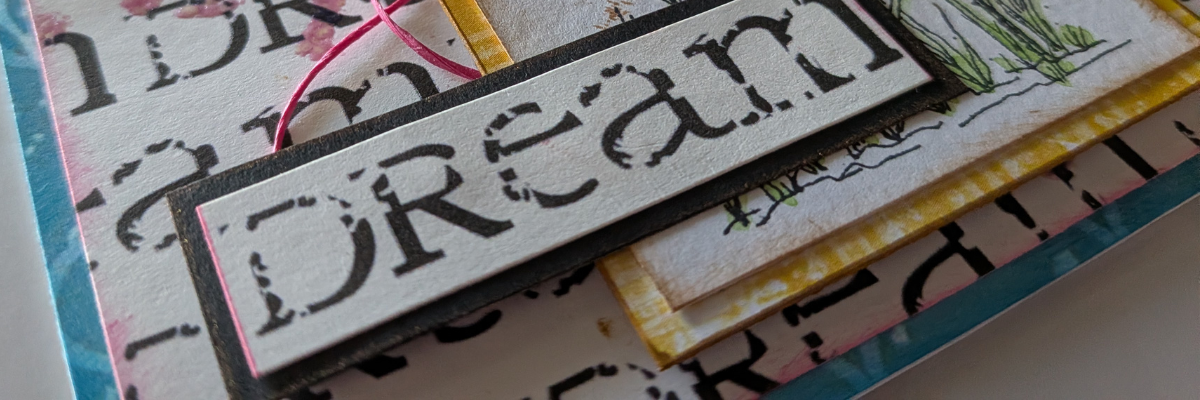
I love all the options available with cutting machines and I love to combine different techniques to see what will happen. I’ve been testing and playing around with some mixed media paper and love how crisp it cuts, even with a well used Silhouette Autoblade! I will be demoing sketching with a Silhouette machine in the Pointer USA booth at Creativation and thought while I was prepping for that, I’d share some of the footage and photos I took during the process.
I am not a watercolor artist, however, I have taken a few classes and have found that I really enjoy the process and with the help of my Silhouette machine, if I mess up, I can simply sketch out another design and try again.
I have included a supply list, additional resources, and a link to the YouTube video on the Silhouette Secrets+ channel below.
Affiliate links may be present in the following blog post and as an Amazon Associate, I earn from qualifying purchases.
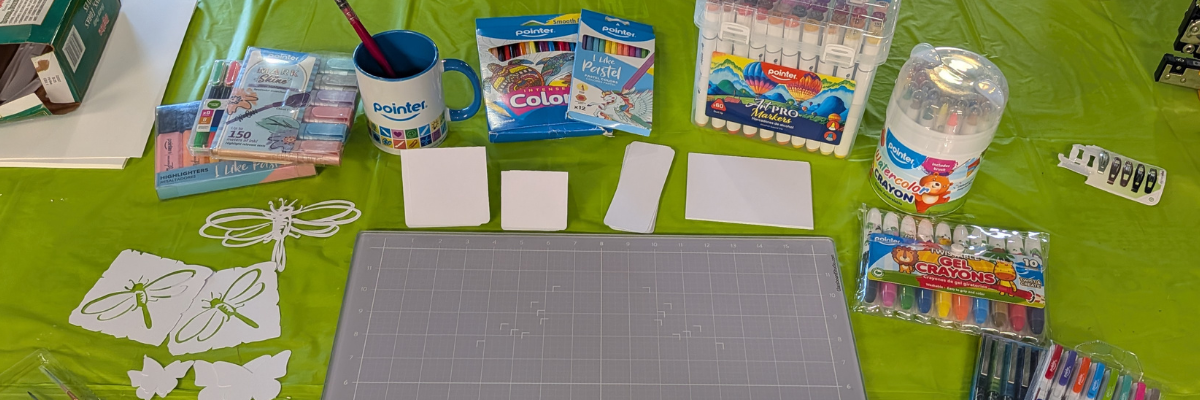
The first thing to do is gather the supplies for the project. Since I will be using watercolors on this project, I needed a pen that would not bleed and found that the Sharpie felt pen held up to the water and did not bleed with the mixed media paper. See a full supply list below in this blog post too.
I also tested with a waterproof pen by Pentel and it worked too. When sketching with a Silhouette machine, the machine draws the cut lines that you see on the screen. It is not automatically filled in. The type of pen tip can make a difference as well as the design, and the size of the design too. When a design is enlarged, the gap between the “cut” lines gets bigger too. This can be more noticeable if the pen doesn’t draw a thick enough line to fill it in. There are ways to fill in a design to be sketched and I’ll included additional resources for sketching below too!
Here is a look at the design of the Protea flower I used. When I am sketching and then cutting, I will set the sketch lines to blue and then the red is a cut line. Then I’ll use the Cut by Line option on the Send tab to tell the machine what I want it to do first. I like to sketch then cut, so the design stays in place.
While there are presets in the Silhouette software, that is just a starting point and each pen can be different. A force of 7 is the preset and I found with the Sharpie felt tip pen, that it is way too much. I was able to get a good sketch with a force of 1. When using a felt tip pen, if too much force is used, it will smoosh the pen tip and results may not be good after.
Do not unload the cutting mat after it sketches if you are cutting after. If using the same tool holder, uninstall the pen and install the blade, then uncheck the sketch line in the Cut by Line Color panel and check the box next to the red color for the cut line. Adjust the settings for the cut and send that to complete the cut.
And then I simply started playing around with the watercolors. I looked up a photo online of a protea flower for some color combinations and just started playing.
Have fun creating projects with your Silhouette machines!
Save this for future reference by pinning the image below.
Enjoy !
THANK YOU for your support! How can you help? Click HERE & buy a coffee. Every little bit helps with the cost of running the site.
Silhouette Classes
Never stop learning! Let me help you take the anxiety out of learning with Silhouette and get to creating faster! My Silhouette classes are heavily focused on software, so you can take the skills & techniques taught and apply them to many future projects!
**This post may contain affiliate links. What that means is that I may receive compensation if you purchase through the links I have provided. The price you pay for the product or service is not higher, but I may get compensated for sharing.
Looking for a creative way to personalize your home decor projects? Glass etching is a fun and easy technique that can completely transform simple glass surfaces into beautiful custom pieces! In this post, I’m sharing how I used Etchall etching creme on a floating glass floral frame to create a unique one-of-a-kind decor project perfect for displaying photos, pressed flowers, inspirational quotes, and more. The frosted etched finish adds an elegant touch while still allowing the beauty of the floating frame design to shine through. Whether you’re new to glass etching or looking for fresh DIY project ideas, this custom etched glass frame is a great way to create personalized decor with a professional look.
Affiliate links may be present in the following blog post and as an Amazon Associate, I earn from qualifying purchases.
Steps to Etched Glass Projects
Create a stencil for etching.
Clean glass blank with alcohol and allow to dry.
Apply stencil.
Mask off edge of stencil to prevent bleeding
Apply Etchall Etching Creme and allow to sit for 20 minutes.
Remove any excess Etching Creme and place back in the bottle.
Wipe off remaining excess with a paper towel and safely discard paper towel.
Run water in the sink and rinse off decal thoroughly.
Remove masking tape and adhesive vinyl under running water.
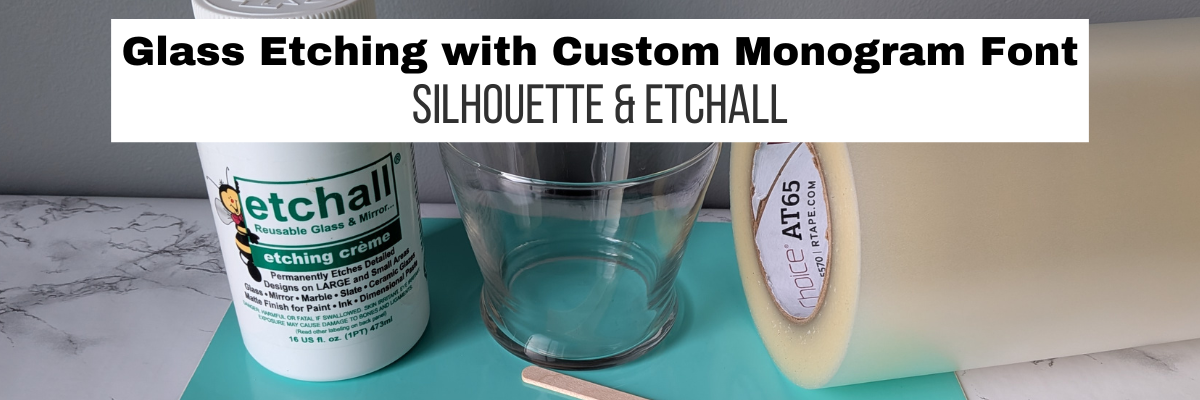
Gather the supplies. I am using a floating frame which has 2 panels of glass and the photos will be sandwiched in between the glass panels.
I cut the adhesive vinyl with the Silhouette Cameo and weeded out the design for my stencil. Then applied it to the backside of the glass frame. I also taped off the glass panel edges with painters tape to make it easier to handle and not cut myself.
Since there were some small details and pieces, I did apply a bit of heat to set the adhesive vinyl and give it a good seal. Be very careful here and let the glass cool before handling.
Then apply a generous layer of Etchall etching creme and let it sit for 20 minutes.
Scrape off any excess Etchall creme and put it back in the bottle. I scrape as much as I can and then use a paper towel carefully to wipe away any excess. Then rinse with a generous amount of running water until the glass is clean. Remove the adhesive vinyl stencil and rinse again.
I add some of the bright, colorful flower photos that I had taken from my front yard a few years ago and it really made it pop!
Take this idea and make it your own! What supplies do you have in your craft stash that you could make a custom glass etched
Save this for future reference by pinning the image below.
Enjoy !
THANK YOU for your support! How can you help? Click HERE & buy a coffee. Every little bit helps with the cost of running the site.
Silhouette Classes
Never stop learning! Let me help you take the anxiety out of learning with Silhouette and get to creating faster! My Silhouette classes are heavily focused on software, so you can take the skills & techniques taught and apply them to many future projects!
**This post may contain affiliate links. What that means is that I may receive compensation if you purchase through the links I have provided. The price you pay for the product or service is not higher, but I may get compensated for sharing.
The Silhouette Cameo Pro MK II opens up a whole new world of possibilities for makers who love working on a larger scale. From oversized decals and statement wall designs to banners, signage, and long-format heat transfer vinyl projects, this machine is built to handle it all—but success with long cuts comes down to more than just size. In this deep dive tutorial, you’ll discover practical, real-world techniques that help you get smoother feeds, more accurate alignment, and consistently clean cuts across extended lengths of vinyl.
Inside this post, you’ll find a quick breakdown of the key strategies covered in the full video, along with actionable tips you can start using right away. These insights are designed to help reduce common issues like material shifting, tracking errors, and uneven cutting—so your larger projects feel just as manageable as smaller ones. Whether you’re brand new to the Cameo Pro MK II or looking to refine your workflow, this guide will help you cut with more confidence and control on every long-format project.
Affiliate links may be present in the following blog post and as an Amazon Associate, I earn from qualifying purchases.
Do you really need to cut 10 feet of material at one time?
If the design is one long design, then maybe yes. But, if it’s a bunch of designs, cutting it in smaller chunks can be more successful and less wasted materials and time in the long run.
Make sure the leading edge of the material is completely straight.
Set yourself up for success from the start. If the leading edge is crooked or uneven, then it will have a greater chance of failure because it will be more difficult to load straight.
Here is a look at my vinyl roll before I started. High rate of failure trying to use an uneven edge like this.
I have a large self healing sewing mat and use a rotary cutter with an acrylic ruler to straighten out my vinyl edge.
Silhouette Cameo Pro models do not like bulk rolls.
Bulk rolls can be very heavy and not easy to pull the vinyl off of.
Silhouette Roll Feeder Setup Properly
Make sure the roll is properly set up in the roll feeder on the front of the machine and is secure and moving freely.
Adjust the roll feeder screws to accommodate different roll thicknesses, but the vinyl should always sit on top of the roller of the roll feeder and roll freely. The roll should not be down in the roll feeder or resting on the table top inside the roll feeder.
The photo below shows improper setup of the roll feeder for this size of a roll. It is sitting down in the roll feeder and not on top of the rollers of the feeder.
Adjust the screws and lengthen the roller support as needed to fully support the size roll being used.
For best results, always use the roll feeder stability bar. If the material roll hits the stability bar, then the roll is too big and can have issues with feeding properly.
Fully Support Vinyl the Full Length in front and behind the machine.
Vinyl that is hanging off a table is working against gravity to pull up and into the machine.
Load Material Properly
The line on the far left of the Silhouette Cameo Pro MK II is for use with a 24″ cutting mat. The line on the right side that the arrow points to is for all other widths of materials or mats.
The left edge of the material should be next to the proper load line and the left roller completely on the material.
The right roller should be securely on the right edge of the material and in a location it can be locked in place.
Listen to Your Machine When Loading Materials
You will be able to hear it more than see it if the material catches on something as it is loading. There are multiple areas where materials can get hung up in the machine such as the bottom roller bar, the channel in front of the cutting strip, and the channel on the cross cutter on the backside of the machine.
Materials catching can affect the feed and if the vinyl is loaded straight. Crooked vinyl from the start will only get worse the greater distance it goes into the machine.
Settings that Affect the Feed in Silhouette Studio
On the Send tab in the Silhouette software, click on the gear icon in the bottom right corner. If you are having issues with feed and cutting specific designs, try adjusting the Cut Order Sorting settings to see if it helps.
Feed the Vinyl Through the Machine for the Full Length
This can help identify if there are going to be any issues before you even put the blade in to cut. It can save you time and money in materials by doing this.
If you continue to have issues with a material catching in the machine, feed in 4″+ to advance the leading edge of the material past all of the areas it may be catching on. 4″ of material can save you time and material in the long run. Use that 4″ for scrap later for other projects.
Test Cut, Test Cut, Test Cut!!!
Cut settings that are too deep can affect the feed and whether the cuts will connect and complete. It will save a lot of materials, time, and money
Get Extra Vinyl
It’s always a good idea to have extra vinyl on hand for any mistakes or errors, especially if working on a deadline.
I share additional tips in the Silhouette Cameo Pro Unboxing as well.
Save this for future reference by pinning the image below.
Enjoy !
THANK YOU for your support! How can you help? Click HERE & buy a coffee. Every little bit helps with the cost of running the site.
Silhouette Classes
Never stop learning! Let me help you take the anxiety out of learning with Silhouette and get to creating faster! My Silhouette classes are heavily focused on software, so you can take the skills & techniques taught and apply them to many future projects!
**This post may contain affiliate links. What that means is that I may receive compensation if you purchase through the links I have provided. The price you pay for the product or service is not higher, but I may get compensated for sharing.
If you would have asked me last week if I was going to be making a Kentucky Derby hat, I would have said that it wasn’t even on my radar. And then we were given a challenge at work and my brain just started working on the idea. And pretty soon I had a summer beach hat in my shopping cart, and the idea was coming together.
First, before I go farther into how I made this, please know this hat would be for indoor use. Since it’s made from paper the designs would fall apart if it were rained on or splashed with water.
Kentucky Derby hats are unique and do not have to be identical to each other. This is one of those projects that you can really add your own personal details to and just have fun!
Affiliate links may be present in the following blog post and as an Amazon Associate, I earn from qualifying purchases.
Next up was to start gathering the rest of the supplies.
I’ve had this large flower hanging around in my studio since I was working with the 3-D Flower Flamingo Design by Tanya Batrak in June of 2024. This file was one of the Crafting Creativity collaborations that I do each month with a new designer. Find more details on the projects created with that file HERE.
And I had some pink tulle from an adult fairy tutu I made about 16 years ago. Yes, that’s right, I keep supplies around a long time just in case. Except I purged the little flamingo flowers a couple weeks ago when I was cleaning. It never fails that when I let something go, I will want to use it the next week. I grabbed some ribbon and had the start to my supplies.
I didn’t want to buy any additional supplies even though I did look at some feathers, but I ended up cutting a feather design and then painting it with a metallic paint by DecoArts.
I took the black ribbon off of the hat and then added a green ribbon and hot glued it in place to secure it on the hat.
Next, I cut some lengths of the pink tulle and bunched it together and secured it with zip ties. Then glued it in place on top of the green ribbon.
Once the glue was dry on the tulle, I added more hot glue and secured the large flower. Then let that cool completely so it was set.
Then I just started adding the feathers, securing them with hot glue and letting it set up before moving it around.
I thought about adding more. I cut some strips of papers in 2 shades of pink and white and then curled them, but when I started adding them to the hat, it didn’t feel right. So, for now, this project is finished.
Now, I will admit that I’m not a “hat” person typically. However, I put this on and looked in the mirror and I love the hat. I think it’s because it’s over-the-top and there really isn’t a wrong way. Kentucky Derby hats are big & bold.
Maybe someday I’ll make it to the real Kentucky Derby, but for now, this hat will be on display at work for the 152nd Kentucky Derby Day.
It was fun to make, used up some of my previous projects sitting around, and went together very quickly. And I saved the black ribbon exactly how it was so if I can also turn it back into a summer hat to use pool side too when Derby Day is over.
Save this for future reference by pinning the image below.
Enjoy !
THANK YOU for your support! How can you help? Click HERE & buy a coffee. Every little bit helps with the cost of running the site.
Silhouette Classes
Never stop learning! Let me help you take the anxiety out of learning with Silhouette and get to creating faster! My Silhouette classes are heavily focused on software, so you can take the skills & techniques taught and apply them to many future projects!

**This post may contain affiliate links. What that means is that I may receive compensation if you purchase through the links I have provided. The price you pay for the product or service is not higher, but I may get compensated for sharing.
I have been troubleshooting with Silhouette users since 2016, and we have answered a lot of questions during the years. One of the most common questions is “What is this?” and “Why did it just appear?” In this blog post, I’m sharing more details on 4 of the tools that are often confused with each other, how they get turned on, how to turn them off, and where to find more information on each of the tools. These 4 tools can be useful when designing in Silhouette Studio, but not all users utilize them or will use them all of the time. That is one of the great things about Silhouette is the choice of having the options to use a tool or feature. This is also one of those cases where if a user doesn’t know what a tool does specifically, they may never know that it can actually be really useful to them in their workflow.
Affiliate links may be present in the following blog post and as an Amazon Associate, I earn from qualifying purchases.
The 4 tools in Silhouette Studio that are often confused are:
Pressing the letter ‘H’ on the keyboard toggles it on and off.
A file is opened that the designer saved it with crosshairs on.
Typically we see crosshairs appear because a user thinks that they have activated Text Mode and it did not take. So when the letter ‘H’ is pressed on the keyboard, it toggles it on.
Crosshairs can be turned on and off 3 ways:
Press the letter ‘H’ key. If they don’t turn on and off, click on the design mat and then press ‘H’ again.
Open the Page Setup Panel, click on Tab 2, and click the Crosshairs button.
In the top left menu, under View, select Turn on Crosshairs.
Crosshairs are a Designer Edition upgrade feature and those on Basic will not see this available.
Guides can be pulled from the rulers on the top or right side of Silhouette Studio. Guides are a Designer Edition upgrade feature along with Rulers.
These can be accidentally activated if clicking the mouse on top of the rulers or click & pull from the ruler area onto the design mat.
Guides can be deleted by clicking on one to activate it, it will turn dark blue, then press delete. Light blue color means it is not the active Guide selected.
Guide settings can be found under the Page Setup Panel, under Tab 2. Snap to Guides is by default always active, but unless you have a Guide placed on the file, you won’t see it work. Guides can be toggled on and off under this tab too.
Guides can also be found in the top left menu under View, then select the option desired.
This control point appears any time there is editable text activated.
This is the control handle that is used to drag text to a path and have it snap to the path. This feature is always available on editable text and there is no way to turn it off.
The April 2026 member exclusive tutorial for the Creative Community is an in-depth tutorial on Text to Path with advanced techniques too! Check out more details on the Creative Community HERE.
*Creative Community members watch for a cheat sheet on these tools coming soon to April’s forum!
Save this for future reference by pinning the image below.
Enjoy !
THANK YOU for your support! How can you help? Click HERE & buy a coffee. Every little bit helps with the cost of running the site.
Silhouette Classes
Never stop learning! Let me help you take the anxiety out of learning with Silhouette and get to creating faster! My Silhouette classes are heavily focused on software, so you can take the skills & techniques taught and apply them to many future projects!
**This post may contain affiliate links. What that means is that I may receive compensation if you purchase through the links I have provided. The price you pay for the product or service is not higher, but I may get compensated for sharing.
Brilliant Living is a gorgeous digital kit by Nitwit Collections and I was thrilled to collaborate with them for the March 2026 Silhouette Secrets+ newsletter. Newsletter subscribers had the chance to grab the Brilliant Living Knick Knack kit for free exclusive to them in March. Throughout the month I created several different projects using the kit to show it’s versatility from layered cards to tags and even sublimation projects too! Find all the details below.
Affiliate links may be present in the following blog post and as an Amazon Associate, I earn from qualifying purchases.
Crafting Creativity with Nitwit Collections– Brilliant LivingDigital Kit
This card has 4 layers of the elements stacked on top of each other with foam tape to give it dimension.
Here is a look at the print and cut page printed out ready to cut around each of the layers.
There are so many options with a digital kit and you can mix and match, add more layers, decrease the layers, or only print one layer for a project as well.
If you are mailing the card, you may need to keep the thickness of the layers in mind when creating it.
So for the next cards, I stacked elements together and then was able to print 2 card fronts on one sheet of paper. Each of these designs have different elements that can be layered together.
Here is a look at the final results from this printed page.
The card on the left side only has the “for you” and the “ladybug layered”, while the card on the right has the “wishes, for you, and the ladybug layered”.
There were a couple intricate areas that may not cut well for all users. I was able to get these ladybugs with their antennae’s to cut, but had to be extremely careful removing them off the cutting mat. However the butterfly antennae’s were just too delicate, which is another reason you may want to add that layer directly to the card background instead of trying to add it as a 3-D layer. But you never know until you try. The Silhouette machine might amaze you in the cut it can get.
Project #2 –Layered Tag Designswith Brilliant Living Digital Kit
Being able to create your own designs means that you can make them any size you want and create as many as you need in the moment. I started with the idea to create only 2 tags, but it ended up being 4 complete designs.
I used 2 sheets of paper to print and created 1 layered tag and one simple print and cut tag on each sheet.
Here is a look at one of the layered tags using the foam tape to pop up the dimension.
The great part about creating your own tags is there are no rules. Flower hangs off the edge, no problem! Want the design to be flush on the edges – no problem! Or mix and match. And using a digital kit allows you to mock it up first in the Silhouette software before you even cut the elements out.
Project #4 –Sublimation Projects with Brilliant Living Digital Kit
Digital designs worked perfectly for sublimation projects! I created 4 sublimation project designs on 1 sheet of sublimation paper.
I made a decorative panel, cover for a compact mirror case, a bookmark, and a coaster.
The colors are so bright and brilliant with these projects, except the center of the coaster turned out a bit washed out. This can happen with hardboard at times and moisture affecting the outcome.
Never miss out on the news, tips, “secrets”, deals, classes, and more that I share on Silhouette Secrets+. Sign up for the newsletter and get information delivered to your inbox every Friday. Unsubscribe at anytime.
Did this spark some new creative ideas for you? It’s always inspiring to see how a single flower and greenery design can bloom into so many completely different projects! I had so much fun reimagining this one design across five unique creations and showing just how versatile a single file can be. If you’re looking for even more inspiration, tips, and creative project ideas, be sure to browse the Crafting Creativitysection on the Silhouette Secrets+ website — click HERE to explore!
Save this for future reference by pinning the image below.
Enjoy !
THANK YOU for your support! How can you help? Click HERE & buy a coffee. Every little bit helps with the cost of running the site.
Silhouette Classes
Never stop learning! Let me help you take the anxiety out of learning with Silhouette and get to creating faster! My Silhouette classes are heavily focused on software, so you can take the skills & techniques taught and apply them to many future projects!
**This post may contain affiliate links. What that means is that I may receive compensation if you purchase through the links I have provided. The price you pay for the product or service is not higher but I may get compensated for sharing.
What can you do with one cut file? A lot. Each month I work with a featured designer in the Silhouette Secrets+ newsletter who provides a file for subscribers, and I share new projects each week during the month with that file. I typically start with the original file, add my own touches to it and then I create additional projects to show the versatility that one file can have. The Carrot Balloon Bunny Card by Studio Ilustrado is a perfect example. In this blog post I’m sharing 5 different design ideas that can be made with a Carrot Balloon Bunny Card design.
Affiliate links may be present in the following blog post and as an Amazon Associate, I earn from qualifying purchases.
Crafting Creativity with Studio Ilustrado
One file, endless possibilities.
Project #1 –Bunny Carrot Balloon Card
I started out creating the design as originally intended by making the card and adding my own special touches with inking, paper shaping, and foam tape.
I had the Silhouette Curio 2 out from testing with the Silhouette Leather Carving Knife, so it was the machine I used to cut this card. Almost all the pieces were cut out using scraps from my stash. I love being able to use my scraps!
Look at these tiny details!
To be honest, I wasn’t sure if it would cut well with the electrostatic mat on the Curio 2, but it did! Especially using a scrap piece of cardstock with the Silhouette Electrostatic Mat.
Sometimes we all just need a little bit of help and taping down the cardstock scraps on the Electrostatic Mat can be that help. It just added a little bit more security to hold my scraps in place and get a successful cut with the Electrostatic Mat. I love this new technology that Silhouette has. While it does not work with all materials, it has saved me hours of time cutting cardstock.
While I used the Silhouette Curio 2 to cut the projects, any Silhouette machine could be used to create these projects.
The bunny made the perfect peeking addition to this gable box card. Don’t let the name of a design fool you either. The title of the box is called Christmas Gable Box by Studio Ilustrado, but it can be used for so much more!
Now here is one of my “secrets” – while the Silhouette machines can cut acetate for the window of this box card, I can cut it faster and with less headache.
I cut the window shape from a piece of cardstock using the Silhouette machine and then used it as a template to make a few quick snips with scissors and I was on my way to assembly. It doesn’t have to be perfect since it will be hidden inside the box. And I saved myself time, headache, and didn’t dull my blade.
However, if cutting multiples or a different design than a rectangle, it may be beneficial to set up the machine to cut acetate when needed. It’s great to have options.
I used my laser to cut this out of wood, but you could also use other materials such as cardstock too! Even though I have a laser machine, I started with a 12 inch wood round blank, which you could use as your backing board too.
I used the SVG file, opened it in Silhouette and made a few modifications to the file to be able to create the layers for cutting on wood. Since the wood has more thickness to it than a material such as cardstock, I had to add a layer behind the bunny and cut multiples to make it sit flush with the sign and balloon basket. The knife tool in Silhouette helped me to cut the bunny’s little feet off so it would sit flush on the balloon for this design. That sounds so bad when I type it out, but if you have designed in Silhouette, you’ll know exactly what I mean.
As I was designing and cutting the first sign, another idea popped into my head too! Have you seen the door corner designs?
I drew out a skinny rectangle, made a copy and rotated it 90 degrees. Aligned the right edges and welded it together to make the corner. Then sized the bunny and welded the bunny background to the rectangles to sit on top. Next, I added letters down the right side. Before welding the letters, I made a copy so I could cut them out and layer on top for color and dimension.
Before you go to cut the design, make sure it’s all flush. I forgot to cut the bunny’s feet with the knife tool, but I didn’t realize it until after he was all cut out, so he sits a little bit higher on the top of the door. In this case, it wasn’t worth recutting the design simply because you can’t really tell on our door frame.
I love these little door corner designs, even if we only have a few door frames that I can add them to in our house because the previous owner used the wrong trim to frame out the doors or the frame is too close to the wall. It is a fun way to add a bit of decoration without putting another hole in the wall.
I used the Silhouette Curio 2 to sketch this design using the electrostatic mat because that was the machine on my desk this week, but sketching can be done with any Silhouette machine model.
The clay pot was drawn in Silhouette Studio using basic shapes and adjusting the bottom edit points on a rectangle too!
Unlock your creativity by learning more about Silhouette. You never know where it will take you! Even making cards with carrots.
A great big thank you to Studio Ilustrado for contributing the free file for the Silhouette Secrets+ newsletter for the month of February! If you missed grabbing the free design in February, grab it HERE and start creating!
This year I started offering a free file each month for Silhouette Secrets+ newsletter subscribers. I love designing in the Silhouette Studio software and have shared some of my creations as well as look forward to collaborating with more artists in the future too!
Silhouette Secrets+ Newsletter
Never miss out on the news, tips, “secrets”, deals, classes, and more that I share on Silhouette Secrets+. Sign up for the newsletter and get information delivered to your inbox every Friday. Unsubscribe at anytime.
Sign up for the weekly newsletter HERE to have information delivered direct to your inbox and grab each month’s new freebie.
Did this spark some new creative ideas for you? It’s always inspiring to see how a single design can be used in completely different projects! I had so much fun reimagining this one design across five unique creations and showing just how versatile a single file can be. If you’re looking for even more inspiration, tips, and creative project ideas, be sure to browse the Crafting Creativitysection on the Silhouette Secrets+ website — click HERE to explore!
Save this for future reference by pinning the image below.
Enjoy !
THANK YOU for your support! How can you help? Click HERE & buy a coffee. Every little bit helps with the cost of running the site.
Silhouette Classes
Never stop learning! Let me help you take the anxiety out of learning with Silhouette and get to creating faster! My Silhouette classes are heavily focused on software, so you can take the skills & techniques taught and apply them to many future projects!
**This post may contain affiliate links. What that means is that I may receive compensation if you purchase through the links I have provided. The price you pay for the product or service is not higher but I may get compensated for sharing.
The Silhouette Cameo5α (Alpha) model is the latest machine released by Silhouette America. It was announced at the Silhouette Summit 2025 in Japan in September 2025 and was released shortly after the Summit.
Affiliate links may be present in the following blog post and as an Amazon Associate, I earn from qualifying purchases.
I was not able to attend the Silhouette Summit in Japan, but did order the Silhouette Cameo5α as soon as it was available on the Silhouette America website. At the time of the release, only the white Silhouette Cameo5α models were available and there was no timeline on the other colors being released, so I grabbed it. However, if I would have had choices, I would have selected the Bianco Carrara pattern. When this pattern was first released, I was not impressed, until I had one in my hands and it is my new favorite pattern.
I released 2 unboxing videos on the Silhouette Secrets+ YouTube channel sharing a quick setup as well as an in-depth look at the new machine model. So far the in-depth unboxing and setup has been the most popular.
I did not get a blog post out at the time of releasing the unboxing, but sometimes a delay can also be a good thing as I’ve had some time to work with the Silhouette Cameo5α and really test it out. This means that I can add more information and real world experience to the blog post.
Here is one of the first projects I cut out after unboxing the Silhouette Cameo5α.
This project had many intricate cuts from the wood layers to the small skeleton hands. At this size, the cardstock makes a huge difference too! The first one I cut, the cardstock paper layers were separating and I had to switch to a higher quality smooth cardstock for these details.
Here is a close up look at this finished project of the 3-D Skeleton Coffin with all of the details.
This was just one piece to my Halloween busted canvas project, but it was a great test to really see what the Silhouette Cameo5α was capable of.
But, of course, I couldn’t stop there! The coffin was only the first piece of my Halloween busted canvas project.
I continued to cut out pieces for the 3-D Tombstone and put the Silhouette Cameo5α to the test. Within a short amount of time from unboxing the machine, I had a lot of cut hours into testing it out.
The Silhouette Cameo5α is an updated model of the original Cameo 5. The original Silhouette Cameo 5 model is no longer manufactured.
The Silhouette Cameo5α features a new roller design and I do like how it is much more visible to see the rollers and if ever there is a need, easier to clean them as well. It also has a pinch pressure button locking mechanism on the right roller that is so much nicer than the original model design.
It also has an additional 0.3 mm clearance on the roller bar for the Silhouette Cameo5α. At the Silhouette Summit, they mentioned this in reference to use with the Silhouette Electrostatic Mat. With the Silhouette Electrostatic Mat, there is a protective sheet that goes on top of the mat before you place your materials on it to be cut. This protective sheet adds height to what is rolling through the machine. I have not had any issues with this, however, they must have received some feedback from users who were using multiple layers of materials, such as stickers with a laminate on top of it which is thicker than your average cardstock. So the clearance was increased a tad bit.
Keep in mind that when you are talking about clearance, the material also has to “clear” the bottom of the tool that is being used. So even if it clears the bottom of the roller bar, thicker materials also have to allow the blade or tool to clear it as well. And even if a material can clear both the roller bar and tool tip, that does not guarantee that it is a cuttable material with the Silhouette. There are many factors that go into whether a material is going to cut well with a Silhouette.
With the Silhouette Cameo5α, you do have to use a Silhouette software version of 5.0.402 in order for the machine to be recognized. As I type this up, there are still many bugs and issues with version 5 and I am not recommending version 5 for all users. But, if you are a Silhouette Cameo5α owner, you do have to use version 5 and there is no way around that. I recommend using version 5.0.402 at this time and not the current version (5.0.414) as we have seen some issues with the current version. We have seen some issues of machines being bricked or recognized as a regular Cameo 5 and not a Silhouette Cameo5α. If you encounter any of those issues, please contact Silhouette Support and be as detailed as possible in your request for assistance. Including photos and video can help them help you faster as well.
The Silhouette Cameo5α also uses the 4 point registration marks for print and cut projects. This was first released with the Silhouette Cameo Pro MK II model and now is available with the Silhouette Cameo5α model. Silhouette states that this is supposed to improve accuracy of the print and cut results. However, I have not seen any significant improvements in my testing. The biggest issues we see with print and cut are still due to setup and user errors.
I use both the Silhouette Cameo 5 original model and the Silhouette Cameo5α. It really just depends on what I am doing and what the project might be.
Anytime I get a new machine, I like to put it through the paces to see what works and what doesn’t. This means testing both the machine and the Silhouette Studio software.
Here are some print and cut projects I did while testing it.
I do love that I can create meaningful cards and gifts for friends and family, no matter what the circumstances are.
I really do wish cutting machines came with a cut hours timer. Within the first few weeks of owning the machine, I racked up a lot of cut hours.
Save this for future reference by pinning the image below.
Enjoy !
THANK YOU for your support! How can you help? Click HERE & buy a coffee. Every little bit helps with the cost of running the site.
Silhouette Classes
Never stop learning! Let me help you take the anxiety out of learning with Silhouette and get to creating faster! My Silhouette classes are heavily focused on software, so you can take the skills & techniques taught and apply them to many future projects!
**This post may contain affiliate links. What that means is that I may receive compensation if you purchase through the links I have provided. The price you pay for the product or service is not higher, but I may get compensated for sharing.
New video out on the Silhouette Secrets+ YouTube channel!! In this video I share step-by-step how I created a layered card design in the Silhouette Studio software using a digital kit by Nitwit Collections.
Affiliate links may be present in the following blog post and as an Amazon Associate, I earn from qualifying purchases.
This is the first Crafting Creativity project for the month of March that I shared with newsletter subscribers.
I love the bright colors Knick Knack kit by Nitwit Collections. This kit is exclusive to newsletter subscribers for the month of March and then will be available in their shop for purchase later.
Save this for future reference by pinning the image below.
Enjoy !
THANK YOU for your support! How can you help? Click HERE & buy a coffee. Every little bit helps with the cost of running the site.
Silhouette Classes
Never stop learning! Let me help you take the anxiety out of learning with Silhouette and get to creating faster! My Silhouette classes are heavily focused on software, so you can take the skills & techniques taught and apply them to many future projects!
**This post may contain affiliate links. What that means is that I may receive compensation if you purchase through the links I have provided. The price you pay for the product or service is not higher, but I may get compensated for sharing.
Silhouette IPT is short for Intelligent Path Technology and was first announced to us at the 2023 Silhouette Summit when the Silhouette Cameo 5, Curio 2, and Portrait 4 models were announced.
Affiliate links may be present in the following blog post and as an Amazon Associate, I earn from qualifying purchases.
In this blog post, I am sharing some of the details of the IPT setup and how it works. Read more details below and then watch the video tutorial with even more tips on the Silhouette Secrets+ YouTube channel HERE.
The Silhouette IPT is a patented cutting technology that changes the cut order of a design to “help” it stay in position and complete the cut. Depending on the design you have on the file, when it’s turned on, it will complete the cut of the design in segments versus a continuous cut around the entire design. The photo below shows the standard method of cutting on the left side, that would be from 1 starting point and cut around in one continuous cut back to the starting point on a heart. On the right side, the white dots are points of reference in how the design would be cut in segments, starting on the top right, then moving to the top left and then moving to complete the bottom on each side. This method is designed to “hold” the design in place and not have shifting as it’s being cut.
This new technology was created to help delicate materials such as vellum be more successful when cutting out designs and to cut through multiple layers of materials at once, such as several sheets of vellum stacked on top of the Silhouette Electrostatic Mat.
Here is the video we were shown at Silhouette Summit 2023 to explain the process.
This is a setting you have to set up and turn on in order for it to use the IPT cutting method and is not an automatic setting. It is compatible with the Silhouette Cameo 5, Curio 2, and Portrait 4 models.
Silhouette IPT settings can be found under the advanced settings on a preset setting, or you can turn it on for a custom cut setting. On the Send tab in Silhouette Studio, select the MORE button and you will see a box next to “Intelligent Path Technology”.
Here is a look at Silhouette Studio version 5
Screenshot Silhouette Studio v5.0.402
And a look at the Advanced Settings in Silhouette Studio version 4
Screenshot Silhouette Studio v4.5.815
If IPT is selected on a preset material setting, you will need to Save As to create a new material in order for it to be activated on the cut setting. If you simply check the box and X out of the preset material, it will not activate the IPT setting.
Screenshot Silhouette Studio v4.5.815
How Silhouette IPT (Intelligent Path Technology) Works
Let’s take a real world look at the IPT cut setting and the order that it takes. Keep in mind that the Silhouette software will change this order for every design, and you do not know what the order will be unless you watch and record the machine behavior.
I’ll be using the Silhouette Curio 2 for this demonstration, but it works the same for the Silhouette Portrait 4 and the Silhouette Curio 2. I am using Silhouette Vellum sheets for this test along with a brand new Silhouette Autoblade.
I used the same shape from the video by Silhouette from 2023. I drew the heart using the Flexishapes tool on the left side in Silhouette.
This was completed as a continuous cut, the blade never lifted.
Then I turned the cut lines off for the first heart and turned the cut lines on for the 2nd heart, which is an exact copy of the first one.
My first attempt at this IPT cut, I used the Vellum preset, checked the box, but then X’d out and found out that it did not activate the IPT setting. A new custom setting is required by clicking on Save As after checking the box.
So I made a 3rd copy of the heart and I clicked on the MORE button and checked the box next to Intelligent Path Technology and chose Save As. Then clicked the X in the top right and chose the new material of Vellum (1) as my setting. I then clicked on the MORE button to double check that IPT setting did save with the new material.
The IPT function did work and it cut the heart in 10 different line segments. However, the cut order was a bit different than the video by Silhouette from 2023 and I noticed it started the first cut in the bottom left area of the design. I am using Silhouette Studio version 4.5.815 for this demonstration. The order in which it cuts may vary by software version, which may be why the order is different than what the video shows from 2023.
Here is a diagram of the cut order using IPT with this heart shape
This heart with this specific material cut fine both ways. But, that won’t always be the case.
On a more complex design, such as this flower shape drawn with the Flexishapes and the control point adjusted to make a sharper petal, IPT did make a difference in the cut. Instead of tearing, smooshing, or ruining the corners on the interior of the petals, it was a clean sharp point and the design cut well.
For this flower shape that is approximately 4.3″ tall and 4.2″ wide, it did 51 segmented cuts. I am not going to study the video to diagram all that out, however, it was pretty neat to watch. And it was a success, with no smooshed corners or tears. I did have to “pop” out the flower carefully, but for some designs that extra little bit of care is worth it!
Here is a close up look at the interior cuts on the flower shape. Look at those crisp, cut edges! No tearing or smooshing using the IPT feature in Silhouette.
Vellum is a very delicate material and can be difficult to cut, especially on an intricate cut. Vellum will also curl as you can see in this photo, the flower immediately started to curl. Humidity can also affect the success of cutting vellum, well, really any paper is affected by humidity. For best results, store vellum in a sealed envelope and completely flat. The Silhouette Electrostatic Mat is awesome for cutting vellum designs and I share even more in the Silhouette Curio 2 – Out of the Box class found HERE.
Here are a few more vellum products I’ve tested with:
It is a setting you can turn on for a preset material, then Save As a new material.
It is a setting you can turn on for a custom setting.
It does take longer to cut a design because the blade will lift, move, and cut in a different order.
It will take longer on the Silhouette Curio 2 versus a Silhouette Portrait 4 or Silhouette Cameo 5 model due to the slower movement of the arm on the Silhouette Curio 2. It may only be a few seconds longer, but it will.
Testing is the only way you will know if it will work for a design and material.
The Silhouette software decides the order of IPT based on the shape, size, and design. The user does not see the order or know how many segments a design will be cut out in.
Don’t believe AI answers on what IPT does or in general how to use a Silhouette. AI has no experience using Silhouette machine and will come back with some very bad advice. Experience using a cutting machine will beat AI hands down – literally.
This is NOT the same as Cut Order Sorting options found under the Settings (gear icon) on the Send Tab in Silhouette Studio.
Screenshot from version 5 Silhouette Studio
Here is a look at where to find the Cut Order Sorting options in Silhouette Studio version 4
It did take more time to cut, but I was able to successfully cut out a rolled flower design using the Silhouette Electrostatic Mat and IPT setting. This has been something I have troubleshot with users several times and the intricate design just couldn’t be held in place to complete the cut using the standard cutting methods with the electrostatic mat.
I am thrilled with how this worked out!
Does Silhouette IPT Work?
Yes – but not for every design, material, or project. I thought it worked great with the flower design above as that is one of those highly likely designs to smoosh and tear on the sharp corners.
Personally, I do not typically like the little tabs it left, similar to pop out cutting. However, it might be beneficial for those materials or designs that just will not cut the standard way. The only way to know is to test it and see what happens. If you do use it, I would recommend a sharp pair of detail scissors to snip the little connections and care when separating it from the full sheet.
The second part of IPT method for cutting through multiple layers of materials, proved to be much more finicky with mixed results. I spent hours and hours testing and was never really impressed with the results. The more layers of material, the less desirable the cut results were. It is not something I’ve spent more time testing. Maybe someday I’ll try again.
I hope those tips give you a better idea of how this new cut path technology works. You never know until you try and hopefully that will help your trials go a bit easier.
Next time you have a design that is just giving you fits with a standard, continuous cut setup – you might try out the IPT setting and see if it makes a difference in the success with your material.
Good luck!
Save this for future reference by pinning the image below.
Enjoy !
THANK YOU for your support! How can you help? Click HERE & buy a coffee. Every little bit helps with the cost of running the site.
Silhouette Classes
Never stop learning! Let me help you take the anxiety out of learning with Silhouette and get to creating faster! My Silhouette classes are heavily focused on software, so you can take the skills & techniques taught and apply them to many future projects!
**This post may contain affiliate links. What that means is that I may receive compensation if you purchase through the links I have provided. The price you pay for the product or service is not higher but I may get compensated for sharing.
THANK YOU for your support! How can you help? Click the link to buy a coffee. Every little bit helps in the cost of running the site.