
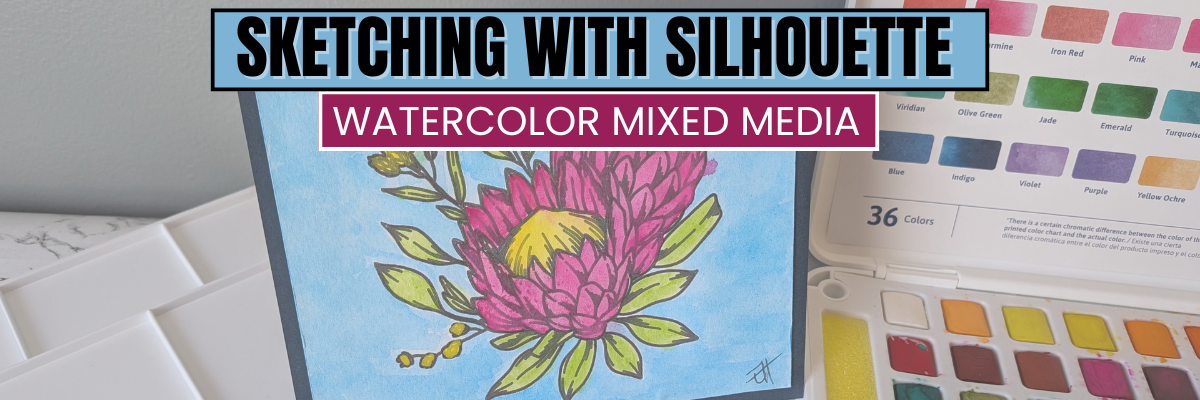

I love all the options available with cutting machines and I love to combine different techniques to see what will happen. I’ve been testing and playing around with some mixed media paper and love how crisp it cuts, even with a well used Silhouette Autoblade! I will be demoing sketching with a Silhouette machine in the Pointer USA booth at Creativation and thought while I was prepping for that, I’d share some of the footage and photos I took during the process.
I am not a watercolor artist, however, I have taken a few classes and have found that I really enjoy the process and with the help of my Silhouette machine, if I mess up, I can simply sketch out another design and try again.
I have included a supply list, additional resources, and a link to the YouTube video on the Silhouette Secrets+ channel below.
Affiliate links may be present in the following blog post and as an Amazon Associate, I earn from qualifying purchases.
The first thing to do is gather the supplies for the project. Since I will be using watercolors on this project, I needed a pen that would not bleed and found that the Sharpie felt pen held up to the water and did not bleed with the mixed media paper. See a full supply list below in this blog post too.

I also tested with a waterproof pen by Pentel and it worked too. When sketching with a Silhouette machine, the machine draws the cut lines that you see on the screen. It is not automatically filled in. The type of pen tip can make a difference as well as the design, and the size of the design too. When a design is enlarged, the gap between the “cut” lines gets bigger too. This can be more noticeable if the pen doesn’t draw a thick enough line to fill it in. There are ways to fill in a design to be sketched and I’ll included additional resources for sketching below too!
Here is a look at the design of the Protea flower I used. When I am sketching and then cutting, I will set the sketch lines to blue and then the red is a cut line. Then I’ll use the Cut by Line option on the Send tab to tell the machine what I want it to do first. I like to sketch then cut, so the design stays in place.

While there are presets in the Silhouette software, that is just a starting point and each pen can be different. A force of 7 is the preset and I found with the Sharpie felt tip pen, that it is way too much. I was able to get a good sketch with a force of 1. When using a felt tip pen, if too much force is used, it will smoosh the pen tip and results may not be good after.

Do not unload the cutting mat after it sketches if you are cutting after. If using the same tool holder, uninstall the pen and install the blade, then uncheck the sketch line in the Cut by Line Color panel and check the box next to the red color for the cut line. Adjust the settings for the cut and send that to complete the cut.

And then I simply started playing around with the watercolors. I looked up a photo online of a protea flower for some color combinations and just started playing.

Check out the video below.
I have also added a Sketching Playlist to the Silhouette Secrets+ YouTube channel HERE.
Sketching with Silhouette & Watercolor Finish Supplies
- Silhouette Studio® Software
- Silhouette Cameo 5 – sketching can be done with any Silhouette machine
- Silhouette Autoblade
- Silhouette Cutting Mat
- Silhouette Type B Pen Holder
- ArtPro Mixed Media Paper by Pointer USA
- Sharpie Felt Pen
Additional option: Pentel Energel Waterproof Pen - Pointer Watercolor Paints
- Protea Flower Line Drawing SVG
- Glassboard Craft Mat & Magnets – use code SILHOUETTESECRETS to save 15%
- Paint Puck
Additional Resources on Sketching with Silhouette:
- Silhouette Sketch Pen & Sketch Pen Design Class
- Sketching with Silhouette Resources
- Sketching Fill with Silhouette
- Line Style Panel
- Cut by Line
- Perfect Cut Settings (or Sketch)
- A to Z Resources for Silhouette

Have fun creating projects with your Silhouette machines!
Save this for future reference by pinning the image below.

Enjoy !
THANK YOU for your support! How can you help? Click HERE & buy a coffee.
Every little bit helps with the cost of running the site.

Silhouette Classes
Never stop learning! Let me help you take the anxiety out of learning with Silhouette and get to creating faster! My Silhouette classes are heavily focused on software, so you can take the skills & techniques taught and apply them to many future projects!


**This post may contain affiliate links. What that means is that I may receive compensation if you purchase through the links I have provided. The price you pay for the product or service is not higher, but I may get compensated for sharing.
Discover more from Silhouette Secrets-Swift Creek Customs
Subscribe to get the latest posts sent to your email.









