Posted on 1 Comment

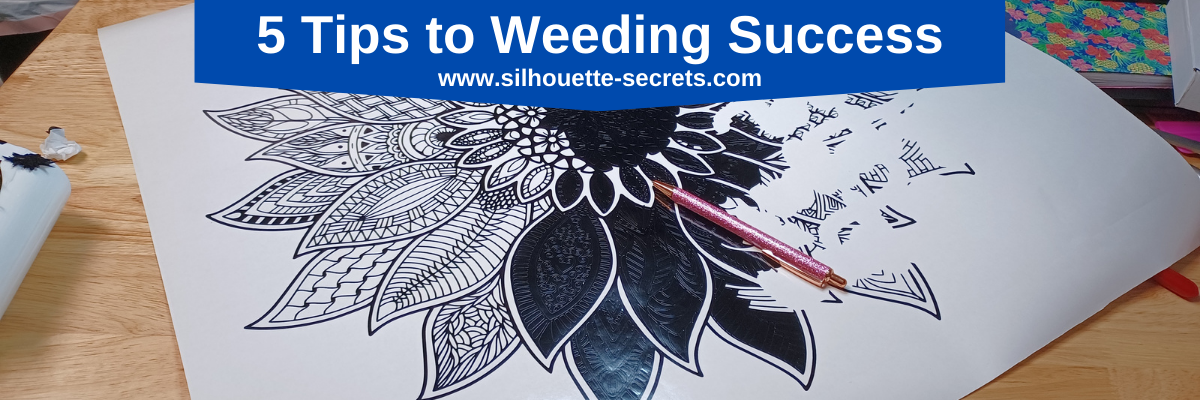
5 Tips to Weeding Success

This past week I was working on a very large, intricate adhesive vinyl decal and thought I’d share some of the tips I use for weeding projects.

What is weeding?

The word “weeding” can bring to mind different things to each person.
In this case, I am referencing the process of removing the excess material around a design you have cut with a cutting machine.

Affiliate links may be present in the below and as an Amazon Associate I earn from qualifying purchases. What that means is that I may receive compensation if you purchase through the links I have provided. The price you pay for the product or service is not higher but I may get compensated for sharing.

This design is from Design Bundles and is called Take What You Have by TrueNorthImagesCA and can be found HERE.

I am cutting Oracal 651 adhesive vinyl and this decal is 21.5″ x 21.5″. It is a very detailed design and I am not sure how it would cut at a smaller size. Some areas even at this size have very small dots, but you never know until you give it a try.

Tips for Weeding Success

1 – Good Cut Settings!

Test cut, test cut, test cut or be prepared to either sacrifice some materials if the cut doesn’t come out or spend a lot more time than needed on weeding.

Check out this tutorial
HERE
for 2 ways you can set up to do test cuts.

2 – PRACTICE!

It’s a new skill for most and practice is the only way you get better at anything!
And you will still make mistakes, like weeding the wrong piece or going to fast.
Practice helps!

3 – Weeding Tools

Find a good weeding tool that you are comfortable using.

For years, I only used these EK Tools Reversable Tweezers

I tried new tools and always went back to these EK Tools Reverse Tweezers. I even bought several pairs to have in different locations or if one happened to be in a “safe” place and I couldn’t find it when I needed it.
But, for a larger project or one where I weeding multiples of a design, I found my hand would start to cramp up after awhile holding these.
I still really love them because it has a sharp point and also tweezers to grab pieces with quickly, but I forced myself to again try some new ones.

I recently started using this Siser Easyweeder Tool

When I first tried it, the heavier handle was hard to get used to but, over time, I got used to that and found that I really liked this one, especially for HTV and larger sections.
You can find this Siser Easyweeder Tool at The Vinyl Spectrum or Michaels.

In the video link I share below, you’ll see me use this several times.

Another one I’ve been using is the Pin Pen Weeding Tool.

This one is nice because it is designed with the pen body and has a silicone grip that can be more comfortable for some users. The Pin Pen also comes in several colors in case you are one to match your tools.

But, the one I found that I used the most on this particular project was the Sparkly Pink Pin Tipped Air Bubble Release Pen that I recently received in the Crafter Cuts 7-piece Vinyl Tool Kit.

I don’t think the sparkle pink has anything to do with it, but I loved the sharp pin point on it for this particular decal I was weeding. You will see that I used it quite a bit in the weeding video below.

Why did I list several different ones?
Because I see the question of what weeding tool is the best asked all the time.
And the answer is – whatever tools works best for you!

I have seen some amazing work done with just a thumbtack as the weeding tool or a sewing pin. It’s not something I feel comfortable doing, but you need to decide what works for you and develop a method for that.

Check out this post on New Tools – A Great Gift Idea HERE for more details on these
new Vinyl Tool Kits from Crafter Cuts.

A good pair of Tweezers can be helpful when weeding to pick up small bits.
The first tool I shared, the EK Reverse Tweezers, has the tweezers built in, but some have a hard time getting used to the reverse part.

I am a big fan of having multiples of tools in my studio. Mostly because my tools seem to find “safe” places that I can’t even find because they are so safe.

I used 2 different pairs when weeding this decal depending on what was closest to me.

These are Stab-n-Grab Tweezers from 143 Vinyl and come in a variety of colors as well.

The next ones are Angled Anti-Static Tweezers from the Crafter Cuts 7-piece Pink Vinyl Tool kit.

Scissors are another great tool to have handy when weeding!
Some designs you can create weeding lines and have the machine cut the design into smaller sections to weed, however, this particular design was all one piece and there wasn’t any way to add weeding lines to it.

For more on creating your own weeding lines, check out these tutorials on the blog HERE.

I recommend having a pair of detail scissors for smaller areas. I just added these Fiskars 5″ Soft Grip Detail Scissors to my studio shop a few months ago. I actually ordered 3 pair so I could have them available in different areas of my studio.

However, if you are looking for a fine point detail scissors, I’d recommend these EK Success Cutter Bee Precision Scissor, Small.

And then for larger areas, I use these Westcott 8″ Soft Handle Titanium Scissors.

A lint roller is a handy tool to have around to help with holding onto those pieces that you pull out from a design.

4 – Good Lighting!!!

My husband purchased this LANCOSC Magnifying Glass with Light and Stand for doing some small detail hobby work and he didn’t even get to unbox it himself.

Upon delivery, I highjacked it and had it set up and put it to work. It made weeding this very small, detailed cut do-able.

Decal cut with Siser Juliet machine

You can see how thin these cut lines are and weeding was interesting, but the magnifying light helped out so much!!!

Here it is in action as I was getting ready to weed this rose decal.

Now something to note here, I cut this decal as a test. When cutting small decals such as this, keep in mind that the thinner the design is, the less surface area there is with adhesive on it, so it may not be ideal for a lot of projects.

Another tool that some find useful is a Light Tracing Pad like this LitEnergy Portable A4 LED Light Pad

I have one similar to this one above that had good reviews, but I don’t use it often. But, it is probably more a matter that I need to take time to practice like when using new weeding tools. I know many others who use it for weeding all the time.

5 – The Design

The design you are using can make a difference too!
Some designs are just a bugger to weed no matter what you do.

The size of the design can make a difference too!
Some designs do not cut well at smaller sizes.

As I mentioned at the beginning, this design is Take What You Have by TrueNorthImagesCA had some really tiny small circles within the mandala sections even at the 21.5″ size.
This is not a design I would attempt to cut super small.
In my experience, it’s just not going to cut properly.

One thing you can look at in a design is the Edit Points and see if you can simplify things a bit to help it cut better. It won’t always work but it’s worth a shot.

Check out more information on Edit Points HERE.

A design that has been traced will most often have more Edit Points than a svg file of the design. The svg file should be the cleanest cut that you can get. However, this is also designer dependent as well. A bad file is just a bad file and most likely not worth your time or headache.

I hope those tips will help you in your future weeding projects!

I see videos of projects online all the time and I did a timelapse of this project to share.
I am creating both the long and short versions of this project.

When I did the calculation, the entire project took me 2 hours and 20 minutes to weed completely.

Check out the videos by clicking the links below. I used almost all of the tips I shared above in the full video, except weeding lines and the light box.

5 Tips to Weeding Success – Long Version – found HERE
I encourage you to watch the first few minutes of this video as I am sharing some tips, the feel free to fast forward as desired.

5 Tips to Weeding Success – Short Version – found HERE

Save this for future reference by pinning the image below.

Enjoy !

This image has an empty alt attribute; its file name is logo.jpg

THANK YOU for your support! How can you help? Click HERE & buy a coffee.
Every little bit helps with the cost of running the site.

Or if you are looking for more in-depth, step-by-step classes, check out all of my online Silhouette classes on my Teachable site HERE.

SS Logo snip it
**This post may contain affiliate links. What that means is that I may receive compensation if you purchase through the links I have provided. The price you pay for the product or service is not higher but I may get compensated for sharing.
Posted on 5 Comments

Silhouette Secrets+ changes for 2023

Changes – no one really likes them, but they are part of life!

I was chatting with a colleague the other day and told them that my motto for 2023 was going to have to be
“Evolve or Dissolve”.
I was trying to make light of it, but the reality of it is very true!
I either have to make changes or just give it up altogether.

And so I am writing this post to let you know that I have to make some changes for 2023.
These are not things I really want to do, but “evolve” it is and I must do so.

Changes for 2023

I am sure that you all know that the cost of things has increased and this industry is no different.
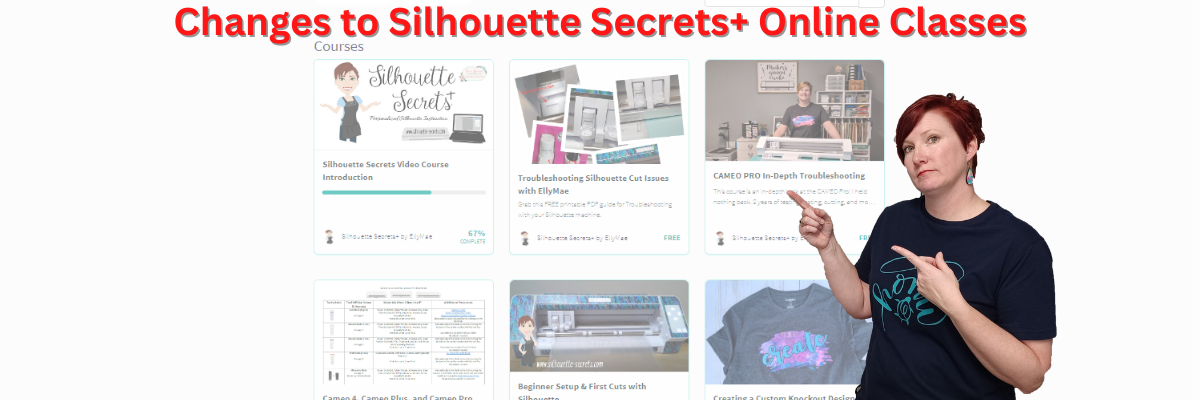
The first major change of 2023 will come to my online Silhouette classes at Teachable.

UPDATES – December 15, 2022

This week I received an offer from CrafterCuts to sponsor Silhouette classes on my Teachable site. This means it will be possible for me to continue releasing new classes as I have been.

There will be updates to the site coming in January 2023.

CrafterCuts is an authorized Silhouette retailer and I was referred to them direct from Silhouette.

A great big Thank You to CrafterCuts for coming on as a sponsor and making it possible for me to continue to develop current Silhouette classes.

And for my followers use code SECRETS to save 10% on your order from CrafterCuts.

Here is looking forward to 2023 and what is to come. Check out the current classes listed below and remember if you register before December 31, 2022, you will have lifetime access to those classes.

As of January 2023, I will only be able to have 5 active classes available on my Teachable platform at a time.

What does this mean?

First, it means that effective December 31, 2022, all of the current classes will no longer be available for purchase as they currently are. I can only have 5 active classes published at a time.

I am in the process of deciding which if any of the current classes should go back up. I will be making this decision as I work through the process on the back end of things on the site.

But, once I start making changes to my Teachable site, I am limited to 5 active classes only, at one time.

So effective December 31, 2022, all the current classes will no longer be available.

What about a class you already purchased?

If you have already purchased a class on my Teachable site, you will have access to that class even after it is no longer available for purchase.
This class should show up under your Teachable account when you log in.

Starting in 2023, there may be a time limit for viewing any new courses that are offered.
I am still working on all the details and what I need to adjust.
However, anything you purchase prior to December 31, 2022 you would have access to it for a lifetime according to Teachable.

Have I looked at other options?

The answer is yes, I have. I’ve researched many other options out there and they all come down to the same thing – cost!

It costs money to have the blog website. It costs money to have an online hosting platform for the classes.
It all has a cost and I have to weigh those costs and decide what is feasible for me to invest in.
And I have to do that to pay in advance for the next year.
Bottom line is, costs have increased and Teachable notified me that if I wanted to continue as I had with unlimited classes it was going to cost a whole lot more.

So for 2023, I am going to try this out with the 5 available courses and see what happens. This means some classes released will have a limited time frame they are available in order to offer new ones.
At the end of 2023, I will once again have to look at whether I “Evolve or Dissolve”…. lol – most likely after I get an email that my costs are increasing yet again.
It’s just part of the business.

I enjoy teaching Silhouette classes, but there is a cost to it all, both in monetary value and time.

What about the free content on my Teachable site?

This change includes the free content that I have available currently on my Teachable site.
As of December 31, 2022, all content will no longer be available to register for, including the free classes.
Any class I publish counts towards that limit of 5, this includes “free” items as well.

I am in the process of reorganizing how I will offer things like the free content currently on the site in the future. I cannot continue to offer that on the Teachable site with the rise in costs to host on the site.

What current classes are offered?

You can click HERE to be taken to my Teachable site to preview all the classes available or below on each individual class for more details.

Beginner Setup & First Cuts
Creating a Custom Knockout Design in Silhouette Studio
Silhouette Studio Software Basics to Create SVG Files – Great for Laser Owners
Let’s Explore v4- Text in Silhouette
Sketch Pen & Sketch Pen Design Class
Creating a Knock Out Design with Silhouette
Glass Etching with Your Silhouette Machine
Cutting Leather with the Cameo 4 & 3 mm Kraft blade
Silhouette Print & Cut Basics to Design Files to Troubleshooting Course
Creating a Vinyl Decal & Layering Vinyl using Silhouette Studio
Cutting & Layering HTV in Silhouette
Glass Etching with Silhouette
Heat Transfer Paper Print & Cut Lesson with Silhouette
Creating a Knockout Design with HTV & Bonus HTV & Subtract
Creating a Rhinestone Design in Silhouette Studio

Curio Classes Offered
Curio Beginner Setup & First Cuts with Cardstock & Vinyl
Chalkboard Decor with the Silhouette Curio
Beginner Curio – Metal Etching Placement
Basic Acrylic Etching with the Silhouette Curio
Acrylic Etching & Design with the Curio
Etched Metal Cake Server with the Silhouette Curio – Advanced
Embossing Leather with the Silhouette Curio
Etched Acrylic Decor with the Curio
Etched Acrylic Panel with the Curio
Curio Etched Heart Mandala Class – Advanced Beginner

Free content
Troubleshooting Silhouette Cut Issues
Cameo Pro In-Depth Troubleshooting

Cameo 4, Cameo Plus, Cameo Pro Tool Chart
Cameo Pro DIY Stand/Table
Cutting Like a Pro with the Cameo Pro

Whew! One thing is for sure – typing out the available class list in the future will be easier – ha ha!

If you are looking for what others have had to say about the online classes, check out the Student Testimonies HERE.

What other changes are in store for 2023?

That is a great question and let me consult the Magic 8 ball.
“Ask Again Later”

The truth about it is, I don’t know.

I have a game plan started and sometimes it changes daily, like when I received the email from Teachable this week on them increasing their fees.

So far for 2023 my list includes:

– Reorganizing the entire Silhouette Secrets+ Teachable site and creating new video classes

– Continuing to put out blog content on the Silhouette Secrets+ website HERE.
So make sure to sign up to receive notifications of new blog posts!

– Continuing to put up new videos on the Silhouette Secrets+ YouTube channel
Follow me on YouTube HERE to be notified when new content when it’s released.

– Post videos on the Swift Creek Customs YouTube channel where we hope to inspire other Makers
Follow us that channel HERE to be notified of new content when it’s released.

– Merging it all together?
Still an unknown, but many know that I launched a new site called Swift Creek Customs where I share content that is not specifically Silhouette related. My husband and I are both involved in many hobbies and hope to inspire others as well, but it’s not always strictly Silhouette based, so the new channel was created.

– Sending out a newsletter?
This one is a ? still as I don’t know if people would read it.
If you are interested in a newsletter, please comment below and sign up on my Teachable site.

– And many other things that I write in and then cross out.
It is an evolving process and who knows what can happen in 2023!

So for now, I’m still here and will have some Silhouette online course offered in 2023.

This year I also added the “Start Here – A to Z” menu on the blog. If you are looking for a topic, I have those organized in A to Z format with all the information I’ve published in the past 6+ years.

I want to thank you all for your support through the years. Without your support, I would not be able to even consider making changes and continuing what I’ve been doing to bring more information to you.

I want to wish you all a very happy holiday season and I hope that the New Year brings you lots of blessings!
Let’s see what we can create in 2023

Enjoy !

This image has an empty alt attribute; its file name is logo.jpg

THANK YOU for your support! How can you help? Click HERE & buy a coffee.
Every little bit helps with the cost of running the site.

Or if you are looking for more in-depth, step-by-step classes, check out all of my online Silhouette classes on my Teachable site HERE.

SS Logo snip it
**This post may contain affiliate links. What that means is that I may receive compensation if you purchase through the links I have provided. The price you pay for the product or service is not higher but I may get compensated for sharing.
Posted on Leave a comment

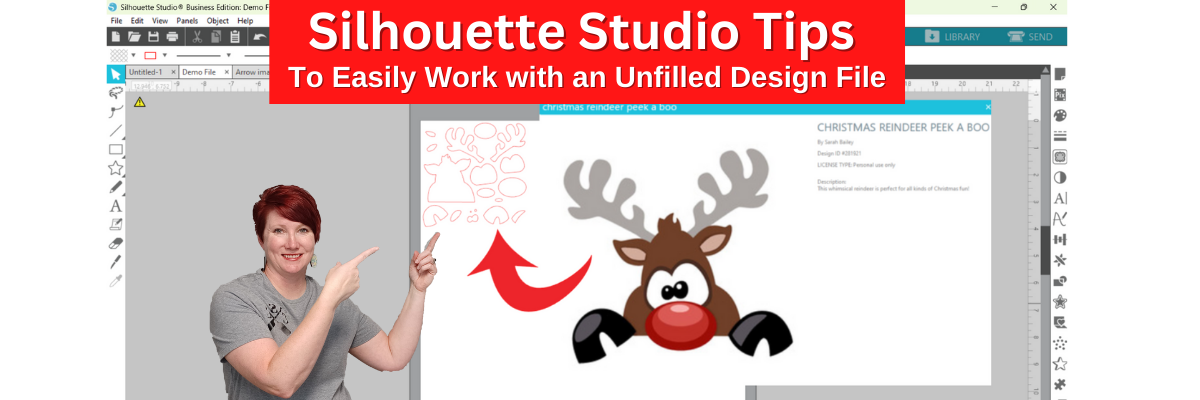
Silhouette “Secret” to Working with an Uncolored Design

Have you ever opened up a design file and it was not filled with color or did not look like the thumbnail image of the design?

Today I’m sharing a quick video tutorial on the Silhouette Secrets+ YouTube channel on how you can easily work with these types of files and why they may open like this.

Check it out HERE

I hope you are getting crafty today!

Share below what projects you are working on currently!

I would love to see what you are creating with your Silhouette software or machines!
Feel free to post on my Facebook group at 
Silhouette Secrets with EllyMae.

Save this for future reference by pinning the image below.

Enjoy !

This image has an empty alt attribute; its file name is logo.jpg

THANK YOU for your support! How can you help? Click HERE & buy a coffee.
Every little bit helps with the cost of running the site.

Or if you are looking for more in-depth, step-by-step classes, check out all of my online Silhouette classes on my Teachable site HERE.
SS Logo snip it
**This post may contain affiliate links. What that means is that I may receive compensation if you purchase through the links I have provided. The price you pay for the product or service is not higher but I may get compensated for sharing.
Posted on 2 Comments

New updates to Silhouette America!

I wanted to share some information that is new on the Silhouette America website!

I do think it is something all Silhouette users can benefit from it!

What’s New?

New Silhouette Knowledge Base has now been updated on the Silhouette America website.

I know, most won’t be as excited about it as I am, but keep reading and maybe I can explain why I am excited about this!

Why am I so excited?

Because I use the search on the SilhouetteAmerica.com website hundreds of times every single day to find answers for users. AND now, you can easily do that too!

I am asked often how I know what I do and can solve the issues I do.

Research and experience!

Now, you can learn more about your Silhouette, find solutions to Silhouette issues you are having, and become an expert with your Silhouette machines easier.

I have previewed this Silhouette Knowledge Base for a few weeks now and am finding great resources and instruction on it!

So first, I want to share a few of the topics I found when I was just scrolling through that can be helpful to all Silhouette users and we often see asked on social media groups.

The more you know and can understand about how the machines work, the easier it will be to troubleshoot issues when they arise for you.

Blade Not Adjusting

Materials Silhouette Can Cut
The information provided under this topic explains several characteristics of materials that may determine if it can be cut with a Silhouette machine.

Silhouette Software crashing
During Start Up
Follow this step-by-step if crashing is occurring immediately on opening the software.

Silhouette Software crashing
After Start Up
Follow this step-by-step if crashing is occurring while working in the program.

Transferring Machine Registration
What to do if you sell your machine or buy a used machine. How do you register it?

Silhouette Design Store Rewards Program
What is it? How does it work?

Rolled Materials Bunching During Loading

Software Update vs Upgrade

Working Online vs Offline
Got the message that your library is “Working Offline”. How do you fix it?

Job Complete Without Any Movement

Silhouette Studio Can’t Connect to a Machine via USB

Cameo 1 or Portrait 1 not connecting to a Windows 10 or 11 computer

Those are just a few of the ones I found in a brief search. There is so much information right at your fingertips on the new Silhouette America Support Fresh Desk.

I hope you take the time to learn something new today!
It really is the way that I have learned and troubleshoot user issues every day.

Enjoy !

This image has an empty alt attribute; its file name is logo.jpg

THANK YOU for your support! How can you help? Click HERE & buy a coffee.
Every little bit helps with the cost of running the site.

Or if you are looking for more in-depth, step-by-step classes, check out all of my online Silhouette classes on my Teachable site HERE.

SS Logo snip it
**This post may contain affiliate links. What that means is that I may receive compensation if you purchase through the links I have provided. The price you pay for the product or service is not higher but I may get compensated for sharing.


Posted on Leave a comment

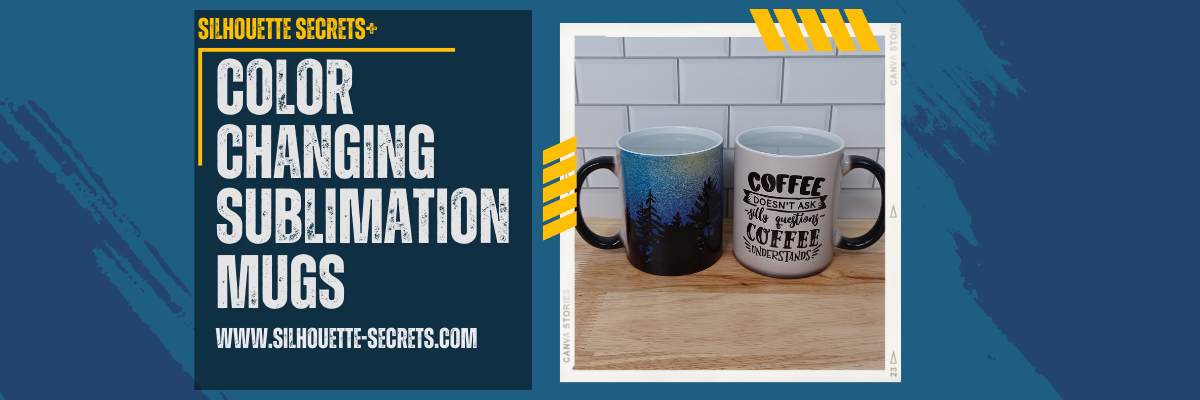
Color Changing Sublimation Mugs

I love trying new things!

Affiliate links may be present in the below and as an Amazon Associate I earn from qualifying purchases. What that means is that I may receive compensation if you purchase through the links I have provided. The price you pay for the product or service is not higher but I may get compensated for sharing.

I am so excited to share this project! Well frankly, I’m excited to make myself some new coffee mugs.
I saw these color changing mugs at 143 Vinyl and knew I had to try it out.
I’ve been so excited to use my new mug press on the StarCraft 8-in-1 heat press that I’ve got all kinds of ideas!
Check out the post I did on the heat press HERE with my first project.

Note: this is a photo heavy tutorial but I also have a video tutorial on the the Silhouette Secrets+ YouTube Channel HERE too!

Let’s get started!

Measure your blanks and write down the measurements if needed.

Draw a template shape with the Drawing Tools in Silhouette Studio and adjust the height and width to match your measurements.

Select designs and scale to fit within template shape.

I used these designs:
Coffee Clipart, Sublimation, Zombie, Mombie by CuddleBunnieStudio
Funny Coffee Bundle SVG by BlackCatsMedia
Tree Night Skyline Sublimation by Enliven Designs

Chose File > Print and select the sublimation printer to print the design onto sublimation paper.

Gather all supplies needed to apply the sublimation print to the mug.

Supplies used:
Color Changing Mugs from 143 Vinyl
Protective Project Mat from Artesprix (optional but so worth it) – with stands up to 400 degrees F
heat safe gloves (not pictured)
Lint Roller
– Heat Tape
Heat Tape Dispenser (optional but so worth it)
Alcohol swabs
Paper Trimmer
– Printed Sublimation Paper
Mug Press – mine is the StarCraft 8-in-1 Heat Press
– Epson F170 Sublimation Printer

Trim design as needed. This can make it easier to handle and line up the design.

A paper trimmer is a handy tool to have in the craft room.

Clean mugs with alcohol wipe and a lint roller to remove any debris and oils.
The alcohol removes oils & dirt while the lint roller picks up fibers and debris unseen to the eye.
Fibers can cause colored specks to appear on the sublimated blank as the ink binds to those areas and is permanent on your blank.

Check the pressure on the mug press by placing the mug in it and closing before you heat the press up. This will help ensure that the pressure is right before you have the design in place.
Make any adjustments needed before it’s hot.

Securely tape the sublimation prints onto the mug.

Set the mug press time and temperature according to the recommended directions. These called for 370 degrees for 250 seconds found in the description on the 143 Vinyl website.

Wrap parchment paper (blow out) paper around the mug and carefully slide into the mug press. This will protect your mug press adapter from any sublimation ink that might “blow out” around the print.

Press for the time and temperature recommended.

Using heat safe gloves carefully remove the mug and place on a safe surface. This silicone high temperature protective mat from Artesprix is great for sublimation and keeping my workspace safe from burns.

Let the mugs cool completely on this safe surface.

Since the mug is hot, you can see that the color changed from black to white.

As the mug cools, the black color comes back. This is perfect to know when the mug is cool enough to handle and remove the sublimation print.

Waiting for it to cool can be the longest part of the process.

But the reveal is worth it…. well…. maybe.

It does say on the product description that it is a black color-changing coating (image slightly visible under coating).

Just add a hot liquid

and watch it appear!

Check out the full video tutorial video HERE.

I also want to add that the product description does state they are not microwave or dishwasher safe.

Loving my 2 new coffee mugs for my Studio area!

What new things have you tried lately?
Let us know below.

I would love to see what you are creating with your Silhouette software or machines!
Feel free to post on my Facebook group at 
Silhouette Secrets with EllyMae.

Save this for future reference by pinning the image below.

Enjoy !

This image has an empty alt attribute; its file name is logo.jpg

THANK YOU for your support! How can you help? Click HERE & buy a coffee.
Every little bit helps with the cost of running the site.

Or if you are looking for more in-depth, step-by-step classes, check out all of my online Silhouette classes on my Teachable site HERE.

SS Logo snip it
**This post may contain affiliate links. What that means is that I may receive compensation if you purchase through the links I have provided. The price you pay for the product or service is not higher but I may get compensated for sharing.
Posted on 3 Comments

How to Cut Multiple Colors at Once with Silhouette

This is a technique that I use with every single project I have that requires multiple colors to be cut. I find it saves me time, materials, and adhesive on my cutting mat since I’m only using smaller sections at a time and not ripping full sheets off the mat each time.

Check out this new video tutorial on my Silhouette Secrets+ YouTube channel HERE.

How to Cut Multiple Colors at Once with Silhouette video HERE.

Affiliate links may be present in the below and as an Amazon Associate I earn from qualifying purchases. What that means is that I may receive compensation if you purchase through the links I have provided. The price you pay for the product or service is not higher but I may get compensated for sharing.

I find that a good paper trimmer is one of my most essential tools in my crafting area.

My personal favorite is the EK Tools Rotary Paper Trimmer found HERE.
This is the one you see me use in the video.

But you can use any paper trimmer that cuts a straight line for doing this technique.

Hope those tips help to make your Silhouette projects go smoother!

I would love to see what you are creating with your Silhouette software or machines!
Feel free to post on my Facebook group at 
Silhouette Secrets with EllyMae.

Save this for future reference by pinning the image below.

Enjoy !

This image has an empty alt attribute; its file name is logo.jpg

THANK YOU for your support! How can you help? Click HERE & buy a coffee.
Every little bit helps with the cost of running the site.

Or if you are looking for more in-depth, step-by-step classes, check out all of my online Silhouette classes on my Teachable site HERE.

SS Logo snip it
**This post may contain affiliate links. What that means is that I may receive compensation if you purchase through the links I have provided. The price you pay for the product or service is not higher but I may get compensated for sharing.
Posted on 1 Comment

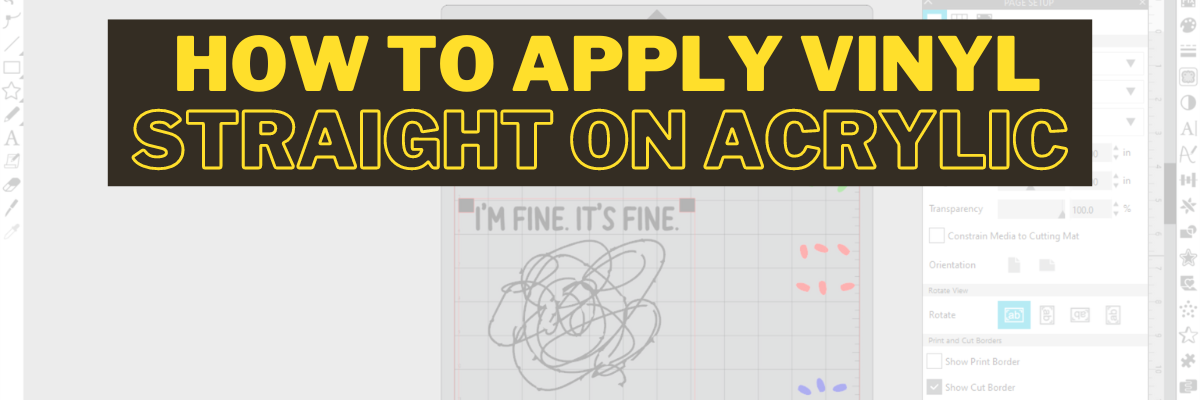
How to Apply Vinyl Straight on Acrylic Panels

Today I’m sharing another acrylic sign décor project and how I made it.

Affiliate links may be present in the below and as an Amazon Associate I earn from qualifying purchases. What that means is that I may receive compensation if you purchase through the links I have provided. The price you pay for the product or service is not higher but I may get compensated for sharing.

Start by gathering your supplies.

Here is a list of the supplies used to create this project:
– Oracal 651 adhesive vinyl in the following colors:
Black, yellow, green, blue, light blue, red

– Oratape MT80P application tape
– Acrylic Panel or sign
– Wood stand (optional for panel)
– Acrylic Paint in your color choice
– Paint brush with bristles
– Paint palette (optional)
– alcohol wipe
– weeding tool
*Note: the acrylic sign I used in this project was from Michaels but is no longer available
These techniques can be applied to any acrylic sign blanks you might find.

Designs & Fonts used:
Christmas Lights svg by Art Boutique Butterfly
BFC Magic Marker Print Font by Blush Fonts – Design #396584

Next, measure the size of the blanks and write down measurements.

Paint backside of acrylics if desired to make it pop.

Using drawing tools to create a shape to use as a template with the measurements taken.

Add your design within the template and adjust as you see fit.

Using shapes as your template helps to visualize the available space you have for the design on your blank and see how might look. I use shapes as templates often in my designing and they also make a great weeding box too!
Check out these other tutorials HERE to see how I use shapes all the time as templates.

I don’t know about you, but most times, the most time consuming part of creating a project for me is choosing a design. I ended up creating a design with a combination of things I had seen.
I used both a design and a font style to create this sign.
Christmas Lights svg by Art Boutique Butterfly
BFC Magic Marker Print Font by Blush Fonts – Design #396584

Draw rectangles and align with the edges of the template to use as alignment tools for aligning on the acrylic blank.

Thanks to Barbara Foster with Let’s Go Silhouetting for this tip!
I used alignment boxes for layering vinyl and lining things up before, but taking a class with Barbara at the All Things Silhouette virtual conference in 2022 was a light bulb moment (no pun intended) to use this when lining it up to make sure it was absolutely straight on acrylic blanks.

Arrange the design to be cut.

I arranged it so that I could cut all of the pieces of the design in all colors on 1 Silhouette mat and 1 time sending it through the machine. I use this technique for all materials I cut.

Look for a step-by-step video tutorial on this coming soon to the Silhouette Secrets+ YouTube Channel!
I’ll update this post with a link once it’s ready.

Weed your vinyl design and then apply to the acrylic blank. I used the rectangles drawn for the layering marks to line it up with the straight edge of the acrylic sign.

Check out the new video on my Silhouette Secrets+ YouTube channel on the application of this design HERE.

And check out this recent post on Creating Fall Decor with Oracal 651 HERE.

Acrylic signs are something that have been very popular the last few years and can be used for all seasons and occasions.

Check out this post HERE for 10 more ideas of what you can create.

I would love to see what you are creating with your Silhouette software or machines!
Feel free to post on my Facebook group at 
Silhouette Secrets with EllyMae.

Save this for future reference by pinning the image below.

Enjoy !

This image has an empty alt attribute; its file name is logo.jpg

THANK YOU for your support! How can you help? Click HERE & buy a coffee.
Every little bit helps with the cost of running the site.

Or if you are looking for more in-depth, step-by-step classes, check out all of my online Silhouette classes on my Teachable site HERE.

SS Logo snip it
**This post may contain affiliate links. What that means is that I may receive compensation if you purchase through the links I have provided. The price you pay for the product or service is not higher but I may get compensated for sharing.
Posted on 3 Comments

Gift Idea for a Crafter

Just popping in really quick to share a new video I released on YouTube sharing some new tools from Crafter Cuts that would be a perfect gift idea for a crafter friend or even yourself!
Who doesn’t need more tools handy when creating?

Check out the video HERE on my Silhouette Secrets+ YouTube Channel to see which tool I’m most excited about!

Affiliate links may be present in the below and as an Amazon Associate I earn from qualifying purchases. What that means is that I may receive compensation if you purchase through the links I have provided. The price you pay for the product or service is not higher but I may get compensated for sharing.

Here is a close up of each of the tool kits I received from Crafter Cuts and what each includes.

Crafter Cuts 7 Piece Vinyl Tool Kit – available in black, blue, or pink

Includes: Scraper, 3″ x 4″ Vinyl Squeegee with felt, 3″ x 2″ Small Vinyl Squeegee, Angled Anti Static Weeding Tweezers, Hook Tool, Pin Tipped Pen with replacement pin, precision knife with 5 replacement blades

Crafter Cuts Deluxe Vinyl Tool Kit

Includes: All Felt 3M Squeegee, Blue Vinyl Squeegee with Felt edge, White Squeegee, Lil’ Chizler Precision Tweezer, Precision knife with 5 replacements, and Crafter Cuts Pick Tools

I’ll have more gift ideas soon!
Now I’m off to play with my new tools and give them a talk about not hiding in “safe” places.

Save this for future reference by pinning the image below.

Enjoy !

This image has an empty alt attribute; its file name is logo.jpg

THANK YOU for your support! How can you help? Click HERE & buy a coffee.
Every little bit helps with the cost of running the site.

Or if you are looking for more in-depth, step-by-step classes, check out all of my online Silhouette classes on my Teachable site HERE.

SS Logo snip it
**This post may contain affiliate links. What that means is that I may receive compensation if you purchase through the links I have provided. The price you pay for the product or service is not higher but I may get compensated for sharing.
Posted on 1 Comment

Fall Decor with Oracal 651

Affiliate links may be present in the below and as an Amazon Associate I earn from qualifying purchases. What that means is that I may receive compensation if you purchase through the links I have provided. The price you pay for the product or service is not higher but I may get compensated for sharing.

First, a great big THANK YOU is in order!

There are many aspects of teaching classes or hosting events that many followers do not realize or think about. Costs is one of those. It is a wide range from venue rental fees, food, taxes, resort fees, transportation, shipping, class supplies… and the list could go on and on!

In September I taught at an in-person workshop organized by Marjorie with Atlanta Stylish Point in Atlanta. This was the first in-person workshop we have been able to organize since 2020 and just like everything else worldwide, costs have gone up.

Sponsors are a big part of teaching classes and hosting events. A BIG PART!
I want to give a great BIG SHOUT OUT to my class sponsor for that event!!!
Thank you H & H Sign Supply!

They sponsored my Acrylic Decor class and sent extra goodies for the students too!

Without sponsors like H & H Sign Supply, I could not do classes and events.
I greatly appreciate the support and the students loved all the goodies!

Here is a photo of the class project I taught at the event.

This was a project that the attendees designed completely from scratch using several fonts styles.

Here is a list of the supplies used to create this project:
Oracal 651 adhesive vinyl in the following colors:
Brown, Golden Yello, Purple Red, Dark Red, Light Orange

Oratape MT80P application tape
Acrylic Panel or sign
Wood stand (optional for panel)
Spiced Pumpkin DecoArt Americana Acrylic Paint
Saffron Yellow DecoArt Americana Acrylic Paint
Paint brush with bristles
Paint palette (optional)
alcohol wipe
weeding tool

Fonts used in design creation:
Maxwell font by Silhouette – Design #259151
BFC Magical Writing Handwriting Font by Blush Fonts – Design #387314
Fall Leaf Dingbats by Lori Whitlock – Design #222723

Need help installing fonts? Check out this tutorial HERELet’s Explore v4 – Installing Fonts

In this class, I taught attendees how to create their own design using shapes as templates and designing within that to create a project. They were in charge of the design from start to finish.

Here are few of the students creations


Some created the exact same design I developed the class with and others took off on their own, using different fonts and phrases!

It was so neat to see what everyone at the event did!

The best part of creating your own designs is that they can turn out a bit different each time!

Thank you to H & H Sign Supply for being a sponsor for our Silhouette events!

Stay tuned as I have another acrylic sign project coming your way soon sharing some of the techniques we used in class!

For a few more ideas of how you can create different seasonal décor projects with acrylic signs and adhesive vinyl, check out these 10 other examples in this Acrylic Sign Decor post from last year found HERE.

Save this for future reference by pinning the image below.

Enjoy !

This image has an empty alt attribute; its file name is logo.jpg

THANK YOU for your support! How can you help? Click HERE & buy a coffee.
Every little bit helps with the cost of running the site.

Or if you are looking for more in-depth, step-by-step classes, check out all of my online Silhouette classes on my Teachable site HERE.
SS Logo snip it
**This post may contain affiliate links. What that means is that I may receive compensation if you purchase through the links I have provided. The price you pay for the product or service is not higher but I may get compensated for sharing.
Posted on 1 Comment

Unboxing a StarCraft 8 in 1 Heat Press

Today I’m excited to share a new tool I’ve received in my studio.
I will be unboxing a StarCraft 8-in-1 Heat Press but in a little bit different fashion.

First, let’s get all the disclaimers out of the way.

Affiliate links may be present in the below and as an Amazon Associate I earn from qualifying purchases. What that means is that I may receive compensation if you purchase through the links I have provided. The price you pay for the product or service is not higher but I may get compensated for sharing.

143 Vinyl did send me this heat press to test as an affiliate.
I am excited about this StarCraft 8-in-1 heat press because it includes several attachments that I do not have in my studio, such as a cup press and hat press.
All my opinions are my own.

I know the first question most will ask is….
Do I recommend this heat press?
And I want to start off with, so far so good.
I have done my first press with the cup press as you will see below and I was impressed with the results. I will be using it more and more in the future and will update things as I do.

StarCraft 8-in-1 Heat Press Unboxing

I did a time lapse video of my unboxing and first test with the StarCraft Heat Press which can be viewed on the Silhouette Secrets+ YouTube channel HERE

And I also took photos along the way to share the unboxing in this blog post.
Note: this post below will be photo heavy.

So let’s get started.

The StarCraft 8-in-1 Heat Press Photo Unboxing

This is a StarCraft 8-in-1 12″ x 15″ Swing Away Heat Press – Silver in color.

It is packed very well.

Remove everything from the box and remove all bubble wrapping.
One of the cup attachments is in the backside of the cup press, so make sure to check there too.

This StarCraft 8-in-1 Heat Press includes a hat attachment, Plate (8″ and 10″) attachment, Mug (9 oz, 11 oz, and 12oz) attachment, and Tumbler attachment (fits 20 oz and 30 oz)*
*Tumbler attachment is not for a full wrap
And heat safe gloves.

To attach the cup press, unhook the main platen electric cord on the front and the display cord on the bottom of the main press circuit board.
Plug the cup press main electric cord and the display cord in to the main circuit board.
This is how the cup press gets the information for time and temperature from the main press display.

Tip: test the object you are pressing on in the press before it’s heated up so you can make any adjustments for pressure prior to the press being hot.

Set the temperature and time on the press according to the blank you are using.
Consult the instructions from the manufacturer for the specific blank you are using for time & temperature.

With this StarCraft 8-in-1 Heat Press, it has 3 different modes that you can preset with settings to choose from. This is an awesome feature!

I found the mug press heated up very quickly.

First Test Press

I had a sublimation print from a few weeks back that I hadn’t used, so I just grabbed it to test with.
This sublimation print was designed in Silhouette Studio and printed direct from Silhouette Studio to my Epson F-170 Sublimation printer.

For hard surfaces, clean the blank with alcohol and let it dry.
This will get rid of any oils, dust, or debris that is on the blank.
Try not to touch the sublimation surface again.

Use a lint roller on the dry cup and roll it a few times. This will pick up any lint or fiber debris that is often unseen by the naked eye. Any fibers or specks on the sublimation blank can cause the ink to adhere to it and leave spots on the finished product.

Wrap the sublimation print to the object tightly and tape it securely using heat tape.
Sublimation works with both heat and pressure.

If the sublimation paper is not tight on the object it can cause ghosting of the ink.

I love this Multi-Roll Heat Tape Dispenser in the photo above. It rolls the heat tape through & then cuts small sections that are the perfect size to tape down areas of a project.
This way I don’t need a third hand to cut tape off.

When the heat press has come to the correct temperature, slide the mug carefully into the press.
If not using a full sheet of paper, make sure to use parchment paper to protect the press around your mug to prevent “ink blow-out” getting on your press platen.

I was so excited to do this test that I did not get my print centered on my mug as you can see in the photo above and following. But, it’s all a learning process!

Once the press time is done, using the heat safe gloves, carefully remove the cup and place on a heat safe surface. It will be VERY hot!

I am using an Artesprix Protective Project Mat that withstands up to 400 degrees Fahrenheit.
This protects my table tops and gives it a safe place to cool off.

Once cooled, carefully remove the sublimation paper and heat tape.
My cup was still pretty warm so I used my heat safe gloves and the Siser EasyWeeder tool to remove the paper and tape.

Once it was fully cooled, I could snap a few photos.

As this is my first practice press, I learned a lot!
But I am so excited with how it turned out because my previous attempts with my convection oven did not turn out as well as this.

On this side of the cup, there is some color fading at the bottom and along the edge.

This indicates to me that I needed greater pressure in that area.
So I will make sure to get my mug perfectly centered in the press and look at increasing the pressure on that side of the press.

This side turned out with just a bit of fading at the bottom of the mug. So I’ll look to increase the pressure on the bottom side of the press for next time.

But the side was perfect and a nice edge.

Now, this was just a test print I had lying around. I may not do a full-ish wrap in the future or I’ll make the print to fade out more on the edges on purpose, so it gradually lightens on purpose.
If you were just sublimating a design on each side, you wouldn’t have edges that close to the handle in most cases.

You can see the difference here in the edges. Complete and 100% user error on my part.
I know it and I know I was excited to test it. So that is completely on me.

Overall, I am very pleased with my first test on the StarCraft Heat Press and how it worked out.
I am excited with having these new tools in my studio and seeing what I can create with it in the future.

The next biggest challenge was finding a home for this new StarCraft 8-in-1 Heat Press.
I knew I wanted a dedicated space for it and it needs clearance to move as it swings out.

We have added several Husky Workbenches and an Adjustable Height Workbench to my studio area this past year and I really like how they are built and the wood tops. So I started looking for something that would work for this heat press station.

This Husky 4 drawer Rolling Tool Cabinet was perfect!
I also added the Hardwood Tool Cabinet Top for the toolbox and it fits perfectly! Plus I have dedicated storage space for the attachments, parchment paper, heat gloves, Teflon sheets, heat tape, and more.
And I can move it any where in the studio to use it, which works great if I’m making videos!

Now the ideas are flowing with more projects that I can complete with these new tools!

Make sure to check out the video time lapse of the entire unboxing process as well on the Silhouette Secrets+ YouTube channel HERE.

Thank you 143 Vinyl for letting me test this new-to-me tool!
I look forward to sharing more!

If you are looking for sublimation tutorials or using Silhouette Studio for sublimation, check out the Sublimation header on the blog HERE.

Save this for future reference by pinning the image below.

Enjoy !

This image has an empty alt attribute; its file name is logo.jpg

THANK YOU for your support! How can you help? Click HERE & buy a coffee.
Every little bit helps with the cost of running the site.

Or if you are looking for more in-depth, step-by-step classes, check out all of my online Silhouette classes on my Teachable site HERE.

SS Logo snip it
**This post may contain affiliate links. What that means is that I may receive compensation if you purchase through the links I have provided. The price you pay for the product or service is not higher but I may get compensated for sharing.