Posted on 2 Comments

Off the Edge Die Cut Card with Silhouette

Off the Edge Die Cut Card with Silhouette

In this tutorial, I’m going to share how I created what’s called an “Off the Edge” die cut card with my Silhouette machine. This can add an interesting element to any card design and is fun to create.

Affiliate links may be present in the following blog post and as an Amazon Associate, I earn from qualifying purchases.

Off the Edge Die Cut Card with Silhouette

I recently attended the Card Maker Success Challenge hosted by Brandi Mahon of Stamp Me Some Love and was so inspired by her card ideas. I took the card ideas she was sharing and modified them to be used with my Silhouette software and machine. If you are looking for card making inspiration, I recommend you check out her monthly Card Maker’s Success Subscription.

Supplies Used:

Creating an Off-the-Edge Die Cut Card with Silhouette

The Background

First, I opened up an Alcohol Ink Background by Sarah Hurley and printed that as a full letter size page for my card backgrounds. I printed this onto Koala Glossy Photo Paper and it turned out awesome!

Alcohol Ink Background by Sarah Hurley Silhouette

I have a Canon TS9521C that is a borderless printer, but you can do the same even without a borderless printer.

Alcohol Ink Glossy Photo Paper

Then, I will use a paper trimmer to cut the page down to the size I need for my cards front. But, I won’t know the size until I have the other pieces cut out, so I just set this aside.

Designing in Silhouette Studio

Drawing the Card Pieces

Next, in the Silhouette software, using the Drawing Tools on the left side, draw out a rectangle and then scale it to 4.25″ x 5.5″ or whatever card size you are wanting. Unlock the lock to be able to change the height and width of the rectangle individually. Type the number and press Enter to set the dimension. Find more on the Scale Tools HERE.

Silhouette Drawing Tools and Scale Tools

Select the rectangle and then choose Align Left in the Alignment tools. With only 1 object selected it will align it to the left side of the page. This will help us in just a minute with our design.

Silhouette Studio Align Tools

Choosing a Sentiment

Next, open the sentiment design you want to use or with the Text Tool and type out the sentiment you want. If you type out the text, make sure to weld any overlapping pieces.

I used Hello by Diva Watts Designs found HERE for this card design.

Open Hello Design by Diva Watts Designs

Scale the hello down to fit within the card base and use the green dot at the top to rotate it to the desired angle. Or you can use the Rotate Panel and rotate to 45 degrees and adjust from there.

Editing the Card Front

Next, open the Page Setup Panel – Tab 2 and check the Show Grid and Snap to Grid boxes.

Silhouette Snap to Grid

This is going to allow us to adjust the rectangle and maintain straight lines.

Double click on the red line of the rectangle to bring up the Edit Points. Drag the top left edit point (gray dot) down.

Silhouette Edit Points

Grab the top right edit point and drag it down, so the top of the rectangle is angled as desired to run through the middle of the sentiment.

Silhouette Edit Points

With the Snap to Grid tool activated, it snaps the edit points to specific locations and easily allows the design to be manipulated and maintain the straight lines of the card edges.

Once the edges are how we want, Show Grid and Snap to Grid can be toggled off on the Page Setup Panel – Tab 2 again. I find the grid lines distracting when designing, but they can easily be turned back on if needed.

Create a Copy for Future Templates

Make a copy of the card base and you can use it for future cards as a starting point.

Silhouette Make Copies

Select both the card base and the sentiment and Align the Center in Silhouette. Depending on the design, center aligned may not look centered to the eye. Use the arrow keys to adjust if needed in small increments any direction.

Silhouette Center Align

Adding an Offset

Next, click on the sentiment to select it and open the Offset Panel on the right side. Click Offset and adjust the distance of the Offset as desired, then click Apply or press Enter. The distance of the offset will all depend on the sentiment and the size you are using. There is no magic number.

Silhouette Offset Panel

The offset should overlap the angled rectangle securely and not have too many tiny bits to be cut out.

Silhouette Weld

Welding the Offset to the Card Front

After clicking on Apply, the offset will be selected. Hold the Shift key down and click on the angled rectangle so that both are selected, then right click and choose Weld.

Silhouette Compound Path

This now combines the angled rectangle and the offset into 1 cut and creates the off-the-edge design. If there are any tiny bits like what the red arrow points to above, those are not needed in the design. Move the sentiment off of the design.

Then right click on the design and choose Release Compound path. Click off of it to deselect and click back on the little bit, press delete. When all the pieces you want are deleted, select the entire design again, right click and choose Make Compound Path.

Silhouette Compound Path

Use the drag select method to select all the pieces at the same time. Left click the mouse and hold it down in the top left corner above the design and drag it all the way through the design to the bottom right corner. Anything that the selection box touches, should be selected.

Cutting the Card Pieces & Assembly

Now you have your pieces for the Off-the-Edge card design designed and ready to cut in Silhouette.

Off the Edge Die Cut Card

I cut the sentiments from Oracal 651 Black vinyl and applied it to the off-the-edge piece that I cut from white cardstock. I reused a piece of transfer tape to apply it and was careful that it didn’t stick to the cardstock too much. You could also cut from cardstock and glue to the front, but adhesive vinyl makes it a bit quicker to assemble and the glossy sentiment made it pop with the photo paper background too!

Oracal Adhesive Vinyl 651 Cut Sentiments

Then I took the printed sheet of the alcohol background paper and cut it to 4.25″ x approximately 3.5″ with my paper trimmer. This size depends on how far the left side of the off-the-edge cut comes down. I used a Scrapbook tape runner to adhered the alcohol background to the front of a card base at the top.

You can either buy ready made card bases or make your own. In this card tutorial HERE at 32:30, I show how I cut my own card bases from a letter size sheet of paper.

Off the Edge Die Cut Card

Then used foam tape to add the off-the-edge cut piece to the front of the card at the bottom.

Off the Edge Die Cut Card

Off-the-Edge Die Cut Cards with Silhouette

Once you have the basics of the card creation down, you can modify it for different sentiments. Save the angled rectangle as a template for future card cuts.

Off the Edge Die Cut Card with Silhouette

I also created this with a Happy Birthday design by Erica Digital Designs, a Thank You design by Erica Digital Designs, and a Thank You design by Dresden Carrie.

Off the Edge Die Cut Card with Silhouette

The first card will take the longest to design, but then you will have all the steps and if you save the files, you can easily open in the future and get to cutting.

You will also notice that a couple of mine got a bit close to the edge and really did go off-the-edge. For these I can just snip that part off before placing in the envelope, but in the future I’ll adjust the design a bit smaller so the offset doesn’t go outside the bounds. Something like that is easily corrected in the software when it happens to you.

Save this for future reference by pinning the image below.

Off the Edge Die Cut Card with Silhouette Pinterest

Enjoy !

THANK YOU for your support! How can you help? Click HERE & buy a coffee.
Every little bit helps with the cost of running the site.

Silhouette Classes

Never stop learning! Let me help you take the anxiety out of learning with Silhouette and get to creating faster! My Silhouette classes are heavily focused on software, so you can take the skills & techniques taught and apply them to many future projects!

Silhouette step-by-step Classes by Silhouette Secrets+

**This post may contain affiliate links. What that means is that I may receive compensation if you purchase through the links I have provided. The price you pay for the product or service is not higher but I may get compensated for sharing.
Posted on Leave a comment

New Silhouette Classes!!! Design with me in Silhouette Studio

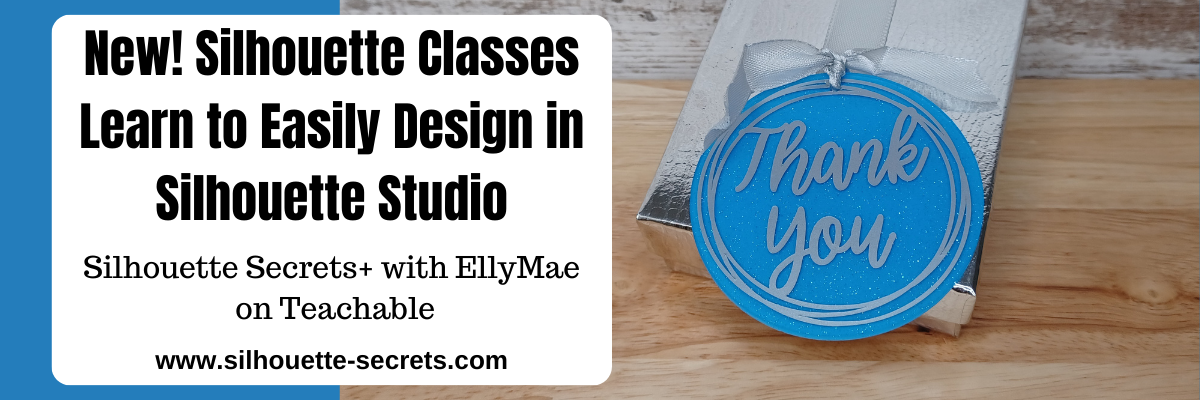
Want to learn more in Silhouette Studio and start creating your own designs? I have 2 new classes on designing in the Silhouette Studio software available. on the Silhouette Secrets+ Teachable site.

Affiliate links may be present in the following blog post and as an Amazon Associate, I earn from qualifying purchases.

Easily Create a Custom Gift Tag & Keepsake Ornament in Silhouette Studio

Custom acrylic tags made in Silhouette

This class uses basic tools in the Silhouette Studio software to design custom tags that could be used for a wide variety of projects. While I demonstrate on a 3″ acrylic circle, once you know the tools used and put them together, you can use it for so much more! Shirts, tote bags, ornaments, wood rounds, and more!

And included with the class is a printable guide for tips to cutting small fonts and designs!

Check out the full class description and supply list HERE.

Easily Create Custom Gift Tags & Keepsake Ornaments in Silhouette Studio

*****

Designing in Silhouette Studio – Creating Keepsake Ornament Designs 2

Designing in Silhouette Studio Class

In this next class, we take it a step farther and move beyond just the basics and get into a little more creative designing. We start off with some basic shapes to see how the tools work and then by the end you have drawn your own holly berry wreath design completely from scratch! Yes! YOU!

Once you have the design steps down, you can easily use the skills to create other designs as well. Everyone has the power inside them! We just need to unlock that and that starts with learning how things work in Silhouette Studio.

Check out the full class description and supply list HERE

Designing in Silhouette Studio 2

*****

Let me help you get started with Silhouette faster and learn more! Find all of the current Silhouette classes available on the Silhouette Secrets+ Teachable site HERE.

Silhouette Secrets+ on Teachable

Save this for future reference by pinning the image below.

Silhouette Classes Pinterest

Enjoy !

THANK YOU for your support! How can you help? Click HERE & buy a coffee.
Every little bit helps with the cost of running the site.

Silhouette Secrets+ by EllyMae
**This post may contain affiliate links. What that means is that I may receive compensation if you purchase through the links I have provided. The price you pay for the product or service is not higher but I may get compensated for sharing.
Posted on Leave a comment

Glowforge® Aura – new “craft” laser

Affiliate links may be present in the following blog post and as an Amazon Associate I earn from qualifying purchases.

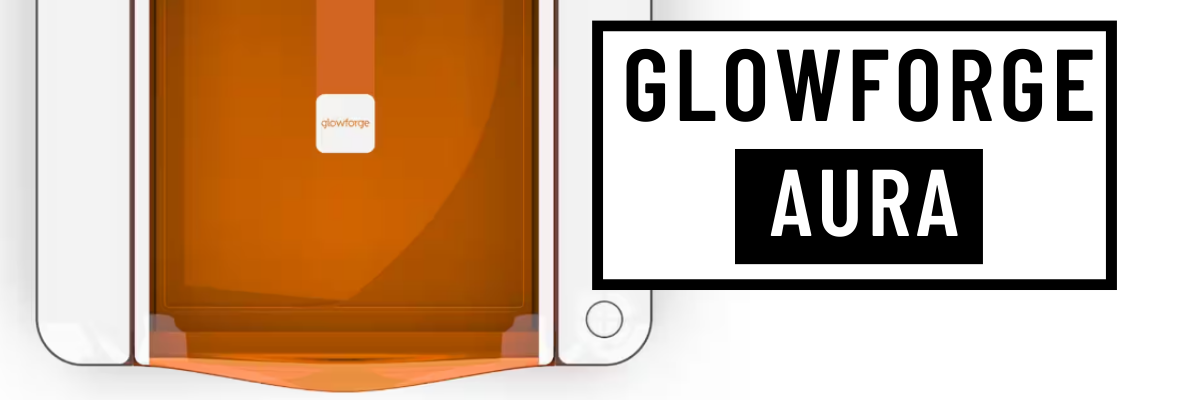
Did you hear? Glowforge® recently announced the release of a new “craft” laser machine called Aura™. You can find the Glowforge® Aura™ at Michaels or Joann stores currently.

A “craft” laser sounds pretty cool and enticing. I think one thing that’s appealing to most is the price tag. While other models of Glowforge® have increased in price, the Glowforge® Aura™ is coming into the market at $1299 $1199. This is a lot less than a larger Glowforge® model, so I can see how it might be appealing.

But, I think there is more to it than just the price to consider.

Is the Glowforge® Aura™ right for you?

I cannot answer that, but I can give you some information about it and some things to think about in your decision making process.

I currently own a Glowforge® Pro and having a laser machine is pretty cool. I love using the Silhouette Studio Business Edition to create designs for use in the laser and I even have class on it too (more on that below).

While having a laser machine is cool, I think there are some things to note about it before diving in. And I would highly recommend doing your own research as well too! I’ll share some resources for more information at the end.

Things to Think About

“Craft” laser machine

What does that mean? Basically, it’s not as powerful as the other models of Glowforge® lasers. If you are looking for a laser machine to produce items to sell, this may not be the machine for you. The Aura™ is not going to be an efficient, high production machine. It is slower than other Glowforge® models, much slower.

The Glowforge® Aura™ is a 6 watt diode laser machine. This is what makes it slower than the other models of Glowforge® that are CO2 machines. To compare, the Glowforge® Pro, which is the model I have, is a 45 watt CO2 laser. From what I’ve seen in comparison watching it all unfold, it is about 4 times slower than the Glowforge® Pro.

Since it is a diode laser at 6 watts, it cannot cut all of the same materials that the CO2 lasers can. So make sure to research that as well to make sure it’s going to cut what you want.

The Glowforge® Aura™ has a bed that is 12″ x 12″. The smaller footprint is also what makes it a “craft” laser and more appealing for a crafter’s space.

Filter or Venting

Just like it’s bigger laser friends, the Glowforge® Aura™ has to be vented or used with a filter. This is something to consider before you purchase any laser.

I have my Glowforge® Pro vented out of a window in my space. I open the window and place the venting prop that my husband built in the window and close it down. It is constructed out of scrap plywood, nothing fancy.
We have pets, so leaving the window open while using the machine is not ideal.

He installed a dryer vent on the outside of the window prop, so it opens when the Glowforge® fan turns on.

If you live in an area that has fluctuating temperatures, I would recommend having a system that you can pull the venting back inside when not in use.

Glowforge® did release an air filter that can be used with the Glowforge® Aura™. It is $399 to purchase and is a replaceable filter. However, I have not been able to find any information on how much a replacement filter is. They do not seem to be available yet. The Glowforge website says the filter has a lifetime of 100 hours of printing.

On that note, I have followed several Glowforge® groups in the past 2 years and always see comments about users who cannot get replacement filters as they are always out of stock. It does not seem to be a matter that they sell out quickly, but they have been low inventory the last few years. If you are looking into a Glowforge®, I would highly recommend joining some Facebook groups and watch the posts and comments as part of your research.

Personally, I’d recommend venting it out a window if you are able to do that.

WIFI Connection

In order to use a Glowforge® laser machine, you have to be connected to WIFI at all times when using the software/app and machine. This means you need a good internet connection. And it requires a 2.4 GHz WIFI connection. It does not work off a 5 GHz connection.

The filter for the Glowforge® Aura™ connects by WIFI as well.

Materials

Another area you will want to research is materials. Materials used in the Glowforge® or any laser machine need to be laser safe. Not all materials are laser safe and some can be toxic when used with a laser.

I’d highly recommend starting with proof grade materials. This takes the guess work out of the settings and gives you a better chance of success quickly.

What are proof grade materials? These are Glowforge® materials that they know work in the machine. Materials by Glowforge® have a QR code on it and the camera reads it and recognizes the material. This makes getting started easier than a bunch of testing to find out what settings work.

Safety

A laser machine is fire. The machine should never be left unattended or running without supervision.

I’d recommend having a fire extinguisher or fire suppressant next to the laser machine just in case.

Another thing I’d highly recommend is laser safety glasses. While the Glowforge® Aura™ is a lower wattage laser, you only get one set of eyeballs. Please be safe in your use with lasers.

Maintenance

One of the biggest things I see that users run into problems with their machines is in the maintenance. Keeping the machine clean and following the cleaning instructions will help to increase the lifespan of your machine and decrease the likelihood of running into issues. A lot of issues can be prevented if the machine is cleaned regularly.

The materials that are used in the Glowforge® will make a difference in how often it needs cleaned. For instance, cutting or engraving wood produces different dust than cutting and engraving acrylic.

Location, Location, Location

Think about where you would put a laser machine. According to the Glowforge® website, the recommended operating temperature is 60 degrees F – 75 degrees F.

A location that is not temperature controlled can affect the lifespan of the equipment. Too hot or too cold of temperatures is not good for laser equipment.

The Glowforge® Aura™ has a 12 month warranty, however, if you are not following the guidelines recommended by Glowforge®, the warranty does not cover that. It is not their fault if you are operating outside of the recommendations.

Read more on the details HERE

Terminology

Glowforge® uses the term “printing” for everything. Even though it’s a laser that cuts and engraves, “print” is the terminology they use. So just keep that in mind when you are researching. It is not a printer like we think of that prints with ink on paper.

That is a lot of information, but I hope that it’s given you a few things to think about in your decision making process.

Resources

Silhouette and Glowforge®

If you do have a laser machine and it uses svg files, you can design in the Silhouette Studio Business Edition software and export it as a svg to use with the laser machine. I love the ability to customize and create my own designs to use with my Glowforge® Pro.

By request I designed a class called Creating SVG files in Silhouette Studio – Great for Laser machine owners or designers! The class shows you how to create a design for use in the laser machine and I show a demonstration with bringing it into the Glowforge® app/software to cut with your machine.

Glowforge® Aura Information

This was not written with the intention of detouring you from getting a Glowforge® Aura™, but to provide information for you to make the best decision for you.
As I mentioned above, I would highly recommend doing your own research to make sure that the machine you choose is going to be right for you. If you are an occasional user, it may not be worth the investment in a laser at this time or the Glowforge® Aura™ might be just right for you. If you are a business owner or looking to invest in a machine to get started with selling laser products, you might find that a bigger, faster machine is more efficient and will save you time and money for running a business.

If you are looking at a larger Glowforge model, click HERE to save a bit. With my referral link you could get the equivalent of $500 USD off a Pro, $250 USD off a Plus, and $125 USD off a Basic.

Here are a few additional resources for Glowforge® and the Glowforge® Aura™:

Glowforge website
Country Chic Cottage
Hey Let’s Make Stuff
Jennifer Maker

I hope that has helped to give you some thinking points on if a laser is the right equipment to add to your space!

Enjoy !

THANK YOU for your support! How can you help? Click HERE & buy a coffee.
Every little bit helps with the cost of running the site.

Silhouette Classes

Never stop learning! Let me help you take the anxiety out of learning with Silhouette and get to creating faster! My Silhouette classes are heavily focused on software, so you can take the skills & techniques taught and apply them to many future projects!

Silhouette step-by-step Classes by Silhouette Secrets+

SS Logo snip it
**This post may contain affiliate links. What that means is that I may receive compensation if you purchase through the links I have provided. The price you pay for the product or service is not higher but I may get compensated for sharing.
Posted on 1 Comment

Silhouette “Secrets” for June

In case you missed the Silhouette “Secrets” June 2023 Newsletter, I am pushing this information out on the blog too!

Make sure to get signed up for notifications on the Silhouette Secrets+ Teachable site so you don’t miss out on any of the monthly newsletters going out. My goal is to publish those on the 5th of each month. In the newsletter, I share a featured class each month with a new coupon code, any new information I might have such as new classes released, and also 3 Silhouette “secrets” each month that have either been popular topics or learning tutorials I have from the last 6 years of writing Silhouette tutorials.

Silhouette “Secrets” – June 2023 Newsletter Edition

June means summer break where I live and we’ve been trying to find out our new schedule for the next few months!
Whether it’s hot, cold, rainy, or maybe even snowy – I hope you find a few minutes to continue playing with your Silhouette machines!

Let’s get to it!

June Featured Class

Silhouette Sketch Pens & Sketch Pen Design Class

Sketching with your Silhouette machine can be so much fun!
I would encourage you to just play.
In this class we cover all aspects of sketching with your Silhouette so you can see the possibilities.
It has been one of my most popular Silhouette classes.

More details HERE

And use coupon code SKETCH2023 to save $5 off this class.
Good through 6/31/23.
There are now 2 purchase options.
A 60-day access and a lifetime access. This is also NEW for 2023!

—–

NEW Silhouette Class Released

This month I released a new step-by-step class called
Designing with Rhinestones and Silhouette – Creating 4 Projects

This class is packed with information!
We cover test cuts, perfect cut settings, text, editing text, offsets, pre-made rhinestone designs, the rhinestone panel (Designer Edition required), glitter HTV, pressing tips, holographic HTV, and more!

You do the creating!
You make the choices!
You will learn new skills and how to customize in your own way!

Maybe the most important part of the class though is that I left any user issues in the class recording. I did not do movie magic to remove it and make it look perfect.
I left the reality of a project in the video.
I show you the errors and I show on camera how I work through those and get success!
I want you to see that it is perfectly normal to encounter issues when creating and how you can work through those.

More details on the Rhinestone class HERE

—–

Over the past month I have seen a huge decline of my posts being seen on the Facebook platform. I am on many social media platforms and want to make sure you do not miss out on new information posted.

Follow me here:
Silhouette Secrets+ Blog
Silhouette Secrets+ YouTube Channel
Silhouette Secrets+ FB Page
 Silhouette Secrets+ FB Group
 Silhouette Secrets+ Instagram

Swift Creek Customs YouTube Channel
Swift Creek Customs FB Page
Creating with Siser Juliet & Romeo FB Group

Now for the “secrets” this month!!!
I try to share things each month that seem to be the hot topics of the past month and have been an issue for users.

Silhouette “Secrets”
– Because some things are just too good not to share! –

Silhouette “Secret” #1

This last month I launched updates to the Silhouette Secrets+ website.
I called in some outside help to get some of the backend stuff taken care of (thanks Jean with Just Ask Jean)! I can teach Silhouette with my eyes closed or from memory but the back end of a website maintenance has me spinning in circles.

Check out the new updates HERE

Silhouette “Secret” #2

I released a new tutorial on the Silhouette Secrets website and it has been very popular! It is a technique that has been around for many years in the cardmaking world and you can easily recreate the process in your Silhouette software.

I am sharing how to create 4 cards using this eclipse technique.

I also share how you can create and save a template so you do not have to start from scratch each time you want to create the card.

Check it out HERE

Silhouette “Secret” #3

Print and cut is an awesome feature of using a Silhouette machine and I love it!
I have several tutorials on how to properly set up a print and cut project.
Find those HERE.

This past month I released a new video on the Silhouette Secrets+ YouTube channel that covers 5 Tips for Print and Cut Success with Silhouette – Consistent Results!

You might be surprised what I share from what we see every day with troubleshooting issues. In most cases, it is something that just needs to be tweaked in the setup of the print and cut. 98%+ of the time that is the reason for an offcut or error.

Check out that new video HERE.

Silhouette Secrets+ Teachable Sponsor

CrafterCuts, a Silhouette Authorized reseller is a sponsor for my Silhouette Secrets+ Teachable site.

And I have a coupon code to save 10% on your order
Use code SECRETS at CrafterCuts
Get free shipping with a $35 order
I always recommend having extra blades and mats on hand for your projects this year!
You will also find this information under the NEW “Sponsor” tab at the top of the Silhouette Secrets+ Teachable site HERE.

Also check out all of the Recommended Retailers and Font sites on the blog HERE.
Thank you for your support! Each time you use an affiliate link to make a purchase, it supports me and what I do. You do not pay any more for that product, but I may get credit for the referral.

I also have a “Buy Me a Coffee” option as well on Ko-Fi because I know not everyone buys new supplies each month, but many still asked for a way to support Silhouette Secrets+.
Thank you all for your continued support of my small business!

Watch for more from me on the Silhouette Secrets+ blog and YouTube channel this month!

Find all the current Silhouette classes on my Teachable site HERE.

Find me online at:
Silhouette Secrets+ Blog – https://bit.ly/3CnLZ8s
Silhouette Secrets+ YouTube Channel – https://www.youtube.com/@SilhouetteSecrets/videos
Silhouette Secrets+ FB Page – https://www.facebook.com/SilhouetteSecretsplus
Silhouette Secrets+ FB Group – https://www.facebook.com/groups/silhouettesecretsplus
Silhouette Secrets+ Instagram – https://www.instagram.com/silhouettesecretsplus/
Swift Creek Customs FB Page – https://www.facebook.com/swiftcreekcustoms
Swift Creek Customs FB Group – https://www.facebook.com/groups/swiftcreekcustoms
Swift Creek Customs YouTube Channel – https://www.youtube.com/@SwiftCreekCustoms/videos

Posted on 1 Comment

Designing with Rhinestones and Silhouette Class

I have a new Silhouette class that I just released on my Teachable site!!!!

Affiliate links may be present in the following blog post and as an Amazon Associate I earn from qualifying purchases.

This class has been in creation for almost 6 months now and finally is out of my head and finished!
It has grown from just 1 project to 4 projects as I wanted to include several options for you to be able to customize your own projects.

Check out the full description of the class HERE

I’ll share a few photos below, give a brief explanation of what each sessions focuses on, and then share the supply list as well. However, there is also a downloadable supply list when you register for the Rhinestone class.

The class is designed so you can choose what you want to create and I guide you along the way to show you the possibilities and options you have.

This first session we discuss pre-made rhinestone designs and how you can use those in your creations, but the main focus is getting set up with the proper cut settings for your materials and using a small ready made design, so you can make sure it’s going to work first.
This part of the class can be completed with the Basic Silhouette Studio software.

I used a Paw Print rhinestone design by Rivka Wilkins because that is what my daughter selected, but I also show you how to navigate the Silhouette Design store to choose your own design too!

Then I have a brief session where I share some information on the different Silhouette machine models and how they might work with the Rhinestone feature.

The next session is where you really get to “create” your own unique design.
You will need the Silhouette Designer Edition upgrade or higher in order to unlock the Rhinestone Panel and create your own rhinestone designs.

We discuss text, different text styles, editing text to manipulate it how you want, and also how that affects your rhinestone design for the project. We also explore creating a rhinestone design, how your text option might affect that design, and how to edit the rhinestone pattern as needed for your desired outcome.

In this session of the class, we discuss fonts and specifically creating rhinestone designs from fonts. I share what works, what may not work, which font styles I think work the best, and how to manipulate the designs when they don’t turn out quite right.

As you’ll see in supply list below, I am sharing several different font styles in the class for each session so you can see on screen what happens. You do not have to buy all the font styles and I highly recommend you watch the class before you invest in too many font styles.

And this fourth session of the class started out as a “bonus” session and quickly grew a life of it’s own. We discuss turning shapes & designs into rhinestone patterns as well as creating a “faux” rhinestone look too!

And maybe one of the most valuable parts of the entire class is that I had a few things go wrong as I recorded the sessions, but I didn’t edit that out because these things happen to us all. Often times you see movie magic in recorded videos and everything looks 100% perfect and then when a user encounters an issue that didn’t happen in the video, they wonder what they did or why it’s not working for them.
In this class, when I encountered any issues, I share how I troubleshoot those issues, how I fixed them, and what I would do in the future.

As I mentioned at the beginning of this post, the class grew from what I originally intended it to be and I packed it full with tips and tricks that will help you in your future Silhouette projects!

I hope you’ll join me in this new Silhouette class!

Check it out HERE

I have also provided the supply list below, but there is a downloadable one in the class as well.

Supply list

– Silhouette Studio Software
– Silhouette Studio Designer Edition upgrade – Crafter Cuts (use code SECRETS to save 10%)
Check for additional sales at Silhouette America The Vinyl SpectrumSwing Design
Paw Print Rhinestone Design by Rivka Wilkins – Design #5445
Hot Fix Rhinestones
Rhinestone Template Material
Hot Fix Transfer Tape
Siser Glitter HTV
– Blanks: zipper bagshirt, bag, etc.
Trim paint brush
– Tools: Scissorssharp weeding toolSilhouette Pick Me Up ToolSilhouette Spatula
– Optional: Rhinestone scoop, Rhinestone Supplies at The Rhinestone World ,
Bead ScoopLarger Trim Paint brushPaper TrimmerLint RollerTool Kit
– Silhouette cutting machine (or another cutting machine model)
– Heat Source: Siser Heat Press

Optional Fonts – you DO NOT need all, but I share several examples in the class – I would recommend watching first to see which ones you’d like to use

Project #2 fonts

Beauford font
BFC Crafty Clutter by Blush Fonts – Design #423648
BFC Saturday Garden Bush by Blush Fonts – Design #435182
BFC Farm Hand Brush by Blush Fonts – Design #416052
Country Christmas Brush Script by Gina Marshall – Design #42528

Project #3 demos

Paw Print design by Silhouette – Design #313173
BFC Craft Table by Blush Fonts – Design #398778
BFC Honey Bears by Blush Fonts – Design #438560
LW Coach font by Lori Whitlock – Design #274417
Bestie CS Font by Cloud Studio – Design #414194
Dotcirful font by 7nTypes – Design #314551 (faux rhinestone font)
Sweet Pea Sketch font by Rivka Wilkins – Design #86121

Project #4 supplies

Siser Holographic HTV
Rhinestone Butterfly by Tanya Batrak – Design #188929
Heart Inverted Rhinestones by Samantha Walker – Design #6447
– (demo example only) Rhinestone Filled Flower by Sandi Idleman – Design #82666

Now, that may look like a lot of fonts, but I highly recommend you watch the class before purchasing any. You’ll find that you do not need them all, but you may like some of them for future projects.
I used several examples in each session to give you an idea of how you could customize your projects and show what works better and what might not work too!

Want to learn more?

Check out the full list of Silhouette classes on the
Silhouette Secrets+ Teachable site HERE.

Save this for future reference by pinning the image below.

Don’t miss out on any Silhouette tutorials, classes, or news!
Sign up below to get email notifications every time I publish a new blog post.
My goal is for 1 new post a week, unless there is exciting news to share in between.
I know we are all busy and daily emails are not my thing.

Enjoy !

THANK YOU for your support! How can you help? Click HERE & buy a coffee.
Every little bit helps with the cost of running the site.

Silhouette Classes

Never stop learning! Let me help you take the anxiety out of learning with Silhouette and get to creating faster! My Silhouette classes are heavily focused on software, so you can take the skills & techniques taught and apply them to many future projects!

SS Logo snip it
**This post may contain affiliate links. What that means is that I may receive compensation if you purchase through the links I have provided. The price you pay for the product or service is not higher but I may get compensated for sharing.
Posted on Leave a comment

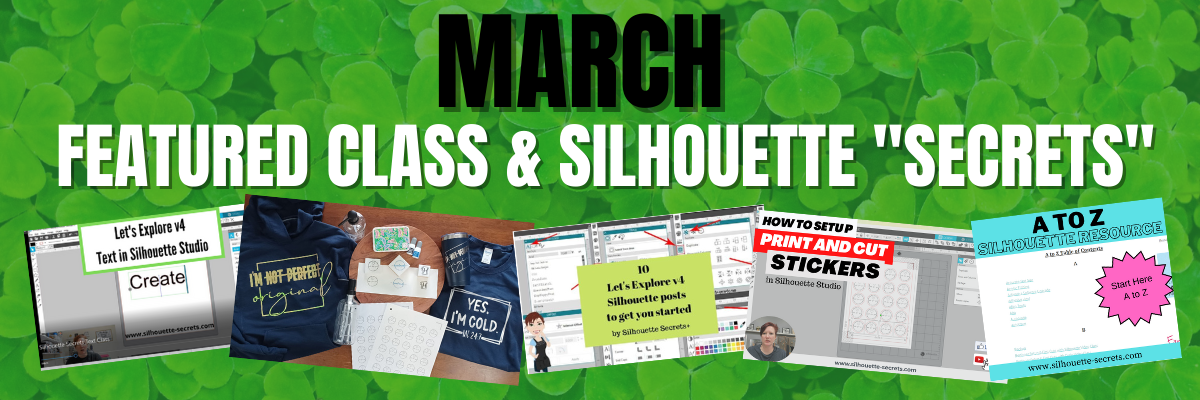
March Featured Class & Silhouette “Secrets”

It’s time for the March news and sharing my Silhouette “Secrets” with you!

March Featured Class and Coupon Code

This month’s features class is

Let’s Explore v4 – Text in Silhouette Studio

In this class we explore Text in Silhouette Studio including:
– the Text Tool
– Text Style Panel
– How to get accurate text sizing
– Resizing text
– Font Families
– Welding
– Script Fonts
– Offsetting text
– Tracing text
– Installing fonts
– Glyphs

It cover all the aspects of text in Silhouette Studio that I see so many users ask about. Become a text expert with me and expand your skills!

Check out the full class description HERE.

And use coupon code TEXT2023 to save $5 off this class.
Good through 3/31/23.
There are now 2 purchase options.
A 60-day access and a lifetime access. This is also NEW for 2023!

New Silhouette Class Released

Creating Unique Designs in Silhouette Studio

In this class you will learn how to create all of these designs in the photo above and you can choose what you want to create as a finished project.
Choose to make one or choose them all!

In this step-by-step class, we put the Silhouette Studio tools to work for us! This class is designed for all levels of users to follow along and create. A few of the tools we will discuss and use are: drawing toolscompound pathstextoffsetknifeglyphstext to path, and more!

This is a custom design created by YOU could be used for all kinds of projects from adhesive vinyl, HTV, Mint stamps, stencils, and more!

I share examples of different finished projects with the techniques used and include optional supplies for additional projects on the class supply list.

As a bonus, I have also included a demonstration of Citristrip etching on a powder coated tumbler using a design created as the stencil.

Check out the full class description and supply list HERE.

Silhouette “Secrets”
– Because some things are just too good not to share! –

Silhouette “Secret” #1

Top 10 tools in Silhouette Studio

Text Tool, Fill Color Panel, Line Style Panel, Align Tools, Trace Panel, Drawing Tools, Replicate Panel, Offset Panel, Quick Access Toolbar (QAT), Edit Points

These are the Top 10 tools I think that Silhouette users can put to work for them right away. You probably use most of them without even thinking about them.

Check out more details on that HERE

Silhouette “Secret” #2

I released a couple new videos on the Silhouette Secrets+ YouTube channel last month. One of those is

How to Set up Print and Cut Stickers

In this video, I show how you can turn cut lines off for items you only want to print and not to cut.

Check out this new video HERE.

Make sure to Like and Subscribe if you want to be notified of future content released on YouTube!

Silhouette “Secret” #3

I have been writing Silhouette tutorials and teaching classes now for 6+ years. That’s a lot of information out there on the website to comb through.
I compiled all of it into an A to Z Silhouette Resource section on the blog.

Click on the keyword and it will take you to more resources on each topic.
Check it out HERE.

I hope this month’s “secrets” help you to be more successful with your Silhouette!

—–

I want to hear from you!
If you have any classes, tutorials, or techniques you would love to learn, please let me know on this Google Form below.

Silhouette Secrets+ Reader Survey HERE

I want to make sure I am putting out content that is relevant to my followers.
Thank you for taking the time to provide your feedback!

Silhouette Secrets+ Sponsor

CrafterCuts, a Silhouette Authorized reseller is a sponsor for my Silhouette Secrets+ Teachable site.

And I have a coupon code to save 10% on your order
Use code SECRETS at CrafterCuts
Get free shipping with a $35 order
I always recommend having extra blades and mats on hand for your projects this year!
You will also find this information under the NEW “Sponsor” tab at the top of the Silhouette Secrets+ Teachable site HERE.

Don’t forget to check out all of the Recommended Retailers and Font sites on the blog HERE.
Thank you for your support! Each time you use an affiliate link to make a purchase, it supports me and what I do. You do not pay any more for that product, but I may get credit for the referral.

I also have a “Buy Me a Coffee” option as well on Ko-Fi because I know not everyone buys new supplies each month, but many still asked for a way to support Silhouette Secrets+.
Thank you all for your continued support of my small business!

Watch for more from me on the Silhouette Secrets+ blog and YouTube channel this month!

Find all the current Silhouette classes on my Teachable site HERE.

Find me online at: Silhouette Secrets+ Blog – https://bit.ly/3CnLZ8s
Silhouette Secrets+ FB Page – https://www.facebook.com/SilhouetteSecretsplus
Silhouette Secrets+ FB Group – https://www.facebook.com/groups/silhouettesecretsplus
Silhouette Secrets+ Instagram – https://www.instagram.com/silhouettesecretsplus/
Swift Creek Customs FB Page – https://www.facebook.com/swiftcreekcustoms
Swift Creek Customs FB Group – https://www.facebook.com/groups/swiftcreekcustoms

Have a great month!

Posted on Leave a comment

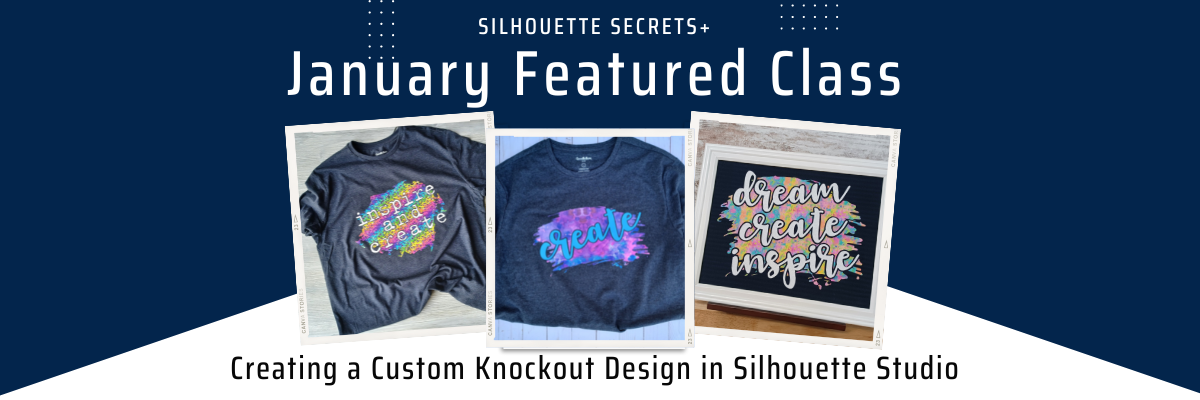
January Featured Silhouette Class & More!

Something new I’m starting for 2023 is a featured class each month with a coupon code for that class.

This month’s features class is

Creating a Custom Knockout Design in Silhouette Studio

In this class, you will create your design!
I show you how to download an image, trace, work with compound paths, text, offset, and the modify-subtract tools. Through this step-by-step class I explain what we are doing with each tool used. The techniques learned in class can be apply to many future projects.
I cannot wait to see what you create!

Check out the full class description, supply list, and class content HERE.

And use coupon code KNOCKOUT2023 to save $5 off this class.
Good through 1/31/23.
There are now 2 purchase options.
A 60-day access and a lifetime access. This is also NEW for 2023!

I am also sending out a newsletter on the 5th of each month from my Teachable site. Anyone who is registered on the Silhouette Secrets+ Teachable site and has not opted out of the notifications will receive the newsletter and information early in the month.

Silhouette “Secrets”
– Because some things are just too good not to share! –

One other thing I am starting for 2023 is sending out some of the “secrets” I have taught either through written tutorials or videos throughout the past years. I have 6+ years of blog tutorials that are available to access any time. This will help to highlight some tools that you may not even know you want to learn about.

Silhouette “Secret” #1

As we begin this new year, let’s talk organization!
First, I am not a great example of keeping things organized. If you get a glimpse of my files, I am more of a “hot mess express” as I’ve collected things over the years.
However, if I could go back and start over, I would.
I do have a system and it works for me, it just may be a little crazy at times.

Last year I published a series of specific tutorials regarding organization that pertain to your Silhouette files.

These include:
Silhouette Backups – Most Important!
Silhouette Library Organization
and
File Organization

Find them all on the Organization Section on the blog HERE.

You will also see a tutorial in the Organization Section about How to Export Individual Files.
This can be very helpful to those users who save their files to the Silhouette Library.
Find it HERE.

Silhouette “Secret” #2

How about tools?
I love tools but what I love more is having tools handy and ready for me to grab easily for my project. I recently received a new tool kit and fell in love with 2 tools in particular – the weeding pen and the scraper.

Check out this new video on the Silhouette Secrets+ YouTube channel where I share the use of these tools HERE.

And I couldn’t stop there, but I also shared 5 Tips for Weeding Success on the blog HERE.

The pink weeding tool turned out to be my favorite in this design that took 2 hours and 20 minutes to weed completely. It was the most comfortable to use and the sharp point stabbed those small pieces well.

Silhouette “Secret” #3

As I look through tutorials, I can’t share just one as the 3rd secret.
I’ll try to be more precise in the future, but I’ll keep it short by just providing a list of a few that might be helpful and maybe one will jump out at you.

Silhouette “Secret” to Working with an Uncolored Design
Cutting Multiple Colors at Once with Silhouette
How to Apply Vinyl Straight on Acrylics
Silhouette Studio v4.5 Updates – SVG Files Opening Blank
How to Install a Legacy Version of Silhouette Studio

I hope this month’s “secrets” help you to be more successful with your Silhouette!

Watch for more from me on the Silhouette Secrets+ blog and YouTube channel this month!

Find all the current Silhouette classes on my Teachable site HERE.

I wish you a great start to 2023 and I hope I can help you learn more about your Silhouette!

THANK YOU for your support! How can you help? Click HERE & buy a coffee.
Every little bit helps with the cost of running the site.

SS Logo snip it
**This post may contain affiliate links. What that means is that I may receive compensation if you purchase through the links I have provided. The price you pay for the product or service is not higher but I may get compensated for sharing.
Posted on 5 Comments

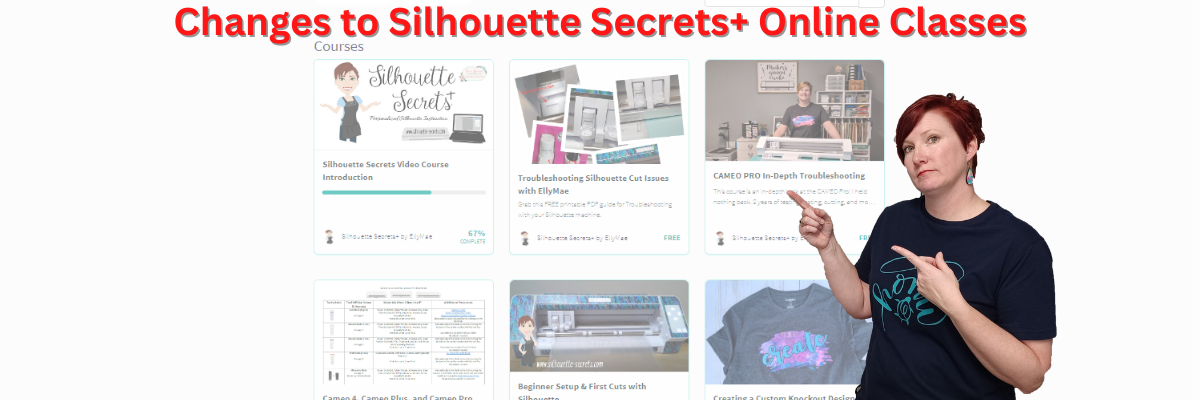
Silhouette Secrets+ changes for 2023

Changes – no one really likes them, but they are part of life!

I was chatting with a colleague the other day and told them that my motto for 2023 was going to have to be
“Evolve or Dissolve”.
I was trying to make light of it, but the reality of it is very true!
I either have to make changes or just give it up altogether.

And so I am writing this post to let you know that I have to make some changes for 2023.
These are not things I really want to do, but “evolve” it is and I must do so.

Changes for 2023

I am sure that you all know that the cost of things has increased and this industry is no different.
The first major change of 2023 will come to my online Silhouette classes at Teachable.

UPDATES – December 15, 2022

This week I received an offer from CrafterCuts to sponsor Silhouette classes on my Teachable site. This means it will be possible for me to continue releasing new classes as I have been.

There will be updates to the site coming in January 2023.

CrafterCuts is an authorized Silhouette retailer and I was referred to them direct from Silhouette.

A great big Thank You to CrafterCuts for coming on as a sponsor and making it possible for me to continue to develop current Silhouette classes.

And for my followers use code SECRETS to save 10% on your order from CrafterCuts.

Here is looking forward to 2023 and what is to come. Check out the current classes listed below and remember if you register before December 31, 2022, you will have lifetime access to those classes.

As of January 2023, I will only be able to have 5 active classes available on my Teachable platform at a time.

What does this mean?

First, it means that effective December 31, 2022, all of the current classes will no longer be available for purchase as they currently are. I can only have 5 active classes published at a time.

I am in the process of deciding which if any of the current classes should go back up. I will be making this decision as I work through the process on the back end of things on the site.

But, once I start making changes to my Teachable site, I am limited to 5 active classes only, at one time.

So effective December 31, 2022, all the current classes will no longer be available.

What about a class you already purchased?

If you have already purchased a class on my Teachable site, you will have access to that class even after it is no longer available for purchase.
This class should show up under your Teachable account when you log in.

Starting in 2023, there may be a time limit for viewing any new courses that are offered.
I am still working on all the details and what I need to adjust.
However, anything you purchase prior to December 31, 2022 you would have access to it for a lifetime according to Teachable.

Have I looked at other options?

The answer is yes, I have. I’ve researched many other options out there and they all come down to the same thing – cost!

It costs money to have the blog website. It costs money to have an online hosting platform for the classes.
It all has a cost and I have to weigh those costs and decide what is feasible for me to invest in.
And I have to do that to pay in advance for the next year.
Bottom line is, costs have increased and Teachable notified me that if I wanted to continue as I had with unlimited classes it was going to cost a whole lot more.

So for 2023, I am going to try this out with the 5 available courses and see what happens. This means some classes released will have a limited time frame they are available in order to offer new ones.
At the end of 2023, I will once again have to look at whether I “Evolve or Dissolve”…. lol – most likely after I get an email that my costs are increasing yet again.
It’s just part of the business.

I enjoy teaching Silhouette classes, but there is a cost to it all, both in monetary value and time.

What about the free content on my Teachable site?

This change includes the free content that I have available currently on my Teachable site.
As of December 31, 2022, all content will no longer be available to register for, including the free classes.
Any class I publish counts towards that limit of 5, this includes “free” items as well.

I am in the process of reorganizing how I will offer things like the free content currently on the site in the future. I cannot continue to offer that on the Teachable site with the rise in costs to host on the site.

What current classes are offered?

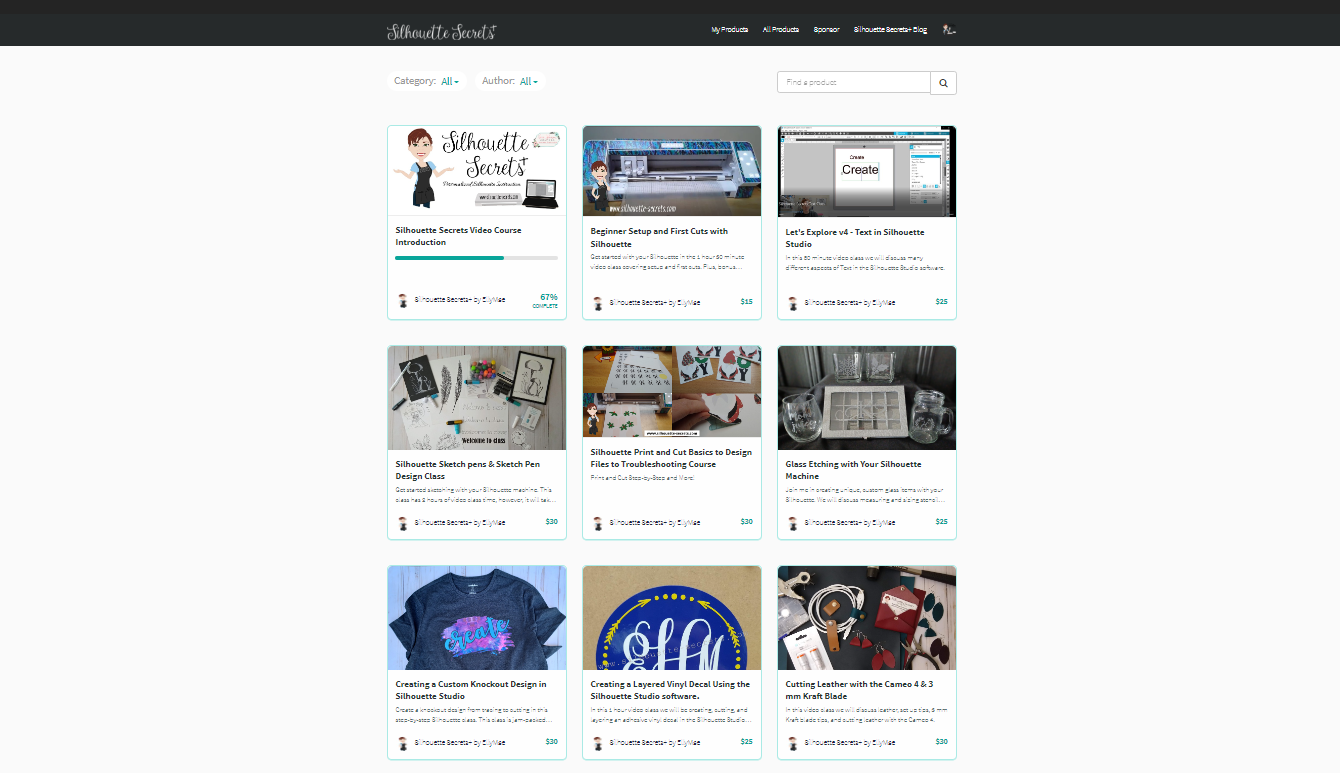
You can click HERE to be taken to my Teachable site to preview all the classes available or below on each individual class for more details.

Beginner Setup & First Cuts
Creating a Custom Knockout Design in Silhouette Studio
Silhouette Studio Software Basics to Create SVG Files – Great for Laser Owners
Let’s Explore v4- Text in Silhouette
Sketch Pen & Sketch Pen Design Class
Creating a Knock Out Design with Silhouette
Glass Etching with Your Silhouette Machine
Cutting Leather with the Cameo 4 & 3 mm Kraft blade
Silhouette Print & Cut Basics to Design Files to Troubleshooting Course
Creating a Vinyl Decal & Layering Vinyl using Silhouette Studio
Cutting & Layering HTV in Silhouette
Glass Etching with Silhouette
Heat Transfer Paper Print & Cut Lesson with Silhouette
Creating a Knockout Design with HTV & Bonus HTV & Subtract
Creating a Rhinestone Design in Silhouette Studio

Curio Classes Offered
Curio Beginner Setup & First Cuts with Cardstock & Vinyl
Chalkboard Decor with the Silhouette Curio
Beginner Curio – Metal Etching Placement
Basic Acrylic Etching with the Silhouette Curio
Acrylic Etching & Design with the Curio
Etched Metal Cake Server with the Silhouette Curio – Advanced
Embossing Leather with the Silhouette Curio
Etched Acrylic Decor with the Curio
Etched Acrylic Panel with the Curio
Curio Etched Heart Mandala Class – Advanced Beginner

Free content
Troubleshooting Silhouette Cut Issues
Cameo Pro In-Depth Troubleshooting

Cameo 4, Cameo Plus, Cameo Pro Tool Chart
Cameo Pro DIY Stand/Table
Cutting Like a Pro with the Cameo Pro

Whew! One thing is for sure – typing out the available class list in the future will be easier – ha ha!

If you are looking for what others have had to say about the online classes, check out the Student Testimonies HERE.

What other changes are in store for 2023?

That is a great question and let me consult the Magic 8 ball.
“Ask Again Later”

The truth about it is, I don’t know.

I have a game plan started and sometimes it changes daily, like when I received the email from Teachable this week on them increasing their fees.

So far for 2023 my list includes:

– Reorganizing the entire Silhouette Secrets+ Teachable site and creating new video classes

– Continuing to put out blog content on the Silhouette Secrets+ website HERE.
So make sure to sign up to receive notifications of new blog posts!

– Continuing to put up new videos on the Silhouette Secrets+ YouTube channel
Follow me on YouTube HERE to be notified when new content when it’s released.

– Post videos on the Swift Creek Customs YouTube channel where we hope to inspire other Makers
Follow us that channel HERE to be notified of new content when it’s released.

– Merging it all together?
Still an unknown, but many know that I launched a new site called Swift Creek Customs where I share content that is not specifically Silhouette related. My husband and I are both involved in many hobbies and hope to inspire others as well, but it’s not always strictly Silhouette based, so the new channel was created.

– Sending out a newsletter?
This one is a ? still as I don’t know if people would read it.
If you are interested in a newsletter, please comment below and sign up on my Teachable site.

– And many other things that I write in and then cross out.
It is an evolving process and who knows what can happen in 2023!

So for now, I’m still here and will have some Silhouette online course offered in 2023.

This year I also added the “Start Here – A to Z” menu on the blog. If you are looking for a topic, I have those organized in A to Z format with all the information I’ve published in the past 6+ years.

I want to thank you all for your support through the years. Without your support, I would not be able to even consider making changes and continuing what I’ve been doing to bring more information to you.

I want to wish you all a very happy holiday season and I hope that the New Year brings you lots of blessings!
Let’s see what we can create in 2023

Enjoy !

This image has an empty alt attribute; its file name is logo.jpg

THANK YOU for your support! How can you help? Click HERE & buy a coffee.
Every little bit helps with the cost of running the site.

Or if you are looking for more in-depth, step-by-step classes, check out all of my online Silhouette classes on my Teachable site HERE.

SS Logo snip it
**This post may contain affiliate links. What that means is that I may receive compensation if you purchase through the links I have provided. The price you pay for the product or service is not higher but I may get compensated for sharing.
Posted on Leave a comment

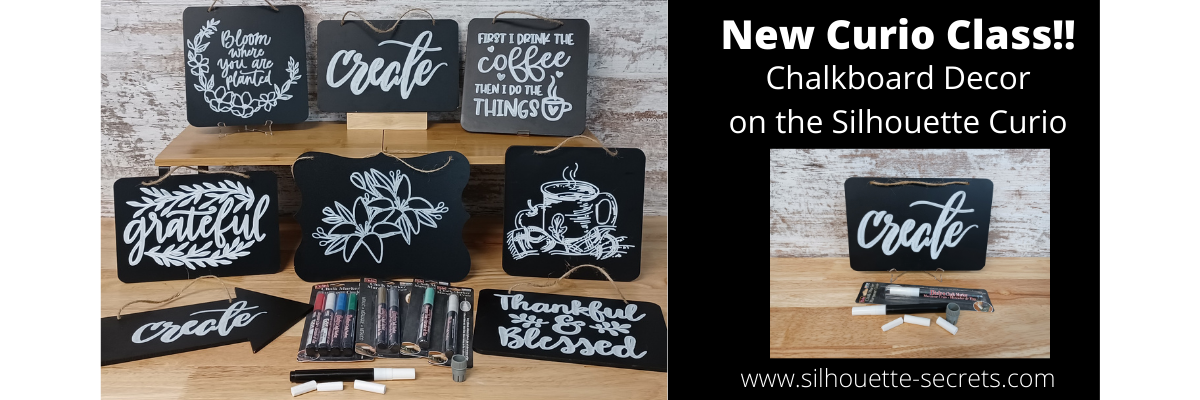
Chalkboard Décor with the Curio

Just a quick post today to share my newest Silhouette class. It is a Silhouette Curio class that I was in the process of creating for an in-person event before everything was shut down a couple years ago. I finally picked it back up where I left off and it is now available for all to view anytime after you’ve registered on my Teachable site.

New! Chalkboard Decor with the Silhouette Curio class is now available.

This is a step-by-step class on using a chalk marker in the Silhouette Curio to sketch directly on a chalkboard.
Find the class and full details on my Teachable site HERE

Check out the demo video on my YouTube channel HERE.

I had so much fun playing with the chalk marker and these chalkboard signs.
Here are a few more that I created

Affiliate links may be present in the below and as an Amazon Associate I earn from qualifying purchases. What that means is that I may receive compensation if you purchase through the links I have provided. The price you pay for the product or service is not higher but I may get compensated for sharing.

These are the supplies I used in this class to create these chalkboards:
– Silhouette Curio machine, Silhouette small base cutting mat, Curio platforms and base
– Chalkboard sign – Michaels – 6.6” square, arrow shape, rectangle shape
Michaels bulk chalkboard options – rectangle 8 pk, arrow 8 pk, Square 8 pk
or Amazon
NOTE: chalkboards can vary in thickness – it needs to be under 5 mm thick & fit on the Curio base
No frames or borders. Remove any twine attached.

Create by Cali Arroyo – Design #215617
Bistro Chalk Marker by Marvy Uchida White
– Optional: Bistro Markers Colors – Fluorescent, Primary
– Silhouette Pen Holder Type A – Silhouette America, Amazon
Digital Calipers – highly recommend for Curio projects
– Ruler with mm
White Chalk
– Clean Towel
– Notepad & pen
– Optional designs also featured: Design #317171, Design #404761, Design #304784,
Design #400058, Design #229894, Design #154513
Optional: extra twine, scissors

I have so many more ideas I want to try and test!

I hope you will join me in this Silhouette class!
Check out the full details on my Teachable site HERE

Whether you join or not, I’d love to see what you are creating with your Silhouette software & machines!
Feel free to post on my Facebook group at 
Silhouette Secrets with EllyMae.

Save this for future reference by pinning the image below.

Enjoy !

This image has an empty alt attribute; its file name is logo.jpg

THANK YOU for your support! How can you help? Click HERE & buy a coffee.
Every little bit helps with the cost of running the site.

Or if you are looking for more in-depth, step-by-step classes, check out all of my online Silhouette classes on my Teachable site HERE.

SS Logo snip it
**This post may contain affiliate links. What that means is that I may receive compensation if you purchase through the links I have provided. The price you pay for the product or service is not higher but I may get compensated for sharing.
Posted on Leave a comment

Silhouette Classes

I have been teaching Silhouette classes since September 2016. I originally had not planned to teach when I signed up for the instructor course. I just wanted to learn more and boy did I!

I have been teaching ever since through the Silhouette Secrets+ blog, in-person classes, at Silhouette events, Zoom lessons, online classes, and even from Silhouette headquarters in November 2021. Taking the Instructor Licensing was definitely a life changing event for me and now I can share that with many more Silhouette users.

I’ll share a little secret too! The best part about teaching Silhouette is all the people I have connected from all over the world! Whether it is in person at an event or only online! I’ve met some amazing people!

Why take a Silhouette class?

The most common reason to take a Silhouette class is to get started faster. Rather than you spending hours testing and searching for an accurate video on YouTube on how to do it, skip the testing and get set up and cutting.

I have 21 Silhouette classes available on my Teachable website.
The classes are all step-by-step classes that are the same as I teach in person.
The best part is that after you register for a class, it is available to you at any time that is convenient to you. And you can watch them over and over if needed.
I find this is even better for Curio users as there is no need for me to watch your machine etch if we were doing a live Zoom call.

Find all the classes HERE

Developing classes takes time and testing. Let me do that for you!
These classes can help take the anxiety out of working with your Silhouette machine and the Silhouette software.

Still on the fence? I understand completely.
Check out the testimonies from past students who have taken classes HERE.

Here are a few of the classes available

Curio Classes

Other Classes Include:
Creating a Vinyl Decal and Layering Vinyl using the Silhouette Studio Software
Cutting & Layering HTV in Silhouette Studio
Glass Etching with Silhouette
Heat Transfer Paper Print & Cut Lesson with Silhouette
Creating a Knockout Design with HTV & Bonus HTV & Subtract
Creating a Rhinestone Design in Silhouette Studio

As well as: 
Cameo Pro DIY Stand/Table instructions & tips
Cutting Like a Pro with the Cameo Pro Tips & Troubleshooting printable

As a Terri Johnson Creates Licensed Silhouette Instructor, it is my goal to help others learn the Silhouette Studio software & how to use their Silhouette machines to get the most out of it.

Find all of my online Silhouette classes on my Teachable site HERE.

I would love to see what you are creating with your Silhouette software or machines!
Or if you have any questions, feel free to post photos or questions on my Facebook group at 
Silhouette Secrets with EllyMae.

Save this for future reference by pinning the image below.

Enjoy !

This image has an empty alt attribute; its file name is logo.jpg

THANK YOU for your support! How can you help? Click HERE & buy a coffee.
Every little bit helps with the cost of running the site & developing more classes.

Or if you are looking for more in-depth, step-by-step classes, check out all of my online Silhouette classes on my Teachable site HERE.

SS Logo snip it
**This post may contain affiliate links. What that means is that I may receive compensation if you purchase through the links I have provided. The price you pay for the product or service is not higher but I may get compensated for sharing.