
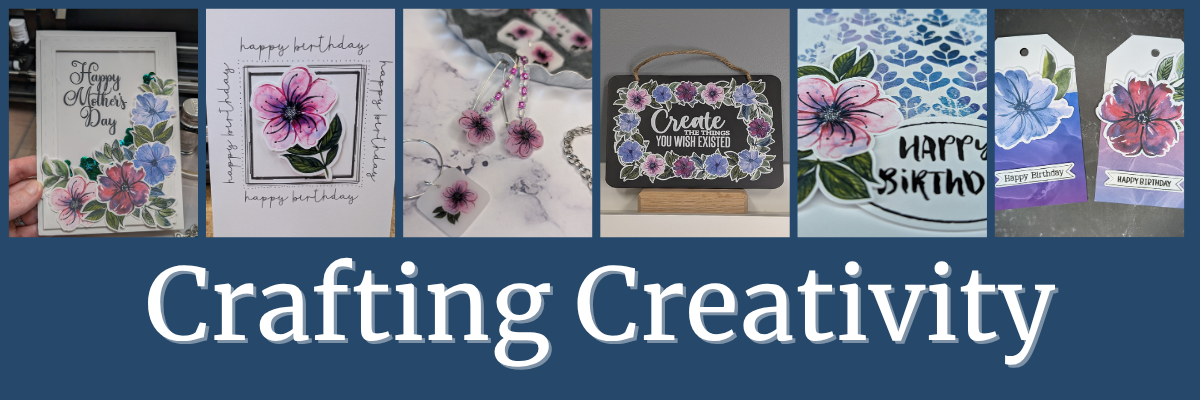

Welcome to this edition of Crafting Creativity, featuring the bold and beautiful abstract floral designs by Clikchic Designs! These eye-catching patterns are the centerpiece of a wide range of creative projects that highlight the versatility of digital designs. From a custom shaker card and sketch-style greeting cards to shrink plastic tool charms, bracelet charms, earrings, wine charms, and a personalized chalkboard sign—these florals bring a fresh and modern flair to every creation. You’ll also see them used in card backgrounds and oversized tags, offering endless possibilities for crafters of all kinds. Get ready to be inspired by how one design collection can do so much!

Affiliate links may be present in the following blog post and as an Amazon Associate, I earn from qualifying purchases.
A great big THANK YOU to Clikchic Designs for being the May contributing artist for the Silhouette Secrets+ newsletter. These gorgeous abstract floral designs can be found in Clikchic Designs artist store on the Silhouette Design Store site.

Sign up for the Silhouette Secrets+ newsletter HERE for future free files & project inspiration.
Crafting Creativity with Clikchic Abstract Florals
Project #1 – Custom Shaker Card

I set this up to print on a 12″ x 12″ sheet of cardstock. The only thing that did not fit on one sheet was the frame. It could easily be cut using letter size cardstock too.

I added a bit of sparkle on top of the flowers with a shimmer pen and love it. The hardest part is getting that to show up well on photos.

My mom loved it!
Don’t forget to add your shaker bits before you adhere the acetate & frame down. I got excited and forgot, so I had to peel up a corner and add them in. Nothing like making a project harder than it needs to be.
Additional Resources:
- Mastering Print & Cut with Silhouette: Step-by-Step Class
- More Print and Cut Resources
- Drawing Tools in Silhouette Studio
- More Resources on Cards and Papercrafting
Supplies Used:
- Abstract Florals by Clikchic Designs
- Printer: Canon TS9521C
- Silhouette Cameo 5 – Crafter Cuts or Silhouette America
or Silhouette Curio 2 – Crafter Cuts or Silhouette America - Silhouette Autoblade – Crafter Cuts or Silhouette America
- Recollections 12″ x 12″ White Cardstock
- Neenah Bright White Cardstock
- Acetate
- Shaker filler – sequins, etc.
- Foam Tape
- Shimmer pen
- Paper Trimmer
Project #2 – Sketched Card Backgrounds

I drew out 2 rectangles and applied different Sketch Effects to them to create the sketched squares, then added a sketch sentiment around the outer edge of the border using a font called Flannel Shirt Sketch.
I then added some foam tape on the back of the Abstract Floral designs and added those to the center of the sketched frame to give it some dimension.
Next, I sketched a couple more with a premade frame called Dot Frame Sketched.

I think this one is my favorite of them all, but I think I’m drawn to this pink flower for some reason.

They are all gorgeous when paired with the Abstract Floral designs by Clikchic Designs.

I added the random dots around the edge of the square frames by hand after the card was sketched. I could have set it up in the software and had the machine do it perfectly, but it might have also smooshed the tip of my pen. This gives each card a randomness to it as well and makes it unique.
Additional Resources:
- Sketch Style Panel (Line Effects) in Silhouette Studio
- Sketching Supplies for Silhouette machines
- Silhouette Sketch Pen & Sketch Pen Design Class
- More Sketching Resources
Supplies Used:
- Abstract Florals by Clikchic Designs
- Flannel Shirt Sketch by Blush Fonts – Design #386181
- Dot Frame Sketched by Emilee Stucky – Design #34667
- Silhouette Cameo 5 – Crafter Cuts or Silhouette America
or Silhouette Curio 2 – Crafter Cuts or Silhouette America - Silhouette Autoblade – Crafter Cuts or Silhouette America
- Gelly Roll Black pen
- Silhouette Type B Pen Holder
(see additional sketching supplies by machine model HERE) - Printer: Canon TS9521C
- Epson Presentation Paper Matte
- Neenah Bright White Cardstock
- Double Sided Adhesive Foam Tape
Project #3 – Shrink Plastic Projects
Have you ever used shrink plastic before?
There are so many things you can create with shrink plastic. From wine charms, bracelet charms, earrings, tumbler charms, tool charms, and more!

Here is a look at my printed page using Silhouette Shrink Plastic Sheets.

I used the default settings in the Silhouette Studio software to start with. Here is a look at the Send tab when I sent this page to cut.

Larger shrink plastic designs can be interesting when they shrink and you just have to keep going to get them to flatten out. Sometimes, they will also not be a uniform shape at the end. I think that adds to their uniqueness and can be fun to see what happens.
Custom tool charms are a great way to mark your scissors either for a specific purpose or to identify them when you go craft with friends. They are also handy to help you locate them on your craft table if they like to hide in a “safe” place often.

I love watching it shrink when heat is applied! Check out this quick video on the Silhouette Secrets+ Facebook Page, on Instagram, or on my YouTube channel.
Any type of plastic will dull the blade quicker than other materials, so it is not uncommon to have to increase the settings the more you cut.
There are several brands of shrink plastic out there and they can all be a bit different. I cut both Silhouette Shrink Plastic and Grafix Shrink Plastic during this process. I was using an older blade and I think it’s about done for now. It was having a hard time cutting through the Grafix Shrink Plastic in clear.
Test cuts are really the only way to know what is going to work with your blade and materials.
Two “secrets” of mine are:
- I’ll take a blade that isn’t cutting other materials such as cardstock or HTV well and move it to my shrink plastic blade. I get a bit more life out of my blades this way.
- Do not unload the cutting mat after the cut and check it first. If it did not cut through, you can increase the settings and send it again until it does cut.
Additional Resources:
- DIY Tool Charms with Shrink Film and Silhouette
- Perfect Cut Settings with Silhouette
- Test Cuts with Silhouette
- Tips to Get the Most out of your Cutting Mats
- Mastering Print and Cut with Silhouette: Step-by-Step Class
- Print and Cut Resources
Supplies Used:
- Abstract Florals by Clikchic Designs
- Silhouette Shrink Plastic Sheets
- Silhouette Cameo 5 – Crafter Cuts or Silhouette America
or Silhouette Curio 2 – Crafter Cuts or Silhouette America - Silhouette Autoblade – Crafter Cuts or Silhouette America
- Silhouette Spatula
- Silhouette Hook
- Artesprix Protective Mat
- Ranger Heat It Craft Tool
- Printer: Canon TS9521C
- Jewelry findings
Project #4 – Custom Sign or Chalkboard Sign
I started by measuring out the size of this chalkboard sign and then drew a rectangle the same size in Silhouette Studio. Then I just started adding the abstract floral designs and moving them around to create a floral frame.

Did you know that vinyl goes bad? Yep! I started this project using Silhouette Printable Vinyl, which I love for the print quality. However, it must have been an old package because it would not weed properly and was separating. I ended up using Orajet 1917 that I’ve had in my craft stash for many, many years and it cut beautifully.
There is a shelf life for vinyl and other craft products such as pens, paint, string, inks, tape, etc.
What is the lifespan of vinyl? Well, there really isn’t an exact date or time as you never really know how long it’s sat on a retailers shelf or the manufacturer’s shelf, etc. And other factors play into it as well, such as temperature, humidity, etc. You will see many mention 2 years when stored properly. But, you never really know how it was treated before you bought it. I have some vinyl that I still try to cut even though I know it’s like 7 years old. Sometimes it works and sometimes it doesn’t.
How can you tell if it’s gone bad?
The 2 most obvious signs I have found is that it can separate when you try to weed it and it’s a bugger to work with no matter your troubleshooting or cut settings. These 2 things can present themselves by the adhesive can visibly be separating from the actual vinyl or the vinyl will not easily come off the backing paper.
Usually I try to push through and I always end up kicking myself for working so hard to try to salvage it.
However, the final way I know the vinyl has gone bad is when I get a new good piece and it weeds so smoothly. And that’s when I end up kicking myself.
For this project, I lost a few letters of the text in the middle, so I just ended up cutting the text from a scrap of Oracal 651 in white and adding that on to the project. A great use of scraps!
Additional Resources:
- Silhouette Studio: Perfect Cut Settings
- Test Cuts with Silhouette
- Mastering Print and Cut with Silhouette: Step-by-Step Class
- Troubleshooting Cut Issues written tutorial
- Troubleshooting Cut Issues video
Supplies Used:
- Abstract Florals by Clikchic Designs
- Rectangle Chalkboard
- Silhouette Cameo 5 – Crafter Cuts or Silhouette America
or Silhouette Curio 2 – Crafter Cuts or Silhouette America - Silhouette Autoblade – Crafter Cuts or Silhouette America
- Orajet 1917 Inkjet Printable Vinyl
- Oracal 651 White adhesive vinyl
- AT65 Transfer Tape
Project #5 – Cards with Unique Backgrounds
When I do a print and cut page, I will fill the page with extra designs and this month I had a good bunch of the florals left over to create with. So I set about brainstorming what I could do with the left overs.

I was browsing Pinterest and found an idea where they created custom backgrounds with a stencil and inks. Why not do that with a stencil design & digital patterns?
Here is a look at the first ones I created.

The next set, I started playing around with the orientation and mixed it up a bit.

I had so much fun playing around and creating backgrounds with different pattern papers.
Here is a close up look at one of the cards.

You can do this too! Check out the video How to Make Stunning Card Backgrounds with Stencils & Digital Patterns in Silhouette on the Silhouette Secrets+ YouTube channel.

I am sharing my process of design creation, mistakes, and explanations of how and why I did things too!
Additional Resources:
- Demystify Compound Paths in Silhouette Studio
- Compound Paths Explained
- Designing with Pattern Fill in Silhouette
- 4 Ways to Open Patterns in Silhouette
Supplies Used:
- Abstract Florals by Clikchic Designs
- Abstract Bloom Stencil by Clikchic Designs – Design #1274000
- Doodled Oval Happy Birthday Sentiments by Clikchic Designs – Design #373168
- Digital Patterns by Clikchic Designs
- Silhouette Cameo 5 – Crafter Cuts or Silhouette America
or Silhouette Curio 2 – Crafter Cuts or Silhouette America - Silhouette Autoblade – Crafter Cuts or Silhouette America
- Neenah 110 lb. cardstock
- AdTech Adhesive Tape Runner
- AdTech Adhesive Tape Runner Refills
- Double Sided Adhesive Foam Tape
- Scissors
Project #6 – Custom Tag Designs
Whether you need a design 2″ or 6″, you can do it with your cutting machine. You can create things whatever size you want.
These tags are 3.5″ wide and 6.125″ tall. I used the Project Wizard in Silhouette Studio to create the basic tag design and cut from 110 lb Neenah cardstock.

I used up the last 2 flowers and bits of greenery I had printed on cardstock and combined that with a patterned paper I designed and printed when I shared the tutorial on Creating Custom Background Patterns in Silhouette.

Additional Resources:
- Project Wizard in Silhouette Studio
- Create Custom Background patterns in Silhouette Studio: Easy Step-by-Step Video Tutorial
Supplies Used:
- Abstract Florals by Clikchic Designs
- Silhouette Cameo 5 – Crafter Cuts or Silhouette America
or Silhouette Curio 2 – Crafter Cuts or Silhouette America - Silhouette Autoblade – Crafter Cuts or Silhouette America
- Neenah 110 lb. cardstock
- AdTech Adhesive Tape Runner
- AdTech Adhesive Tape Runner Refills
- Double Sided Adhesive Foam Tape
- Scissors
A great big THANK YOU to Clikchic Designs for collaborating for the Silhouette Secrets+ newsletter!
Find more designs by Clikchic Designs at:
Follow Clikchic Designs for more inspiration on her website, Facebook, and Instagram. I love watching the videos of how the designs are created. I love how she takes something that she has physically painted and turns it into a digital file so we can all enjoy and create with her amazing artwork!
Sign up for the Silhouette Secrets+ newsletter HERE so you don’t miss out on future collaborations.
From handmade cards to custom jewelry and home décor, the possibilities with these abstract floral designs by Clikchic Designs are truly endless. Each project in this Crafting Creativity edition showcases how one digital collection can be transformed into a wide variety of unique creations. Whether you’re crafting with paper, shrink plastic, or chalkboard materials, these versatile florals add a bold, artistic touch to every piece. We hope you’re inspired to explore new techniques and think outside the box with your next project.
Check out the Crafting Creativity series HERE.
Save this for future reference by pinning the image below.

Enjoy !
THANK YOU for your support! How can you help? Click HERE & buy a coffee.
Every little bit helps with the cost of running the site.

Silhouette Classes
Never stop learning! Let me help you take the anxiety out of learning with Silhouette and get to creating faster! My Silhouette classes are heavily focused on software, so you can take the skills & techniques taught and apply them to many future projects!









