Have you ever cut chipboard with your Silhouette? Have you ever had troubles cutting chipboard? Years ago, I was testing and cutting chipboard with the plan to put out information on it. I ended up having some issues with different types of chipboard and burnt myself out on the topic. Fast forward to this month and I am working with a pocket notebook design for the Silhouette Secrets+ newsletter and have been cutting more chipboard again. So, it seemed fitting to share tips that can help you be successful if you use it for a project.
Here is a look at the first pocket notebook that I cut.
Affiliate links may be present in the following blog post and as an Amazon Associate, I earn from qualifying purchases.
And then I wanted to cut it bigger, so I did. That’s the best part of having a cutting machine, being able to cut what you want.
Tips for Cutting Chipboard with Silhouette
Do NOT unload the cutting mat after the cut. Check to see if it cut first and then send it again if needed.
It is common for chipboard to require multiple passes.
Increase the blade depth incrementally for each round of passes. Starting at a high blade depth can be more difficult to cut through thicker materials and can cause cut issues.
Not all parts of the file may need cut multiple times. For instance, score lines may not need to be cut more than a few times, since it’s not a cut through. Turn the cut lines off for those parts of the file. This can save you time & decrease the areas the cut can go wrong.
If the cut lines are not lining up on additional passes or the mat is skewing, this generally happens because the cut settings are too high. Back off the blade depth and try a few more passes before increasing the blade depth.
Buy extra materials!
Keep a dedicated blade for materials that are fibrous or dull quicker than others.
The blade may need to be cleaned out when cutting fibrous materials. Debris build up inside the blade can affect the swivel action and cut capabilities. Unscrew the cap on the bottom of the blade housing and remove any debris, then carefully screw the cap back on. Be careful not to cross thread the cap or it may not cut properly.
Save this for future reference by pinning the image below.
Enjoy !
THANK YOU for your support! How can you help? Click HERE & buy a coffee. Every little bit helps with the cost of running the site.
Silhouette Classes
Never stop learning! Let me help you take the anxiety out of learning with Silhouette and get to creating faster! My Silhouette classes are heavily focused on software, so you can take the skills & techniques taught and apply them to many future projects!
**This post may contain affiliate links. What that means is that I may receive compensation if you purchase through the links I have provided. The price you pay for the product or service is not higher, but I may get compensated for sharing.
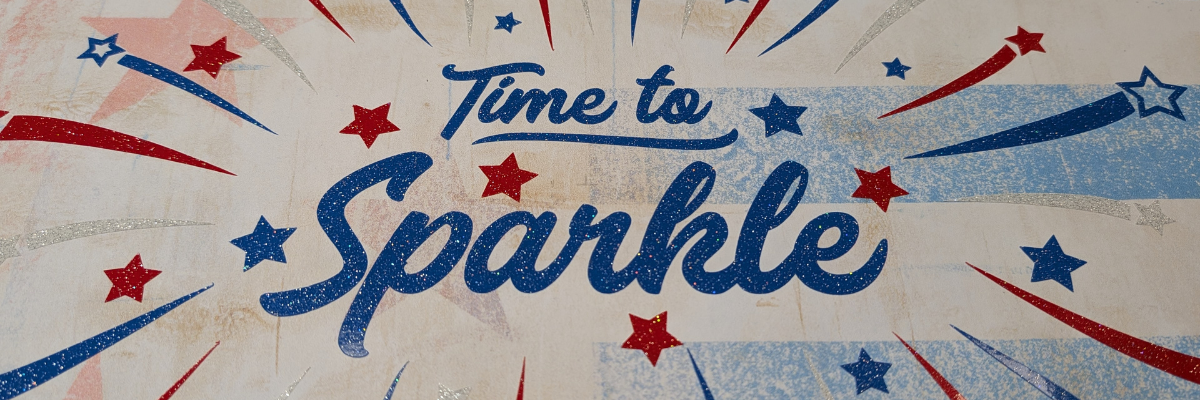
It’s Time to Sparkle! And use your designs for more than just 1 project. Clikchic Designs is this blog posts featured artist and I’m sharing several projects created with one of their designs. I have collected a lot of Clikchic Designs files and love seeing her process of creation. Did you know she creates her designs by hand? That may be one of the things that first caught my eye and made her designs stand out to me. She creates by hand and then digitizes her work to share with us. I am so inspired by her creations! Check out the end of this post for even more inspiration by Clikchic Designs!
Affiliate links may be present in the following blog post and as an Amazon Associate, I earn from qualifying purchases.
The Crafting Creativity series is designed exactly for sharing inspiration, designs, and showing how to make your designs go farther or think outside the box. Find more Crafting Creativity inspiration HERE.
Crafting Creativity with Clikchic Designs: Time to Sparkle
Crafting Creativity video preview of the projects created with Time to Sparkle by Clikchic Designs. Additional photos, details, tips, tutorials, and supply lists can be found by scrolling under the video.
Project #1 –3-D Mixed Media Canvas
I am a Creative Professional with NAMTA and every year they host Creativation which is a large gathering of craft industry businesses, retailers, and brands from around the world. This year the Creative Professionals had the chance to display art in the entrance hall of the event. We were given the parameters of a 12″ x 12″ canvas and a red, white, and blue theme and told to create to share our skills and talents. I love to be able to make unique creations and start with something flat and give it dimension.
This project was several weeks in the making. I believe we found out we were going to do this in January or February with the conference happening in May. Once a topic is given to me my brain just starts with throwing out ideas. I try to keep a running list, usually in my phone, but often times I find a physical list in my creative journal is what really gets ideas flowing and allows me to narrow things down.
This is one of those projects that is built as it goes along and I continued to add things to it over the entire process.
Sparkler Creation – Embossing Powder – reel on Instagram or Facebook
Creativation 2026 – Creative Professional Canvas Wall Preview – reel on Instagram or Facebook
Project #2 –Sublimation Tumbler
I started by measuring the tumbler then drew a rectangle in Silhouette Studio for the template size. Then the process of filling the design with patterns began. After testing many options I decided I loved this pattern with the ombre blues and having the design in white.
I love how it turned out and now have another custom tumbler I can use.
This card design was created by first setting the Time to Sparkle up for sketching and then cutting out the stars and swooshes from the card front.
This design works perfectly for a going away card, new adventure, best wishes, congratulations, and more!
I set the text to sketch and used a crosshatch sketch fill of 0.015″. Then used the “cut” by Line Color on the Send tab to tell it what action I wanted each line color to do.
After the sketching and the cut out was complete on the front of the card, I added a layer of glitter cardstock behind to give it more sparkle.
Here are a few Instagram links to get you started – make sure when you visit to like and leave a comment too! Creators love to hear from real people who enjoy their work.
Never miss out on the news, tips, “secrets”, deals, classes, and more that I share on Silhouette Secrets+. Sign up for the newsletter and get information delivered to your inbox every Friday. Unsubscribe at anytime.
One design can be used in so many different ways. If you’re looking for even more inspiration, tips, and creative project ideas, be sure to browse the Crafting Creativitysection on the Silhouette Secrets+ website — click HERE to explore!
Save this for future reference by pinning the image below.
Enjoy !
THANK YOU for your support! How can you help? Click HERE & buy a coffee. Every little bit helps with the cost of running the site.
Silhouette Classes
Never stop learning! Let me help you take the anxiety out of learning with Silhouette and get to creating faster! My Silhouette classes are heavily focused on software, so you can take the skills & techniques taught and apply them to many future projects!
**This post may contain affiliate links. What that means is that I may receive compensation if you purchase through the links I have provided. The price you pay for the product or service is not higher but I may get compensated for sharing.
When we were told as Creative Professionals with NAMTA that we would have the opportunity to display our artwork at the 2026 Creativation event, my brain immediately started thinking of ideas and I started a list in my phone. We were allowed to have 2 – 12″ x 12″ canvases on display in the entrance hall for the conference and were given a theme of red, white, and blue. This was an opportunity to display our art and share our skills. I love building things, so a 3D mixed media design was a no brainer for me. This was one of those projects that I started with a few basic ideas and built the project as I went. Sometimes that’s just how it goes. Some things might work together along the way and some things might not.
I love building 3D projects! There is just something about taking flat materials and molding them into a final 3D project. Having a cutting machine like a Silhouette or Siser Juliet or Romeo opens up a lot of possibilities to cut designs for 3D creations. The biggest factor that goes into it all is – TIME! It takes time to design, build, and modify things as you go along in the process.
Affiliate links may be present in the following blog post and as an Amazon Associate, I earn from qualifying purchases.
In this blog post, I’m sharing a look at the behind the scenes of creating this 3D Mixed Media Canvas: Time to Sparkle with a few still photos & the supply list. Check out the video at the end of the blog post for additional shots of the process as well.
First, here is a look at the finished project.
I started by gathering some supplies to get started. I had to order new inks to print the background papers. These 3 are designs by Clikchic Designs and can be found in the supply list below. I am able to print borderless with the Canon TS9521C printer. I ordered Oracal 851 glitter adhesive vinyl in red, white, and blue from Vinyl Spectrum. The entire theme of this canvas is to sparkle, so I embraced that fully.
I first started by cutting down the background paper for the backside of the canvas to fit within the frame. Then added layer of Mod Podge to the canvas and to the backside of the blue patterned paper. Smooth that down as much as possible. Adding the Mod Podge to both the canvas and the back of the paper helps it to adhere smoothly. Once it’s down flat, then I added another layer of Mod Podge Sparkle on the front of the blue paper. Let this dry completely.
While that was drying I set up the design for cutting from Oracal 851 Glitter Adhesive Vinyl in Silhouette Studio.
Then I cut each color of glitter adhesive vinyl. For each layer, I cut the color and the green rectangles. The green rectangles are designed as layering marks that are used to line up the layers exactly. While it might use a little more material when using these marks, I find I get a much more accurate layering. This is one of those techniques that no matter how you do it, practice makes it better.
While this design is not technically layered, the colors are in a specific location to each other, so I used the same technique with the layering marks and it worked out great!
Then I carefully applied the adhesive vinyl to the front of the patterned paper. This will be the background that shows through on the busted canvas.
Once the backside of the canvas was dry, I flipped it over and applied a layer of Mod Podge to the front of the canvas and to the backside of the pattern paper for the front. Once it was flat on the canvas, I applied a layer of Mod Podge Sparkle to cover the entire paper on the front. Let that dry completely before moving on to the next step.
Once it’s dry, then I flipped the canvas over and used a box cutter with a ruler to slice through the paper & canvas layers in multiple directions. This will allow the front to be rolled out for the “busted” canvas technique.
I have made several of these busted canvas projects and I found that it was much easier to glue the rolled edges down and have them stay if the pieces were “trained” first before gluing down. To do this carefully roll the sections back and hold for a little bit. Then let it sit for awhile. Repeat this step as needed. I found I was much more successful in having the curls hold with hot glue when I did this as the paper didn’t lift or try to go back to it’s original shape. Since there are several layers of glue, paper, and canvas, it can be a bit stiff.
Once it has sat in “training” for a bit, then I glued each end down onto the canvas with hot glue and held it in place until it cooled. Repeat for any stubborn sections.
I have several other pieces to this project so while it’s in “training” or things are waiting to dry, I would move on to the next element of the design.
I did not get any photos of the first 3D firecracker I created that’s shown in the top left corner of the photo above. As you can see, I have 2 copies. The first was a proto type that I cut and assembled to see if it would work with the layout. Then I decided to cut the box out of glitter cardstock while I was cutting the pieces for the sparklers too. These sparkler designs by Paper Beats Dynamite are fantastic with excellent written instructions.
The rectangles of color are glued to a bamboo stick and then once the glue is set, are rolled and glued around the stick.
On the end of each skewer, hot glue is drizzled from where the cardstock strip ends to the end of the skewer to make it appear like it’s melted.
A layer of gray acrylic paint was applied over top of the hot glue and the cardstock. Then I used black and red embossing powders on the end of the sparklers to make it look burnt and burning or hot.
Next I cut more glitter cardstock for additional firecrackers to add to the canvas.
These squares are rolled up and glued together to create a firecracker and I found it was easier to “train” them first and let them hold that shape a bit before gluing together. Once the glue was set, I could start adding them randomly to the bottom of the busted canvas section using hot glue.
Now, I will admit that I don’t typically like to cut glitter cardstock. It literally eats blades and can be difficult. But this project it was worth the effort it took. However, I am shocked that I actually got it all cut without issues because this is what my blade looked like after I was done cutting all these pieces.
Next, I wanted to add another element in – beading. I even had my supervisor, Goldy in on this one. She wasn’t much real “help” but she made sure to keep me focused.
Since this is a 3D mixed media art piece, I added another hobby of mine – beading – into the design elements. I strung beads in red, white, and blue on a wire and then bundled the colors together to create 3 different firework bursts. The one thing I did not take into account on this element was the weight of the beads and wire when finished. It all worked out and a LOT of hot glue held them in place.
I love how this all came together and the entire process of creating it piece by piece. 3D creations are one of my favorite things to do, but I don’t always take the time to do it.
This 3D Mixed Media Canvas may not be a project that you recreate, but I hope it inspires you to think outside the box and to combine and create ideas that reflect you as an artist. Every individual reading this has the creative spirit inside of them whether you believe it’s there or not. Sometimes you just have to let it out and let it flow, not try to control it or have the exact plan at the beginning.
Want to see a little bit more? I’ve created a video sharing even more of the photos behind the scenes in creating this process.
I love seeing what others are creating and their talents and skills. Check out this video I did from the Creativation 2026 entrance hall sharing a look at all the canvas creations by the Creative Professionals on Instagram or Facebook. Each canvas is unique and no two are alike!
Save this for future reference by pinning the image below.
Enjoy !
THANK YOU for your support! How can you help? Click HERE & buy a coffee. Every little bit helps with the cost of running the site.
Silhouette Classes
Never stop learning! Let me help you take the anxiety out of learning with Silhouette and get to creating faster! My Silhouette classes are heavily focused on software, so you can take the skills & techniques taught and apply them to many future projects!
**This post may contain affiliate links. What that means is that I may receive compensation if you purchase through the links I have provided. The price you pay for the product or service is not higher, but I may get compensated for sharing.
Create more with your designs and your Silhouette! Do you ever get a file and then use it once and are done with it? Let’s change that way of thinking and get our designs to do more for us! That is exactly what the Crafting Creativity series is all about. Unlocking the ideas of creating with a design and seeing what can happen. For more inspiration and ideas, check out the Crafting Creativity series HERE.
In this blog post I’m sharing creative project ideas with one design file from Wispy Willow Designs. One design has so much potential and can be the key to unlocking the creative fire inside you! Check out how I used one design in 5 different projects ideas, including the ones that failed.
Affiliate links may be present in the following blog post and as an Amazon Associate, I earn from qualifying purchases.
Create More:Crafting Creativity with Wispy Willow Designs
Project #1 –Print and Cut Stickers
For this project, I did some stickers and was testing it with some adhesive photo paper that says it’s waterproof. While the image itself was waterproof, the paper itself was not and the stickers did not last.
While this project failed as a water bottle decal, I still found I love the adhesive photo paper for other projects. I have been using it for cards, home decor signs, and more!
Here is a look at my setup in Silhouette Studio for this print and cut page. I try to maximize the space when I do a print and cut project. However, I do use the default registration marks for the most accurate print and cut results.
When I created the print and cut sheet design, I was thinking ahead to projects and included a size of the image that I could use on a wood round for a tiered tray sign.
Wood is a natural surface, so it can be tricky sometimes to get things to stick. I did add a coat of Mod Podge to the wood and let that dry before applying the adhesive photo paper to it.
This project was a failure! Big fat failure! The design itself turned out fabulous but the rest went into the trash.
I printed 2 copies of the beach design and then added them to a cardstock backer to make a double sided piece that was supposed to go inside a round clear ornament. I mentioned above that I like to maximize my print and cut space, so I included extra designs that I can use on cards in the future too!
I wanted to add in sand and shells to the bottom of the ornament, but the glue didn’t look right when dry.
Back to the drawing board on this one. I tossed the ornament in the trash.
It was just not the look I was hoping for, but I do have a double sided design that is looking for a new project to be used in.
The previous project may have failed, but this one turned out FANTASTIC!
I cut each layer out of Siser Easyweed HTV and then pre-pressed the tote bag. Then each layer was placed and pressed for 3-5 seconds, just enough to get it secure and to be able to remove the carrier sheet. After the last layer give the entire design a press. I did 10 seconds at the end, but it really just depends on the layers and the material being used. This is a canvas tote bag with some texture, so I wanted to make sure it was well secured.
When cutting different colors of the same material, you can usually cut more than one color at a time. I do this with cardstock, adhesive vinyl, HTV, etc.
Here is a look at my setup for cutting this design, then I will cut my HTV colors down to the size I need and place them exactly where they are shown on the screen.
If using a Silhouette cutting mat and the mat is loaded properly, then the designs should cut in the exact location they show on the screen. If using a 3rd party cutting mat, they may not line up the same since the margins on the mat edges can vary from a true Silhouette cutting mat.
Cutting multiple colors at once, not only can save you time, but it can also make your mats last longer too because you are cutting the materials down to the size needed and not ripping a full piece of material off the entire mat each time.
Here is a look at the pieces after I cut and weeded each one.
Mirror the Design Yourself
Flip the design manually, by right clicking on the design and selecting Flip > Horizontal on the Design tab and then when you Send the design to cut, select “Send As Is” and the design will cut out exactly where you have it placed on the screen.
If you let the Silhouette software mirror the design, then you may end up wasting materials and not having the material in the right location to cut. The software flips the entire mat, not just the design and does not show that on the screen. So you think it will cut on the left side, but it flips the entire mat and then cuts on the right.
Now, here is the humdinger on this one – the software flipping the entire mat can vary by software version. They added this “new feature” in and then it did not work the way a real user works, so many users wasted vinyl. After several years, they tried to “fix” it in the software so it would just flip the design and not the entire mat. Then in later versions, it was reverted back to flipping the entire mat again. It’s one of those things that I guess you’d say was implemented by an engineer and not someone who actually uses the Silhouette to cut HTV daily.
Pressing Multiple Layers and Colors
When pressing multiple colors, typically each color is pressed separately unless the pieces can be lined up WITHOUT any overlapping cover sheets. If the cover sheet of the HTV piece overlaps, it can interfere with the design being pressed.
Place one color of the design, then press for 3-5 seconds to “tack” it down, then remove the carrier sheet and repeat for all the layers.
Unless the carrier sheet of each layer covers the entire design, make sure to only press long enough to tack it down and then remove the carrier sheet for that piece. If you press it too long the carrier sheet can leave an indent in the other pieces of HTV that are already pressed.
For instance, if I left the carrier sheet for Beach on too long, it might leave a line impressed into the sunshine rays.
Use a protective layer on top of the HTV when pressing each layer, unless the carrier sheet covers all of the HTV each time. This will protect the HTV and prevent it from sticking to the top platen of the heat press. I use a Teflon sheet or a piece of parchment paper depending on what’s handy and what material I’m using.
Oh and another one – parchment paper and wax paper are not the same. Wax paper in a heat press can leave a big mess.
This project was a test, well, actually several tests.
Testing pens to see if they were waterproof, sketching with the Silhouette Cameo Pro MK II with no mat, and mixing watercolor backgrounds with acrylic paint markers.
This idea just would not go away and for some reason, I really wanted to sketch out this month’s design. I can’t pinpoint why, but sometimes you just don’t know what will turn out until you give it a try. And sometimes you just have to let yourself play.
And it worked! The pens were waterproof and did not bleed. The Silhouette machine sketched the design as it should without a cutting mat. The watercolor background turned out fantastic – LOVE IT! The acrylic markers on top = worked!
It is unique! It also gave me a bunch more ideas too.
Never miss out on the news, tips, “secrets”, deals, classes, and more that I share on Silhouette Secrets+. Sign up for the newsletter and get information delivered to your inbox every Friday. Unsubscribe at anytime.
One design can be used in so many different ways. If you’re looking for even more inspiration, tips, and creative project ideas, be sure to browse the Crafting Creativitysection on the Silhouette Secrets+ website — click HERE to explore!
Save this for future reference by pinning the image below.
Enjoy !
THANK YOU for your support! How can you help? Click HERE & buy a coffee. Every little bit helps with the cost of running the site.
Silhouette Classes
Never stop learning! Let me help you take the anxiety out of learning with Silhouette and get to creating faster! My Silhouette classes are heavily focused on software, so you can take the skills & techniques taught and apply them to many future projects!
**This post may contain affiliate links. What that means is that I may receive compensation if you purchase through the links I have provided. The price you pay for the product or service is not higher but I may get compensated for sharing.
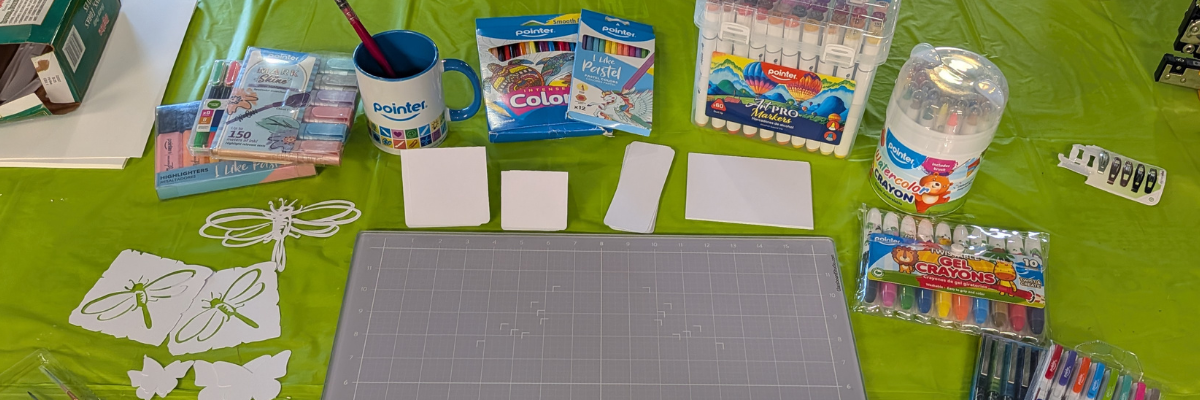
Creating a “craft camp” does not have to be complex or require a high level of skill. What do you need? Paper and craft supplies – DONE! I’m sharing how easy it is to create your own little craft camp and have a little fun. This is fun for all ages and skill levels. If you have a Silhouette cutting machine, you can use it to cut blanks, stencils, and more to use in the craft camp, but it can be done without a cutting machine too!
Affiliate links may be present in the following blog post and as an Amazon Associate, I earn from qualifying purchases.
Watch the video below and then scroll under it for more details and a supply list too.
I cut several shapes from mixed media paper and then set up a random selection of craft supplies from Pointer USA. I am a Creative Professional with NAMTA (National Art Materials Trade Association) and was contacted by Pointer USA to test out some of their craft supplies. I have been impressed with the supplies I’ve tested so far and the best part is that they are economical too! Especially if you are getting started with a new medium!
First, I’m going to brag on the Art Pro Mixed Media paper. It cuts fantastic with a cutting machine, which is not always the case with mixed media papers because of the fibrous make up. Often times the fibers will tear and smoosh rather than cut cleanly. But I have now ordered 2 more Art Pro pads because I’ve used it so much.
I also cut out some shaped dragonfly stencils and butterflies with the mixed media paper too.
Here are a couple photos from Round 1 of Craft Camp.
Designs by A
The butterfly and dragonfly stencils were put to use quickly.
Designs by C
And seeing their creations just made me want to create too. After all, I didn’t need to record the entire time. I love to simply add the watercolors to my Glassboard mat and then work with them from there. The smooshing technique is by far my favorite because no two are alike and I have no control over what it might turn out like. Simply scribble, add water, and then place the mixed media paper on top to pick up the color.
Designs by EllyMae
Craft Camp Round 2
Here’s a look at the blanks I cut for Round 2. This time I added in some tags as well to the shapes I cut.
And the creativity just continues. I love how they mixed all the colors around. I would turn around and a new creation would be in progress. I’m not sure who was more excited about them creating – them or me. It was so fun to see how they just picked up the craft supplies and turned it into something.
Designs by A
Every creation is different. The hardest part is the letting go and not thinking it has to be perfect. Each one is unique and just have fun. Anyone can do this! Fun for all ages.
Designs by F
My oldest and I had the idea about the same time. It was probably the tree silhouette stencil that prompted the creative thoughts, but I just had to try out some Northern Lights inspired images. I made the first one and recorded the process to create the second one and shared that in the video. If you missed it, check out the video HERE.
Here is a look at the Craftermath after Craft Camp Round 2. I’ll do a bit of clean up and resetting. But I’ll keep this set up for anyone who feels the urge to create.
I know my creativity sometimes is squashed simply by the thought of pulling out the craft supplies I want to use or having to move things around to get started. This might help me too!
I am loving the quality of the Pointer USA craft supplies. They are not only reasonably priced but also good quality for all ages. Check out the Pointer USA Amazon shop HERE for more options or visit them direct HERE.
If you are looking for a mixed media paper that cuts well with a cutting machine like Silhouette, grab the Art Pro Mixed Media paper by Pointer USA and give it a try.
Save this for future reference by pinning the image below.
Enjoy !
THANK YOU for your support! How can you help? Click HERE & buy a coffee. Every little bit helps with the cost of running the site.
Silhouette Classes
Never stop learning! Let me help you take the anxiety out of learning with Silhouette and get to creating faster! My Silhouette classes are heavily focused on software, so you can take the skills & techniques taught and apply them to many future projects!
**This post may contain affiliate links. What that means is that I may receive compensation if you purchase through the links I have provided. The price you pay for the product or service is not higher, but I may get compensated for sharing.
Come along with me and see what I shared in the Glassboard Studio booth at Creativation 2026. In this video I’m recreating what I shared and demonstrating how I use the Glassboard magnetic craft mats in my studio and projects. I enjoyed my demo time in the Glassboard booth at Creativation 2026 so much because I was able to share different projects and collect things on the trade show floor to add in as well. Plus, in this video, I share some bonus projects that just did not work out to share on the show floor too!
Affiliate links may be present in the following blog post and as an Amazon Associate, I earn from qualifying purchases.
Glassboard Studio Demo – Project Remakes with Glassboard Mat
I would love to hear what your favorite project shared was or your favorite tip. Let me know in the comments below.
Behind-the-scenes look – Glassboard Mat Demo
I always forget to take photos when I’m busy teaching, creating, or doing demos. Thank you to Julie McGuffee for snapping a photo of me in the Glassboard Studio booth!
Here is the one and only photo that I took while I was doing the actual demos.
For this one, I was creating with a custom stamps designed specifically for Creativation 2026 by Photocentric and then watercoloring the images in with a watercolor palette by Pointer USA. This has become one of my favorite items to collect on the trade show floor!
One neat thing about this was that I was able to leave my paints exactly as you see on the glassboard mat and break for lunch. Then when I came back for my second demo shift, I simply reactivated the colors with a bit of water and continued creating.
Here are a couple photos from the demo remake. This shows the stamped image from the video and then I added with Lindy’s Gang Magical Shakers for the colors. I love the sparkle it has, but it may not come through well in the photo.
And then a sample of just the colors themselves from the video demo.
In the video demo remake I was able to share multiple projects and show how I use the Glassboard Studio tools when I create. I lost track of how many different projects I was able to share, but here is a look at what was on my work space for this video.
I spy with my little eye… Stamped and watercolored images, custom faux wax seals – hot glue – print and cut images – Posca gold marker for accents, beaded pots of personality, sketching with Sharpie, painted faces with Liquitex, swatching and coloring with Lindy’s Gang Magical Shakers.
If you watch the video demo, you will hear me say that a year ago I did not own a Glassboard magnetic craft mat. I had to really talk myself into spending the money and ordering one. Now, I have 5+ in my craft studio and I do use them all. I have a couple on dedicated work spaces such as my beading & jewelry table, my main work space where I record videos, and a couple set up for a summer “craft camp”. I move them around as needed and I will admit, this is one of those situations where I purchased a couple of them simply because I loved the pattern and it made me happy. Impulse buy – probably!!! And not only have I added the magnetic mat to my work space, but the accessories like the Craft Catcher’s are right beside it too! I use them all the time.
After Creativation and doing the demo, I also added the HexaFlex Organizer Set to my work station as well. There is something about using a tool or storage accessory that gets me every time. Each year of Creativation I seem to add another new tool to my studio.
During the event, I like to be in the moment and I often get too busy & forget to post on social media and then after I get so far behind in posting and compiling video and photos, but there is lots to be shared and I hope to have more soon.
If you are on Instagram, I did put up a couple quick reels from the event.
And I also demonstrated in the Pointer USA booth with my Silhouette Portrait 4 and sketching on their mixed media paper. If you missed it, here is the remake of that demo too and also what failed on the show floor.
Want to see more from the Creativation Tradeshow floor? Check out these videos by my fellow NAMTA Creative Professionals that I was able to hang out with.
Save this for future reference by pinning the image below.
Enjoy !
THANK YOU for your support! How can you help? Click HERE & buy a coffee. Every little bit helps with the cost of running the site.
Silhouette Classes
Never stop learning! Let me help you take the anxiety out of learning with Silhouette and get to creating faster! My Silhouette classes are heavily focused on software, so you can take the skills & techniques taught and apply them to many future projects!
**This post may contain affiliate links. What that means is that I may receive compensation if you purchase through the links I have provided. The price you pay for the product or service is not higher, but I may get compensated for sharing.
When you hear “mixed media” do you instantly think of physical elements only? Or do you think of digital designs as well? In this issue of Crafting Creativity I’m sharing several projects created using Mixed Media Designs by Sarah Hurley. Whether you make the same projects or not, I hope it unlocks some inspiration and thoughts stirring around on what you can use designs for. The Crafting Creativity series is designed to spark interest and ideas on what you can create using one design file or a style of designs such as these mixed media designs.
Often times I think users get a cut file and think of only one possible project for it and then it might sit in our digital resources forever and not be used again. But, there is so much more that can be created with just one design. For more inspiration and ideas, check out the Crafting Creativity series HERE.
Affiliate links may be present in the following blog post and as an Amazon Associate, I earn from qualifying purchases.
Crafting Creativity with Sarah Hurley Mixed Media Designs
Project #1 – Easy Shaker Cardswith Mixed Media Designs
Shaker cards can be very simple to make and assemble. It’s all about layers and creating a “pocket” to hold the shaker bits in place.
I used some glitter cardstock hearts that I’ve kept in a little baggie from when I was testing the Silhouette Electrostatic Mat cutting glitter cardstock. They have just been waiting for the right project.
I wanted to see how the design would look in 2 ways – with the mixed media design on top and as the background.
Here is a closer look at the design with the mixed media layer on top of the shaker bits.
And a close up look at the design with the mixed media layer as a background behind the shaker bits.
Watch the video tutorial below on how I created these designs.
This was such a random idea that popped into my head and I decided to try it and see what happened. I love how it turned out!
In the Silhouette software, I released the compound path and deleted some of the bits in the middle to make it a little more successful in cutting and create a larger space for the design in the middle. Then selected the entire mixed media design and made a compound path again.
Here is a look at the design before I saved as a svg to send to my Glowforge.
I still need to finish this out and I’m not sure if I’ll add stain or just a protective sealer to it.
I then scaled the design down a bit and made a business sign too.
Use mixed media designs to create unique stencils that can be used for many different purposes.
This project uses the mixed media files in 3 different ways
as stencils
as physical elements cut
as digital backgrounds
This project came together layer by layer. A collage of different mediums and materials. I love how it has turned out so far. I am not sure it’s completely finished, but I’m sure it will tell me one of these days.
Here is a close up look at some of the layered details on this canvas collage showing 3 different methods of using the mixed media designs.
I also used the stencils in a mixed media journal to practice with before adding to my canvas. My first attempt on the canvas the paint was a bit watery and ran under the stencil, so I set that aside and practiced a bit in the journal.
Use the mixed media designs and cut the design from cardstock or other materials to create a physical element. Layer and add this to the canvas for even more uniqueness and interest.
Add a digital pattern to the mixed media design, print it out, and cut out in a shape to add another layer to the canvas.
Mixed media designs have so much potential on what they can be used for and in this case I layered the different elements and just kept building the canvas project.
I created a couple different shirt designs using the mixed media designs and then cut out of HTV. The first one is cut from Siser Tiger Lily Puff Metallic HTV and another one of my favorites. I made one similar to this last year and it still looks great!
Next, I swapped out the Metallic Puff HTV and used a pattern HTV that’s in my stash along with a Siser Glitter Puff HTV. Although the glitter puff didn’t really puff up that much, it still looks great on the shirt.
And one more creation. I’m not sure how I feel about this color combination, but I think it’s growing on me. I used Siser Glitter Puff HTV in orange and it didn’t puff up much either, but still looks great on the shirt.
All of these shirts were created using the same techniques of an offset of the text and subtracting the offset from the mixed media design.
Each year for Creativation I’ve made ATCs (Artist Trading Cards) and pass these out to others at the show. I used 2 of the mixed media designs on the background of the ATCs. These techniques could be applied to many other projects such as cards, bookmarks, stickers, etc.
Watch the step-by-step tutorial on creating these ATC (Artist Trading Cards) below.
Never miss out on the news, tips, “secrets”, deals, classes, and more that I share on Silhouette Secrets+. Sign up for the newsletter and get information delivered to your inbox every Friday. Unsubscribe at anytime.
One design can be used in so many different ways. If you’re looking for even more inspiration, tips, and creative project ideas, be sure to browse the Crafting Creativitysection on the Silhouette Secrets+ website — click HERE to explore!
Save this for future reference by pinning the image below.
Enjoy !
THANK YOU for your support! How can you help? Click HERE & buy a coffee. Every little bit helps with the cost of running the site.
Silhouette Classes
Never stop learning! Let me help you take the anxiety out of learning with Silhouette and get to creating faster! My Silhouette classes are heavily focused on software, so you can take the skills & techniques taught and apply them to many future projects!
**This post may contain affiliate links. What that means is that I may receive compensation if you purchase through the links I have provided. The price you pay for the product or service is not higher but I may get compensated for sharing.
I love all the options available with cutting machines and I love to combine different techniques to see what will happen. I’ve been testing and playing around with some mixed media paper and love how crisp it cuts, even with a well used Silhouette Autoblade! I will be demoing sketching with a Silhouette machine in the Pointer USA booth at Creativation and thought while I was prepping for that, I’d share some of the footage and photos I took during the process.
I am not a watercolor artist, however, I have taken a few classes and have found that I really enjoy the process and with the help of my Silhouette machine, if I mess up, I can simply sketch out another design and try again.
I have included a supply list, additional resources, and a link to the YouTube video on the Silhouette Secrets+ channel below.
Affiliate links may be present in the following blog post and as an Amazon Associate, I earn from qualifying purchases.
The first thing to do is gather the supplies for the project. Since I will be using watercolors on this project, I needed a pen that would not bleed and found that the Sharpie felt pen held up to the water and did not bleed with the mixed media paper. See a full supply list below in this blog post too.
I also tested with a waterproof pen by Pentel and it worked too. When sketching with a Silhouette machine, the machine draws the cut lines that you see on the screen. It is not automatically filled in. The type of pen tip can make a difference as well as the design, and the size of the design too. When a design is enlarged, the gap between the “cut” lines gets bigger too. This can be more noticeable if the pen doesn’t draw a thick enough line to fill it in. There are ways to fill in a design to be sketched and I’ll included additional resources for sketching below too!
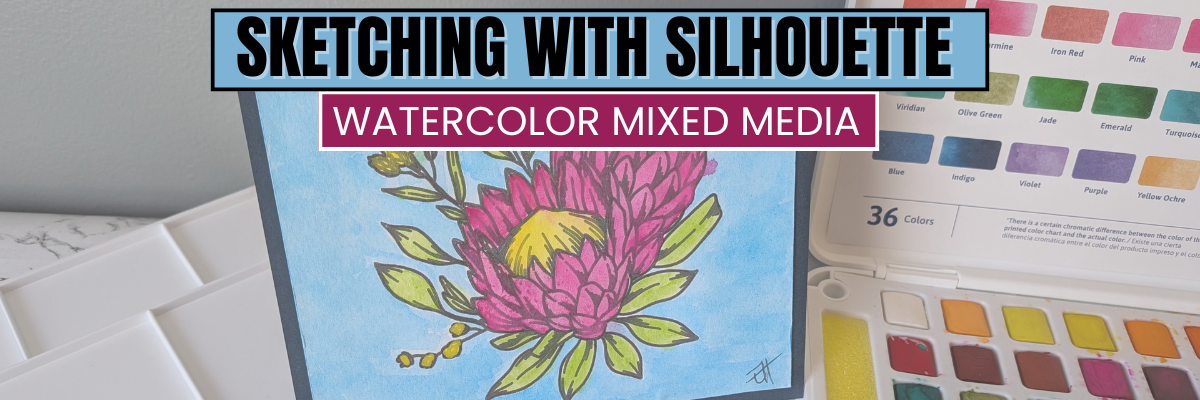
Here is a look at the design of the Protea flower I used. When I am sketching and then cutting, I will set the sketch lines to blue and then the red is a cut line. Then I’ll use the Cut by Line option on the Send tab to tell the machine what I want it to do first. I like to sketch then cut, so the design stays in place.
While there are presets in the Silhouette software, that is just a starting point and each pen can be different. A force of 7 is the preset and I found with the Sharpie felt tip pen, that it is way too much. I was able to get a good sketch with a force of 1. When using a felt tip pen, if too much force is used, it will smoosh the pen tip and results may not be good after.
Do not unload the cutting mat after it sketches if you are cutting after. If using the same tool holder, uninstall the pen and install the blade, then uncheck the sketch line in the Cut by Line Color panel and check the box next to the red color for the cut line. Adjust the settings for the cut and send that to complete the cut.
And then I simply started playing around with the watercolors. I looked up a photo online of a protea flower for some color combinations and just started playing.
Have fun creating projects with your Silhouette machines!
Save this for future reference by pinning the image below.
Enjoy !
THANK YOU for your support! How can you help? Click HERE & buy a coffee. Every little bit helps with the cost of running the site.
Silhouette Classes
Never stop learning! Let me help you take the anxiety out of learning with Silhouette and get to creating faster! My Silhouette classes are heavily focused on software, so you can take the skills & techniques taught and apply them to many future projects!
**This post may contain affiliate links. What that means is that I may receive compensation if you purchase through the links I have provided. The price you pay for the product or service is not higher, but I may get compensated for sharing.
Ready to unlock the full potential of your Silhouette machine? Whether you’re a seasoned crafter or just starting out, stenciling is a fun and versatile technique that can transform almost any project. In this post, I’m sharing creative stencil ideas you can cut right now with your Silhouette—think custom doormats, etched glass, painted wood signs, fabric decor, layered art journaling, and more. You’ll also find must-know tips for designing stencils, multiple stencil materials that can be cut, and step-by-step tutorials below too! This blog post is packed with Silhouette information, tips, and tutorials—so make sure to bookmark it for future reference.
Affiliate links may be present in the following blog post and as an Amazon Associate, I earn from qualifying purchases.
Stencils can be created from many different materials. Cardstock, adhesive vinyl, plastic stencil materials, and more! I’m sharing some of those materials below with tips and tutorials to help you design and create in Silhouette Studio.
Project #1 – Custom Stencils with Silhouette Stencil Material
Create your own stencils with basic shapes and patterns in the Silhouette Studio software.
I created these 2 stencil patterns and cut them from the Silhouette non-adhesive stencil material using the Silhouette Autoblade.
Silhouette has both adhesive backed and non-adhesive backed stencil material as shown above. One might work better for your projects versus another. Since my plan was to use the stencil on a flat material like mixed media paper, I didn’t really need it to be sticky on the backside.
I also kept all the negative bits that were cut out from this stencil for a possible future project. They could be used as elements on a card, creating a pattern on a card, as a stencil by itself, and more!
Then I pressed a piece of bubble wrap into the stencil butter to give it even more texture.
Make sure to let the stencil butter dry completely before touching it. I sometimes get impatient, so having a heat gun can be handy to help speed up the process too.
I shared how I created these stencil designs in the video below.
I use adhesive vinyl for many different projects as a stencil such as glass etching, painting, or in this project below – I was trying it with a Scorch marker for wood burning.
When creating a stencil with adhesive vinyl, weed out the design and that creates the stencil. In the photo below, I have weeded the flower design out of the black adhesive vinyl. I use basic shapes such as a rectangle around the design to create the outer edge of the stencil. The actual project I’m creating will determine the size of the shape I place around my design for the stencil outer edge. For projects such as painting or glass etching, I will give myself plenty of space around the design. For something smaller, as shown below, I don’t need as much extra space since it will be close to the edge of the blank being used.
Now, in this case, my project failed, but I’m still sharing it with you because it happens! Projects don’t turn out, projects fail and what you see on social media is not always reality.
These wood earring blanks were a bit too porous, and the Scorch marker liquid just bled too much. It looks more like those therapy cards – What shape do you see?
And that’s just how it goes sometimes. Some projects fail!
Here is another example of adhesive vinyl cut for stencils that I was using for glass etching.
And this one turned out fabulous!
Additional Resources for the tools I used to create the design:
Project #3 – Layered Stencil with Plastic Stencil Material
We see a lot of questions by users on cutting stencil materials. Typically, it is in reference to plastic materials that a user is trying to cut. While Silhouette machines can cut a lot of different materials, there are limits and it is not just about thickness, but also density and composition.
Another thing to keep in mind is that stencil material is plastic and plastic will dull the blade quicker than other materials. It is perfectly normal to have to increase the blade settings or passes the more that is cut. And if you are cutting this material a lot, you may go through more blades than other thinner, easier to cut materials.
I cut this 6 mil stencil material using the preset for Stencil Material in the Silhouette Studio software. All I changed was to increase the passes to 2 and then when that started having a few hang ups, I increased it to 3 passes.
The settings that work for you will depend on the blade sharpness, material, and your machine. There is no perfect setting that works for all users magically.
I do recommend cutting one stencil design at a time. This way you can catch any issues before you’ve wasted time and materials.
Do not unload the cutting mat before you check the cut and if it did not cut through you can send it again.
I was using the same Autoblade that I used with the Silhouette Stencil material mentioned above and it’s still going strong with the settings pictured above on the 6 mil stencil material.
The hardest part for me was that I had to stop the design and creation process and move on to other things. Once you get started cutting, it is easy to get wrapped up in the projects. Here are a couple more I cut before I moved on to the next phase – using the stencils.
Want to learn even more on how I designed the layered stencil used to create the design pictured above? Check out video tutorialbelow or on the Silhouette Secrets+ YouTube channel.
And there is more!!! A follower asked for more design tutorials after seeing the video above. So, I also shared how to quickly design a flower and a heart in Silhouette too!
Click the images above or the links below to watch these quick tutorials:
When working with stencils whether it is a design or a font, the pieces have to all remain in the stencil somehow. If a piece is completely cut out, it will fall out of the stencil.
For instance, for letters A, B, D, O, P, Q, and R, they all have “counters”, which are the centers of the design that would fall out when cut. In order to cut as a stencil and remain in place, the letter needs a “bridge” so it can be held in place when cut.
I typed in “stencil font” to the Silhouette Design Store search and many options come up. All kinds of styles and the perfect one will vary based on your project and taste.
You can see my taste varies and some of these will cut better at larger sizes than smaller. Each project may vary and you never really know until you test it.
The fastest way to create a stencil font is to use a premade font file, but you can also create your own from a font. This works best with a bold font where you can make “bridges” to help hold the centers (counters) of the letters in place.
I used a font style called Grossura to create the stencil quote shown above.
Once you see how easy it is to alter a font, you may not want to stop creating and the ideas may just continue to flow. See how easy it is in this video tutorial below or on the Silhouette Secrets+ YouTube channel HERE.
There is so many different projects you can create with stencils! And you can apply the same techniques and design steps to other projects as well. I hope you’ve picked up a few new ideas and techniques!
Looking for more creative ideas and inspiration? Check out the Crafting Creativity blog posts for a treasure trove of fun and unique projects! Each month, I share a fresh collection of craft ideas designed to spark your imagination and help you expand your skills with confidence. Don’t miss out—your next favorite project could be just a click away!
Save this for future reference by pinning the image below.
Enjoy !
THANK YOU for your support! How can you help? Click HERE & buy a coffee. Every little bit helps with the cost of running the site.
Silhouette Classes
Never stop learning! Let me help you take the anxiety out of learning with Silhouette and get to creating faster! My Silhouette classes are heavily focused on software, so you can take the skills & techniques taught and apply them to many future projects!
**This post may contain affiliate links. What that means is that I may receive compensation if you purchase through the links I have provided. The price you pay for the product or service is not higher but I may get compensated for sharing.
If you’re anything like me, finding the right tools for your creative space can make all the difference—and I just added a new one to my studio: the Magnetic Glass Craft Mat. I am loving it! From its sleek, sturdy surface to the strong magnets that keep materials perfectly in place, this mat has quickly become one of my absolute favorite tools. Whether you’re a paper crafter, vinyl user, or mixed media enthusiast, this is one studio upgrade you may find useful too!
Affiliate links may be present in the following blog post and as an Amazon Associate, I earn from qualifying purchases.
I have seen these craft mats advertised previously, but I got an in-person look at them at the 2025 Creativation in Seatle. I’ll be honest, I am usually anti-glass in my studio because you just never know what I will stumble across or drop. But I took a chance, and I bought this, and I love it!
This post is not sponsored by Glassboard Crafts or an advertisement for them. I am sharing a new tool I invested in and added to my craft space. I am asked often about tools I use and after requests by followers created a page on the website for “EllyMae’s Craft Supplies” – Find it at the top of the Silhouette Secrets+ website or click HERE.
In full disclosure, I am now an affiliate with Glassboard Crafts, and I do have a coupon code that can save you 15% on your order. Bonus for you if you decide to add this to your tools.
Use code SILHOUETTESECRETS to save 15% on your order HERE.
I knew I wanted a solid color because I record videos and a design can be distracting in the videos and white makes my camera go crazy trying to auto focus, so I chose a solid that I thought would be good. But I am drooling over all the patterns, and they just keep coming out with more.
One thing I didn’t think about until I tried to take photos to share is the reflection. Reflections always get the better of me. The surface reflects very, very well as you can see with my recording lights.
But I’ll work around that and adapt.
How I’ve Used My Magnetic Glass Craft Mat
Does everyone need this? Probably not, but I am loving it for 2 reasons – the heavy-duty magnets and the ease of cleaning up.
Lately I seem to be creating with more products that can be messy such as mixed media gel sticks, paints, paint markers, watercolors, and more. I am expanding my wheelhouse and loving the experimentation. But that can be messy too! At least for me.
Here are a few ways I’ve used it so far in the month since I received it.
This was for a video tutorial on creating a layered stencil in Silhouette (find that HERE). The magnets worked to hold the mixed media paper in place while working with the stencils. It could also be used to hold the stencils in place too; it would just depend on the thickness of your stencils and what magnets you have available to use. I ordered a 6″ magnetic ruler and have 4 of the mini pawn magnets.
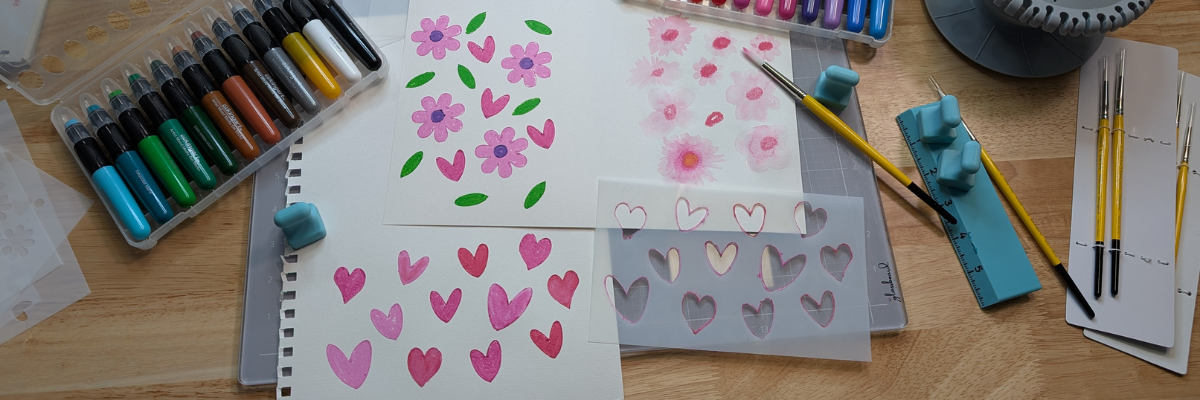
I also used it as a palette to test some different techniques. I just scribbled the mixed media gel sticks on the glass surface, added a bit of water, and then used a paint brush to pick up the color. When my images didn’t turn out quite how I wanted, I simply used a paper towel to wipe up the water & remaining color.
I was using a combination of Posca Paint Markers and acrylic paint on this sign. The smaller pieces were easily colored with the markers, while larger pieces were a bit messier and needed more coverage.
I used the glass mat as my paint palette and to catch my mess when painting the larger pieces.
I love how this sign turned out. The tiki is a bit dark in the photos but shows up better in person.
And one project leads to another. While the sign was drying, I was already on to cutting the pieces of a larger tiki on the left side. No paint needed with this one, just two types of wood. And he quickly disappeared after being glued together as my husband claimed it for his office at work.
Next up was more paint markers – this time Sharpie Creative Markers on glass. This is the messy side of things. I applied adhesive vinyl to the backside of a glass frame, then colored in sections of the design with the Sharpie Creative Markers.
I could have used the magnets to hold the glass in place, which is completely an after thought. Instead, I was using the magnets to hold the rest of my markers from escaping, which you can’t see in this photo.
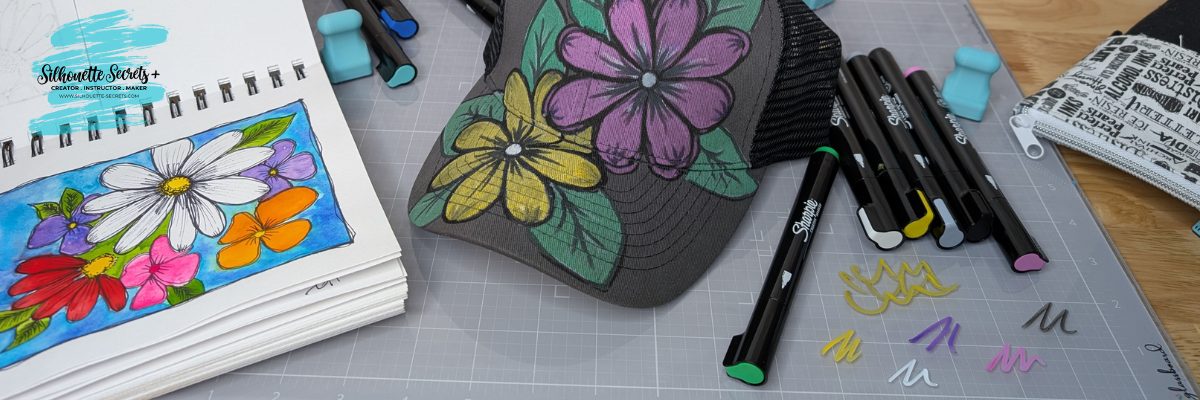
And while I had the Sharpie Creative Markers out, I really stepped outside my comfort zone and did a little doodling on a hat. Before I used each marker on the hat, I would scribble to make sure it was flowing well on the glass mat. A wet paper towel will make this easy clean up.
I took a watercolor class from Tracy Weinzafel earlier this year and ever since have been experimenting with different mediums and drawing the flowers taught at the event over and over for multiple projects.
I love new tools and craft supplies! Check out other supplies I use to create with HERE.
Watch for new patterns released and I’d love to hear your favorite below, even if you are just window shopping and dreaming. That’s how it all started for me!
Save this for future reference by pinning the image below.
Enjoy !
THANK YOU for your support! How can you help? Click HERE & buy a coffee. Every little bit helps with the cost of running the site.
Silhouette Classes
Never stop learning! Let me help you take the anxiety out of learning with Silhouette and get to creating faster! My Silhouette classes are heavily focused on software, so you can take the skills & techniques taught and apply them to many future projects!
**This post may contain affiliate links. What that means is that I may receive compensation if you purchase through the links I have provided. The price you pay for the product or service is not higher but I may get compensated for sharing.
THANK YOU for your support! How can you help? Click the link to buy a coffee. Every little bit helps in the cost of running the site.