Posted on Leave a comment

Crafting Creativity: 1 Bunny File, 5 Creative Projects with Studio Ilustrado

Silhouette Secrets+ with EllyMae

A cute paper craft scene featuring a gray bunny in a hot air balloon shaped like a carrot, surrounded by colorful flowers and pastel eggs on a checkered tablecloth.

Collage of spring-themed crafts featuring bunny and carrot designs, including greeting cards, decorative items, and crafting tools.

A colorful paper craft depicting a bunny in a hot air balloon shaped like a carrot, with a basket and flowers in a grassy landscape.

I had the Silhouette Curio 2 out from testing with the Silhouette Leather Carving Knife, so it was the machine I used to cut this card. Almost all the pieces were cut out using scraps from my stash. I love being able to use my scraps!

Look at these tiny details!

A hand holding a gray paper cutout of a smiling bunny with long ears.

To be honest, I wasn’t sure if it would cut well with the electrostatic mat on the Curio 2, but it did! Especially using a scrap piece of cardstock with the Silhouette Electrostatic Mat.

Sometimes we all just need a little bit of help and taping down the cardstock scraps on the Electrostatic Mat can be that help. It just added a little bit more security to hold my scraps in place and get a successful cut with the Electrostatic Mat. I love this new technology that Silhouette has. While it does not work with all materials, it has saved me hours of time cutting cardstock.

Close-up of a cutting machine with two tool holders, one equipped with a blade and the other empty, and a piece of gray material on the cutting mat.

While I used the Silhouette Curio 2 to cut the projects, any Silhouette machine could be used to create these projects.

Watch a bit of the behind-the-scenes on creating this project in this video – Creative Projects with Studio Ilustrado Designs – Bunny Carrot Balloon Card HERE

A colorful, three-dimensional craft display featuring a bunny in a basket, surrounded by green grass and flowers, with a large carrot above.

A yellow gift box shaped like a carton with a bunny illustration on the front, placed on a crafting table alongside a roll of adhesive tape, a tape dispenser, and a crafting tool.

The bunny made the perfect peeking addition to this gable box card. Don’t let the name of a design fool you either. The title of the box is called Christmas Gable Box by Studio Ilustrado, but it can be used for so much more!

Now here is one of my “secrets” – while the Silhouette machines can cut acetate for the window of this box card, I can cut it faster and with less headache.

Digital design software interface showing a cut template with instructions to cut a shape from cardstock.

I cut the window shape from a piece of cardstock using the Silhouette machine and then used it as a template to make a few quick snips with scissors and I was on my way to assembly. It doesn’t have to be perfect since it will be hidden inside the box. And I saved myself time, headache, and didn’t dull my blade.

Crafting workspace with a yellow paper cutout featuring bunny designs, scissors, and various crafting supplies including glue and other tools.

I used my laser to cut this out of wood, but you could also use other materials such as cardstock too! Even though I have a laser machine, I started with a 12 inch wood round blank, which you could use as your backing board too.

A decorative wall hanging featuring a cartoon bunny in a hot air balloon shaped like a carrot, with the words 'Hoppy Spring' at the bottom, set against a blue background.

I used the SVG file, opened it in Silhouette and made a few modifications to the file to be able to create the layers for cutting on wood. Since the wood has more thickness to it than a material such as cardstock, I had to add a layer behind the bunny and cut multiples to make it sit flush with the sign and balloon basket. The knife tool in Silhouette helped me to cut the bunny’s little feet off so it would sit flush on the balloon for this design. That sounds so bad when I type it out, but if you have designed in Silhouette, you’ll know exactly what I mean.

A workspace with various craft supplies including a blue sign that says 'SPRING', a cute wooden bunny cutout, and several Uni Posca markers in different colors.

I used a combination of Posca Paint Markers and Deco Arts Paint for finishing out the sign.

A decorative wall hanger featuring a cute gray bunny with pink ears peeking over a white picture frame. The word 'SPRING' is spelled out in yellow letters beside the frame.

I drew out a skinny rectangle, made a copy and rotated it 90 degrees. Aligned the right edges and welded it together to make the corner. Then sized the bunny and welded the bunny background to the rectangles to sit on top. Next, I added letters down the right side. Before welding the letters, I made a copy so I could cut them out and layer on top for color and dimension.

Before you go to cut the design, make sure it’s all flush. I forgot to cut the bunny’s feet with the knife tool, but I didn’t realize it until after he was all cut out, so he sits a little bit higher on the top of the door. In this case, it wasn’t worth recutting the design simply because you can’t really tell on our door frame.

I love these little door corner designs, even if we only have a few door frames that I can add them to in our house because the previous owner used the wrong trim to frame out the doors or the frame is too close to the wall. It is a fun way to add a bit of decoration without putting another hole in the wall.

Supplies Used:

I used the knife tool again, but not to cut off any bunny feet. Instead I cut the carrot off the design and used it to create a couple corny cards.

Four handmade cards featuring carrot designs and playful phrases, displayed on a crafting mat with various crafting tools in the background.

I used a Silhouette Black Glitter sketch pen and a font called BFC Rustic Cherry Farmhouse to sketch out the sentiment. I love the look of this glitter black pen, but it’s very difficult to photograph and show how it really looks.

A craft workspace featuring a Silhouette cutting machine, with a blank page laid out displaying fun carrot-themed quotes and phrases, alongside two markers.

I used the Silhouette Curio 2 to sketch this design using the electrostatic mat because that was the machine on my desk this week, but sketching can be done with any Silhouette machine model.

Two handmade cards on a crafting desk. The left card features a carrot with the text 'I CARROT FOR YOU'. The right card depicts a potted plant with the text 'BLOOM WHERE YOU ARE PLANTED'.

The clay pot was drawn in Silhouette Studio using basic shapes and adjusting the bottom edit points on a rectangle too!

Unlock your creativity by learning more about Silhouette. You never know where it will take you! Even making cards with carrots.

Four greeting cards featuring playful carrot designs and puns. The cards read: 'YOU'RE ONE IN A BUNCH', 'BLOOM WHERE YOU ARE PLANTED', 'THANKS A BUNCH!', and 'I CARROT FOR YOU', showcasing colorful carrot illustrations.

Collage of five craft projects featuring bunnies, plants, and colorful decorations, with a central text overlay reading '5 projects 5 1 file'.

Silhouette step-by-step Classes by Silhouette Secrets+

Silhouette Secrets+ with EllyMae
**This post may contain affiliate links. What that means is that I may receive compensation if you purchase through the links I have provided. The price you pay for the product or service is not higher but I may get compensated for sharing.

Posted on Leave a comment

How to Create Custom Sketch Designs in Silhouette Studio – Step-by-Step Video Tutorial

Silhouette Secrets+ with EllyMae

Ready to take your Silhouette skills to the next level? In this step-by-step video tutorial, you’ll learn exactly how to create custom sketch designs in Silhouette Studio—perfect for sketch pens, foiling, sublimation markers, and more! Whether you’re personalizing cards, creating decorative outlines, or adding hand-drawn touches to your projects, this tutorial will show you how to design from scratch and prepare your file for sketching.

Affiliate links may be present in the following blog post and as an Amazon Associate, I earn from qualifying purchases.

This year I took a watercolor class from artist Tracey Weinzapfel and I’ve been creating all kinds of projects with the ideas from class. When I started designing a class for the Sublimation & Beyond Camp 2025, I wanted to see if I could recreate my designs in the Silhouette Software.

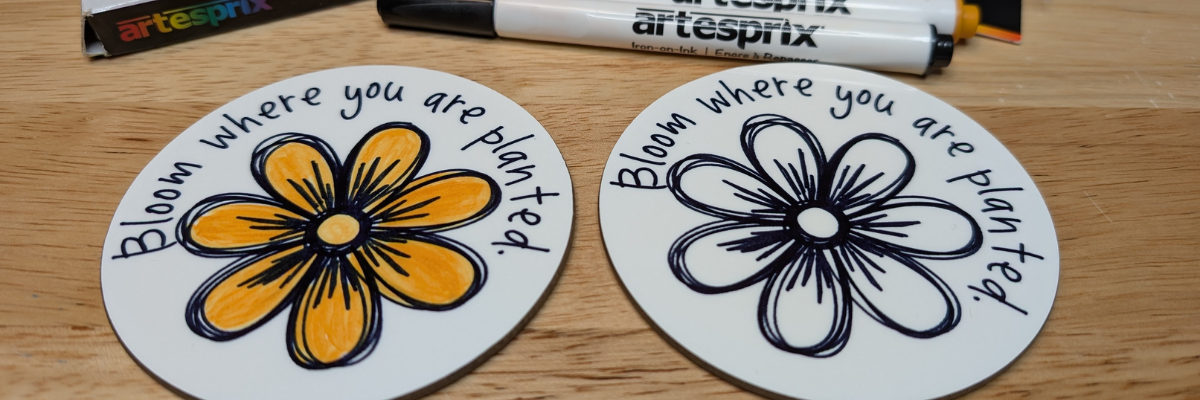
Two circular coasters featuring floral designs with the phrase 'Bloom where you are planted', surrounded by various Artesprix sublimation markers and packaging on a wooden surface.

I had so much fun in the design process of these custom sketch designs and just kept on creating flower designs just to see if they would turn out.

Preview of custom sketch flower designs in Silhouette Studio with text 'Bloom where you are planted' and 'Stop and smell the flowers'.

I used the sketch designs to create sublimation coasters using the Artesprix sublimation markers. Since the class would be viewed by a variety of cutting machine owners, I designed in Silhouette Studio and then saved the file as a SVG.

Here is the supply list for the sublimation coasters in case you want to create too!

Supplies Used:

Additional Resources:

Head over to the Silhouette Secrets+ YouTube channel and follow along as we unlock the creative power of sketching with your Silhouette machine! Can you spot my mistake I made in the video?

A close-up of two round coasters featuring the phrase 'Bloom where you are planted' with floral designs. One coaster has a black outline with a simple flower, while the other is filled with yellow and orange colors. The text 'CREATE CUSTOM SKETCH DESIGNS IN SILHOUETTE STUDIO' is prominently displayed at the top.
A colorful image showing various crafting supplies, including mixed media gel sticks and stencil materials, neatly arranged on a surface.

What custom sketch designs will you create? Let us know in the comments below.

Save this for future reference by pinning the image below.

Image featuring custom sketch designs created in Silhouette Studio, showcasing two coasters with a flower illustration and the phrase 'Bloom where you are planted', surrounded by Artesprix sublimation markers.

Enjoy !

THANK YOU for your support! How can you help? Click HERE & buy a coffee.
Every little bit helps with the cost of running the site.

Silhouette Classes

Never stop learning! Let me help you take the anxiety out of learning with Silhouette and get to creating faster! My Silhouette classes are heavily focused on software, so you can take the skills & techniques taught and apply them to many future projects!

Silhouette step-by-step Classes by Silhouette Secrets+

Silhouette Secrets+ with EllyMae
**This post may contain affiliate links. What that means is that I may receive compensation if you purchase through the links I have provided. The price you pay for the product or service is not higher but I may get compensated for sharing.

Posted on Leave a comment

Get Creative with Your Cutting Machine – Join Me at Sublimation + Beyond Camp 2025!

Silhouette Secrets+ with EllyMae

Are you curious about sublimation, DTF, white toner, and more creative ways to bring your designs to life? You’re in for a treat! 🎨

Colorful promotional graphic for Sublimation + Beyond Camp 2025, featuring text announcing the event dates as July 17-19, 2025, and emphasizing that it's back and better than ever.

Affiliate links may be present in the following blog post and as an Amazon Associate, I earn from qualifying purchases.

Sublimation + Beyond Camp 2025 is back—and it’s bigger than ever! This incredible 3-day virtual event is completely FREE and packed with classes for every level of crafter. Whether you’re just getting started or looking to expand your skills, there’s something here for everyone.

🗓️ Event Dates: July 17–19, 2025
💻 Where: Online – join from anywhere (yes, even in your PJs!)
🎟️ Tickets: Free for a limited time! CLICK HERE to register

And I’m so excited to share that I’ll be teaching, too!

🎉 My Class: Draw It. Press It. Love It! Sublimation with Any Cutting Machine

A Siser Juliet cutting machine on a desk with various colored markers, design templates, and sublimation coasters featuring flowers and text that reads 'Bloom where you are planted.'

In this class, I’ll show you how to take a simple design, sketch it with pens in your cutting machine, and press it onto your sublimation blanks for a custom creation you’ll love.

One of the best parts?
You don’t need a specific machine.
This project works with any cutting machine that can use pens to sketch—whether you’re using a Silhouette, Cricut, Siser Juliet, Brother ScanNCut, or another model. If your machine can draw with a pen, you’re good to go!

I even created the design in Silhouette Studio and saved it as an SVG, so you can easily bring it into your preferred software. You’ll get the SVG file included as part of the class!


What You’ll Get with Your Free Ticket:

  • 16 foundational classes to help you build confidence
  • 25 beginner and intermediate classes for sublimation, DTF, white toner, and more
  • Access to 40+ sessions from 17 content creators + 6 amazing brands
  • Free 24-hour viewing access to each day’s classes
  • A chance to win over $4,000 in giveaways!

Want to learn at your own pace?
The All Access Pass gives you one full year of access to all sessions, plus $240+ in exclusive bonuses like cheat sheets, digital files, and templates.
Once you register for the FREE ticket, you’ll see the All Access Pass offer pop up.

If you’re ready to get inspired, explore new techniques, and have fun creating something awesome, join me at Sublimation + Beyond Camp 2025!

👉 Click here to register for free and save your spot.
I can’t wait to see what you create with your cutting machine and a little creativity!

Check out the supplies I used for this class HERE.

A crafting workspace featuring sublimation markers and supplies, including two round coasters with flowers and the phrase 'Bloom where you are planted.'

Want to learn more about sublimation without a printer right now? Click HERE

Enjoy !

THANK YOU for your support! How can you help? Click HERE & buy a coffee.
Every little bit helps with the cost of running the site.

Silhouette Classes

Never stop learning! Let me help you take the anxiety out of learning with Silhouette and get to creating faster! My Silhouette classes are heavily focused on software, so you can take the skills & techniques taught and apply them to many future projects!

Silhouette step-by-step Classes by Silhouette Secrets+

Silhouette Secrets+ with EllyMae
**This post may contain affiliate links. What that means is that I may receive compensation if you purchase through the links I have provided. The price you pay for the product or service is not higher but I may get compensated for sharing.

Posted on Leave a comment

DIY Custom Earring Cards with Silhouette Sketching & Gelly Roll Pens

Silhouette Secrets+ with EllyMae

Looking for a creative way to level up your handmade jewelry packaging? In this DIY tutorial, I’ll show you how to create custom earring cards using Silhouette Sketching and vibrant Sakura Gelly Roll pens. These unique earring display cards not only showcase your earrings beautifully but also add a professional, artistic touch to your small business or handmade gifts. Using Silhouette Studio software and your Silhouette cutting machine, you can sketch intricate designs, logos, or text with ease. Whether you’re selling on Etsy, prepping for a craft fair, or making gifts for friends, these handmade earring cards are the perfect finishing touch!

Affiliate links may be present in the following blog post and as an Amazon Associate, I earn from qualifying purchases.

Have you ever made custom earring cards with Silhouette? How about sketched with your Silhouette machine? Why not combine the two and create custom earring cards?
I created the projects shown in this post to send with a gift to a friend.

Customize your designs for your specific project, a gift, or just because!

Think it, design it, create it!

Sketched Earring Card Supplies

Grab your supplies and just get started.

A collection of jewelry making supplies including earring hooks, a Silhouette pen adapter, Gelly Roll pens, and cardstock, arranged on a wooden surface next to a Silhouette cutting machine.

Supplies:

Sketched Earring Card Setup in Silhouette

Use a premade earring card file or create your own. Then add a design to the earring card for sketching.

Screenshot of Silhouette Studio software displaying a design for sketched earring cards, featuring a floral vine design and design setup options.

I used the Long Earring Display Card by Clikchic Designs – Design #389717 for this project.

Keep in mind the software and machines are designed as cutting machines, so the red “cut” lines on the screen are exactly how a sketch pen will sketch out. It will sketch the outer lines of a “cut” file. If a design or font is not filled in, the sketch pen will not magically fill things in unless it’s told to.

If you want a design or font to be filled in by a pen, you can use the Sketch Panel/Line Effects Panel to add a fill. Keep in mind that the sketch fill pattern will affect the time to sketch the design. When a design or font is filled in with a small sketch fill pattern, that pen is going over and over an area just like if you were filling in a design or font by hand with a pen. That can mean that it cements the paper to the cutting mat, so be careful removing the materials from the mat.

Sketch designs, fonts, or single line fonts can work better for sketching without having to do much to alter the designs.

However, not all sketch designs or fonts are truly designed for sketching. The file name may simply include sketch, so it’s always good to click on the Send tab and take a closer look to see where the pen may travel to get an idea of what it will turn out like.

Find additional tips on sketch designs in this post – How to Sketch with Silhouette.

Install the pen in the Silhouette machine and test.

Close-up view of a Silhouette cutting machine with a pen holder and white cardstock positioned for crafting.

The Silhouette pen holders allow for a wide variety of pens to be used in the machines. The installation process is the same no matter if using the Silhouette Type A, Type B, or Type C Pen Holders. Find the collar that fits the best for the size pen you are using and make sure it’s secure.

Did you know that the cap on the Silhouette pen holder has a purpose? Keep the cap!
Place the cap on the pen holder when you install the pen and when the tip of the pen touches the cap, that is your pen depth. This should work for most pen types and all Silhouette pen holders.

If needed, you can also use a popsicle or craft stick placed underneath the pen tip when you insert the pen holder in the machine. This will show you if the pen is too far down in the adapter or installed at the correct height. Pens installed too low in the adapter have a greater chance of drawing drag marks.

Silhouette Sketch Popsicle Stick Trick
Silhouette Cameo 3 with Type A Pen Holder

If the pen is too low, simply remove it and lift it up in the pen holder a bit before tightening the collars. Proper setup and testing will save you frustration and drag lines across your project.

If you are working on a project with specific materials such as envelopes, etc. Test on cardstock first to save your more expensive materials.

Sketching a Design with Silhouette

If sketching and cutting a project, set up the design to Cut by Line Color. I use red lines for the cut lines and blue lines for sketch lines.

Screenshot of Silhouette Studio software displaying design settings for sketched earring cards, featuring a blue intricate design on the left side of the interface.

I recommend sketching first and then cutting, so there is less chance that the design will move. Do NOT unload the cutting mat after the design has sketched.

A Silhouette cutting machine in action, sketching various designs including flowers and a butterfly on a sheet of white cardstock.

Uncheck the sketch lines and check the box next to the cut color, install a blade, and send the job to cut.

For more details on sketching by line color, check out this post – Silhouette Send Tab – Line Color.

A Silhouette cutting machine with white cardstock displaying multiple unsketched earring cards featuring floral designs and decorative borders.

Add you earrings and you have DIY custom earrings cards that can be used as gifts and more!

A variety of handmade earring cards showcasing different designs and earrings, displayed on a textured surface.

Want to see this in action?
Check out this quick glimpse on the Silhouette Secrets+ YouTube channel.

Just get started! Set it up to sketch and just start selecting designs and sketching. It is so much fun to just play around with it, even if you do not have a specific project or purpose in mind. Grab some cardstock and set up the machine to sketch and just play!

Additional Resources for Sketching:

Save this for future reference by pinning the image below.

A collection of custom DIY earring display cards featuring different designs and earrings, with a title banner reading 'DIY Earring Cards Sketching with Silhouette'.

Enjoy !

THANK YOU for your support! How can you help? Click HERE & buy a coffee.
Every little bit helps with the cost of running the site.

Silhouette Classes

Never stop learning! Let me help you take the anxiety out of learning with Silhouette and get to creating faster! My Silhouette classes are heavily focused on software, so you can take the skills & techniques taught and apply them to many future projects!
Silhouette step-by-step Classes by Silhouette Secrets+

Silhouette Secrets+ with EllyMae
**This post may contain affiliate links. What that means is that I may receive compensation if you purchase through the links I have provided. The price you pay for the product or service is not higher but I may get compensated for sharing.

Posted on Leave a comment

1 Design, 5 Projects: Unlocking Creativity with a Single Silhouette File

5 Projects with 1 Design
Silhouette Secrets+ with EllyMae

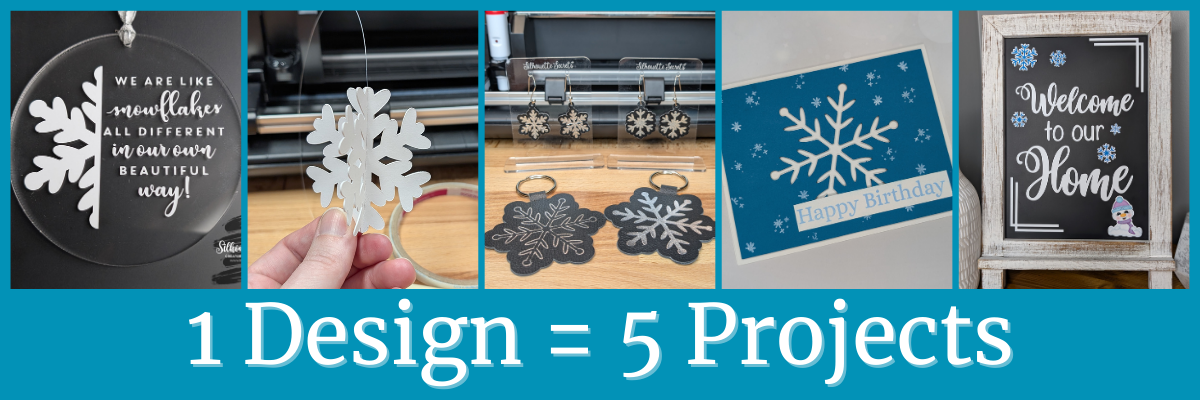
Each month in the Silhouette Secrets+ newsletters, there is a free file offer. I then use that file to create multiple projects, showcasing the endless possibilities you can achieve with just one design. In this blog post I am sharing a variety of creative projects made using snowflakes designs that I created in the Silhouette Studio software. There are so many possibilities when working with just one design and I hope it sparks your creativity to look at your designs differently and think about the possibilities for multiple projects with one file.

Affiliate links may be present in the following blog post and as an Amazon Associate, I earn from qualifying purchases.

The January newsletter files were several snowflake designs that I created in the Silhouette Studio software. This is a great way to learn more about using the tools in the Silhouette Studio software and every single user could create these themselves. Check out the tutorial on the tools I used HERE.

Snowflake Designs by EllyMae Created in Silhouette Studio using the Drawing Tools

Make sure to sign up for the Silhouette Secrets+ newsletter HERE for future free files & project inspiration.

Crafting Creativity with One Design

Project #1 – Acrylic Ornament

Acrylic Ornament with Oracal 651 decal - Silhouette

I drew a 3″ circle in the Silhouette Studio software as my template to create within for placement and getting an idea of what the design would look like. Using one of the snowflake designs, I added an offset and then used the Knife tool in Silhouette to cut the snowflake design in half. Next, I opened a snowflake saying, adjusted it at bit, and added that to the design. Then cut everything from Oracal 651 and applied it to the front of a 3″ acrylic circle.

Oracal 651 adhesive vinyl cut for a decal with Silhouette

I used the Silhouette Autoblade for these cuts and it did beautifully.

Adding weeding lines in Silhouette to a design for easier weeding

Using the Line Drawing Tools to add weeding lines can help so much when you have intricate designs to weed. This allows you to weed smaller sections of the design and not have the material stick back to itself.

Additional Resources:

Supplies Used:

Project #2 – 3-D Snowflakes

Creating 3-D Paper Snowflakes with Silhouette

Using one of the snowflake designs, I added a score line down the center and cut 3 for each 3-D snowflake out of cardstock. Then assembled them together to make the 3-D ornaments. The score line helped to fold each of the snowflake sides directly in half for assembly.

I shared how I did this in a new video on the Silhouette Secrets+ YouTube channel found HERE.

How to Make a Stunning 3-D Snowflake in Silhouette Studio - step-by-step tutorial

Additional Resources:

Supplies Used:

Project #3 – Keychains/Bag Tags and Earrings with Heat Foil on Silhouette Leatherette

Key chains/bag tags and earrings created with the Silhouette Heat Foil Pen and Silhouette Leatherette

This silver foil looks amazing on the Silhouette black leatherette. I highly recommend the Silhouette leatherette for anyone who wants to get started with cutting faux leathers. Create many different projects with the Silhouette heat pen and Silhouette leatherette.

Additional Resources:

Supplies Used:

For older model machines without the powered tool housing

Additional Heat Foils that I’ve tested

Project #4 – Cut Out Card

Snowflake Cut Out Card with Silhouette

I cut the snowflake design out of a blue sheet of cardstock and then had to walk away for a bit because I wasn’t sure how to finish this out.

Snowflake Cut Out Card in Process

I ended up pulling out supplies and stamps just to see what might be good to add on to finish this card out. I stamped some embellishments from a birthday stamp set as snowflakes in white ink and then stamping the sentiment in a light blue and adding it to the card with foam tape for dimension.

Card Making Process using Stamps and Inks

Additional Resources:

Supplies Used:

Project #5 – Printable Magnets

Printable Magnets with Silhouette Printable Magnet Sheets

Print and cut is so awesome and there are many different material types you can use, such as printable magnet sheets. I filled the snowflake designs with color, added an offset and then a few more shapes to fill the page. These could be used to decorate any magnetic surface.

I used them to give additional ideas for a recent class I taught on creating a custom chalkboard for home decor. This chalkboard is magnetic and has so many options you can play around with.

Custom Chalkboard Design for Home Decor Created with Silhouette

Additional Resources:

Supplies Used:

I love discovering how a single design can spark endless creative possibilities! The Crafting Creativity blog series is your ultimate source of inspiration, filled with innovative ideas, practical tips, and expert techniques to take your crafting to the next level. Whether you’re transforming a favorite design, exploring new materials, or refining your skills, these posts are here to fuel your creativity and bring your ideas to life. Check out more in the Crafting Creativity series HERE and see where your imagination leads you! ✨

Save this for future reference by pinning the image below.

5 Projects from 1 Design with Silhouette Pinterest

Enjoy !

THANK YOU for your support! How can you help? Click HERE & buy a coffee.
Every little bit helps with the cost of running the site.

Silhouette Classes

Never stop learning! Let me help you take the anxiety out of learning with Silhouette and get to creating faster! My Silhouette classes are heavily focused on software, so you can take the skills & techniques taught and apply them to many future projects!

Silhouette step-by-step Classes by Silhouette Secrets+

Silhouette Secrets+ with EllyMae
**This post may contain affiliate links. What that means is that I may receive compensation if you purchase through the links I have provided. The price you pay for the product or service is not higher but I may get compensated for sharing.
Posted on 2 Comments

Maximize Your Creativity: 4 Stunning Projects Using Just One Jaime Lane Designs File

Poinsettia Flower Projects with Jamie Lane Designs
Silhouette Secrets+ with EllyMae

Each month in the Silhouette Secrets+ newsletters, I team up with a talented designer to offer a free file. I then use that file to create multiple projects, showcasing the endless possibilities you can achieve with just one design. In this blog post I am sharing a variety of creative projects made using the Poinsettia Gift Tag file by Jamie Lane Designs.

Affiliate links may be present in the following blog post and as an Amazon Associate, I earn from qualifying purchases.

Poinsettia Gift Tag Cut file by Jamie Lane Designs

Make sure to sign up for the Silhouette Secrets+ newsletter HERE for future free files & project inspiration.

Crafting Creativity with Jamie Lane Designs

Project #1 – 3-D Poinsettia Gift Tags

Poinsettia Gift Tags by Jamie Lane Designs

To start the month off, I cut the design and assembled it for gift tags using kraft cardstock and colored cardstock. I then inked the edges of the cut pieces and used some paper shaping tools to add dimension to the flowers before gluing it all together.

Additional Resources:

Supplies Used:

Project #2 – Christmas Card Embellishment/Home Decor

I scaled the flower design down just a bit and used it as an embellishment on our Christmas card.

Christmas Card Decor embellished with Poinsettia Design by Jamie Lane Designs

This one shown isn’t quite mail friendly, so I kept it for myself and used it as decoration for this year.

I added an easel to the back of all the Christmas cards I sent out and the one shown above that I have on display in my home.

Christmas Card Easel Stand by Lori Whitlock

The Silhouette LIVE tutorial on the Silhouette Secrets+ YouTube channel from November is what started the entire idea of using this with my Christmas card design. In the live I followed a suggestion from a viewer which began the creation of this years Christmas cards. I also shared sketching tips and a demo using the Silhouette Electrostatic Mat.

Silhouette Sketching & Electrostatic Mat Demo & Tutorial

Watch that Sketching tutorial video HERE.

Additional Resources:

Supplies Used:

Project #3 – Gift Box Topper

Poinsettia Tag Design by Jamie Lane Designs Gift Box Topper

I scaled the poinsettia design up a little bit, cut a few more center pieces for the flower and added it on top of a hinged gift box. Added a little bit of gold sparkle spread on the poinsettia and now have a custom made gift box ready to go.

Hinged Gift box by Jamie Lane Designs

Want to know the perfect cut settings for all cardstock? There isn’t one. There are many factors that affect cut results such as: brand, color, weight, paper finish, blade life, cutting mat adhesion, humidity, the design, and more! Test cuts are the best way to know what will work for your particular cardstock or any material in fact. This will save you time, frustration, money, and supplies.

Additional Resources:

Supplies Used:

Project #4 – Poinsettia Bouquet

Over a year ago, I started working on a poinsettia project and crafted these gold-painted wool ball centers for the flowers. While that project was never finished, I kept all the pieces neatly tucked away in a basket, waiting for the right moment to complete it. As I revisited the project, I realized I had used this exact poinsettia flower file from Jamie Lane Designs. Inspired, I decided to pair it with beautiful pearlescent papers from 12 x 12 Cardstock Shop to create a stunning bouquet.

Poinsettia Bouquet with Jamie Lane Designs File and 12 x 12 Cardstock

I ordered the cardstock and when I went to use it I was surprised at how thick it was. I wasn’t sure if I would be able to successfully cut it with the Silhouette Electrostatic Mat. After feeling it, I went looking for the weight and found it was 105 cover that’s 285 gsm. Even though I thought it might be too thick, the only way you really know if something will work is to test it! So I did just that. I did have to adjust my cut settings a bit at the beginning and then it cut beautifully!

As I mentioned above, there are no perfect cut settings that work for all cardstock. The faster you can learn to accept that, the less frustrating it will be. You will quickly learn that test cuts will save you time and if you are like me, kick yourself when you don’t do them.

Check out the new video on the Silhouette Secrets+ YouTube channel where I shared how I created this paper flower bouquet with tips to using the Electrostatic Mat too!

Perfect Cardstock Cuts with the Silhouette Electrostatic Mat

Additional Resources:

Supplies Used:

Poinsettia Flower Design by Jamie Lane Designs and Neenah Stardream Cardstock from 12 x 12 Cardstock Shop

I miss counted when I was cutting the flowers out and I had more flower pieces cut than I had wool ball centers, but I wasn’t going to let this one sit unfinished. I had extra center pieces leftover from the previous projects and still finished these out to use for a future project or gift.

What are some ideas you have for projects this year?

Find more designs by Jamie Lane Designs at the Silhouette Design Store.

I love exploring how one design can inspire multiple creative projects! The Crafting Creativity blog series is your go-to source for endless inspiration, packed with innovative ideas, practical tips, and expert techniques to elevate your crafting. Whether you’re reimagining a favorite design, experimenting with new materials, or mastering advanced skills, these posts are here to ignite your imagination and help you bring your creative visions to life. Head over to the Crafting Creativity series HERE and discover where your creativity can take you!

Save this for future reference by pinning the image below.

Poinsettia Projects with Jamie Lane Designs

Enjoy !

THANK YOU for your support! How can you help? Click HERE & buy a coffee.
Every little bit helps with the cost of running the site.

Silhouette Classes

Never stop learning! Let me help you take the anxiety out of learning with Silhouette and get to creating faster! My Silhouette classes are heavily focused on software, so you can take the skills & techniques taught and apply them to many future projects!

Silhouette step-by-step Classes by Silhouette Secrets+

Silhouette Secrets+ with EllyMae
**This post may contain affiliate links. What that means is that I may receive compensation if you purchase through the links I have provided. The price you pay for the product or service is not higher but I may get compensated for sharing.
Posted on Leave a comment

Unlock Creativity: 5 Stunning Projects You Can Create with Just One Design by Megan Hardy

Crafting Creativity with Megan Hardy
Silhouette Secrets+ with EllyMae

Discover the magic of versatility with Megan Hardy’s creative designs! In this post, we’ll show you how you can transform a single design into five unique projects that are perfect for any occasion. From an etched acrylic sign with the Silhouette Curio 2 to a wood sign using adhesive vinyl, a personalized apron using Artesprix sublimation markers and paints, a sketched place card for stylish gatherings, and a dazzling foiled card featuring the triple mat stacked technique—this post is packed with inspiration and tips to make the most of your crafting tools. Do more with your designs and bring your creativity to life!

Affiliate links may be present in the following blog post and as an Amazon Associate, I earn from qualifying purchases.

Each month in the Silhouette Secrets+ newsletters, I collaborate with an amazing designer to bring you a free file. Throughout the month, I work with the newsletter file to create and share a variety of projects, showcasing the many ways it can be used.

Make sure to sign up for the Silhouette Secrets+ newsletter HERE for future free files & project inspiration.

Crafting Creativity with Megan Hardy

Project #1 – Etched Acrylic Sign with the Silhouette Curio 2

Etched Acrylic Sign with the Silhouette Curio 2 - Design by Megan Hardy

I used the Silhouette Curio 2 with the Power Engraver to etch on a clear acrylic sign.

Silhouette Curio 2 Acrylic Etching Engraving with the Power Engraver

In most cases, I prefer to etch on the backside of acrylic, however, I knew I want to paint on the back, so I etched the front for this design. The Silhouette Power Engraver leaves a pretty smooth finish, but that will also vary based on the actual acrylic being used and the fill options chosen. The only way to know how it will turn out is to test.

I use shapes in the Silhouette Studio software to create a “template” in order to align the design where I want on the blank I’m using. Just make sure to turn the “cut” line off for the template before you send it to etch or it will also etch the outer edge of your blank as well.

Silhouette Studio Setup for Curio 2 Etching

Also make sure to keep the design away from the taped edges or it could affect the etch results. I got lucky in this etching and it still etched through the painters tape, however, that can also gum up the Power Engraver tool too with the tape particles and adhesive.

Silhouette Curio 2 Engraving Tips

Additional Resources:

Don’t have a Silhouette Curio 2 to etch with? No problem!
Check out these other ideas for Acrylic Sign Decor with Silhouette HERE.

Supplies Used:

Project #2 – Wood Sign with Adhesive Vinyl

Wood Sign with Adhesive Vinyl decal - design by Megan Hardy

I grabbed a plain wood sign from my stash that I had picked up years ago in a Target dollar spot. Added a couple layers of paint to the sign and let it dry. Then measured the inside of the blank and used a rectangle as a template to size the design. Once I had the design sized, I moved my rectangle off to the left side and drew in some weeding lines with the line tools so it was easier to weed in pieces.

Silhouette Studio Software - Adding Weeding Lines to a Design

I also cut my material down to the size I need so I can save the adhesive on my cutting mat and don’t have to peel a full sheet of material off the mat each time. To do this I decrease the Transparency on the Page Setup Panel so I can reveal the cutting grid and know what size to cut my material down to.

Cutting Adhesive Vinyl with Silhouette

Now I am not using the adhesive on the rest of the mat and it will increase the lifespan on the cutting mat.

Weeding Lines on Adhesive Vinyl

Adding weeding lines in the Silhouette software may take a couple extra seconds before you send the design to cut, but can save you frustration when weeding adhesive vinyl.

Additional Resources:

Supplies Used:

Project #3 – Sketched Place Cards

Sketched Place Cards with Silhouette - design by Megan Hardy

I love how these turned out! This place card was designed in the Silhouette software, using a rectangle, dashed line for scoring, and the pumpkin design from the Falling for Fall design.

Silhouette Sketched design with white pen - design by Megan Hardy

Let’s not talk about the fact that I created these for Thanksgiving dinner and then totally forgot to use them. There is always next year!

But, they turned out looking awesome! I love the painted liked texture that the sketch fill with the white pen gave it. Each one turned out just a bit different in the way the ink laid down and moved.

After creating these, I did a LIVE tutorial on the Silhouette Secrets+ YouTube channel sharing more on sketching tips and a demo using the Silhouette Electrostatic Mat as well.

Silhouette Sketching & Electrostatic Mat Demo & Tutorial

Watch that Sketching tutorial video HERE.

Additional Resources:

Supplies Used:

Project #4 – Custom Apron with Artesprix Sublimation Markers and Paints

Custom Apron with Artesprix Sublimation - design by Megan Hardy

Artesprix sublimation products are a great way to test and investigate if you want to go deeper into the sublimation side of things. I used the Artesprix black sublimation marker to sketch out the design with my Silhouette.

Silhouette Studio Sketching with Artesprix - design by Megan Hardy

With Artesprix sublimation products, you don’t need any special paper! Plain ordinary copy paper is all that’s needed and if you don’t like what you’ve made, you aren’t out much. I love playing with the Artesprix products and seeing what can happen.

Once the main design was sketched, then I sponged on some paint in 2 shades of orange around the design to complete the custom apron.

Check out more details in the blog post HERE.

Sublimation Custom Apron with Artesprix Sublimation Markers and Paints

Additional Resources:

Supplies Used:

Project #5 – Foiled Card Design with the Triple Mat Stacked Technique

Foiled Card Design with Triple Mat Stacked Technique - design by Megan Hardy

Make your cards pop with the Triple Mat Stacked technique and add heat foil to that for even more wow factor. I love combining things to make unique projects!

This was completed using a digital pattern in Silhouette Studio, setting it up for a print and cut, then using the setup for foiling the design before cutting.

Silhouette Print and Cut plus Foiling a Card Design with Triple Mat Stacked Technique

Foiling can really add a unique touch to your projects! It does take extra time in creating, but can definitely be worth it.

Silhouette Heat Pen Foiling for a card design

You can see this in action in this video – Quick Foil Card Design: Silhouette Cameo 5, Heat Pen, and Print and Cut video on the Silhouette Secrets+ YouTube channel.

Foil Card Magic with Silhouette Cameo 5 & Heat Pen

Additional Resources:

Supplies Used:

Find more designs by Megan Hardy at the Silhouette Design Store or on Etsy.

Follow along with Megan Hardy here:
Facebook: https://www.facebook.com/MeganHardyDesigns
Instagram: https://www.instagram.com/meganhardydesigns/

I love exploring how one design can inspire multiple creative projects! The Crafting Creativity blog series is your go-to source for endless inspiration, packed with innovative ideas, practical tips, and expert techniques to elevate your crafting. Whether you’re reimagining a favorite design, experimenting with new materials, or mastering advanced skills, these posts are here to ignite your imagination and help you bring your creative visions to life. Head over to the Crafting Creativity series HERE and discover where your creativity can take you!

Save this for future reference by pinning the image below.

5 Projects with 1 Design by Megan Hardy

Enjoy !

THANK YOU for your support! How can you help? Click HERE & buy a coffee.
Every little bit helps with the cost of running the site.

Silhouette Classes

Never stop learning! Let me help you take the anxiety out of learning with Silhouette and get to creating faster! My Silhouette classes are heavily focused on software, so you can take the skills & techniques taught and apply them to many future projects!

Silhouette step-by-step Classes by Silhouette Secrets+

Silhouette Secrets+ with EllyMae
**This post may contain affiliate links. What that means is that I may receive compensation if you purchase through the links I have provided. The price you pay for the product or service is not higher but I may get compensated for sharing.
Posted on 2 Comments

Silhouette Curio 2 – Unboxing, First Cuts & More!!!

What an exciting week it’s been! The new Silhouette Curio 2 arrived on my doorstep this week and I’m having a ball playing with it and testing it out!

If you have followed me for any time, you’ll know that I am proficient with the Curio 1 and love all the fantastic projects that can be made with it. It is still a good machine and if you have one, you can still use it! I can help with that too!

On the Silhouette Secrets+ Teachable site you will find 10 step-by-step classes that are all focused on the Curio 1. Check it out HERE.

Now that the Silhouette Curio 2 has been released, I’ll be developing step-by-step classes for that too! So watch the Silhouette Secrets+ Teachable site for future classes.

Affiliate links may be present in the following blog post and as an Amazon Associate I earn from qualifying purchases.

For all the details regarding the 3 new machine models released at the Silhouette Summit 2023, check out this post – New!!! Curio 2, Cameo 5, and Portrait 4

Now, before I go too much farther, I do want to let you know that the Curio 2 is limited in quantity in 2023. What is currently available is what is the inventory for the rest of 2023. But, don’t panic! There will be more coming in 2024 and there is lots of time to learn this new machine.

If you want to add the new Silhouette Curio 2 to your toolbox right now, you can find it at CrafterCuts HERE.

Whether you are diving into using the Silhouette Curio 2 or watching and waiting, I have resources that can help with this new machine.

I have been updating my Silhouette Secrets+ YouTube channel with new videos as I am testing the machine.

And to make it easy to find machine specific information, I’ve created a Silhouette Curio Playlist on the Silhouette Secrets+ YouTube channel. Find that HERE.

The Silhouette Curio 2 is a completely different machine than the first model! It is a large machine too! The footprint of the machine measures in at 20″ x 24″ and will need a dedicated space to function properly. Please consider that before you purchase!

However, I had a group member bring up a really good point. While the Silhouette Curio 2 is a large footprint that needs a dedicated space for it, it does take up less room than if you purchased a Silhouette Cameo 5 and the new Electrostatic Bed for the Cameo 5. It really depends on what your specific situation is and how your workflow is for you! Each user might be different and one machine may work better for one person vs another.

I am having a blast with the new Silhouette Curio 2! It is a new machine and it will take time to learn! I feel that every single person could be successful with this machine IF you take time to learn it and use it properly. If you do not, you will likely hate it. That is not a machine fault, it is simply a personal preference.

I want to share a few projects I’ve been doing with the Silhouette Curio 2.

Here are my first cuts on Vellum paper using the Electrostatic (ES) bed on the Silhouette Curio 2.

Such clean cuts. Check out my Silhouette Curio 2 First Cuts video HERE to see how I did, what issues I encountered, and how I worked through it.

I had several questions about print and cut, so of course I had to test that! Here is a letter size sheet of sticker paper that was cut on the Curio 2 using the new ES bed. The new ES bed means that you no longer have to use a cutting mat for materials that are flat and smooth. The materials can be held in place by static charge. The ES bed is new for the Silhouette Cameo 5, Curio 2, and Portrait 4. It will take time to learn and you will need to set it up properly, but I can see so many new possibilities on projects and successful cuts when using it. The ES bed comes with the Silhouette Curio 2 in the box.

Check out my videos on Silhouette Curio 2 Print and Cut with the ES bed and Tips for Success with the New Electrostatic Mat HERE.

I used Koala sticker paper and a design by Wispy Willow Designs called Small Business Sticker Sheet.

And then of course, once I showed this someone else asked about 12″ x 12″ cardstock, so that was the next project on my list.

This is Recollection Cardstock from Michaels and I used several designs from Diva Watts Designs.

And you probably guessed it, I shared it on YouTube too! Find the video on Silhouette Print and Cut – 12″ x 12″ HERE. See how easy it was with the new ES bed and cutting cardstock.

On a side note, while at the Silhouette Summit 2023, I also was able to meet several of the Silhouette Design Store Designers for the first time – Wispy Willow Designs, Diva Watts Designs, and Sarah Hurley. We spent several meals together and it was a blast. Check out my introduction video direct from Summit HERE. Make sure to follow these amazing designers too, they are a few of my favorites from the Design Store. I look forward to future collaborations with them! Stay tuned!

One of the new features of the Silhouette Curio 2 is it has a clearance of 20 mm. WOW! Yes, 20 mm. This is clearance under the tool housing. It is NOT cutting depth.

It also has auto detection of material thickness. This is awesome!

This means it opens up the possibilities of what projects can be done with the Silhouette Curio 2. Such as sketching on canvas and other thicker materials.

I used a Silhouette sketch pen in the blue sketch pen adapter and sketched out this design on a 8″ x 10″ canvas with a sketch font called SNF Sketchbook by Illustration Ink. There is also a new sketch pen holder (Type C) coming for the Tool 2 housing that will be compatible with the Silhouette Cameo 5 and the Silhouette Curio 2.

You will notice that the canvas is taped down on top of the ES Protective Sheet. I did have the ES bed on so the ES Protective sheet was secure and then taped the canvas to the machine so it would not move. Due to the surface of the backside of the canvas, it will not build up a charge directly on the ES bed to secure it. I also have a piece of wood inside the middle of the canvas for support.

I did try to use the Silhouette Type A pen holder in the Carriage 1 housing, but 3 different pens I tried did not reach the material. I will need to test that some more and figure out why it wasn’t working like it normally would.

Watch for a new video showing the sketch project on the Silhouette Secrets+ YouTube channel soon!

I can’t wait to share more! So many projects, so little time!

Save this for future reference by pinning the image below.

Sign up for the Silhouette Secrets+ Newsletter too! Tips, “secrets”, announcements, tutorials, classes, and more delivered to your inbox each Friday.

Silhouette Secrets+ Newsletter

Never miss out on the news, tips, “secrets”, deals, classes, and more that I share on Silhouette Secrets+. Sign up for the newsletter and get information delivered to your inbox every Friday.
Unsubscribe at anytime.

Enjoy !

THANK YOU for your support! How can you help? Click HERE & buy a coffee.
Every little bit helps with the cost of running the site.

Silhouette Classes

Never stop learning! Let me help you take the anxiety out of learning with Silhouette and get to creating faster! My Silhouette classes are heavily focused on software, so you can take the skills & techniques taught and apply them to many future projects!

Silhouette step-by-step Classes by Silhouette Secrets+

**This post may contain affiliate links. What that means is that I may receive compensation if you purchase through the links I have provided. The price you pay for the product or service is not higher but I may get compensated for sharing.
Posted on Leave a comment

Decorative Metal Panel with Silhouette & Artesprix Paints & Markers

In this month’s new video on the Artesprix YouTube channel, I used the help of my Silhouette Cameo 4 to create a decorative metal panel.

I cannot hand letter worth a darn.
So I called on my sweet Cameo 4 and let it do the work for me.

I am having so much fun just being creative and brainstorming what kinds of projects to create with the Artesprix products! Each month is a new creative burst of “let’s see what happens”.

Check out the new video HERE on the Artesprix YouTube channel.

Affiliate links may be present in the following blog post and as an Amazon Associate I earn from qualifying purchases.

Artesprix Sublimation Supplies

Here is a list of the supplies I mentioned and demonstrated in the new YouTube video:
Live Love Craft by Cali Arroyo – Design #223176
Summer Vibes Only by Graphic House Design – Design #292836
Artesprix Sublimation Markers
Artesprix Sublimation Paints
Artesprix Sublimation Decorative Metal Panel
Artesprix Siliconized Protective Paper
Artesprix Heat Tape
Artesprix Protective Mat
– Artesprix Color Mixing Chart can be found HERE
Siser Heat Press or another heat source to reaches 400 degrees F

– Other supplies: paper towels, copy paper, pencil, scissors
Optional for additional demos:
Silhouette Cameo 4 (or other cutting machine that sketches)
Silhouette Type B Pen Holder

I’ll be sharing more so make sure to follow Artesprix on social media to see more projects!
Artesprix YouTube channel
Artesprix Blog
Artesprix Facebook Page
Artesprix Iron-on-Ink Inspirational Group

Save this for future reference by pinning the image below.

Enjoy !

THANK YOU for your support! How can you help? Click HERE & buy a coffee.
Every little bit helps with the cost of running the site.

Looking for more in-depth, step-by-step classes, check out all of my online Silhouette classes on my Teachable site HERE.

SS Logo snip it
**This post may contain affiliate links. What that means is that I may receive compensation if you purchase through the links I have provided. The price you pay for the product or service is not higher but I may get compensated for sharing.
Posted on 6 Comments

Sketching Supplies for Silhouette

Sketching Supplies for Silhouette

The Silhouette machines have some awesome features and tools, including sketching supplies to use with your Silhouette! With the right sketching supplies, you can create amazing things with your Silhouette machine. Whether that is for sketching out words or designs, it can do it all!

Silhouette Sketching Examples

Today I’m going to share some of the supplies I’ve tested with sketching with my Silhouette machines.

Sketching Supplies for Silhouette

Affiliate links may be present in the following blog post and as an Amazon Associate I earn from qualifying purchases.

There are some differences between the different Silhouette model machines on the supplies you might need so I have broken it down into specific information for the machine models.

*updated 12/31/23 to include new machine models & tools

Silhouette Cameo 5, Cameo 5 Plus, Curio 2 owners

a Silhouette Type C pen holder for Carriage 2 – Silhouette America, HPN

Silhouette Type C Pen Holder

The Cameo 5, Cameo 5 Plus & Curio 2 can also use the supplies listed below for the Cameo 4 as well.

Cameo 4, Cameo Plus, Cameo Pro, Portrait 3, and Portrait 4 owners

Either:

a Silhouette blue sketch pen adapter (Silhouette America, CrafterCuts, Amazon)
with Silhouette black bodied pens (Silhouette America, CrafterCuts, Amazon)

Or

a Silhouette Type B pen holder (Silhouette America, CrafterCuts, Amazon) and pens that fit
Pens I’ve tested: Sharpie Pen S-Gel, Sharpie Pen Style, Pilot G2 Gel Fine 0.7 mm, Gelly Roll Classic 06 Black, Gelly Roll white, Gelly Roll Moonlight 10 Ice Cream Smooth

Silhouette Type B Pen Holder and Pens

The Silhouette Sketch Pens with adapter and Type B Pen Holder are Carriage 1 Tools as indicated with a 1 on the front of the tool.

Cameo 3, Cameo 2, Cameo 1, Curio, Portrait 1 or 2 owners

Either:

Silhouette black bodied pens or white bodied pens
(Silhouette America, CrafterCuts, Amazon)

Silhouette Sketch Pens

Or

A Silhouette Type A pen holder (Silhouette America, Amazon) and pens that fit
*pens listed above with links

Silhouette Type A Pen Holder and Pens

Sketching Resources

I encourage you to grab the right supplies for your machine and just get to playing with it.

But I also have some resources that can help on the blog.

Silhouette Sketch Pens & Sketch Pen Design Class

Silhouette Sketch Pen Class by EllyMae at Silhouette Secrets+

Check out the full class HERE where we discuss pens styles, adapters, sketch designs, fonts, filling designs, and troubleshooting too!

Sketching with Silhouette

Sketching cards with Silhouette

I created these cards following a class led by Kelly Wayment and hosted by Michaels – check it out HERE.

Let’s Explore v4 – Line Effects/Sketch Panel

Line Effects and Sketch Panel in Silhouette Studio

Learn about the Line Effects/Sketch Panel and how to fill text or designs in with sketching HERE.

Let’s Explore v4 – Send Tab – Line Option

Silhouette Send Tab - Line Color Option

In this tutorial, I am sharing how to cut and sketch by Line Color – find out more HERE.

More resources on Sketching found on the A to Z resource list HERE.

Save this for future reference by pinning the image below.

Sketching with Silhouette

Enjoy !

THANK YOU for your support! How can you help? Click HERE & buy a coffee.
Every little bit helps with the cost of running the site.

Silhouette Classes

Never stop learning! Let me help you take the anxiety out of learning with Silhouette and get to creating faster! My Silhouette classes are heavily focused on software, so you can take the skills & techniques taught and apply them to many future projects!

Silhouette step-by-step Classes by Silhouette Secrets+

**This post may contain affiliate links. What that means is that I may receive compensation if you purchase through the links I have provided. The price you pay for the product or service is not higher but I may get compensated for sharing.