Posted on Leave a comment

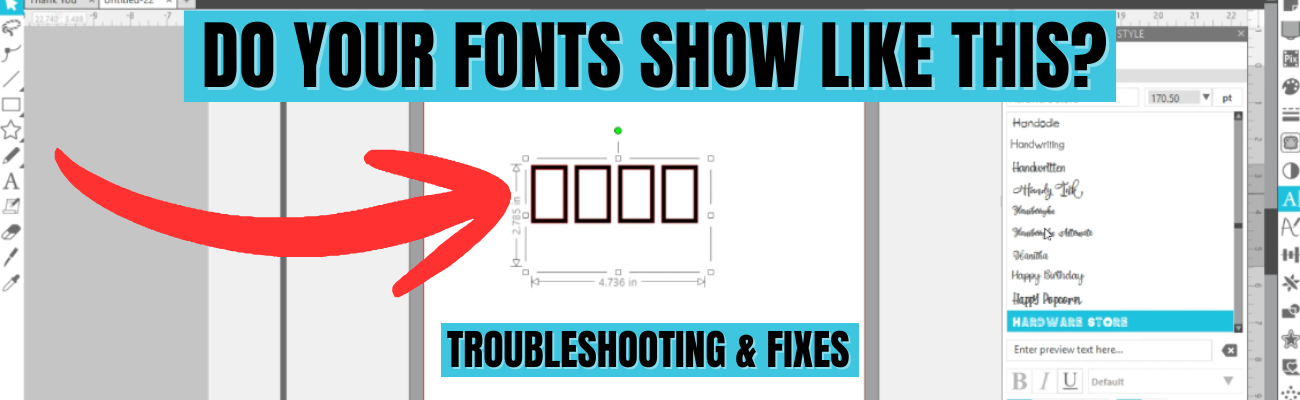
Troubleshooting Fonts in Silhouette Studio: Fix Font Issues

Silhouette Secrets+ with EllyMae

Affiliate links may be present in the following blog post and as an Amazon Associate, I earn from qualifying purchases.

Screenshot of Silhouette Studio software showing text formatting options with the question 'Do your fonts show like this?' and the phrase 'Troubleshooting & Fixes' prominently displayed.

A black sign and a light purple mug, both featuring the word 'Create' in a stylish font. The sign is positioned on a cutting mat next to a craft machine.

A black t-shirt featuring the word 'Create' in a vibrant pink script font.

Graphic showing the phrase 'WTH WHY does this happen in Silhouette?' with an illustration of a design window displaying shapes, and arrows pointing towards the shapes with the text 'TROUBLESHOOT & FIX IT'.

Enjoy !

Silhouette step-by-step Classes by Silhouette Secrets+

Silhouette Secrets+ with EllyMae
**This post may contain affiliate links. What that means is that I may receive compensation if you purchase through the links I have provided. The price you pay for the product or service is not higher but I may get compensated for sharing.

Posted on 2 Comments

How to Make a Peekaboo Layered Calendar in Silhouette Studio | Easy Cutout Calendar Tutorial

Silhouette Secrets+ with EllyMae

If you love layered paper projects and clever cutout designs, you’re going to enjoy today’s Silhouette Studio tutorial! In this step-by-step guide, I’m sharing how to create a Peekaboo Layered Calendar—a cutout-style design where the background shows through for unique look. This tutorial walks you through the full design process in Silhouette Studio, along with a supply list, and helpful tips with your Silhouette software. Whether you’re crafting a calendar for home décor, gifts, or adding unique designs to your shop, this project is simple, fun, and perfect for any skill level.

Affiliate links may be present in the following blog post and as an Amazon Associate, I earn from qualifying purchases.

I absolutely love how this lotus flower design cut out and the pink and yellow holographic cardstock seemed just perfect for it.

A calendar for January 2026 featuring a lotus flower design cutout at the top, displaying the month alongside the numbered days. The calendar is displayed on a wooden surface.

The brand-new Peekaboo Layered Calendar video tutorial is now live! Click the link below to watch the full step-by-step guide and learn how to design this cutout-style calendar in Silhouette Studio. After watching, be sure to scroll down — you’ll find a complete supply list, in-progress photos of this project, and additional project ideas too!

How to Make a Peek-A-Boo Layered Calendar in Silhouette Studio | Easy Cutout Design

A display of two Peekaboo Layered Calendars featuring a floral design and a hedgehog illustration, placed on a wooden surface next to a Silhouette cutting machine.

Supplies for Peekaboo Cutout Calendar:

Optional supplies if using print and cut:

Additional design ideas shown below:

A Bit More – Peekaboo Cutout Calendar

Here is a look at my original design file showing all of the calendar pages.

A screenshot of Silhouette Studio software displaying a design for a Peekaboo Layered Calendar. The design features lotus flowers and calendar squares for each month from May to December.

When I am working with a multi-page print and cut project, I will create separate files for each page. With print and cut, it is very specific and you do not want to move anything on the screen after the page is printed.

Having each page in a separate file will allow me to be able to easily recreate the project again if I want and also allows me to setup and print page 2 and 3 while the first page is cutting. I simply copied and pasted the next set of calendar sheets onto a new design mat and saved that file as Pg 2.

A screenshot of Silhouette Studio displaying a design for a Peekaboo Layered Calendar with months labeled May, June, and August for the year 2026, with a grid background.

The holographic cardstock was thinner than my 110 lb cardstock, so I did cut an additional backing and then used an adhesive tape runner to secure the background to it. This gave it a bit more weight so it would hold the straight shape more. I also did that on the next one too because I printed the graphics on Epson Presentation Paper – Matte, so it is a lighter weight paper, but has an excellent print quality to it and I love using it.

A colorful calendar page for January 2026 featuring a hedgehog illustration with a vibrant, drippy background, displayed on a wooden surface.

I can’t just print one image on a page though, so I did make some variations on this one and printed several.

A Silhouette cutting machine with a printed sheet displaying colorful animal images, ready for cutting.

Now I can swap out the images through the year if I want to and have these bright, colorful faces to look at throughout 2026.

A layered paper calendar for January 2026 featuring a lotus design at the top. Below it, three blank cards with colorful animal illustrations on them are placed in a wooden surface setting.

And once I started with these projects, it really is hard to stop. And this is why the video tutorials or blog posts are delayed. I love creating new projects and have to force myself to stop to get other things done.

And then I go and ask my daughter what kind of design she would want. “A whale shark, of course, Mom!”

A colorful, cutout-style calendar displaying the month of January 2026, featuring a whale shark design and hearts, placed on a wooden surface, with a Silhouette cutting machine in the background.

This peekaboo calendar turned out awesome too! I had to order a bit taller easel for this design though as it measured about 5″ tall and my smaller easels didn’t work well. My daughter loves this Whale Shark design by La La Shiba and I’ve used it on quite a few projects from temporary tattoos, water bottle decals, and shirts too!

I have so many additional ideas for the calendar designs. I’ll come back and update when I get more of the peekaboo designs made.

There are so many different design ideas you can create using the same tools shown in this video. I hope you take the tools I shared and put them to use and start creating.

Here is another example of a layered desktop calendar design.

A layered calendar for January 2026 featuring cartoon chickens on top, displayed on a wooden surface beside a cutting machine.

This calendar style was created using a file called Quirky Funny Chicken Clipart found HERE.

Want to create this style? I shared how I made it in this video tutorial –
How to Make a Layered Desktop Calendar in Silhouette | Easy DIY Tutorial

A colorful layered desktop calendar featuring cartoon chickens and a cutting machine in the background.

Additional Resources:

Save this for future reference by pinning the image below.

A Peekaboo Layered Calendar featuring a lotus flower design with cutouts revealing a colorful background, displayed prominently with the month 'January' at the bottom.

Enjoy !

THANK YOU for your support! How can you help? Click HERE & buy a coffee.
Every little bit helps with the cost of running the site.

Silhouette Classes

Never stop learning! Let me help you take the anxiety out of learning with Silhouette and get to creating faster! My Silhouette classes are heavily focused on software, so you can take the skills & techniques taught and apply them to many future projects!

Silhouette step-by-step Classes by Silhouette Secrets+

Silhouette Secrets+ with EllyMae
**This post may contain affiliate links. What that means is that I may receive compensation if you purchase through the links I have provided. The price you pay for the product or service is not higher but I may get compensated for sharing.

Posted on Leave a comment

How to Create a Tri-Fold Shaped Edge Card in Silhouette Studio: Step-by-Step Tutorial

Silhouette Secrets+ with EllyMae

Creating custom card designs in Silhouette Studio is easier than you might think, and today I’m excited to share a step-by-step Tri-Fold Shaped Edge Card tutorial now live on the Silhouette Secrets+ YouTube channel! This project is perfect for any occasion, and once you learn the process, you can customize it with your own text, images, and themes. You’ll find the full supply list conveniently located right below the video link, so you can gather everything you need and craft along with me.

Affiliate links may be present in the following blog post and as an Amazon Associate, I earn from qualifying purchases.

Head over to the Silhouette Secrets+ YouTube channel to watch the full step-by-step tutorial. I walk you through each part of creating a Tri-Fold Shaped Edge Card so you can follow along at your own pace and customize it to match any theme or occasion. And while you’re there, I’d love your support—click the Like button, leave a comment to share what design you plan to create, and make sure to subscribe for more Silhouette tips and project inspiration. Don’t forget to tap the bell so you’re notified as soon as new tutorials are released!

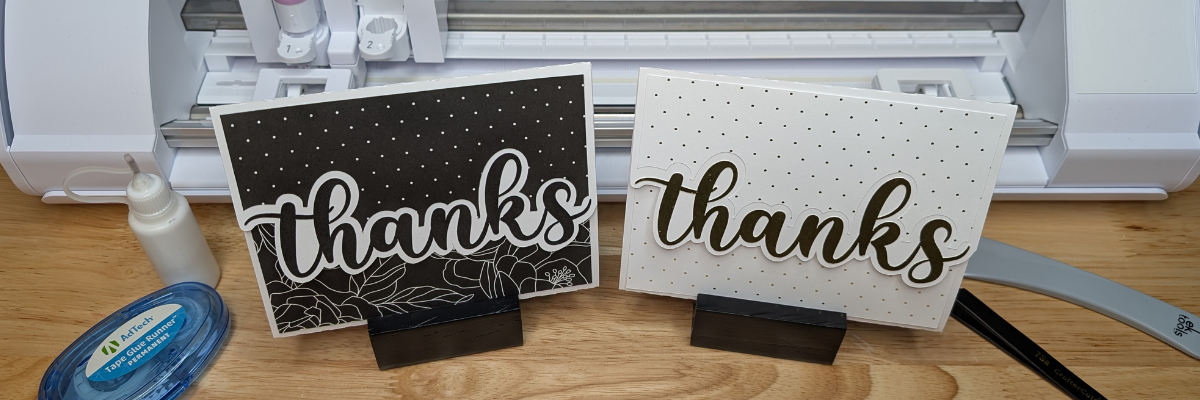
A step-by-step tutorial image for creating a tri-fold shaped card, featuring two card designs: one dark with floral patterns and a larger 'thanks' text, and one light with dots and a gold 'thanks' text, with crafting tools in the background.
Custom Card Design in Silhouette

Ready to design your own? Once you’ve watched the tutorial and are inspired to start creating, here are the supplies I used for my Tri-Fold Shaped Edge Card. Feel free to follow along with the same materials or customize your project with what you have on hand—either way, you’ll be crafting a unique card in no time!

Supplies for Custom Card Design:

Additional Resources:

This is a card design that can be used all year long and for many different situations.

Here are a couple more designs that I created too!

Four custom card designs featuring colorful patterns and bold lettering with messages such as 'just for you', 'hello', 'get well soon', and 'Happy Birthday'.

Mix and match different paper patterns with the same designs to create different looks.

A handmade card featuring the word 'thanks' in a playful font, placed on a wooden table with crafting supplies like a glue bottle, tape runner, and tweezers in the background.
Custom Card Design in Silhouette

This is a great way to use up scraps papers or smaller sheets too!

Two crafted cards with the word 'thanks' displayed in bold on a wooden table, alongside a glue runner and scissors, with a Silhouette cutting machine in the background.
Custom Card Design in Silhouette

Save this for future reference by pinning the image below.

An instructional image showcasing two tri-fold shaped edge cards with 'thanks' written on them, positioned in front of a cutting machine on a wooden surface.

Enjoy !

THANK YOU for your support! How can you help? Click HERE & buy a coffee.
Every little bit helps with the cost of running the site.

Silhouette Classes

Never stop learning! Let me help you take the anxiety out of learning with Silhouette and get to creating faster! My Silhouette classes are heavily focused on software, so you can take the skills & techniques taught and apply them to many future projects!

Silhouette step-by-step Classes by Silhouette Secrets+

Silhouette Secrets+ with EllyMae
**This post may contain affiliate links. What that means is that I may receive compensation if you purchase through the links I have provided. The price you pay for the product or service is not higher but I may get compensated for sharing.

Posted on Leave a comment

How to Create Custom Sketch Designs in Silhouette Studio – Step-by-Step Video Tutorial

Silhouette Secrets+ with EllyMae

Ready to take your Silhouette skills to the next level? In this step-by-step video tutorial, you’ll learn exactly how to create custom sketch designs in Silhouette Studio—perfect for sketch pens, foiling, sublimation markers, and more! Whether you’re personalizing cards, creating decorative outlines, or adding hand-drawn touches to your projects, this tutorial will show you how to design from scratch and prepare your file for sketching.

Affiliate links may be present in the following blog post and as an Amazon Associate, I earn from qualifying purchases.

This year I took a watercolor class from artist Tracey Weinzapfel and I’ve been creating all kinds of projects with the ideas from class. When I started designing a class for the Sublimation & Beyond Camp 2025, I wanted to see if I could recreate my designs in the Silhouette Software.

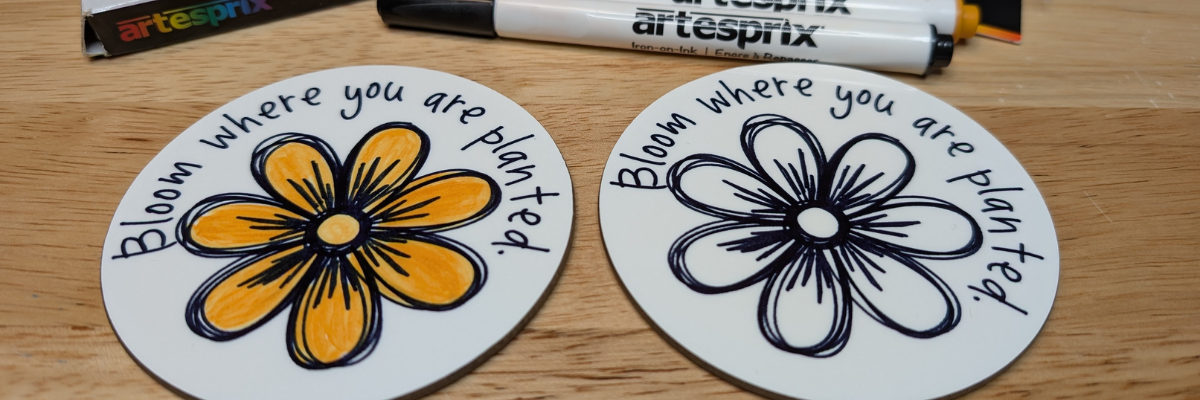
Two circular coasters featuring floral designs with the phrase 'Bloom where you are planted', surrounded by various Artesprix sublimation markers and packaging on a wooden surface.

I had so much fun in the design process of these custom sketch designs and just kept on creating flower designs just to see if they would turn out.

Preview of custom sketch flower designs in Silhouette Studio with text 'Bloom where you are planted' and 'Stop and smell the flowers'.

I used the sketch designs to create sublimation coasters using the Artesprix sublimation markers. Since the class would be viewed by a variety of cutting machine owners, I designed in Silhouette Studio and then saved the file as a SVG.

Here is the supply list for the sublimation coasters in case you want to create too!

Supplies Used:

Additional Resources:

Head over to the Silhouette Secrets+ YouTube channel and follow along as we unlock the creative power of sketching with your Silhouette machine! Can you spot my mistake I made in the video?

A close-up of two round coasters featuring the phrase 'Bloom where you are planted' with floral designs. One coaster has a black outline with a simple flower, while the other is filled with yellow and orange colors. The text 'CREATE CUSTOM SKETCH DESIGNS IN SILHOUETTE STUDIO' is prominently displayed at the top.
A colorful image showing various crafting supplies, including mixed media gel sticks and stencil materials, neatly arranged on a surface.

What custom sketch designs will you create? Let us know in the comments below.

Save this for future reference by pinning the image below.

Image featuring custom sketch designs created in Silhouette Studio, showcasing two coasters with a flower illustration and the phrase 'Bloom where you are planted', surrounded by Artesprix sublimation markers.

Enjoy !

THANK YOU for your support! How can you help? Click HERE & buy a coffee.
Every little bit helps with the cost of running the site.

Silhouette Classes

Never stop learning! Let me help you take the anxiety out of learning with Silhouette and get to creating faster! My Silhouette classes are heavily focused on software, so you can take the skills & techniques taught and apply them to many future projects!
Silhouette step-by-step Classes by Silhouette Secrets+

Silhouette Secrets+ with EllyMae
**This post may contain affiliate links. What that means is that I may receive compensation if you purchase through the links I have provided. The price you pay for the product or service is not higher but I may get compensated for sharing.

Posted on Leave a comment

How to Create a Layered Stencil Design in Silhouette Studio – Step-by-Step Tutorial

Silhouette Secrets+ with EllyMae

Did you miss this video tutorial? Don’t worry — I’ve got you covered! In this step-by-step tutorial from the Silhouette Secrets+ YouTube channel, I walk you through exactly how to create a layered stencil design in Silhouette Studio. Whether you’re a beginner or just looking to level up your stencil projects, this video will show you how to break a design into layers, align them perfectly, and prep each one for cutting. Layered stencils are perfect for multi-color painting, mixed media, and more — and with these tips, you’ll be designing your own in no time! Watch the full video and start crafting with confidence.

Affiliate links may be present in the following blog post and as an Amazon Associate, I earn from qualifying purchases.

I used the Kingart mixed media gel sticks on some mixed media paper when testing these stencils. I am loving playing with this new form of mixed media and experimenting with it.

A tabletop scene featuring a variety of colorful markers, sketches of flowers and hearts on paper, and crafting tools, emphasizing creativity and artistry.

Check out the video tutorial HERE on the Silhouette Secrets+ YouTube channel.

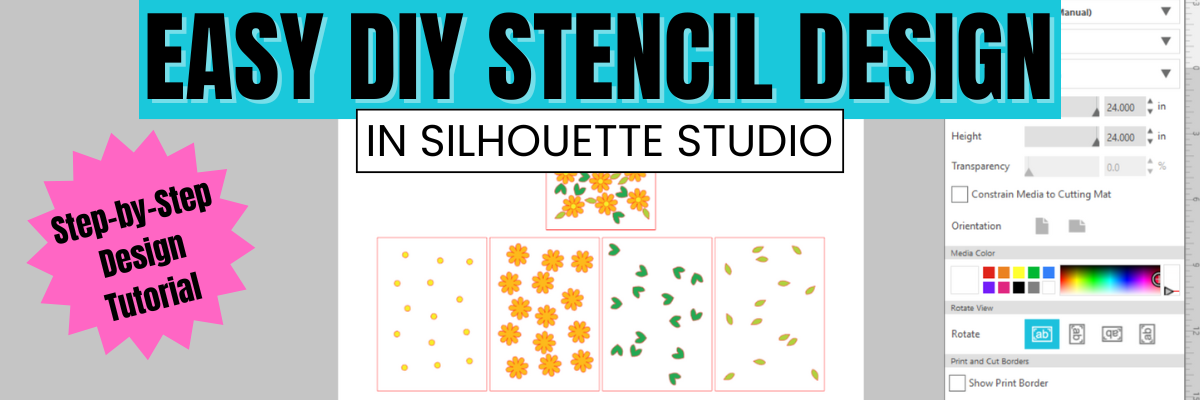
A digital collage showcasing a step-by-step tutorial for creating a layered stencil design in Silhouette Studio. The design includes floral and leaf patterns, alongside instructional text highlighting the tutorial's focus.

Supplies Used:

Additional Resources:

A colorful image showing various crafting supplies, including mixed media gel sticks and stencil materials, neatly arranged on a surface.

What would you use stencils for? Let us know in the comments below.

Save this for future reference by pinning the image below.

Collage of layered stencil designs created in Silhouette Studio, featuring colorful flowers and leaves, alongside various mixed media tools and supplies.

Enjoy !

THANK YOU for your support! How can you help? Click HERE & buy a coffee.
Every little bit helps with the cost of running the site.

Silhouette Classes

Never stop learning! Let me help you take the anxiety out of learning with Silhouette and get to creating faster! My Silhouette classes are heavily focused on software, so you can take the skills & techniques taught and apply them to many future projects!

Silhouette step-by-step Classes by Silhouette Secrets+

Silhouette Secrets+ with EllyMae
**This post may contain affiliate links. What that means is that I may receive compensation if you purchase through the links I have provided. The price you pay for the product or service is not higher but I may get compensated for sharing.

Posted on Leave a comment

How to Create a Design in Silhouette Studio in Under 1 Minute – Quick & Easy Tutorial

Silhouette Secrets+ with EllyMae

Looking for a fast and easy way to jump into designing with Silhouette Studio? In this quick tutorial, I’ll show you how to create a custom design in under 1 minute! Whether you are brand new to Silhouette or just short on time, this step-by-step guide is perfect for beginners and seasoned crafters alike. From shape tools to compound paths, you’ll learn how to make a project-ready design in no time—ideal for faux leather, fabric, vinyl, HTV, paper crafts, and more. Let’s get designing in 60 seconds or less!

Quick Design in Silhouette Studio

Open Silhouette Studio and grab the teardrop shape from the ​Flexishapes​ menu on the left side of Silhouette Studio.

Silhouette Studio screenshot showing the Flexishapes Tool

Left click on the design mat and drag down to create the teardrop shape to create approximately a 2″ tall shape. It does not have to be perfect. Then right click and choose Convert to Path.

Silhouette Studio screenshot showing Convert to Path

With the tear drop selected, in the top ​QAT (Quick Access Toolbar)​, highlight the numbers in the H box and change it to 2″. Press Enter.

Silhouette Studio screenshot showing QAT and Scale Tools

Double click on the tear drop shape to activate the ​Edit Points​. Click on the edit point at the top of the tear drop and 2 blue nodes will appear.

Silhouette Studio screenshot showing edit points on design

Grab the blue node on the left and drag it out so it is even with the red cut line on the left side.

Silhouette Studio screenshot adjusting edit points

Grab the blue node on the right side and move it to the right so it’s even with the red cut line.

Silhouette Studio screenshot with custom earring design

Ta-da! Ok. It probably took longer than a minute to read the steps and follow them, but you can do this again and could design this shape in less than a minute. But you don’t have to! It’s not a speed test.

If you want to create the hole for the top of the earrings. Grab the ​Draw Ellipse tool​ on the left side, hold the Shift key down to draw a perfect circle. Let the mouse button go before you let the Shift key up and you will have a perfect circle. Decide what size you would like and adjust as needed. Place the circle at the top, select both the circle and the tear drop and ​Align Center​.

Silhouette Studio screenshot showing Align Tools

With both the circle and the tear drop selected, right click and choose ​Make Compound Path​. Fill the design with color and you will see the hole is “punched out” of the tear drop shape.

Silhouette Studio Screenshot of earring design

Quick Video of Designing in Silhouette Studio

Check out this quick video on the ​Silhouette Secrets+ YouTube channel​ showing these steps in less than 1 minute.

Silhouette Secrets+ YouTube video thumbnail

Additional Resources:

Save this for future reference by pinning the image below.

Screenshot of Silhouette Studio showing a teardrop shape with a hole at the top, designed in a pink color, and text reading 'DESIGN IN SILHOUETTE IN LESS THAN 1 MINUTE'.

Enjoy !

THANK YOU for your support! How can you help? Click HERE & buy a coffee.
Every little bit helps with the cost of running the site.

Silhouette Classes

Never stop learning! Let me help you take the anxiety out of learning with Silhouette and get to creating faster! My Silhouette classes are heavily focused on software, so you can take the skills & techniques taught and apply them to many future projects!

Silhouette step-by-step Classes by Silhouette Secrets+

Silhouette Secrets+ with EllyMae
**This post may contain affiliate links. What that means is that I may receive compensation if you purchase through the links I have provided. The price you pay for the product or service is not higher but I may get compensated for sharing.

Posted on Leave a comment

Silhouette Studio Tutorial: Designing Beautiful Projects with Digital Kits

Designing in Silhouette with Digital Kits
Silhouette Secrets+ with EllyMae


If you love designing in Silhouette Studio and want to take your projects to the next level, you won’t want to miss this new LIVE tutorial! In this session, we are Creating Stunning Projects with Nitwit Collections Digital Kits and Cut Files. Learn how to combine beautifully designed digital elements with cut files to craft unique, professional-quality designs. Whether you’re a beginner or an experienced user, this tutorial will walk you through step-by-step techniques to make your projects stand out. Plus, with viewer participation, questions were answered and demonstrated in real time, making it an interactive and engaging learning experience. Watch the replay now and get inspired to create!

Silhouette Studio Tutorial: Designing in Silhouette with Digital Kits

Skills & Techniques Covered in This Video:

Watch the New Video HERE on the Silhouette Secrets+ YouTube channel

In the video I share how I went about designing these cards with the Warm Embrace Knick Knack kit by Nitwit Collections.

Layered cards created with Warm Embrace digital kit by Nitwit Collections

Here is a closer look at this layered card. With the high quality graphics of the Nitwit Collections digital kits and layering with 3D foam tape, you can create amazing, unique cards and projects.

Close up - Layered cards created with Warm Embrace digital kit by Nitwit Collections

Supplies Used:

Additional Resources:

💡 Don’t forget to subscribe to the Silhouette Secrets+ YouTube channel and turn on notifications so you never miss a new tutorial!

Save this for future reference by pinning the image below.

Designing in Silhouette Studio with Digital Kits Pinterest

Want to learn even more about Silhouette? Check out the A to Z resource HERE.

Enjoy !

THANK YOU for your support! How can you help? Click HERE & buy a coffee.
Every little bit helps with the cost of running the site.

Silhouette Classes

Never stop learning! Let me help you take the anxiety out of learning with Silhouette and get to creating faster! My Silhouette classes are heavily focused on software, so you can take the skills & techniques taught and apply them to many future projects!

Silhouette step-by-step Classes by Silhouette Secrets+

Silhouette Secrets+ with EllyMae
**This post may contain affiliate links. What that means is that I may receive compensation if you purchase through the links I have provided. The price you pay for the product or service is not higher but I may get compensated for sharing.

Posted on 2 Comments

How to Create a Custom Signature Line in Silhouette Studio (Step-by-Step Video!)

Silhouette Secrets+ with EllyMae


Create a Unique Signature Line with Silhouette Studio! 🖋️✨

Want to add a personalized touch to your projects? Whether you’re crafting custom cards, digital designs, or branding your creations, a unique signature line can make all the difference! In my latest YouTube video, I’ll walk you through the process of designing your own signature line using Silhouette Studio (or other design software). You’ll learn how to use the Text Tool, explore different Font Families, adjust Edit Points, and apply creative effects like Offset and Weld to achieve a polished, professional look. Ready to elevate your designs?

I’m also sharing a look at how I used this to create a custom stamp after I made the video tutorial below.

Watch the full tutorial on the Silhouette Secrets+ YouTube channel HERE.

Creating a Unique Signature Line with Silhouette Studio

I used a font style called Haniberryku in the video tutorial – find it HERE.

Skills & Techniques Covered in This Video:

Watch the New Video HERE on the Silhouette Secrets+ YouTube channel

Silhouette Mint Machine

After I made the video, I used the file to create a custom stamp with my Silhouette Mint machine. I love this little piece of technology. While the Mint Stamp machine is no longer manufactured, it is still a very handy tool to have around if you can get the stamp kits.

Silhouette Mint Machine to create custom stamps

Check out this tutorial for creating with the Silhouette Mint Machine – Let’s Explore the Mint & Silhouette.

You can still find the Silhouette Mint available while supplies last.

I also found Mint Supplies at Vinyl Spectrum too! Check it out HERE.
Let them know EllyMae sent you in the order notes!

Silhouette Mint Machine

And I found the Mint Stamp Maker Bundle at CrafterCuts too – use code SECRETS and save 10% too!

While the Mint Studio software is no longer updated, it can still be used on most computers. I was able to connect to my Silhouette Mint machine with no problems with a Windows 11 computer. However, we have seen some issues connecting to some MAC systems, but not all and the only way to know is to test it.

Find the Mint Studio Software HERE. It’s like a step back in time to what Silhouette version 2 was like. Make sure to follow my tutorial for how you can design in Silhouette and then open in Mint Studio to create your stamp.

Additional Resources:

💡 Don’t forget to subscribe to the Silhouette Secrets+ YouTube channel and turn on notifications so you never miss a new tutorial!

Save this for future reference by pinning the image below.

Create a Unique Signature Line with Silhouette Studio

Enjoy !

THANK YOU for your support! How can you help? Click HERE & buy a coffee.
Every little bit helps with the cost of running the site.

Silhouette Classes

Never stop learning! Let me help you take the anxiety out of learning with Silhouette and get to creating faster! My Silhouette classes are heavily focused on software, so you can take the skills & techniques taught and apply them to many future projects!

Silhouette step-by-step Classes by Silhouette Secrets+

Silhouette Secrets+ with EllyMae
**This post may contain affiliate links. What that means is that I may receive compensation if you purchase through the links I have provided. The price you pay for the product or service is not higher but I may get compensated for sharing.

Posted on Leave a comment

How to Create a Mixed Media Journal Cover with Silhouette Studio | New Video Tutorial

Mixed Media Journal Cover with Silhouette
Silhouette Secrets+ with EllyMae

Looking to add a creative touch to your journal covers or other projects? In my latest video tutorial, I’ll show you step-by-step how to design a stunning mixed media journal cover using Silhouette Studio and bring it to life with physical mixed media elements. From printable vinyl to layered textures, this project blends digital design with hands-on creativity for a truly unique result! Watch the full tutorial now and get inspired to craft along with me!

Affiliate links may be present in the following blog post and as an Amazon Associate, I earn from qualifying purchases.

Mixed Media Journal Cover with Silhouette

I had so much fun creating this project and can’t wait to create more with the digital elements and mixing physical mixed media to add a unique touch.

I am including the supply list for what I used, but you can use what you have and just start playing around.

Supplies used for Mixed Media Journal Cover:

Designs I used in the video:

Step by Step Silhouette video tutorial creating a mixed media journal cover

Find the video on the Silhouette Secrets+ YouTube channel HERE.

And find the original blog post and short form video that is on the Grafix YouTube channel HERE.

Save this for future reference by pinning the image below.

Mixed Media Journal Cover Step by Step video tutorial Pinterest

Enjoy !

THANK YOU for your support! How can you help? Click HERE & buy a coffee.
Every little bit helps with the cost of running the site.

Silhouette Classes

Never stop learning! Let me help you take the anxiety out of learning with Silhouette and get to creating faster! My Silhouette classes are heavily focused on software, so you can take the skills & techniques taught and apply them to many future projects!

Silhouette step-by-step Classes by Silhouette Secrets+

Silhouette Secrets+ with EllyMae
**This post may contain affiliate links. What that means is that I may receive compensation if you purchase through the links I have provided. The price you pay for the product or service is not higher but I may get compensated for sharing.

Posted on 4 Comments

Step-by-Step Tutorial: Mastering Tracing & Image Clean-Up in Silhouette Studio

Master Tracing in Silhouette Studio
Silhouette Secrets+ with EllyMae

Mastering Tracing in Silhouette Studio

Have you ever tried tracing an image in Silhouette Studio only to find the result wasn’t as clean or precise as you’d hoped? You’re not alone! Many users struggle with getting a smooth, accurate trace that leads to a successful cut file. We see questions about this all the time, and that’s why I’ve created an in-depth tutorial to help you master tracing and cleaning up your designs in Silhouette. Whether you’re working with complex images or simple shapes, these tips and techniques will help you put the tools in the Silhouette Studio software to work for you!

Master Tracing & Clean Up in Silhouette Studio Video Class

Find this FREE in-depth video tutorial on the Silhouette Secrets+ YouTube channel HERE.

Every single image that you trace can be different because each one is made up of different colors, gradients, shading, etc. In the video tutorial, I take you along for the journey and it is step-by-step exactly how I would work with a file that needs clean up. The only way to actually know if the file will be a successful cut file in the end is to cut it, so I included my tips after cutting and shared exactly what I would change after I finished the cut to make it even more successful for the final project.

Master Tracing Silhouette Studio

The original traced image started with 24,528 edit nodes and through the clean up process, I was able to get that down to 1,848. That makes a huge difference in the cuttability of a file.

Master Tracing Silhouette Studio - Edit Nodes

My goal through the entire process was to maintain as much of the character of the image as possible. This makes a great way to make unique projects & gift ideas.

Check out the full in-depth video to learn more about how you can make the tools in the Silhouette Studio software do what you want.

Distressed Truck Image cut from Siser EasyWeed HTV

I hope you pick up a few tips to mastering tracing in Silhouette Studio and how to clean up a file for a cuttable design!

Master Tracing & Clean Up in Silhouette Studio Video Class

Silhouette Tutorial: In-Depth Guide to Tracing & Cleaning Up Detailed Images – Step-by-Step Video on the Silhouette Secrets+ YouTube channel
HERE

For more in-depth tutorials and inspiring projects, explore our comprehensive A to Z of Silhouette section on the website HERE, where you’ll find years of creative resources to help you master your Silhouette skills!

Save this for future reference by pinning the image below.

Master Tracing and Clean Up in Silhouette Studio Pin

Enjoy !

THANK YOU for your support! How can you help? Click HERE & buy a coffee.
Every little bit helps with the cost of running the site.

Silhouette Classes

Never stop learning! Let me help you take the anxiety out of learning with Silhouette and get to creating faster! My Silhouette classes are heavily focused on software, so you can take the skills & techniques taught and apply them to many future projects!

Silhouette step-by-step Classes by Silhouette Secrets+

Silhouette Secrets+ with EllyMae
**This post may contain affiliate links. What that means is that I may receive compensation if you purchase through the links I have provided. The price you pay for the product or service is not higher but I may get compensated for sharing.