Posted on Leave a comment

4 Confusing Silhouette Studio Tools that Surprise Users Most

Silhouette Secrets+ with EllyMae

I have been troubleshooting with Silhouette users since 2016, and we have answered a lot of questions during the years. One of the most common questions is “What is this?” and “Why did it just appear?” In this blog post, I’m sharing more details on 4 of the tools that are often confused with each other, how they get turned on, how to turn them off, and where to find more information on each of the tools. These 4 tools can be useful when designing in Silhouette Studio, but not all users utilize them or will use them all of the time. That is one of the great things about Silhouette is the choice of having the options to use a tool or feature. This is also one of those cases where if a user doesn’t know what a tool does specifically, they may never know that it can actually be really useful to them in their workflow.

Affiliate links may be present in the following blog post and as an Amazon Associate, I earn from qualifying purchases.

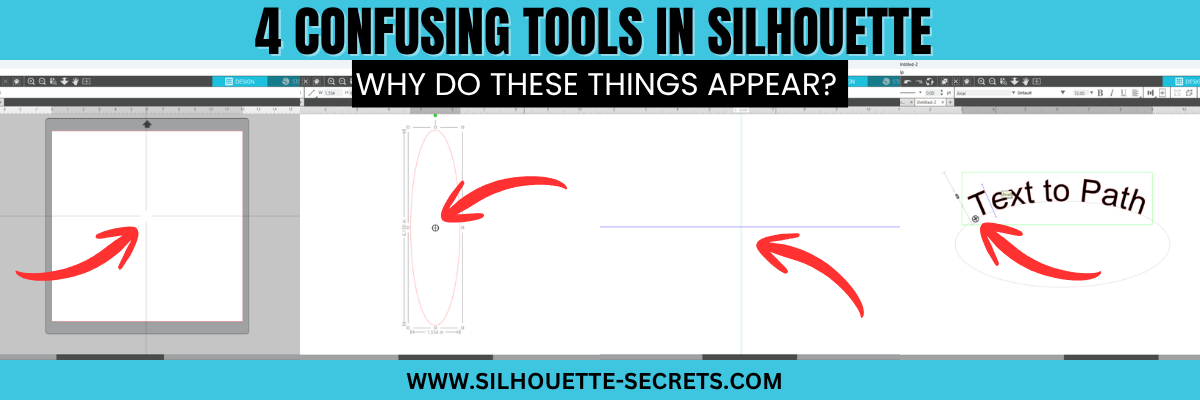
The 4 tools in Silhouette Studio that are often confused are:

  • Crosshairs
  • Center of Rotation
  • Guides
  • Text to Path Control Point

Watch the YouTube video on this topic on the Silhouette Secrets+ YouTube channel HERE and scroll down below to see additional information on each as well.

Crosshairs in Silhouette Studio

Crosshairs usually appear for 2 reasons.

  1. Pressing the letter ‘H’ on the keyboard toggles it on and off.
  2. A file is opened that the designer saved it with crosshairs on.

Typically we see crosshairs appear because a user thinks that they have activated Text Mode and it did not take. So when the letter ‘H’ is pressed on the keyboard, it toggles it on.

Crosshairs can be turned on and off 3 ways:

  1. Press the letter ‘H’ key. If they don’t turn on and off, click on the design mat and then press ‘H’ again.
  2. Open the Page Setup Panel, click on Tab 2, and click the Crosshairs button.
  3. In the top left menu, under View, select Turn on Crosshairs.

Crosshairs are a Designer Edition upgrade feature and those on Basic will not see this available.

Find additional details on Crosshairs in Silhouette in this tutorial HERE.

Center of Rotation in Silhouette Studio

Center of Rotation looks like a little circle with crosshairs in the middle of it and appears in the center of a design typically.

This tool typically appears for 2 reasons also:

  1. It can be toggled on and off by pressing the letter ‘O’ key with a design selected.
  2. A design was saved with Center of Rotation on and was opened.

Again, if a user thinks they are in text mode and a design was selected, if the letter ‘O’ key is pressed it will toggle it on and off.

Center of Rotation is a Designer Edition feature and those using Basic will not have this option.

Center of Rotation can be activated or deactivated in 2 ways:

  1. Press the letter ‘O’ key with an object selected.
  2. Under Preferences, in the Defaults tab, Center of Rotation can be toggled on and off.

See additional information on the Center of Rotation in Silhouette Studio HERE.

Preferences can be found in 2 places in Silhouette:

  1. On the Design tab, gear icon in the bottom right corner.
  2. Top left menu, under Edit, then Preferences.

Additional information on Preferences can be found in these tutorials:

Guides in Silhouette Studio

Guides can be pulled from the rulers on the top or right side of Silhouette Studio. Guides are a Designer Edition upgrade feature along with Rulers.

These can be accidentally activated if clicking the mouse on top of the rulers or click & pull from the ruler area onto the design mat.

Guides can be deleted by clicking on one to activate it, it will turn dark blue, then press delete. Light blue color means it is not the active Guide selected.

Guide settings can be found under the Page Setup Panel, under Tab 2. Snap to Guides is by default always active, but unless you have a Guide placed on the file, you won’t see it work. Guides can be toggled on and off under this tab too.

Guides can also be found in the top left menu under View, then select the option desired.

Additional details on Guides in Silhouette can be found HERE.

Text to Path Control Point in Silhouette Studio

This control point appears any time there is editable text activated.

This is the control handle that is used to drag text to a path and have it snap to the path. This feature is always available on editable text and there is no way to turn it off.

Find more details on Text to Path HERE.

The April 2026 member exclusive tutorial for the Creative Community is an in-depth tutorial on Text to Path with advanced techniques too! Check out more details on the Creative Community HERE.

*Creative Community members watch for a cheat sheet on these tools coming soon to April’s forum!

Graphic showcasing the interface of Silhouette Studio with the title '4 Confusing Tools in Silhouette Studio', highlighting design tools and features.

Save this for future reference by pinning the image below.

Enjoy !

THANK YOU for your support! How can you help? Click HERE & buy a coffee.
Every little bit helps with the cost of running the site.

Silhouette Classes

Never stop learning! Let me help you take the anxiety out of learning with Silhouette and get to creating faster! My Silhouette classes are heavily focused on software, so you can take the skills & techniques taught and apply them to many future projects!

Silhouette step-by-step Classes by Silhouette Secrets+

Silhouette Secrets+ with EllyMae
**This post may contain affiliate links. What that means is that I may receive compensation if you purchase through the links I have provided. The price you pay for the product or service is not higher, but I may get compensated for sharing.

Posted on Leave a comment

Unboxing the Silhouette Cameo Pro MK II & Tips for Success

Silhouette Secrets+ with EllyMae

The Silhouette Cameo Pro MK II is officially in my studio and I’ve been testing it. I am one of the original testers for the Cameo Pro 4 and am happy to share that a lot of the information will carry over to the Silhouette Cameo Pro MK II model as well. There are a few updates to the Cameo Pro MK II, but the tips I’ve provided on the previous model can help you be successful as well. In this blog post you’ll find the link to the Silhouette Cameo Pro MK II unboxing video as well as still shots below and some additional tips to help users be successful and troubleshoot the Cameo Pro MK II.

Find additional resources on the Cameo Pro HERE.

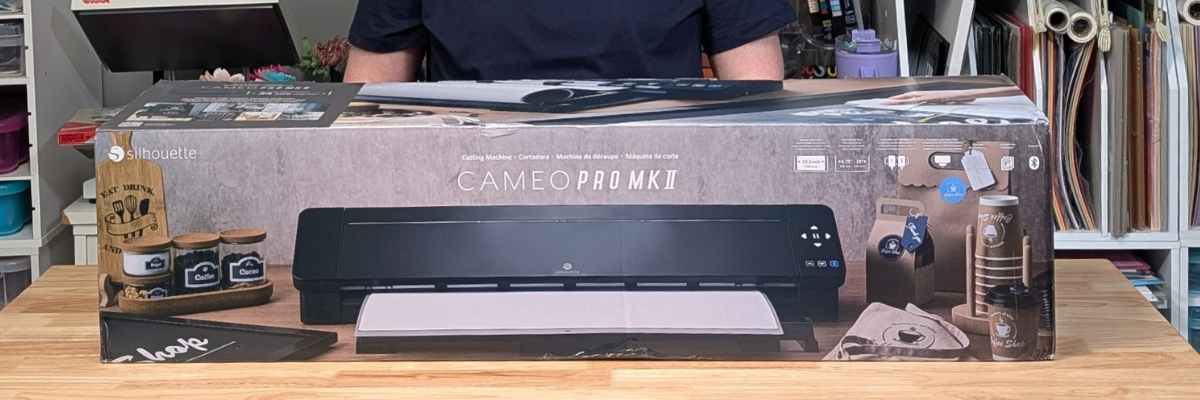
EllyMae at Silhouette Secrets+ with a Silhouette Cameo Pro MK II cutting machine box, surrounded by crafting supplies and colorful storage containers.

Affiliate links may be present in the following blog post and as an Amazon Associate, I earn from qualifying purchases.

Watch the unboxing video for the Silhouette Cameo Pro MK II on the Silhouette Secrets+ YouTube channel HERE.

EllyMae with Silhouette Secrets+ unboxing the Silhouette Cameo Pro MK II machine, showcasing the product in a well-organized craft space with various supplies in the background.

Find the Silhouette Cameo Pro MK II at Silhouette America HERE.

Silhouette Cameo Pro MK II Machine Photos and Tips

While unboxing any new machine, make sure to inspect it carefully for any packing materials that secures the device during shipping. It can be hiding around some corners as shown in the photo below. Before plugging the power cord into the machine, make sure to carefully slide the housing to the right side and remove all the packing materials in and around where the housing was located during shipping.

The Silhouette Cameo Pro MK II machine open with the packing materials still in place. Remove all packing materials before use.

Silhouette machines are shipped worldwide from the manufacturer, so the machine is not set up properly for first use when the box is opened. After removing the packing material, unlock the right roller and slide the roller mechanism to the right side to lock into the correct location according to whether you are using a cutting mat or the width of the vinyl.

There are 5 auxiliary rollers in between the left and right rollers. These rollers can be removed. If removed, make sure to store them in a safe location as they currently do not have replacements of this same style. These auxiliary rollers do not provide any firm pressure like the left and right rollers and do not feed the material into the machine. They all have a spring located on the roller that helps to keep materials from bubbling up in the middle.

The Silhouette Cameo Pro MK II machine unboxed and ready for use.

Here is a closer look at the auxiliary rollers on the Silhouette Cameo Pro MK II.

Close-up view of the Silhouette Cameo Pro MK II cutting machine's interior, showcasing rollers and tracks, with a black base on a wooden surface.

The Silhouette Cameo Pro MK II has additional locations that the right roller can be locked in place compared to the previous Cameo 4 Pro model. On the backside of the roller bar there are little sections with notches where the right roller will settle in and can be locked in place.

The roller bar has been redesigned on this model, which allows the rollers to be visible and grip the materials better than the previous Cameo 4 Pro.

In a nutshell, the Silhouette Cameo Pro MK II is a Cameo 4 Pro body with the guts and updates of the Cameo 5 model. This includes a redesigned chassis and the new roller bar and roller system. On the older Cameo 4 Pro model, the rollers were located underneath the roller bar and difficult to see. The rollers are approximately 1/4″ in width on all Silhouette machines. On the older Cameo 4 Pro model, the rollers had very, very specific locations that they could be locked into place and even 1/16″ to the left or right could make a big difference in how the material feed through the machine.

Here is a look at everything that is included in the Silhouette Cameo Pro MK II box. There is also a 24″ Silhouette cutting mat in the box, that is out of the bounds of this photo.

A Silhouette Cameo Pro MK II  cutting machine displayed on a wooden table with various components, including a power adapter and additional accessories.

Inside the Silhouette Cameo Pro MK II box you should find: a 24″ Silhouette cutting mat, 2-part power cord, plastic bag with the Silhouette Type B Autoblade, a Silhouette tool, sketch pen adapter, and the parts for the roll feeder and mat support. There are also several pamphlets included in the box too.

The photo below shows a look at the front of the Silhouette Cameo Pro MK II with the mat support and roll feeder setup. For additional details on installing these parts check out the unboxing video on the Silhouette Secrets+ YouTube channel HERE.

Close-up view of the Silhouette Cameo Pro MK II cutting machine on a wooden surface, showing the open mechanism with rollers and housing.

Tips for Success with the Silhouette Cameo Pro MK II

Make sure that the leading edge of the material is completely straight. If it is not, it can be difficult to load the vinyl correctly and the material can skew as it is being cut and fed through. The photo below is an example of how much my 24″ roll of adhesive vinyl was off from straight. Once I cut the leading edge it was easier to load in the machine and did not bunch up.

A black cutting mat with a transparent ruler aligned on top, placed on a wooden table, surrounded by crafting tools including a rotary cutter and other supplies.

Once the material is inside the machine, use the arrows on the touchscreen to feed the vinyl all through the machine the length of the cut to see how it will feed and if it will stay straight. On the touchscreen, after the vinyl is already loaded the down arrow on the 4 directional arrows is the one that will advance the vinyl through the machine. The arrows on the touchscreen move the actual blade housing left and right as well as down the material and back.

The photo below shows a close up look at the backside of the machine and the crosscutter. If the vinyl is advanced to the backside, it can then be cut off in a straight line. Flip the levers down on both sides of the crosscutter and then slide the blade across to the other side to slice the material.

Make sure to flip the levers back up after the cut is complete and to move the crosscutting blade to the very edge of the crosscutter. If these steps are not taken, it can interfere with the proper feeding of the vinyl on the next cut as it can block the material from advancing through the machine.

Close-up view of the Silhouette CAMEO Pro MK II cutting machine with focus on the crosscutter on the backside of the machine.

The crosscutter is a removable and replaceable part should the blade become dull. If the crosscutter is not installed correctly and secure, you may get an error in the Silhouette software. The photo below shows a look at the crosscutter when removed from the machine.

A person holding the crosscutter on a Silhouette Cameo Pro MK II machine, with a wooden surface in the background.

If the leading edge of the material is curled down, it can catch on the channel of the crosscutter. This can affect the feed and results of the cuts being made. This is often something you can hear first before you see the results of the miscuts or misfeed. Any catching inside the machine can affect the feed and cause miscuts on the design.

Straighten out the edge of the material so it’s not curled down to prevent this. However, if you do use the crosscutter to slice the vinyl after a cut is complete, it can create that curled edge.

Close-up the Silhouette crosscutter for the Silhouette Cameo Pro MK II, with an arrow pointing downwards to indicate a specific part.

Make sure to zoom in on the design being used on the Send tab and check the design before you send a large design to cut. I did not before I made my first cuts and ended up with 24″ of wasted vinyl. This was a design that I purchased and thought it would be a quick cut as my first test and that’s not how it ended up. Several parts of this design were not welded correctly. If you zoom in really close on the Send tab prior to cutting, you can hopefully catch something like this before it happens.

A close-up of a decorative sign featuring the phrase 'LIFE IS SHORT LICK THE SPOON' with decorative lettering.

I ended up choosing a different design – I’d Smoke That – by Unique Designs by Monica and now have a new sign for our kitchen.

EllyMae with Silhouette Secrets+ holding a completed sign cut with the Silhouette Cameo Pro MK II.

If you do run into issues, start first with looking at the setup and watching the machine. That’s how I find a lot of the issues we troubleshoot is by looking at photos and video of how the machine operates. And I listen to the machine. As I mentioned above, I can often hear something is wrong before I see what the issue is.

Find the Silhouette Cameo Pro MK II at Silhouette America and check out the unboxing video on the Silhouette Secrets+ YouTube channel HERE for additional information.

Save this for future reference by pinning the image below.

A person smiling while unboxing the Silhouette Cameo Pro MK II on a workspace, surrounded by crafting materials.

Enjoy !

THANK YOU for your support! How can you help? Click HERE & buy a coffee.
Every little bit helps with the cost of running the site.

Silhouette Classes

Never stop learning! Let me help you take the anxiety out of learning with Silhouette and get to creating faster! My Silhouette classes are heavily focused on software, so you can take the skills & techniques taught and apply them to many future projects!

Silhouette step-by-step Classes by Silhouette Secrets+

Silhouette Secrets+ with EllyMae
**This post may contain affiliate links. What that means is that I may receive compensation if you purchase through the links I have provided. The price you pay for the product or service is not higher, but I may get compensated for sharing.

Posted on Leave a comment

Silhouette IPT (Intelligent Path Technology) – What Is It?

Silhouette Secrets+ with EllyMae

Silhouette IPT is short for Intelligent Path Technology and was first announced to us at the 2023 Silhouette Summit when the Silhouette Cameo 5, Curio 2, and Portrait 4 models were announced.

Affiliate links may be present in the following blog post and as an Amazon Associate, I earn from qualifying purchases.

In this blog post, I am sharing some of the details of the IPT setup and how it works. Read more details below and then watch the video tutorial with even more tips on the Silhouette Secrets+ YouTube channel HERE.

The Silhouette IPT is a patented cutting technology that changes the cut order of a design to “help” it stay in position and complete the cut. Depending on the design you have on the file, when it’s turned on, it will complete the cut of the design in segments versus a continuous cut around the entire design. The photo below shows the standard method of cutting on the left side, that would be from 1 starting point and cut around in one continuous cut back to the starting point on a heart. On the right side, the white dots are points of reference in how the design would be cut in segments, starting on the top right, then moving to the top left and then moving to complete the bottom on each side. This method is designed to “hold” the design in place and not have shifting as it’s being cut.

A graphic showing two versions of a heart shape: on the left, a hand is guiding a dotted outline of a heart, while the right shows a clearer representation with marked points.

This new technology was created to help delicate materials such as vellum be more successful when cutting out designs and to cut through multiple layers of materials at once, such as several sheets of vellum stacked on top of the Silhouette Electrostatic Mat.

Here is the video we were shown at Silhouette Summit 2023 to explain the process.

This is a setting you have to set up and turn on in order for it to use the IPT cutting method and is not an automatic setting. It is compatible with the Silhouette Cameo 5, Curio 2, and Portrait 4 models.

Silhouette IPT settings can be found under the advanced settings on a preset setting, or you can turn it on for a custom cut setting. On the Send tab in Silhouette Studio, select the MORE button and you will see a box next to “Intelligent Path Technology”.

Here is a look at Silhouette Studio version 5

Screenshot of Silhouette Studio Business Edition interface showing material settings and tool holder options with a red arrow pointing towards checkboxes for line segment overcut, track enhancing, and intelligent path technology.
Screenshot Silhouette Studio v5.0.402

And a look at the Advanced Settings in Silhouette Studio version 4

Screenshot of Silhouette Studio software displaying a design workspace with heart and flower shapes, along with material settings on the right panel.
Screenshot Silhouette Studio v4.5.815

If IPT is selected on a preset material setting, you will need to Save As to create a new material in order for it to be activated on the cut setting. If you simply check the box and X out of the preset material, it will not activate the IPT setting.

Screenshot of Silhouette Studio software showing design interface with heart and flower shapes, and material settings for various types of vinyl and vellum.
Screenshot Silhouette Studio v4.5.815

How Silhouette IPT (Intelligent Path Technology) Works

Let’s take a real world look at the IPT cut setting and the order that it takes. Keep in mind that the Silhouette software will change this order for every design, and you do not know what the order will be unless you watch and record the machine behavior.

I’ll be using the Silhouette Curio 2 for this demonstration, but it works the same for the Silhouette Portrait 4 and the Silhouette Curio 2. I am using Silhouette Vellum sheets for this test along with a brand new Silhouette Autoblade.

I used the same shape from the video by Silhouette from 2023. I drew the heart using the Flexishapes tool on the left side in Silhouette.

An interface of Silhouette Studio software displaying two heart shapes on the design canvas, alongside cutting settings for Carriage 1 and Carriage 2.

This was completed as a continuous cut, the blade never lifted.

Then I turned the cut lines off for the first heart and turned the cut lines on for the 2nd heart, which is an exact copy of the first one.

My first attempt at this IPT cut, I used the Vellum preset, checked the box, but then X’d out and found out that it did not activate the IPT setting. A new custom setting is required by clicking on Save As after checking the box.

So I made a 3rd copy of the heart and I clicked on the MORE button and checked the box next to Intelligent Path Technology and chose Save As. Then clicked the X in the top right and chose the new material of Vellum (1) as my setting. I then clicked on the MORE button to double check that IPT setting did save with the new material.

Screenshot of Silhouette Studio software displaying a design workspace with three heart shapes outlined in red. The software tool settings on the right show options for cutting vellum.

The IPT function did work and it cut the heart in 10 different line segments. However, the cut order was a bit different than the video by Silhouette from 2023 and I noticed it started the first cut in the bottom left area of the design. I am using Silhouette Studio version 4.5.815 for this demonstration. The order in which it cuts may vary by software version, which may be why the order is different than what the video shows from 2023.

Here is a diagram of the cut order using IPT with this heart shape

A heart shape template outlined on a piece of paper, with numbered markers around the edge for reference.

This heart with this specific material cut fine both ways. But, that won’t always be the case.

On a more complex design, such as this flower shape drawn with the Flexishapes and the control point adjusted to make a sharper petal, IPT did make a difference in the cut. Instead of tearing, smooshing, or ruining the corners on the interior of the petals, it was a clean sharp point and the design cut well.

Screenshot of Silhouette Studio software showing design tool interface with three heart shapes and a flower shape, and cutting settings for vellum material.

For this flower shape that is approximately 4.3″ tall and 4.2″ wide, it did 51 segmented cuts. I am not going to study the video to diagram all that out, however, it was pretty neat to watch. And it was a success, with no smooshed corners or tears. I did have to “pop” out the flower carefully, but for some designs that extra little bit of care is worth it!

Close-up of a cutting machine mat featuring various cut shapes, including hearts and a flower, with the cutting machine in the background.

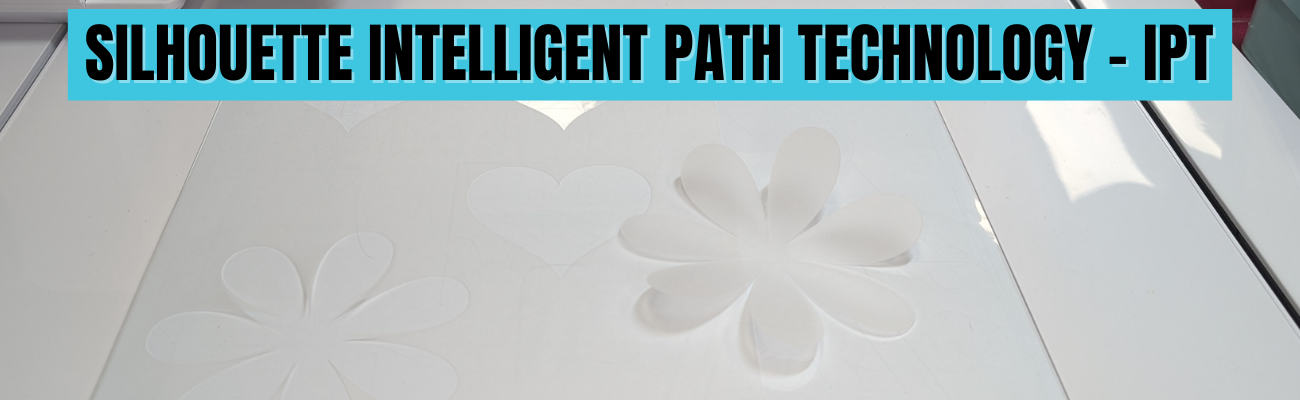
Here is a close up look at the interior cuts on the flower shape. Look at those crisp, cut edges! No tearing or smooshing using the IPT feature in Silhouette.

Close-up view of a flower design cut from vellum using Silhouette IPT - Intelligent Path Technology.

Vellum is a very delicate material and can be difficult to cut, especially on an intricate cut. Vellum will also curl as you can see in this photo, the flower immediately started to curl. Humidity can also affect the success of cutting vellum, well, really any paper is affected by humidity. For best results, store vellum in a sealed envelope and completely flat. The Silhouette Electrostatic Mat is awesome for cutting vellum designs and I share even more in the Silhouette Curio 2 – Out of the Box class found HERE.

Here are a few more vellum products I’ve tested with:

Things to Know About the Silhouette IPT Method

  • It is not automatic.
  • It is a setting you can turn on for a preset material, then Save As a new material.
  • It is a setting you can turn on for a custom setting.
  • It does take longer to cut a design because the blade will lift, move, and cut in a different order.
  • It will take longer on the Silhouette Curio 2 versus a Silhouette Portrait 4 or Silhouette Cameo 5 model due to the slower movement of the arm on the Silhouette Curio 2. It may only be a few seconds longer, but it will.
  • IPT is compatible with the Silhouette Curio 2, Portrait 4, and Silhouette Cameo 5 models.
  • IPT setting can be used with both the Silhouette adhesive cutting mat and the Silhouette Electrostatic Mat.
  • Testing is the only way you will know if it will work for a design and material.
  • The Silhouette software decides the order of IPT based on the shape, size, and design. The user does not see the order or know how many segments a design will be cut out in.
  • Don’t believe AI answers on what IPT does or in general how to use a Silhouette. AI has no experience using Silhouette machine and will come back with some very bad advice. Experience using a cutting machine will beat AI hands down – literally.
  • This is NOT the same as Cut Order Sorting options found under the Settings (gear icon) on the Send Tab in Silhouette Studio.
Screenshot of Silhouette Studio Business Edition displaying cut settings on the right side, with options for layer sorting, feed options, and weeding settings. The cutting area is highlighted in red.
Screenshot from version 5 Silhouette Studio

Here is a look at where to find the Cut Order Sorting options in Silhouette Studio version 4

Screenshot of Silhouette Studio software showing design elements including hearts and a flower, with the advanced settings panel open for cut order sorting options.

I have included more details and real time demonstrations on the Silhouette Secrets+ YouTube channel too. Check out the video – Silhouette IPT (Intelligent Path Technology) Explained & Successful Cuts on Rolled Flower Demo HERE

A screenshot displaying settings for Silhouette Studio software, highlighting 'Intelligent Path Technology' with an arrow pointing to it.

It did take more time to cut, but I was able to successfully cut out a rolled flower design using the Silhouette Electrostatic Mat and IPT setting. This has been something I have troubleshot with users several times and the intricate design just couldn’t be held in place to complete the cut using the standard cutting methods with the electrostatic mat.

A crafting workspace featuring a black hole puncher, a yellow paper flower, and various crafting tools on a yellow patterned background.

I am thrilled with how this worked out!

Does Silhouette IPT Work?

Yes – but not for every design, material, or project. I thought it worked great with the flower design above as that is one of those highly likely designs to smoosh and tear on the sharp corners.

Personally, I do not typically like the little tabs it left, similar to pop out cutting. However, it might be beneficial for those materials or designs that just will not cut the standard way. The only way to know is to test it and see what happens. If you do use it, I would recommend a sharp pair of detail scissors to snip the little connections and care when separating it from the full sheet.

The second part of IPT method for cutting through multiple layers of materials, proved to be much more finicky with mixed results. I spent hours and hours testing and was never really impressed with the results. The more layers of material, the less desirable the cut results were. It is not something I’ve spent more time testing. Maybe someday I’ll try again.

I hope those tips give you a better idea of how this new cut path technology works. You never know until you try and hopefully that will help your trials go a bit easier.

Next time you have a design that is just giving you fits with a standard, continuous cut setup – you might try out the IPT setting and see if it makes a difference in the success with your material.

Good luck!

Save this for future reference by pinning the image below.

Screenshot showing the Silhouette software interface with options for Intelligent Path Technology highlighted.

Enjoy !

THANK YOU for your support! How can you help? Click HERE & buy a coffee.
Every little bit helps with the cost of running the site.

Silhouette Classes

Never stop learning! Let me help you take the anxiety out of learning with Silhouette and get to creating faster! My Silhouette classes are heavily focused on software, so you can take the skills & techniques taught and apply them to many future projects!

Silhouette step-by-step Classes by Silhouette Secrets+

Silhouette Secrets+ with EllyMae
**This post may contain affiliate links. What that means is that I may receive compensation if you purchase through the links I have provided. The price you pay for the product or service is not higher but I may get compensated for sharing.

Posted on Leave a comment

Troubleshooting Fonts in Silhouette Studio: Fix Font Issues

Silhouette Secrets+ with EllyMae

Affiliate links may be present in the following blog post and as an Amazon Associate, I earn from qualifying purchases.

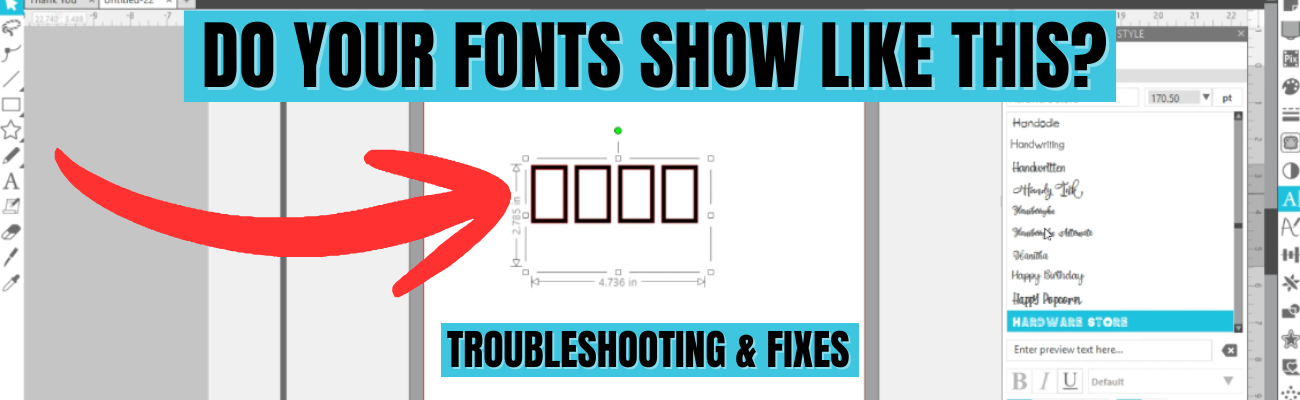
Screenshot of Silhouette Studio software showing text formatting options with the question 'Do your fonts show like this?' and the phrase 'Troubleshooting & Fixes' prominently displayed.

A black sign and a light purple mug, both featuring the word 'Create' in a stylish font. The sign is positioned on a cutting mat next to a craft machine.

A black t-shirt featuring the word 'Create' in a vibrant pink script font.

Graphic showing the phrase 'WTH WHY does this happen in Silhouette?' with an illustration of a design window displaying shapes, and arrows pointing towards the shapes with the text 'TROUBLESHOOT & FIX IT'.

Enjoy !

Silhouette step-by-step Classes by Silhouette Secrets+

Silhouette Secrets+ with EllyMae
**This post may contain affiliate links. What that means is that I may receive compensation if you purchase through the links I have provided. The price you pay for the product or service is not higher but I may get compensated for sharing.

Posted on Leave a comment

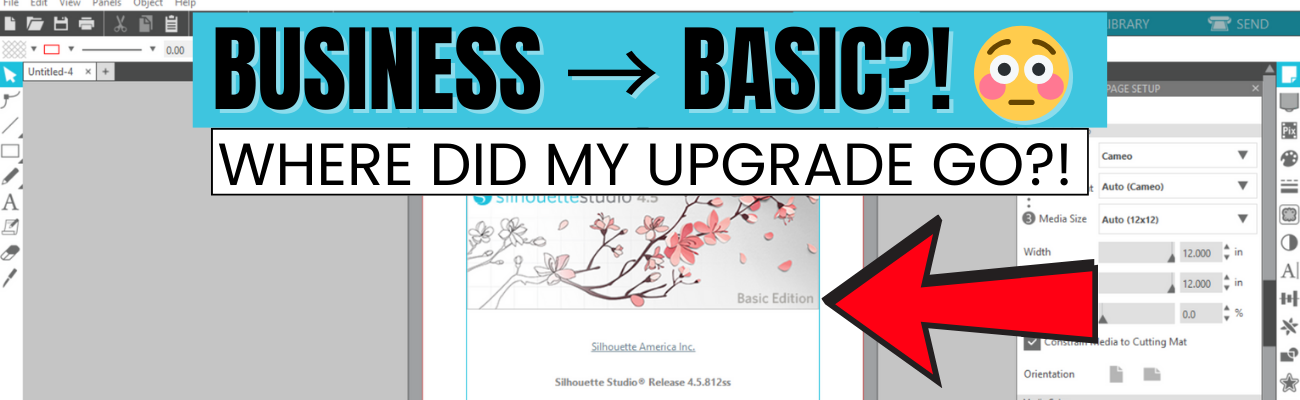
Silhouette Studio Business to Basic? Fix Missing Upgrade

Silhouette Secrets+ with EllyMae

If you’re suddenly seeing Silhouette Studio revert from Business to Basic (or Designer Edition or Designer Edition Plus to Basic) and panicking because your Silhouette upgrade is missing, take a deep breath—you’re not alone, and you didn’t lose your purchase. This is one of the most common Silhouette software issues users run into, and it usually comes down to account login and/or activation, hiccups. In this post, I’ll break down why this happens, what to check first, and how to get your paid features back where they belong. I’ll also link to a detailed video on the Silhouette Secrets+ YouTube channel where I walk through the fixes step by step and share additional troubleshooting tips.

Affiliate links may be present in the following blog post and as an Amazon Associate, I earn from qualifying purchases.

The good news is – YOU can fix this easily. I am providing written information below and have also released a video on the Silhouette Secrets+ YouTube channel that can be found HERE.

Why Silhouette Studio software upgrades disappear?

The most common reasons for a software upgrade to disappear are:

  • Silhouette Software version update – this does not happen every time you update software versions, but can happen
  • Computer OS (Operating System) updates – this is on both Windows and MAC computers.
    Computer OS updates can happen in the background without a user knowing it.
  • New computer – software upgrade activations are not automatically loaded when you install the software on a new computer

How to Activate a Silhouette Software Upgrade Easily

If you previously had a upgrade active and the Silhouette upgrade is missing, you can easily activate this again simply by going to the top left menu in Silhouette Studio, select Help > Apply Upgrade Edition.

Screenshot of the Silhouette Studio software interface showing the menu with 'Apply Upgrade Edition' highlighted.

Enter your email address and password associated with your Silhouette account.

Sign-in screen for activating a Silhouette Studio software upgrade, featuring email input field and activation button.

At the time I am writing this and recorded the video, I am not recommending Silhouette Studio version 5 due to many bugs in it. If you have a Silhouette Cameo5α (Alpha), then you HAVE to use version 5 and we would recommend v5.0.402 as there a some major issues we’ve seen with v5.0.414.
For most Silhouette users, I am recommending v4.5.812 which the screenshots are from above.

Here is a look at Silhouette v5.0.402 and you can see you’ll find it in the same location, however, there is a new splash screen when you open version 5 that you cannot bypass. You can find the Help menu on the new Home Page or on the other tabs in the version 5 software.

Screenshot of Silhouette Studio 5 interface showing the Help menu with an arrow pointing to 'Apply Upgrade Edition'.

If you have never activated a Silhouette software upgrade and you purchased it from a Silhouette retailer, you will first need to apply the upgrade to your Silhouette Account.
Please follow these steps to apply the code.

  • Log into the Silhouette America website HERE.
  • Move to the top right and move the mouse over the person icon, select My Account.
  • On the left side menu, choose License Keys and apply the Silhouette software upgrade code.
  • Then follow the instruction shown above to activate the code in the Silhouette Studio software.

This new method of easily activating the Silhouette software upgrades is available in any version of Silhouette v4.4.552 or higher.

Missing Tools & Features in Silhouette Studio?

This is the most common reason Silhouette users notice that a software upgrade has reverted to Basic Edition.

You can easily check what software version and upgrade is active on your Silhouette Studio software and determine if your Silhouette upgrade is missing and not active.

Instructions for Windows users:

  • Click on Help in top left menu
  • Then choose About Silhouette Studio

Instructions for MAC users:

  • Navigate to the top left of Silhouette Studio and select Silhouette Studio in the menu
  • Then select About
Screenshot of Silhouette Studio displaying the 'About' window, showing the software version and license information.

This About window will tell you what version is open and the upgrade that’s active.

If you have a Silhouette software upgrade and it is currently showing Basic Edition in this window, please follow the instructions above to activate the upgrade on your computer.

Screenshot of Silhouette Studio software showing the 'About' window with the version number and Basic Edition status highlighted.

Silhouette Studio Upgrade Information

Silhouette Studio software upgrades are a one time fee and you do not have to purchase again if it disappears.

The Silhouette upgrades can be active on up to 3 computers or 3 active devices.

With this new system, if you have 3 devices active and log into a new device or Silhouette Web, it will deactivate the software upgrade on the device that is oldest used date. This means you can easily activate the software upgrade on multiple devices, but it will only be active on up to 3 devices at one time.

Something new to mention here is that the new Silhouette Web (still being developed and in beta as I write this), that counts as one of the activations of the software upgrade license. This technically means that if you are logged into Silhouette Studio on your device and you log into the Silhouette web (web based software) on the same device, that it will use 2 software upgrade codes, even though it is the same device.

This is not an issue, but it can catch you off guard when you see the message that one device will be deactivated if you exceed the 3 upgrade log ins.

Screenshot of the Silhouette Web homepage displaying various design tools and featured library files.

Silhouette Web is a web based program that allows users who do not have a full computer operating system, such as a Chromebook to connect to a Bluetooth enabled Silhouette machine. It does not have the full Silhouette Studio software option. However, it does have some different features than Silhouette Studio and some of these are only available with a software upgrade. At the time I am writing this, it is still being developed and is changing.

I don’t feel it is stable and there are bugs and issues with it, so I have not done any tutorials with it. To be honest, if you have a computer with Silhouette Studio, I would recommend that to design in.

Another thing to mention here is, if you do decide to try it out, for MAC users, please note that you cannot cut directly from Silhouette Web. This is due to restrictions from Apple that it will not allow a web browser to connect to any outside systems. For Apple users, you would design in Silhouette Web, then open in Silhouette Go (mobile app) in order to connect to a Bluetooth enabled Silhouette machine in order to cut.

Troubleshooting Silhouette Upgrade Activation

If you encounter issues when trying to activate a Silhouette software upgrade, there are a few steps you can do before contacting Silhouette Support.

  1. Try again to log in with the email and password to make sure there was no mistypes or missed keystrokes.
  2. Log into the Silhouette America website HERE. Select My Account under the person icon in the top right > License Keys and do you see your software upgrades?
  3. Log into the Silhouette Design Store website HERE. Can you log in at both websites? The email and password has to be the same on both sites and in the Silhouette library.
  4. If you cannot log in to those 2 websites or the information is not the same on both sites, you can try resetting your password.
    The password reset is supposed to send a OTP (One Time Password) to your email account. Since the website migration (May 2024), there are issues with this and the OTP does not always come through.

If you still cannot log in or cannot reset your password, then you will need to contact Silhouette Support – support@silhouetteamerica.com

Tips for Contacting Silhouette Support

If you encounter any issues with your Silhouette account and the steps above have not resolved those, you will need to contact Silhouette Support.

Silhouette Support is the only one that can access your account information and investigate or reset things for you.

Here are some tips to help you get resolutions faster:

  • Email Silhouette Support at support@silhouetteamerica.com – we often have seen users complain they are not getting responses and they didn’t actually contact Silhouette, but had a mistype in their email submission
  • Provide as much information about the issue you are encountering as possible. Be clear and concise and provide the exact issue encountered as well as the steps you have tried already.
  • Do not email simply stating “I can’t log in.”
    That will not get a quick resolution and can be a million different issues.
  • Provide photos of what you are seeing so the support agent will hopefully understand what you are experiencing.
  • Follow any instructions and respond to the Support agent with descriptive information on what you did.
  • Continue to contact Silhouette Support until the issue is resolved.

Don’t be surprised if you get an AI response. This is new and it is Silhouette Supports “quick response”. It will be sent on to an agent after the AI response has been sent. Follow the instructions sent and reply back to their communication.

Don’t be surprised if the Silhouette Support Agent responds with the same response as the AI bot. This is not unusual. Both the AI bot and Support Agent use the Silhouette FAQ to provide initial responses. This is why it’s so important that a user provides as much information as they can when they first contact Support.

Remember that contacting Silhouette Support and stating a basic issue such as “I can’t log in.” or “My machine isn’t cutting.” does not give the Support agent enough information to provide a good troubleshooting answer and they have to start at a million reasons and narrow it down to 1. That can take time and a lot of back and forth with Support. The more information you can provide, the faster your resolution will be … hopefully.


I have also included this information in the Silhouette Studio Business to Basic?! Why Your Upgrade Disappeared & How to Fix It video on the Silhouette Secrets+ YouTube channel. I would recommend viewing it as well, there may be points that I’ve covered that may click better on the video for some users.

Screenshot of Silhouette Studio Upgrade Issue, showing the software version and Basic Edition status with a decorative floral background.

This is one of the most common issues we see users encounter. I hope those tips have helped!


Looking for additional Silhouette Troubleshooting? I have been teaching Silhouette and troubleshooting Silhouette issues since 2016. We have seen a lot of changes and have helped a lot of users. I have launched the new Creative Community with EllyMae where I provide troubleshooting assistance and exclusive monthly tutorials. Find more details on that HERE.

I also have step-by-step classes to help you learn the Silhouette software and your machine – find those HERE.

As well as additional resources and tutorials on the Silhouette Secret+ website. Check out the A to Z Resources HERE.

Save this for future reference by pinning the image below.

A graphic showing a Silhouette Studio screen with text indicating a downgrade from Business to Basic Edition, featuring floral design elements and a worried face emoji.

Enjoy !

THANK YOU for your support! How can you help? Click HERE & buy a coffee.
Every little bit helps with the cost of running the site.

Silhouette Classes

Never stop learning! Let me help you take the anxiety out of learning with Silhouette and get to creating faster! My Silhouette classes are heavily focused on software, so you can take the skills & techniques taught and apply them to many future projects!

Silhouette step-by-step Classes by Silhouette Secrets+

Silhouette Secrets+ with EllyMae
**This post may contain affiliate links. What that means is that I may receive compensation if you purchase through the links I have provided. The price you pay for the product or service is not higher but I may get compensated for sharing.

Posted on 2 Comments

Creative Community with EllyMae: Silhouette Crafting & Troubleshooting Membership Launch

Silhouette Secrets+ with EllyMae

Big news for 2026! I’m thrilled to announce the launch of the Creative Community with EllyMae, a subscription-based space dedicated to crafting creativity and expert Silhouette troubleshooting.

This year, I’ll continue helping crafters troubleshoot their Silhouette projects—but now in a more interactive, subscription-based community. Your subscription supports the costs of hosting, administration, testing, and one-on-one troubleshooting time, while giving you exclusive access to tools, tips, and creative inspiration.

The first month’s exclusive video tutorial is now live inside the Community Forum, and it’s packed with value! I planned for a 1-hour tutorial… but it quickly grew into 1 hour and 30 minutes, plus a 6-minute bonus video where I break down an unexpected tool behavior I encountered during the project. While the design may look simple, this tutorial covers step-by-step instruction, real-time problem solving, and detailed troubleshooting.

A close-up view of a cutting machine with two printed sheets featuring blue patterns and a light blue background on a wooden table.

Inside this tutorial, you’ll explore Silhouette Studio tools and features, including:

  • Drawing tools, scaling, offsets, fill colors, line colors, and thickness
  • Compound paths and the Replicate panel
  • Spacing tools, turning cut lines on and off, and Move By
  • Undoing alignment
  • Print & Cut tips and troubleshooting

…and that’s just the beginning.

Subscription Benefits:

  • Private Facebook Creative Community: Share projects, ask questions, and get Silhouette troubleshooting help from experienced users. Exclusively for subscribers.
  • Exclusive Monthly Video Tutorial: Receive detailed tutorials and bonus insights each month.
  • Future Perks: Additional benefits may be added as the community grows.
A screenshot of a web page with sections for 'Welcome & Introduction,' 'Creative Community Troubleshooting Facebook Group,' and 'January 2026 Creative Vault,' displaying lesson topics and navigation options.

Other ways to stay connected and inspired in 2026:

If you’ve ever wanted a space focused on education, explanations, and real-world crafting solutions, this community was built for you.

👉 Find all the details about the Creative Community Subscription and join us today! Join Here

A close-up view of a planner spread for January and February, featuring a pen, with a Silhouette cutting machine in the background.

Save this for future reference by pinning the image below.

A digital graphic promoting the Creative Community with EllyMae, featuring the text 'Exclusive Silhouette Tutorials & Tips' on a bright background with crafting tools visible in the image.

Enjoy !

THANK YOU for your support! How can you help? Click HERE & buy a coffee.
Every little bit helps with the cost of running the site.

Silhouette Classes

Never stop learning! Let me help you take the anxiety out of learning with Silhouette and get to creating faster! My Silhouette classes are heavily focused on software, so you can take the skills & techniques taught and apply them to many future projects!

Silhouette step-by-step Classes by Silhouette Secrets+

Silhouette Secrets+ with EllyMae
**This post may contain affiliate links. What that means is that I may receive compensation if you purchase through the links I have provided. The price you pay for the product or service is not higher but I may get compensated for sharing.

Posted on Leave a comment

How to Fix the ‘Materials Not Found’ Message in Silhouette Studio

Silhouette Studio Quick Tip - Materials Not Found
Silhouette Secrets+ with EllyMae

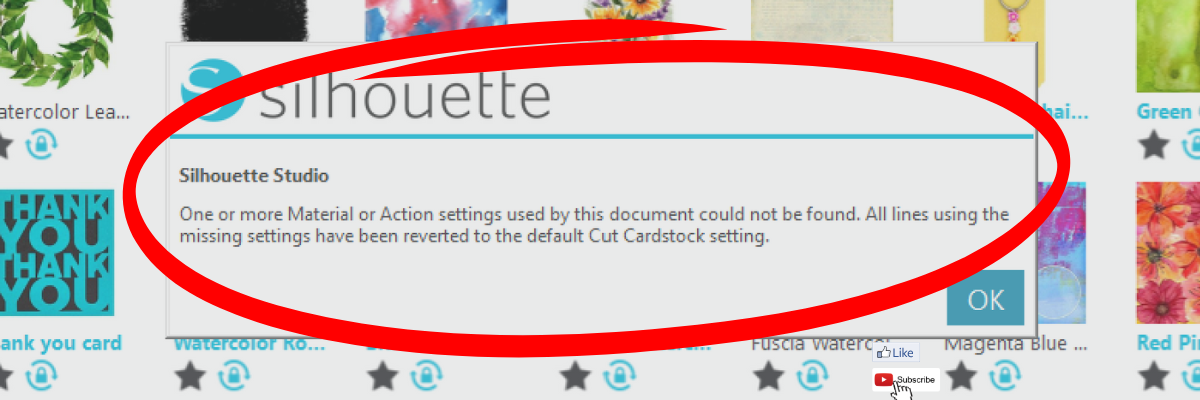
Have you ever seen the message stating materials not found when opening a design in Silhouette Studio? Encountering the “Materials Not Found” message in Silhouette Studio can leave you wondering “What is wrong?”. Whether you’re working on a vinyl project, heat transfer design, or a print and cut masterpiece, this error can be frustrating and confusing. But don’t worry! In this post, we’ll explain why it happens and what to do next.

Affiliate links may be present in the following blog post and as an Amazon Associate, I earn from qualifying purchases.

Materials Not Found Message – Silhouette Studio

This is what the materials not found message can look like in Silhouette Studio on the Design Tab.

Silhouette Studio Materials Not Found Design Tab

It can also appear when you are opening from the library tab before the image is placed on the design mat.

Silhouette Studio Materials Not Found

This materials not found message is not something to be alarmed about. It simply means that the cut setting that the person who created the file had on their software is not found within the Silhouette Studio software on your computer. This could be for several reasons.

The most common reason is that the designer has their own custom setting created and when they saved the design, those cut settings were saved with the file. When opened, if that cut setting is not on your Silhouette Studio software, it triggers this message.

Whether cut settings are saved with a file in Silhouette Studio is dependent on the software version that the design is saved with.

Another reason is that Silhouette has made changes to the cut settings menu and changed names or added/removed cut settings. With the release of newer model Silhouette machines, more cut settings have been added over time to the Silhouette preset menu.

This message is just letting you know that the cut setting has been switched back to the default of Cardstock. Click OK and proceed as usual.

When it comes time you cut the design, select the material that best fits your project and test cut.

Silhouette Studio Send Tab with Cut Settings

While the idea of having a cut setting that works for all users perfectly is appealing, that is not reality. Materials vary worldwide and many factors go into getting a clean cut such as blade life, machine model, cutting mat adhesion, etc.

Here is a quick video clip demonstrating the ‘Materials Not Found’ message that appears when opening a design file in Silhouette Studio.

Materials Not Found Silhouette Studio Message YouTube video

Additional Resources:

Save this for future reference by pinning the image below.

Silhouette Studio Materials Not Found Pinterest

Enjoy !

THANK YOU for your support! How can you help? Click HERE & buy a coffee.
Every little bit helps with the cost of running the site.

Silhouette Classes

Never stop learning! Let me help you take the anxiety out of learning with Silhouette and get to creating faster! My Silhouette classes are heavily focused on software, so you can take the skills & techniques taught and apply them to many future projects!

Silhouette step-by-step Classes by Silhouette Secrets+

Silhouette Secrets+ with EllyMae
**This post may contain affiliate links. What that means is that I may receive compensation if you purchase through the links I have provided. The price you pay for the product or service is not higher but I may get compensated for sharing.
Posted on 2 Comments

3 Ways to Use Silhouette without the Library

Silhouette Secrets+ with EllyMae

Affiliate links may be present in the following blog post and as an Amazon Associate, I earn from qualifying purchases.

Did you know that you can use the Silhouette software without EVER using the Silhouette library?

If you are reading this when it’s first published, we’ve been encountering an issue where we are currently 23 days into an outage of the Silhouette websites where there are issues syncing files to the Silhouette library and anything that “talks” to the Silhouette servers. It has worked a bit in the last 23 days, but for the most part users are dead in the water if they only use the Silhouette library and rely on it only.

But, you DO NOT have to rely on the Silhouette library at all! And, to be honest, you should NOT! You should not rely on 1 source as an absolute. You purchase files and you should have those files available to you whenever you need them.

First Thing First

Before I even begin to show you how you can use Silhouette without the library, the first thing I want to advise you is….

1 – Save your personal files to an outside location!!!

Silhouette Studio - File Save As Save to Hard Drive

It’s really easy to do. File > Save As > Save to Hard Drive.
Or if you are saving a file type besides .studio file I would recommend selecting your entire design and then using File > Save As > Save Selection and then choose the file type.

2 – Back up your files. Even if you save your files to an outside source. Back them up to another source! There is NOTHING that is 100% safe! Except multiple back ups.

More tips on backing up files, including what I’m currently using as my primary storage and back up sources – click HERE

I hate to say it but in general, we have all gotten complacent. We used to save Word documents every 5 minutes and that was the standard. It doesn’t really matter that technology has improved, it can still fail! Nothing is 100% fool proof except multiple saving a backup to multiple locations.

3 Ways to Use Silhouette Without the Library

1 – Design your own files using tools in Silhouette Studio

Every single user can create their own files! You do not have to have a degree to do this. Use the tools in Silhouette Studio software to create your own designs.

Here are some resources that can help:

2 – Open a design in Silhouette Studio and use to cut. Silhouette Studio can open many file types from outside sources.

This method depends on what Silhouette Studio upgrade you have. The basic (free) software is limited on what file types it can open. Silhouette Studio upgrades will allows you to open more file types such as the common SVG file type that is a cut file.

Here are more resources that can help:

3 – If you can access your Silhouette library, you can open from there. But what if you cannot access it for some reason – like the software update mess or another issue?

You can download the files direct to your computer and use them!

Check out this video on how you can download your files directly from the Silhouette Design Store and save to your external source on the Silhouette Secrets+ YouTube channel HERE.

Silhouette Design Store Search Downloads - Direct Download

You have the resources at your finger tips! Use them! Learn how to make Silhouette Studio software work for YOU!

Want to learn more on how you can make Silhouette Studio work for you? Check out the A to Z resource on the blog HERE.

Save this for future reference by pinning the image below.

Silhouette Studio Save As to an Outside Source

I hope these tips help you on your journey, especially as we navigate the Silhouette Studio website issues we are currently experiencing as I type this.

Enjoy !

THANK YOU for your support! How can you help? Click HERE & buy a coffee.
Every little bit helps with the cost of running the site.

Silhouette Classes

Never stop learning! Let me help you take the anxiety out of learning with Silhouette and get to creating faster! My Silhouette classes are heavily focused on software, so you can take the skills & techniques taught and apply them to many future projects!

Silhouette step-by-step Classes by Silhouette Secrets+

Silhouette Secrets+ with EllyMae
**This post may contain affiliate links. What that means is that I may receive compensation if you purchase through the links I have provided. The price you pay for the product or service is not higher but I may get compensated for sharing.
Posted on 2 Comments

Let’s Explore v4 – Cut by Fill Color in Silhouette Studio

Silhouette Studio Cut by Fill Color
Silhouette Secrets+ with EllyMae

Silhouette Studio – Cut by Line Color

In this Let’s Explore v4 tutorial, we will cover the Silhouette Cut by Fill option. The Silhouette Studio software, has 4 options on the Send Tab on how to send the design to be cut – in the top right corner of the Send tab you will find the options Simple, Line, Fill, and Layers.

I’ve covered both the Send Tab – Simple option and the Send Tab – Line option in-depth in previous tutorials.

Silhouette Studio Send Tab - Cut by Fill Color

Affiliate links may be present in the following blog post and as an Amazon Associate, I earn from qualifying purchases.

The Silhouette Cut by Fill option allows you to cut a project by fill color. The Silhouette software generates the list shown under the Fill option based on the colors that you (or the designer) has filled the design with.

Silhouette Studio Fill Color

In this example using the Mardi Gras Mask file by Cut Files Makers, the file is already filled with color. If a design is not, you would need to select the pieces you want to fill and then select the color you want designated for that piece from the Fill Color Panel on the right or the Fill Color icon in the QAT in the top left of the Silhouette Studio software.

Silhouette Send Fill Color Option

In this Send – Fill option, you have each fill color separated out in it’s own line and you can adjust the settings accordingly.

If you see an option that has a crosshatched pattern in it, that means there is no fill color for that cut line. This can happen when shapes haven’t been filled with a color or there is an image such as a png or jpeg on the file.

Silhouette Cut By Fill Color

Details of the Silhouette Cut by Fill Color

Let’s take a look at what the actions are at the top of the Send tab in Silhouette for Cut by Fill Color.

Silhouette Cut by Fill Color

Tool No.
Choose whether you will be using Tool 1 or Tool 2, also called Carriage 1 and Carriage 2

On/Off
Checked = Cut lines On
Unchecked = Cut lines Off

Bold color lines will be around the design that the cut lines are turned ON for. Notice the purple and yellow lines are not bold since they are turned OFF. Some colors are more difficult to see the bold edge, such as white.

Silhouette Send Cut by Fill Color

Weld
The outer edge of overlapping objects of the color selected will be cut. Welding typically combines objects, but in this instance, the objects remain separate and the Cut Edge is activated.

Fill Color
The same colors of the fill that were set up on the Design Tab, should all show in the list under Fill Color. Different shades of a color will show up as different options.

Material
Choose the Material type you are using for each color.
Each fill color will need to be changed separately if you did not select the material on the Simple tab before clicking on the Cut by Fill Color option.

Action
Choose what action you will want to perform.

Tool/Carriage
Choose what tool you will be using to perform the action.

If you were to keep all of the colors checked and have the cut lines ON, the order in which they appear in the list is the order in which the action will be done. For instance in my photo that would mean, the green would cut first, then the yellow, and then the purple.

You can rearrange the order by clicking and grabbing a color and move it up or down in the list as shown in the video below demonstrating with the line color option.

Moving down the right side of the Send tab – Fill Option, you will see that the cut settings are expanded further down to show what the settings are for each option you have chosen.

Silhouette Cut by Fill Color Selection

The color that is highlighted (selected) at the top of the panel will be the settings that you see at the bottom. In my photo, the green color is highlighted, so it shows the settings for the green lines in the bottom.

Here is where you can adjust the settings as needed. The key here is to make sure that the color you want to change is the one highlighted at the top AND the color shows on the bottom. We are seeing many users changing the settings for the wrong color.

This happens so often, that I put out a video on the Silhouette Secrets+ YouTube channel showing exactly what I mean. Check it out HERE.

Silhouette cutting issues with Cut by Line or Fill Color

You can also add a Pause in between the difference color actions if you would like to do that versus unchecking the box to turn the cut lines off. Each user is going to vary in what they prefer to do. I prefer to check and uncheck the boxes as needed, just in case I have to step away from my machine.
But you can test out which way works best for you.
See a quick demo of Adding a Pause HERE.

Now, the rest of this panel is the same as when using the Simple tab.
Check out the in-depth tutorial on the Send Tab – Simple Option HERE for all those details.

Having options in the Silhouette Studio software is fantastic! I’m also thrilled with my new shirt adorned with ThermoFlex Plus Metal Flake HTV. Be sure to check out the “Crafting a Shirt with ThermoFlex and Silhouette (Poli-Tape)” video available on the Silhouette Secrets+ YouTube channel right HERE.

Silhouette PoliTape ThermoFlex Plus Mardi Gras Shirt

Save this for future reference by pinning the image below.

Silhouette Cut by Fill Color Pinterest

Enjoy !

THANK YOU for your support! How can you help? Click HERE & buy a coffee.
Every little bit helps with the cost of running the site.

Silhouette Classes

Never stop learning! Let me help you take the anxiety out of learning with Silhouette and get to creating faster! My Silhouette classes are heavily focused on software, so you can take the skills & techniques taught and apply them to many future projects!

Silhouette step-by-step Classes by Silhouette Secrets+

Silhouette Secrets+ by EllyMae
Silhouette Secrets+ with EllyMae
**This post may contain affiliate links. What that means is that I may receive compensation if you purchase through the links I have provided. The price you pay for the product or service is not higher but I may get compensated for sharing.
Posted on 1 Comment

Silhouette Print and Cut Success

Have you tried print and cut with your Silhouette?

It is just one of the many things that you can do with the Silhouette machine.

Today I’m sharing the link to a video tutorial released on the Silhouette Secrets+ YouTube channel that is
5 Tips for Print and Cut Success with Silhouette – Consistent Success!

We troubleshoot thousands of issues each month and in most cases, it’s often something really easy to fix.

In the video I am sharing the top 5 things we see when troubleshooting.

Check it out HERE

I hope these tips help!
For more on Print and Cut check out the header on the blog HERE.

Save this for future reference by pinning the image below.

Enjoy !

THANK YOU for your support! How can you help? Click HERE & buy a coffee.
Every little bit helps with the cost of running the site.

Looking for more in-depth, step-by-step classes, check out all of my online Silhouette classes on my Teachable site HERE.

SS Logo snip it
**This post may contain affiliate links. What that means is that I may receive compensation if you purchase through the links I have provided. The price you pay for the product