Posted on 2 Comments

Important Silhouette Library Storage Tips Every User Should Know

Silhouette Librar Storage Information
Silhouette Secrets+ with EllyMae

I am popping in to share some important information that I received direct from Silhouette about the Silhouette Studio Library Storage. I was asked to share and I am because this affects many Silhouette users.

Screenshot of the Silhouette Studio Library showing files and storage information with a label 'IMPORTANT INFO' highlighted.

Affiliate links may be present in the following blog post and as an Amazon Associate, I earn from qualifying purchases.

If you have ever stored files in the Silhouette library, please read below carefully.

I am going to copy the exact email from Silhouette below and then I’ll add in some important notes and information to clarify below the email text.

***Update 5/8/25 from Silhouette – storage removal will occur in batches, so user’s will not see it happen at the same time. ***

Email I received from Silhouette America on 4/28/25 at 6:19 pm CT regarding Silhouette library storage.

“Here’s what customers need to know:

​Club Silhouette​:

  • Customers who have canceled ​Club Silhouette​ will lose the 5GB benefit. It will be reduced to 1GB on May 1, 2025 unless they rejoin Club Silhouette before this date.

​Silhouette Design Store (SDS)​:

  • Current subscribers as of March 31, 2025, who have more than 1GB will retain 5GB — as long as they do not cancel, no matter the level of subscription.
  • New ​SDS subscribers​ after April 1, 2025, will receive 5GB only if they purchase a ​Diamond Subscription​.
  • Only the ​Diamond subscription​ at this time includes 5GB.
  • If a ​Diamond subscriber​ or anyone that is still receiving the 5G benefit cancels, it will automatically be reduced to 1GB. Grandfathered users with more than 1GB who cancel must follow the new subscription offerings when they re-join.
  • Designs purchased from the Silhouette Design store at any time are theirs to keep, they will not be affected by this change.

It is highly recommended that all customers export and back up their custom user content. User files will still be accessible on their own computer if they have exported them correctly.

How to Export User Made Designs:

  1. Log into the Silhouette account.
  2. Go to the Library.
  3. Click their name in the upper left corner.
  4. Select “Export User Made Designs.”
  5. Choose a location on their computer to save all their user-created content safely.

Thank you so much for helping us share this information! We need your help to convey to the customers how easy it is to export and backup their custom user content. This is a simple process, as long as they follow the steps above.

Those customers that are current subscription members that fall into the categories above don’t need to worry about this, but we do recommend that they always back up their files.

They can do a full library backup by clicking on their name and going to “export library”. “

*****

Clarifications for Accurate Information:

More information in this tutorial: ​Silhouette Studio: Export Individual Files​

  • Export User-Created Files is ONLY an option in software versions v4.4.552 or higher. If you are using an older version of software, you will either need to update (we’d recommend v4.5.812) or open each file and save using File > Save As > Save to Hard Drive.
    *how to install legacy versions HERE
  • We highly recommend exporting ALL user created files even if you are under the 1 GB limit for Silhouette library storage. This ensures you have a copy of files you have created. Silhouette has NEVER guaranteed that user created files can be recovered. I do not anticipate Silhouette helping users try to recover their files once they are deleted.
  • Exporting user-created files does NOT remove them from the Silhouette library storage. It simply exports a copy of your files. If you want to remove them completely, you have to delete them and empty the recycle bin, however, we have had reports of that not working and they come back when synced again.
  • A library backup is NOT the same as exporting individual files. A backup does NOT contain individual files and it CANNOT be opened outside the software.
    *more details on backups HERE
  • ​Club Silhouette Information HERE ​
  • ​Silhouette Design Store Subscription Information HERE​

Silhouette Secrets+ RECOMMENDATIONS

  • Export your user-created files ASAP!
  • Develop a method for saving files outside the Silhouette library storage and DO NOT rely on it to keep your files save.
  • The safest place for your files is in multiple locations. Save the files and have a backup of those files too!

I hope to reach as many user’s as I can with this information before Silhouette starts deleting user files. I have no control over what Silhouette does, but I can try to reach as many user’s as I can.

Save this for future reference by pinning the image below.

An image featuring a bright yellow background with bold black text reading "IMPORTANT INFO: SILHOUETTE LIBRARY STORAGE" and a downward red arrow pointing to a section showing storage details, including a sync status and used space.

THANK YOU for your support! How can you help? Click HERE & buy a coffee.
Every little bit helps with the cost of running the site.

Silhouette Classes

Never stop learning! Let me help you take the anxiety out of learning with Silhouette and get to creating faster! My Silhouette classes are heavily focused on software, so you can take the skills & techniques taught and apply them to many future projects!

Silhouette step-by-step Classes by Silhouette Secrets+

Silhouette Secrets+ with EllyMae
**This post may contain affiliate links. What that means is that I may receive compensation if you purchase through the links I have provided. The price you pay for the product or service is not higher but I may get compensated for sharing.

Posted on 2 Comments

3 Ways to Use Silhouette without the Library

Silhouette Secrets+ with EllyMae

Affiliate links may be present in the following blog post and as an Amazon Associate, I earn from qualifying purchases.

Did you know that you can use the Silhouette software without EVER using the Silhouette library?

If you are reading this when it’s first published, we’ve been encountering an issue where we are currently 23 days into an outage of the Silhouette websites where there are issues syncing files to the Silhouette library and anything that “talks” to the Silhouette servers. It has worked a bit in the last 23 days, but for the most part users are dead in the water if they only use the Silhouette library and rely on it only.

But, you DO NOT have to rely on the Silhouette library at all! And, to be honest, you should NOT! You should not rely on 1 source as an absolute. You purchase files and you should have those files available to you whenever you need them.

First Thing First

Before I even begin to show you how you can use Silhouette without the library, the first thing I want to advise you is….

1 – Save your personal files to an outside location!!!

Silhouette Studio - File Save As Save to Hard Drive

It’s really easy to do. File > Save As > Save to Hard Drive.
Or if you are saving a file type besides .studio file I would recommend selecting your entire design and then using File > Save As > Save Selection and then choose the file type.

2 – Back up your files. Even if you save your files to an outside source. Back them up to another source! There is NOTHING that is 100% safe! Except multiple back ups.

More tips on backing up files, including what I’m currently using as my primary storage and back up sources – click HERE

I hate to say it but in general, we have all gotten complacent. We used to save Word documents every 5 minutes and that was the standard. It doesn’t really matter that technology has improved, it can still fail! Nothing is 100% fool proof except multiple saving a backup to multiple locations.

3 Ways to Use Silhouette Without the Library

1 – Design your own files using tools in Silhouette Studio

Every single user can create their own files! You do not have to have a degree to do this. Use the tools in Silhouette Studio software to create your own designs.

Here are some resources that can help:

2 – Open a design in Silhouette Studio and use to cut. Silhouette Studio can open many file types from outside sources.

This method depends on what Silhouette Studio upgrade you have. The basic (free) software is limited on what file types it can open. Silhouette Studio upgrades will allows you to open more file types such as the common SVG file type that is a cut file.

Here are more resources that can help:

3 – If you can access your Silhouette library, you can open from there. But what if you cannot access it for some reason – like the software update mess or another issue?

You can download the files direct to your computer and use them!

Check out this video on how you can download your files directly from the Silhouette Design Store and save to your external source on the Silhouette Secrets+ YouTube channel HERE.

Silhouette Design Store Search Downloads - Direct Download

You have the resources at your finger tips! Use them! Learn how to make Silhouette Studio software work for YOU!

Want to learn more on how you can make Silhouette Studio work for you? Check out the A to Z resource on the blog HERE.

Save this for future reference by pinning the image below.

Silhouette Studio Save As to an Outside Source

I hope these tips help you on your journey, especially as we navigate the Silhouette Studio website issues we are currently experiencing as I type this.

Enjoy !

THANK YOU for your support! How can you help? Click HERE & buy a coffee.
Every little bit helps with the cost of running the site.

Silhouette Classes

Never stop learning! Let me help you take the anxiety out of learning with Silhouette and get to creating faster! My Silhouette classes are heavily focused on software, so you can take the skills & techniques taught and apply them to many future projects!

Silhouette step-by-step Classes by Silhouette Secrets+

Silhouette Secrets+ with EllyMae
**This post may contain affiliate links. What that means is that I may receive compensation if you purchase through the links I have provided. The price you pay for the product or service is not higher but I may get compensated for sharing.
Posted on 4 Comments

Let’s Explore v4 – File Organization

We are continuing the Let’s Explore v4 – Silhouette Organization series today with some tips to organizing additional files that you may be using for Silhouette.

Find the first 2 parts of the Let’s Explore v4 Organization series here:
Let’s Explore v4 – Silhouette Backups
Let’s Explore v4 – Library Organization

As I mentioned in my previous posts in the series, there is no magic answer to organizing your files. I can share how I organize my personal files, but each user will need to determine what is going to work best for you and your work flow.
And, your organization path may change over time and that is completely OK.
I’ll share some tips and thinking points to help get you started with determining what might work for you.

My goals by writing this Organization series is to help you think about ways to organize your files and find a method that works for YOU!
And for me personally too – I am right there with you in trying to get things organized better!

Affiliate links may be present in the following blog post and as an Amazon Associate I earn from qualifying purchases.

Note: the screen shots below are from a Windows computer, but all of the same concepts, tips, and techniques will work for MAC users as well.

First, let’s discuss design files.

Organizing Designs

Where to store design files?

The Silhouette Studio library is not designed as an all inclusive storage area, but as a syncing device. So I would highly recommend that you store your personal files outside of the Silhouette library. I use an external hard drive to store all my designs and fonts.

The most recent one I’ve purchased is a
Toshiba Canvio Advance 4 TB Portable External Hard Drive found HERE.

I know I mentioned this several times in the first 2 parts of the series, but I think it is a very important part of you Silhouette journey.

What is going to work best for you to store your files?
Only you can decide that.
I use an external hard drive for several reasons. I travel to teach at conferences (when life returns to “normal”). I can take my external hard drive and plug it into different computers and access my files. And I like to keep my computer cleaner by not storing files on it. But, I also have a backup to my external hard drive as well because nothing is 100% safe. More details on that in the Let’s Explore v4 – Backups tutorial.

Once you decide on the storage location, next you can start thinking of how you want to store your files.

How to organize design files

The basics of organizing are pretty simple. Create folders and move your files into those folders in the best way that will work for YOUR personal work flow.

I do not have the magic answer here.
As I mentioned in the previous post, I started as a digital scrapbooker before getting my Silhouette. This meant I collected lots of digital supplies. I was on several Design Teams for digital designers, which meant that I collected a LOT of files.
Personally, I’ve always organized it by the store or the designer where I got the files. That may or may not work for you. I have not changed my method of organizing in the 9+ years since I started with Silhouette. So this organization series is just as much for me as it is for you.

When I started getting into Silhouette, I created a folder called “Silhouette cut files” under my Digital files folder. And this is how I have continued to use it from the beginning. As you can see in the photo above, I have a lot of different folders with the store names or the designer names. Most of those are from my digital scrapbooking days and my cut files are thrown in there under the Silhouette cut files folder.

The reason I am explaining this is to show that there isn’t any magic way of doing it. There is no “right” answer. The only one is what works for YOU!
It is not really something that someone can tell you exactly how to do because we all work differently. And what they do might not work best for you.

Here are some things to think about when deciding what will work for you:
– do you want to organize by store, designer, or by categories?
– seasons, holiday, colors, etc.?
– how to do you work?
– do you always buy from the same stores?
– do you always buy from the same designers?

Each user is going to have their favorite stores or designers. This may be where you want to start. And it may change and evolve over your Silhouette journey.

What files types do I need to keep?

This is a question asked often, so I thought I’d share what I do.

I keep ALL the files.
Especially if it’s a file I’ve purchased, I keep them ALL.

Why?
Because I never know when I may want to use those other file types in another program or for another project.
They really do not take up that much space and I’d rather have access to the best file type for my project in the future.

What is the best file type?

This is going to depend on what kind of project you are doing. As an example, if I were to be doing a print and cut, a png or jpeg of the file might be just fine to use since I do not need all the cut data. That is not saying the png or jpeg is better than the svg, but it may just be better for the specific project I’m working on.

For more about the different file types, check out this post
File Formats for Silhouette

But what I do, may not be the best method for you. Do you need to keep them all? That is something you will need to decide. For me, I know I’d rather have quick access than to hunt down where I got the file and see if I could still download the other formats that were offered when I’m doing a project.

Organizing Fonts

Another big question that is asked a lot is, can I organize fonts in Silhouette?
Well, yes and no.

In the Let’s Explore v4 – Library Organization we cover how you can organize fonts in Silhouette that are from the Silhouette Design Store. These are the only fonts that can be “organized” within the Silhouette Studio software.

Fonts from outside locations are pulled from your C: drive on your computer fonts folder. Messing with the file organization of this folder can mess with other programs on your computer as other software pulls from the same folder. I do not recommend messing with this organization of the C: Fonts Folder.

However, I do keep the original font files on my external hard drive in a folder so I always have the original copies. This way when I get a new computer, I can easily plug in my external hard drive and install the fonts on a new computer.

I do keep my own sort of organization to keep track of what fonts I have for personal use versus commercial use and how I know which ones I’ve installed on my computer. So I’ll share those methods that work for me.

Commercial Use vs Personal Use

Each design or font that you download has a terms of use on how you can use that file. Personal use means for your own personal use in creating projects. Commercial use is if you were to make products to sell or using to create designs to sell. Each license can have different terms of use.
For more information on the difference, I’d recommend checking out this post by Cutting for Business on Understanding Licenses on Cutting File, Designs, and Font.

For my organization only, I have 2 main folders for Fonts – CU (commercial use) and PU (personal use). This way I can easily search the folder for a font name to determine if I have the rights to use it for what I want.

Then I will organize it by store or designer within that folder. But, I know that I can easily open that folder, use the search feature in the folder, and type in a font name to verify that I do have the CU license if needed.

However, over the years of collecting fonts, I’ve decided that for my own use, I only download Commercial Use fonts now. (Unless I really, really like a font that is personal use only.) But for my work flow, I know if I need a font, I will generally need it to have a Commercial Use option. You can go “font crazy” and as you work with projects more and more, you will find you don’t always need to grab every single font. Keep in mind that the more fonts installed on your computer fonts folder, it takes up more space and takes longer for software programs to load all those fonts.
I only recommend downloading and installing the fonts that you know you will use.

Again, these are just tips I’ve picked up over the years that work for me. I know that having too many fonts installed not only slows my computer/software down, but it also slows me down in the design process as I’m weeding through font choices to pick just the right one. Over the years of my Silhouette journey, I’ve started being selective and only downloading a font I know I will use for future projects.

How do I know which fonts I’ve installed?

When I get new fonts, I may not install them right away unless I am using them immediately. Sometimes I get a big bundle and I am grabbing it while it’s on sale, but I don’t necessarily need it right away.

I do not unzip the font until I am ready to install it. This way I can easily see which fonts I have already installed on my system and which ones I haven’t.
Once I have unzipped the font, I install it and then delete the zipped folder.

This system works for me and my work flow. Personally I like to have the original copies of my font files. I have had several new computers over the years and having all my fonts in one location makes it easy for transferring those over. I have tried the copy and paste of the C: drive fonts folder from one computer to another and it doesn’t always work.

For more information on installing fonts, check out this tutorial
Let’s Explore v4 – Installing Fonts


However, you decide to organize your digital Silhouette supplies, do what works best for YOU!

Hopefully, sharing my methods, while they aren’t anything special, may have given you some ideas how you can organize in a way that works best for you!

If you decide to move things around in your organization, I would highly recommend making a backup of the storage device before and again after you organize. Just in case, you don’t want any time spent organizing to be lost.

Make sure to check out the other 2 parts to this Let’s Explore v4 – Organization series
Let’s Explore v4 – Silhouette Backups
Let’s Explore v4 – Library Organization

I would love to see what you are creating with your Silhouette software or machines!
Or if you have any questions, feel free to post photos or questions on my Facebook group at 
Silhouette Secrets with EllyMae.

Save this for future reference by pinning the image below.

Enjoy !

This image has an empty alt attribute; its file name is logo.jpg

THANK YOU for your support! How can you help? Click HERE & buy a coffee.
Every little bit helps with the cost of running the site.

Or if you are looking for more in-depth, step-by-step classes, check out all of my online Silhouette classes on my Teachable site HERE.

SS Logo snip it
**This post may contain affiliate links. What that means is that I may receive compensation if you purchase through the links I have provided. The price you pay for the product or service is not higher but I may get compensated for sharing.
Posted on 2 Comments

DXF or SVG for Silhouette

The Silhouette software can open many different file types.
Which file type depends on what upgrade of the software you have.

Affiliate links may be present in the following blog post and as an Amazon Associate I earn from qualifying purchases.

Here is how it is broken out by upgrade:

Silhouette Studio Basic (free at Silhouette America)
– gsd
– dxf
– jpeg
– png
– bmp

Silhouette Studio – Designer Edition upgrade
all of the above and
– svg
– pdf

Silhouette Studio – Designer Edition Plus
all of the above and
– Embroidery files (PES, DST, EXP, JEF, and XXX)

Silhouette Studio – Business Edition
all of the above and
– Ai/CDR/EPS Files

Silhouette Studio Upgrades can be found at several authorized retailers:
The Vinyl Spectrum, Swing Design, or Silhouette America.

Today we are going to explore the difference between a dxf and svg file.

So let’s first look at the definition of each.

DXF files are a file type that was created in 1982 for AutoCad program. Which just means computer assisted design. So basically a computer drawing program.
It really wasn’t designed as a “cut” file.

SVG files are scalable vector graphics. These are vector files that can be resized without losing image quality. These are “cut” files. They were created in 1999.

When you compare the 2 file types, there can be a BIG difference in the quality of a cut. While you can open DXF files with the Basic software, it can also be a big headache to cut a file. Because of the way DXF files are create, they can have massive amounts of edit points. Edit points are the data points that the Silhouette reads to complete a cut.

All these little gray dots are edit points that the Silhouette has to read to connect the dots.
For more on edit points, check out this post here – Let’s Explore v4 – Edit Points.

Here are a couple things you may experience when opening and cutting a DXF file:

It may take a lot longer to open
Let’s take a look at an example of opening a dxf file vs a svg file.
This video shows opening the above mandala file in dxf format versus svg format.
The dxf file took 38 seconds versus the svg file took just a couple seconds.
This will also vary depending on the user’s computer and the dxf file.
I have a higher than normal spec gaming computer that is used in the video below.

The software may crash or lock up when trying to open a dxf since it’s such a large data file.
Due to the data size of a dxf file versus a svg file, the software may just crash as it’s working to try to open the dxf file. This will vary by dxf file and computer.

Software is slow to respond and the computer is “thinking” more with dxf files.
Since it is a data heavy file it may take longer to make edits, resize, or work with the file in general.

A design takes forever to cut.
Since it has massive amounts of edit points, the Silhouette has to hit every single one of those to complete the cut.

The machine sounds odd cutting, like it’s stuttering.
This is because it is making short movements to connect the dots between those edit points.

The cut not completing cleanly because it has open edit points (red dots) and not complete lines
If you double click on a design, no matter the file type and you see red dots in it, there is a problem.
This means that the cut lines are not complete and it is a broken line.
This will affect how it cuts and in turn how it weeds.
I have drawn a simple rectangle below as an example- the red dot is a broken point.
The cut line does not completely connect to complete a cut.

Those broken edit points will need to be connected in order to close the shape. If the points are close together, double clicking on the red dot can close it, but if they are not, then you will need to connect the dots to close that cut line.

Shapes that have broken edit points cannot be filled with color as they really are not a “shape” but a line since it is not completely closed.

More on edit points on a dxf file

Since a dxf may have massive amounts of edit points, let’s take a look at what happens to those edit points when you scale the design down.

M

Here is what the file looks like when it’s originally opened & edit points are activated.
It opens at 9.528″ wide

Now if we scale that down, all of those edit points get squished closer together. They are still there but now you’ve taken those data points and squished them into a smaller space of 4.163″ wide.
Since there was already more edit points than necessary in a small space, you’ve now crowded them in even more.

In most cases, cutting this dxf file will just result in a mess of your material.

In the Edit Points Panel, there is the option to “Simplify” and you can try that, but it doesn’t always work or it may change the shape of the actual design.

Each file will be different in how it responds and reacts because they are created differently and are made up of different data.
Let’s compare another dxf file and svg file side by side.

On the left is the dxf file and the right is the svg file.
In this example, the edit points are not too crazy, however, you can still tell a noticeable difference between the dxf and the svg. The svg file is a much cleaner cut file.
Depending on the size you were to cut this file at, you may or may not notice a difference.

I highly recommend at least the Designer Edition upgrade to all Silhouette users and this is just one of the reasons why.
The upgrade will save you time, headache, and frustration in the long run.

For more information on my favorite reasons for each upgrade, check out this post
Software Upgrades My Favorite Features

I hope this has made the differences between working with dxf and svg files a little bit clearer. In my experience, the svg file is almost always the cleaner cut file to use.

We would love to see what you are working on!
Feel free post on the
Silhouette Secrets+ Facebook Group.

Save this for future reference by pinning the image below.

Enjoy!

This image has an empty alt attribute; its file name is logo.jpg

THANK YOU for your support! How can you help? Click HERE & buy a coffee.
Every little bit helps with the cost of running the site.

Or if you are looking for more in-depth, step-by-step classes, check out all of my online Silhouette classes on my Teachable site HERE.

SS Logo snip it
**This post may contain affiliate links. What that means is that I may receive compensation if you purchase through the links I have provided. The price you pay for the product or service is not higher but I may get compensated for sharing.
Posted on 1 Comment

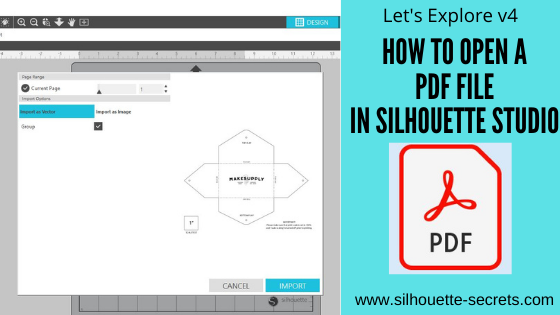
Let’s Explore v4 – Opening a PDF

Opening a PDF file with Silhouette

Affiliate links may be present in the following blog post and as an Amazon Associate I earn from qualifying purchases.

Tutorial written in Silhouette Studio v4.4.472

With the Designer Edition upgrade or higher, a PDF file can be opened directly in the Silhouette software.

This is a great option to expand the file types that you can use in Silhouette. Most users are familiar with PDF files, but it isn’t a common cut file when referencing Silhouette. We typically use programs like Adobe Reader to open a PDF document to read it as they are usually text files. However, you may find things like patterns and designs in PDF format as well. This was one of the ways that we “hand-cut” templates prior to cutting machines. The file came as a PDF that you printed and then cut around with scissors.

This is a great option now for the cutting machines too! With the Designer Edition upgrade (or higher) you can open a PDF direct in the Silhouette software. Depending on the data that is included in the PDF document will depend on if it’s ready to cut or if it might need to be traced to get cut lines.

For today’s tutorial, I am using a Leather card holder pattern by
Make Supply Leather Craft Company found HERE.
I downloaded the 8.5″ x 11″ template as I work with Letter size most often.
I suggest downloading the file and go through the steps to see how it works in Silhouette.

For a PDF document, the best way to open is to use File > Open in the Silhouette software.
Locate the file and then click Open.

By using the File > Open method, the software then brings up a window on how you want to treat this file.
Note: the drag and drop method for opening files may not prompt this PDF window to appear

If the PDF document is multiple pages, you can choose which page you want to open on the design mat. The Silhouette software can only open 1 page of the PDF file on each design mat at a time.

What if you want multiple pages on the same design mat?
Open each page on separate design mats and then copy and paste all into one file.
Just keep in mind the more you add to one file, the more data is involved.
Depending on how the PDF was created, they can be heavy in data.

Next, you will choose how you want to Import the PDF – as a vector or as an image.
Depending on the selection you choose, the options will also change on this window.

Open as a Vector

This will ultimately depend on the PDF you are working with, but I always start with the vector option. This is because some PDF files contain cut data already and by importing as a vector you can see if that is the case with the file you are working with.
This is dependent on how the PDF was created on whether it has cut data or not.

When opening as a vector you can choose to have it open “grouped” or not by checking or unchecking the box. This means that the cut lines will be grouped together or if they will all be separate pieces that can be moved individually.

Select Import in the bottom right corner.

The document will open onto a new design mat.

Now, how do we know if it contains cut data or not?
Click on the Send tab and if it has cut data, bold red cut lines will appear around the images.

Each document is going to vary in what you see next. Most times it will place bold red cut lines around all the objects on the PDF document as you see here. If you send this to cut, it will attempt to cut every single bold red cut line, including that small text.

Most times you do not need that, you only need the file outline itself.

Click back on the Design tab.

I then move the file off the cutting mat to work with it. Since I chose to open as “grouped” the entire file moves as one piece. If you unchecked Grouped, then make sure to selected everything prior to moving or it will move individual pieces.

Right click and choose Ungroup.

Now, I can select individual parts that I want to keep. Each file will be different.

In this case, when I grab the outline, it only moved the top section of the file. This is all in how the document was created. Since it was created as a file that was meant to be printed and used as a template, the files may need a little bit of work to make them a good cut.
If it only moves individual parts, make sure to click Undo to send it back to it’s position.
Ctrl+z is the keyboard shortcut for Undo.

To select multiple parts together, click on one and hold the Shift key down and click on the next piece. This will select more than one piece at a time.
Move those pieces on to the design mat.
With both parts selected you will see a gray selection box around each piece

The next steps may vary depending on your design.

In this case, I have 2 separate line designs that need to be combined into one.
With both selected, right click and choose Make Compound Path.

Double click on the outline and it will bring up the Edit Points.

Red edit points mean that there is a broken line. Just choosing make compound path does not completely “join” the design together. We have to also close the path as well.
Click on the red dots to close the path.

If the edit points are not close together, you may need to move them to “connect the dots”.

For more information on Edit points, check out this post HERE.
Edit points are a great tool to have in your toolbox and understand how they work.

Click on Send and the bold red cut lines will now show around the outline of the design.

Each file is going to vary in what it might need to get to the point of being ready to cut. In this case, I was using it to cut leather with the Cameo 4 and 3 mm Kraft blade, so all I needed was the outline of the card case.

When a PDF file is opened as a vector, if there was cut data it will open like this. However, not all PDF files are created with that cut data. But, the only way to know is to open it as a vector to find out.

If the file does not have bold red cut lines when the Send tab is activated, then the file would need to be traced to get cut lines.

For more information on the Trace Panel, check out the
Let’s Explore v4 – Trace Panel HERE.

Import as Image

The other option for opening a PDF document is to import as an image.

When this option is selected, you can choose the DPI settings that it opens as. This option may be a better option if you are opening a PDF document that is heavy on graphic images.
Again, each file is just going to vary on what works best.
Also keep in mind that the file can only open with the data that the file was saved as. For instance, if an image is low resolution and low quality, no matter what you choose under dpi, it can only open with the data it was saved with. It cannot generate new data to make it higher quality.

Click Import to open as an image.

When a PDF is opened as an image, it is a photo of the file.
So in this case, it is a photo of the 8.5″ x 11″ because that is the size of the PDF file.

This is easier seen by moving the image off the cutting mat. You can see it is a white page that is 8.5″ x 11″.

Also something to mention is the yellow triangle that may appear in the top left corner. This means that it is saying that the image may be low resolution to print as is.
Since I left it at the default of 72 dpi, it is low resolution.
If I change the dpi to 300, the yellow triangle does not appear when the file is opened.
The image quality could affect the trace, but you will just have to test with each file.

The next step is that the image will need to be traced to get a cut line.

Open the Trace Panel on the right side and draw the trace box around the design.

The trace options may need to be adjusted to get the best trace. The entire design that you want to be trace should be as solid, smooth yellow as possible. I start with the threshold and increase that first and it usually gives me the best trace.

You may need to zoom in on the image to see how the yellow is showing up, this can depend on the screen size you are using.

Once everything is as yellow as possible, click the Trace option at the bottom of the panel and then move the trace back onto the design mat.

Now here is where the next steps can vary depending on what you need for the file. Since we traced it, it will trace the inside and outside of the black lines. In this case, I only need the outer edge of the design.

Right click on the trace and choose Release Compound Path.

This will break the design up into pieces.
Click off the design to deselect it and then click back on the outer edge to move it away.
All the other pieces of this file could be deleted as they are not needed for my project.
But, each design will vary. If you were to cut this out of cardstock, you may want to keep the score lines or to draw new ones.

Double click on the trace line and take a look at the edit points. Since it is a trace, it may have a lot.

Simplify the design as needed in the Edit Points panel.

The file may need more cleanup such as these corners with several edit points still in them. You can try Simplify again or start deleting edit points as needed.

Click on the Send tab to see how it will look and cut.

I find I will always start with importing a PDF as a vector file just in case it already contains cut data because it will save me a bit of work to tracing and cleaning up the file.

But, no 2 files are created the same and the more you know how to work with the tools in the Silhouette software, the easier it will be to figure out what is needed for each file.

I love to see what you are creating with your Silhouette machines!
Feel free post on the
Silhouette Secrets+ Facebook Group.

Save this for future reference by pinning the image below.

Enjoy!

This image has an empty alt attribute; its file name is logo.jpg

THANK YOU for your support! How can you help? Click HERE & buy a coffee.
Every little bit helps with the cost of running the site.

Or if you are looking for more in-depth, step-by-step classes, check out all of my online Silhouette classes on my Teachable site HERE.

SS Logo snip it
**This post may contain affiliate links. What that means is that I may receive compensation if you purchase through the links I have provided. The price you pay for the product or service is not higher but I may get compensated for sharing.
Posted on 2 Comments

Let’s Explore – Silhouette Layered files

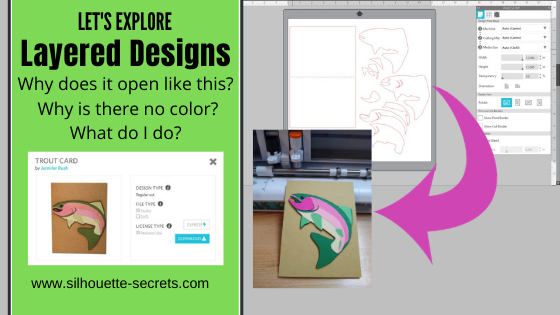
I often see posts or comments on files from the Silhouette Design Store that open up like this.

Blog post written in Silhouette Studio v4.3.372
Affiliate links may be present in the following blog post and as an Amazon Associate I earn from qualifying purchases.

Why?

Why does it open with no color?
Why are all the pieces separated?
Why does it not look like the original example photo?

Trout Card by Jennifer Rush – Design #136886

So let’s take a look at this and hopefully you will understand a little bit better why the files open like this and how to work with them.

Why does it open with no color?

There are probably a couple of reasons this is.
One reason is adding color to a file increases the data size of the file. When I first started with Silhouette 7+ years ago, this is how most files opened. A lot of things have changed in that 7 years with computers, file sizes, and program capabilities.
Keep in mind that any digital file that is loaded somewhere takes up storage space.
Adding color into the file, or multiple colors, adds more code into that file and increases the data size.

Designers create files in different ways and with different programs. Over the years, this has also evolved in that designers are now creating files that will open in multiple programs for multiple machines. They are not just creating a file for Silhouette use only.
Which means that a file has to be universal for all programs.

Why are all the pieces separated?

The reason files were created has also changed over the years. When I first started most files were created for cardstock and paper piecing. Which means that you cut each piece out of a different color of cardstock and then glued them together.
This is what the Trout card example shows.

In the past couple of years, the trend has moved more towards cutting vinyl.
There is also the option to cut by Fill Color which means that you don’t necessarily have to move the colors around on the design mat to cut the file.
This was not an option when I started with my Silhouette years ago.

Something to keep in mind is that once a file is created, the designer doesn’t typically go “re-do” the file just because the trends have changed.
Knowing how to work with files in both ways will be beneficial to you in the future.

Why does it not look like the original example photo?

Typically, the image you see in the file preview is a photo of the completed design. For instance in this example, it is a photo of the completed card.

Tip: when in the Silhouette Library tab, move the mouse over top of the design icon and a little square bracket appears in the bottom left corner. Click on this and a image of the design with information will pop up. This can be a larger photo or clearer photo than what you can see from the Silhouette Design Store page.

How do I work with a file like this?

The great thing about the Silhouette software is that you have the freedom & tools to do so much in it.
You control how things work!

The first thing I do is bring a photo of the design. I am working on a PC, so I use the Snipping Tool. I keep this Snipping Tool pinned to my taskbar because I use it so much.
You can also use a screen shot of the design file as well.

I copy this “snip” and then paste it onto my design workspace. Then increase the size if needed. Note that you may see a yellow triangle appear in the top left corner of the design area. This just indicates that if you printed this image, it would most likely be low resolution and fuzzy. I don’t need image clarity to print as this is just for a visual of the project.

Now, we can start working with the file.
Click on the file and in this case it is all Grouped together. I need to right click on it and choose Ungroup, so then the pieces are all individual pieces and can be edited.

Notice once it is Ungrouped, there are individual selection boxes around each piece. Click off of the grouping and then back on each piece to select individually.

Select each piece and then use the Fill Color Panel and add color to it using the image as a guide.

Keep in mind that the colors do not have to be perfect unless you are doing a print and cut project, the colors do not matter. It will cut out of whatever color material you place on your cutting mat.

Now, if you want, you can move the pieces around to position the image to reflect how it will look when finished. In this case, I do not really need to do this since I will be cutting each piece out of a different color of cardstock and then placing them together.
But, here is a photo of what it would look like if I did. I am going to copy all of the pieces to show it off to the side.

Notice the smaller pieces are all still grouped together. In this case, that is because they will be cut out of cardstock and it is designed to keep them close together to save on materials. You could ungroup it and move them around on the fish to place them, but that is only necessary if you were to turn this file into a print and cut file.

What you will notice is that designs and files you work with will all be different. Whether it is differences in designers and how they are creating the files or in what the original purpose of the file was created for. The more familiar you can get with the Silhouette software, the easier it will be for you to figure out what each file needs in order to complete your particular project.

It is not that the file is created wrong or is a bad file. It is just created differently than others. Some files will require a little bit more work to get it how you want.
I will be 100% honest, there are some files I’ve opened and I just don’t feel like it at the time to work with it. Some days I have the patience to play with it and others I do not.

For instance, this was one of those “nope” days. I know the card will be cute once created, but I just didn’t have the patience to complete it.

Fisherman A7 Card by Snapdragon Snippets – Design #83517

Do you have to fill it with color to use it?

No, it is just an easier way to visualize what colors are cut out of what materials and keep track of what you have cut and haven’t cut.

Cutting the file

Next, on this file, I want to double check the size of the card it will cut.

One of the great things about the Silhouette software is that you can size a design to whatever size you need. If the file is in a file format that can be resized without losing image quality, such as a .studio or .svg file, then you should not encounter an issue.
If it is a jpeg or png file, those are graphics files and cannot be resized without losing image quality in most cases, since the pixel size is set and it’s a flattened graphic.

I used the Transform Panel – Rotate Tab to turn the card design horizontal and I can tell by the measurements on the edges of the card that it is 5.5″ x 8.5″, which means that folded my card will be 4.25″ x 5.5″.
This is a standard card size.

Make sure that if you increase the size of the card, that you also select the entire design and increase the size of it at the same time.

Now, I am ready to cut my file.
When I’m working with a file that has multiple pieces to cut out of several colors, I start with all my pieces on the left side and then as I finish cutting with them, I move them off the cutting mat to the right side. This way I can keep track of what I’ve cut and what still needs to be done.

I also use the Transparency (Reveal) option on the Page Setup Panel to reveal my cutting grid on my mat and then I cut down each color I need and place it in the same location as I have placed on my design mat as shown above.

This saves me time and the adhesive on my cutting mat, so it can make my mats last longer because I’m not removing a full sheet of cardstock/material each time I cut a piece out.
Find more tips on getting the most out of your cutting mats HERE.

After all the pieces are cut, use adhesive to piece the design together.

The more you do things in the software, the more you will pick up.
The best way to learn is to play, play, play.
Check out the full “Let’s Explore v4” series HERE for more information on tools and features in the software.

We’d love to see what you are creating with your Silhouette machine!
Feel free to post photos or questions on my Facebook group at 
Silhouette Secrets with EllyMae.

Save this for future reference by pinning the image below.

Enjoy!

SS Logo snip it
**This post may contain affiliate links. What that means is that I may receive compensation if you purchase through the links I have provided. The price you pay for the product or service is not higher but I may get compensated for sharing.