Posted on Leave a comment

Using Graphics in Silhouette Studio to Design With – Graduation Cap & Framed Décor

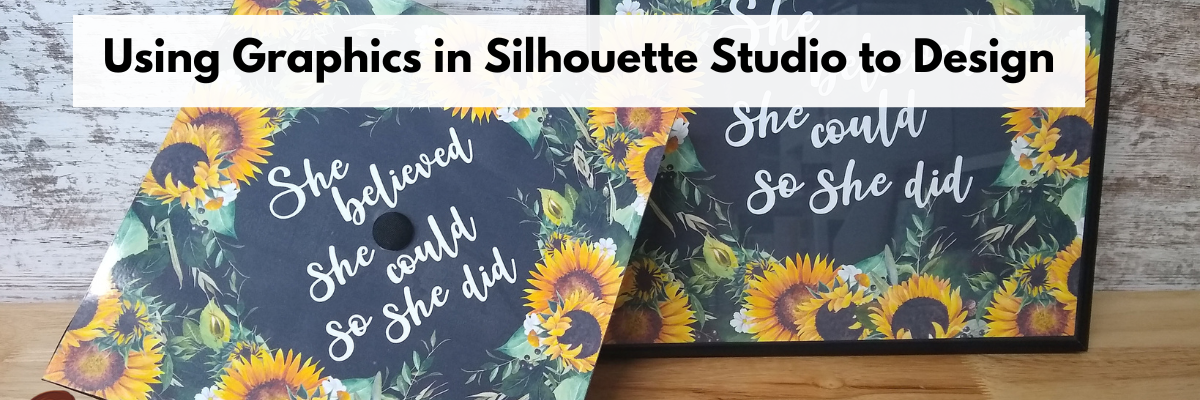
Join me in the new video tutorial on the Silhouette Secrets YouTube channel as I share how I created a graduation cap topper using graphic images in Silhouette.

But I couldn’t stop there and I loved the image so much that I had to make myself a framed décor piece too!

I share this process step-by-step in this new video HERE.

Affiliate links may be present in the following blog post and as an Amazon Associate I earn from qualifying purchases.

Supplies Used:

Watercolor Sunflower Bundle
Beauty Dina Font
Graduation cap

More information on the tools used in the Silhouette software:
Let’s Explore v4 – Make Compound Path
Crop
Print and Cut

What will you try today?

Save this for future reference by pinning the image below.

Enjoy !

THANK YOU for your support! How can you help? Click HERE & buy a coffee.
Every little bit helps with the cost of running the site.

Looking for more in-depth, step-by-step classes, check out all of my online Silhouette classes on my Teachable site HERE.

SS Logo snip it
**This post may contain affiliate links. What that means is that I may receive compensation if you purchase through the links I have provided. The price you pay for the product or service is not higher but I may get compensated for sharing.
Posted on 6 Comments

Get more out of your Silhouette designs

It all starts with 1 design.
And then you never know where it will take you.

Long story short, I volunteered to provide a craft for my son’s 4th grade class. He picked the design and then it just snowballed from there. One project after another.

Affiliate links may be present in the following blog post and as an Amazon Associate I earn from qualifying purchases.

Today I’m going to show you how I took this simple Reindeer Gnome design by Lilium Pixel SVG and created a layered cut file from it using a few tools in Silhouette Studio.

The Design

The first thing to start with is the design.
This one of the most important things to understand.

All files are created differently. Each designer creates differently. Each designer saves differently. Each design could be made up differently.

I will show you how I worked with this file and the more you do this, you will start to see patterns. The tools and steps I use may need to be done in a different order depending on how the file was created. That will make more sense after we get started and the more you work with files.

Gnome Example

Open the Reindeer Gnome design by Lilium Pixel SVG.

Change the Fill Color to transparent using the Fill Color Panel or the QAT Fill Color drop down.

This makes it easier to work with Compound Paths.
Compound Paths are one of the hardest design concepts for most users to understand.
The basics of a compound path are each design is made up of pieces. If you make or release a compound path, it will affect how those “pieces” act.
For more in-depth information on Compound Paths check out this post HERE.
They are a great tool to play around with as you will see farther down.

Next, right click and choose Release Compound Path.
This should break the design up into individual pieces.
However, you may also need to right click and choose Ungroup.
This will vary depending on each design. You may need to ungroup more than once or you may need to release compound path more than once.

What you are looking for is all those individual selection boxes around the “pieces” of the design. Each of those gray boxes is a selection box and now means that we can select those individual pieces and work with them.

Click off the design and then click back on 1 piece.
Now, fill each piece with color using the Fill Color Panel or QAT dropdown.

Note: You will need to click exactly on the red cut line for each piece to select it.
Using the Zoom tools at the top of the software can help to make it easier to click the lines.

Any pieces that are the same color can be selected together and then right click and choose Group.

Repeat this step for all the interior parts.

The more you do this, the more comfortable you will become with it, and start to recognize the patterns.

Don’t be afraid to push the buttons and the Undo button is your best friend!
I am very familiar with the keyboard short cut for Undo – Ctrl+Z is one of my most used tools.

Next comes the background color.

Notice if you select the outside edge and fill it with black, it fills in all the little pieces in the area of the hat. So we need to change that.

If you filled the outer edge with color, change it back to transparent or hit Undo.

In order to take out the inner bits of the hat, select the outside edge of the design, hold the Shift key down, select the inside bits of the hat around the reindeer antler, and then right click and choose Make Compound Path.

Now, fill it with color to check that the right pieces were selected for the Compound Path. If not, hit Undo and try again.

Note: when a Compound Path is made or pieces are grouped together, it can reorder how the pieces are stacked on top of each other.

Right click on the black layer and choose Send to Back.
This will send the black layer behind all the other colors.

Adjust the colors as desired to see how it will look.

Now you have a layered file that was created from the original black outline design.

The first project I did was cutting all the pieces from cardstock and creating craft kits for the 4th grade class.

Then I used the same layered file to create a shaped edge card.

And then my son asked how big I could make the gnome?
Challenge accepted and we settled on a 36″ tall gnome who he named “Ger-gnomio” that I cut with my Cameo Pro.
For more Cameo Pro tips, check out the header on the blog HERE.

One design turned into 3 different projects. I had no idea when I first started playing with the design that it would turn into several more projects. You never know when that creative bug will hit!

Check out the video tutorial on my YouTube channel HERE too!

I would love to see what you are creating with your Silhouette software or machines!
Feel free to post photos or questions on my Facebook group at 
Silhouette Secrets with EllyMae.

Save this for future reference by pinning the image below.

Enjoy!

THANK YOU for your support! How can you help? Click HERE & buy a coffee.
Every little bit helps with the cost of running the site.

Silhouette Classes

Never stop learning! Let me help you take the anxiety out of learning with Silhouette and get to creating faster! My Silhouette classes are heavily focused on software, so you can take the skills & techniques taught and apply them to many future projects!

Silhouette step-by-step Classes by Silhouette Secrets+

Silhouette Secrets+ with EllyMae

**This post may contain affiliate links. What that means is that I may receive compensation if you purchase through the links I have provided. The price you pay for the product or service is not higher but I may get compensated for sharing.

Posted on 1 Comment

Let’s Explore v4 – Opening a PDF

Opening a PDF file with Silhouette

Affiliate links may be present in the following blog post and as an Amazon Associate I earn from qualifying purchases.

Tutorial written in Silhouette Studio v4.4.472

With the Designer Edition upgrade or higher, a PDF file can be opened directly in the Silhouette software.

This is a great option to expand the file types that you can use in Silhouette. Most users are familiar with PDF files, but it isn’t a common cut file when referencing Silhouette. We typically use programs like Adobe Reader to open a PDF document to read it as they are usually text files. However, you may find things like patterns and designs in PDF format as well. This was one of the ways that we “hand-cut” templates prior to cutting machines. The file came as a PDF that you printed and then cut around with scissors.

This is a great option now for the cutting machines too! With the Designer Edition upgrade (or higher) you can open a PDF direct in the Silhouette software. Depending on the data that is included in the PDF document will depend on if it’s ready to cut or if it might need to be traced to get cut lines.

For today’s tutorial, I am using a Leather card holder pattern by
Make Supply Leather Craft Company found HERE.
I downloaded the 8.5″ x 11″ template as I work with Letter size most often.
I suggest downloading the file and go through the steps to see how it works in Silhouette.

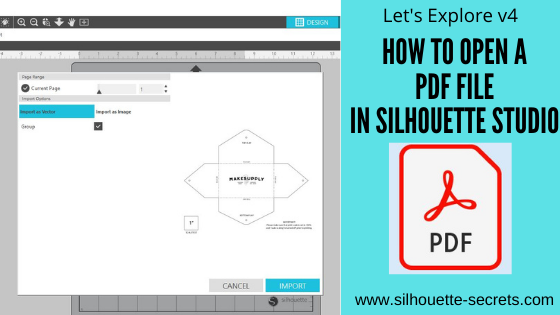
For a PDF document, the best way to open is to use File > Open in the Silhouette software.
Locate the file and then click Open.

By using the File > Open method, the software then brings up a window on how you want to treat this file.
Note: the drag and drop method for opening files may not prompt this PDF window to appear

If the PDF document is multiple pages, you can choose which page you want to open on the design mat. The Silhouette software can only open 1 page of the PDF file on each design mat at a time.

What if you want multiple pages on the same design mat?
Open each page on separate design mats and then copy and paste all into one file.
Just keep in mind the more you add to one file, the more data is involved.
Depending on how the PDF was created, they can be heavy in data.

Next, you will choose how you want to Import the PDF – as a vector or as an image.
Depending on the selection you choose, the options will also change on this window.

Open as a Vector

This will ultimately depend on the PDF you are working with, but I always start with the vector option. This is because some PDF files contain cut data already and by importing as a vector you can see if that is the case with the file you are working with.
This is dependent on how the PDF was created on whether it has cut data or not.

When opening as a vector you can choose to have it open “grouped” or not by checking or unchecking the box. This means that the cut lines will be grouped together or if they will all be separate pieces that can be moved individually.

Select Import in the bottom right corner.

The document will open onto a new design mat.

Now, how do we know if it contains cut data or not?
Click on the Send tab and if it has cut data, bold red cut lines will appear around the images.

Each document is going to vary in what you see next. Most times it will place bold red cut lines around all the objects on the PDF document as you see here. If you send this to cut, it will attempt to cut every single bold red cut line, including that small text.

Most times you do not need that, you only need the file outline itself.

Click back on the Design tab.

I then move the file off the cutting mat to work with it. Since I chose to open as “grouped” the entire file moves as one piece. If you unchecked Grouped, then make sure to selected everything prior to moving or it will move individual pieces.

Right click and choose Ungroup.

Now, I can select individual parts that I want to keep. Each file will be different.

In this case, when I grab the outline, it only moved the top section of the file. This is all in how the document was created. Since it was created as a file that was meant to be printed and used as a template, the files may need a little bit of work to make them a good cut.
If it only moves individual parts, make sure to click Undo to send it back to it’s position.
Ctrl+z is the keyboard shortcut for Undo.

To select multiple parts together, click on one and hold the Shift key down and click on the next piece. This will select more than one piece at a time.
Move those pieces on to the design mat.
With both parts selected you will see a gray selection box around each piece

The next steps may vary depending on your design.

In this case, I have 2 separate line designs that need to be combined into one.
With both selected, right click and choose Make Compound Path.

Double click on the outline and it will bring up the Edit Points.

Red edit points mean that there is a broken line. Just choosing make compound path does not completely “join” the design together. We have to also close the path as well.
Click on the red dots to close the path.

If the edit points are not close together, you may need to move them to “connect the dots”.

For more information on Edit points, check out this post HERE.
Edit points are a great tool to have in your toolbox and understand how they work.

Click on Send and the bold red cut lines will now show around the outline of the design.

Each file is going to vary in what it might need to get to the point of being ready to cut. In this case, I was using it to cut leather with the Cameo 4 and 3 mm Kraft blade, so all I needed was the outline of the card case.

When a PDF file is opened as a vector, if there was cut data it will open like this. However, not all PDF files are created with that cut data. But, the only way to know is to open it as a vector to find out.

If the file does not have bold red cut lines when the Send tab is activated, then the file would need to be traced to get cut lines.

For more information on the Trace Panel, check out the
Let’s Explore v4 – Trace Panel HERE.

Import as Image

The other option for opening a PDF document is to import as an image.

When this option is selected, you can choose the DPI settings that it opens as. This option may be a better option if you are opening a PDF document that is heavy on graphic images.
Again, each file is just going to vary on what works best.
Also keep in mind that the file can only open with the data that the file was saved as. For instance, if an image is low resolution and low quality, no matter what you choose under dpi, it can only open with the data it was saved with. It cannot generate new data to make it higher quality.

Click Import to open as an image.

When a PDF is opened as an image, it is a photo of the file.
So in this case, it is a photo of the 8.5″ x 11″ because that is the size of the PDF file.

This is easier seen by moving the image off the cutting mat. You can see it is a white page that is 8.5″ x 11″.

Also something to mention is the yellow triangle that may appear in the top left corner. This means that it is saying that the image may be low resolution to print as is.
Since I left it at the default of 72 dpi, it is low resolution.
If I change the dpi to 300, the yellow triangle does not appear when the file is opened.
The image quality could affect the trace, but you will just have to test with each file.

The next step is that the image will need to be traced to get a cut line.

Open the Trace Panel on the right side and draw the trace box around the design.

The trace options may need to be adjusted to get the best trace. The entire design that you want to be trace should be as solid, smooth yellow as possible. I start with the threshold and increase that first and it usually gives me the best trace.

You may need to zoom in on the image to see how the yellow is showing up, this can depend on the screen size you are using.

Once everything is as yellow as possible, click the Trace option at the bottom of the panel and then move the trace back onto the design mat.

Now here is where the next steps can vary depending on what you need for the file. Since we traced it, it will trace the inside and outside of the black lines. In this case, I only need the outer edge of the design.

Right click on the trace and choose Release Compound Path.

This will break the design up into pieces.
Click off the design to deselect it and then click back on the outer edge to move it away.
All the other pieces of this file could be deleted as they are not needed for my project.
But, each design will vary. If you were to cut this out of cardstock, you may want to keep the score lines or to draw new ones.

Double click on the trace line and take a look at the edit points. Since it is a trace, it may have a lot.

Simplify the design as needed in the Edit Points panel.

The file may need more cleanup such as these corners with several edit points still in them. You can try Simplify again or start deleting edit points as needed.

Click on the Send tab to see how it will look and cut.

I find I will always start with importing a PDF as a vector file just in case it already contains cut data because it will save me a bit of work to tracing and cleaning up the file.

But, no 2 files are created the same and the more you know how to work with the tools in the Silhouette software, the easier it will be to figure out what is needed for each file.

I love to see what you are creating with your Silhouette machines!
Feel free post on the
Silhouette Secrets+ Facebook Group.

Save this for future reference by pinning the image below.

Enjoy!

This image has an empty alt attribute; its file name is logo.jpg

THANK YOU for your support! How can you help? Click HERE & buy a coffee.
Every little bit helps with the cost of running the site.

Or if you are looking for more in-depth, step-by-step classes, check out all of my online Silhouette classes on my Teachable site HERE.

SS Logo snip it
**This post may contain affiliate links. What that means is that I may receive compensation if you purchase through the links I have provided. The price you pay for the product or service is not higher but I may get compensated for sharing.
Posted on 7 Comments

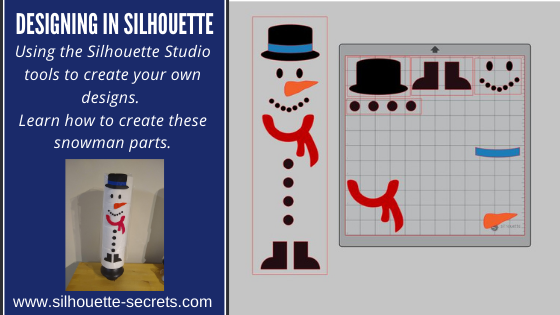
Designing in Silhouette – Snowman pieces

Designing in Silhouette

So you want to learn to design in the Silhouette software?
I see user’s asking how to create their own designs in Silhouette often. And it can be done. The more familiar you can become with the tools in the software, the easier things will be for you to create designs.
The more you do it the more you will start to use those tools without even knowing you are doing it! The absolute best thing you can do to learn the software is to dive in.
Follow this step-by-step, even if you never make the finished physical project.
You will have created the design yourself, used many tools in the Silhouette software, and learn new things as you do it.

Affiliate links may be present in the following blog post and as an Amazon Associate, I earn from qualifying purchases.

A group member had sent a message asking if I knew where to buy a file. I did not find the exact file, but I started looking at it and decided it was a great way to show how you can create your own designs. After all, if you think about it, designs are just shapes combined to make up an image.
This little snowman are created from stacking toilet paper on a new toilet plunger. It has a cellophane gift bag that the adhesive vinyl is applied to and then it is slid down over top of the toilet paper rolls.

The first one I created, I wanted it to be all from creating the entire design in Silhouette.

First, measure the 4 rolls of TP or the blank that you are going to be applying it to.
My TP rolls are 5″ x 17.25″ when stacked on top of each other.
Using the Draw Rectangle tool & Scale tab, draw a rectangle 5″ x 17.25″ so you know what area you have to design within.

Next, let’s draw the boots.
Using the drawing tools again, draw a rectangle.
Then using the Flexishape tools, draw a half circle.
Flexishapes are a Designer Plus or Business Edition upgrade feature.
It is one reason I would highly recommend upgrading the software.
Hold the Shift key down when you draw the flexishape and it will snap to 0 degrees.
Align the half circle with the bottom of the rectangle using the Align tools.
Select both shapes and make a copy.
Move it off to the side, just in case it is needed later.
Select both the original rectangle and the half circle. Right click and choose weld.
Fill with color using the Fill color Panel.

Use the Replicate Mirrored tool to make a 2nd copy. Then use the Align tools to line the boots together at the bottom. Once aligned, right click and choose Group.

Now let’s draw the buttons.
Choose the Draw Ellipse tool on the left side.
Then hold the Shift key down to draw a perfect circle.
Fill the circle with black using the Fill Color Panel or QAT (Quick Access Toolbar).
Duplicate the circle 3 times up. Move the top circle up a bit.
Select all 4 circles – choose Align Center. Then choose Vertical Spacing.
Group together once Aligned.

Working up, the scarf is next.
Under the Flexishapes, click on the draw arc tool. Then click in the middle of the rectangle and draw a line to the right a little ways. Move the mouse to the left and it will draw the arc. Adjust the middle arrows to make it thinner or wider.

Once done, right click and choose Convert to Path.
Double click on the design to bring up edit points.
Click on the corners of the arc and choose Make Curve in the Edit Points Panel.

Choose the Draw a Curved Shape tool.
Then draw a “tail” for the scarf. Play around with it until you like it.
When finished, select both the arc and the tail, right click and choose Weld.

Fill it with red color from the Fill Color Panel on the right side or in the QAT (Quick Access Toolbar).

Next, let’s draw the mouth.
Using the Draw Ellipse tool on the left side, hold down the Shift key and draw a small circle.
Fill the circle with black using the Fill Color Panel.
Use the Replicate Panel to replicate the circle 5-6 times.

Arrange the circles in the shape of a smile by clicking on each and moving.
Select all of mouth pieces. Use the Align tools to space them Horizontally from each other.
Arrange how you like. Select all the mouth pieces, right click and choose group.

Now let’s draw the carrot nose shape.
Click on the Flexishape lighting bolt. Draw a small shape.
Then adjust using the red dots as desired.
Right click on the shape and choose Convert to Path.

Then double click to bring up the Edit Points.
Hold the Shift key down and drag to select across the entire design.
This will select all of the edit points at once.
Choose Make Curve.

Click on individual edit points to delete a few on the inside. Adjust the design as desired.

Fill with Orange from the Fill Color Panel.

And now the eyes, choose the Draw Ellipse tool and draw a small oval.
Fill it with black from the Fill Color Panel/QAT.
Then duplicate and move to the right.
Select both of the ovals, use the Align Middle tool and group them together.

The final piece to design is the hat.
To do this we will use the Draw ellipse and rounded rectangle tool.
Draw one oval for the bottom brim.
Make a copy and move it above the first.
Scale the 2nd oval down for the top of the hat by grabbing the corner bounding box and moving it in.
Use the Align tools to center the ovals together.
Then draw a rounded rectangle between the ovals.
Use the Align tools to center the shapes together.

Make a copy and pull it off to the side.
Select both ovals and the rounded rectangle, right click and choose Weld.

Make a copy of the welded design and pull it to the side.
Then fill the original design with black using the Fill Color Panel.

Next, make a copy of the bottom oval on the hat shapes copy.
Bring it over to the and place it were the brim meets the stack of the hat as shown.

Select the hat and the 2nd oval and use the Align tools to align the middle.

Next, with both objects still selected, open the Modify Panel and choose Crop.

Make a copy of the bottom oval again and drag it to the top of the cropped section. Use the Align tools to align the middle of the 2 shapes.

With both shapes selected, choose Subtract under the Modify Panel.

Fill the hat band with color and move it on top of the original hat.
Use the Align tools to make sure it’s aligned middle.

Arrange the snowman pieces as desired to see how it will fit on your space.

Congratulations! You created your own design!
Now, that may seem like a lot of steps or using a lot of tools, but like I said above, it is a design you have drawn yourself and the more you use the tools in the software, you will start to use them without even thinking about it.
Hopefully you picked up on the fact that we continued to use the same basic tools over and over.

If you are cutting the finished design, arrange all the pieces to cut out of the different colors of vinyl.

Check out this video showing all of the steps to create the snowman as well.

If viewing by email, please click the photo to open up the YouTube video.

Supplies used:
4 rolls of TP per snowman
New plunger – Target $4.99
Clear gift basket bag
Adhesive Vinyl
Silhouette Studio Software

The more you use the tools, the better you will get. And sometimes, I’ll be honest, the only way to know what is going to work for the design you are creating is to push the buttons and use the UNDO button.

Or use Ctrl+Z on PC or Command+Z on Mac for the keyboard shortcut

I would highly recommend getting into the software and just start creating!

Even if you do not cut the snowman, I would love to see the snowmen design that you make or any other design you have created using the tools in the software!

Feel free to post on my Facebook group at 
Silhouette Secrets with EllyMae.
If you have questions feel free to post below or on the Facebook group too!

Save this for future reference by pinning the image below.

Enjoy!

SS Logo snip it
**This post may contain affiliate links. What that means is that I may receive compensation if you purchase through the links I have provided. The price you pay for the product or service is not higher but I may get compensated for sharing.
Posted on 6 Comments

Let’s Explore v4 – Designing in Silhouette

Creating Designs in the Silhouette v4 Software

Affiliate links may be present in the following blog post and as an Amazon Associate I earn from qualifying purchases.

This project has been on my to-do list for a long while and now we are all home all day long together, I sat down to get it done.

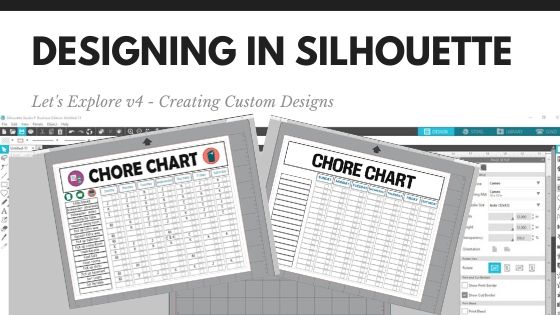
Using some basic features in the Silhouette software – Drawing tools, Replicate Panel, Alignment tools – you can create your own custom projects.

Check out this video below on how I created a chore chart.

I added a couple Chore Chart Icons by Amy Robinson – Design #256141 to the chart to give it a little more color and character than just a boring lines chart.

Chore Chart image copy

Now, you may have been putting this off like I was or just haven’t had the time to make a chore chart. So I am also offering this as a free file you can download below.

Chore Chart free file copy

Click the photo above or download this free file HERE.

Save this for future reference by pinning the image below.

Pinterest Chore Chart

I would love to see what you create!
Feel free to post on my Facebook group at Silhouette Secrets with EllyMae.

Enjoy!

SS_Signature copySS Logo snip it

**This post may contain affiliate links. What that means is that I may receive compensation if you purchase through the links I have provided. The price you pay for the product or service is not higher but I may get compensated for sharing.