Affiliate links may be present in the following blog post and as an Amazon Associate, I earn from qualifying purchases.
Did you know that you can use the Silhouette software without EVER using the Silhouette library?
If you are reading this when it’s first published, we’ve been encountering an issue where we are currently 23 days into an outage of the Silhouette websites where there are issues syncing files to the Silhouette library and anything that “talks” to the Silhouette servers. It has worked a bit in the last 23 days, but for the most part users are dead in the water if they only use the Silhouette library and rely on it only.
But, you DO NOT have to rely on the Silhouette library at all! And, to be honest, you should NOT! You should not rely on 1 source as an absolute. You purchase files and you should have those files available to you whenever you need them.
First Thing First
Before I even begin to show you how you can use Silhouette without the library, the first thing I want to advise you is….
1 – Save your personal files to an outside location!!!
It’s really easy to do. File > Save As > Save to Hard Drive. Or if you are saving a file type besides .studio file I would recommend selecting your entire design and then using File > Save As > Save Selection and then choose the file type.
2 – Back up your files. Even if you save your files to an outside source. Back them up to another source! There is NOTHING that is 100% safe! Except multiple back ups.
More tips on backing up files, including what I’m currently using as my primary storage and back up sources – click HERE
I hate to say it but in general, we have all gotten complacent. We used to save Word documents every 5 minutes and that was the standard. It doesn’t really matter that technology has improved, it can still fail! Nothing is 100% fool proof except multiple saving a backup to multiple locations.
3 Ways to Use Silhouette Without the Library
1 – Design your own files using tools in Silhouette Studio
Every single user can create their own files! You do not have to have a degree to do this. Use the tools in Silhouette Studio software to create your own designs.
2 – Open a design in Silhouette Studio and use to cut. Silhouette Studio can open many file types from outside sources.
This method depends on what Silhouette Studio upgrade you have. The basic (free) software is limited on what file types it can open. Silhouette Studio upgrades will allows you to open more file types such as the common SVG file type that is a cut file.
3 – If you can access your Silhouette library, you can open from there. But what if you cannot access it for some reason – like the software update mess or another issue?
You can download the files direct to your computer and use them!
Check out this video on how you can download your files directly from the Silhouette Design Store and save to your external source on the Silhouette Secrets+ YouTube channel HERE.
You have the resources at your finger tips! Use them! Learn how to make Silhouette Studio software work for YOU!
Want to learn more on how you can make Silhouette Studio work for you? Check out the A to Z resource on the blog HERE.
Save this for future reference by pinning the image below.
I hope these tips help you on your journey, especially as we navigate the Silhouette Studio website issues we are currently experiencing as I type this.
Enjoy !
THANK YOU for your support! How can you help? Click HERE & buy a coffee. Every little bit helps with the cost of running the site.
Silhouette Classes
Never stop learning! Let me help you take the anxiety out of learning with Silhouette and get to creating faster! My Silhouette classes are heavily focused on software, so you can take the skills & techniques taught and apply them to many future projects!
**This post may contain affiliate links. What that means is that I may receive compensation if you purchase through the links I have provided. The price you pay for the product or service is not higher but I may get compensated for sharing.
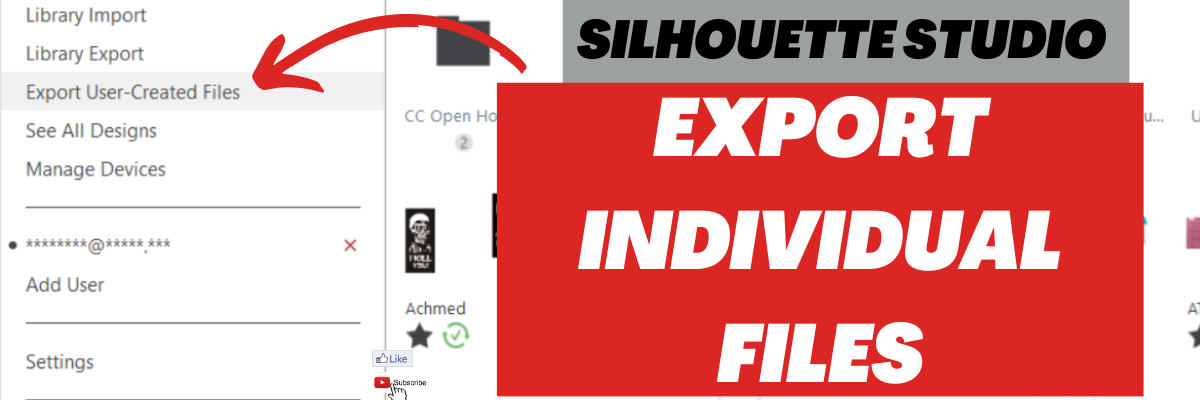
Did you know you can now export your personal user designs individually from the Silhouette library easily and fairly quickly?
It has actually been available in the software since the release of v4.4.552 in May 2021. So it’s been available for quite some time, but I don’t think a lot of users know about it or how to do it.
Good news! I have both a video tutorial available on the Silhouette Secrets+ YouTube channel and also a written tutorial on the blog too! Both show you step-by-step how you can do this and give you tips along the way.
This is a great option to make sure that you have all of your files that you have created or saved in the past, backed up to another location. Nothing is 100% safe except having files saved to multiple locations.
Currently I am recommending the software version v4.4.554 for most users. If you are interested in a legacy version of the Silhouette Studio software, check out this tutorial Silhouette America Website Updates HERE
If you already have a higher version, such as v4.5 installed, you can easily go back by following this video HERE
Why am I not recommending software versions of 4.5 or higher right now? Simply because there are several bugs that are not good for most users work flow and I am waiting until those are resolved before recommending a version in the v4.5 range.
Save this for future reference by pinning the image below.
Enjoy !
THANK YOU for your support! How can you help? Click HERE & buy a coffee. Every little bit helps with the cost of running the site.
Looking for more in-depth, step-by-step classes, check out all of my online Silhouette classes on my Teachable site HERE.
**This post may contain affiliate links. What that means is that I may receive compensation if you purchase through the links I have provided. The price you pay for the product or service is not higher but I may get compensated for sharing.
We troubleshoot thousands of issues each week on social media and one of the questions we see often is about Library issues.
Most times it is a simple fix if the steps are followed properly.
One of the common ones we see is when a user’s library is showing as “Working Offline” in the bottom left corner. I find this happens if my internet connection changes such as when I’m traveling or the internet connection is dropped.
Check out that tutorial HERE. It still solves 98%+ of the library issues.
However, there are times that the above does not work, so I thought I’d share where you can find more information about specific library issues.
Silhouette America has recently updated their Support FAQ area and it is a bit more search friendly to find information you might need. Check out this post HERE on the Updates to the Silhouette America website.
Backup User Designs!!!!
As a note, it is ALWAYS recommended that you have any of your user designs backed up to an outside source. I do not recommend using the Silhouette library as your file storage as it is not designed as an all inclusive storage area but as a syncing device. This is one reason that the library is limited on storage space.
If you are using a Silhouette Studio version of v4.4.552 or higher, you can easily export individual user created designs as individual files and I HIGHLY recommend that you do this – right now if you have not already done it!
I want to share more information that can easily be found on the new Silhouette Support site. If you are experiencing any of these issues below, click on the title to be taken to step-by-step tips to help get you back on track.
Design Thumbnail Partially Missing Note: at the time of this publication, I am not recommending v4.5.152 – if you choose to update to fix this issue, I would recommend updating to Beta v4.5.171 – however, please note that Beta versions can have unknown bugs. But, I still would recommend it over the bugs that are in v4.5.152.
Silhouette Support has changed over the years since I started as an TJC Licensed Silhouette Instructor. At the time of this publication, they have not had phone support in 4-5 years. I can agree with this 100% as troubleshooting by telephone is very, very difficult – if not impossible in most situations. You cannot provide photos or videos of the issue you are having and the Support staff cannot provide a list of instructions that will help to solve the problem.
Currently, the only way to get in touch with Silhouette Support is through the online Support request found HERE or in the bottom right corner of the Silhouette America website.
Most issues that a user has could be solved by a quick search of the Silhouette America Support Solutions center and following the instructions exactly like they are written.
However, there are some cases where a Support tech is needed to address an issue. In that case, you will need to fill out all of the questions regarding the support request. And then make sure you complete it & that it gets fully submitted to them.
When you submit a request to Support, the best thing you can do is provide as detailed of a description as possible, photos of the issues, and/or video of the issue if necessary. This can help you get a diagnosis faster in most cases.
A support ticket that states “My machine won’t cut, fix it!”, really does not help you get an answer faster or help the Support Staff diagnose what issue you are having. It’s like throwing mud against the wall to see what sticks.
After you have submitted the issue to them, you will need to be patient and wait. The emails are answered in the order they are received in and you are in a line. There are other users with an issue that are ahead of you in that line and you don’t get to skip to the front because you feel your issue is more important.
Again, the more details you can provide when you submit your issue, the better chance you have of getting a diagnosis faster.
On that note, if you are having cut issues, follow this Troubleshooting Video HERE step-by-step and it fixes 98%+ of the cutting issues that we see.
We troubleshoot thousands of issues weekly across social media platforms and in most cases ask for photos and/or videos in order to diagnose the issue. You would probably be amazed at how many times we spot something in the photo or video that we weren’t even looking for that is culprit of a cut or software issue. Without seeing the photo or video, we would have never diagnosed it and the user would have continued to be frustrated.
When we ask for a photo of the blade installed in the machine with the mat loaded, it is NOT just to look at the blade installation. There are MANY things we can tell from this photo that can help in identifying the problem. Most times it’s a quick fix. Otherwise it can be like throwing mud against a wall to see what sticks….. And sometimes it’s not specifically what we are looking for but what doesn’t look right – for instance, an adjustment hole blocked or vinyl stuck to the bottom of the blade.
A photo is really worth a thousand words.
Here are just a few things I can identify from a photo: – blade housing alignment – is the cutting mat covering adjustment holes – adjustment holes have debris – adhesive build up on rollers – debris stuck in the machine – what machine model it is – what blade is being used – is the cutting mat loaded sideways And yes, if the blade is installed and locked in.
Those are just a few…. it would amaze you the little things we have picked up on that are the cause of a cut issue just from a photo. And until the underlying issue is identified and resolved, a user will continue to experience cut issues.
Silhouette “Secrets”
This blog post originally started as just troubleshooting for the Silhouette library and issues you may have. However, I couldn’t just stop there.
What is my “secret” to troubleshooting?
1 – Experience! On my recent trip to Italy with Siser, our tour guide in Venice said she would get so many people questioning how she knew something. She said it took her awhile but she finally came up with an answer. EXPERIENCE!
The more you do this, the more you watch your machine, the more familiar you become with the Silhouette software and the Silhouette machines, you will start to see how things work. Or be able to spot when something is “off” and then upon closer examination can figure out what is the cause.
I have been teaching Silhouette users since 2016 and I troubleshoot daily. I see a lot! I also watch my machines work and I listen to them! Yes, they will talk to you or at least you can hear when they yell at you when something might be wrong.
2 – I have no “secret”. I treat each case I troubleshoot as a new issue because there is no one button fix for all issues. No matter the experience level of the user, I follow the same steps in troubleshooting. To be honest, for experienced users it’s often harder to troubleshooting with them because they are not always as willing to following instructions or provide us the information needed to help them.
Tip: When asked to provide information, photos, or video – the faster you do it, the faster you are going to get help and fix any issue you are having. Help us, help you!
I hope these tips help you on your Silhouette journey!
And I have a coupon code to save 10% on your order Use code SECRETS at CrafterCuts Get free shipping with a $35 order I always recommend having extra blades and mats on hand for your projects!
We love seeing what you are creating with your Silhouette machines or software. Feel free to post photos or questions on my Facebook group at Silhouette Secrets with EllyMae.
Save this for future reference by pinning the image below.
Enjoy !
THANK YOU for your support! How can you help? Click HERE & buy a coffee. Every little bit helps with the cost of running the site.
Or if you are looking for more in-depth, step-by-step classes, check out all of my online Silhouette classes on my Teachable site HERE.
**This post may contain affiliate links. What that means is that I may receive compensation if you purchase through the links I have provided. The price you pay for the product or service is not higher but I may get compensated for sharing.
*Blog post written with v4.1.206 of the Silhouette Studio Software
Happy New Year!
And what a better way to start the New Year off then getting our Silhouette libraries in shape.
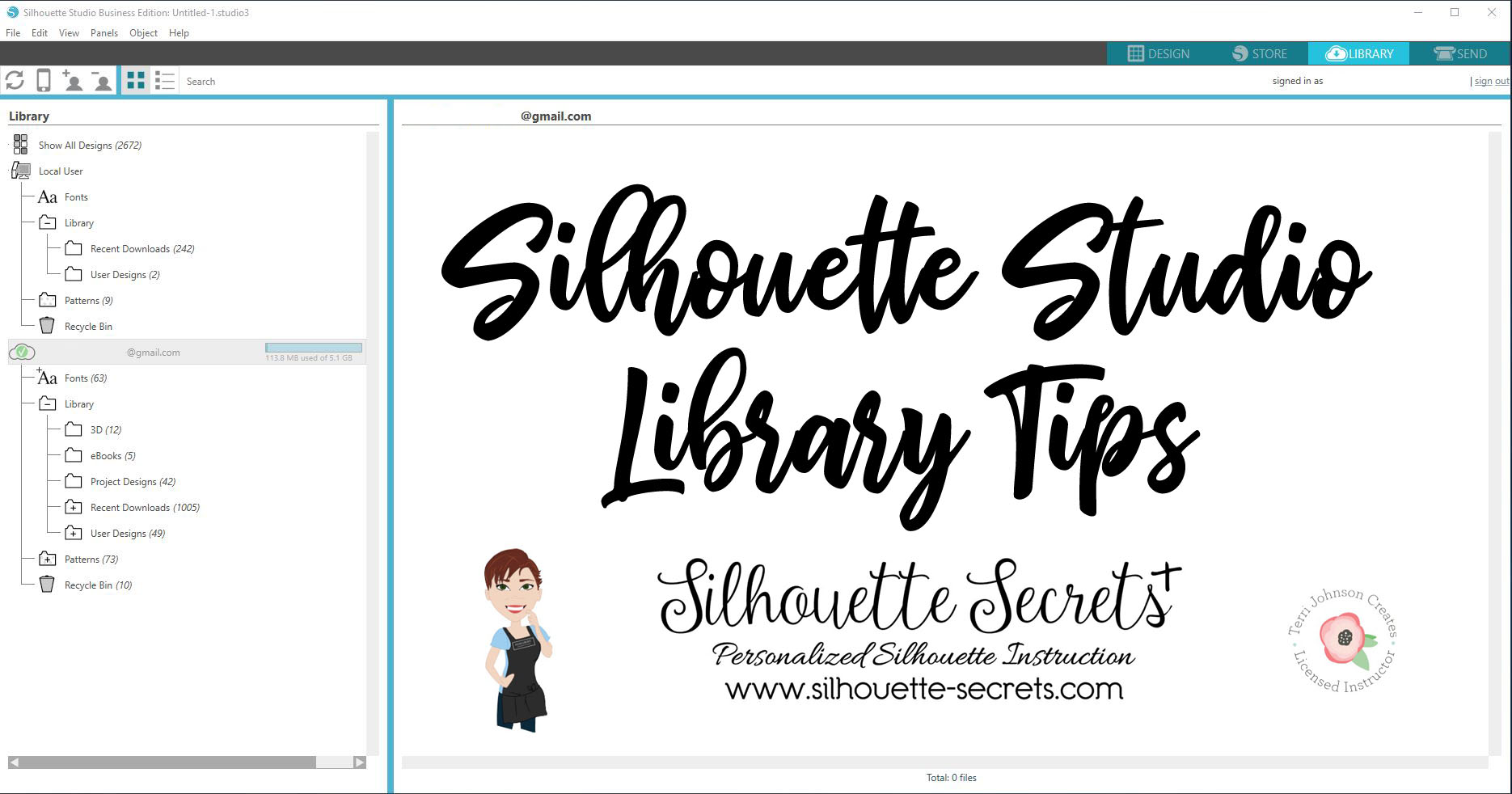
In the Silhouette software, you will find the Library tab in the top right corner.
Once you click on the Library tab, you will see the Library tree on the left side and the Design Preview Area on the right.
Silhouette Studio Library
As of this post (January 2, 2019), there are 2 main sections of the Silhouette library.
(This will be changing when v4.2 is released, so the information will be relevant for any user prior to v4.2.)
Local User section – this is the top section of the library and is computer specific. This means that personal files stored in this location do not automatically transfer to another computer, sync up to cloud, or are stored in another location.
Under the Local User section, there are several default folders.- Recent Downloads – this is where the Free files that come with a Silhouette machine will download to after the machine is connected, the Send tab in the software is selected, and the Silhouette machine is recognized.- User Designs – this folder is where you can save your personal designs. Keep in mind that this section is computer specific.
Under each folder, right click on it and a menu will pop up. This is how you can create new folders to organize the library tree.
Cloud library – this is anything under the email address in the Silhouette library tree.
Under the Cloud library, there are also several default folders.- Fonts – fonts files from the Silhouette Design Store will show under this folder. You cannot access the font files from this but it does show you which ones you have from the Design Store.
For information on how to install fonts from the Silhouette Design Store, check out this post by Julie Huggins at Sew Craft N’Spired – Installing Fonts for Use in the Silhouette Software.- Library – this folder contains several more default folders and more folders can be added to organize the library.
– Recent Downloads – this appears under the Library folder. If you do not see it, click on the (+) sign to expand the folder out.
This is where the files from the Silhouette Design Store will sync up to after the checkout process is complete. All files from the Silhouette Design store will download to here and you can move them to organize once they are synced up.
NEW!!! Silhouette America recently added the feature to be able to also download the Silhouette files directly to your computer.
This is a great feature for those who do not like using the Silhouette library.
On any new purchases, you can choose the Download button at the end of the Checkout process as shown above.
For older purchases, this can be accessed under the Silhouette Design Store > Account Settings.
Then you will either choose My Designs (single file download) or My Download History (download by Order #).
Note: if accessing the Silhouette Design Store through the Silhouette software, it does give you a warning that it will work better through a web browser directly.
This message says “Direct downloads work better in a Web browser (i.e. Chrome, Internet Explorer, Safari) than the software’s browser. You can download this order a the following address after signing into the store in your browser: ….”
This is the method I prefer to browse the store in most often.
My Designs
Click on the individual design file and then you will see a Download button available.
My Download History
Click on the Order number and then you will see Download buttons.
Here you can choose to Download all or select which files that you want to be included in the downloaded folder.
Then click on the Download now button.
– User Design – this is found under the Library folder as well. Save your personal files to this folder.
– Patterns – Pattern files from the Silhouette Design Store will download here or add your own.
– Recycle – delete and clear files from the Silhouette library.
Now, while the Silhouette Cloud library does sync to multiple devices there are some things to be aware of.
This is direct from the Silhouette website regarding the Silhouette Cloud library. “Silhouette America’s Cloud Storage is a syncing service rather than a backup service. Files deleted locally will be deleted on the cloud. We strongly recommend users save important and/or valuable files to another location outside of the cloud or local library, or to a third-party backup service.”
Show All Designs
At the top of the Library tree, you will see a folder that will give you the option to see all the designs in the entire library.
Whew! That is a lot of information on the Silhouette Cloud library.
But that’s not all.
Tips on the Silhouette Library
Organize designs into folders.
Create a new folder by right clicking on a folder in the library and choosing “New Folder”. This will add a new folder under the current folder that was selected.
Here is an example from my Library tree.
To move designs from the Recent Downloads folder, click and drag the design icon from the Design Preview area and drag it into the folder where you want it.
Check out this video on how to move designs in the Silhouette Library.
Each user’s organization is going to vary depending on what files they have. My 2 largest folders are Christmas and Wine, at the moment I’m not sure which one is winning.
Use the Search option
At the top of the library, type in a keyword you would like to pull up. This can narrow down the designs you have to scroll through in the library.
Back Up! Back Up! Back Up!
It is always a good time to make a backup and I recommend getting in the habit of doing so on a regular basis.
Here is how to make a backup of the library. Note, this will be 2 separate files.
Local User Section
Right click on the Local User section and choose Export. Save this file to a safe location. I like to save mine with the date included.
Cloud (email address and below) Section
Right click on the email address, choose Export and save this to a safe location. I add the date and ‘Cloud’ to the name of this file, so I can tell the difference in the files.
Store personal files outside the Silhouette library
I would highly suggest keeping at least a back up copy of the library on an outside source.
Personally, I keep a hard copy of all other files not from the Silhouette Design Store, on an external hard drive.
Each user will have a storage system that they most feel comfortable with.
For me, I have my main external hard drive and then I have a larger one that I backup to as well. Not as often as I should, but I’m working on that.
You could also use an online storage such as google drive, drop box, etc.
However, keep in mind that nothing is 100% safe and you never know when something can happen such as a computer crash.
Having multiple copies of your files backed up is always a good idea!
I hope this has helped you learn a little about the Silhouette library and give you some ideas for getting your library in shape.
Now, if you caught a glimpse of my library tree in the photos above, it’s time for me to do some organizing as well. With the recent Silhouette Design Store sale, I have some files to put into folders.
Hope that helps you start the year off right by getting the Silhouette library into shape & making a backup!!
**This post may contain affiliate links. What that means is that I may receive compensation if you purchase through the links I have provided. The price you pay for the product or service is not higher but I may get compensated for sharing.
THANK YOU for your support! How can you help? Click the link to buy a coffee. Every little bit helps in the cost of running the site.