Posted on 2 Comments

5 Silhouette “Secrets” to start the New Year

The Let’s Explore v4 series continues to be a popular series and will continue into 2020 as there is so much information that can be explored in the Silhouette Studio v4 software. Find the full series HERE.

Today we will explore 5 “secrets” or tips to start the New Year off right with the Silhouette Studio software.

5 Silhouette Studio “Secrets” from Silhouette Secrets+

Now, are these really “secrets”? Nope, but many users may not know about these tips or resources that are available in the Silhouette Studio software. And these could save you some headache and frustration down the road.

  1. Back up the Silhouette library. 
    Do you store personal files in the Silhouette library? Even if you do not, it is still a good idea to create a backup of the library on a regular basis. And what a perfect time to start that to kick off 2020.Backing up the library will vary depending on what version of the Silhouette Studio Software you are using.

    How do you know what version of the software you are using?
    On a PC, in the top left corner, click on Help > About Silhouette.

    Software version

    On a MAC, navigate to the top left menu, click on Silhouette Studio, and then click on About Silhouette.

    MAC About Silhouette copy
    (Thanks Libby Ashcraft for this MAC screenshot!)

    This little window tells us a lot of information and is handy to have when troubleshooting an issue a user is having.

    About Silhouette info copy

    It tells me that I am using version 4.3.353 and that I have Silhouette Studio Business Edition (ssbe) active on my computer.

    Making a Back up
    For users who have v4.2+, make sure you are signed into the Silhouette library and the library is synced with the current date and time. 

    Click on the Library tab in the top right corner and then look in the bottom left corner to see when the last Sync is time stamped.

    Library sync copy.jpg

    Ensuring that the library is synced will give you the most up-to-date back up file.

    Next, click on your name in the top left corner of the Library tab and choose Library Export.

    Library export copy

    It will ask where to save the File. Choose browse and choose a safe location.

    Browse Location copy.jpg

    I have created a folder on my external hard drive called Backups and save all my back up files there for Silhouette. I also add the date to the back up file name so I can locate the most recent one easily.

    Folder location copy

    This backup file is not a file that can be opened outside of the Silhouette Studio software. It only serves as a file that can be imported back into the software if you ever need to. This file does not contain individual files and the information cannot be accessed unless it is imported back into the Silhouette Studio software (if needed).  Most users may never need this file, but it is still a good idea to have, just in case.

    Once you have chosen the location to save to, then choose Export on the Silhouette pop up window.

    Export copy

    Be patient as it may take some time to export the library. This all depends on how much data is in the Silhouette library that it needs to condense into this file.

    If you have received a new computer and want to transfer Silhouette to the new computer check out this post “Let’s Explore v4 – New Computer” for tips on getting everything set up.

    What about users not on v4.2+?
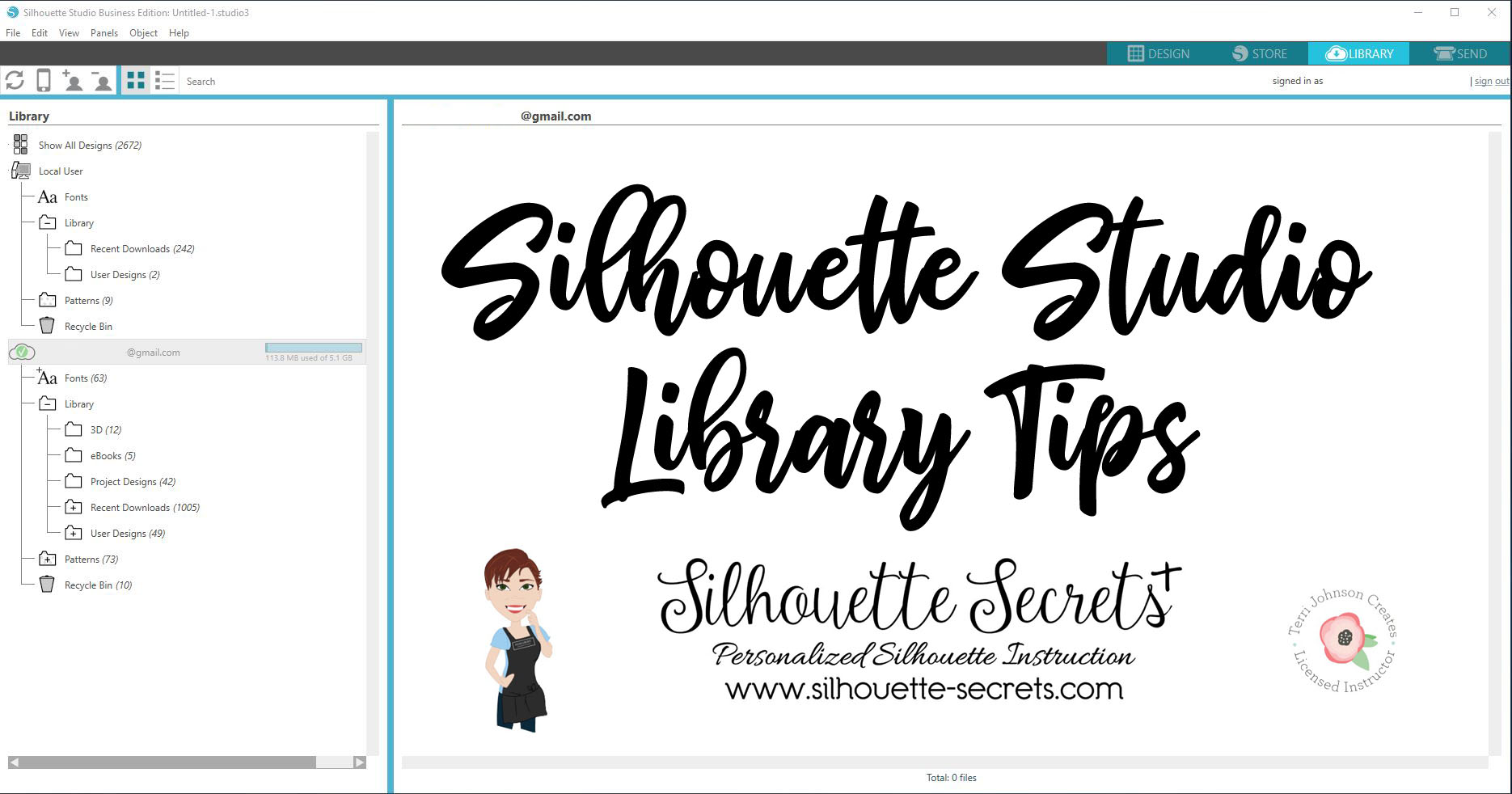
    For users on a software version prior to v4.2, check out this post on Silhouette Studio Library Tips to see how to export back up copies of both sections of the Silhouette library.

    Shape up your Silhouette Library copy

  2. Delete Recovered Documents
    Does the Recovered Documents panel open when you open Silhouette Studio? This is a feature that will Auto save a file if the software closes down or the computer is shut down unexpectedly. Each time the software is opened, each of those files is brought back up and the software remembers them. Clearing this out on a regular basis will keep your Silhouette software running smoother.For more information on why you want to keep this cleared and steps on how to clear this out check out this post on Recovered Documents.

    Header copy

  3. Set up the Library Snapshot feature
    A new feature of the software since v4.2 was released is the Library Snapshot. I love this feature! It will take a snapshot of the library and save it just in case something happens and you might need to revert back. For instance in the case of a corrupt file or downloading a “bad” font – these are 2 instances I’ve seen that a snapshot has helped users.For step by step details to set up the Library Snapshot, click HERE.

    Header Library Snapshot
    Keep in mind that the Library Snapshot will only capture when the software is closed and reopened, no matter what time frame that you have it set for. So if you leave the Silhouette Studio open on your computer for days or weeks, it will only take a snapshot after it’s been closed and reopened.

    Also, the Library Snapshot is computer specific, so if you use multiple computers or get a new computer, each computer will have it’s own snapshot log.

  4. Organize the Silhouette library into folders. 
    Designs in the Silhouette library can be organized into folders to organize in a way that you find helpful. Right click on the folder and choose New Folder.New Folder copy

    Type a new name for your folder and then hit Enter.

    New name copy
    Create folders for the different designs you have by categories like holidays, seasons, 3D designs, flowers, mermaids, unicorns, etc. However best your feel will help you to find your designs when you are trying to create.

    To move designs to a new folder, click on the file you want to move and drag it into the folder in the library tree on the left side. The design will disappear from the main folder and then the folder it was moved to should increase in the number of designs in it. To select multiple files, click on the 1st file, hold down the Shift key and then click on the last file you want to move. Then drag those files to the folder you want them to move to.

    Here is a quick video showing the files being moved to the new folders.

5. Create a back up of the library.
But, we already did this? Yes, however, if it is a good idea to do this before and after you have made any changes to the library. So, if you moved files around in the Silhouette library to organize it better, I would suggest creating a new backup that will reflect those changes.

There are so many things available in the Silhouette Studio software and I hope this helps you get the New Year kicked off to a fresh, smooth start!

Check out this video showing each of the 5 tips I shared above.

Feel free to post your project photos or questions on my Facebook group at Silhouette Secrets with EllyMae. We love seeing what you create!

Enjoy!

SS_Signature copySS Logo snip it

**This post may contain affiliate links. What that means is that I may receive compensation if you purchase through the links I have provided. The price you pay for the product or service is not higher but I may get compensated for sharing.
Posted on 22 Comments

Let’s Explore v4 – Silhouette Library tips

Silhouette Library Tips

*Blog post written with v4.1.206 of the Silhouette Studio Software

Happy New Year!
And what a better way to start the New Year off then getting our Silhouette libraries in shape.

In the Silhouette software, you will find the Library tab in the top right corner.

Library tab copy

Once you click on the Library tab, you will see the Library tree on the left side and the Design Preview Area on the right.

Silhouette Library copy

Silhouette Studio Library

As of this post (January 2, 2019), there are 2 main sections of the Silhouette library.
(This will be changing when v4.2 is released, so the information will be relevant for any user prior to v4.2.)

  1. Local User section – this is the top section of the library and is computer specific. This means that personal files stored in this location do not automatically transfer to another computer, sync up to cloud, or are stored in another location.Local User copy
    Under the Local User section, there are several default folders.- Recent Downloads – this is where the Free files that come with a Silhouette machine will download to after the machine is connected, the Send tab in the software is selected, and the Silhouette machine is recognized.- User Designs – this folder is where you can save your personal designs. Keep in mind that this section is computer specific.

    Under each folder, right click on it and a menu will pop up. This is how you can create new folders to organize the library tree.

    New Folder copy

  2. Cloud library – this is anything under the email address in the Silhouette library tree.Cloud library copy
    Under the Cloud library, there are also several default folders.- Fonts – fonts files from the Silhouette Design Store will show under this folder. You cannot access the font files from this but it does show you which ones you have from the Design Store.
    For information on how to install fonts from the Silhouette Design Store, check out this post by Julie Huggins at Sew Craft N’SpiredInstalling Fonts for Use in the Silhouette Software.- Library – this folder contains several more default folders and more folders can be added to organize the library.

    Recent Downloads – this appears under the Library folder. If you do not see it, click on the (+) sign to expand the folder out.

    Library recent downloads copy.jpg
    This is where the files from the Silhouette Design Store will sync up to after the checkout process is complete. All files from the Silhouette Design store will download to here and you can move them to organize once they are synced up.

    NEW!!! Silhouette America recently added the feature to be able to also download the Silhouette files directly to your computer.

    Store download
    This is a great feature for those who do not like using the Silhouette library.

    On any new purchases, you can choose the Download button at the end of the Checkout process as shown above.

    For older purchases, this can be accessed under the Silhouette Design Store > Account Settings.

    Account Settings copy

    Then you will either choose My Designs (single file download) or My Download History (download by Order #).

    Account Settings1 copy

    Note: if accessing the Silhouette Design Store through the Silhouette software, it does give you a warning that it will work better through a web browser directly.
    This message says
    “Direct downloads work better in a Web browser (i.e. Chrome, Internet Explorer, Safari) than the software’s browser. 
    You can download this order a the following address after signing into the store in your browser: ….”
    This is the method I prefer to browse the store in most often.

    Download designs.JPG

    My Designs

    Click on the individual design file and then you will see a Download button available.

    My Designs copy

    My Download History

    Click on the Order number and then you will see Download buttons.

    My Download History1 copy.jpg

    Here you can choose to Download all or select which files that you want to be included in the downloaded folder.

    My Download History2 copy.jpg
    Then click on the Download now button.

    My Download History3

    User Design – this is found under the Library folder as well. Save your personal files to this folder.

    Cloud library copy2

    Patterns – Pattern files from the Silhouette Design Store will download here or add your own.

    Recycle – delete and clear files from the Silhouette library.

    Now, while the Silhouette Cloud library does sync to multiple devices there are some things to be aware of.
    This is direct from the Silhouette website regarding the Silhouette Cloud library.
    “Silhouette America’s Cloud Storage is a syncing service rather than a backup service. Files deleted locally will be deleted on the cloud. We strongly recommend users save important and/or valuable files to another location outside of the cloud or local library, or to a third-party backup service.”

    Show All Designs
    At the top of the Library tree, you will see a folder that will give you the option to see all the designs in the entire library.

    All files copy

Whew! That is a lot of information on the Silhouette Cloud library.

But that’s not all.

Tips on the Silhouette Library

Shape up your Silhouette Library copy

Organize designs into folders.

Create a new folder by right clicking on a folder in the library and choosing “New Folder”. This will add a new folder under the current folder that was selected.
New Folder copy
Here is an example from my Library tree.
Library folders.JPG

To move designs from the Recent Downloads folder, click and drag the design icon from the Design Preview area and drag it into the folder where you want it.
Check out this video on how to move designs in the Silhouette Library.

Each user’s organization is going to vary depending on what files they have. My 2 largest folders are Christmas and Wine, at the moment I’m not sure which one is winning.

Use the Search option

At the top of the library, type in a keyword you would like to pull up. This can narrow down the designs you have to scroll through in the library.
Search copy

Back Up! Back Up! Back Up!

It is always a good time to make a backup and I recommend getting in the habit of doing so on a regular basis.
Here is how to make a backup of the library. Note, this will be 2 separate files.

Local User Section

Right click on the Local User section and choose Export. Save this file to a safe location. I like to save mine with the date included.

Export Library1 copy

Cloud (email address and below) Section

Right click on the email address, choose Export and save this to a safe location. I add the date and ‘Cloud’ to the name of this file, so I can tell the difference in the files.

Export Library copy

Store personal files outside the Silhouette library

I would highly suggest keeping at least a back up copy of the library on an outside source.
Personally, I keep a hard copy of all other files not from the Silhouette Design Store, on an external hard drive.
Each user will have a storage system that they most feel comfortable with.
For me, I have my main external hard drive and then I have a larger one that I backup to as well. Not as often as I should, but I’m working on that.
You could also use an online storage such as google drive, drop box, etc.
However, keep in mind that nothing is 100% safe and you never know when something can happen such as a computer crash.
Having multiple copies of your files backed up is always a good idea!

I hope this has helped you learn a little about the Silhouette library and give you some ideas for getting your library in shape.

Now, if you caught a glimpse of my library tree in the photos above, it’s time for me to do some organizing as well. With the recent Silhouette Design Store sale, I have some files to put into folders.

Library organization copy

Hope that helps you start the year off right by getting the Silhouette library into shape & making a backup!!

Feel free to post your comments and questions below or on my Facebook group at Silhouette Secrets with EllyMae.

Enjoy!

SS_Signature copySS Logo snip it

**This post may contain affiliate links. What that means is that I may receive compensation if you purchase through the links I have provided. The price you pay for the product or service is not higher but I may get compensated for sharing.