The Let’s Explore v4 series continues to be a popular series and will continue into 2020 as there is so much information that can be explored in the Silhouette Studio v4 software. Find the full series HERE.
Today we will explore 5 “secrets” or tips to start the New Year off right with the Silhouette Studio software.
5 Silhouette Studio “Secrets” from Silhouette Secrets+
Now, are these really “secrets”? Nope, but many users may not know about these tips or resources that are available in the Silhouette Studio software. And these could save you some headache and frustration down the road.
- Back up the Silhouette library.
Do you store personal files in the Silhouette library? Even if you do not, it is still a good idea to create a backup of the library on a regular basis. And what a perfect time to start that to kick off 2020.Backing up the library will vary depending on what version of the Silhouette Studio Software you are using.How do you know what version of the software you are using?
On a PC, in the top left corner, click on Help > About Silhouette.
On a MAC, navigate to the top left menu, click on Silhouette Studio, and then click on About Silhouette.

(Thanks Libby Ashcraft for this MAC screenshot!)This little window tells us a lot of information and is handy to have when troubleshooting an issue a user is having.

It tells me that I am using version 4.3.353 and that I have Silhouette Studio Business Edition (ssbe) active on my computer.
Making a Back up
For users who have v4.2+, make sure you are signed into the Silhouette library and the library is synced with the current date and time.Click on the Library tab in the top right corner and then look in the bottom left corner to see when the last Sync is time stamped.

Ensuring that the library is synced will give you the most up-to-date back up file.
Next, click on your name in the top left corner of the Library tab and choose Library Export.

It will ask where to save the File. Choose browse and choose a safe location.

I have created a folder on my external hard drive called Backups and save all my back up files there for Silhouette. I also add the date to the back up file name so I can locate the most recent one easily.

This backup file is not a file that can be opened outside of the Silhouette Studio software. It only serves as a file that can be imported back into the software if you ever need to. This file does not contain individual files and the information cannot be accessed unless it is imported back into the Silhouette Studio software (if needed). Most users may never need this file, but it is still a good idea to have, just in case.
Once you have chosen the location to save to, then choose Export on the Silhouette pop up window.

Be patient as it may take some time to export the library. This all depends on how much data is in the Silhouette library that it needs to condense into this file.
If you have received a new computer and want to transfer Silhouette to the new computer check out this post “Let’s Explore v4 – New Computer” for tips on getting everything set up.
What about users not on v4.2+?
For users on a software version prior to v4.2, check out this post on Silhouette Studio Library Tips to see how to export back up copies of both sections of the Silhouette library.
- Delete Recovered Documents
Does the Recovered Documents panel open when you open Silhouette Studio? This is a feature that will Auto save a file if the software closes down or the computer is shut down unexpectedly. Each time the software is opened, each of those files is brought back up and the software remembers them. Clearing this out on a regular basis will keep your Silhouette software running smoother.For more information on why you want to keep this cleared and steps on how to clear this out check out this post on Recovered Documents.
- Set up the Library Snapshot feature
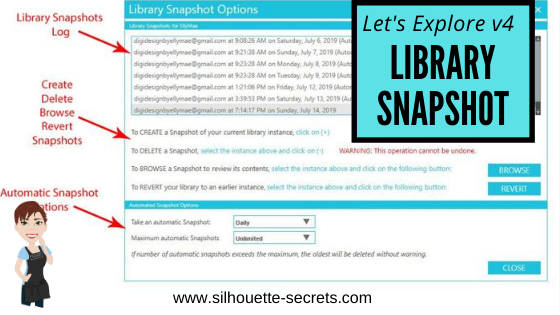
A new feature of the software since v4.2 was released is the Library Snapshot. I love this feature! It will take a snapshot of the library and save it just in case something happens and you might need to revert back. For instance in the case of a corrupt file or downloading a “bad” font – these are 2 instances I’ve seen that a snapshot has helped users.For step by step details to set up the Library Snapshot, click HERE.
Keep in mind that the Library Snapshot will only capture when the software is closed and reopened, no matter what time frame that you have it set for. So if you leave the Silhouette Studio open on your computer for days or weeks, it will only take a snapshot after it’s been closed and reopened.Also, the Library Snapshot is computer specific, so if you use multiple computers or get a new computer, each computer will have it’s own snapshot log.
- Organize the Silhouette library into folders.
Designs in the Silhouette library can be organized into folders to organize in a way that you find helpful. Right click on the folder and choose New Folder.
Type a new name for your folder and then hit Enter.

Create folders for the different designs you have by categories like holidays, seasons, 3D designs, flowers, mermaids, unicorns, etc. However best your feel will help you to find your designs when you are trying to create.To move designs to a new folder, click on the file you want to move and drag it into the folder in the library tree on the left side. The design will disappear from the main folder and then the folder it was moved to should increase in the number of designs in it. To select multiple files, click on the 1st file, hold down the Shift key and then click on the last file you want to move. Then drag those files to the folder you want them to move to.
Here is a quick video showing the files being moved to the new folders.
5. Create a back up of the library.
But, we already did this? Yes, however, if it is a good idea to do this before and after you have made any changes to the library. So, if you moved files around in the Silhouette library to organize it better, I would suggest creating a new backup that will reflect those changes.
There are so many things available in the Silhouette Studio software and I hope this helps you get the New Year kicked off to a fresh, smooth start!
Check out this video showing each of the 5 tips I shared above.
Feel free to post your project photos or questions on my Facebook group at Silhouette Secrets with EllyMae. We love seeing what you create!
Enjoy!