Posted on Leave a comment

4 Confusing Silhouette Studio Tools that Surprise Users Most

Silhouette Secrets+ with EllyMae

I have been troubleshooting with Silhouette users since 2016, and we have answered a lot of questions during the years. One of the most common questions is “What is this?” and “Why did it just appear?” In this blog post, I’m sharing more details on 4 of the tools that are often confused with each other, how they get turned on, how to turn them off, and where to find more information on each of the tools. These 4 tools can be useful when designing in Silhouette Studio, but not all users utilize them or will use them all of the time. That is one of the great things about Silhouette is the choice of having the options to use a tool or feature. This is also one of those cases where if a user doesn’t know what a tool does specifically, they may never know that it can actually be really useful to them in their workflow.

Affiliate links may be present in the following blog post and as an Amazon Associate, I earn from qualifying purchases.

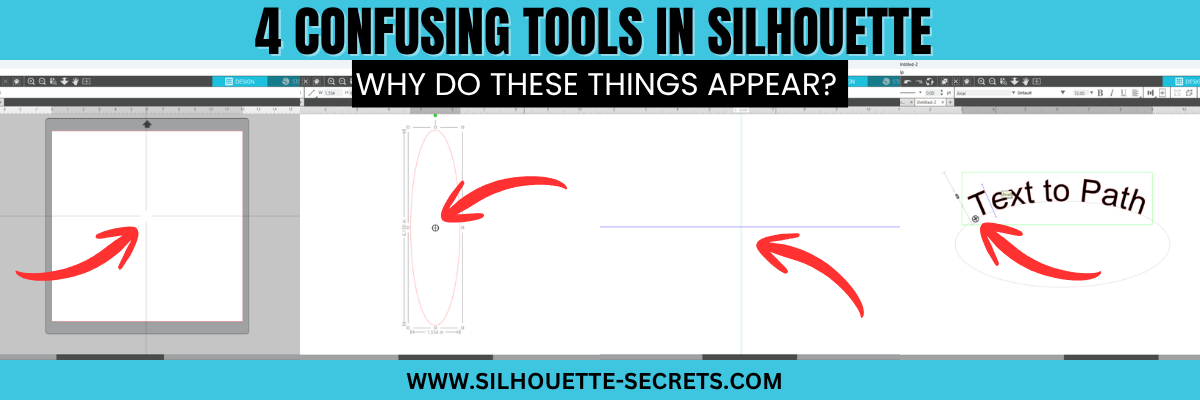
The 4 tools in Silhouette Studio that are often confused are:

  • Crosshairs
  • Center of Rotation
  • Guides
  • Text to Path Control Point

Watch the YouTube video on this topic on the Silhouette Secrets+ YouTube channel HERE and scroll down below to see additional information on each as well.

Crosshairs in Silhouette Studio

Crosshairs usually appear for 2 reasons.

  1. Pressing the letter ‘H’ on the keyboard toggles it on and off.
  2. A file is opened that the designer saved it with crosshairs on.

Typically we see crosshairs appear because a user thinks that they have activated Text Mode and it did not take. So when the letter ‘H’ is pressed on the keyboard, it toggles it on.

Crosshairs can be turned on and off 3 ways:

  1. Press the letter ‘H’ key. If they don’t turn on and off, click on the design mat and then press ‘H’ again.
  2. Open the Page Setup Panel, click on Tab 2, and click the Crosshairs button.
  3. In the top left menu, under View, select Turn on Crosshairs.

Crosshairs are a Designer Edition upgrade feature and those on Basic will not see this available.

Find additional details on Crosshairs in Silhouette in this tutorial HERE.

Center of Rotation in Silhouette Studio

Center of Rotation looks like a little circle with crosshairs in the middle of it and appears in the center of a design typically.

This tool typically appears for 2 reasons also:

  1. It can be toggled on and off by pressing the letter ‘O’ key with a design selected.
  2. A design was saved with Center of Rotation on and was opened.

Again, if a user thinks they are in text mode and a design was selected, if the letter ‘O’ key is pressed it will toggle it on and off.

Center of Rotation is a Designer Edition feature and those using Basic will not have this option.

Center of Rotation can be activated or deactivated in 2 ways:

  1. Press the letter ‘O’ key with an object selected.
  2. Under Preferences, in the Defaults tab, Center of Rotation can be toggled on and off.

See additional information on the Center of Rotation in Silhouette Studio HERE.

Preferences can be found in 2 places in Silhouette:

  1. On the Design tab, gear icon in the bottom right corner.
  2. Top left menu, under Edit, then Preferences.

Additional information on Preferences can be found in these tutorials:

Guides in Silhouette Studio

Guides can be pulled from the rulers on the top or right side of Silhouette Studio. Guides are a Designer Edition upgrade feature along with Rulers.

These can be accidentally activated if clicking the mouse on top of the rulers or click & pull from the ruler area onto the design mat.

Guides can be deleted by clicking on one to activate it, it will turn dark blue, then press delete. Light blue color means it is not the active Guide selected.

Guide settings can be found under the Page Setup Panel, under Tab 2. Snap to Guides is by default always active, but unless you have a Guide placed on the file, you won’t see it work. Guides can be toggled on and off under this tab too.

Guides can also be found in the top left menu under View, then select the option desired.

Additional details on Guides in Silhouette can be found HERE.

Text to Path Control Point in Silhouette Studio

This control point appears any time there is editable text activated.

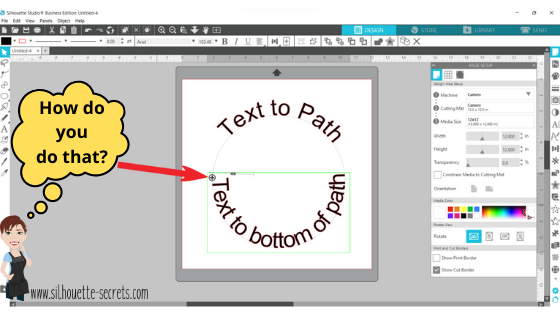
This is the control handle that is used to drag text to a path and have it snap to the path. This feature is always available on editable text and there is no way to turn it off.

Find more details on Text to Path HERE.

The April 2026 member exclusive tutorial for the Creative Community is an in-depth tutorial on Text to Path with advanced techniques too! Check out more details on the Creative Community HERE.

*Creative Community members watch for a cheat sheet on these tools coming soon to April’s forum!

Graphic showcasing the interface of Silhouette Studio with the title '4 Confusing Tools in Silhouette Studio', highlighting design tools and features.

Save this for future reference by pinning the image below.

Enjoy !

THANK YOU for your support! How can you help? Click HERE & buy a coffee.
Every little bit helps with the cost of running the site.

Silhouette Classes

Never stop learning! Let me help you take the anxiety out of learning with Silhouette and get to creating faster! My Silhouette classes are heavily focused on software, so you can take the skills & techniques taught and apply them to many future projects!

Silhouette step-by-step Classes by Silhouette Secrets+

Silhouette Secrets+ with EllyMae
**This post may contain affiliate links. What that means is that I may receive compensation if you purchase through the links I have provided. The price you pay for the product or service is not higher, but I may get compensated for sharing.

Posted on 2 Comments

Create Stunning Silhouette Projects with Sarah Hurley’s Designs: Cards, T-shirts & More

Crafting Creativity Sarah Hurley
Silhouette Secrets+ with EllyMae

In this edition of Crafting Creativity I’ll be sharing the projects I created through the month with an arrow background/stencil design. So many great options from one file! A great big thank you to Sarah Hurley for providing the free file for the Silhouette Secrets+ August newsletter!

Affiliate links may be present in the following blog post and as an Amazon Associate, I earn from qualifying purchases.

Sarah Hurley website

What is Crafting Creativity?

I started sharing a blog post each month where I’m sharing the projects I’ve created with 1 file from an artist I have collaborated with. This is a file that the designer has provided for the Silhouette Secrets+ Newsletter subscribers and each month is something new! My goal is to share how you can take 1 design and think about different projects use it in to make your designs go farther! In each blog post, I’m sharing the projects created, the supply list, and additional resources that can help you learn more and advance your skills!

Sarah Hurley Arrow Background Stencil Design Silhouette Design Store

Crafting Creativity with Sarah Hurley

Project #1 – Fun Card with Bosh Cat and Arrow Background

Card created with designs by Sarah Hurley

I knew the moment I saw the Bosh cat design that I wanted to use him on a project. In following Sarah Hurley on social media and saw that she had adopted him, so I watch for his appearances. I always wonder what he’s thinking and feel like many of her designs would fit right in with Bosh’s thoughts.

Additional Resources:

Supplies Used:

Project #2 – Fun Interchangeable Sign

Fun Interchangeable Sign with Silhouette with designs by Sarah Hurley

Projects seem to take on a life of their own and I am getting better about just going with the flow of things and the direction it takes me. I knew I wanted to start with something bigger with this project and it developed along the way.

This fun sign is magnetic and the saying can be swapped out depending on what mood strikes you. Feeling snarky? Add a snarky saying. Sarah Hurley has some good ones in the Silhouette Design Store and sometimes I just enjoy scrolling through them for a laugh.
Need a pick-me-up? Add an inspiration saying…. or – leave them guessing at what will be up next.

Watch the video on the Silhouette Secrets+ YouTube channel and learn how to create your own interchangeable sign. Find it out HERE or click the image below.

Video Tutorial link to Silhouette Secrets+ YouTube channel for Interchangeable Sign
Video tutorial on the Silhouette Secrets+ YouTube channel HERE

Additional Resources:

Supplies Used:

Project #3 – This Side Up T-Shirt Using Text to Path

Text To Path T-Shirt Design in Silhouette with designs by Sarah Hurley

This was a fun way to use up scraps and create a fun shirt for myself. Anyone who’s ever traveled with me knows that I can trip over thin air. It’s genetic or that’s what we joke about because I get it from my Mom. If you ever see me on the ground, you’ll know why.

Text to Path is an awesome feature in the Silhouette Studio software and is available for all users. Check out how easy it is in this new video – Silhouette Tutorial: Quick and Easy Text to Path Tutorial HERE.

Silhouette Tutorial Text to Path

Additional Resources:

Supplies Used:

Project #4 – Sublimation Journal Cover with a Stencil

Grafix Stencil Film with Silhouette

I love being able to create my own projects and modify them as needed. That is exactly what I did in creating this stencil with the Grafix Stencil Film. The arrow background/stencil design came in as a square, but I was able to modify it with a few simple steps to make it for what I needed.

Check out more details on how I created the stencil in this blog post:
Create Customs Stencils: Using Grafix Stencil Film with Your Silhouette HERE

Stencil Design in Silhouette Studio with Sarah Hurley design

This was a fun project I created in a collaboration with Grafix Arts. Find the new video tutorial on the Grafix YouTube channel HERE

Additional Resources:

Supplies Used:

Project #5 – Bookmarks with Print and Cut

Silhouette Print and Cut Bookmarks with a Holographic Overlay with Sarah Hurley design

I used the arrow background/stencil design to create these bookmarks and then added my own custom color to it with the help of the Color Cubes by Sarah Renae Clark to select a color palette for the 2 different designs.

I shared how I did that in this video – Silhouette Studio Custom Color Palette Add Colors found HERE on the Silhouette Secrets+ YouTube channel.

Custom Color Palette in Silhouette Studio

The holographic overlay adds a fun touch as well as protects the bookmark front too!

Additional Resources:

Supplies Used:

I hope this edition of Crafting Creativity with Sarah Hurley has sparked a few ideas about what you can create. Write those ideas down and see where they take you!!!

Find more amazing designs by Sarah Hurley at the Silhouette Design Store. Follow along with Sarah Hurley on their website, Facebook, and Instagram too!

A great big thank you to Sarah Hurley for contributing the free file for the Silhouette Secrets+ newsletter for the month of August! If you missed grabbing the free Arrow Background/Stencil, it is available in the Silhouette Design Store HERE.

Sign up for the weekly newsletter HERE to have information delivered direct to your inbox and grab the new freebie each month.

Silhouette Secrets+ Newsletter

Never miss out on the news, tips, “secrets”, deals, classes, and more that I share on Silhouette Secrets+. Sign up for the newsletter and get information delivered to your inbox every Friday.
Unsubscribe at anytime.

I hope this has given you some ideas on how one file can lead to many different projects!

Save this for future reference by pinning the image below.

Multiple Projects from 1 Design by Sarah Hurley

Enjoy !

THANK YOU for your support! How can you help? Click HERE & buy a coffee.
Every little bit helps with the cost of running the site.

Silhouette Classes

Never stop learning! Let me help you take the anxiety out of learning with Silhouette and get to creating faster! My Silhouette classes are heavily focused on software, so you can take the skills & techniques taught and apply them to many future projects!

Silhouette step-by-step Classes by Silhouette Secrets+

Silhouette Secrets+ with EllyMae
**This post may contain affiliate links. What that means is that I may receive compensation if you purchase through the links I have provided. The price you pay for the product or service is not higher but I may get compensated for sharing.
Posted on 4 Comments

Let’s Explore v4 – Text to Path

How do you place text around a circle? This is the question I see most often. It’s a very neat feature called Text to Path and it’s pretty simple to use.

I have updated this tutorial to include a video that is available on my
YouTube channel HERE.

Check out the full written tutorial below showing all the different aspects of Text to Path.

Text to path

*original post written 3/2019 created in version 4.2 of the Silhouette software – all features are still current and up to day for 3/2022 v4.4

Let’s explore how to take ordinary text and make it more interesting by adding it onto a path. The most common way I see this used is when you want the text to form to a circle or oval shape.
But why stop there? You can add text onto so many other paths.

Text to Path photo copy

Let’s take a look at how to do this.

Click on the Text tool on the left side, then click on the mat to get a text cursor and type out the text.

Text to Path 1 copy

Next, I fill my text with color using the Fill Color Panel on the right side. This helps to see the text better and select the object easier.

Then, click on the Text Style Panel on the right side and change the text style.

Now, draw the shape that you want the text to snap to. Let’s start with an oval, since this is the most common shape I see users try to use.
Note: I have increased the Line thickness so that you can see my shape easier.

Text to Path on circle copy

Double click on the text and a control point will appear in the bottom left corner.
Note: if the text has been changed in any way, such as welding or converting to path, it is no longer editable text and this will not appear.

Text to Path Circle2 copy

Grab the control point and drag it to the object you want it to conform to.

When the text snaps to the shape, a slider bar will appear on the left side and the text can be adjusted.

Text slider out copy

Moving the slider up on the bar, moves the text out away from the shape.

Text Slider in copy

Moving the slider down on the bar, moves the text inside of the line of the shape.

Make any additional changes to the text, such as increasing the character spacing, etc.

If you have a script text, right click and choose Weld.

Weld copy

This will weld any overlapping letters and then release the font from the shape.
Now, keep in mind that the text is no longer editable once it is welded. Make a copy and pull it to the side if you want to keep the original text to go back to.

Each font style is going to look different and you may need to adjust the character spacing on the Text Style Panel to make it overlap so it welds.

If the text is not overlapping, right click on the text and choose Convert to Path.

Convert to path copy

This will release the font from the shape.
Now, the text is a design and no longer editable text.

This is an important step, especially if you are cutting the design from HTV and need to flip the image before you cut. If the text is not converted to a path, it will not flip correctly.

Flip Horizontally copy

Now, if that ever happens, you know why and how to fix it.
Make sure to convert to path or weld before you flip the design.

Now, let’s play with some shapes.

Flexi-Shapes are a great option to play with. This is a Designer Edition Plus or Business Edition upgrade feature only. Flexi-shapes are found on the left side.
More details on Flexi-Shapes can be found HERE.
I chose the star and then changed the points to 5.

Flexi Shapes copy

I have increased the Line thickness again, so it can be seen better.

Now, type out the text.

If the text does not fit on one line, grab the teal slider bar on the right side and move it farther right, until all the text is on one line.

Now, grab the control point that appears in the bottom left corner of the text box and drag it to the shape. Move it around the shape until you have it how you like.

Twinkle star control point copy

Each font and shape will vary in what looks better or if it splits words, etc. Play with the character spacing, the text size, and more until the desired look is achieved.

Want the text on a wave?

Use the Draw Curve Shape found under the Line tools on the left side and draw your wave.

Text to wave copy

Type out the text, grab the control point in the bottom left, and drag to the wavy line.

Text to wave2 copy

When it’s positioned how you like, right click and choose Convert to Path. Now, the line can moved away.

Wave finished copy

Now, what can you think of to create with the Text to Path feature?

What about adding to a pre-made design to personalize it?

Granny design copy
Up Up Away copy

Or inside a banner?

Happy Birthday Banners copy

A design for a card or a sign on a wall?

Welcome Little One copy

Each one of these shapes works a bit differently and you will need to play with it to see how the Text to Path snaps to the image.

Don’t forget to make a copy of the design before right clicking on the image and choosing Convert to Path.

I would love to see what you create with this feature!

Affiliate links may be present in the following blog post and as an Amazon Associate I earn from qualifying purchases.

Here are some of the designs used in the examples above:
Heart Arrow by Sophie Gallo – Design #177769
Hot Air Balloon by Rhonna Farrer – Design #182992
Banner by American Crafts – Design #19529
Banner by Skyla Design – Design #267349
Basic Banner by Silhouette – Design #141887
Baby Footprint Heart by Studio Illustrado – Design #198883

I would love to see what you are creating with your Silhouette software or machines!
Or if you have any questions, feel free to post photos or questions on my Facebook group at 
Silhouette Secrets with EllyMae.

Save this for future reference by pinning the image below.

Enjoy !

THANK YOU for your support! How can you help? Click HERE & buy a coffee.
Every little bit helps with the cost of running the site.

Silhouette Classes

Never stop learning! Let me help you take the anxiety out of learning with Silhouette and get to creating faster! My Silhouette classes are heavily focused on software, so you can take the skills & techniques taught and apply them to many future projects!

Silhouette step-by-step Classes by Silhouette Secrets+

SS Logo snip it
**This post may contain affiliate links. What that means is that I may receive compensation if you purchase through the links I have provided. The price you pay for the product or service is not higher but I may get compensated for sharing.
Posted on 14 Comments

Mastering the Line Tools in Silhouette Studio: Your Ultimate Guide to Precision Design

Silhouette Studio Line Tools
Silhouette Secrets+ with EllyMae

Let’s Explore v4 – Line Tools in Silhouette Studio

When it comes to creating stunning designs in Silhouette Studio, the Line Tools are your secret weapon for precision and creativity. From drawing simple straight lines to crafting intricate custom shapes, these tools open up endless possibilities for your crafting projects. Whether you’re a beginner exploring the basics or an experienced designer looking to refine your techniques, understanding how to use the Line Tools effectively can take your designs to the next level. In this guide, we’ll walk you through each Line Tool, share pro tips for maximizing their potential, and show you how to incorporate them into your next Silhouette masterpiece. Let’s dive in!

Sometimes, I think that the tools on the left side of the Silhouette Software get lonely. There is so much that you can do within the software in creating your own designs and I love seeing what everyone comes up with.

First, let’s take a look at the Design Tab. On the left side are the Tools in the software and on the right side are the Panels which control the properties of the objects created.

Silhouette Studio: Tools vs Panels copy

Check out the Let’s Explore v4 series (HERE) to see more information on the Panels on the right side and how they can be used.

And if you need a little more detailed diagram of the Design tab, don’t forget to grab the FREE PDF in this post – HERE.

Silhouette Studio: Let's Explore v4 diagram

Silhouette – Line Tools

Today, we are going to cover the Line Tools located on the left side of the Silhouette Studio software. This is available for all users, no matter if you have a software upgrade or not.

Silhouette Line Tools on left side

Here is a close up of the options available in the Line Tools menu – Draw a Line, Draw a Polygon, Draw a Curved shape, and Draw an Arc

Silhouette Line Tools Close Up

Draw a Line

This will draw a simple line from Point A to Point B. Holding down the Shift key will make it a vertical, 45 diagonal, or horizontal line.

Silhouette: Draw a Line

I often will draw a line if I have to separate designs when cutting without a mat to make it easier to weed.

Silhouette Line as Weeding Lines

Sometimes, I’ll use the Weeding Lines within the Silhouette software, but other times, it’s just as easy to draw my own line.

If you want to connect 2 separate lines together, check out this post on How to Connect Lines in Silhouette HERE.

Draw a Polygon

This tool will continue to draw lines until you connect the red dots together to close the shape or double click to end the line.
Holding down the Shift key will also make it a vertical, horizontal, or 45 degree angle line.

Silhouette Polygon Line Tool

Have some fun and see what kinds of shapes you can draw. Turning on the Snap to Grid found under the Page Setup Panel – Tab 2, can also help in making sure that you get even spacing and help with drawing objects.

I’ll use this tool or the Draw Curve Shape to create my own weeding lines around a detailed design or when I’m cutting multiple designs on a page.

Silhouette Polygon Line Tool as Weeding Lines

A combination of tools can make it easier to weed a detailed design or a page filled with designs like the one above by allowing you to weed smaller areas instead of having a full sheet of Oracal 651 stick back to itself.

Draw a Curve Shape

This tool will draw a line each time you click the mouse, but the point will be a curved point.

Silhouette Draw a Curved Shape

Continue clicking the mouse to add points and curves in the shape. Double click to end the line or connect back to the first red dot to complete the shape.

After the design is complete, double click on the line and the Edit Points will pop up and the design can be altered more.

Silhouette Edit Points

Each point has 2 blue squares that are handles that can be adjusted. Or select an option from the Point Edit Panel on the right hand side.

Silhouette Edit Point Demo

Draw an Arc

Select this tool and click onto the design mat, this will be the starting point of the Arc line. Move the mouse and the next click completes the Arc.

Silhouette Draw an Arc Tool

In the center of the arc, there is a grab handle that can be moved in or out to alter the Arc even more.

Click off of the design and an arc line is left.

Silhouette Arc Tool

There are so many fun things that can be created with the tools in the software. You can create your own shapes, add weeding lines, or add Text to the Path you have created.

Silhouette Line Tools Text to Path Demo

What will you use the Silhouette Line tools for?

Save this for future reference by pinning the image below.

Silhouette Line Tools Pinterest

Enjoy !

THANK YOU for your support! How can you help? Click HERE & buy a coffee.
Every little bit helps with the cost of running the site.

Silhouette Classes

Never stop learning! Let me help you take the anxiety out of learning with Silhouette and get to creating faster! My Silhouette classes are heavily focused on software, so you can take the skills & techniques taught and apply them to many future projects!

Silhouette step-by-step Classes by Silhouette Secrets+

Silhouette Secrets+ with EllyMae
**This post may contain affiliate links. What that means is that I may receive compensation if you purchase through the links I have provided. The price you pay for the product or service is not higher but I may get compensated for sharing.
Posted on 7 Comments

Let’s Explore v4 – Text to path

Text to path

*created in version 4.2 of the Silhouette software

Let’s explore how to take ordinary text and make it more interesting by adding it onto a path. The most common way I see this used is when you want the text to form to a circle or oval shape.
But why stop there? You can add text onto so many other paths.

Text to Path photo copy

Let’s take a look at how to do this.

Click on the Text tool on the left side, then click on the mat to get a text cursor and type out the text.

Text to Path 1 copy

Next, I fill my text with color using the Fill Color Panel on the right side. This helps to see the text better and select the object easier.

Then, click on the Text Style Panel on the right side and change the text style.

Now, draw the shape that you want the text to snap to. Let’s start with an oval, since this is the most common shape I see users try to use.
Note: I have increased the Line thickness so that you can see my shape easier.

Text to Path on circle copy

Double click on the text and a control point will appear in the bottom left corner.
Note: if the text has been changed in any way, such as welding or converting to path, it is no longer editable text and this will not appear.

Text to Path Circle2 copy

Grab the control point and drag it to the object you want it to conform to.

When the text snaps to the shape, a slider bar will appear on the left side and the text can be adjusted.

Text slider out copy

Moving the slider up on the bar, moves the text out away from the shape.

Text Slider in copy

Moving the slider down on the bar, moves the text inside of the line of the shape.

Make any additional changes to the text, such as increasing the character spacing, etc.

If you have a script text, right click and choose Weld.

Weld copy

This will weld any overlapping letters and then release the font from the shape.
Now, keep in mind that the text is no longer editable once it is welded. Make a copy and pull it to the side if you want to keep the original text to go back to.

Each font style is going to look different and you may need to adjust the character spacing on the Text Style Panel to make it overlap so it welds.

If the text is not overlapping, right click on the text and choose Convert to Path.

Convert to path copy

This will release the font from the shape.
Now, the text is a design and no longer editable text.

This is an important step, especially if you are cutting the design from HTV and need to flip the image before you cut. If the text is not converted to a path, it will not flip correctly.

Flip Horizontally copy

Now, if that ever happens, you know why and how to fix it.
Make sure to convert to path or weld before you flip the design.

Now, let’s play with some shapes.

In the newly released v4.2 software, there are Flexi-Shapes on the left tool menu. I chose the star and then changed the points to 5.

Flexi Shapes copy

I have increased the Line thickness again, so it can be seen better.

Now, type out the text.

If the text does not fit on one line, grab the teal slider bar on the right side and move it farther right, until all the text is on one line.

Text expansion copy

Now, grab the control point that appears in the bottom left corner of the text box and drag it to the shape. Move it around the shape until you have it how you like.

Twinkle star control point copy

Each font and shape will vary in what looks better or if it splits words, etc. Play with the character spacing, the text size, and more until the desired look is achieved.

Want the text on a wave?

Use the Draw Curve Shape tool on the left side and draw your wave.

Text to wave copy

Type out the text, grab the control point in the bottom left, and drag to the wavy line.

Text to wave2 copy

When it’s positioned how you like, right click and choose Convert to Path. Now, the line can moved away.

Wave finished copy

Now, what can you think of to create with the Text to Path feature?

What about adding to a pre-made design to personalize it?

Granny design copy

Up Up Away copy

Or inside a banner?

Happy Birthday Banners copy

A design for a card or a sign on a wall?

Welcome Little One copy

Each one of these shapes works a bit differently and you will need to play with it to see how the Text to Path snaps to the image.

Don’t forget to make a copy of the design before right clicking on the image and choosing Convert to Path.

Text To Path

I would love to see what you create with this feature!

Designs used in the examples are from the Silhouette Design Store:
Heart Arrow by Sophie Gallo – Design #177769
Hot Air Balloon by Rhonna Farrer – Design #182992
Banner by American Crafts – Design #19529
Banner by Skyla Design – Design #267349
Basic Banner by Silhouette – Design #141887
Baby Footprint Heart by Studio Illustrado – Design #198883

Feel free to post your comments and questions below or on my Facebook group at Silhouette Secrets with EllyMae.

Enjoy!

SS_Signature copySS Logo snip it

**This post may contain affiliate links. What that means is that I may receive compensation if you purchase through the links I have provided. The price you pay for the product or service is not higher but I may get compensated for sharing.