Posted on Leave a comment

4 Confusing Silhouette Studio Tools that Surprise Users Most

Silhouette Secrets+ with EllyMae

I have been troubleshooting with Silhouette users since 2016, and we have answered a lot of questions during the years. One of the most common questions is “What is this?” and “Why did it just appear?” In this blog post, I’m sharing more details on 4 of the tools that are often confused with each other, how they get turned on, how to turn them off, and where to find more information on each of the tools. These 4 tools can be useful when designing in Silhouette Studio, but not all users utilize them or will use them all of the time. That is one of the great things about Silhouette is the choice of having the options to use a tool or feature. This is also one of those cases where if a user doesn’t know what a tool does specifically, they may never know that it can actually be really useful to them in their workflow.

Affiliate links may be present in the following blog post and as an Amazon Associate, I earn from qualifying purchases.

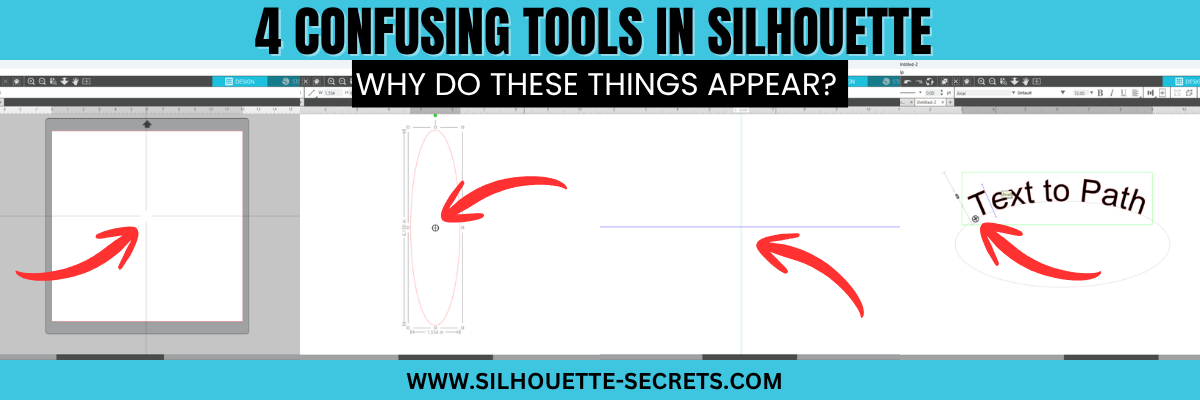
The 4 tools in Silhouette Studio that are often confused are:

  • Crosshairs
  • Center of Rotation
  • Guides
  • Text to Path Control Point

Watch the YouTube video on this topic on the Silhouette Secrets+ YouTube channel HERE and scroll down below to see additional information on each as well.

Crosshairs in Silhouette Studio

Crosshairs usually appear for 2 reasons.

  1. Pressing the letter ‘H’ on the keyboard toggles it on and off.
  2. A file is opened that the designer saved it with crosshairs on.

Typically we see crosshairs appear because a user thinks that they have activated Text Mode and it did not take. So when the letter ‘H’ is pressed on the keyboard, it toggles it on.

Crosshairs can be turned on and off 3 ways:

  1. Press the letter ‘H’ key. If they don’t turn on and off, click on the design mat and then press ‘H’ again.
  2. Open the Page Setup Panel, click on Tab 2, and click the Crosshairs button.
  3. In the top left menu, under View, select Turn on Crosshairs.

Crosshairs are a Designer Edition upgrade feature and those on Basic will not see this available.

Find additional details on Crosshairs in Silhouette in this tutorial HERE.

Center of Rotation in Silhouette Studio

Center of Rotation looks like a little circle with crosshairs in the middle of it and appears in the center of a design typically.

This tool typically appears for 2 reasons also:

  1. It can be toggled on and off by pressing the letter ‘O’ key with a design selected.
  2. A design was saved with Center of Rotation on and was opened.

Again, if a user thinks they are in text mode and a design was selected, if the letter ‘O’ key is pressed it will toggle it on and off.

Center of Rotation is a Designer Edition feature and those using Basic will not have this option.

Center of Rotation can be activated or deactivated in 2 ways:

  1. Press the letter ‘O’ key with an object selected.
  2. Under Preferences, in the Defaults tab, Center of Rotation can be toggled on and off.

See additional information on the Center of Rotation in Silhouette Studio HERE.

Preferences can be found in 2 places in Silhouette:

  1. On the Design tab, gear icon in the bottom right corner.
  2. Top left menu, under Edit, then Preferences.

Additional information on Preferences can be found in these tutorials:

Guides in Silhouette Studio

Guides can be pulled from the rulers on the top or right side of Silhouette Studio. Guides are a Designer Edition upgrade feature along with Rulers.

These can be accidentally activated if clicking the mouse on top of the rulers or click & pull from the ruler area onto the design mat.

Guides can be deleted by clicking on one to activate it, it will turn dark blue, then press delete. Light blue color means it is not the active Guide selected.

Guide settings can be found under the Page Setup Panel, under Tab 2. Snap to Guides is by default always active, but unless you have a Guide placed on the file, you won’t see it work. Guides can be toggled on and off under this tab too.

Guides can also be found in the top left menu under View, then select the option desired.

Additional details on Guides in Silhouette can be found HERE.

Text to Path Control Point in Silhouette Studio

This control point appears any time there is editable text activated.

This is the control handle that is used to drag text to a path and have it snap to the path. This feature is always available on editable text and there is no way to turn it off.

Find more details on Text to Path HERE.

The April 2026 member exclusive tutorial for the Creative Community is an in-depth tutorial on Text to Path with advanced techniques too! Check out more details on the Creative Community HERE.

*Creative Community members watch for a cheat sheet on these tools coming soon to April’s forum!

Graphic showcasing the interface of Silhouette Studio with the title '4 Confusing Tools in Silhouette Studio', highlighting design tools and features.

Save this for future reference by pinning the image below.

Enjoy !

THANK YOU for your support! How can you help? Click HERE & buy a coffee.
Every little bit helps with the cost of running the site.

Silhouette Classes

Never stop learning! Let me help you take the anxiety out of learning with Silhouette and get to creating faster! My Silhouette classes are heavily focused on software, so you can take the skills & techniques taught and apply them to many future projects!

Silhouette step-by-step Classes by Silhouette Secrets+

Silhouette Secrets+ with EllyMae
**This post may contain affiliate links. What that means is that I may receive compensation if you purchase through the links I have provided. The price you pay for the product or service is not higher, but I may get compensated for sharing.

Posted on 1 Comment

Center of Rotation – Silhouette Studio: What is it thing?

Have you ever had this little bullseye pop up in Silhouette Studio? Has it ever annoyed you? The Center of Rotation is its official name, but many simply refer to it as a bullseye or target-shaped feature that appears on an object in Silhouette.

Silhouette Center of Rotation - Bullseye

Affiliate links may be present in the following blog post and as an Amazon Associate, I earn from qualifying purchases.

What if I told you this Silhouette bullseye was a really useful tool when you get to creating your own designs?

And what if I told you that it is easy to turn on and off?

Silhouette Center of Rotation

In this quick video tutorial on the Silhouette Secrets+ YouTube channel, I demonstrate how to turn it on, turn it off, and utilize it. Or continue reading below for more details.

Silhouette Center of Rotation YouTube Video

The Center of Rotation can be turned on for several reasons in Silhouette. Center of Rotation is available in the Designer Edition upgrade or higher. We see users ask about this a lot and it wasn’t until recently that we found out that it is not on the upgrade list, but it is in fact an upgrade feature. When a user upgrades to Designer Edition or higher, it can be turned on in the software by default.

The Center of Rotation might turn on for other reasons, such as if you open a file and the designer had previously activated it, or, most commonly, if the letter “O” on the keyboard has been pressed. The letter “O” is the keyboard shortcut for Center of Rotation.

To toggle the Center of Rotation on and off using the keyboard shortcut, you need to select the design.

Or you can find the Center of Rotation under the Preferences Panel, under the Defaults tab.

Silhouette Preferences

Preferences Panel

You can find the Preferences panel in several ways:

  • Click the gear icon in the bottom right corner
  • Click the Edit menu in the top left corner & Preferences is at the bottom of the menu
  • Or the keyboard shortcut to bring it up is Ctrl+K

The Preferences Panel holds a lot of information. Find more tutorials on Preferences – Selections HERE and Preferences – Tools HERE.

There are probably 2 things that are the most annoying about this little bullseye in Silhouette.

The first is merely the sight of it. If you do not know what it is, what it does, or how to turn it off, it can be distracting or just a visual eyesore.

Silhouette Bullseye - Center of Rotation Tool

The second is that when you are trying to move an object, the Center of Rotation wants to play. When you think you are grabbing the design to move it, the Center of Rotation moves and not the design.

But, once you know what it is and how to turn it off, you can easily make it disappear.

What purpose does the Center of Rotation serve?

It is exactly as the name says. It is the Center Point of Rotation, whether you are rotating a single object or you are replicating an object.

The default for the Center of Rotation is exactly in the center of an object. If you rotate the object as is, it is going to act as you would normally see with it turned off.

Silhouette Center of Rotation - Bullseye

If you move the Center of Rotation away from the center point of the design and then rotate the object, it will rotate around wherever you placed the Center of Rotation bullseye.

Round and round she goes!

Now, what would you use this for?

The most common way I use it is for creating designs such as flowers or snowflakes. I am sure you can think of many other applications as well.

If I move the Center of Rotation to the bottom of the design as shown below.

Silhouette Center of Rotation - Bullseye

I can then open the Replicate Panel and replicate the shape around the Center of Rotation.

Silhouette Replicate Panel

And I have the beginnings of a snowflake design.

Silhouette Replicate Panel to Create a Flower

Or if I use a different shape, like an oval, then a beginning shape of a flower.

While it can be an annoying little thing that pops up, it is also a very useful tool too!

I hope you will take some time today and just play! See what you can create using basic shapes and the Center of Rotation. Keep in mind that designing is simply placing shapes together to make new shapes. Just like a beginners drawing book!

Save this for future reference by pinning the image below.

Silhouette Center of Rotation - Bullseye Pinterest

Enjoy !

THANK YOU for your support! How can you help? Click HERE & buy a coffee.
Every little bit helps with the cost of running the site.

Silhouette Classes

Never stop learning! Let me help you take the anxiety out of learning with Silhouette and get to creating faster! My Silhouette classes are heavily focused on software, so you can take the skills & techniques taught and apply them to many future projects!

Silhouette step-by-step Classes by Silhouette Secrets+

Silhouette Secrets+ with EllyMae
**This post may contain affiliate links. What that means is that I may receive compensation if you purchase through the links I have provided. The price you pay for the product or service is not higher, but I may get compensated for sharing.


