

Have you ever seen the message stating materials not found when opening a design in Silhouette Studio? Encountering the “Materials Not Found” message in Silhouette Studio can leave you wondering “What is wrong?”. Whether you’re working on a vinyl project, heat transfer design, or a print and cut masterpiece, this error can be frustrating and confusing. But don’t worry! In this post, we’ll explain why it happens and what to do next.
Affiliate links may be present in the following blog post and as an Amazon Associate, I earn from qualifying purchases.
Materials Not Found Message – Silhouette Studio
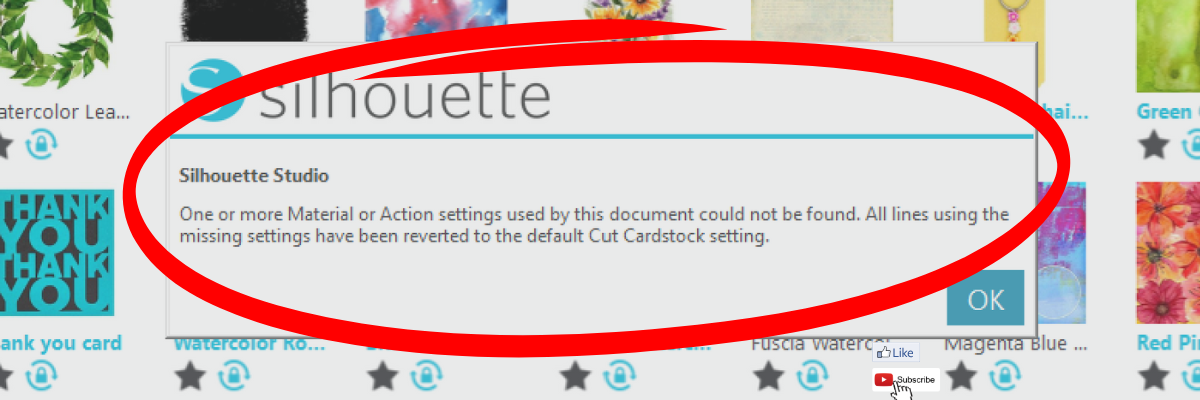
This is what the materials not found message can look like in Silhouette Studio on the Design Tab.

It can also appear when you are opening from the library tab before the image is placed on the design mat.

This materials not found message is not something to be alarmed about. It simply means that the cut setting that the person who created the file had on their software is not found within the Silhouette Studio software on your computer. This could be for several reasons.
The most common reason is that the designer has their own custom setting created and when they saved the design, those cut settings were saved with the file. When opened, if that cut setting is not on your Silhouette Studio software, it triggers this message.
Whether cut settings are saved with a file in Silhouette Studio is dependent on the software version that the design is saved with.
Another reason is that Silhouette has made changes to the cut settings menu and changed names or added/removed cut settings. With the release of newer model Silhouette machines, more cut settings have been added over time to the Silhouette preset menu.
This message is just letting you know that the cut setting has been switched back to the default of Cardstock. Click OK and proceed as usual.
When it comes time you cut the design, select the material that best fits your project and test cut.

While the idea of having a cut setting that works for all users perfectly is appealing, that is not reality. Materials vary worldwide and many factors go into getting a clean cut such as blade life, machine model, cutting mat adhesion, etc.
Here is a quick video clip demonstrating the ‘Materials Not Found’ message that appears when opening a design file in Silhouette Studio.

Additional Resources:
- Perfect Cut Settings
- 2 Ways to Test Cut for Success
- Send Tab: Simple – detailed tutorial all about the Send tab in v4
- Send Tab: Cut by Line Color
- Send Tab: Cut by Fill Color
Save this for future reference by pinning the image below.

Enjoy !
THANK YOU for your support! How can you help? Click HERE & buy a coffee.
Every little bit helps with the cost of running the site.

Silhouette Classes
Never stop learning! Let me help you take the anxiety out of learning with Silhouette and get to creating faster! My Silhouette classes are heavily focused on software, so you can take the skills & techniques taught and apply them to many future projects!









