Posted on 2 Comments

How to Make a Peekaboo Layered Calendar in Silhouette Studio | Easy Cutout Calendar Tutorial

Silhouette Secrets+ with EllyMae

If you love layered paper projects and clever cutout designs, you’re going to enjoy today’s Silhouette Studio tutorial! In this step-by-step guide, I’m sharing how to create a Peekaboo Layered Calendar—a cutout-style design where the background shows through for unique look. This tutorial walks you through the full design process in Silhouette Studio, along with a supply list, and helpful tips with your Silhouette software. Whether you’re crafting a calendar for home décor, gifts, or adding unique designs to your shop, this project is simple, fun, and perfect for any skill level.

Affiliate links may be present in the following blog post and as an Amazon Associate, I earn from qualifying purchases.

I absolutely love how this lotus flower design cut out and the pink and yellow holographic cardstock seemed just perfect for it.

A calendar for January 2026 featuring a lotus flower design cutout at the top, displaying the month alongside the numbered days. The calendar is displayed on a wooden surface.

The brand-new Peekaboo Layered Calendar video tutorial is now live! Click the link below to watch the full step-by-step guide and learn how to design this cutout-style calendar in Silhouette Studio. After watching, be sure to scroll down — you’ll find a complete supply list, in-progress photos of this project, and additional project ideas too!

How to Make a Peek-A-Boo Layered Calendar in Silhouette Studio | Easy Cutout Design

A display of two Peekaboo Layered Calendars featuring a floral design and a hedgehog illustration, placed on a wooden surface next to a Silhouette cutting machine.

Supplies for Peekaboo Cutout Calendar:

Optional supplies if using print and cut:

Additional design ideas shown below:

A Bit More – Peekaboo Cutout Calendar

Here is a look at my original design file showing all of the calendar pages.

A screenshot of Silhouette Studio software displaying a design for a Peekaboo Layered Calendar. The design features lotus flowers and calendar squares for each month from May to December.

When I am working with a multi-page print and cut project, I will create separate files for each page. With print and cut, it is very specific and you do not want to move anything on the screen after the page is printed.

Having each page in a separate file will allow me to be able to easily recreate the project again if I want and also allows me to setup and print page 2 and 3 while the first page is cutting. I simply copied and pasted the next set of calendar sheets onto a new design mat and saved that file as Pg 2.

A screenshot of Silhouette Studio displaying a design for a Peekaboo Layered Calendar with months labeled May, June, and August for the year 2026, with a grid background.

The holographic cardstock was thinner than my 110 lb cardstock, so I did cut an additional backing and then used an adhesive tape runner to secure the background to it. This gave it a bit more weight so it would hold the straight shape more. I also did that on the next one too because I printed the graphics on Epson Presentation Paper – Matte, so it is a lighter weight paper, but has an excellent print quality to it and I love using it.

A colorful calendar page for January 2026 featuring a hedgehog illustration with a vibrant, drippy background, displayed on a wooden surface.

I can’t just print one image on a page though, so I did make some variations on this one and printed several.

A Silhouette cutting machine with a printed sheet displaying colorful animal images, ready for cutting.

Now I can swap out the images through the year if I want to and have these bright, colorful faces to look at throughout 2026.

A layered paper calendar for January 2026 featuring a lotus design at the top. Below it, three blank cards with colorful animal illustrations on them are placed in a wooden surface setting.

And once I started with these projects, it really is hard to stop. And this is why the video tutorials or blog posts are delayed. I love creating new projects and have to force myself to stop to get other things done.

And then I go and ask my daughter what kind of design she would want. “A whale shark, of course, Mom!”

A colorful, cutout-style calendar displaying the month of January 2026, featuring a whale shark design and hearts, placed on a wooden surface, with a Silhouette cutting machine in the background.

This peekaboo calendar turned out awesome too! I had to order a bit taller easel for this design though as it measured about 5″ tall and my smaller easels didn’t work well. My daughter loves this Whale Shark design by La La Shiba and I’ve used it on quite a few projects from temporary tattoos, water bottle decals, and shirts too!

I have so many additional ideas for the calendar designs. I’ll come back and update when I get more of the peekaboo designs made.

There are so many different design ideas you can create using the same tools shown in this video. I hope you take the tools I shared and put them to use and start creating.

Here is another example of a layered desktop calendar design.

A layered calendar for January 2026 featuring cartoon chickens on top, displayed on a wooden surface beside a cutting machine.

This calendar style was created using a file called Quirky Funny Chicken Clipart found HERE.

Want to create this style? I shared how I made it in this video tutorial –
How to Make a Layered Desktop Calendar in Silhouette | Easy DIY Tutorial

A colorful layered desktop calendar featuring cartoon chickens and a cutting machine in the background.

Additional Resources:

Save this for future reference by pinning the image below.

A Peekaboo Layered Calendar featuring a lotus flower design with cutouts revealing a colorful background, displayed prominently with the month 'January' at the bottom.

Enjoy !

THANK YOU for your support! How can you help? Click HERE & buy a coffee.
Every little bit helps with the cost of running the site.

Silhouette Classes

Never stop learning! Let me help you take the anxiety out of learning with Silhouette and get to creating faster! My Silhouette classes are heavily focused on software, so you can take the skills & techniques taught and apply them to many future projects!

Silhouette step-by-step Classes by Silhouette Secrets+

Silhouette Secrets+ with EllyMae
**This post may contain affiliate links. What that means is that I may receive compensation if you purchase through the links I have provided. The price you pay for the product or service is not higher but I may get compensated for sharing.

Posted on Leave a comment

Interactive JOY Spinner Card Tutorial in Silhouette Studio

Silhouette Secrets+ with EllyMae

If you love creating interactive cards, this JOY Spinner Card is a must-try holiday project! In this tutorial, I’ll walk you through how to design and assemble this layered spinner card using Silhouette Studio, along with a complete supply list and helpful tips and additional resources. Watch the full video, grab the supplies below, and let’s create a festive card that’s sure to impress!

Affiliate links may be present in the following blog post and as an Amazon Associate, I earn from qualifying purchases.

Two layered spinner cards displaying the word 'JOY' and a white snowflake in the center, with crafting supplies in the background.

This card design was first shared in my Silhouette Secrets+ Facebook group and my admin did a bit of sleuth work and found who we believe is the original designer for this spinner card idea. This card design was inspired by Dress My Craft. Make sure to grab the Dress My Craft spinners linked in the supply list below.

One thing leads to another… down the rabbit hole I went and Dress My Craft has so many neat ideas to create with the spinners.

Watch the full design tutorial on the Silhouette Secrets+ YouTube channel here.

Image of a DIY layered spinner card featuring the word 'JOY' with a glittery snowflake accent on a blue patterned background, labeled as a Silhouette tutorial.

Create the layered look with the same colors of cardstock or mix it up and do multiple colors. I cut both to see what it would look like, but I think I prefer the white layered on top of each other with the offset. I am so glad I saw my admin (Teresa’s) card ideas and included that into the video tutorial. I think it really makes it stand out.

Supplies Used for Interactive Spinner Card:

Additional Resources:

I love being able to create designs in the Silhouette software, and projects like this JOY Spinner Card truly show how versatile it can be! If you haven’t already, be sure to watch the full video tutorial on the Silhouette Secrets+ YouTube channel for step-by-step instructions and extra tips. I hope this inspires you to create your own interactive card and continue learning even more about what Silhouette can do!

Save this for future reference by pinning the image below.

Image of a layered spinner card featuring the word 'JOY' with a snowflake design, showcasing blue and white colors, perfect for a holiday project.

Enjoy !

THANK YOU for your support! How can you help? Click HERE & buy a coffee.
Every little bit helps with the cost of running the site.

Silhouette Classes

Never stop learning! Let me help you take the anxiety out of learning with Silhouette and get to creating faster! My Silhouette classes are heavily focused on software, so you can take the skills & techniques taught and apply them to many future projects!

Silhouette step-by-step Classes by Silhouette Secrets+

Silhouette Secrets+ with EllyMae
**This post may contain affiliate links. What that means is that I may receive compensation if you purchase through the links I have provided. The price you pay for the product or service is not higher but I may get compensated for sharing.

Posted on 4 Comments

Creating 4 Eclipse Cards in Silhouette Studio

Silhouette Secrets+ with EllyMae

Eclipse cards – have you seen them?
This is a technique that has been around the card making community for quite some time and seems to be making a comeback lately.

In April, I released a video tutorial on the Swift Creek Customs YouTube channel sharing how you can create these cards in the Siser Leonardo Design Studio software and now am sharing the new video tutorial showing step-by-step in the Silhouette Studio software. Not just 1 card though, I have 4 (well, actually I made more than that) eclipse cards to share with you.
You’ll see in the video why I ended up with more.

I have to say that these cards are definitely better in person than a photo can capture, so I recommend you give it a try and see what you think.

Let’s take a closer look at some photos and I’ll share the supply list below too!

Affiliate links may be present in the following blog post and as an Amazon Associate I earn from qualifying purchases.

Supplies for Eclipse Cards

Designs used:
Spring Watercolor Roses Arrangement by Clikchic Designs – Design #439787
Watercolor Spring Flowers Arrangement by Clikchic Design – Design #408256
Spring Watercolor Greeting Card by Graphic House Design – Design #398289
Painted Tropical Drinks by Sarah Bailey – Design #325607

3-D Foam Tape
Recollections Cardstock
Scrapbook Adhesive Tape Runner
Scissors
Paper Trimmer
Score board
– Optional: Combination trimmer and score board or Mini Score Board

This is the first style of eclipse cards I share how to create in the tutorial. I share some tips for working with print and cut graphic files in Silhouette too!

Photographing the cards from an angle gives you an idea of the dimension of the card. Some cards can be difficult to see the effect when looking straight at the card.

In this card, I used circles to give it a new dimensional look. You could use any shape you want. I’ve seen many variations out there and it gives it a unique look.
My husband saw this one and said, “That would look good with a bubble pattern.” So guess what I bought? Watch for some new cards coming soon!

And you can also use text. In the tutorial, I show how you can use text in 2 ways to give each card a different look. Again, photos do not do these justice, especially looking straight on.

But coming at it from the side, you can see the dimension in the card. I share some tips and tricks to working with the text to create these 2 opposite effects of the cards with text.

I think this one might photograph the best from this angle, so you can really see the dimension.

Check out the new step-by-step video tutorial on the Silhouette Secrets+ YouTube channel HERE

Check out the video tutorial HERE.

Make sure to like, subscribe, and click that bell for notifications of future content on the
Silhouette Secrets+ YouTube channel!
Thanks for your support!
I’d love to hear what you thought in the comments on the video tutorial too!
Thanks for your feedback and engagement on the video!

Find more resources and tutorials in the A to Z tab on the Silhouette Secrets+ website HERE.

Save this for future reference by pinning the image below.

Enjoy !

THANK YOU for your support! How can you help? Click HERE & buy a coffee.
Every little bit helps with the cost of running the site.

Silhouette Classes

Never stop learning! Let me help you take the anxiety out of learning with Silhouette and get to creating faster! My Silhouette classes are heavily focused on software, so you can take the skills & techniques taught and apply them to many future projects!

Silhouette step-by-step Classes by Silhouette Secrets+

Silhouette Secrets+ with EllyMae
**This post may contain affiliate links. What that means is that I may receive compensation if you purchase through the links I have provided. The price you pay for the product or service is not higher but I may get compensated for sharing.

Posted on 6 Comments

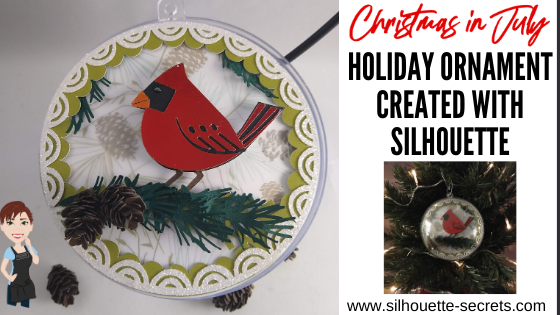
Christmas in July – Holiday Ornament

Why not get an early start this year? It hasn’t been a typical year yet, right?
This year I am creating a Christmas in July ornament!

This is the Winter Bird design from the Silhouette Holiday Ornament kit.

Affiliate links may be present in the following blog post and as an Amazon Associate I earn from qualifying purchases.
Sponsored post.

The Holiday Ornament kit includes: 6 clear plastic ornaments (100 mm size), 6 sheets cardstock (8.5 in. x 11 in.), 6 ornament hooks, and an exclusive download card redeemable on the Silhouette Design Store for 10 pre-selected layered ornament designs
It is on sale for $10.00 (Retail value $19.99) with my code SILSECRETS.
Here is one of the designs in this Holiday Ornament kit.

Today I’m going to show you how you can take this design and go farther!

You can cut the design as is like this.

Or the best part about the Silhouette software is that the options are limitless to what you can do.
You can make it unique to you.
Here I’ve added some dimension with foam tape, a few branches, cut a few types of paper, and added 3-D paper pinecones.
All created using Silhouette Studio tools and cut with the Cameo.

You are the one that can decide what you want to create with it!

You know what it takes the most of?
Time
But, the end result can be so worth it!

This Silhouette Holiday Ornament kit is awesome in that it is an open 4″ ball that you can add dimension to and create an awesome scene inside. I got so excited as I was testing and creating things to add to it. I hope I am not the only one that still does a little happy dance when a project turns out or turns out better than it did in my head.
And it’s open on both sides, so you can make it double sided too!

Let’s take a look at how I created this scene using the design provided with the kit.
I used just a few tools in the software to make it go farther.
And I believe that any user can do this!
Also, at the end of the post is a video clip of how I assembled all the pieces and a supply list of what I used.

This is what the design looks like when opened from the Silhouette library.

Next, I moved the pieces off the design mat and changed the color of the designs using the Fill Color Panel, just so they would show more accurately of how I would cut them.
Or you can use the Quick Access Tool bar in the top left and change the color too.
The backing piece I changed to white and the green bird shape I changed to transparent.

I started with the bird piece first. To break this bird design up, right click and choose Release Compound Path. It will separate the cut lines into individual pieces.

Here you can see the design has multiple selection boxes around the individual pieces.

Next, I moved the circle off the cutting mat and made a copy. In one circle I added a pattern, using the Pattern Fill panel. This will be my patterned piece of paper I cut and is just to designate visually what piece is which. The other circle I added a white fill to and decreased the transparency. This is my vellum piece that will be cut.

Now, let’s work with the bird. The red bird piece on the left will be the top layer of the bird and cut out of a red metallic foil paper. But, I wanted additional layers to make the bird thicker and to stand out.

First, I’m going to use the Line drawing tools on the left side and draw a new beak and this will be cut out of an orange metallic foil paper.

Then I selected both of the beak pieces that were just drawn, moved them away from the bird, grouped them together, and filled them with orange.

And now we will do a little bit of point editing on the bird to create the full bird shape to make our figure. Double click on the red cut line of the bird to bring up the Edit Points.

Next, I deleted a couple of the edit points and then moved a couple out to the edge of the beak. I moved the orange beak back on top to adjust the outline of the bird’s beak exactly how I wanted, so it matched up and I had a solid bird background.

Now that the base bird outline is created, I needed to make several copies.
One white as the very back layer of the bird. This is so the eye will show up as white.
Next, I selected the bird and the circle for the eye, right clicked, and chose Make Compound Path. This bird I filled with black and made 3 more copies of.
And then 1 more copy of the bird that I filled with brown.

Next, I zoomed in on the brown bird and used the Knife tool to cut the feet away from the body. I used the Polygon Knife tool and unchecked the Auto Apply so I could verify exactly where I wanted the knife to cut before it did.

Once it is where you want, then click the Apply option in the Knife Toolbar.

Next, delete the top of the bird. All that is needed is the legs. And I want to make a small offset just to thicken them up a bit as they will be the top layer added on top of the black bird legs. I used the Offset Panel and added a 0.020″ distance offset.
Delete the inside brown legs and fill the offset with brown.
Select both the feet offsets, right click, and group them together.

Now, I have all the pieces I need to cut the design out. I arrange the pieces on my design mat and decrease the Transparency on the Page Setup Panel so I can reveal the cutting grid. Then I cut my papers down to the size needed and place them on the cutting mat.

You can also cut each color out separately on the design mats, but I find once you get the hang of this method I can send almost all the design pieces through to be cut on only a few times through the machine. I line up my design with the cutting mat grid on the screen and then place the materials in the same location on the design mat.
I also find that this saves adhesive on my cutting mat too as I’m not sticking a full sheet of each material down on all the adhesive.
Find more cutting mat tips click HERE.

And I continued to move pieces on and off the mat as needed to be cut until all the pieces were cut.

All ready for assembly.

And you don’t have to stop there.
Create a few more design to incorporate and make your design unique.
I took a Pinecone 3-D Miniature design by Snapdragon Snippets – Design #279267 and scaled the size down to 33% of the original using the Transform Panel – Scale Tab.

I also added the Evergreen Sprigs by Snapdragon Snippets – Design #170614 to give it more dimension too.
Check out the post on 3-D designs in Silhouette to see how I created the “baby” pinecones HERE.

The next step is to start adding glue to each piece and layering it on top of each other. I used a variety of different adhesives to give it dimension and get it to adhere.
A full supply list is at the bottom of this post.
Check out this video on the Silhouette Secrets+ YouTube channel HERE on how I assembled the design. I ended up cutting 2 of each piece and gluing it together once everything was dry to use both sides of this ornament.

I had so much fun creating this ornament from the Holiday Ornament kit by Silhouette. Make both sides the same or add a different element like fake snow to the design as well.

There really is no right or wrong way to create these projects.
Just have fun and try some new things!

I am excited to see what I can fill the other 5 ornaments with.

In this post we covered several different tools and features in the Silhouette software. I said at the beginning that I thought any user could do this and the thing it takes the most of is TIME!
Here are the tools I used in this post.
Click on each to learn more about those tools or features.
Fill Color Panel
Release & Make Compound Path
Pattern Fill
Line Drawing Tools
Edit Points
Knife Tool
Offset Tool
Page Setup Panel – Transparency
Tips to getting the most out of the Silhouette Cutting Mats
Transform Panel – Scale Tab
Many times you are using a lot of these tools without even thinking about it in the software. The more you do it, the more comfortable you will get with it.

In the video above, I did use a variety of adhesives to assemble this. Over the years working with paper, I’ve found certain adhesives work better on certain papers and that quality is a must. Each user will find the best ones that they like for their projects.
Here are the supplies I used to create this Winter Bird Design:
Silhouette Holiday Ornament kit
Winter Bird Bauble design – Design #30131 (included with kit)
Patterned Cardstock
Vellum Paper
Colored cardstock: medium green, dark green, white, black, brown – I used Recollections cardstock from Michaels
White Glitter Cardstock
Metallic Foil Cardstock from Michaels: red and orange for the bird
Liquid Glass adhesive
3-D Foam Tape
Scrapbook Adhesive E-Z Tape Runner
Scrappy Tape or Score Tape
Broad Tipped Glue Pen
Xyron Sticker Maker
E6000 Adhesive

I would love to see what you create with your Silhouette machines & software.
Feel free to post photos or questions on my Facebook group at 
Silhouette Secrets with EllyMae.

Save this for future reference by pinning the image below.

Enjoy!

SS Logo snip it
**This post may contain affiliate links. What that means is that I may receive compensation if you purchase through the links I have provided. The price you pay for the product or service is not higher but I may get compensated for sharing.