Posted on 2 Comments

Brilliant Living Digital Kit by Nitwit Collections – Crafting Creativity

Silhouette Secrets+ with EllyMae

A digital design preview featuring a card cluster with floral elements, butterflies, and a colorful plaid pattern, promoting 'Brilliant Living' by Nitwit Collections.

A handcrafted greeting card featuring colorful floral designs, a purple butterfly, and the text 'brightest wishes for you' from the Brilliant Living digital kit. The card is placed on a wooden surface in front of a cutting machine.

Here is a look at the print and cut page printed out ready to cut around each of the layers.

Crafting project featuring a colorful card design with floral elements, a butterfly, and text that reads 'brightest wishes'. The card design is on a mint green cutting mat placed on a wooden surface.

There are so many options with a digital kit and you can mix and match, add more layers, decrease the layers, or only print one layer for a project as well.

If you are mailing the card, you may need to keep the thickness of the layers in mind when creating it.

So for the next cards, I stacked elements together and then was able to print 2 card fronts on one sheet of paper. Each of these designs have different elements that can be layered together.

A printed design featuring two cards with the message 'brightest wishes,' surrounded by colorful flowers, butterflies, and ladybugs, set against a white background.

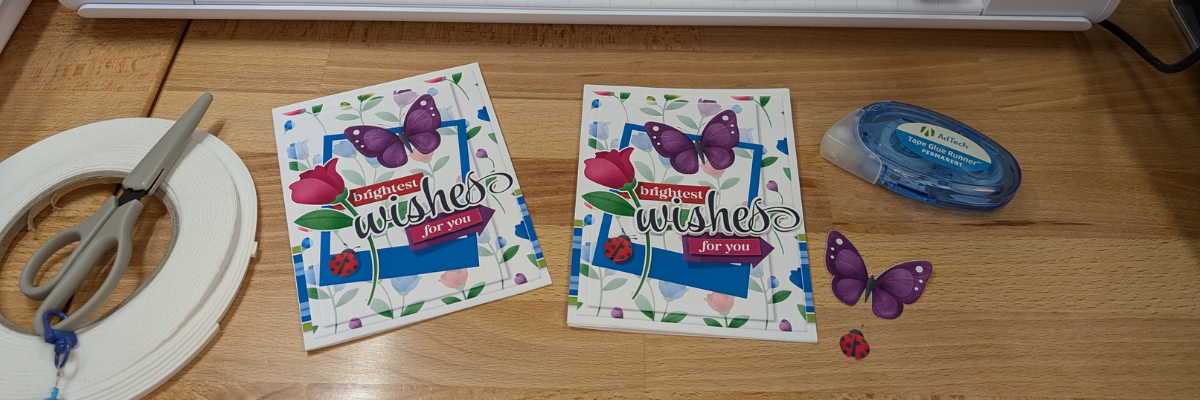
Here is a look at the final results from this printed page.

Two greeting cards featuring colorful butterflies and flowers from the Brilliant Living Digital Kit, with the text 'brightest wishes for you' prominently displayed.

The card on the left side only has the “for you” and the “ladybug layered”, while the card on the right has the “wishes, for you, and the ladybug layered”.

Two colorful ladybug cutouts with red bodies and black spots, placed on a grid background.

There were a couple intricate areas that may not cut well for all users. I was able to get these ladybugs with their antennae’s to cut, but had to be extremely careful removing them off the cutting mat.
However the butterfly antennae’s were just too delicate, which is another reason you may want to add that layer directly to the card background instead of trying to add it as a 3-D layer.
But you never know until you try. The Silhouette machine might amaze you in the cut it can get.

Three greeting cards featuring colorful floral designs, butterflies, and the text 'brightest wishes for you' on a wooden surface. 
Created with the Brilliant Living Digital Kit

Watch how I created these layered card designs with Silhouette in this video on the Silhouette Secrets+ YouTube channel – Layered Card Design with Brilliant Living Digital Kit – Step-by-step Silhouette tutorial

Video tutorial HERE

Being able to create your own designs means that you can make them any size you want and create as many as you need in the moment. I started with the idea to create only 2 tags, but it ended up being 4 complete designs.

A crafting workspace featuring a cutting machine, several colorful tags with floral designs and text, a roll of tape, scissors, and decorative embellishments on a wooden surface.
Tags created with the Brilliant Living Digital Kit

I used 2 sheets of paper to print and created 1 layered tag and one simple print and cut tag on each sheet.

A colorful greeting card design featuring floral elements and the text 'wishes' displayed on a crafting machine workspace.

Here is a look at one of the layered tags using the foam tape to pop up the dimension.

The great part about creating your own tags is there are no rules. Flower hangs off the edge, no problem! Want the design to be flush on the edges – no problem! Or mix and match. And using a digital kit allows you to mock it up first in the Silhouette software before you even cut the elements out.

Four decorative tags with floral designs and the word 'wishes' displayed on a wooden surface, alongside a cutting machine, promoting a step-by-step tutorial in Silhouette Studio.

Video tutorial HERE

I used the same techniques I shared in the step-by-step video tutorial – Layered Card Design on the Silhouette Secrets+ YouTube channel and created a little bit different layout for two 5″ x 7″ cards.

Two greeting cards displayed on a wooden surface, featuring floral designs, butterflies, and the word 'wishes'. The left card has a striped border while the right card showcases a different layout with a colorful pattern.
Created with the Brilliant Living Digital Kit

Here is a look at the card designs in Silhouette Studio.

A digital design featuring two greeting card layouts with floral patterns, featuring butterflies, ladybugs, and the word 'wishes'. The left card has a white background with pink and red flowers, while the right card displays a blue background with a plaid pattern.

And then I simply chose letter size paper and rotated the designs 90 degrees so I could print 2 on a page.

A screenshot of Silhouette Studio software displaying the design for a card featuring floral motifs, butterflies, and the word 'wishes'. The design area shows two card layouts and various setup options on the right.

A few slices with my paper trimmer and my card front were ready to attach to a base.

Quick and easy cards in minutes with the Brilliant Living Knick Knack kit by Nitwit Collections.

Digital designs worked perfectly for sublimation projects! I created 4 sublimation project designs on 1 sheet of sublimation paper.

A collection of crafting materials including a decorative metal panel, multiple colorful greeting cards featuring flowers and butterflies, and bookmarks, arranged on a wooden table next to a cutting machine.
Created with the Brilliant Living Digital Kit

I made a decorative panel, cover for a compact mirror case, a bookmark, and a coaster.

The colors are so bright and brilliant with these projects, except the center of the coaster turned out a bit washed out. This can happen with hardboard at times and moisture affecting the outcome.

A colorful decorative panel featuring floral patterns, a purple butterfly, and bold text that reads 'brightest wishes' alongside an arrow and additional decorative elements.
Created with the Brilliant Living Digital Kit

Watch how I created these sublimation projects with Silhouette and sublimation blanks on the Silhouette Secrets+ YouTube channel HERE.

An image showcasing a decorative card with floral and butterfly designs, featuring the text 'brightest wishes' and other colorful embellishments, alongside crafting materials on a wooden table.

Video tutorial HERE

Supplies Used:

Make sure to follow Nitwit Collections for more amazing designs:

Sign up for the Silhouette Secrets+ newsletter HERE so you don’t miss out on future collaborations.

A flat lay of various sublimation projects including a decorative coaster, a compact mirror, tags, and a greeting card featuring colorful floral designs and the text 'brightest wishes'.

Silhouette step-by-step Classes by Silhouette Secrets+

Silhouette Secrets+ with EllyMae
**This post may contain affiliate links. What that means is that I may receive compensation if you purchase through the links I have provided. The price you pay for the product or service is not higher but I may get compensated for sharing.

Posted on Leave a comment

Crafting Creativity: 1 Bunny File, 5 Creative Projects with Studio Ilustrado

Silhouette Secrets+ with EllyMae

A cute paper craft scene featuring a gray bunny in a hot air balloon shaped like a carrot, surrounded by colorful flowers and pastel eggs on a checkered tablecloth.

Collage of spring-themed crafts featuring bunny and carrot designs, including greeting cards, decorative items, and crafting tools.

A colorful paper craft depicting a bunny in a hot air balloon shaped like a carrot, with a basket and flowers in a grassy landscape.

I had the Silhouette Curio 2 out from testing with the Silhouette Leather Carving Knife, so it was the machine I used to cut this card. Almost all the pieces were cut out using scraps from my stash. I love being able to use my scraps!

Look at these tiny details!

A hand holding a gray paper cutout of a smiling bunny with long ears.

To be honest, I wasn’t sure if it would cut well with the electrostatic mat on the Curio 2, but it did! Especially using a scrap piece of cardstock with the Silhouette Electrostatic Mat.

Sometimes we all just need a little bit of help and taping down the cardstock scraps on the Electrostatic Mat can be that help. It just added a little bit more security to hold my scraps in place and get a successful cut with the Electrostatic Mat. I love this new technology that Silhouette has. While it does not work with all materials, it has saved me hours of time cutting cardstock.

Close-up of a cutting machine with two tool holders, one equipped with a blade and the other empty, and a piece of gray material on the cutting mat.

While I used the Silhouette Curio 2 to cut the projects, any Silhouette machine could be used to create these projects.

Watch a bit of the behind-the-scenes on creating this project in this video – Creative Projects with Studio Ilustrado Designs – Bunny Carrot Balloon Card HERE

A colorful, three-dimensional craft display featuring a bunny in a basket, surrounded by green grass and flowers, with a large carrot above.

A yellow gift box shaped like a carton with a bunny illustration on the front, placed on a crafting table alongside a roll of adhesive tape, a tape dispenser, and a crafting tool.

The bunny made the perfect peeking addition to this gable box card. Don’t let the name of a design fool you either. The title of the box is called Christmas Gable Box by Studio Ilustrado, but it can be used for so much more!

Now here is one of my “secrets” – while the Silhouette machines can cut acetate for the window of this box card, I can cut it faster and with less headache.

Digital design software interface showing a cut template with instructions to cut a shape from cardstock.

I cut the window shape from a piece of cardstock using the Silhouette machine and then used it as a template to make a few quick snips with scissors and I was on my way to assembly. It doesn’t have to be perfect since it will be hidden inside the box. And I saved myself time, headache, and didn’t dull my blade.

Crafting workspace with a yellow paper cutout featuring bunny designs, scissors, and various crafting supplies including glue and other tools.

I used my laser to cut this out of wood, but you could also use other materials such as cardstock too! Even though I have a laser machine, I started with a 12 inch wood round blank, which you could use as your backing board too.

A decorative wall hanging featuring a cartoon bunny in a hot air balloon shaped like a carrot, with the words 'Hoppy Spring' at the bottom, set against a blue background.

I used the SVG file, opened it in Silhouette and made a few modifications to the file to be able to create the layers for cutting on wood. Since the wood has more thickness to it than a material such as cardstock, I had to add a layer behind the bunny and cut multiples to make it sit flush with the sign and balloon basket. The knife tool in Silhouette helped me to cut the bunny’s little feet off so it would sit flush on the balloon for this design. That sounds so bad when I type it out, but if you have designed in Silhouette, you’ll know exactly what I mean.

A workspace with various craft supplies including a blue sign that says 'SPRING', a cute wooden bunny cutout, and several Uni Posca markers in different colors.

I used a combination of Posca Paint Markers and Deco Arts Paint for finishing out the sign.

A decorative wall hanger featuring a cute gray bunny with pink ears peeking over a white picture frame. The word 'SPRING' is spelled out in yellow letters beside the frame.

I drew out a skinny rectangle, made a copy and rotated it 90 degrees. Aligned the right edges and welded it together to make the corner. Then sized the bunny and welded the bunny background to the rectangles to sit on top. Next, I added letters down the right side. Before welding the letters, I made a copy so I could cut them out and layer on top for color and dimension.

Before you go to cut the design, make sure it’s all flush. I forgot to cut the bunny’s feet with the knife tool, but I didn’t realize it until after he was all cut out, so he sits a little bit higher on the top of the door. In this case, it wasn’t worth recutting the design simply because you can’t really tell on our door frame.

I love these little door corner designs, even if we only have a few door frames that I can add them to in our house because the previous owner used the wrong trim to frame out the doors or the frame is too close to the wall. It is a fun way to add a bit of decoration without putting another hole in the wall.

Supplies Used:

I used the knife tool again, but not to cut off any bunny feet. Instead I cut the carrot off the design and used it to create a couple corny cards.

Four handmade cards featuring carrot designs and playful phrases, displayed on a crafting mat with various crafting tools in the background.

I used a Silhouette Black Glitter sketch pen and a font called BFC Rustic Cherry Farmhouse to sketch out the sentiment. I love the look of this glitter black pen, but it’s very difficult to photograph and show how it really looks.

A craft workspace featuring a Silhouette cutting machine, with a blank page laid out displaying fun carrot-themed quotes and phrases, alongside two markers.

I used the Silhouette Curio 2 to sketch this design using the electrostatic mat because that was the machine on my desk this week, but sketching can be done with any Silhouette machine model.

Two handmade cards on a crafting desk. The left card features a carrot with the text 'I CARROT FOR YOU'. The right card depicts a potted plant with the text 'BLOOM WHERE YOU ARE PLANTED'.

The clay pot was drawn in Silhouette Studio using basic shapes and adjusting the bottom edit points on a rectangle too!

Unlock your creativity by learning more about Silhouette. You never know where it will take you! Even making cards with carrots.

Four greeting cards featuring playful carrot designs and puns. The cards read: 'YOU'RE ONE IN A BUNCH', 'BLOOM WHERE YOU ARE PLANTED', 'THANKS A BUNCH!', and 'I CARROT FOR YOU', showcasing colorful carrot illustrations.

Collage of five craft projects featuring bunnies, plants, and colorful decorations, with a central text overlay reading '5 projects 5 1 file'.

Silhouette step-by-step Classes by Silhouette Secrets+

Silhouette Secrets+ with EllyMae
**This post may contain affiliate links. What that means is that I may receive compensation if you purchase through the links I have provided. The price you pay for the product or service is not higher but I may get compensated for sharing.

Posted on Leave a comment

Crafting Creativity: 1 Design, 5 Stunning Projects with Flavir Design

Silhouette Secrets+ with EllyMae

A decorative floral crown made of paper flowers in warm colors and green leaves, arranged on a simple gold circular base.

A flat lay image featuring two large, colorful paper flowers - one yellow and one orange - with green leaves on a crafting mat. Surrounding the flowers are a hot glue gun, a sponge, a pen, and small squares of paper. Silhouette flower projects

Screenshot of Silhouette Studio software showing a design featuring leaf shapes outlined in orange, with settings for cutting cardstock on the right side of the screen.

A close-up view of two artificial flowers, one yellow and the other orange, adorned with green leaves, placed on a wooden background. Silhouette flower projects
A close-up of vibrant paper flowers in shades of yellow and orange, accompanied by green leaves, with the text 'Behind the Blooms' prominently displayed.

A handmade birthday card featuring a large pink flower, green leaves, and a glittery gold accent band. The card has a watercolor-like pink background and includes the text 'HAPPY BIRTHDAY' on a white banner. Silhouette flower projects

A handmade birthday card featuring a large pink flower, a gold glitter strip, and the text 'HAPPY BIRTHDAY' on a white banner. The background is a vibrant pink splatter design with green leaves. A crafting workspace with various tools and supplies is visible in the background. Silhouette flower projects

A vibrant pink paper flower with intricate petals sits on a textured card background, accompanied by green leaves and a glittery gold strip. The card features a banner reading 'HAPPY'. Silhouette flower projects

Two decorative paper flowers in teal and pink placed on geometric boxes, with a background featuring pink spray and floral shapes. Silhouette flower projects

A pink cherry flower box design displayed alongside details of its purchase options and features.

Screenshot of Silhouette Studio software displaying a digital pattern design for a box with a grid background.

A hand holding a sheet of paper with a grid pattern and an abstract shape on it, placed on a cutting mat in front of a cutting machine.

Close-up of a hand holding a piece of paper with a grid pattern, showcasing a cut-out shape on the paper.

Five decorative paper boxes with colorful paper flowers on top, displayed on a wooden surface. Silhouette flower projects

A digital design workspace displayed on a computer screen, featuring various bookmark designs with floral elements and motivational text phrases like 'Just one more page' and 'Your only limit is your mind.' The design software's page setup and customization options are visible on the right side of the screen.

Print preview of bookmark designs featuring motivational quotes and leaf patterns.

Close-up of a crafting machine applying gold foil to a textured surface with a red light indicator and patterned tape.

A close-up of foil packaging with an irregular cutout, revealing a textured silver surface underneath. The surrounding area features pastel colors and decorative elements.

Close-up of a textured background with blue floral designs and the phrase 'Just One More Page' in gold lettering.

A close-up of a decorative fabric featuring blue leaf patterns and the inspirational phrase 'Live Your Dream' in gold lettering.

A collection of five decorative bookmarks with motivational quotes on a wooden surface, accompanied by a craft machine and a pink scraping tool. Silhouette flower projects

Supplies Used:

A close-up view of a textured surface covered in green moss and adorned with pink fabric flowers, featuring a wooden structure in the backdrop. Silhouette flower projects

Screenshot of Silhouette Studio software showing two floral background designs, one with a pink and yellow gradient and the other with a pink bokeh effect.

A digital design workspace showing a pink and yellow flower background with yellow flowers and red heart shapes in the design software Silhouette Studio.

A crafting workspace featuring a cutting machine, pink paper flowers, and heart shapes on a wooden table. Scissors and a crafting tool are also visible.

A collection of small pink flower-shaped embellishments scattered on a black surface, with scissors and other crafting materials in the background. Silhouette flower projects

A vibrant handmade birthday card featuring a large pink flower and the text 'Happy Birthday', surrounded by colorful paper crafts.

Silhouette step-by-step Classes by Silhouette Secrets+

Silhouette Secrets+ with EllyMae
**This post may contain affiliate links. What that means is that I may receive compensation if you purchase through the links I have provided. The price you pay for the product or service is not higher but I may get compensated for sharing.

Posted on 2 Comments

5 Card Design Ideas from One Template with Quietfire Designs

Silhouette Secrets+ with EllyMae

Have you ever found a card template so versatile that it instantly becomes a go-to favorite? That’s exactly what happened when I started creating with the Accordion Filled Gatefold – Card Blank by Quietfire Designs. This beautiful, interactive card base is the perfect foundation for endless creativity—and in today’s Crafting Creativity feature, I’m sharing five completely different card designs, all made from this one stunning template.

Affiliate links may be present in the following blog post and as an Amazon Associate, I earn from qualifying purchases.

A colorful accordion-filled gatefold card template showcasing floral designs, featuring a mix of light blue and purple colors.

From a spooky Halloween card, to a warm and cheerful hello friends, to a vibrant bouquet of flowers, a playful Open If You Dare theme, and even a classic happy birthday design, this single cut file transformed effortlessly to fit every style. Each project highlights just how easy it is to take one card template and customize it for any season, celebration, or creative idea.

If you love stretching your Silhouette files and want inspiration for making more with what you already have, you’re going to love exploring the versatility of this Quietfire Designs favorite. Suzanne at Quietfire Designs has amazing designs and this is just one. I hope this gives you some ideas on how you can expand your supplies!

Each month in the Crafting Creativity series, I take one design file and explore just how many unique projects it can inspire. I love showing how a single cut file—like this month’s Accordion Filled Gatefold card template—can be transformed into cards for any theme or occasion. These posts are all about stretching your Silhouette skills, sparking fresh ideas, and proving that one thoughtfully designed file can open the door to endless creative possibilities. Whether you’re a longtime Silhouette user or brand new to cardmaking, Crafting Creativity is here to help you imagine, explore, and create with confidence!

Crafting Creativity with Accordion Filled Gatefold Card Blank

Suzanne at Quietfire Designs has amazing designs and this is just one of the card templates available in the Silhouette Design Store or check out the bundle of card templates HERE. Suzanne also has assembly videos on the Quietfire Designs YouTube channel too! It makes it so easy to assemble the card designs – find those HERE.

I hope this gives you some ideas on how you can expand your supplies!

Project #1 – Halloween Card

I grabbed some Halloween themed paper in my stash and created this themed card.

A purple accordion fold card featuring Halloween-themed paper with a ghost embellishment, positioned next to a crafting machine.

I added a ghost onto the belly band from a file called Ghost Farm – Card in a Box design found HERE.

A Halloween-themed card with a ghost design on a purple belly band, set in front of a cutting machine.

And once I got started, it was hard to stop and I had to create the entire Ghost Farm – Card in a Box too!

A Halloween-themed card box featuring white cut-out ghosts and a bat decoration, with a 'U-Pick Ghost Farm' label, displayed next to a cutting machine.

Supplies Used:

Project #2 – Hello Friends Card

This one I had a lot of fun collecting “friends” to share from different files by Quietfire Designs.

A close-up of two creatively designed cards on a wooden surface. One card features a snowflake design with the text 'hello friend,' while the other card includes playful winter characters, including a penguin, gingerbread cookies, and snowmen, along with the phrase 'MISS YOU.' A cutting machine is visible in the background.

Once I gathered all of the designs I wanted to use, I turned the cut files into a print and cut so I could do it all on one sheet.

Here’s a look at my print and cut design file. I always like to fill up my page when doing print and cut, so I ended up making two card designs using different patterned papers.

A digital design workspace displaying various festive characters including penguins, snowmen, gingerbread figures, and snowflakes, alongside holiday-themed text elements such as 'MISS YOU' and 'hello, friend.'

I did modify the designs a bit in order to use these pieces from the individual designs. Since each one was different, I used different steps including the knife tooledit pointsgrouping and ungroupingreleasing the compound path, and text to path.

Once I had all the designs I wanted for the card sized to fit, I turned them all into a print and cut page. Since these were designed to cut each individual piece, I simply selected them all and on the Send tab chose “Cut Edge”.

Additional Resources:

Supplies Used:

Project #3 – Bouquet of Flowers Card

A colorful accordion-style card featuring a bouquet of flowers, displayed beside a pink belly band adorned with small flowers. The backdrop shows a cutting machine in a crafting workspace.

I used the flowers and greenery design from the Flower Posy Gift Card Box – Design #346522 and cut 9 to layer inside the card. When needed, I would snip off sections of the greenery that didn’t fit well and then glue them in underneath the flowers in other spots to fill it in and make it unique.

The front section has 3 of the flowers and greenery placed together and I enlarged the bow on the design to “wrap” around all 3.

I ended up with an extra set of flowers and added that to the front belly band for the card closure.

Supplies Used:

Project #4 – Open If You Dare Card

This card is another combination of designs by Quitefire Designs.

A Halloween-themed gatefold card featuring the text 'OPEN IF YOU DARE,' with a skull and skeleton graphics, placed on a crafting surface with a cutting machine in the background.

And if you are daring enough to open the card, here is a look at the inside.

A pop-up Halloween card featuring a spooky graveyard theme with bats, gravestones, and skeleton cutouts, alongside an 'Open If You Dare' message.

I started with an idea in my head and then simply cut out the pieces I knew I wanted to use from each of the design files. Then started moving them around and seeing where they would best fit.

Supplies Used:

Project #5 – Happy Birthday Card

A bright, fun card filled with balloons! And… it was all created with scraps. This was another card that was “built” as I went along. It may be a little over the top with balloons, but that’s the best part – you can customize it however you like!

A Silhouette cutting machine on a worktable with a colorful birthday card featuring balloons in the foreground.

I drew the balloon using the Flexishapes tool in Silhouette and then just cut a bunch from different colors. The Happy Birthday is a sentiment from the Dinosaur Birthday Card in a Box by Quietfire Designs. I sized and arranged the words together, then made an Offset around it.

A colorful birthday card with various balloon shapes and colors, featuring the text 'HAPPY BIRTHDAY' prominently displayed. The card is positioned in front of a crafting machine and surrounded by crafting supplies.

This was the perfect sentiment for the card as both Happy and Birthday are both welded together, so it was easy to glue using my new Precision Glue Press.

A person holding a black 'HAPPY' cutout while preparing to glue it next to a white 'BIRTHDAY' cutout, with crafting tools visible in the background.

Supplies Used:

Find designs by Quietfire Designs at:

Follow along with Quietfire Designs on FacebookYouTubeInstagram.

A great big thank you to Suzanne at Quietfire Designs for contributing the free file for the Silhouette Secrets+ newsletter for the month of October! If you missed grabbing the free design in October, grab it HERE and start creating!

This year I started offering a free file each month for Silhouette Secrets+ newsletter subscribers. I love designing in the Silhouette Studio software and have shared some of my creations as well as look forward to collaborating with more artists in the future too!

Silhouette Secrets+ Newsletter

Never miss out on the news, tips, “secrets”, deals, classes, and more that I share on Silhouette Secrets+. Sign up for the newsletter and get information delivered to your inbox every Friday.
Unsubscribe at anytime.

Sign up for the weekly newsletter HERE to have information delivered direct to your inbox and grab each month’s new freebie.

Did this spark some creative ideas for you? It’s always exciting to see how one card template can lead to so many completely different designs! I had such a great time dreaming up each of these themed creations and showing just how versatile the Accordion Filled Gatefold file can be. If you’re looking for even more inspiration, tips, and creative project ideas, be sure to browse the Crafting Creativity section on the Silhouette Secrets+ website — click HERE to explore!

Save this for future reference by pinning the image below.

A collage of five card designs made using a single accordion filled gatefold template, featuring themes like Halloween, friendship, flowers, and birthday celebrations.

Enjoy !

THANK YOU for your support! How can you help? Click HERE & buy a coffee.
Every little bit helps with the cost of running the site.

Silhouette Classes

Never stop learning! Let me help you take the anxiety out of learning with Silhouette and get to creating faster! My Silhouette classes are heavily focused on software, so you can take the skills & techniques taught and apply them to many future projects!

Silhouette step-by-step Classes by Silhouette Secrets+

Silhouette Secrets+ with EllyMae
**This post may contain affiliate links. What that means is that I may receive compensation if you purchase through the links I have provided. The price you pay for the product or service is not higher but I may get compensated for sharing.

Posted on Leave a comment

How to Create a Tri-Fold Shaped Edge Card in Silhouette Studio: Step-by-Step Tutorial

Silhouette Secrets+ with EllyMae

Creating custom card designs in Silhouette Studio is easier than you might think, and today I’m excited to share a step-by-step Tri-Fold Shaped Edge Card tutorial now live on the Silhouette Secrets+ YouTube channel! This project is perfect for any occasion, and once you learn the process, you can customize it with your own text, images, and themes. You’ll find the full supply list conveniently located right below the video link, so you can gather everything you need and craft along with me.

Affiliate links may be present in the following blog post and as an Amazon Associate, I earn from qualifying purchases.

Head over to the Silhouette Secrets+ YouTube channel to watch the full step-by-step tutorial. I walk you through each part of creating a Tri-Fold Shaped Edge Card so you can follow along at your own pace and customize it to match any theme or occasion. And while you’re there, I’d love your support—click the Like button, leave a comment to share what design you plan to create, and make sure to subscribe for more Silhouette tips and project inspiration. Don’t forget to tap the bell so you’re notified as soon as new tutorials are released!

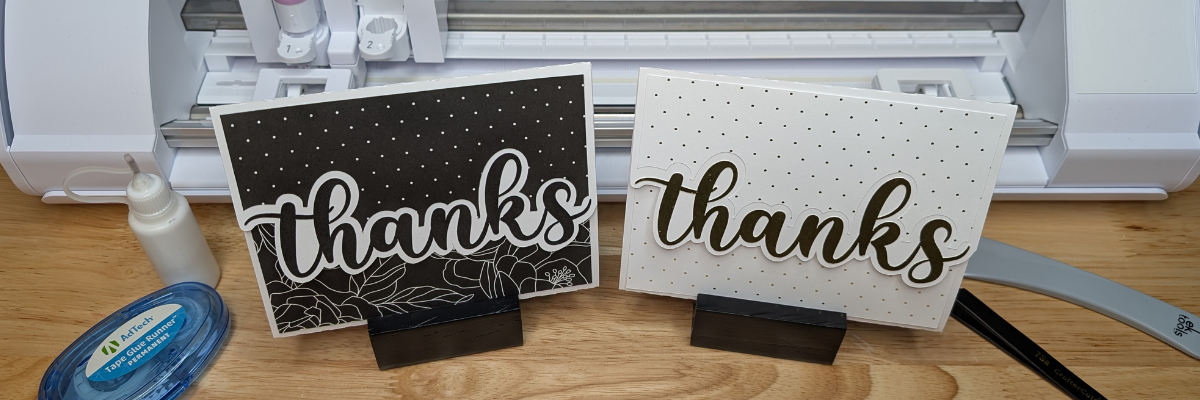
A step-by-step tutorial image for creating a tri-fold shaped card, featuring two card designs: one dark with floral patterns and a larger 'thanks' text, and one light with dots and a gold 'thanks' text, with crafting tools in the background.
Custom Card Design in Silhouette

Ready to design your own? Once you’ve watched the tutorial and are inspired to start creating, here are the supplies I used for my Tri-Fold Shaped Edge Card. Feel free to follow along with the same materials or customize your project with what you have on hand—either way, you’ll be crafting a unique card in no time!

Supplies for Custom Card Design:

Additional Resources:

This is a card design that can be used all year long and for many different situations.

Here are a couple more designs that I created too!

Four custom card designs featuring colorful patterns and bold lettering with messages such as 'just for you', 'hello', 'get well soon', and 'Happy Birthday'.

Mix and match different paper patterns with the same designs to create different looks.

A handmade card featuring the word 'thanks' in a playful font, placed on a wooden table with crafting supplies like a glue bottle, tape runner, and tweezers in the background.
Custom Card Design in Silhouette

This is a great way to use up scraps papers or smaller sheets too!

Two crafted cards with the word 'thanks' displayed in bold on a wooden table, alongside a glue runner and scissors, with a Silhouette cutting machine in the background.
Custom Card Design in Silhouette

Save this for future reference by pinning the image below.

An instructional image showcasing two tri-fold shaped edge cards with 'thanks' written on them, positioned in front of a cutting machine on a wooden surface.

Enjoy !

THANK YOU for your support! How can you help? Click HERE & buy a coffee.
Every little bit helps with the cost of running the site.

Silhouette Classes

Never stop learning! Let me help you take the anxiety out of learning with Silhouette and get to creating faster! My Silhouette classes are heavily focused on software, so you can take the skills & techniques taught and apply them to many future projects!

Silhouette step-by-step Classes by Silhouette Secrets+

Silhouette Secrets+ with EllyMae
**This post may contain affiliate links. What that means is that I may receive compensation if you purchase through the links I have provided. The price you pay for the product or service is not higher but I may get compensated for sharing.

Posted on Leave a comment

Crafting Creativity: Classic Pooh Projects to Inspire You

Silhouette Secrets+ with EllyMae

This edition of Crafting Creativity is full of heartwarming inspiration straight from the Hundred Acre Wood! Using the Classic Pooh: Friend Like You digital stamp set by Katie Pertiet Designs, I created several sweet and timeless projects featuring Pooh and his friends. From layered cards to charming home décor, each piece highlights how versatile digital stamps can be when paired with your Silhouette. Get ready to see how these delightful designs can bring warmth, friendship, and nostalgia to your craft table.

Affiliate links may be present in the following blog post and as an Amazon Associate, I earn from qualifying purchases.

Did you know that the Classic Pooh is now in the public domain in the U.S.? Classic Pooh entered the public domain on January 1, 2022. The Disney version is not in public domain.
*Outside of the U.S., please refer to trademark laws & regulations for your area.

Black and white illustration featuring Classic Pooh characters and inspirational quotes about friendship and togetherness.

Each month in the Crafting Creativity series, I dive into a single design file and transform it into a variety of unique projects to inspire your own creativity. From cards and stickers to home décor and custom tags, I love exploring all the possibilities one file can offer. These posts are designed to show you how versatile a single design can be and to spark ideas for using your Silhouette in new and exciting ways. Whether you’re a seasoned crafter or just starting out, Crafting Creativity is full of tips, tricks, and inspiration to help you make the most of every design!

Crafting Creativity – Classic Pooh Projects

Digital stamps are incredibly versatile and perfect for creating a wide range of projects. Pair them with your Silhouette for precise print-and-cut projects, and suddenly one file becomes the foundation for endless creative possibilities. Whether you’re crafting for holidays, birthdays, or everyday inspiration, digital stamps make it easy to bring your ideas to life!

Project #1 – Flip Action Interactive Cards

A collection of interactive flip action cards featuring illustrations of classic characters in the Hundred Acre Wood, with sentiments about friendship and togetherness.

These came together so easily and I was able to fit the print and cut designs for 6 cards onto one letter size sheet of paper. Here is a look at my print and cut page setup.

A design software interface displaying a print and cut setup for Classic Pooh-themed cards, featuring light pastel colors and illustrations.

I posted a quick video of cutting the pieces for this project using the Electrostatic Mat.
Check out the video on Instagram or Facebook.

And I used these designs in this video tutorial to show how to match colors in the Silhouette Studio software with the eyedropper too!

Screenshot of a Silhouette Studio interface displaying color matching tools and a page setup for digital stamp designs featuring characters from Classic Pooh.

Check out the tutorial on the Silhouette Secrets+ YouTube channel HERE.

Additional Resources:

Supplies Used:

Project #2 – Stickers

A layout featuring Classic Pooh digital stamps on a cutting mat, showing printed phrases and illustrations alongside a Silhouette cutting machine.

Digital stamps are perfect for creating custom stickers — you can size them exactly how you want, print them on your favorite sticker paper, and even cut them out perfectly with your Silhouette! They’re a fantastic way to bring digital designs into the physical world for planners, journals, cards, and more.

I received several questions about how to use digital stamps inside Silhouette Studio, so I created a step-by-step tutorial showing exactly how I set up, trace, and print and cut these adorable Classic Pooh images. It’s easier than you might think, and once you try it, you’ll be hooked on making your own personalized sticker sheets!

A digital stamp design setup in Silhouette Studio featuring Classic Pooh and friends, with a tutorial header emphasizing autotrace and print & cut tips.

This video tutorial is available on the Silhouette Secrets+ YouTube channel HERE.

Additional Resources:

Supplies Used:

Project #3 – Custom Tags

A set of six birthday gift tags with drawings featuring Classic Pooh and friends, including birthday greetings in playful fonts. The tags are displayed on a cutting mat.

The first set I created using the Silhouette Super Fine Heat Pen with silver foil. I had a couple issues with the foil tearing which smeared a few parts, but otherwise they turned out great! They are a bit more work to set up with extra steps for the foiling, but if you are looking for a WOW factor! This can do it!

A hand holding a tag with a birthday message, featuring illustrations of classic characters from the Hundred Acre Wood, including Pooh and friends.

I used a different sketch font on each one and one I drew a balloon using the Flexishapes and the line drawing tool.

A hand holding a tag featuring a sketched illustration of a child and a small dog, with a balloon graphic. The design is simple and evokes a playful, nostalgic theme.

But I couldn’t stop there! I also went ahead and simply changed the line color on all the sketch fonts to black and then did the tags as a print and cut. This does not have the shine to it, but it was less steps to set up to have it all printed.

A collection of birthday tags featuring illustrations of Pooh and his friends, with various designs that include the text 'Happy Birthday!' on a white background.

When working with sketch fonts, make sure to click on the Send tab and look at the bold red lines. That is exactly how it would sketch or print through a printer. Text defaults to “cut edge”, which can make sketch fonts act a bit goofy if they are close to single line fonts. They may not look complete and that is exactly how they would sketch or print.

See more details on sketching and photos of exactly what I mean in this blog post – How to Sketch with Silhouette

Additional Resources:

Supplies Used:

Project #4 – Custom Party Decor with Silhouette

Create your own party decor in the form of gift boxes, gift card holder, cupcake wrappers, and cupcake toppers.

A group of decorated cupcakes featured alongside themed party decor, including a cupcake wrapper and treat box, all featuring Classic Pooh illustrations, set on a wooden surface.

I created my own digital paper using the Classic Pooh: Friend Like You stamp set.

Print and cut layout featuring black and white sketches of classic characters from the Hundred Acre Wood, along with a cutting machine in the background.

And I shared exactly in this video – How to Create Custom Digital Papers in Silhouette Studio | Easy Tutorial on the Silhouette Secrets+ YouTube channel.

A close-up of DIY digital papers created in Silhouette Studio, featuring black and white illustrations of characters from the Hundred Acre Wood, including Pooh and friends. The papers are laid out on a wooden surface near a Silhouette cutting machine.

Take the steps and tips I shared and create your own unique custom digital background too! Have you seen the shirts where the husband takes a photo of the wife or vice versa and puts it onto a shirt for special occasions like birthdays? I just had to do it! So I made my husband custom gift wrap for his birthday.

A sheet of custom digital paper featuring repeated images of a person's smiling face, placed on a wooden surface next to a small gift box bearing the same design.

Additional Resources:

Supplies Used:

All of these projects were completed using just 1 digital stamp set by Katie Pertiet. She has a store full of amazing digital supplies and also produces physical products as well, such as stamps and more!

Find designs by Katie Pertiet Designs at:

Follow along with Katie Pertiet Designs on the  FacebookYouTube, Instagram HERE and HERE.

A great big thank you to Katie for contributing the free file for the Silhouette Secrets+ newsletter for the month of September! If you missed grabbing the free design in September, grab it here – Classic Pooh: Friend Like You digital stamp set and create amazing things!

This year I started offering a free file each month for Silhouette Secrets+ newsletter subscribers. I love designing in the Silhouette Studio software and have shared some of my creations as well as look forward to collaborating with more artists in the future too!

Silhouette Secrets+ Newsletter

Never miss out on the news, tips, “secrets”, deals, classes, and more that I share on Silhouette Secrets+. Sign up for the newsletter and get information delivered to your inbox every Friday.
Unsubscribe at anytime.

Sign up for the weekly newsletter HERE to have information delivered direct to your inbox and grab each month’s new freebie.

Did this spark some creative ideas for you? It’s amazing how one digital stamp set can be transformed into so many unique projects! I had such a wonderful time brainstorming, designing, and bringing each of these Classic Pooh creations to life. You can find even more inspiration and project ideas in the Crafting Creativity section on the Silhouette Secrets+ website — click HERE to explore!

Save this for future reference by pinning the image below.

Collage of Classic Pooh projects including interactive cards, birthday tags, cupcake wrappers, and custom party decor showcasing digital stamps.

Enjoy !

THANK YOU for your support! How can you help? Click HERE & buy a coffee.
Every little bit helps with the cost of running the site.

Silhouette Classes

Never stop learning! Let me help you take the anxiety out of learning with Silhouette and get to creating faster! My Silhouette classes are heavily focused on software, so you can take the skills & techniques taught and apply them to many future projects!
Silhouette step-by-step Classes by Silhouette Secrets+

Silhouette Secrets+ with EllyMae
**This post may contain affiliate links. What that means is that I may receive compensation if you purchase through the links I have provided. The price you pay for the product or service is not higher but I may get compensated for sharing.

Posted on Leave a comment

1 Stencil, 6 Creative Projects: Transform Your Design into Home Décor, Jewelry, Decals & More with Silhouette

Silhouette Secrets+ with EllyMae

Looking for stencil craft ideas to spark your creativity? This week, I’m sharing how one stencil design can be transformed in six fun and unique ways! Using the Hand Carved Flower Stencil by Kassy’s Parlour, created by artist Kassandra Louise Designs, I turned this single file into a home décor sign, cup decal, jewelry pendants, painted canvas, and more. It’s incredible how one design can inspire so many creative projects.

Affiliate links may be present in the following blog post and as an Amazon Associate, I earn from qualifying purchases.

When you look at a design file, do you see one project idea, or can you envision it on multiple projects? I started the Crafting Creativity series to help spark ideas and inspiration to do more with your files.

In this episode, I’m featuring this Hand Carved Flower Stencil Pattern by Kassy’s Parlour.

Digital stencil design featuring hand-carved flowers on a black background, labeled with available file formats.

Crafting Creativity Projects – Stencil Craft Ideas

Project #1 – Stencils with Stencil Material

Once I got started cutting stencils out, it was hard to stop.

A silhouette cutting machine with a flower stencil design and a quote stencil cut out, placed on a wooden tabletop.
Designs by Kassy’s Parlour

These are cut from 6 mil stencil material and it cut beautifully.

A person holding a flower stencil design above a cutting machine with a light-colored cutting mat.

Here is a look at the stencil before I unloaded it from the machine. For harder to cut materials, checking the cut before unloading the machine is a great habit to get into. If the cut did not complete, you can send it again and it should cut in the same place. This is great for materials such as stencil materials that dull blades quicker and may need extra passes to cut through.

Once the stencil is cut, it can be used for many different projects and mediums.

One thing to keep in mind is that stencil material is plastic and plastic will dull the blade quicker than other materials. It is perfectly normal to have to increase the blade settings or passes the more that is cut. And if you are cutting this material a lot, you may go through more blades than other thinner, easier to cut materials.

I cut this 6 mil stencil material using the preset for Stencil Material in the Silhouette Studio software. All I changed was to increase the passes to 2 and then when that started having a few hang ups, I increased it to 3 passes.

Additional Resources:

Supplies Used:

Project #2 – Card Background with Stencil

Have you ever used a Gel Press or Gelli Plate before? This is such a fun technique!

A hand holding a printed stencil design featuring various flower shapes, showcasing a lilac color against a white background.

Basically, a gel press is a jelly plate that you can add paint or other mediums on top of and then you press a piece of paper over top of it and pull the paint off. You can layer colors, add textures, and have lots of options.

An overhead view of a crafting workspace featuring a gel press printing technique. A teal and purple patterned paint layer is applied on a piece of paper, with a roller and stencil positioned nearby.

Here are a couple of pulls that I did using the stencil on top of the Gel Press.

A workspace displaying a stenciled design on paper with blue and purple acrylic paints, accompanied by two bottles of DecoArt paint. A ruler and cutting mat are visible in the background.

These can turn out so neat and each one is unique. Once dry the pages can be used for many projects such as cards, mixed media pages, tags, backgrounds and more!

A craft workspace featuring a handmade card reading 'Just a Note' surrounded by acrylic paint bottles, tools, and a gel press.

I used two of the gel prints to make this card and then stamped with black ink directly on top of the print. It turned out pretty neat with the paint showing through the black ink.

A handmade card featuring a floral stencil design in shades of purple, with the words 'just a note' and 'to say hello' printed in bold black text.

Supplies Used:

Project #3 – Home Decor Sign

For this project, I opened the stencil design, changed the fill color to transparent and then right clicked and chose “Release Compound Path”. This will break up the design into pieces. I then deleted all the pieces around the full flower design. Then selected all of the flower pieces, right click and choose “Make Compound Path”.

I am using a 8″ frame, so drew a square and sized it to 8″ x 8″. I selected the flower design and filled it with black, just to see it better. Then started playing around with patterns. I filled the flower design with a pattern and decreased the transparency in the Fill Color panel. Then I started filling the background square with patterns and testing them out.

Here is a look at my working file where you can see the different pattern options I was playing around with.

Silhouette Studio design screen showing a floral background with the text 'It never gets easier You just get better' for creating custom decals.

Then I printed the design onto Epson Presentation Paper – Matte and cut it with my paper trimmer.

A printed design with the text "It never gets easier. You just get better" is placed on a wooden table near a cutting machine and a paper trimmer.

When there are straight lines and a larger image as shown above, an old school paper trimmer does the trick versus trying to set up for a print and cut. I use Silhouette Studio to do the design work and printing and then with 4 swipes, my paper trimmer has the project ready to go.

A framed wall art piece featuring the quote 'It never gets easier. You just get better.' against a blue background with a floral design, alongside a white pitcher holding purple flowers.

And the best part about this is, you can change it out whenever you feel like. Print a new image and swap it out to coordinate with the season, your decor, or your mood.

Additional Resources:

Supplies Used:

Project #4 – Cup Decal

I cut several flower decals from patterned adhesive vinyl to decorate my new travel coffee cup. I used the same technique as described above to separate the flower design from the stencil and cut individual flower decals.

A hand holding a white insulated cup featuring a blue floral design, set against a grassy background.

After I weeded the decals, I cut them apart and then applied transfer tape and placed each one individually around the cup, so I could control where they were and how they fit together.

Here is a close up of the decal where I hope you can see a bit of it’s sparkle & shine.

Close-up of a travel coffee cup featuring a blue flower decal with a glossy finish.

Tips for Creating Cup Decals with Adhesive Vinyl

Surface Area

When applying adhesive vinyl to a surface that may be handled often, you want to keep in mind the size of the pieces of the design. The smaller the piece, the less adhesive there is to stick to the surface of the blank. So thin letters, intricate flourishes, delicate designs may not stick well to the surface of an object that’s handled or washed.

Even if using “permanent” adhesive vinyl, that doesn’t mean it will never come off or lift. Permanent adhesive vinyl simply means it has a stronger adhesive on the backside than “temporary” vinyl once cured. You can still peel it off, pick it off, scrape it off, etc.

The greater the surface area of the solid pieces of the design, the more adhesive there is to stick to the object.

There are a couple things you can do to help with a decal staying put longer.

  • thicken fonts or enlarge small areas of the design
  • eliminate the smaller or tiny sections of a design if possible
  • clean the surface of the cup with an alcohol swab & let it dry completely – this cleans off any dust or oils off the surface that can repel the adhesive
  • after applying the decal, let it sit for 48-72 hours for the adhesive to set up
  • apply a bit of heat to help the adhesive vinyl stick – not too much, you don’t want to melt it

Surface of the Cup

Stain resistant, nonstick, or silicone surfaces are designed to repel anything from sticking to it. Even if you are able to get a decal to stick initially, it usually does not for long.

It doesn’t just apply to cups though. There are a lot more stain resistant paints on the market and being used to paint interior walls of homes. Stain resistant is designed so things don’t stick to it, so even a “permanent” adhesive vinyl decal may not stick.

Textured surfaces can also be more difficult for a decal to stick to or it may not last long on a texture surface.

Placement of the Decal

When placing decals onto a cup, keep in mind where it is placed. I purposely placed my designs higher up on the cup knowing that it would be set into a car cup holder.

The more a cup is handled, the greater chance there is that the decal can catch, lift, or come off. This would include things like someone picking at the design, washing the cup, scrubbing the cup, sliding in and out of a car cup holder, being tossed around in a bag, etc.

And…

Sometimes things just happen and it won’t last. The best part about having a cutting machine is that you can cut another one. Or you can take the current one off, clean the cup, and apply a new decal to fit your mood.

Additional Resources:

Supplies Used:

Project #5 – Custom Jewelry for Pendants, Bag Tags, Keychains, Earrings…

I created a collection of jewelry pendants with matching earrings, bag tags, keychains and more

A collection of custom jewelry including necklaces, earrings, and keychains featuring vibrant floral designs encased in circular metal settings, displayed on a dark background.

Once I got started with this, it was hard to stop and I ended up creating quite a few.

A set of jewelry including a pendant, earrings, and a charm, featuring intricate blue floral designs with glitter, accompanied by a blue tassel.

When working with digital supplies, it’s so easy to change things up and I think the Mod Podge Sparkle added so much to this project.

A collection of colorful jewelry items including necklaces, earrings, and keychains featuring vibrant floral designs and glitter accents, displayed on a dark surface.

See all the written details in this blog post – Sparkle & Shine: DIY Custom Jewelry HERE

A display of various DIY jewelry pieces made using Silhouette, including pendants, earrings, and tassel accents with vibrant colors and glitter.

Or watch the video tutorial on the Silhouette Secrets+ YouTube channel HERE.

A close-up view of DIY sparkling jewelry pieces on a black surface, featuring colorful pendants and leather tassels with a step-by-step tutorial overlay.

And by request, I also created a set of printable instructions that can be found HERE too.

Supplies Used:

Project #6 – Painted Canvas Decor

I tried several different things with these and they are still a work in progress. Some things didn’t turn out such as using the stencil with white sharpies or sponging on white texture paste. I had too much bleed, so I ended up painting another layer to cover it up.

An arrangement of three canvases displaying floral designs in pink and white, alongside a printed sheet featuring a similar floral stencil pattern on a blue background.

When the white Sharpie and texture paint didn’t work out on this one, I switched gears and cut a stencil from Silhouette adhesive backed stencil material and started filling it in with TCW Stencil Butter. OH MY! I have to say that the Silhouette adhesive backed stencil material worked AWESOME! Even with the texture of the canvas, it worked great! I will definitely be using this more in the future. The only drawback is that it is letter size and I would have loved to create a larger stencil.

A close-up view of a flower stencil applied to a blue canvas, with fuchsia stencil butter visible in the stencil design.

But I made it work. I had to let the first flower dry and then I added more.

A blue canvas featuring pink flower designs on the left, alongside a stencil with white flower outlines on the right.

All I need now is the perfect saying to add to it. Let me know if you have any ideas that jump out at you when you see the project!

The next one has several layers of paint on it, but ultimately, I ended up with a solid pink background. I had cut a 12″ x 12″ stencil to use with this, but then I started looking at all of those negative pieces that were left over from the stencil and wondered if I could use those in some way.

A person holding a floral stencil above a cutting machine on a wooden work surface, with additional craft supplies visible in the background.

I ended up applying transfer tape and picking up all of those pieces that I then used as a negative stencil on the wet paint. It was really just a “let’s see what happens moment”. I just laid the transfer tape on top of the wet paint with the negative pieces attached and smoothed it down to see what would happen.

Close-up view of a pink textured canvas with an embossed pattern.

It gave it an interesting pattern. Once the paint was dry, I then simply traced around with the white Sharpie Creative Maker and then I added a layer of Mod Podge Sparkle on top of it.

A pink canvas with white flower stencil designs on it, placed next to a clear stencil sheet on a wooden surface.

I am not sure if it’s finished yet or if I will add more to it. Just waiting a bit to see where the art goes.

Additional Resources:

Supplies Used:

All of these projects were completed using just 1 stencil design file from Kassy’s Parlour.

Find designs by Kassy’s Parlour on Etsy HERE.

Follow along with Kassandra Louise Designs of Kassy’s Parlour on:

A great big thank you to Kassy for contributing the free file for the Silhouette Secrets+ newsletter for the month of August! If you missed grabbing the free design in August, it is available in the HERE.

This year I started offering a free file each month for Silhouette Secrets+ newsletter subscribers. I love designing in the Silhouette Studio software and have shared some of my creations as well as look forward to collaborating with more artists in the future too!

Silhouette Secrets+ Newsletter

Never miss out on the news, tips, “secrets”, deals, classes, and more that I share on Silhouette Secrets+. Sign up for the newsletter and get information delivered to your inbox every Friday.
Unsubscribe at anytime.

Sign up for the weekly newsletter HERE to have information delivered direct to your inbox and grab each month new freebie.

Did this spark your imagination? ✨ It’s amazing how one single file can be transformed into so many unique projects! I loved exploring all the creative possibilities with this design. You can find even more inspiration and project ideas in the Crafting Creativity section on the website — check it out HERE.

Save this for future reference by pinning the image below.

A collage of various crafting projects made using a hand-carved flower stencil design. The projects include decorative cards, jewelry pendants, a travel cup decal, and painted canvas art, showcasing creative uses of vinyl and stencil techniques.

Enjoy !

THANK YOU for your support! How can you help? Click HERE & buy a coffee.
Every little bit helps with the cost of running the site.

Silhouette Classes

Never stop learning! Let me help you take the anxiety out of learning with Silhouette and get to creating faster! My Silhouette classes are heavily focused on software, so you can take the skills & techniques taught and apply them to many future projects!

Silhouette step-by-step Classes by Silhouette Secrets+

Silhouette Secrets+ with EllyMae
**This post may contain affiliate links. What that means is that I may receive compensation if you purchase through the links I have provided. The price you pay for the product or service is not higher but I may get compensated for sharing.
Posted on Leave a comment

One SVG, Four Stunning Projects: Crafting with Diva Watts Designs and Silhouette

Silhouette Secrets+ with EllyMae

Looking for creative ways to get more out of your cut files? In this post, I’m sharing how I used one SVG file from Diva Watts Designs to create four unique and beautiful projects—all with Silhouette! From a layered cardstock sign with vinyl to an interchangeable home décor frame, greeting cards, and even a custom wood sign, you’ll see just how versatile one SVG project can be. Whether you’re crafting for fun, decorating your space, or creating gifts, this post is packed with inspiration and ideas to help you make the most of your designs.

Affiliate links may be present in the following blog post and as an Amazon Associate, I earn from qualifying purchases.

When you look at a design file, do you see one project idea, or can you envision it on multiple projects? I started the Crafting Creativity series to help spark ideas and inspiration to do more with your files.

Design featuring a floral pattern with the words 'Oh, Hello' on a circular background, accompanied by the logo of Diva Watts Designs.

I took this Oh Hello design by Diva Watts Designs and am sharing several projects below that could be created from this one file.

First, here is a look at a finished wood sign by Diva Watts Design using this design.

A round wooden sign featuring a floral design with the text 'Oh, Hello' in a stylish script. The sign has a natural wood background and a black band at the bottom with white lettering.

Crafting Creativity Projects with Diva Watts Designs

One simple design opens the door to endless crafting ideas. You may look at this design and say, “I don’t have a laser, so I cannot do anything with it.” But that’s simply not the case! Let’s take a look at a few possibilities.

Project #1 – Door Hanger with Cardstock and Vinyl

A round chalkboard sign featuring a floral design with the text 'Oh, hello' written in a playful font. 
Blog post features one SVG to create multiple projects.

Rather than limit yourself to a specific material, use different materials to create a similar style. I used cardstock and vinyl added to a pre-made wood backer for this design.

Check out this post – How to Make a DIY Door Hanger Sign with Cardstock & Vinyl Using Silhouette HERE for more details.

A round wooden sign featuring the phrase 'Oh Hello' with floral designs above and a dark horizontal band across the middle, resting on a crafting mat with tools nearby.

Additional Resources:

Supplies Used:

Project #2 – Card Designs

I love this one! I used just the hello part of the design, cut a bit off the left side using the Knife tool and then welded it to rectangle frame. Then I made an offset of the design and layered it together to make it pop.

A close-up of a layered cardstock project featuring the word 'hello' in a decorative font, set on a wooden table with adhesive tools and a cutting machine in the background.
Blog post features one SVG to create multiple projects.

Using just the text from the wood sign design I created the next cards. Don’t throw out those bits! In some cases, like this one, you can use the negative part of the design that’s been cut and create with it too!

Craft projects featuring the phrase 'Oh Hello' on colorful cardstock, along with crafting tools like scissors and a tape runner, displayed on a wooden surface.
Blog post features one SVG to create multiple projects.

When using the negative of a design, a quick trick to get the placement is to use the positive part of the design as your “stencil” and glue the pieces in place first. This means that the design will be placed exactly where you want it. I show using this technique in a video on the Swift Creek Customs channel HERE.

After I used the background as a stencil, I used double-sided foam tape to pop up the striped background to give it some dimension on it’s own card. One cut = 2 card designs.

Additional Resources for the tools I used to create the designs:

Supplies Used:

Project #3 – DIY Glass Frame Sign with Vinyl and Sharpie Markers

I love creating projects that can be repurposed and have use all year long! This glass frame with the flower portion of the design does just that.

A colorful glass frame sign featuring the text 'hello FRIENDS' with a floral illustration at the bottom, surrounded by crafting markers and tools.
Blog post features one SVG to create multiple projects.

I cut the flower design from adhesive vinyl and added it to the backside of the frame. Then colored that in using Sharpie markers on the backside. While that was drying and the adhesive vinyl curing, I designed several backgrounds to swap out in the frame. This really makes the project versatile and something that can be used year round.

A framed sign featuring the text 'life is beautiful' with a colorful gradient background and floral design at the bottom, surrounded by craft markers.
Blog post features one SVG to create multiple projects.

There are so many patterns & design sentiments options out there!

A framed design featuring floral elements and an inspirational quote, surrounded by craft markers and tools on a workspace.
Blog post features one SVG to create multiple projects.

This was another project that I didn’t even bother to use registration marks with. I designed it the size I needed and then used a paper trimmer to cut the straight edges to fit the frame. Sometimes I think we can overcomplicate projects just because we have a machine that can cut things. A good ole paper trimmer is a great tool to have in your tool box!

See the step-by-step tutorial for this project here – DIY Interchangeable Glass Frame Sign with Silhouette Studio – One Project for All Seasons

Additional Resources:

Supplies Used:

Project #4 – Wood Sign

Finished laser wood sign created with a design by Diva Watts Designs. Blog post features one SVG to create multiple projects.

I used my Glowforge laser to cut all the pieces out of a piece of Maple Plywood. Here is a look at the pieces etched, scored, and cut out.

Laser-cut wood pieces featuring the text 'Oh Hello' and floral designs on a cutting bed.

I prefer to mask my wood pieces before cutting with the laser and then I can simply remove the masking and they are much cleaner.

Once I had all the pieces cut, the Posca Paint Markers made this so easy to color in. Painting is not my favorite part of the finishing process and I hate waiting for things to dry, but I’m getting used to it. Coloring with the paint markers was so satisfying.

Close-up of a round wooden plaque with a floral design, surrounded by various colored markers and a measuring tool, showcasing crafting materials.

The larger pieces I did end up using a bit of acrylic paint to cover the larger surface area.

Crafting workspace with colorful markers, a green wood piece, and a round wooden sign adorned with flowers and the word 'hello' in yellow.
Blog post features one SVG to create multiple projects.

I shared my process including how I set up the “OH, hello” to score on the wood section so that I knew exactly where to glue the pieces in place in this video on the Silhouette Secrets+ YouTube channel HERE – Laser Engraved Wood Sign Using Silhouette Studio

A workspace displaying tools and materials for crafting a laser wood sign, featuring markers and a circular cut wood piece with flower designs.
Blog post features one SVG to create multiple projects.

Additional Resources:

Supplies Used:

All of these projects were completed using just 1 file from Diva Watts Designs! Stacey has so many more amazing designs too!

Find designs by Diva Watts Designs at:

Follow along with Diva Watts Designs on the Diva Watts Designs websiteFacebook and Instagram too!

A great big thank you to Stacey at Diva Watts Designs for contributing the free file for the Silhouette Secrets+ newsletter for the month of July! If you missed grabbing the free design in July, it is available in the Silhouette Design Store HERE.

This year I started offering a free file each month for Silhouette Secrets+ newsletter subscribers. I love designing in the Silhouette Studio software and have shared some of my creations as well as look forward to collaborating with more artists in the future too!

Silhouette Secrets+ Newsletter

Never miss out on the news, tips, “secrets”, deals, classes, and more that I share on Silhouette Secrets+. Sign up for the newsletter and get information delivered to your inbox every Friday.
Unsubscribe at anytime.

Sign up for the weekly newsletter HERE to have information delivered direct to your inbox and grab each month new freebie.

Did this give you some ideas? How about how you can take 1 file and create a variety of projects with it. I had so much fun brainstorming, designing, and creating with this file. See more ideas and inspiration in the Crafting Creativity section on the website HERE.

Save this for future reference by pinning the image below.

Collage of four crafting projects showcasing the 'Oh Hello' design by Diva Watts Designs, featuring a wooden sign, a floral artwork, and greeting cards, highlighting creative variations using Silhouette tools.

Enjoy !

THANK YOU for your support! How can you help? Click HERE & buy a coffee.
Every little bit helps with the cost of running the site.

Silhouette Classes

Never stop learning! Let me help you take the anxiety out of learning with Silhouette and get to creating faster! My Silhouette classes are heavily focused on software, so you can take the skills & techniques taught and apply them to many future projects!

Silhouette step-by-step Classes by Silhouette Secrets+

Silhouette Secrets+ with EllyMae
**This post may contain affiliate links. What that means is that I may receive compensation if you purchase through the links I have provided. The price you pay for the product or service is not higher but I may get compensated for sharing.
Posted on 1 Comment

LIVE Silhouette Studio Tutorial: Create a Stunning Pop Out Top Card & Master Print & Cut!

Pop Out Top Card
Silhouette Secrets+ with EllyMae

New Silhouette tutorial step-by-step to creating a Pop Out Top Card & Mastering Print and Cut in Silhouette Studio on the Silhouette Secrets+ YouTube channel.

Just a quick note to share the link for the Live Silhouette tutorial that happened this month.

Silhouette Pop Out Top Card Tutorial

Click the photo above or find it HERE.

Silhouette Pop Out Top Cards with Print and Cut

This card design technique could be used for many different projects such as place cards, treat toppers, or a card too!

Supplies used for Pop Out Top Card Projects:

Additional Resources:

Here’s a look at another design with this same technique too!

Pop Out Top Card with Silhouette

Make sure to check the Silhouette Secrets+ Upcoming Events tab HERE for future Live tutorials and other events too!

Save this for future reference by pinning the image below.

Silhouette Tutorial Pop Out Top Card

Enjoy !

THANK YOU for your support! How can you help? Click HERE & buy a coffee.
Every little bit helps with the cost of running the site.

Silhouette Classes

Never stop learning! Let me help you take the anxiety out of learning with Silhouette and get to creating faster! My Silhouette classes are heavily focused on software, so you can take the skills & techniques taught and apply them to many future projects!

Silhouette step-by-step Classes by Silhouette Secrets+

Silhouette Secrets+ with EllyMae
**This post may contain affiliate links. What that means is that I may receive compensation if you purchase through the links I have provided. The price you pay for the product or service is not higher but I may get compensated for sharing.
Posted on 2 Comments

Off the Edge Die Cut Card with Silhouette

Off the Edge Die Cut Card with Silhouette

In this tutorial, I’m going to share how I created what’s called an “Off the Edge” die cut card with my Silhouette machine. This can add an interesting element to any card design and is fun to create.

Affiliate links may be present in the following blog post and as an Amazon Associate, I earn from qualifying purchases.

Off the Edge Die Cut Card with Silhouette

I recently attended the Card Maker Success Challenge hosted by Brandi Mahon of Stamp Me Some Love and was so inspired by her card ideas. I took the card ideas she was sharing and modified them to be used with my Silhouette software and machine. If you are looking for card making inspiration, I recommend you check out her monthly Card Maker’s Success Subscription.

Supplies Used:

Creating an Off-the-Edge Die Cut Card with Silhouette

The Background

First, I opened up an Alcohol Ink Background by Sarah Hurley and printed that as a full letter size page for my card backgrounds. I printed this onto Koala Glossy Photo Paper and it turned out awesome!

Alcohol Ink Background by Sarah Hurley Silhouette

I have a Canon TS9521C that is a borderless printer, but you can do the same even without a borderless printer.

Alcohol Ink Glossy Photo Paper

Then, I will use a paper trimmer to cut the page down to the size I need for my cards front. But, I won’t know the size until I have the other pieces cut out, so I just set this aside.

Designing in Silhouette Studio

Drawing the Card Pieces

Next, in the Silhouette software, using the Drawing Tools on the left side, draw out a rectangle and then scale it to 4.25″ x 5.5″ or whatever card size you are wanting. Unlock the lock to be able to change the height and width of the rectangle individually. Type the number and press Enter to set the dimension. Find more on the Scale Tools HERE.

Silhouette Drawing Tools and Scale Tools

Select the rectangle and then choose Align Left in the Alignment tools. With only 1 object selected it will align it to the left side of the page. This will help us in just a minute with our design.

Silhouette Studio Align Tools

Choosing a Sentiment

Next, open the sentiment design you want to use or with the Text Tool and type out the sentiment you want. If you type out the text, make sure to weld any overlapping pieces.

I used Hello by Diva Watts Designs found HERE for this card design.

Open Hello Design by Diva Watts Designs

Scale the hello down to fit within the card base and use the green dot at the top to rotate it to the desired angle. Or you can use the Rotate Panel and rotate to 45 degrees and adjust from there.

Editing the Card Front

Next, open the Page Setup Panel – Tab 2 and check the Show Grid and Snap to Grid boxes.

Silhouette Snap to Grid

This is going to allow us to adjust the rectangle and maintain straight lines.

Double click on the red line of the rectangle to bring up the Edit Points. Drag the top left edit point (gray dot) down.

Silhouette Edit Points

Grab the top right edit point and drag it down, so the top of the rectangle is angled as desired to run through the middle of the sentiment.

Silhouette Edit Points

With the Snap to Grid tool activated, it snaps the edit points to specific locations and easily allows the design to be manipulated and maintain the straight lines of the card edges.

Once the edges are how we want, Show Grid and Snap to Grid can be toggled off on the Page Setup Panel – Tab 2 again. I find the grid lines distracting when designing, but they can easily be turned back on if needed.

Create a Copy for Future Templates

Make a copy of the card base and you can use it for future cards as a starting point.

Silhouette Make Copies

Select both the card base and the sentiment and Align the Center in Silhouette. Depending on the design, center aligned may not look centered to the eye. Use the arrow keys to adjust if needed in small increments any direction.

Silhouette Center Align

Adding an Offset

Next, click on the sentiment to select it and open the Offset Panel on the right side. Click Offset and adjust the distance of the Offset as desired, then click Apply or press Enter. The distance of the offset will all depend on the sentiment and the size you are using. There is no magic number.

Silhouette Offset Panel

The offset should overlap the angled rectangle securely and not have too many tiny bits to be cut out.

Silhouette Weld

Welding the Offset to the Card Front

After clicking on Apply, the offset will be selected. Hold the Shift key down and click on the angled rectangle so that both are selected, then right click and choose Weld.

Silhouette Compound Path

This now combines the angled rectangle and the offset into 1 cut and creates the off-the-edge design. If there are any tiny bits like what the red arrow points to above, those are not needed in the design. Move the sentiment off of the design.

Then right click on the design and choose Release Compound path. Click off of it to deselect and click back on the little bit, press delete. When all the pieces you want are deleted, select the entire design again, right click and choose Make Compound Path.

Silhouette Compound Path

Use the drag select method to select all the pieces at the same time. Left click the mouse and hold it down in the top left corner above the design and drag it all the way through the design to the bottom right corner. Anything that the selection box touches, should be selected.

Cutting the Card Pieces & Assembly

Now you have your pieces for the Off-the-Edge card design designed and ready to cut in Silhouette.

Off the Edge Die Cut Card

I cut the sentiments from Oracal 651 Black vinyl and applied it to the off-the-edge piece that I cut from white cardstock. I reused a piece of transfer tape to apply it and was careful that it didn’t stick to the cardstock too much. You could also cut from cardstock and glue to the front, but adhesive vinyl makes it a bit quicker to assemble and the glossy sentiment made it pop with the photo paper background too!

Oracal Adhesive Vinyl 651 Cut Sentiments

Then I took the printed sheet of the alcohol background paper and cut it to 4.25″ x approximately 3.5″ with my paper trimmer. This size depends on how far the left side of the off-the-edge cut comes down. I used a Scrapbook tape runner to adhered the alcohol background to the front of a card base at the top.

You can either buy ready made card bases or make your own. In this card tutorial HERE at 32:30, I show how I cut my own card bases from a letter size sheet of paper.

Off the Edge Die Cut Card

Then used foam tape to add the off-the-edge cut piece to the front of the card at the bottom.

Off the Edge Die Cut Card

Off-the-Edge Die Cut Cards with Silhouette

Once you have the basics of the card creation down, you can modify it for different sentiments. Save the angled rectangle as a template for future card cuts.

Off the Edge Die Cut Card with Silhouette

I also created this with a Happy Birthday design by Erica Digital Designs, a Thank You design by Erica Digital Designs, and a Thank You design by Dresden Carrie.

Off the Edge Die Cut Card with Silhouette

The first card will take the longest to design, but then you will have all the steps and if you save the files, you can easily open in the future and get to cutting.

You will also notice that a couple of mine got a bit close to the edge and really did go off-the-edge. For these I can just snip that part off before placing in the envelope, but in the future I’ll adjust the design a bit smaller so the offset doesn’t go outside the bounds. Something like that is easily corrected in the software when it happens to you.

Save this for future reference by pinning the image below.

Off the Edge Die Cut Card with Silhouette Pinterest

Enjoy !

THANK YOU for your support! How can you help? Click HERE & buy a coffee.
Every little bit helps with the cost of running the site.

Silhouette Classes

Never stop learning! Let me help you take the anxiety out of learning with Silhouette and get to creating faster! My Silhouette classes are heavily focused on software, so you can take the skills & techniques taught and apply them to many future projects!

Silhouette step-by-step Classes by Silhouette Secrets+

**This post may contain affiliate links. What that means is that I may receive compensation if you purchase through the links I have provided. The price you pay for the product or service is not higher but I may get compensated for sharing.