Have you ever tried tracing an image in Silhouette Studio only to find the result wasn’t as clean or precise as you’d hoped? You’re not alone! Many users struggle with getting a smooth, accurate trace that leads to a successful cut file. We see questions about this all the time, and that’s why I’ve created an in-depth tutorial to help you master tracing and cleaning up your designs in Silhouette. Whether you’re working with complex images or simple shapes, these tips and techniques will help you put the tools in the Silhouette Studio software to work for you!
Find this FREE in-depth video tutorial on the Silhouette Secrets+ YouTube channel HERE.
Every single image that you trace can be different because each one is made up of different colors, gradients, shading, etc. In the video tutorial, I take you along for the journey and it is step-by-step exactly how I would work with a file that needs clean up. The only way to actually know if the file will be a successful cut file in the end is to cut it, so I included my tips after cutting and shared exactly what I would change after I finished the cut to make it even more successful for the final project.
The original traced image started with 24,528 edit nodes and through the clean up process, I was able to get that down to 1,848. That makes a huge difference in the cuttability of a file.
My goal through the entire process was to maintain as much of the character of the image as possible. This makes a great way to make unique projects & gift ideas.
Check out the full in-depth video to learn more about how you can make the tools in the Silhouette Studio software do what you want.
I hope you pick up a few tips to mastering tracing in Silhouette Studio and how to clean up a file for a cuttable design!
Silhouette Tutorial: In-Depth Guide to Tracing & Cleaning Up Detailed Images – Step-by-Step Video on the Silhouette Secrets+ YouTube channel HERE
For more in-depth tutorials and inspiring projects, explore our comprehensive A to Z of Silhouette section on the website HERE, where you’ll find years of creative resources to help you master your Silhouette skills!
Save this for future reference by pinning the image below.
Enjoy !
THANK YOU for your support! How can you help? Click HERE & buy a coffee. Every little bit helps with the cost of running the site.
Silhouette Classes
Never stop learning! Let me help you take the anxiety out of learning with Silhouette and get to creating faster! My Silhouette classes are heavily focused on software, so you can take the skills & techniques taught and apply them to many future projects!
**This post may contain affiliate links. What that means is that I may receive compensation if you purchase through the links I have provided. The price you pay for the product or service is not higher but I may get compensated for sharing.
Have you ever wanted to have distressed background or edges on a pattern or photo? While Silhouette Studio does not have the same tools as a graphics program like Photoshop does, there are still ways you can get distressed or grunge edges in the Silhouette Studio software.
Affiliate links may be present in the following blog post and as an Amazon Associate, I earn from qualifying purchases.
Recently I was creating a bundle of 20 cards for a card swap that I signed up for through Erin Reed Makes and saw an idea to create 6 card backgrounds from 1 sheet of 12″ x 12″ paper on Pinterest. It was a distressed background with white space left for additional elements to be added to the card front.
Now, these distressed designs are not ideal for cutting as they are quite detailed, but they are awesome for print projects, like creating card backgrounds, sublimation, or other printed projects.
I grabbed some clipping mask png files from ClikChic Designs on Etsy and created exactly what I wanted. But, I knew it could be easier or more available to Silhouette users, so I reached out to ClikChic Designs and we started working together testing some designs and I’m excited to say there are a few in the Silhouette Design Store! If this is a popular idea, you may see more too – so make sure to leave a comment below so we know if you like this style of designs.
Let’s take a look at how I created this distressed background pattern in Silhouette Studio.
Distressed Background Designs in Silhouette
Open Silhouette Studio and set up the page size for your printer.
If you don’t have the capability to print a 12″ x 12″ sheet of paper, don’t let that stop you. This could be done with whatever size you can print on to create projects with.
Open the distressed design and scale it to the size you want to fill as much of the page as you want.
A .studio file, which is what is in the Silhouette Design Store or a .svg file is a cut file. This means that you can add patterns to the design. If you open another file type such as a .png or .jpeg, you would need to do additional steps to work with that file. (See below for additional information)
**Currently as I type this, you will need to download these files direct to your computer to use as the library syncing is broken – click HERE for how to do that.
If the pattern is outside Silhouette, drag it from the My Computer folder location and hold it over top of the design. The design will fill with that pattern.
If you move too fast doing this step, it may not work or you may end up with a small square that won’t disappear without closing the software to reset it. Go slow and hold that pattern on top of the design in Silhouette Studio until it fills the shape.
Patterns from the Silhouette Library could also be used as well. For more on Patterns in Silhouette, check out these tutorials HERE.
Next, change the Line Color to Transparent to see how the pattern will look. This step also ensures that the red cut border will not print.
The next steps would depend on what project you are working on. I printed the design on a 12″ x 12″ sheet of Recollections cardstock.
Then I used my paper trimmer, cut the 12″ sheet at 6″ in the middle of the pattern and then again cut those sections down to 4″ widths. Once I had each section I could trim it down further to 4″ x 5.25″ for my card backgrounds.
I added a stamped sentiment to the front and added some rhinestone gems to each card.
There are so many options! 6 card backgrounds from 1 sheet of 12″ x 12″ cardstock
A great big thank you to ClikChic Designs for working with me and the idea to make this style of designs easily available to Silhouette users. Check out their blog post for additional ideas on this technique HERE.
I have collected designs by ClikChic for awhile. And then I saw on their Instagram channel where they showed how they create their designs by hand painting them and then digitizing them. I was mesmerized. So make sure to check out their Instagram too!
Save this for future reference by pinning the image below.
Enjoy !
THANK YOU for your support! How can you help? Click HERE & buy a coffee. Every little bit helps with the cost of running the site.
Silhouette Classes
Never stop learning! Let me help you take the anxiety out of learning with Silhouette and get to creating faster! My Silhouette classes are heavily focused on software, so you can take the skills & techniques taught and apply them to many future projects!
**This post may contain affiliate links. What that means is that I may receive compensation if you purchase through the links I have provided. The price you pay for the product or service is not higher but I may get compensated for sharing.
Affiliate links may be present in the following blog post and as an Amazon Associate, I earn from qualifying purchases.
Did you know that you can use the Silhouette software without EVER using the Silhouette library?
If you are reading this when it’s first published, we’ve been encountering an issue where we are currently 23 days into an outage of the Silhouette websites where there are issues syncing files to the Silhouette library and anything that “talks” to the Silhouette servers. It has worked a bit in the last 23 days, but for the most part users are dead in the water if they only use the Silhouette library and rely on it only.
But, you DO NOT have to rely on the Silhouette library at all! And, to be honest, you should NOT! You should not rely on 1 source as an absolute. You purchase files and you should have those files available to you whenever you need them.
First Thing First
Before I even begin to show you how you can use Silhouette without the library, the first thing I want to advise you is….
1 – Save your personal files to an outside location!!!
It’s really easy to do. File > Save As > Save to Hard Drive. Or if you are saving a file type besides .studio file I would recommend selecting your entire design and then using File > Save As > Save Selection and then choose the file type.
2 – Back up your files. Even if you save your files to an outside source. Back them up to another source! There is NOTHING that is 100% safe! Except multiple back ups.
More tips on backing up files, including what I’m currently using as my primary storage and back up sources – click HERE
I hate to say it but in general, we have all gotten complacent. We used to save Word documents every 5 minutes and that was the standard. It doesn’t really matter that technology has improved, it can still fail! Nothing is 100% fool proof except multiple saving a backup to multiple locations.
3 Ways to Use Silhouette Without the Library
1 – Design your own files using tools in Silhouette Studio
Every single user can create their own files! You do not have to have a degree to do this. Use the tools in Silhouette Studio software to create your own designs.
2 – Open a design in Silhouette Studio and use to cut. Silhouette Studio can open many file types from outside sources.
This method depends on what Silhouette Studio upgrade you have. The basic (free) software is limited on what file types it can open. Silhouette Studio upgrades will allows you to open more file types such as the common SVG file type that is a cut file.
3 – If you can access your Silhouette library, you can open from there. But what if you cannot access it for some reason – like the software update mess or another issue?
You can download the files direct to your computer and use them!
Check out this video on how you can download your files directly from the Silhouette Design Store and save to your external source on the Silhouette Secrets+ YouTube channel HERE.
You have the resources at your finger tips! Use them! Learn how to make Silhouette Studio software work for YOU!
Want to learn more on how you can make Silhouette Studio work for you? Check out the A to Z resource on the blog HERE.
Save this for future reference by pinning the image below.
I hope these tips help you on your journey, especially as we navigate the Silhouette Studio website issues we are currently experiencing as I type this.
Enjoy !
THANK YOU for your support! How can you help? Click HERE & buy a coffee. Every little bit helps with the cost of running the site.
Silhouette Classes
Never stop learning! Let me help you take the anxiety out of learning with Silhouette and get to creating faster! My Silhouette classes are heavily focused on software, so you can take the skills & techniques taught and apply them to many future projects!
**This post may contain affiliate links. What that means is that I may receive compensation if you purchase through the links I have provided. The price you pay for the product or service is not higher but I may get compensated for sharing.
In this tutorial, I’m going to share how I created what’s called an “Off the Edge” die cut card with my Silhouette machine. This can add an interesting element to any card design and is fun to create.
Affiliate links may be present in the following blog post and as an Amazon Associate, I earn from qualifying purchases.
I recently attended the Card Maker Success Challenge hosted by Brandi Mahon of Stamp Me Some Love and was so inspired by her card ideas. I took the card ideas she was sharing and modified them to be used with my Silhouette software and machine. If you are looking for card making inspiration, I recommend you check out her monthly Card Maker’s Success Subscription.
I have a Canon TS9521C that is a borderless printer, but you can do the same even without a borderless printer.
Then, I will use a paper trimmer to cut the page down to the size I need for my cards front. But, I won’t know the size until I have the other pieces cut out, so I just set this aside.
Designing in Silhouette Studio
Drawing the Card Pieces
Next, in the Silhouette software, using the Drawing Tools on the left side, draw out a rectangle and then scale it to 4.25″ x 5.5″ or whatever card size you are wanting. Unlock the lock to be able to change the height and width of the rectangle individually. Type the number and press Enter to set the dimension. Find more on the Scale Tools HERE.
Select the rectangle and then choose Align Left in the Alignment tools. With only 1 object selected it will align it to the left side of the page. This will help us in just a minute with our design.
Choosing a Sentiment
Next, open the sentiment design you want to use or with the Text Tool and type out the sentiment you want. If you type out the text, make sure to weld any overlapping pieces.
I used Hello by Diva Watts Designs found HERE for this card design.
Scale the hello down to fit within the card base and use the green dot at the top to rotate it to the desired angle. Or you can use the Rotate Panel and rotate to 45 degrees and adjust from there.
This is going to allow us to adjust the rectangle and maintain straight lines.
Double click on the red line of the rectangle to bring up the Edit Points. Drag the top left edit point (gray dot) down.
Grab the top right edit point and drag it down, so the top of the rectangle is angled as desired to run through the middle of the sentiment.
With the Snap to Grid tool activated, it snaps the edit points to specific locations and easily allows the design to be manipulated and maintain the straight lines of the card edges.
Once the edges are how we want, Show Grid and Snap to Grid can be toggled off on the Page Setup Panel – Tab 2 again. I find the grid lines distracting when designing, but they can easily be turned back on if needed.
Create a Copy for Future Templates
Make a copy of the card base and you can use it for future cards as a starting point.
Select both the card base and the sentiment and Align the Center in Silhouette. Depending on the design, center aligned may not look centered to the eye. Use the arrow keys to adjust if needed in small increments any direction.
Adding an Offset
Next, click on the sentiment to select it and open the Offset Panel on the right side. Click Offset and adjust the distance of the Offset as desired, then click Apply or press Enter. The distance of the offset will all depend on the sentiment and the size you are using. There is no magic number.
The offset should overlap the angled rectangle securely and not have too many tiny bits to be cut out.
Welding the Offset to the Card Front
After clicking on Apply, the offset will be selected. Hold the Shift key down and click on the angled rectangle so that both are selected, then right click and choose Weld.
This now combines the angled rectangle and the offset into 1 cut and creates the off-the-edge design. If there are any tiny bits like what the red arrow points to above, those are not needed in the design. Move the sentiment off of the design.
Then right click on the design and choose Release Compound path. Click off of it to deselect and click back on the little bit, press delete. When all the pieces you want are deleted, select the entire design again, right click and choose Make Compound Path.
Use the drag select method to select all the pieces at the same time. Left click the mouse and hold it down in the top left corner above the design and drag it all the way through the design to the bottom right corner. Anything that the selection box touches, should be selected.
Cutting the Card Pieces & Assembly
Now you have your pieces for the Off-the-Edge card design designed and ready to cut in Silhouette.
I cut the sentiments from Oracal 651 Black vinyl and applied it to the off-the-edge piece that I cut from white cardstock. I reused a piece of transfer tape to apply it and was careful that it didn’t stick to the cardstock too much. You could also cut from cardstock and glue to the front, but adhesive vinyl makes it a bit quicker to assemble and the glossy sentiment made it pop with the photo paper background too!
Then I took the printed sheet of the alcohol background paper and cut it to 4.25″ x approximately 3.5″ with my paper trimmer. This size depends on how far the left side of the off-the-edge cut comes down. I used a Scrapbook tape runner to adhered the alcohol background to the front of a card base at the top.
You can either buy ready made card bases or make your own. In this card tutorial HERE at 32:30, I show how I cut my own card bases from a letter size sheet of paper.
Then used foam tape to add the off-the-edge cut piece to the front of the card at the bottom.
Off-the-Edge Die Cut Cards with Silhouette
Once you have the basics of the card creation down, you can modify it for different sentiments. Save the angled rectangle as a template for future card cuts.
The first card will take the longest to design, but then you will have all the steps and if you save the files, you can easily open in the future and get to cutting.
You will also notice that a couple of mine got a bit close to the edge and really did go off-the-edge. For these I can just snip that part off before placing in the envelope, but in the future I’ll adjust the design a bit smaller so the offset doesn’t go outside the bounds. Something like that is easily corrected in the software when it happens to you.
Save this for future reference by pinning the image below.
Enjoy !
THANK YOU for your support! How can you help? Click HERE & buy a coffee. Every little bit helps with the cost of running the site.
Silhouette Classes
Never stop learning! Let me help you take the anxiety out of learning with Silhouette and get to creating faster! My Silhouette classes are heavily focused on software, so you can take the skills & techniques taught and apply them to many future projects!
**This post may contain affiliate links. What that means is that I may receive compensation if you purchase through the links I have provided. The price you pay for the product or service is not higher but I may get compensated for sharing.
Have you ever had this little bullseye pop up in Silhouette Studio? Has it ever annoyed you? The Center of Rotation is its official name, but many simply refer to it as a bullseye or target-shaped feature that appears on an object in Silhouette.
Affiliate links may be present in the following blog post and as an Amazon Associate, I earn from qualifying purchases.
What if I told you this Silhouette bullseye was a really useful tool when you get to creating your own designs?
And what if I told you that it is easy to turn on and off?
Silhouette Center of Rotation
In this quick video tutorial on the Silhouette Secrets+ YouTube channel, I demonstrate how to turn it on, turn it off, and utilize it. Or continue reading below for more details.
The Center of Rotation can be turned on for several reasons in Silhouette. Center of Rotation is available in the Designer Edition upgrade or higher. We see users ask about this a lot and it wasn’t until recently that we found out that it is not on the upgrade list, but it is in fact an upgrade feature. When a user upgrades to Designer Edition or higher, it can be turned on in the software by default.
The Center of Rotation might turn on for other reasons, such as if you open a file and the designer had previously activated it, or, most commonly, if the letter “O” on the keyboard has been pressed. The letter “O” is the keyboard shortcut for Center of Rotation.
To toggle the Center of Rotation on and off using the keyboard shortcut, you need to select the design.
Or you can find the Center of Rotation under the Preferences Panel, under the Defaults tab.
Preferences Panel
You can find the Preferences panel in several ways:
Click the gear icon in the bottom right corner
Click the Edit menu in the top left corner & Preferences is at the bottom of the menu
There are probably 2 things that are the most annoying about this little bullseye in Silhouette.
The first is merely the sight of it. If you do not know what it is, what it does, or how to turn it off, it can be distracting or just a visual eyesore.
The second is that when you are trying to move an object, the Center of Rotation wants to play. When you think you are grabbing the design to move it, the Center of Rotation moves and not the design.
But, once you know what it is and how to turn it off, you can easily make it disappear.
What purpose does the Center of Rotation serve?
It is exactly as the name says. It is the Center Point of Rotation, whether you are rotating a single object or you are replicating an object.
The default for the Center of Rotation is exactly in the center of an object. If you rotate the object as is, it is going to act as you would normally see with it turned off.
If you move the Center of Rotation away from the center point of the design and then rotate the object, it will rotate around wherever you placed the Center of Rotation bullseye.
Round and round she goes!
Now, what would you use this for?
The most common way I use it is for creating designs such as flowers or snowflakes. I am sure you can think of many other applications as well.
If I move the Center of Rotation to the bottom of the design as shown below.
I can then open the Replicate Panel and replicate the shape around the Center of Rotation.
And I have the beginnings of a snowflake design.
Or if I use a different shape, like an oval, then a beginning shape of a flower.
While it can be an annoying little thing that pops up, it is also a very useful tool too!
I hope you will take some time today and just play! See what you can create using basic shapes and the Center of Rotation. Keep in mind that designing is simply placing shapes together to make new shapes. Just like a beginners drawing book!
Save this for future reference by pinning the image below.
Enjoy !
THANK YOU for your support! How can you help? Click HERE & buy a coffee. Every little bit helps with the cost of running the site.
Silhouette Classes
Never stop learning! Let me help you take the anxiety out of learning with Silhouette and get to creating faster! My Silhouette classes are heavily focused on software, so you can take the skills & techniques taught and apply them to many future projects!
**This post may contain affiliate links. What that means is that I may receive compensation if you purchase through the links I have provided. The price you pay for the product or service is not higher, but I may get compensated for sharing.
Want to learn more in Silhouette Studio and start creating your own designs? I have 2 new classes on designing in the Silhouette Studio software available. on the Silhouette Secrets+ Teachable site.
Affiliate links may be present in the following blog post and as an Amazon Associate, I earn from qualifying purchases.
Easily Create a Custom Gift Tag & Keepsake Ornament in Silhouette Studio
This class uses basic tools in the Silhouette Studio software to design custom tags that could be used for a wide variety of projects. While I demonstrate on a 3″ acrylic circle, once you know the tools used and put them together, you can use it for so much more! Shirts, tote bags, ornaments, wood rounds, and more!
And included with the class is a printable guide for tips to cutting small fonts and designs!
Check out the full class description and supply list HERE.
Easily Create Custom Gift Tags & Keepsake Ornaments in Silhouette Studio
Designing in Silhouette Studio – Creating Keepsake Ornament Designs 2
In this next class, we take it a step farther and move beyond just the basics and get into a little more creative designing. We start off with some basic shapes to see how the tools work and then by the end you have drawn your own holly berry wreath design completely from scratch! Yes! YOU!
Once you have the design steps down, you can easily use the skills to create other designs as well. Everyone has the power inside them! We just need to unlock that and that starts with learning how things work in Silhouette Studio.
Check out the full class description and supply list HERE
Let me help you get started with Silhouette faster and learn more! Find all of the current Silhouette classes available on the Silhouette Secrets+ Teachable site HERE.
Save this for future reference by pinning the image below.
Enjoy !
THANK YOU for your support! How can you help? Click HERE & buy a coffee. Every little bit helps with the cost of running the site.
**This post may contain affiliate links. What that means is that I may receive compensation if you purchase through the links I have provided. The price you pay for the product or service is not higher but I may get compensated for sharing.
Designing in Silhouette Studio does not have to be difficult or complicated. With a few basic tools, you can create your own designs to use in projects.
Anyone can do this! Yes – that means you! Let me show you how!
This technique could be used for a variety of projects from adhesive vinyl, heat transfer vinyl, cardstock and more! It is how I created the Swift Creek Customs logo that my husband and I use for our shirts, social media logos, project creations, watermarks, and more!
What would you use it for? Let us know below.
————————–
Updates and News
As social media evolves and followers are seeing less and less of what they want, there are 2 additional ways you can follow along with Silhouette Secrets+ and get information direct to your inbox.
Blog Notifications
Subscribe to the blog below – this means you will get notified by email each time a new blog post is published on the Silhouette Secrets+ website.
Enter your email address to follow this blog and receive notifications of new posts by email.
Weekly Newsletter
– Subscribe to the weekly newsletter – New! Subscribe HERE Every Friday I will publish a newsletter that features tips, “secrets”, tutorials, and more. Sign up for the weekly newsletter and get information delivered straight to your inbox. No more relying on social media to show you information I share!
Enjoy !
THANK YOU for your support! How can you help? Click HERE & buy a coffee. Every little bit helps with the cost of running the site.
Silhouette Classes
Never stop learning! Let me help you take the anxiety out of learning with Silhouette and get to creating faster! My Silhouette classes are heavily focused on software, so you can take the skills & techniques taught and apply them to many future projects!
**This post may contain affiliate links. What that means is that I may receive compensation if you purchase through the links I have provided. The price you pay for the product or service is not higher but I may get compensated for sharing.
But, you can also find it under the Edit menu in the top left corner of the Silhouette Studio software too.
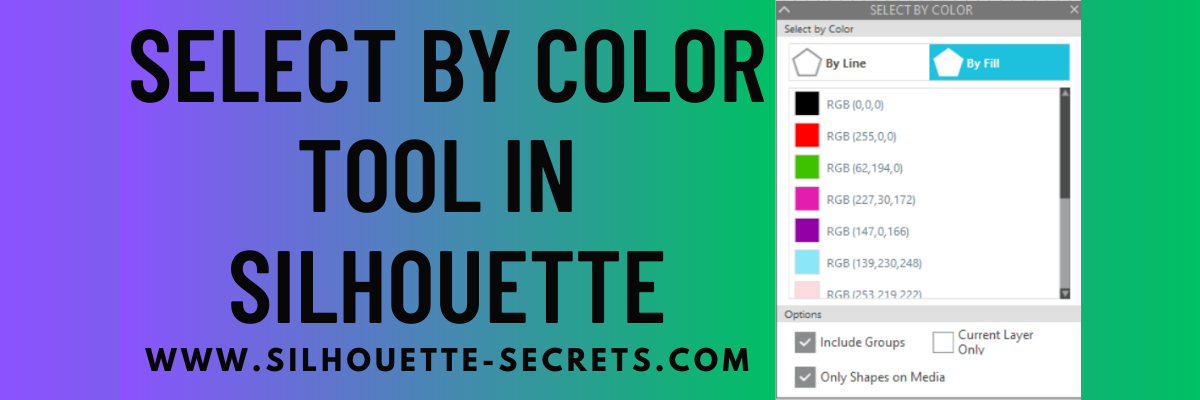
Once you have selected the tool, a panel will open on the right side and you have several options that you can use. Click on either the By Line or the By Fill option at the top and you will see a list of colors for the design on the screen show up.
Select a color of your choice and all of the pieces of that same color will be selected at once. This comes in handy when you have multiple pieces throughout a design and want to easily group them together quickly or select them all for any reason.
At the bottom of the Select By Color Panel, you have a few more options to further specialize the way the tool works.
The Select By Color tool worked awesome when creating this faux stained glass design with Oracal 8300 transparent vinyl and black Oracal 651.
Check out my recent blog post about Custom Color Palettes HERE and how they can help you in your project creation too! It came in real handy for the butterfly project as well!
So many tools in the Silhouette Studio software that can help you in your projects now and in the future!
Don’t miss out on any Silhouette tutorials, classes, or news! Sign up below to get email notifications every time I publish a new blog post. My goal is for 1 new post a week, unless there is exciting news to share in between. I know we are all busy and daily emails are not my thing.
Enter your email address to follow this blog and receive notifications of new posts by email.
Save this for future reference by pinning the image below.
Enjoy !
THANK YOU for your support! How can you help? Click HERE & buy a coffee. Every little bit helps with the cost of running the site.
Silhouette Classes
Never stop learning! Let me help you take the anxiety out of learning with Silhouette and get to creating faster! My Silhouette classes are heavily focused on software, so you can take the skills & techniques taught and apply them to many future projects!
**This post may contain affiliate links. What that means is that I may receive compensation if you purchase through the links I have provided. The price you pay for the product or service is not higher but I may get compensated for sharing.
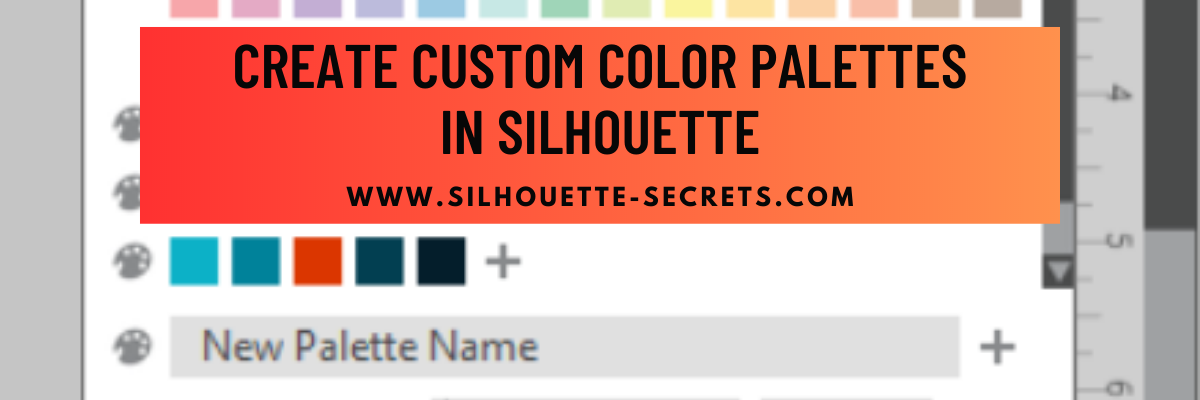
Did you know you can add your own custom color palette into the Silhouette Studio software?
This is a feature that was first introduced in version 4.3.263 in September 2019, but I don’t think a lot of users know about it still.
This tutorial is written in v4.5.196.
Today I wanted to share some examples of how you can use this in your projects.
There are a few limits to mention before we get started.
The first I want to mention is that custom color palette’s are computer specific. They are not saved with you “cloud” data, so will not show if you use the software on multiple computers. But, you could easily add them into another computer by saving the original file to your Silhouette library and open on the new computer. Then follow the same steps below to add that custom palette to the other computer.
As you can see in the photo above, the panel space is limited so you will only see a few custom palettes displayed if you create lots. This can also depend on your screen size. Smaller screens sizes can’t fit as many icons as a larger screen size could. You’ll also see this in the panels displayed along the right side and in the QAT at the top too. There is a scroll bar on the right side of the panel so you can scroll down and see more of the options you have created.
Also keep in mind that the colors that show on your computer screen may be different than what your printer actually prints. The only way to know what color will print is to test it.
And the media that you are printing on can make a difference in the final color outcome as well. Different brands of media, different types of paper, glossy, photo, matte, etc. can all vary in the final color outputs.
Enter your email address to follow this blog and receive notifications of new posts by email.
Affiliate links may be present in the following blog post and as an Amazon Associate I earn from qualifying purchases.
How to Create a Custom Color Palette
Let’s take a look at the basics to create a custom color palette. Here is a video from Silhouette America on how to create a custom palette
Now that we know how it works, let’s take a look at how we can use it in projects.
Now you may be the type of crafter who can pick and choose color combinations easily, but I need help. I found this really neat website called Paper Heart Design Co. and I reached out to the artist, Anne Stout, to ask if I could share in a tutorial.
Anne is a graphic designer and has these amazing color palette’s on her website that caught my eye one evening as I was scrolling through Pinterest and I fell in love. Not only does she provide a visual of the photo used for the colors, but she also provides the Hex code as well.
When you view the color palette’s on the Paper Heart Design Co. website, the HEX code is listed below the color palette.
This gives you a couple options for working in the Silhouette Studio software. We can use the eyedropper tool to grab the colors or at the bottom of the Fill Color Panel, you can enter the Hex code for each color.
I saved the specific color palette from Paper Heart Design Co. and then opened it into the Silhouette software. This will be the reference I use to create a custom color palette and change the colors in my design. By creating the custom color palette, I can come back and use that palette over and over again without the setup work.
The eyedropper can be found in the top of the Fill Color Panel, while the HEX code can be found at the bottom of the Fill Color Panel.
I created a Summer Color Palette and then used it to change the colors in my design.
I actually really like the navy color the original design had in it, so I worked with it as well, but you could also mix and match additional color palette to add more colors in.
Now, if I want to come back and use this same colors on a different design, it’s all in my Fill Color Panel and ready to go.
You could use this for so many things from printing on actual projects or creating mock-ups to see how a design or color combination can work together.
Here is another example of using a custom color palette on a more complex project. This was a class taught by my colleague Barbara Foster of Let’s Go Silhouetting at the All Things Silhouette Conference in 2022.
We created a custom color palette with the colors of Oracal 8300 we were using for the faux stained glass design and then it also helped to be able to Select by Color and group all the pieces of the design when we went to cut.
As I mentioned above, this tool can have many uses. Here are a few ideas: – Print and Cut projects: cards, home décor, scrapbook layouts – custom branding for theme projects – visual only on screen – creating mock ups – testing out material colors – selecting colors to cut easier on complex designs
Hopefully this information has sparked a creative thought process on how you might use this tool in your projects.
Save this for future reference by pinning the image below.
Enjoy !
THANK YOU for your support! How can you help? Click HERE & buy a coffee. Every little bit helps with the cost of running the site.
Silhouette Classes
Never stop learning! Let me help you take the anxiety out of learning with Silhouette and get to creating faster! My Silhouette classes are heavily focused on software, so you can take the skills & techniques taught and apply them to many future projects!
**This post may contain affiliate links. What that means is that I may receive compensation if you purchase through the links I have provided. The price you pay for the product or service is not higher but I may get compensated for sharing.
We received a box with some supplies inside and are tasked with creating a project. The rules were simple. We could only use products from the package we received, we had to use at least 3 products from the package, and our theme was Mental Health.
So first, here is my challenge submission.
Everyone approaches a project differently and I thought I’d share how I tackled this one. Keep in mind there is more than one way to get things done, so my process might not be the same as yours. You do what works for you!
These are the items we received in our challenge package and the only ones we could use for the challenge.
Step 2 – Brainstorm Ideas
I do most of my brainstorming sitting in front of the TV with my Ipad in hand and browsing Pinterest and design websites. And then I start a list of possibilities and any idea I think of goes on the list. Most times, my list will not make much sense to anyone but me and sometimes even I can’t remember what I was thinking when I wrote it.
I had to think about this one a bit with the theme of mental health. I searched and searched for designs with this theme and as I did, I found I was drawn to things that speak to me. And this may not make sense to anyone but me, but isn’t that what it is all about? You can’t pour from an empty cup and each person has to find what fills them back up. All of these items speak to me in one way or another. I settled on the Honu turtle, hibiscus flowers, and I felt the Turtle New Day new Beginning saying fit perfectly with this category – for me.
Your design may be something completely different or maybe it isn’t even craft related at all.
Step 3 – Create a Mock Up
When I’m designing I will use shapes or images of the actual blank I’m working with to see how it will look.
In this case, it helped me to get an idea of how the designs would look on the Bella Canvas Fleece Shorts and also a little bit of an idea on how the colors might look too!
I took measurements of the brim of the hat on the outer edge and the inner edge. Then drew 2 circles that size and center aligned them. Then I could design around the brim of the hat with the waves and turtle design.
Next I measured the width of the bucket part of the hat and the diameter so I could draw a long rectangle and use that to design within.
This gave me a pretty good idea of what would fit and how many I needed to cut.
Step 4 – Get Started Cutting
Once I have settled on a design – which can be the longest part of the process for me – it’s time to start cutting!
And then it’s time to weed the designs.
And then time to press it all and see how it comes together!
Pressing on the hat was interesting and I just continued to work around the hat in small sections using a pressing pillow.
Step 5 – Final Photos
And then taking the photos of the finished projects!
This may be the part I struggle with the most and I just continue taking photos until I get some with good lighting. That could be setting up in my studio with photo lights or using natural lighting outside.
Now I’ve shared a behind-the-scenes look at how I work when I’m creating a project! Do you have a method in how you approach a project? Let us know in the comments below.
Save this for future reference by pinning the image below.
Enjoy !
THANK YOU for your support! How can you help? Click HERE & buy a coffee. Every little bit helps with the cost of running the site.
Looking for more in-depth, step-by-step classes, check out all of my online Silhouette classes on my Teachable site HERE.
**This post may contain affiliate links. What that means is that I may receive compensation if you purchase through the links I have provided. The price you pay for the product or service is not higher but I may get compensated for sharing.
THANK YOU for your support! How can you help? Click the link to buy a coffee. Every little bit helps in the cost of running the site.