Posted on Leave a comment

Cutting Faux Leather with Your Silhouette: Essential Tips

I’ve wanted to write a faux leather tutorial with tips for Silhouette for a long time, but other things seemed to jump in front of it on my to-do list. So when Amy announced her Faux Leather event, I made it a goal to really dive in and create with some faux leather.

Affiliate links may be present in the following blog post and as an Amazon Associate, I earn from qualifying purchases.

Amy Romeu, hailed as the Queen of Faux Leather by many, recently hosted an event that I attended. I had a great time crafting along with her videos and picked up a lot of great tips that can help in being successful in cutting faux leather with any cutting machine.

Before we get too far in, let’s cover a few things about faux leather that will help in the process.

Faux Leather Information

Can Silhouette machines cut faux leather? Yes!
Can Silhouette machines cut ALL faux leather? NO!
Can all cutting machines cut ALL faux leather? NO!

Faux leather is such a broad term, just like “genuine” leather is. Cutting some faux leathers is easy, some pose greater difficulty, and others simply do not cut well at all.

Factors influencing whether a Silhouette or another machine can cut faux leather include:

  • Color – Yes! Many users don’t know this, but color affects how materials cut. Different colors go through different processes in the production and that can affect how it cuts. Some can be tougher than others due to coloring.
  • Backing – Faux leathers can have a variety of backing on it. Some don’t have any and are soft and pliable. While others can have a mesh, woven backing which can be difficult to cut through.
  • Texture – Faux leathers can come in all kinds of textures such as embossed, glitter, sequins, etc. This will affect how it cuts. Just think of a blade trying to bounce over a texture material to cut a clean line. Texture affects it! The texture also influences the ease of cutting by hand. The same is true for a cutting machine.
  • Thickness – There is a wide array of thicknesses for faux leather. Super thin ones can be too pliable and just smoosh around on the cutting mat. Thicker ones may need multiple passes to cut through and a longer blade such as the Deep Cut blade.
  • Composition – Faux leather is such a broad term. The definition of “faux” is artificial or fake. So keep in mind that faux leather is fake leather.
    What it is made of?
    A wide variety of things. Plastic mostly. For instance, I ordered some leather on Amazon and it is PU Leather. It is by definition, artificial leather, crafted from a thermoplastic polymer commonly employed in the production of furniture or shoes.
    Faux leather = fake leather = plastic

Supplies I Used:

Faux Leather Varieties
Craft Chameleon Warehouse Faux Leather Supply

So the first place to start is to gather your supplies for whatever you are working on. I was so excited for these projects and I knew I would be creating several, so I pulled out all my faux leathers and my scrap HTV. I have several boxes of scrap HTV and it’s a great way to use it by adding it to faux leather projects.

Supplies for Faux Leather Projects

Keep it a secret, but I actually obtained more faux leather than shown because I needed to test several during these projects. And once I went down that rabbit hole, I found many patterns I wanted to collect.

Faux Leather Variety
Faux leather from The Polka Dotted Peach

Tips for Cutting Faux Leather with Silhouette

  • Cut the faux leather down to size and give yourself some extra space for taping down the edges to the cutting mat.
  • Place the faux leather front facing down on the cutting mat, so you are cutting through the backside first.
    **NOTE: if cutting real leather, DO NOT place it face down or you can ruin the finish on the real leather. That can be a very expensive mistake!
Tape Faux Leather to a Silhouette Cutting Mat

  • Utilize a reliable sticky cutting mat to secure the materials in place during the cutting process. Using a brayer to smooth the materials down to secure it. If the materials shift during the cut, the cut may fail, or your blade might become stuck.
  • Securely tape down the material edges. I found that using longer pieces of tape not only ensured a better hold but also reduced the risk of it getting caught in the machine during cutting. You can also reuse painter’s tape if removed carefully at the end.
  • For best results, keep the painters tape away from the edges of the cutting mat so it is not going under the rollers. Any change in the surface area under the rollers and it can cause it to lose grip or the left and right roller to not move at the same rate, which can cause issues.
  • When using a Silhouette cutting mat, you can use the grid for exact placement for lining up your materials and your design. If you load the mat properly, the on-screen design will align with the Silhouette cutting mat. Third party cutting mats may not line up and it will be a guessing game for design placement and alignment.
Faux Leather Tips for Silhouette

  • Give yourself a good allowance and grace because you may still mess up, just like I did in the photo above. I would recommend that you cut a little bit excess of the faux leather and not try to cut through the painters tape as it can affect the cut results. The cut was ok in this instance, but it went off my faux leather, so I ended up cutting another truck piece.
  • For tips on lining things up check out this tutorial HERE. I use this method all the time and still make mistakes. Remember to “measure twice, cut once.” But, I find I make the most mistakes if I’m rushing or I tell myself it will be just a quick project.
  • Test cut, test cut, test cut!!!
  • I used a 2 mm Manual blade for all of my faux leather cuts. This blade is the equivalent of the older style Premium blade, it’s just redesigned to fit directly into the newer model machines housing without needing an adapter.
    The 2 mm Manual blade (or Deep Cut blade) allows you to go from 1-20 in the blade depth settings. All faux leather will vary and some can be cut with a regular blade that is 1-10 settings, while others may need a higher blade depth than 10. Test cuts are the way you will know.
  • Do not unload the mat after you cut!!! Check to see how well it cut.
    Having a thread or two is not a bad thing! Grab a sharp pair of scissors and simply snip it.
Check the cut on the Faux Leather after Silhouette cuts

  • If it does not lift easily or has more than just a few threads hanging on, send the cut again. If you have not unloaded the cutting mat, it should cut again in the exact same place. If you unload the cutting mat, it will be a hope and a prayer trying to get it lined up perfectly again to cut in the same place.
Clean cuts on Faux Leather with Silhouette

  • Some faux leathers may take more than 1 pass and this is why test cutting is such an important step. I write down the settings that worked for each of the materials I test and keep a log so I can refer back to it. It is not a bad thing to use more than 1 pass with certain projects. I find with thicker materials, you can get a cleaner cut when you are not trying to force the machine to do it all at once time. However, for thinner materials such as adhesive vinyl or regular cardstock, multiple passes shouldn’t be necessary if the blade is installed properly.

For more details on what blade depth and force are, check out this in-depth tutorial on the Silhouette Send tab HERE.

Cut Success with Silhouette and Faux Leather

  • Once the cut is successful, unload the mat, remove the painter’s tape – it can be reused and carefully peel away the excess. Snip any threads as you carefully remove the excess so you do not stretch the design.
  • When cutting, check the blade regularly for debris stuck to it or inside the cap. The fibers of the faux leather can hinder the cut results.
  • It is perfectly normal to have to increase the settings of the blade as you cut materials. A blade cutting any material is going to dull with usage. Keep in mind that you are cutting through plastic and fibers. That will cause a blade to wear differently than other materials.

For this design I used the Red Truck Ornament file from Amy Romeu and there is a front and back layer cut from faux leather that will be glued together. The rest of the design is cut from HTV, so I swapped out my blade for my HTV blade and set up my cutting mat to cut different colors of scraps at the same time.

Cut by Color in Silhouette Studio

I used the Cut by Fill Color so I could set up different cut settings for my Smooth HTV versus my Glitter HTV. The Autoblade did all the work to change the settings once set up. Check out this tutorial HERE for tips on cutting by line or fill color – they are the same.

Cut multiple colors at once on a Silhouette Cutting Mat

And then I set up my cutting mat to match exactly what I had set up on the Silhouette software. Check out tips on cutting multiple colors at the same time HERE.

Red Truck Faux Leather Ornament

Then I simply weeded the design and pressed the pieces on according to Amy’s instructions. I also cut this design out of cardstock and adhesive vinyl too! The faux leather ornament is on the left and the cardstock ornament is on the right.

Check out Amy Romeu’s YouTube video HERE for instructions on the assembly. Even though she is using a Cricut machine to cut, the process and tips are useful.

I was having so much fun cutting faux leather that I couldn’t stop and wanted to test more!

Next, I used this Silver Embossed Leather from Craft Chameleon with the Initial Ornament file.

Embossed Faux Leather Initial

I followed the same tips as above and taped it securely to my cutting mat.

Secure Faux Leather with Painters Tape on a Silhouette Cutting Mat

If you compare this photo to the first one, you’ll notice that the backing differs on the white versus this silver embossed piece. That can affect the cut settings and results. The woven backing texture can be a bit more difficult to cut and may require higher settings and more passes to cut cleanly.

I used the 2 mm Manual blade (equivalent of the Deep Cut blade).
Blade depth – 9
Force – 30
Passes – 2-3
however, that was still not a clean cut, so I then increased the Blade depth to 11 and did 2 more passes.

In this case, the Embossed texture on the front is uneven and can affect the cut.

Embossed Faux Leather Initial Ornament

I did not have all the supplies to finish this out as Amy did, so I used what I had on hand and made my own holly berries and leaves. The holly leaves are drawn from scratch in Silhouette Studio. If you want to learn how, I show step-by-step in the Designing in Silhouette Studio – Creating Keepsake Ornaments class HERE. I cut the leaves from cardstock, painted some small craft balls, and then glued it all onto the ornament.

Check out Amy Romeu’s Initial Faux Leather Ornament YouTube video HERE for more details on this project. I picked up a neat trick for tying bows and ornament hangers in Amy’s videos, so make sure to check that out too!

In both the designs shown above, the faux leather was cut for the front and the backside and then glued together so it had a finished look. But for this next project, I used Siser Metal HTV and adhered it to the backside of the white faux leather from Craft Chameleon before cutting.

Faux Leather with HTV backing

I pressed it once with the carrier sheet on and then a second time without the carrier sheet for just a few seconds. The second press allows the texture of the faux leather to show through and it is gorgeous! Photos do not do it justice.

Faux Leather Earrings with Silhouette

But keep in mind, anytime you add something to a material, that can change the cut settings.

I used the 2 mm Manual blade (equivalent to the Premium blade).
Blade depth – 10
Force – 30
Passes – 1
And I probably could have done one more pass.

Now, what you’ll notice is that all of the pieces are still attached. However, they easily popped out and I only had a few threads to snip. This actually worked better for the next steps as I could keep it all organized in one place until I was ready to press.

Snowflake Faux Leather Earrings

I loved the finished look of the Siser Metal HTV on the backside! And I used up a few scraps of Glitter HTV, not much, but it is the perfect project for those scraps that you might have.

Check out the video on these Faux Leather Holiday Earrings HERE by Amy Romeu.

And here is one more faux leather design cut with my Silhouette.

Cardinal Faux Leather Ornament

This was using the Cardinal Christmas Ornament Design and a piece of blue patterned faux leather from The Polka Dotted Peach.

Find the Faux Leather Cardinal Ornament video HERE on Amy’s YouTube channel.

I had so much fun creating along with this event and now have faux leather for many more projects.

I hope those tips help you to be successful with cutting faux leather with your Silhouette machine.

You can still purchase the VIP package for the Faux-La-La Crafting Fun and join in on the fun. You get the files for all the projects, all the videos in one place, a printable guide, and more! Check it out HERE for all the details.

Faux Leather Event

Save this for future reference by pinning the image below.

Pinterest Faux Leather with Silhouette

Enjoy !

THANK YOU for your support! How can you help? Click HERE & buy a coffee.
Every little bit helps with the cost of running the site.

Silhouette Classes

Never stop learning! Let me help you take the anxiety out of learning with Silhouette and get to creating faster! My Silhouette classes are heavily focused on software, so you can take the skills & techniques taught and apply them to many future projects!

Silhouette step-by-step Classes by Silhouette Secrets+

Silhouette Secrets+ with EllyMae
**This post may contain affiliate links. What that means is that I may receive compensation if you purchase through the links I have provided. The price you pay for the product or service is not higher but I may get compensated for sharing.
Posted on Leave a comment

Silhouette “Secrets” – EllyMae’s Craft Supplies

Affiliate links may be present in the following blog post and as an Amazon Associate, I earn from qualifying purchases.

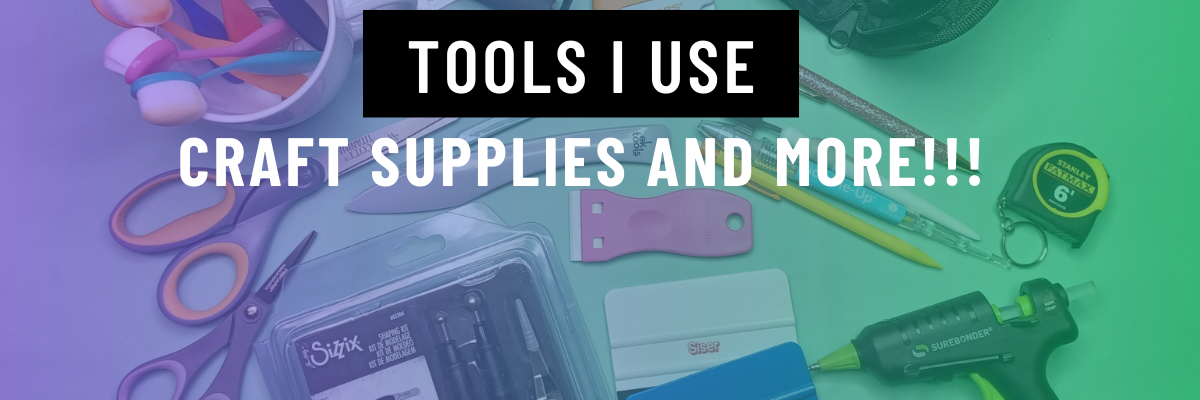
I think every project I start seems small at the beginning, but seems to grow bigger than I originally thought. It is no different with this list of supplies I use in my projects and have in my studio.

I am asked all the time what I recommend and use, so I have added a header on the website with a list of supplies that I have in my studio and use.

Check out “EllyMae’s Craft Supplies” header HERE.

I am a big fan of use what you have, so if you have your favorite tools, use them! I have found new favorites over the years of project creation and thought I’d share. Do you have to use the same exact tools as me? NO! Use what you have, what you love, and what works best for you! I am simply sharing what I use and will add to this list as I find new favorites!

I’d love to hear what are some of your favorite tools! Comment below and let me know!

Save this for future reference by pinning the image below.

Enjoy !

THANK YOU for your support! How can you help? Click HERE & buy a coffee.
Every little bit helps with the cost of running the site.

Silhouette Classes

Never stop learning! Let me help you take the anxiety out of learning with Silhouette and get to creating faster! My Silhouette classes are heavily focused on software, so you can take the skills & techniques taught and apply them to many future projects!

Silhouette step-by-step Classes by Silhouette Secrets+

**This post may contain affiliate links. What that means is that I may receive compensation if you purchase through the links I have provided. The price you pay for the product or service is not higher but I may get compensated for sharing.
Posted on 1 Comment

Silhouette Software Updates – Curio & Alta Owners

Changes. No one really likes them, but they are a fact of life!

That is no different in the Silhouette Studio software. Today I am sharing a new change in the Silhouette Studio software in versions of v4.5 and higher.

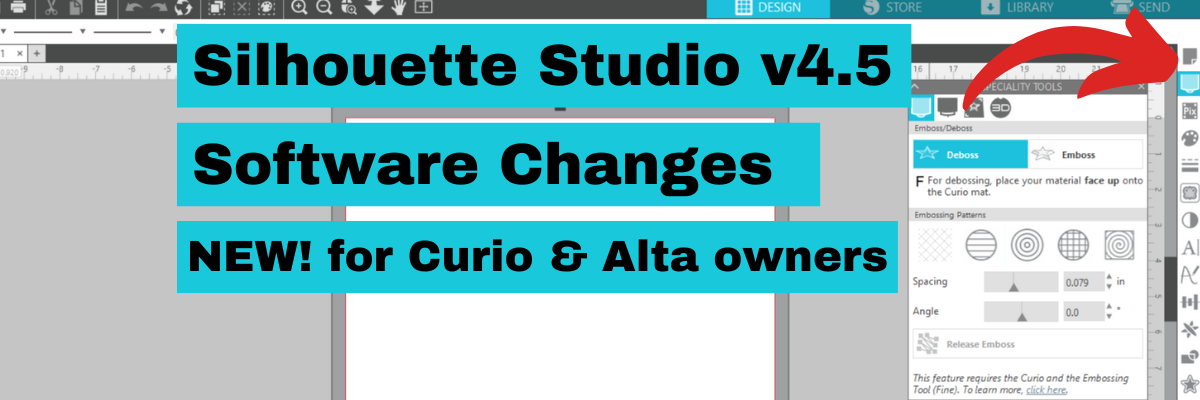
This change affects Curio & Alta owners most, but all users will notice a new icon appear on the right side of the Silhouette Studio software after updating to version 4.5+.

While I am NOT recommending to update to v4.5 versions at this moment unless you absolutely have to, I do want to make you aware of the change so you don’t panic when you see it.

In the top right corner of the Silhouette Studio software on versions of v4.5 and higher, you will now see a new icon that is called Machines Featured Panel.
This is where the Curio Panels and the Alta Panel is now located.

Here is a little bit closer look.

Nothing has disappeared, it is just in a new location.

If you have purchased one of my Silhouette Curio classes on the Silhouette Secrets+ Teachable site, I have now added a new video section in to the beginning of each class that explains this update.

You can also find a quick video showing the update on the Silhouette Secrets+ YouTube channel HERE.

Hope this information helps when you see that odd new icon show up on your software.

Again, at the time I’m writing this, I am still not recommending v4.5.152 which is the current version. There are some not so nice bugs in it.

Let me know in the comments below if you have questions.

Save this for future reference by pinning the image below.

Enjoy !

THANK YOU for your support! How can you help? Click HERE & buy a coffee.
Every little bit helps with the cost of running the site.

Looking for more in-depth, step-by-step classes, check out all of my online Silhouette classes on my Teachable site HERE.

SS Logo snip it
**This post may contain affiliate links. What that means is that I may receive compensation if you purchase through the links I have provided. The price you pay for the product or service is not higher but I may get compensated for sharing.
Posted on 3 Comments

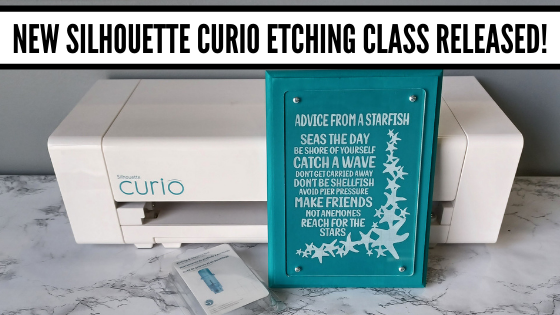
New Silhouette Curio Acrylic Etching Class Released

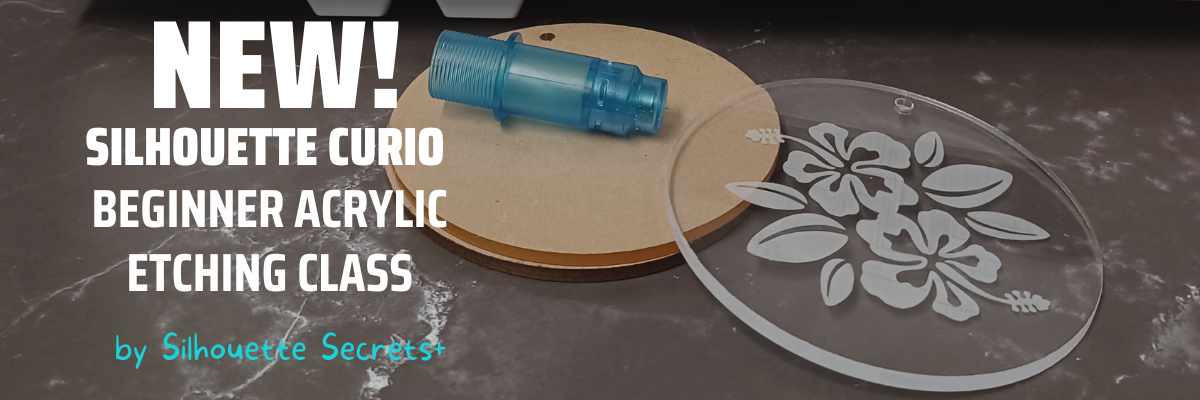
I’ve just released this new Silhouette Curio Beginner Acrylic Etching Class on the
Silhouette Secrets+ Teachable site!

This new Curio etching class has been designed to show how the Silhouette Studio software has changed in v4.5 software (don’t worry, you do NOT need to update), but I show you how it has changed.
And I designed this class with tips for all acrylics in general, not just from one source.

In this step-by-step class we will discuss the supplies for etching acrylics with the Silhouette Curio and the entire process to get set up etching acrylics. I will share all of my tips & tricks for getting a good etch on acrylics. This class is designed to give you the tools and resources so you can test and etch on any acrylics that you might be able to source.
Plus bonus information on etching on other size blanks too!

Find it HERE on the Silhouette Secrets+ Teachable site

I am also including the class supply list and the supplies I shared in the bonus examples too!
This information is also in the class description on the Silhouette Secrets+ Teachable site and again in the class as a downloadable PDF document too!

Affiliate links may be present in the below and as an Amazon Associate I earn from qualifying purchases. What that means is that I may receive compensation if you purchase through the links I have provided. The price you pay for the product or service is not higher but I may get compensated for sharing.

Supply list

– Silhouette Curio Machine with all platforms & cutting mat
– Silhouette Etching Tool
– Acrylic Blanks
143Vinyl Acrylic Blanks can be found HERE
*I will update and add more as I test with new vendors
– Double sided tape
Hibiscus Flower Bunch by Samantha Walker – Design #10873
Digital Calipers or a ruler with mm
– Sharp point weeding tool

– Additional Supplies shown in bonus information
Acrylic Square Blank for LED Base
Acrylic Circle for LED Base
Shape template files available from 143Vinyl for acrylics purchased
Sea Turtle Wisdom design by Jillibean Soup
Not All Storms Come to Disrupt design by Jillibean Soup
Wood base from Amazon
LED light base from Amazon (optional)

I designed the class so you can start with the small design and then apply the same exact techniques to larger projects such as these below. In the bonus information I share tips on how to work with these different size acrylic blanks.

The biggest thing is TO JUST GET STARTED!

The Silhouette Curio is an awesome machine and I share why in this new class. Get it out and start creating fabulous projects with it!

I hope you will join me and then share your creations on the Silhouette Secrets+ Facebook Group!

I have several more Silhouette Curio Classes available on my Teachable site HERE
as well as other Silhouette Classes too!

Save this for future reference by pinning the image below.

Enjoy!

THANK YOU for your support! How can you help? Click HERE & buy a coffee.
Every little bit helps with the cost of running the site.

SS Logo snip it
**This post may contain affiliate links. What that means is that I may receive compensation if you purchase through the links I have provided. The price you pay for the product or service is not higher but I may get compensated for sharing.
Posted on Leave a comment

Silhouette Curio Chalkboard Class

This is not something I do often, well in fact, it’s the first time ever!
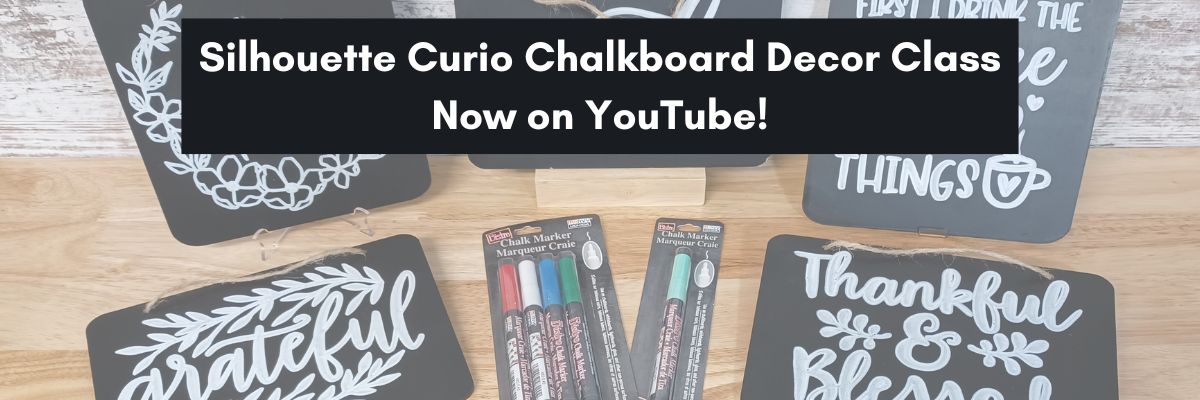
I just published one of my step-by-step Silhouette Curio classes to the
Silhouette Secrets+ YouTube channel.

It can also be found for Free on my Silhouette Secrets+ Teachable site HERE, if you prefer not to watch through YouTube.

This is a rare “wild hair” because classes take a lot of time to develop, test, record, and edit.
But, why not mix things up a bit this year!

If you have a Curio, this is a fun project to do!

This is the full, step-by-step course. Nothing is left out or skipped over to shorten it for YouTube release. I share so many tips to working with the Curio in this video, it would be hard to chop it up.
In fact, I edited the videos again to add 2 bonus videos to the end so you can see it all exactly as I created it.
The full class is 1 hour and 30 minutes long and you can view it all!

Supply list

Affiliate links may be present in the below and as an Amazon Associate I earn from qualifying purchases. What that means is that I may receive compensation if you purchase through the links I have provided. The price you pay for the product or service is not higher but I may get compensated for sharing.

These are the supplies I used in this class to create these chalkboards:
– Silhouette Curio machine, Silhouette small base cutting mat, Curio platforms and base
– Chalkboard sign – Michaels – 6.6” square, arrow shape, rectangle shape
Michaels bulk chalkboard options – rectangle 8 pk, arrow 8 pk, Square 8 pk
or Amazon
NOTE: chalkboards can vary in thickness – it needs to be under 5 mm thick & fit on the Curio base
No frames or borders. Remove any twine attached.

Create by Cali Arroyo – Design #215617
Bistro Chalk Marker by Marvy Uchida White
– Optional: Bistro Markers Colors – Fluorescent, Primary
– Silhouette Pen Holder Type A – Silhouette America, Amazon
Digital Calipers – highly recommend for Curio projects
– Ruler with mm
White Chalk
– Clean Towel
– Notepad & pen
– Optional designs also featured: Design #317171, Design #404761, Design #304784,
Design #400058, Design #229894, Design #154513
Optional: extra twine, scissors

I hope you’ll join me in creating fabulous projects with your Silhouette Curio!
Find all the Silhouette Curio classes on my Teachable site HERE.

Save this for future reference by pinning the image below.

Find the video on the Silhouette Secrets+ YouTube channel
or on my
Silhouette Secrets+ Teachable website.

Enjoy!

THANK YOU for your support! How can you help? Click HERE & buy a coffee.
Every little bit helps with the cost of running the site.

SS Logo snip it
**This post may contain affiliate links. What that means is that I may receive compensation if you purchase through the links I have provided. The price you pay for the product or service is not higher but I may get compensated for sharing.
Posted on Leave a comment

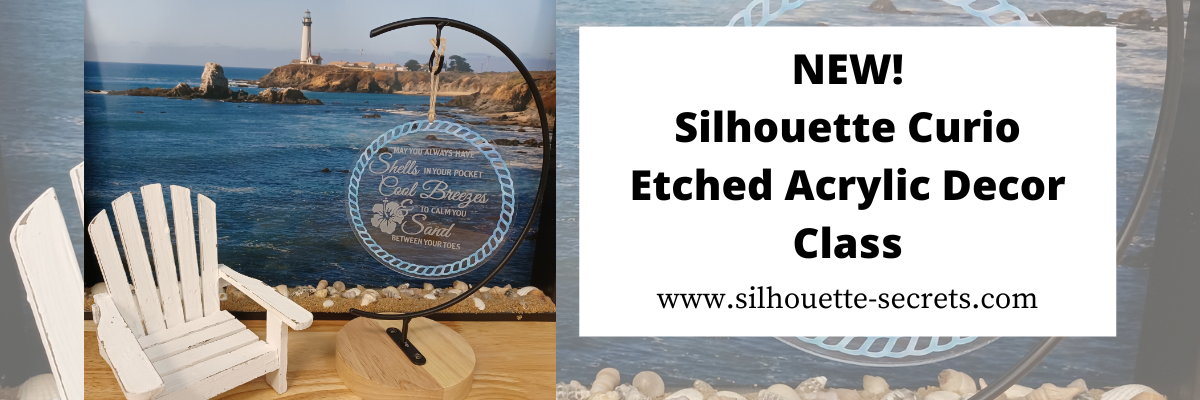
Etched Acrylic Décor Class Released

New! I’ve just released the a new Silhouette Curio class on my Teachable site!

Etched Acrylic Decor with the Silhouette Curio

Not only do we set up to etch on acrylic, but I also share how to cut adhesive vinyl on the Curio and why I added it onto this project.

Check it out

HERE

and join me in this class to create a unique décor item and learn more about the Silhouette Curio!

I am also including the list of supplies that I used in the class if you’d like to create along with me.

Affiliate links may be present in the below and as an Amazon Associate I earn from qualifying purchases. What that means is that I may receive compensation if you purchase through the links I have provided. The price you pay for the product or service is not higher but I may get compensated for sharing.

Class Supplies:
– Silhouette Curio machine
Silhouette Etching tool – use code 10OFF to save 10% at Silhouette America
– Silhouette black blade (ratchet) or premium blade – if cutting vinyl with the Curio
– (2) Silhouette Curio cutting mats – Very important! – 1 mat for cutting & 1 mat for etching
**Cutting adhesive vinyl can also be done on a Cameo or Portrait, but the class will show cutting with the Curio
Double sided tape from Craft Chameleon
Beach Blessing design by Deborah Stine – Design #62386
Rope Frames Circle by Snapdragon Snippets – Design #30736
Curio Etching Kit by Craft Chameleon
Kit includes: (3) 5” Round Acrylic discs, (1) Curio Etching 5” round template, (1) Diamond Tip Reamer, (1) twine, (3) 6”x 6” adhesive vinyl – random colors/patterns
– Transfer Tape
Optional: Adhesive vinyl of color choice
Digital Calipers – highly recommend

Check out all 11 Curio classes on my Teachable site HERE.

As well as all available Silhouette classes HERE.
And…. for those who’ve read this far I’ll give a little hint – I have 1 more Silhouette class releasing very soon too!

I’d love to see what you are creating with your Silhouette software & machines!
Feel free to post on my Facebook group at 
Silhouette Secrets with EllyMae.

Save this for future reference by pinning the image below.

Enjoy !
This image has an empty alt attribute; its file name is logo.jpg

THANK YOU for your support! How can you help? Click HERE & buy a coffee.
Every little bit helps with the cost of running the site.

Or if you are looking for more in-depth, step-by-step classes, check out all of my online Silhouette classes on my Teachable site HERE.

SS Logo snip it
**This post may contain affiliate links. What that means is that I may receive compensation if you purchase through the links I have provided. The price you pay for the product or service is not higher but I may get compensated for sharing.
Posted on Leave a comment

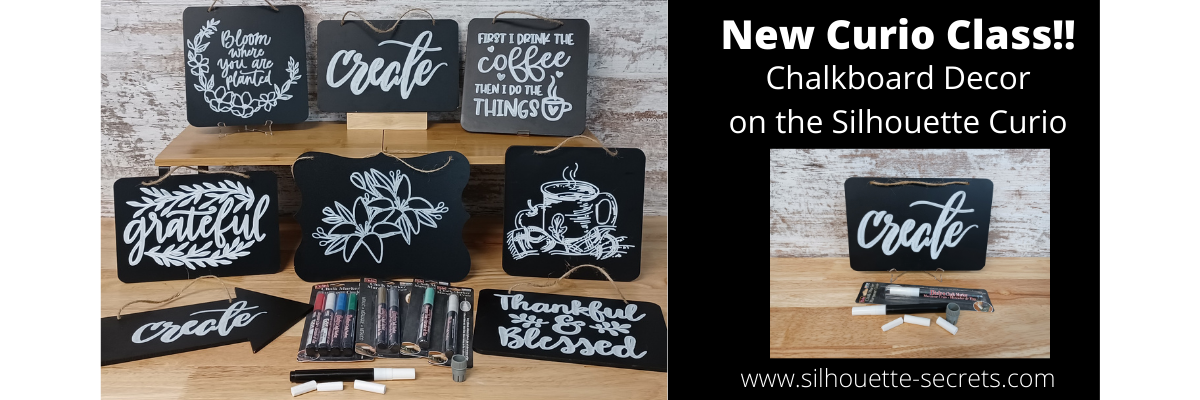
Chalkboard Décor with the Curio

Just a quick post today to share my newest Silhouette class. It is a Silhouette Curio class that I was in the process of creating for an in-person event before everything was shut down a couple years ago. I finally picked it back up where I left off and it is now available for all to view anytime after you’ve registered on my Teachable site.

New! Chalkboard Decor with the Silhouette Curio class is now available.

This is a step-by-step class on using a chalk marker in the Silhouette Curio to sketch directly on a chalkboard.
Find the class and full details on my Teachable site HERE

Check out the demo video on my YouTube channel HERE.

I had so much fun playing with the chalk marker and these chalkboard signs.
Here are a few more that I created

Affiliate links may be present in the below and as an Amazon Associate I earn from qualifying purchases. What that means is that I may receive compensation if you purchase through the links I have provided. The price you pay for the product or service is not higher but I may get compensated for sharing.

These are the supplies I used in this class to create these chalkboards:
– Silhouette Curio machine, Silhouette small base cutting mat, Curio platforms and base
– Chalkboard sign – Michaels – 6.6” square, arrow shape, rectangle shape
Michaels bulk chalkboard options – rectangle 8 pk, arrow 8 pk, Square 8 pk
or Amazon
NOTE: chalkboards can vary in thickness – it needs to be under 5 mm thick & fit on the Curio base
No frames or borders. Remove any twine attached.

Create by Cali Arroyo – Design #215617
Bistro Chalk Marker by Marvy Uchida White
– Optional: Bistro Markers Colors – Fluorescent, Primary
– Silhouette Pen Holder Type A – Silhouette America, Amazon
Digital Calipers – highly recommend for Curio projects
– Ruler with mm
White Chalk
– Clean Towel
– Notepad & pen
– Optional designs also featured: Design #317171, Design #404761, Design #304784,
Design #400058, Design #229894, Design #154513
Optional: extra twine, scissors

I have so many more ideas I want to try and test!

I hope you will join me in this Silhouette class!
Check out the full details on my Teachable site HERE

Whether you join or not, I’d love to see what you are creating with your Silhouette software & machines!
Feel free to post on my Facebook group at 
Silhouette Secrets with EllyMae.

Save this for future reference by pinning the image below.

Enjoy !

This image has an empty alt attribute; its file name is logo.jpg

THANK YOU for your support! How can you help? Click HERE & buy a coffee.
Every little bit helps with the cost of running the site.

Or if you are looking for more in-depth, step-by-step classes, check out all of my online Silhouette classes on my Teachable site HERE.

SS Logo snip it
**This post may contain affiliate links. What that means is that I may receive compensation if you purchase through the links I have provided. The price you pay for the product or service is not higher but I may get compensated for sharing.
Posted on Leave a comment

New Silhouette Curio class released!

I have so much fun playing with my Silhouette Curio and all the things it can do!
I want to share that with you!
Join me in this Silhouette Curio class to create an acrylic etched panel!
Check out the class HERE.

This is an Advanced Beginner Curio class that will cover the setup step-by-step to getting the Curio ready to etch, creating a template in Silhouette Studio for the etching, and then creating the design to be etched. You will create your own word art design using tools in the Silhouette Studio software! Tips are shared throughout the video class for getting successful etches with your Silhouette Curio machine.

Check out the class

HERE

Here is a sneak peek at the class content and the videos included:

Supplies & Setup Video – 17:55 minutes

Creating the Etched Acrylic Panel Template in Silhouette Studio – 31:30 minutes
– Using the drawing tools to create a template
– Creating template with nail holes to avoid
– Alignment Tools
– Move By Tool

Designing & Etching the Acrylic Panel in Silhouette Studio – 1 hour 3 minutes
– Opening Starfish border Design #3653
– Compound paths
– Text Tool
– Creating the design with multiple lines of text
– Creating “word art” with text
– Adding an etch fill
– “Secret” to getting a tighter etch fill
– Setting up the Curio to etch
– Etching
– Finish and assembly

Class Supplies:

Affiliate links are present in the following supply list and as an Amazon Associate, I earn from qualifying purchases. The cost to you is no different, but I may earn a commission by you using the links provided.

-Silhouette Curio machine
Silhouette Etching Tool
– New Silhouette Curio Cutting mat – highly recommend a sticky mat
Starfish border Design by Calli Arroyo – Design #3653
Fish Grill font by 7nTypes – Design #292330
4” x 6” Acrylic Panel with 4 holes from Craft Chameleon
Double sided sticky tape from Craft Chameleon
– 6” x 8” Basswood board by Walnut Hollow – Amazon or Walnut Hollow
#4 x ½” Sheet Metal Screws
– Dark colored paint or stain
– Paint brush
– Screwdriver
Hand drill
– Weeding tool
– Optional: baby wipes, Teflon sheet, apron

Optional:
LW Wide Marker Font by Lori Whitlock – Design #82132
Acrylic Panel no holes from Craft Chameleon
Wood stand

Additional Resources

No matter how many times I etch a project, even the same design, I still do a little happy dance when it’s finished!

Find this class on my Teachable site HERE

I love being able to customize my gifts & projects with the Silhouette Curio!

Want more ideas of what you can create with your Curio?
Check this out – Gift Ideas with your Silhouette Curio

Just getting started with your Curio?
The possibilities are endless in what you can create!
Check out the other Silhouette Curio class on my Teachable site HERE.

I would love to see what you are creating with your Silhouette software or machines!
Feel free to post on my Facebook group at 
Silhouette Secrets with EllyMae.

Save this for future reference by pinning the image below.

Enjoy !

This image has an empty alt attribute; its file name is logo.jpg

THANK YOU for your support! How can you help? Click HERE & buy a coffee.
Every little bit helps with the cost of running the site.

SS Logo snip it
**This post may contain affiliate links. What that means is that I may receive compensation if you purchase through the links I have provided. The price you pay for the product or service is not higher but I may get compensated for sharing.
Posted on Leave a comment

Silhouette Curio Etched Ornaments

Looking for a unique décor or gift idea?
Acrylic etched items can be just the thing.

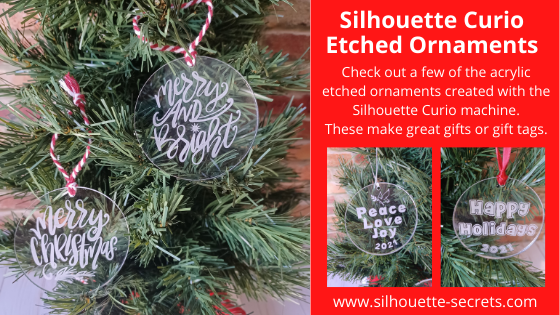
Etched Acrylic Ornaments with the Silhouette Curio

Affiliate links may be present in the following blog post and as an Amazon Associate I earn from qualifying purchases.

Take a 3″ acrylic circle and customize it however you like.
Add a simple saying with the date or jazz it up even more.
These acrylic circles could be used for tree ornaments, gift tags, bag tags, and more!

Here are a couple that I created for a Curio demonstration at the Craft Chameleon Fall Open House.
Check out the replay of this demo HERE.

The supplies for this project include:
– a Silhouette Curio machine
Silhouette Etching tool
3″ acrylic round from Craft Chameleon
Curio template for 3″ round from Craft Chameleon
– Double sided tape from Craft Chameleon
– designs of your choosing

The above designs are ones that I created myself and made using fonts and designs.
Grab those designs for free
HERE

If you’d like to create your own here are the fonts I used:
Happy Holidays – CC Too Much Fun Bold Font
Peace, Love & Joy – CC Gobsmacked Solid Font
Merry Christmas – CC Elegande Font

But, you can also take a design and size it down to fit in the 3″ circle to etch with as well. My only caution is to give yourself clearance around the edges of the acrylic and the hole at the top. If the tool catches on the edge or the hole, it will throw the etch off and you have a dud.

Here are a few examples of ornaments I’ve created and I’ll share the links to the designs I used.

Merry Christmas Ornament by Sweet Afton – Design #333980
Merry & Bright Ornament by Sweet Afton – Design #333981

Merry Ornament by Sweet Afton – Design #337453
Snowflake design created with the Drawing Tools in Silhouette Studio – more details found HERE

I love doing a combination of etching and adding vinyl to give it colors, dimension, and make it “pop”.
Dear Santa Design by Craft Chameleon
Noel Ornament design by Sweet Afton – Design #334450

This design is one I created for a Silhouette Curio etching class that is available on my Teachable site.
Keep in mind that designs you have can be used on many different blanks from ornaments to coasters, etc.

There are so many gift ideas that you can create with your Silhouette machine and even more options when you have a Silhouette Curio.

Check out more gift ideas created with the Curio machine HERE.

At the time of writing this, Swing Design still has Curio machines available.
Find those HERE.

You will also need a Silhouette Etching Tool for etching projects.
These are a little difficult to come by right now because of manufacturing and shipping delays worldwide, but keep on checking. Once you have the machine, you have the biggest part.
Find Silhouette etching tools here:
Silhouette America
Amazon

I do not recommend 3rd party etching tools as they can void the machine warranty and I had more blank spots in the etch when I used them. The Silhouette etching tool has given me the best results and I etch a lot when I’m developing classes.

The worldwide shortage on supplies, manufacturing, and shipping delays affect so many things including but not limited to Silhouette products. They are coming, but there is nothing that can be done but wait as we all work through these times we are in.

This little machine is a fantastic machine and will make fabulous projects for years to come.
Check out more Curio projects in my virtual demo table on YouTube HERE

I currently have 8 Curio classes on my Teachable site that will take you from Beginner to more advanced projects.
Find those HERE

I would love to see what you are creating with your Silhouette machines or software.
Feel free to post photos or questions on my Facebook group at 
Silhouette Secrets with EllyMae.

Save this for future reference by pinning the image below.

Enjoy!

This image has an empty alt attribute; its file name is logo.jpg

THANK YOU for your support! How can you help? Click HERE & buy a coffee.
Every little bit helps with the cost of running the site.

If you are looking for more in-depth, step-by-step classes, check out all of my online Silhouette classes on my Teachable site HERE.

SS Logo snip it
**This post may contain affiliate links. What that means is that I may receive compensation if you purchase through the links I have provided. The price you pay for the product or service is not higher but I may get compensated for sharing.
Posted on Leave a comment

New Curio Class Released!

Just a quick post to give a heads up that I’ve released a new Curio etching class on my Teachable site.

Etched Metal Cake Server Class with the Curio

This is a step-by-step class showing how to etch an odd shaped object on the Curio machine. I share how I secure the cake server on the Curio cutting mat and use shape templates to place the design and size it for the etching. Plus a trick to getting a tighter etch fill for harder surfaces like these stainless steel servers.

Supplies used in this class are:
– Silhouette Curio small cutting mat
– Silhouette Curio Etching/Stippling Tool – Click here to find at Silhouette or Amazon
*Watch for these to come in stock soon 😉
– Silhouette Curio small base with ALL platforms – please double check that you have all the platforms – a 2+1+cutting mat
– Metal Cake Server from Amazon
Monogram Wreath Font by Kristen Magee – Design #260225

Check out all of the Curio classes available on my Teachable site HERE

Create unique and custom gifts and projects with the Curio.
Check out this post HERE on more gift ideas of what you can do with the Silhouette Curio.

The Curio is a fantastic little machine that can do so much!

Want to see more Curio projects? Check out the virtual demo table video that I created for our past Curio virtual retreats on my YouTube Channel HERE.

I’d love see what you create!
Feel free to post on the
Silhouette Secrets+ Facebook Group.

Save this for future reference by pinning the image below.

Enjoy!

This image has an empty alt attribute; its file name is logo.jpg

THANK YOU for your support! How can you help? Click HERE & buy a coffee.
Every little bit helps with the cost of running the site.

Or if you are looking for more in-depth, step-by-step classes, check out all of my online Silhouette classes on my Teachable site HERE.

SS Logo snip it
**This post may contain affiliate links. What that means is that I may receive compensation if you purchase through the links I have provided. The price you pay for the product or service is not higher but I may get compensated for sharing.