The Silhouette Portrait is a great little machine, especially if you are looking to travel with a cutting machine. It’s light weight and very portable.
Affiliate links may be present in the following blog post and as an Amazon Associate, I earn from qualifying purchases.
I was asked about a storage tote for traveling with the Silhouette Portrait 4 machine and it took me a bit of time to order and find one that worked to fit not just the machine, but also supplies and keep them safe as well.
Silhouette Portrait 4 Cutting mat – NEW! sizing is different than older model Portrait mats *it will take time for all retailers to stock the new cutting mats
The Silhouette Portrait 4 now has a cutting width of 8.5″, which is a change from the older model Silhouette Portrait machines. This does make a difference and the cutting mat looks different, it has a different size adhesive area, and the actual dimensions of the cutting mat are different than older Portrait cutting mats.
The photo below shows a comparison of the older cutting mat and the new Portrait 4 cutting mat. You can see the difference in the design area and the actual size of the cutting mat is different.
This means that if you use an older model cutting mat in the new Silhouette Portrait 4, it will NOT line up with the on screen cutting mat that you see in the Silhouette Software.
This WILL affect your cut placement and print and cut projects!!!
Make sure when you are order additional cutting mats that you are ordering the correct one for your particular Silhouette Portrait model!
Find the Silhouette Portrait 4 cutting mats HERE. It will take time for retailers world wide to get these new cutting mats in stock and have availability.
Find more information on the Silhouette Portrait 4 HERE.
I hope these tips have helped and I can’t wait to see what everyone is creating with their Silhouette machines!
Save this for future reference by pinning the image below.
Enjoy !
THANK YOU for your support! How can you help? Click HERE & buy a coffee. Every little bit helps with the cost of running the site.
Silhouette Classes
Never stop learning! Let me help you take the anxiety out of learning with Silhouette and get to creating faster! My Silhouette classes are heavily focused on software, so you can take the skills & techniques taught and apply them to many future projects!
**This post may contain affiliate links. What that means is that I may receive compensation if you purchase through the links I have provided. The price you pay for the product or service is not higher but I may get compensated for sharing.
This lightweight and portable Silhouette Portrait 4 model cutting machine was announced at the Silhouette Summit in September 2023. It has many improvements over older Portrait model machines.
Affiliate links may be present in the following blog post and as an Amazon Associate, I earn from qualifying purchases.
Find Silhouette supplies at CrafterCuts or Silhouette America – links provided below *user code SECRETS at CrafterCuts to save 10% on supplies (excludes new machines) & free shipping on orders over $35
The right roller can now be moved to multiple locations. To move, lift the lever on top of the right roller and slide it along the roller bar. Close your eyes and slide it and you will feel where it can be locked in place. I find this is the easiest way for a user to actually feel that roller settle in the locations it can be locked in place. Sometimes our eyes can deceive us to think it’s in the position but it’s not quite there.
If cutting a smaller width of material, slide the middle spring guides to the left and position evenly across the width of the material. These spring guides also look different than they did on previous models, but they are designed to help the materials not bubble up in between the rollers. They do NOT provide any actual pressure or downward force, but are there as guides.
The left roller is a stationary roller. Do not force it or you could break the machine.
Here is a closer look at the right roller on the Silhouette Portrait 4. The new design has the rollers behind the roller bar. I would highly recommend keeping the rollers clean and free of adhesive residue as they will be more difficult to clean. Adhesive residue or build up on the rollers can affect the mat and materials feeding properly, which will affect your cut quality as well.
With the new design of the machine and rollers, this also means that the rollers are NOT rolling on the material or the adhesive of the cutting mat! Wahoo! This was one of the things that I did not like on the older Portrait models. My first cut, it cemented my cardstock to the cutting mat because the rollers were on top of the material and the adhesive.
On the right side of the machine are the operational buttons to run the machine.
Repeat Job
Repeat job is back!!!! This was a highly requested feature and it’s back. I rarely used this before, but I did have to test it out and it worked great!
The middle buttons will move the housing location and the pause button in the middle. If you’ve ever tried to pause a cut with a Silhouette machine, you may have noticed that it is NOT automatic. This is because the data has already been sent to the machine and the machine has to complete the cut line that is in process or the data that it has already received before it can pause.
Emergency Stop
Want the job to stop immediately?
Press the power button on the side of the machine quickly and the machine will immediately stop the job. The job is lost and cannot be restarted, but it will immediately stop the cut.
With the implementation of the Emergency Stop, this means that the Power button also operates a bit differently than older models. You will need to hold the power button in for 3 seconds for the machine to turn on and off. This feature is available on the Silhouette Portrait 4, Cameo 5 models, and the Curio 2.
Blade Installation – do not skip this section!!!
One of the most important steps to setting up any Silhouette machine is proper blade installation. You would be amazed at how many users we troubleshoot weekly with that do not have the blade installed or locked in properly. Until that little thing is fixed, a user will have cut issues. It is not hard to install the Silhouette Autoblade, but it is the #1 cut issue we still see for all Silhouette machines.
Pull the front lock out on the housing.
Carefully slide the Silhouette Autoblade down in the housing. The window on the front of the blade should face forward.
Push the Silhouette Autoblade down and carefully lift up on the front of the lock. This will help the blade settle down in the housing.
There should be NO GAP between the lip of the blade and the housing.
Push the front of the housing in to lock the blade in securely. The hooks on the front of the lock should grab the front of the Silhouette Autoblade.
This is the first thing to look at if you ever have cutting issues too! Most cutting issues can be fixed quickly if the user is willing to start at the beginning.
Blade Adjustment Hole
On the left side of the machine is where the blade adjustment hole is located.
This is not a new feature, but it’s worth mentioning. If debris is in that hole or the hole is blocked by the material or mat, then the Autoblade cannot adjust properly. This is something to be aware of and I hate to think how many Autoblades are in the garbage because a user was not aware of this.
If the Silhouette Autoblade is not hitting the hole properly, it will not adjust properly. I would recommend a blade housing reset.
Blade Housing Reset
Check that the blade is installed and locked properly.
Unplug the Silhouette machine.
Then carefully move the blade housing all the way to the right and all the way to the left. Do this 3 more times.
Leave the housing on the right side.
Plug it back in.
Turn the machine on and the housing will reset.
Type out a capital B and send that as a test cut.
Watch the red line inside the window on the front of the blade. Does the red line adjust to the correct number?
This usually corrects most cut issues, but will only work if the blade is installed properly first. Check out my Troubleshooting video HERE for more details & tips too!
Silhouette Portrait 4 Load Line
The Silhouette Portrait 4 has a new clearly marked load line for the cutting mat and materials. I know that does not sound exciting to most, but this is a major improvement in my opinion.
The new load line now is clearly defined and has an arrow that points to it, just like the Silhouette Cameo models. If you have ever seen an older model Portrait, you will know that the load line was not designated at all. It was very confusing for users to know what line to use to load the mat next to.
NEW!!! 8.5″ Cutting Width on the Silhouette Portrait 4
The Silhouette Portrait 4 now has a cutting width of 8.5″ which is an improvement over older models that are only 8″ wide.
The cutting mat is a specific Silhouette Portrait 4 cutting mat that allows for the new 8.5″ width. Make sure when you are ordering additional cutting mats that you are getting the correct one for your machine model.
Find the Silhouette Portrait 4 cutting mats HERE. It will take time for retailers world wide to get these new cutting mats in stock and have availability.
This does make a difference and the cutting mat looks different. It also has a different size adhesive area and the actual dimensions of the cutting mat are different than older Portrait cutting mats.
The photo above shows a comparison of the older cutting mat and the new Portrait 4 cutting mat. You can see the difference in the design area and the actual size of the cutting mat is different.
This means that if you use an older model cutting mat in the new Portrait 4, it will NOT line up with the on screen cutting mat that you see in the Silhouette Software.
This WILL affect your cut placement and print and cut projects!!!
Included with the Silhouette Portrait 4 is a small power terminal shown in the photo above sitting in front of the machine. DO NOT LOSE THIS!!!!
You will not be able to use the Silhouette Heat Pen tools if you lose this little piece.
This little power terminal plugs into the top of the Portrait 4 tool housing and then the Silhouette Heat Pen can be installed in the housing.
This is a removable part so that the lid on the Silhouette Portrait 4 will close. Do not close the machine lid with the power terminal installed for best results. You do not want to damage this area or the power tools many not work properly.
It will connect on the front of the Silhouette Portrait 4 when the cover is removed. Make sure to switch the unlock button on the bottom of the machine prior to trying to remove the cover on the front.
The setup for the Auto Crosscut is very specific. It is for use with the Autoblade and when cutting off of a material roll such as adhesive vinyl or HTV.
Note: you should never cut completely through a material such as cardstock, etc. without the proper setup for pop-out cutting or when using the Auto Crosscut feature or you can damage your machine. The reason you can cut matless with adhesive vinyl, HTV, and kiss-cut sticker sheets is because you are only cutting through the top layer and not completely through.
On the Page Setup Panel – Tab 1, choose No Mat under #3 and set the custom media height size to the length of the roll you are cutting from on #4.
Click on the Send tab in the top right corner.
Then the following will need to be set up in order for this feature to show up:
Compatible material selected such as Vinyl – Glossy or Heat Transfer Vinyl
Once those things are completed, you will see a Cross Cut window show up below the cut settings on the Simple Tab where this feature can be enabled and adjusted.
Note: if a custom cut setting is used, the Crosscut option will show under the Cut Settings area when setup to cut without a mat.
After the cut is complete, the Silhouette Autoblade will adjust the blade depth for a complete cut through. The Crosscut action will be performed in several cuts so it can keep the material in place while it cuts through. Once complete, the cut vinyl can be pulled from the backside of the machine.
The Crosscut feature is performed in the channel that runs underneath the blade housing, so it does not damage the machine when it cuts completely through.
That is a lot of information and new tips for the Silhouette Portrait 4. I hope it helps you to be successful with your Silhouette machine!
Save this for future reference by pinning the image below.
Enjoy !
THANK YOU for your support! How can you help? Click HERE & buy a coffee. Every little bit helps with the cost of running the site.
Silhouette Classes
Never stop learning! Let me help you take the anxiety out of learning with Silhouette and get to creating faster! My Silhouette classes are heavily focused on software, so you can take the skills & techniques taught and apply them to many future projects!
**This post may contain affiliate links. What that means is that I may receive compensation if you purchase through the links I have provided. The price you pay for the product or service is not higher but I may get compensated for sharing.
Affiliate links may be present in the following blog post and as an Amazon Associate, I earn from qualifying purchases.
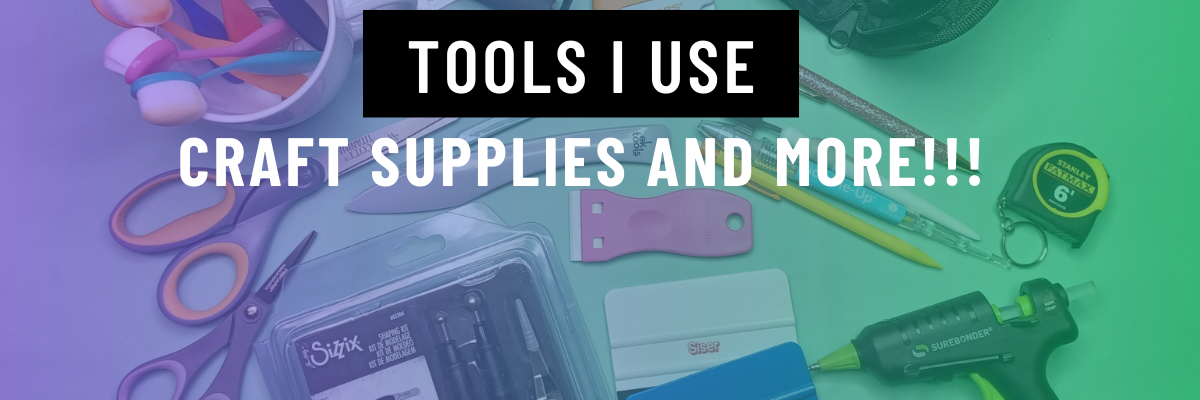
I think every project I start seems small at the beginning, but seems to grow bigger than I originally thought. It is no different with this list of supplies I use in my projects and have in my studio.
I am asked all the time what I recommend and use, so I have added a header on the website with a list of supplies that I have in my studio and use.
I am a big fan of use what you have, so if you have your favorite tools, use them! I have found new favorites over the years of project creation and thought I’d share. Do you have to use the same exact tools as me? NO! Use what you have, what you love, and what works best for you! I am simply sharing what I use and will add to this list as I find new favorites!
I’d love to hear what are some of your favorite tools! Comment below and let me know!
Save this for future reference by pinning the image below.
Enjoy !
THANK YOU for your support! How can you help? Click HERE & buy a coffee. Every little bit helps with the cost of running the site.
Silhouette Classes
Never stop learning! Let me help you take the anxiety out of learning with Silhouette and get to creating faster! My Silhouette classes are heavily focused on software, so you can take the skills & techniques taught and apply them to many future projects!
**This post may contain affiliate links. What that means is that I may receive compensation if you purchase through the links I have provided. The price you pay for the product or service is not higher but I may get compensated for sharing.
Every year we hear about new machines or new products being released by Silhouette America. Usually we hear about the new released at the Silhouette Summit, however, this year is no ordinary year as we all know. But that doesn’t mean that there is no new news.
Today is the day for the release of the new Portrait 3.
Affiliate links may be present in the following blog post and as an Amazon Associate I earn from qualifying purchases.
What is new with this machine? Here is the official information:
Silhouette Portrait® 3 The Silhouette Portrait® is our smallest desktop cutting machine. It’s perfect for cutting materials up to 8 inches wide and up to 60 feet long. The Portrait is ideal for cutting any letter- and A4-sized materials like paper, cardstock, and sticker sheets as well as longer rolls of material, like vinyl or heat transfer. The Portrait 3 was built with ease and portability in mind. Take it with you on the go for whenever creativity strikes! Machine features include: • Cutting width of up to 8 inches • Cutting length of up to 12 inches (with a cutting mat) OR up to 60 feet (with select rolled materials) • Matless cutting capabilities (see Tech Specs for full details) • Automatic tool detection • Print & Cut registration capability • PixScan™ compatible • 2 mm clearance for thicker materials • Connect via USB or use Bluetooth® for wireless connectivity • Driven by Silhouette Studio®, giving you limitless design options
This would be a great machine if you are wanting to travel with.
Here is a comparison to the other Silhouette machines
Check out this new machine HERE and use code SILSECRETS to be one of the first to grab it.
In addition to the new machine release there are also several bundles available and 40% off adhesive vinyl as well.
I always love to see what new & exciting things are coming.
Don’t forget to use my Elite Affiliate code SILSECRETS to get these specials.
Portrait 3 tip: Make sure to add in the Silhouette adapters for the new tool housing to your purchase so that you can use other blades in the Portrait as well as the Autoblade. The Portrait 3 only comes with the blue sketch pen adapter. However, they are planning to release new tools that fit in the housing without the adapters – look for more information on that soon. But for now, grab the adapters so you can use other blades as well.
No matter what Silhouette machine you have, I would love to see what you make! Feel free to post photos or questions on my Facebook group at
Save this for future reference by pinning the image below.
Enjoy!
**This post may contain affiliate links. What that means is that I may receive compensation if you purchase through the links I have provided. The price you pay for the product or service is not higher but I may get compensated for sharing.
I started my Silhouette journey as a paper crafter and it has expanded from there. But, I always still love getting paper out and playing with it.
I love being able to make custom cards and unique items with my Silhouette machines.
It was my husband’s birthday last month, so I needed a card.
This year, while I was shopping for the perfect card idea, he was upstairs playing on the xbox and this one popped into my view – Happy Birthday Circuitry by Snapdragon Snippets – Design #78049.
When you open this file, here is how it looks.
The first thing I do is ungroup the file and then use the Fill Color Panel to add color to the design to make it easier to work with.
Now, I place one color on my mat, move the pieces of the design onto the virtual design mat and cut that color. Then I move those pieces off the virtual design mat and move another color on to cut, until I have all the pieces of my card cut out for assembly.
Normally, I don’t use a spray adhesive but this time, I thought it would be perfect since the card front had so many twists and turns.
A quick spray and it was ready to smooth down on the card base.
It was the perfect time to test my new Portrait 2 out.
**This post may contain affiliate links. What that means is that I may receive compensation if you purchase through the links I have provided. The price you pay for the product or service is not higher but I may get compensated for sharing.
THANK YOU for your support! How can you help? Click the link to buy a coffee. Every little bit helps in the cost of running the site.