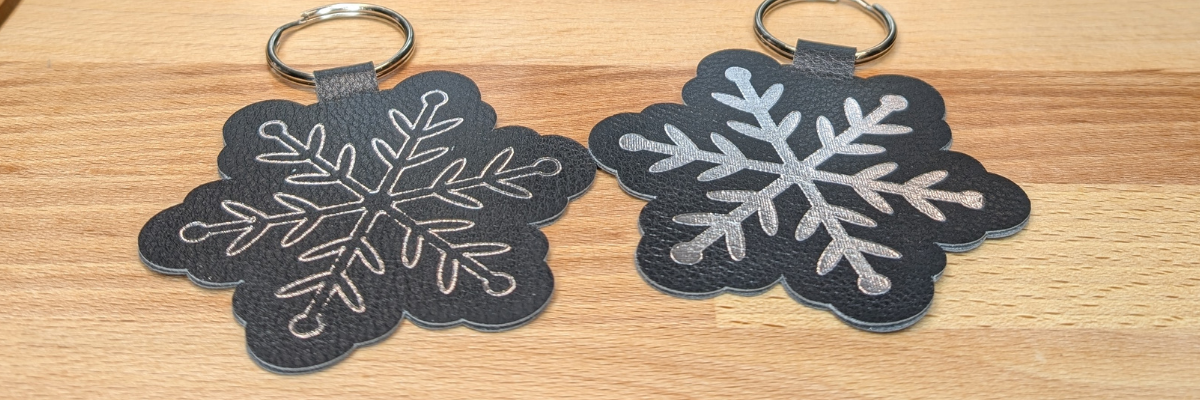
Ready to take your Silhouette crafting skills to the next level? In our latest LIVE tutorial, we demonstrated the exciting world of working with leatherette, faux leather, and adding dazzling details with heat foiling using the Silhouette Heat Pen. Whether you’re creating personalized accessories, decorative pieces, or custom gifts, these techniques will help you achieve professional-looking results with ease. If you missed it, don’t worry—we’ve got all the tips, tricks, and must-know details right here! And I am sharing more tips below too!
Affiliate links may be present in the following blog post and as an Amazon Associate, I earn from qualifying purchases.
We had such an amazing time during this month’s Live Silhouette Tutorial! The session was packed with valuable tips, tricks, and techniques to help you elevate your crafting game. I walked through the entire process of creating a bookmark shape, adding a design, and using the Silhouette Heat Pen for stunning foiled details. Plus, I shared insider tips on using the Knife Tool and so much more!
Grab your favorite drink, get comfy, and check out the replay on the Silhouette Secrets+ YouTube channel under the Live section. Don’t miss the chance to learn and create along with us! And that’s not all! I have a couple more tips I wanted to elaborate on below to help you be more successful in your Silhouette journey!
What if you don’t have a newer model machine that can utilize the Silhouette Heat Pen? No problem, the same tips, techniques, and tricks I shared in the video and below can still be useful. I’ve included additional resources below as well for users with older model machines.
When I asked the viewers if they wanted to see more, they said yes! They stuck around while I set up another design but this time with a fill option. Don’t believe that little timer in the Silhouette Studio software!!! The filled design took around 10 minutes to foil completely. That was twice as long as the estimated timer in Silhouette.
In the live, I also mentioned some tips about tool storage with the new powered tools and I wanted to share a bit more about that.
If these prongs get damaged, the powered tools will no longer work. The new tools are not cheap, so I would recommend storing them safely where they will not get beat up. In the video, I shared a brief glimpse at the storage I’m using, which is a storage container by Creative Options.
This works well for the storage of many Silhouette tools as you can see. The Silhouette Gold and Silver Foil have their own space so they won’t get damaged. The sections are adjustable so I’m able to partition the Silhouette powered tools off and store them so their prongs are not going to get knocked into anything else that could damage them. I also have my Silhouette Power Engraver in this container along with a couple blades and the Silhouette Embossing Tools.
My Options container is part of a larger Creative Options system that can house even more supplies too! I love the color of it too!
I shared even more storage tips in this blog post HERE.
One of the other tips that I mentioned in the video that is very important for using these new Silhouette powered tools. That is to keep the machine clean and free of dust and debris.
Any dirt or debris that gets in the powered tool housing connection or on the prongs of the powered tools can affect the functionality of those tools.
I want you to be as successful with your Silhouette machines and tools as possible!
And I know I mention that the end of the Live video that I will record another video sharing the tassel creation, however, when I got started making it, I found I’m no expert on this topic. So I’m sharing the video I followed to create my tassels by Notches Sewing found HERE.
Here is a list of the supplies I used for creating these foiled leatherette projects:
Save this for future reference by pinning the image below.
Enjoy !
THANK YOU for your support! How can you help? Click HERE & buy a coffee. Every little bit helps with the cost of running the site.
Silhouette Classes
Never stop learning! Let me help you take the anxiety out of learning with Silhouette and get to creating faster! My Silhouette classes are heavily focused on software, so you can take the skills & techniques taught and apply them to many future projects!
**This post may contain affiliate links. What that means is that I may receive compensation if you purchase through the links I have provided. The price you pay for the product or service is not higher but I may get compensated for sharing.
Heat foil projects are a show-stopping way to add a touch of elegance and shimmer to your designs, whether you’re crafting cards, gifts, or custom decor. With the right tools and techniques, creating stunning heat foil projects can be simple and rewarding. In this guide, we’ll walk you through five easy steps to achieve excellent results using your Silhouette machine. Whether you’re a beginner or looking to enhance your foiling skills, these tips will help you create dazzling projects that shine every time. Let’s get started!
Affiliate links may be present in the following blog post and as an Amazon Associate, I earn from qualifying purchases.
5 Steps for Gorgeous Heat Foil Projects
Create Your Design – design or select your project in Silhouette Studio
Set Up the Foil Action – adjust your settings for the perfect foil application
Prepare the Mat – place the foil on your material in the correct position & secure it
Send to Foil – let your Silhouette machine work it’s magic
Reveal Your Design – carefully remove the foil to unveil your stunning creation
New video on the Silhouette Secrets+ YouTube channel – Additional Tips!
We’ve just released a brand-new video on the Silhouette Secrets+ YouTube channel, Silhouette Heat Foil Pen Dos & Don’ts: Tips for Perfect Foiling Every Time! In this video, we break down the essential tips and common mistakes to avoid when using the Silhouette Heat Foil Pen. You can see the machine in action and what goes right and what did not. Use these tips along with the step-by-step details below for perfecting your foiling techniques.
Don’t forget to like, subscribe, and hit the notification bell to stay up-to-date with all our Silhouette tips and tricks on YouTube.
Your Step-by-Step Guide to Flawless Heat Foil Projects
1 – Create the Heat Foil Design
Choose a design to foil, or create your own custom design in Silhouette Studio.
Decide if you want the outline of the design to be foiled or if you prefer to fill the entire design with foil.
Silhouette Studio is a cutting program, so any design that is on the screen is automatically an outline. Filling it with a color only changes how it looks on the screen and is used for printing through a printer. The design on the left in the photo above is the snowflake design sent without adding any additional steps to it. The design on the right is filled with a cross-hatched fill using the Specialty Tools Panel – Heat Pen Tab.
The best fill and spacing is really dependent on the design and materials that are being used. The only way to really know what will look the best is to test it and see for yourself.
If the fill on your design is too tight, it can cause the foil to be removed from certain areas due to multiple passes over the same spot, leaving blank spaces. On the other hand, if the fill is too loose, it can also result in gaps. The ideal fill depends on the desired final look, and the best way to determine what works is to test it out.
I set my foiling and sketch projects up with blue as the foil/sketch lines and red for the cut line using the Line Color in the QAT or the Line Style Panel. This will be helpful when setting up the foiling settings in the next step.
For those who are using older model Silhouette machines and the Foil Quill, the Sketch/Line Effects Panel can be used to add a fill to the design following the same tips listed above.
2 – Set Up the Heat Foil Action
When using the Silhouette Heat Pen, there is an Action for the Heat Pen that may need to be set up. Click on the Send tab and then select your material such as Cardstock, Plain Cardstock, or Leatherette. If there is no Heat Foil Action that shows up for the material, then a custom setting will need to be created. This is not hard to do and we will go through it below.
On the Send tab, in Silhouette Studio, once the Heat Pen has been recognized in the Silhouette Cameo 5, Portrait 4, or Curio 2, you should see a message asking if you want to turn it on. The Silhouette Heat Pen takes approximately 3 minutes to heat up before it can be used properly.
I use the Cut by Line option on the Send tab, so the different actions can easily be turned on and off, so the design can first be foiled, then the foil removed, and then cut if the project requires.
Select the material setting for the red color cut lines. Test cuts will be the only way you know what the perfect setting is for your material, so don’t skip that step before you start and waste materials.
When using the Cut by Line or Cut by Fill Color options, it’s important to ensure the correct color is selected when adjusting settings in the bottom section of the Send tab. For example, if red is selected at the bottom but isn’t the box check for cutting, any changes made will apply to the red cut lines instead of the intended selection. Always double-check that the selected color matches the cut settings you’re adjusting. More details and a visual example of that in this Silhouette Cutting Issues – Cut by Line or Fill Color video.
The next thing to note is that if there is no Heat Pen action programmed for a material, you will see a Setting not found message. This is not a problem, we will create a custom setting by clicking on the MORE button and then creating our own setting for our material.
Click the + sign at the bottom of the materials list, name your material, and then select the machine model.
Now, the next steps are important so the setting is not created with actions that are not needed.
With the material you added selected, select Carriage 2, then click on the + sign on the right side. Choose Add Foil Action. Adjust the settings for force, speed, etc. The only way to know what settings work will be to test and use those settings.
Now, the important part. Click on the Kraft Action and choose REMOVE ACTION at the bottom of the Send tab.
If the Kraft Action or any other action that is set for a material is not removed, it will show up in the settings when the material is selected and can be confusing and cause future issues for projects.
Next click the drop down shown above and select the material that is closest to what you are using for this setting. I don’t actually know that this does anything other than serve as a reminder to you, but it was added randomly to the software many versions back.
Click SAVE if it’s available and then click the giant X at the top of the Send tab to close this window.
Then select the new material created in the drop down next to the line color you want it applied to. User Created Settings will appear at the bottom of the Materials selection drop box.
Verify that the settings are what you created and look right.
Congratulations! You have created your own custom setting. I would also recommend writing down these settings in a safe place. Sometimes they can disappear out of the software. They can also be exported by clicking on the MORE button and right click on the material and export, however, that file cannot always be successfully imported back in. These are just some things we’ve seen over the years with different software versions.
For older model machines and creating a custom setting, please see this tutorial HERE.
3 – Prepare the Mat
If the material will be cut after the foiling, place the materials at the bottom of the Silhouette cutting mat so it easier to remove the foil before sending the material to be cut.
Apply the foil in the same location on the material and mat that is set up in the Silhouette Studio software. Make sure the foil covers the entire area of the design to be foiled and that the washi tape is not in the areas being foiled or it can interfere with a complete foiled image.
Add the washi tape to one corner and then move to the diagonal corner and apply the washi tape, pulling it taunt. Then add washi tape to the final 2 corners and pull taunt as applied. Adjust as needed so the foil does not have any slack or creases. If it catches or has creases, it can affect the final results.
Once the foil is secured flat on the materials, load the cutting mat in the Silhouette machine.
When the design is placed in the top left corner as we are used to, then it can be difficult to remove the foil without unloading the mat. I got too excited and did that on my first design.
It took a bit more work, but I was able to remove the washi tape and foil without unloading the cutting mat. If this every happens to you, make sure to check for any washi tape that might get stuck under the roller bar or in the machine. I found a small piece that could have been a BIG problem on future projects if I had not seen it.
4 – Send to Foil
Check the box next to the Heat Foil setting and verify it’s set for Tool 2. Make sure the red is unchecked so you have time to remove the foil before it cuts the design. Then click Send in the bottom right and approve any windows that might pop up.
Remove the foil before cutting or the foil can dull the blade faster or get caught up in the machine during the cut and the project can be ruined.
5 – Reveal Your Design
Make sure to carefully remove the washi tape & don’t let the foil touch the adhesive cutting mat. It will stick immediately and then be stuck onto your cutting mat. If you reveal it slowly and it did not foil well, you can try securing the foil back down and run it again to see if it will foil better. You may need to adjust the settings and this is why testing is so important.
Do not unload the cutting mat between the foil and cut action or the design may not cut in the correct location. This is why the location of the design at the bottom is easily to work with.
Next, on the Send tab in Silhouette Studio, uncheck the blue line color and check the red color, then send the design to be cut.
When it’s finished, check the cut before unloading the cutting mat. If it did not cut well, you can send it again. After it’s cut, unload the cutting mat, flip the mat over, and peel the mat away from the material at a sharp angle to help it release.
Keep in mind that anytime you sketch or foil with a fill, the tool is going over the design multiple times depending on your fill options. This can mean that the material will be stuck down to the cutting mat in that area and may need a bit more care to remove without damage.
Finish out the project with any assembly needed and then enjoy!
Make sure to check out the video on the Silhouette Secrets+ YouTube channel for a visual of creating these projects and additional Dos and Don’ts too! Find it HERE.
Additional Resources for Mastering Heat Foiling Techniques
Save this for future reference by pinning the image below.
Enjoy !
THANK YOU for your support! How can you help? Click HERE & buy a coffee. Every little bit helps with the cost of running the site.
Silhouette Classes
Never stop learning! Let me help you take the anxiety out of learning with Silhouette and get to creating faster! My Silhouette classes are heavily focused on software, so you can take the skills & techniques taught and apply them to many future projects!
**This post may contain affiliate links. What that means is that I may receive compensation if you purchase through the links I have provided. The price you pay for the product or service is not higher but I may get compensated for sharing.
Have you ever sketched designs or fonts with your Silhouette machine? It can give your projects a unique look or just be fun to play around with.
I’m fascinated by the countless creative applications Silhouette users create with sketching options, from addressing envelopes to crafting signs and beyond!
Today I wanted to share some tips and resources that can help when you are sketching with your Silhouette machines. Sketching can be done with all Silhouette machine models, with the right tools.
This week I released a new video on the Silhouette Secrets+ YouTube channel sharing information on sketching with the Silhouette Cameo 5 and the new Type C pen holder. Even if you do not have a Cameo 5, the information in the video can be helpful and I’ve had several comments from users who learned new things.
Find out which Silhouette pens fit in each machine model, what adapters you might need, and which pen holder is compatible with your Silhouette machine HERE.
How to Fill in a Sketch with Silhouette
One of the most common things we see asked is how to fill in a font or design.
The Silhouette machines do what the user tells them to do. They are designed as cutting machines, so the red cut lines that you see on the screen around a design is the exact path that any tool placed in the Silhouette machine would follow.
In the photo above, the design is showing exactly what a pen would sketch out using a font called Willow Bloom Modern Calligraphy Font by Angele Kamp. The red lines that you see are the exact path the pen would follow.
Since all text that is typed in Silhouette Studio now defaults to Cut Edge, you don’t need to weld it prior to sending, however, you still want to look closely to make sure that the letters are overlapping. If a letter does not overlap another letter, then it will be sketched as an individual letter. Personally, I always weld my text, just because it’s a routine step in my process and I know I’ve looked closely at the font to make sure it’s going to do what I want before I send it.
Remember that once you change a font in any way, such as welding, it is no longer editable text and is now a vector design. I recommend making a copy of the text so you always have an original before you make changes.
Another big thing to note here is that since text now defaults to Cut Edge, that also affects some sketch fonts and how they behave. In the example below, I used BFC Fantasy Sketch by Blush Fonts. Notice how there are sections that are missing or are not highlighted bold red? It is going to sketch exactly as you see on the screen.
This is easily fixed by selecting the entire design and choose Sketch instead of the Sketch Edge. The most important factor here is that the design has to be selected first before you can change the action.
Now that we’ve covered the normal behavior of a font, can you fill in a font or design? Yes!
The best method to use is the Line Effects or Sketch Fill Panel. This is the same exact panel, however, the name has changed depending on the software version you are using.
The Sketch Panel gives you the most fill options and can be used for a wide variety of things.
Keep in mind when filling in a design or font, that the pen follows every single red line in the design. If you use a tight fill pattern, the pen will completely fill in the object, however, it can also be more difficult to remove from the cutting mat as the pen has gone over and over that design many times.
Scribble with the pens prior to installing in the machine to get the ink flowing. The machine writing with a pen is just like writing with a pen by hand. If the pen won’t write smoothly by hand, you can’t expect the machine to magically make it happen either.
Use a clean cutting mat free of debris. Any bits of paper or debris that are stuck to the cutting mat will affect how that pen reacts on the paper and you could have skipping in the sketch.
Keep the Silhouette cutting mat completely level and flat the entire time it is sketching. If the mat is hanging down in front or behind, it can bubble up in the middle and the pen can hit it and cause marks as it travels to complete the sketch.
Keep the material completely flat and secure on the cutting mat. Any variance in the thickness of material can affect how it sketches. For example the flap on the envelope will create a bump that can affect how the pen writes over that area. Keep that in mind when you are sketching.
When using the Silhouette pen holders, use the pen holder cap to set the pen depth. Not sure what I mean, check out the YouTube video and I show a demo of how this is done. Or another method is to place a popsicle stick (craft stick) underneath the tool housing. Then place the pen in the housing. When the tip touches the popsicle stick, lock the pen holder in place.
Silhouette Cameo 3 with Type A Pen Holder
This is easier to do on the older Silhouette machine models. The newer machine models have different housings and not as easy to maneuver.
And DON’T FORGET to take the popsicle stick out after you are done setting the blade depth.
Test, test, test!!! Have fun with it!
Want to see how a font will sketch out? Type out the name of the font style and select that font and then sketch it out. The photo above is an example how I did just that. All of these are fonts I have from the Silhouette Design Store and that is exactly what I did.
This is a tip I shared last year in the Silhouette Secrets+ weekly newsletter. If you’d like tips, information, news, sales, and more “secrets” delivered to your inbox on a regular basis, make sure to subscribe and confirm your subscription.
Silhouette Secrets+ Newsletter
Never miss out on the news, tips, “secrets”, deals, classes, and more that I share on Silhouette Secrets+. Sign up for the newsletter and get information delivered to your inbox every Friday.
The Sketching with Your Silhouette class has been one of my most popular classes released. I have been blown away at the feedback from this class by those who’ve enrolled.
And just have FUN!!!!
Oh and if you have a Silhouette Curio 2, there are even more possibilities for sketching on thicker materials too! The Silhouette Curio 2 has a clearance of 20 mm, which is the highest clearance of any cutting machine out there!!! So exciting and fun to play with!
Find more details on sketching with the Silhouette Curio 2 HERE.
Save this for future reference by pinning the image below.
Enjoy !
THANK YOU for your support! How can you help? Click HERE & buy a coffee. Every little bit helps with the cost of running the site.
Silhouette Classes
Never stop learning! Let me help you take the anxiety out of learning with Silhouette and get to creating faster! My Silhouette classes are heavily focused on software, so you can take the skills & techniques taught and apply them to many future projects!
**This post may contain affiliate links. What that means is that I may receive compensation if you purchase through the links I have provided. The price you pay for the product or service is not higher but I may get compensated for sharing.
This lightweight and portable Silhouette Portrait 4 model cutting machine was announced at the Silhouette Summit in September 2023. It has many improvements over older Portrait model machines.
Affiliate links may be present in the following blog post and as an Amazon Associate, I earn from qualifying purchases.
Find Silhouette supplies at CrafterCuts or Silhouette America – links provided below *user code SECRETS at CrafterCuts to save 10% on supplies (excludes new machines) & free shipping on orders over $35
The right roller can now be moved to multiple locations. To move, lift the lever on top of the right roller and slide it along the roller bar. Close your eyes and slide it and you will feel where it can be locked in place. I find this is the easiest way for a user to actually feel that roller settle in the locations it can be locked in place. Sometimes our eyes can deceive us to think it’s in the position but it’s not quite there.
If cutting a smaller width of material, slide the middle spring guides to the left and position evenly across the width of the material. These spring guides also look different than they did on previous models, but they are designed to help the materials not bubble up in between the rollers. They do NOT provide any actual pressure or downward force, but are there as guides.
The left roller is a stationary roller. Do not force it or you could break the machine.
Here is a closer look at the right roller on the Silhouette Portrait 4. The new design has the rollers behind the roller bar. I would highly recommend keeping the rollers clean and free of adhesive residue as they will be more difficult to clean. Adhesive residue or build up on the rollers can affect the mat and materials feeding properly, which will affect your cut quality as well.
With the new design of the machine and rollers, this also means that the rollers are NOT rolling on the material or the adhesive of the cutting mat! Wahoo! This was one of the things that I did not like on the older Portrait models. My first cut, it cemented my cardstock to the cutting mat because the rollers were on top of the material and the adhesive.
On the right side of the machine are the operational buttons to run the machine.
Repeat Job
Repeat job is back!!!! This was a highly requested feature and it’s back. I rarely used this before, but I did have to test it out and it worked great!
The middle buttons will move the housing location and the pause button in the middle. If you’ve ever tried to pause a cut with a Silhouette machine, you may have noticed that it is NOT automatic. This is because the data has already been sent to the machine and the machine has to complete the cut line that is in process or the data that it has already received before it can pause.
Emergency Stop
Want the job to stop immediately?
Press the power button on the side of the machine quickly and the machine will immediately stop the job. The job is lost and cannot be restarted, but it will immediately stop the cut.
With the implementation of the Emergency Stop, this means that the Power button also operates a bit differently than older models. You will need to hold the power button in for 3 seconds for the machine to turn on and off. This feature is available on the Silhouette Portrait 4, Cameo 5 models, and the Curio 2.
Blade Installation – do not skip this section!!!
One of the most important steps to setting up any Silhouette machine is proper blade installation. You would be amazed at how many users we troubleshoot weekly with that do not have the blade installed or locked in properly. Until that little thing is fixed, a user will have cut issues. It is not hard to install the Silhouette Autoblade, but it is the #1 cut issue we still see for all Silhouette machines.
Pull the front lock out on the housing.
Carefully slide the Silhouette Autoblade down in the housing. The window on the front of the blade should face forward.
Push the Silhouette Autoblade down and carefully lift up on the front of the lock. This will help the blade settle down in the housing.
There should be NO GAP between the lip of the blade and the housing.
Push the front of the housing in to lock the blade in securely. The hooks on the front of the lock should grab the front of the Silhouette Autoblade.
This is the first thing to look at if you ever have cutting issues too! Most cutting issues can be fixed quickly if the user is willing to start at the beginning.
Blade Adjustment Hole
On the left side of the machine is where the blade adjustment hole is located.
This is not a new feature, but it’s worth mentioning. If debris is in that hole or the hole is blocked by the material or mat, then the Autoblade cannot adjust properly. This is something to be aware of and I hate to think how many Autoblades are in the garbage because a user was not aware of this.
If the Silhouette Autoblade is not hitting the hole properly, it will not adjust properly. I would recommend a blade housing reset.
Blade Housing Reset
Check that the blade is installed and locked properly.
Unplug the Silhouette machine.
Then carefully move the blade housing all the way to the right and all the way to the left. Do this 3 more times.
Leave the housing on the right side.
Plug it back in.
Turn the machine on and the housing will reset.
Type out a capital B and send that as a test cut.
Watch the red line inside the window on the front of the blade. Does the red line adjust to the correct number?
This usually corrects most cut issues, but will only work if the blade is installed properly first. Check out my Troubleshooting video HERE for more details & tips too!
Silhouette Portrait 4 Load Line
The Silhouette Portrait 4 has a new clearly marked load line for the cutting mat and materials. I know that does not sound exciting to most, but this is a major improvement in my opinion.
The new load line now is clearly defined and has an arrow that points to it, just like the Silhouette Cameo models. If you have ever seen an older model Portrait, you will know that the load line was not designated at all. It was very confusing for users to know what line to use to load the mat next to.
NEW!!! 8.5″ Cutting Width on the Silhouette Portrait 4
The Silhouette Portrait 4 now has a cutting width of 8.5″ which is an improvement over older models that are only 8″ wide.
The cutting mat is a specific Silhouette Portrait 4 cutting mat that allows for the new 8.5″ width. Make sure when you are ordering additional cutting mats that you are getting the correct one for your machine model.
Find the Silhouette Portrait 4 cutting mats HERE. It will take time for retailers world wide to get these new cutting mats in stock and have availability.
This does make a difference and the cutting mat looks different. It also has a different size adhesive area and the actual dimensions of the cutting mat are different than older Portrait cutting mats.
The photo above shows a comparison of the older cutting mat and the new Portrait 4 cutting mat. You can see the difference in the design area and the actual size of the cutting mat is different.
This means that if you use an older model cutting mat in the new Portrait 4, it will NOT line up with the on screen cutting mat that you see in the Silhouette Software.
This WILL affect your cut placement and print and cut projects!!!
Included with the Silhouette Portrait 4 is a small power terminal shown in the photo above sitting in front of the machine. DO NOT LOSE THIS!!!!
You will not be able to use the Silhouette Heat Pen tools if you lose this little piece.
This little power terminal plugs into the top of the Portrait 4 tool housing and then the Silhouette Heat Pen can be installed in the housing.
This is a removable part so that the lid on the Silhouette Portrait 4 will close. Do not close the machine lid with the power terminal installed for best results. You do not want to damage this area or the power tools many not work properly.
It will connect on the front of the Silhouette Portrait 4 when the cover is removed. Make sure to switch the unlock button on the bottom of the machine prior to trying to remove the cover on the front.
The setup for the Auto Crosscut is very specific. It is for use with the Autoblade and when cutting off of a material roll such as adhesive vinyl or HTV.
Note: you should never cut completely through a material such as cardstock, etc. without the proper setup for pop-out cutting or when using the Auto Crosscut feature or you can damage your machine. The reason you can cut matless with adhesive vinyl, HTV, and kiss-cut sticker sheets is because you are only cutting through the top layer and not completely through.
On the Page Setup Panel – Tab 1, choose No Mat under #3 and set the custom media height size to the length of the roll you are cutting from on #4.
Click on the Send tab in the top right corner.
Then the following will need to be set up in order for this feature to show up:
Compatible material selected such as Vinyl – Glossy or Heat Transfer Vinyl
Once those things are completed, you will see a Cross Cut window show up below the cut settings on the Simple Tab where this feature can be enabled and adjusted.
Note: if a custom cut setting is used, the Crosscut option will show under the Cut Settings area when setup to cut without a mat.
After the cut is complete, the Silhouette Autoblade will adjust the blade depth for a complete cut through. The Crosscut action will be performed in several cuts so it can keep the material in place while it cuts through. Once complete, the cut vinyl can be pulled from the backside of the machine.
The Crosscut feature is performed in the channel that runs underneath the blade housing, so it does not damage the machine when it cuts completely through.
That is a lot of information and new tips for the Silhouette Portrait 4. I hope it helps you to be successful with your Silhouette machine!
Save this for future reference by pinning the image below.
Enjoy !
THANK YOU for your support! How can you help? Click HERE & buy a coffee. Every little bit helps with the cost of running the site.
Silhouette Classes
Never stop learning! Let me help you take the anxiety out of learning with Silhouette and get to creating faster! My Silhouette classes are heavily focused on software, so you can take the skills & techniques taught and apply them to many future projects!
**This post may contain affiliate links. What that means is that I may receive compensation if you purchase through the links I have provided. The price you pay for the product or service is not higher but I may get compensated for sharing.
Affiliate links may be present in the following blog post and as an Amazon Associate, I earn from qualifying purchases.
I’ve been testing out the new heat pen and wanted to share how to set it up in the Silhouette software. I will be demonstrating on the Curio 2, but the setup process is the same in the Silhouette software no matter which machine you are using that is compatible.
This written tutorial will be photo heavy. I also have a video tutorial on the Silhouette Secrets+ YouTube channel HERE and a printable PDF available as a free download exclusively for confirmed newsletter subscribers.
Step 1 – Set up cutting mat by placing cardstock on the cutting mat.
For Curio 2 users only – tape Silhouette cutting mat to debris tray securely. It is NOT recommended to use the heat pen on top of the electrostatic bed. You do not want to damage the electrostatic bed or it will not function properly and will need to be replaced.
The Silhouette Heat Pen setincludes a 1 mm heat pen, 2.5 mm heat pen, roll of Silhouette masking tape, roll of gold foil, and roll of silver foil. 0.5 mm, 1 mm, and 2.5 mm heat pen, roll of Silhouette masking tape, roll of gold foil, and a roll of silver foil.
I used the 2.5 mm heat pen and the gold foil for this tutorial.
The Portrait 4 only has 1 tool housing and will need the power adapter installed prior to installing the Silhouette heat pen (power adapter is included with the Portrait 4 – do not throw it away or lose it). Check out the Portrait 4 unboxing HERE for more information.
Do not worry if the light does not turn on immediately on the front of the Heat Pen. It will come on as the project is set up.
Step 4 – Set up design in the Silhouette software to foil & then cut. You do not want to cut the foil. Silhouette makes it easy for us to set it up for one action and then the other.
First, set up the Page Setup Panel for the machine you are using, the cardstock size and orientation.
Placing the design at the bottom of the sheet of material can make it easier to set up the foiling process and you don’t have to work around the housing. With the Cameo and Portrait machines, it will also make it easier to remove the foil as you do not want to unload the mat between the foiling and cut process.
Select the design and open the Specialty Tools Panel in the top right corner, directly below the Page Setup Panel. Choose the Heat Pen Panel and choose your fill pattern and spacing. I used the cross-hatched pattern and the default fill which showed as 0.016″.
Then I changed the line color of my foiling design to blue using the QAT Line Color option in the top left corner. This is going to allow us to use the Send by Line Color option and set up the design for foiling first and the cut second.
Click the Send button in the top right corner.
Choose the Line option at the top right of the Send tab. Uncheck the red color. Keep the blue color checked and select the “2” option for Tool 2.
*Tip – I do not use the pause option between foiling and cutting as pause does not always work properly.
When the Silhouette Heat Pen is recognized in the software, a pop up will come up and ask if you want to start heating the Heat Pen.
There is no default material setting for the Silhouette Heat Pen currently in the software, but that is no problem. We can create one simply by clicking on the More button in the bottom right of the Send tab. This opens up the Advanced Material Settings and we can set up a material for our foiling.
Click the plus sign on the right side to create a new material. Name the new material to designate what you want. Choose the machine model when asked and then select Carriage 2.
Next, select the larger + sign and select Add Foil Action.
With Carriage 2 still selected, click on the Sketch Action and choose Remove Action.
Adjust the settings for the foil, choose Save, and click the X in the top right corner.
I started with a Force of 10. The only way to know what will work for your material, foil, design, and heat pen is to test it. Start with a small design and test, test, test!
Next, select the new material you created. The setting will be at the bottom of the materials list as a user defined setting.
Verify that the correct color is the one you are changing and that the blue is the color that will be sent to foil.
Step 5 – While the pen is heating, add foil on top of the cardstock in the exact location of the design.
Start by taping the diagonal corners and pulling it as smooth as possible.
Then tape the other 2 corners. Adjust as needed until it is securely held and as smooth as possible. Any movement in the foil can cause the heat pen to catch and the project to be lost.
Step 6 – When the Silhouette Heat Pen shows as Ready, click the Send button to send the job to foil.
If using the Silhouette Curio 2, you will need to do the manual height detection. The height detection does not work accurately on clear or shiny surfaces, so you want to follow the directions to manually detect the height in the software. Check out the video tutorial for a visual on how I do this HERE.
With the Heat Pen set up properly, the auto height detection is automatically disabled to allow for you to set the height manually. This is important to get an accurate reading of the thickness of the material with the Curio 2.
Peek at foiling job when complete. Sometimes if it didn’t foil properly, you could send again if you don’t move the foil too much.
If it’s successful, remove the tape, save and reuse it.
Uncheck the blue cut line and check the red cut line. The blue lines will turn off and the bold red cut line should turn on. Select the appropriate cut setting for your material. Then click Send.
Step 8 – Carefully remove the cut piece.
Keep in mind that if you have the force too high, it can cement the cardstock down to the cutting mat. Be careful removing it and a Silhouette spatula works nicely to help lift it without damaging it.
Save this for future reference by pinning the image below.
Enjoy !
THANK YOU for your support! How can you help? Click HERE & buy a coffee. Every little bit helps with the cost of running the site.
Silhouette Classes
Never stop learning! Let me help you take the anxiety out of learning with Silhouette and get to creating faster! My Silhouette classes are heavily focused on software, so you can take the skills & techniques taught and apply them to many future projects!
**This post may contain affiliate links. What that means is that I may receive compensation if you purchase through the links I have provided. The price you pay for the product or service is not higher but I may get compensated for sharing.
THANK YOU for your support! How can you help? Click the link to buy a coffee. Every little bit helps in the cost of running the site.