Posted on Leave a comment

Silhouette Cameo5α (Alpha) Unboxing

Silhouette Secrets+ with EllyMae

The Silhouette Cameo5α (Alpha) model is the latest machine released by Silhouette America. It was announced at the Silhouette Summit 2025 in Japan in September 2025 and was released shortly after the Summit.

A boxed Silhouette Cameo 5 cutting machine, labeled with dimensions and brand, placed on a concrete surface.

Affiliate links may be present in the following blog post and as an Amazon Associate, I earn from qualifying purchases.

I was not able to attend the Silhouette Summit in Japan, but did order the Silhouette Cameo5α as soon as it was available on the Silhouette America website. At the time of the release, only the white Silhouette Cameo5α models were available and there was no timeline on the other colors being released, so I grabbed it. However, if I would have had choices, I would have selected the Bianco Carrara pattern. When this pattern was first released, I was not impressed, until I had one in my hands and it is my new favorite pattern.

I released 2 unboxing videos on the Silhouette Secrets+ YouTube channel sharing a quick setup as well as an in-depth look at the new machine model. So far the in-depth unboxing and setup has been the most popular.

A person demonstrating the unboxing and setup of a Silhouette Cameo 5 cutting machine, surrounded by various craft supplies and a laptop on a desk.

Watch the Full Unboxing & Setup of the Silhouette Cameo5α video HERE

A woman wearing a hoodie stands in front of a desk with crafting supplies and a Silhouette Cameo 5 machine, with text overlay reading 'Quick Unboxing + Setup' and the Silhouette logo.

Watch the Quick Unboxing & Setup of the Silhouette Cameo5α HERE

I did not get a blog post out at the time of releasing the unboxing, but sometimes a delay can also be a good thing as I’ve had some time to work with the Silhouette Cameo5α and really test it out. This means that I can add more information and real world experience to the blog post.

Here is one of the first projects I cut out after unboxing the Silhouette Cameo5α.

Crafting materials laid out on a wooden table, including cutouts of a skeleton, coffin, and various decorative pieces, with a Silhouette cutting machine in the background.

This project had many intricate cuts from the wood layers to the small skeleton hands. At this size, the cardstock makes a huge difference too! The first one I cut, the cardstock paper layers were separating and I had to switch to a higher quality smooth cardstock for these details.

Three white paper cutouts of hands placed on a brown surface, with a crafting tool nearby.

Here is a close up look at this finished project of the 3-D Skeleton Coffin with all of the details.

A decorative wooden chest with chains and a padlock, featuring skull and bony hands, set against the backdrop of a cutting machine.

This was just one piece to my Halloween busted canvas project, but it was a great test to really see what the Silhouette Cameo5α was capable of.

A decorative coffin with a skeleton figure inside, resting next to a white cutting machine on a wooden surface.

But, of course, I couldn’t stop there! The coffin was only the first piece of my Halloween busted canvas project.

A Halloween-themed decoration featuring a skeleton seated in a spooky graveyard setting, surrounded by a decorative wreath made of black netting, yellow and black patterned ribbons, and faux bones, with a miniature coffin and tombstone that reads 'R.I.P.'

I continued to cut out pieces for the 3-D Tombstone and put the Silhouette Cameo5α to the test. Within a short amount of time from unboxing the machine, I had a lot of cut hours into testing it out.

Watch the video – 3D Tombstone & Skeleton Halloween Art | Creative Process with Silhouette HERE.

A 3D Halloween-themed display featuring a skull behind wooden planks with chains and a padlock on one side, and a gravestone marked 'R.I.P.' on the other side, surrounded by paint supplies.

How Is This Model Different?

The Silhouette Cameo5α is an updated model of the original Cameo 5. The original Silhouette Cameo 5 model is no longer manufactured.

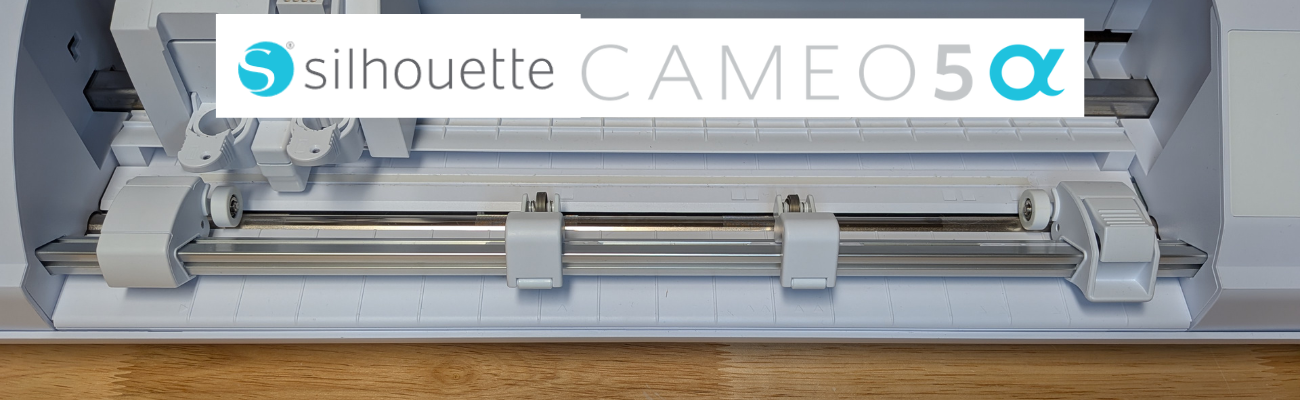
The Silhouette Cameo5α features a new roller design and I do like how it is much more visible to see the rollers and if ever there is a need, easier to clean them as well. It also has a pinch pressure button locking mechanism on the right roller that is so much nicer than the original model design.

Close-up view of the interior of a Silhouette cutting machine, showcasing the rollers and blade holders on a wooden surface.

It also has an additional 0.3 mm clearance on the roller bar for the Silhouette Cameo5α. At the Silhouette Summit, they mentioned this in reference to use with the Silhouette Electrostatic Mat. With the Silhouette Electrostatic Mat, there is a protective sheet that goes on top of the mat before you place your materials on it to be cut. This protective sheet adds height to what is rolling through the machine. I have not had any issues with this, however, they must have received some feedback from users who were using multiple layers of materials, such as stickers with a laminate on top of it which is thicker than your average cardstock. So the clearance was increased a tad bit.

Keep in mind that when you are talking about clearance, the material also has to “clear” the bottom of the tool that is being used. So even if it clears the bottom of the roller bar, thicker materials also have to allow the blade or tool to clear it as well. And even if a material can clear both the roller bar and tool tip, that does not guarantee that it is a cuttable material with the Silhouette. There are many factors that go into whether a material is going to cut well with a Silhouette.

Close-up image of a cutting machine with a white exterior, displaying the interior components and cutting blade holder system.

With the Silhouette Cameo5α, you do have to use a Silhouette software version of 5.0.402 in order for the machine to be recognized. As I type this up, there are still many bugs and issues with version 5 and I am not recommending version 5 for all users. But, if you are a Silhouette Cameo5α owner, you do have to use version 5 and there is no way around that. I recommend using version 5.0.402 at this time and not the current version (5.0.414) as we have seen some issues with the current version. We have seen some issues of machines being bricked or recognized as a regular Cameo 5 and not a Silhouette Cameo5α. If you encounter any of those issues, please contact Silhouette Support and be as detailed as possible in your request for assistance. Including photos and video can help them help you faster as well.

The Silhouette Cameo5α also uses the 4 point registration marks for print and cut projects. This was first released with the Silhouette Cameo Pro MK II model and now is available with the Silhouette Cameo5α model. Silhouette states that this is supposed to improve accuracy of the print and cut results. However, I have not seen any significant improvements in my testing. The biggest issues we see with print and cut are still due to setup and user errors.

Screenshot of a design project in Silhouette Studio, featuring two card designs with floral and butterfly elements, along with text 'wishes' and 'for you'. The page setup settings are displayed on the right.

I shared a little more on using the 4 point registration marks and testing it with the same design on both the older style marks and the newer style marks in this video – Layered Card Design with Brilliant Living Digital Kit – a Step-by-Step Silhouette Tutorial.

Image shows two layered greeting cards featuring floral designs and butterflies, with crafting materials like tape and scissors in the background. The text above indicates a step-by-step tutorial using a digital kit.

This 4 point registration mark system is only available if the Silhouette software has recognized a Silhouette Cameo5α or a Silhouette Cameo Pro MK II has been connected.

What Do I Use?

I use both the Silhouette Cameo 5 original model and the Silhouette Cameo5α. It really just depends on what I am doing and what the project might be.

Anytime I get a new machine, I like to put it through the paces to see what works and what doesn’t. This means testing both the machine and the Silhouette Studio software.

Here are some print and cut projects I did while testing it.

A crafting workspace featuring a cutting machine, colorful papers, printed floral designs, and various crafting tools arranged on a wooden table.

I do love that I can create meaningful cards and gifts for friends and family, no matter what the circumstances are.

A greeting card featuring a floral design with the text: 'May you find comfort in sweet memories, strength in those you love & hope in each new day,' placed next to a crafting machine on a wooden table.

Check out more projects I cut using the Silhouette Cameo5α in this blog post – 5 Card Designs from One Template with Quietfire Designs.

A collage featuring five unique card designs made with one template, showcasing themes like winter, birthdays, flowers, Halloween, and a friendly ghost.

I really do wish cutting machines came with a cut hours timer. Within the first few weeks of owning the machine, I racked up a lot of cut hours.

Save this for future reference by pinning the image below.

A woman wearing a black shirt with the word 'create' is standing at a table, pointing towards a Silhouette Cameo 5 cutting machine. The background features various craft supplies and organizational tools.

Enjoy !

THANK YOU for your support! How can you help? Click HERE & buy a coffee.
Every little bit helps with the cost of running the site.

Silhouette Classes

Never stop learning! Let me help you take the anxiety out of learning with Silhouette and get to creating faster! My Silhouette classes are heavily focused on software, so you can take the skills & techniques taught and apply them to many future projects!

Silhouette step-by-step Classes by Silhouette Secrets+

Silhouette Secrets+ with EllyMae
**This post may contain affiliate links. What that means is that I may receive compensation if you purchase through the links I have provided. The price you pay for the product or service is not higher, but I may get compensated for sharing.

Posted on 2 Comments

5 Simple Steps to Mastering Stunning Heat Foil Projects with Silhouette

Silhouette Heat Foil on Silhouette Leatherette
Silhouette Secrets+ with EllyMae

Heat foil projects are a show-stopping way to add a touch of elegance and shimmer to your designs, whether you’re crafting cards, gifts, or custom decor. With the right tools and techniques, creating stunning heat foil projects can be simple and rewarding. In this guide, we’ll walk you through five easy steps to achieve excellent results using your Silhouette machine. Whether you’re a beginner or looking to enhance your foiling skills, these tips will help you create dazzling projects that shine every time. Let’s get started!

Silhouette Heat Pen Foiled Designs on Silhouette Leatherette - Faux Leather

Affiliate links may be present in the following blog post and as an Amazon Associate, I earn from qualifying purchases.

5 Steps for Gorgeous Heat Foil Projects

  1. Create Your Design – design or select your project in Silhouette Studio
  2. Set Up the Foil Action – adjust your settings for the perfect foil application
  3. Prepare the Mat – place the foil on your material in the correct position & secure it
  4. Send to Foil – let your Silhouette machine work it’s magic
  5. Reveal Your Design – carefully remove the foil to unveil your stunning creation

Essential Supplies for Heat Foil Crafting Success

For older model machines without the powered tool housing

Additional Heat Foils that I’ve tested

New video on the Silhouette Secrets+ YouTube channel – Additional Tips!

We’ve just released a brand-new video on the Silhouette Secrets+ YouTube channel, Silhouette Heat Foil Pen Dos & Don’ts: Tips for Perfect Foiling Every Time! In this video, we break down the essential tips and common mistakes to avoid when using the Silhouette Heat Foil Pen. You can see the machine in action and what goes right and what did not. Use these tips along with the step-by-step details below for perfecting your foiling techniques.

Don’t forget to like, subscribe, and hit the notification bell to stay up-to-date with all our Silhouette tips and tricks on YouTube.

Silhouette Heat Foil Pen Dos & Don'ts: Tips for Perfect Foiling Every Time! video on YouTube

Your Step-by-Step Guide to Flawless Heat Foil Projects

1 – Create the Heat Foil Design

Choose a design to foil, or create your own custom design in Silhouette Studio.

Step 1 - Create Heat Foil Design in Silhouette Studio

Decide if you want the outline of the design to be foiled or if you prefer to fill the entire design with foil.

Heat Foil Design Outline vs Fill

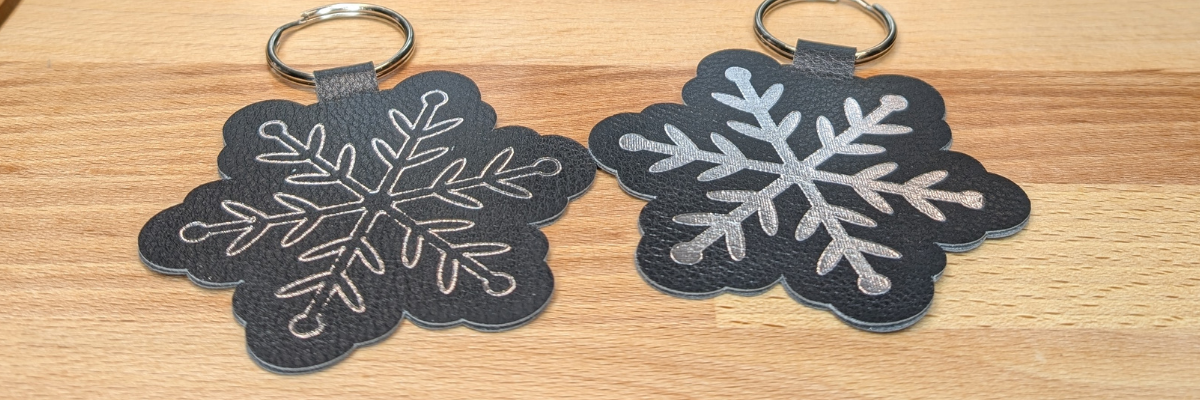
Silhouette Studio is a cutting program, so any design that is on the screen is automatically an outline. Filling it with a color only changes how it looks on the screen and is used for printing through a printer. The design on the left in the photo above is the snowflake design sent without adding any additional steps to it. The design on the right is filled with a cross-hatched fill using the Specialty Tools Panel – Heat Pen Tab.

Silhouette Specialty Tools - Heat Pen Panel

The best fill and spacing is really dependent on the design and materials that are being used. The only way to really know what will look the best is to test it and see for yourself.

If the fill on your design is too tight, it can cause the foil to be removed from certain areas due to multiple passes over the same spot, leaving blank spaces. On the other hand, if the fill is too loose, it can also result in gaps. The ideal fill depends on the desired final look, and the best way to determine what works is to test it out.

I set my foiling and sketch projects up with blue as the foil/sketch lines and red for the cut line using the Line Color in the QAT or the Line Style Panel. This will be helpful when setting up the foiling settings in the next step.

For those who are using older model Silhouette machines and the Foil Quill, the Sketch/Line Effects Panel can be used to add a fill to the design following the same tips listed above.

2 – Set Up the Heat Foil Action

When using the Silhouette Heat Pen, there is an Action for the Heat Pen that may need to be set up. Click on the Send tab and then select your material such as Cardstock, Plain Cardstock, or Leatherette. If there is no Heat Foil Action that shows up for the material, then a custom setting will need to be created. This is not hard to do and we will go through it below.

On the Send tab, in Silhouette Studio, once the Heat Pen has been recognized in the Silhouette Cameo 5, Portrait 4, or Curio 2, you should see a message asking if you want to turn it on. The Silhouette Heat Pen takes approximately 3 minutes to heat up before it can be used properly.

Silhouette Heat Pen Message to Turn On

I use the Cut by Line option on the Send tab, so the different actions can easily be turned on and off, so the design can first be foiled, then the foil removed, and then cut if the project requires.

Select the material setting for the red color cut lines. Test cuts will be the only way you know what the perfect setting is for your material, so don’t skip that step before you start and waste materials.

Silhouette Studio Send Tab - Cut by Line Color

When using the Cut by Line or Cut by Fill Color options, it’s important to ensure the correct color is selected when adjusting settings in the bottom section of the Send tab. For example, if red is selected at the bottom but isn’t the box check for cutting, any changes made will apply to the red cut lines instead of the intended selection. Always double-check that the selected color matches the cut settings you’re adjusting.
More details and a visual example of that in this Silhouette Cutting Issues – Cut by Line or Fill Color video.

Silhouette Cut by Line Color - No Setting Found

The next thing to note is that if there is no Heat Pen action programmed for a material, you will see a Setting not found message. This is not a problem, we will create a custom setting by clicking on the MORE button and then creating our own setting for our material.

Silhouette Studio - Create a Custom Setting

Click the + sign at the bottom of the materials list, name your material, and then select the machine model.

Now, the next steps are important so the setting is not created with actions that are not needed.

Silhouette Studio - Create Custom Setting Step 2

With the material you added selected, select Carriage 2, then click on the + sign on the right side. Choose Add Foil Action. Adjust the settings for force, speed, etc. The only way to know what settings work will be to test and use those settings.

Now, the important part. Click on the Kraft Action and choose REMOVE ACTION at the bottom of the Send tab.

Silhouette Studio - Create Custom Setting Step 3

If the Kraft Action or any other action that is set for a material is not removed, it will show up in the settings when the material is selected and can be confusing and cause future issues for projects.

Next click the drop down shown above and select the material that is closest to what you are using for this setting. I don’t actually know that this does anything other than serve as a reminder to you, but it was added randomly to the software many versions back.

Click SAVE if it’s available and then click the giant X at the top of the Send tab to close this window.

Then select the new material created in the drop down next to the line color you want it applied to. User Created Settings will appear at the bottom of the Materials selection drop box.

Silhouette Studio - Create Custom Setting Step 4

Verify that the settings are what you created and look right.

Congratulations! You have created your own custom setting. I would also recommend writing down these settings in a safe place. Sometimes they can disappear out of the software. They can also be exported by clicking on the MORE button and right click on the material and export, however, that file cannot always be successfully imported back in. These are just some things we’ve seen over the years with different software versions.

For older model machines and creating a custom setting, please see this tutorial HERE.

3 – Prepare the Mat

If the material will be cut after the foiling, place the materials at the bottom of the Silhouette cutting mat so it easier to remove the foil before sending the material to be cut.

Apply the foil in the same location on the material and mat that is set up in the Silhouette Studio software. Make sure the foil covers the entire area of the design to be foiled and that the washi tape is not in the areas being foiled or it can interfere with a complete foiled image.

Silhouette Heat Foil Preparation

Add the washi tape to one corner and then move to the diagonal corner and apply the washi tape, pulling it taunt. Then add washi tape to the final 2 corners and pull taunt as applied. Adjust as needed so the foil does not have any slack or creases. If it catches or has creases, it can affect the final results.

Once the foil is secured flat on the materials, load the cutting mat in the Silhouette machine.

When the design is placed in the top left corner as we are used to, then it can be difficult to remove the foil without unloading the mat. I got too excited and did that on my first design.

Silhouette Heat Foil Do Not Do Tip

It took a bit more work, but I was able to remove the washi tape and foil without unloading the cutting mat. If this every happens to you, make sure to check for any washi tape that might get stuck under the roller bar or in the machine. I found a small piece that could have been a BIG problem on future projects if I had not seen it.

4 – Send to Foil

Check the box next to the Heat Foil setting and verify it’s set for Tool 2. Make sure the red is unchecked so you have time to remove the foil before it cuts the design. Then click Send in the bottom right and approve any windows that might pop up.

Silhouette Send to Foil with Heat Pen

Remove the foil before cutting or the foil can dull the blade faster or get caught up in the machine during the cut and the project can be ruined.

5 – Reveal Your Design

Silhouette Heat Pen Reveal the Design

Make sure to carefully remove the washi tape & don’t let the foil touch the adhesive cutting mat. It will stick immediately and then be stuck onto your cutting mat. If you reveal it slowly and it did not foil well, you can try securing the foil back down and run it again to see if it will foil better. You may need to adjust the settings and this is why testing is so important.

Do not unload the cutting mat between the foil and cut action or the design may not cut in the correct location. This is why the location of the design at the bottom is easily to work with.

Next, on the Send tab in Silhouette Studio, uncheck the blue line color and check the red color, then send the design to be cut.

When it’s finished, check the cut before unloading the cutting mat. If it did not cut well, you can send it again. After it’s cut, unload the cutting mat, flip the mat over, and peel the mat away from the material at a sharp angle to help it release.

Silhouette Cutting Mat Tip - Flip Mat Over to Peel from Materials

Keep in mind that anytime you sketch or foil with a fill, the tool is going over the design multiple times depending on your fill options. This can mean that the material will be stuck down to the cutting mat in that area and may need a bit more care to remove without damage.

Finish out the project with any assembly needed and then enjoy!

Silhouette Heat Foil Projects on Leatherette - Faux Leather

Make sure to check out the video on the Silhouette Secrets+ YouTube channel for a visual of creating these projects and additional Dos and Don’ts too! Find it HERE.

Additional Resources for Mastering Heat Foiling Techniques

Save this for future reference by pinning the image below.

5 Simple Steps to Silhouette Heat Pen Foiling

Enjoy !

THANK YOU for your support! How can you help? Click HERE & buy a coffee.
Every little bit helps with the cost of running the site.

Silhouette Classes

Never stop learning! Let me help you take the anxiety out of learning with Silhouette and get to creating faster! My Silhouette classes are heavily focused on software, so you can take the skills & techniques taught and apply them to many future projects!

Silhouette step-by-step Classes by Silhouette Secrets+

Silhouette Secrets+ with EllyMae
**This post may contain affiliate links. What that means is that I may receive compensation if you purchase through the links I have provided. The price you pay for the product or service is not higher but I may get compensated for sharing.
Posted on Leave a comment

Beginner’s Guide to the Silhouette Cameo 5 Step-by-Step Class Now Available!

Silhouette Beginner's Guide to the Cameo 5
Silhouette Secrets+ with EllyMae

Are you ready to start crafting with your Silhouette Cameo 5 but don’t know where to begin? 🎉 Our brand-new Beginner’s Guide to the Silhouette Cameo 5: Crafting Made Easy is here to help! This step-by-step class is designed with beginners in mind, walking you through everything from unboxing your machine to mastering your first project. Whether you’re brand-new to Silhouette or want to boost your confidence with the Cameo 5, this class is packed with practical tips and easy-to-follow instructions to set you up for crafting success. Let’s get started on your creative journey today! 🌟

Beginner’s Guide to the Silhouette Cameo 5: Crafting Made Easy
step-by-step class
Click HERE

Take the guesswork out of using your Silhouette Cameo 5 with this hands-on, step-by-step class designed for beginners. You’ll learn how to set up your machine, navigate the essential features of Silhouette Studio, and master the basics of cutting with confidence. This class covers everything from opening the box to getting your first successful cuts, with expert tips all along the way. Perfect for new users, this guide will leave you equipped with the skills and knowledge to bring your creative ideas to life!

Portrait 4 owners: this video course can also be used for Portrait 4 machines as well. Most of the information is the same for both machine models, the main difference is the cutting width of each machine.
View an unboxing of the Portrait 4 here.

The supplies needed for this class are minimal. I used Oracal 651 adhesive vinyl, AT 65 Transfer Tape, and Cardstock.

Complete course outline below:

Introduction, Unboxing, and Proper Setup of the Silhouette Cameo 5 – 20 minutes

  • Unboxing the Silhouette Cameo 5
  • Explanation of all parts included in the box
  • Proper Setup of Silhouette Cameo 5 machine
  • Proper Installation of the included Roll Feeder on the Silhouette Cameo 5
  • Explanation & Tips to Autoblade Installation and Tool Housings

Silhouette Cameo 5 New Machine Setup & Warranty Registration – 15:53 minutes

  • Set up on the Silhouette America Website
  • Registration to Your Account
  • Silhouette Studio Software
  • Silhouette Cameo 5 Setup
  • Silhouette Cameo 5 Firmware Updates

Silhouette Studio Software: Important Information

  • Silhouette Studio software version information

Silhouette Cameo 5: First Cuts with Adhesive Vinyl & Cardstock – 56:40 minutes

  • Setting up a Design Using Text
  • Cut Settings on the Send Tab Explained
  • 2 Ways to Do Test Cuts
  • First Cuts from Adhesive Vinyl
  • Explanation of the Autoblade Adjustment
  • Removing materials from the cutting mat
  • Weeding Tips
  • Applying Transfer Tape
  • Removing the Backing off Adhesive Vinyl & Cutting Tips
  • Changing Blades & Reinstalling for Cardstock Cuts
  • Test Cuts on Cardstock
  • Drawing Basic Shapes & Adjusting a Polygon
  • Cutting Basic Shapes from Cardstock
  • Troubleshooting Tips for Cut Issues
  • Tips to Removing Materials, Saving Adhesive on the Mat, and Materials Not Curling When Removed
  • More Tips

Additional Resources
Terms of Use

This class will help get you up and cutting faster than figuring it out yourself! Help yourself get started quicker and be on your way to more fabulous projects in no time!

Beginner’s Guide to the Silhouette Cameo 5: Crafting Made Easy class found HERE
Check out all of the Silhouette classes HERE.

Save this for future reference by pinning the image below.

Silhouette Cameo 5 Beginner's Class

Find more Silhouette resources and tutorials on the A to Z section on the blog HERE.

Enjoy !

THANK YOU for your support! How can you help? Click HERE & buy a coffee.
Every little bit helps with the cost of running the site.

Silhouette Classes

Never stop learning! Let me help you take the anxiety out of learning with Silhouette and get to creating faster! My Silhouette classes are heavily focused on software, so you can take the skills & techniques taught and apply them to many future projects!
Silhouette step-by-step Classes by Silhouette Secrets+

Silhouette Secrets+ with EllyMae
**This post may contain affiliate links. What that means is that I may receive compensation if you purchase through the links I have provided. The price you pay for the product or service is not higher but I may get compensated for sharing.

Posted on 2 Comments

Silhouette Cameo 5 Unboxing & Setup

Affiliate links may be present in the following blog post and as an Amazon Associate I earn from qualifying purchases.

This video – whew! If it was going to go wrong, it was going to happen on video! Not just the video but in the editing process too! I had to edit this one twice because my editing software deleted the beginning and I didn’t notice until I was at the end.

Some weeks go smoothly and others not so much – but I got there in the end!

And I’ve been successfully using my Silhouette Cameo 5 since this video was recorded. I have cut more Siser Glow HTV and even used it to sketch out some Halloween shirts in an Artesprix Sublimation Marker video I did this month! It worked beautifully!

Check out the new Silhouette Cameo 5 Unboxing video on the
Silhouette Secrets+ YouTube channel HERE.

Here is a look at my successful cut – the 2nd go around. I decided to keep it all in the video and show you the reality of what happens. It does not always go 100% perfect all the time! I mess up, my machine doesn’t cut right, firmware doesn’t update by Bluetooth – everything that happens to users that we troubleshoot, we encounter too!

The new Silhouette Cameo 5 has some new features:
– newly designed roller bar
– new rollers
– new places the rollers can be locked in place
– repeat job (highly requested!!!)
– quieter operation
– new powered housing in Tool 2 new tools!
– front crosscutter option (more on that in the future)
– emergency stop (which I’ve already used several times on all my new machines)
and more!!!
I cannot wait to share more!!!

Another new thing that Silhouette has been working on is that the firmware updates for the Cameo 5, Portrait 4, and Curio 2 will be able to update through the Bluetooth connection. On previous Silhouette model machines, it had to be done through a USB connection and was the only way it would update. An internet connection is required to complete a firmware update.

This is great news!
However, I do want to note as you’ll see in the video, the current version of the software is not always successful in this and we have reported that. I did have to connect by USB cable in order to complete that. But, it is great that it will be an option moving forward.

The Silhouette Cameo 5 black is available for shipping now – HERE.

Make sure to follow along on the Silhouette Secrets+ YouTube channel HERE. Like, subscribe, and click that bell for notifications of future content.

Save this for future reference by pinning the image below.

Enjoy !

THANK YOU for your support! How can you help? Click HERE & buy a coffee.
Every little bit helps with the cost of running the site.

Silhouette Classes

Never stop learning! Let me help you take the anxiety out of learning with Silhouette and get to creating faster! My Silhouette classes are heavily focused on software, so you can take the skills & techniques taught and apply them to many future projects!

Silhouette step-by-step Classes by Silhouette Secrets+

**This post may contain affiliate links. What that means is that I may receive compensation if you purchase through the links I have provided. The price you pay for the product or service is not higher but I may get compensated for sharing.


