Posted on 1 Comment

Sparkle and Shine: DIY Custom Jewelry with Silhouette

Silhouette Secrets+ with EllyMae

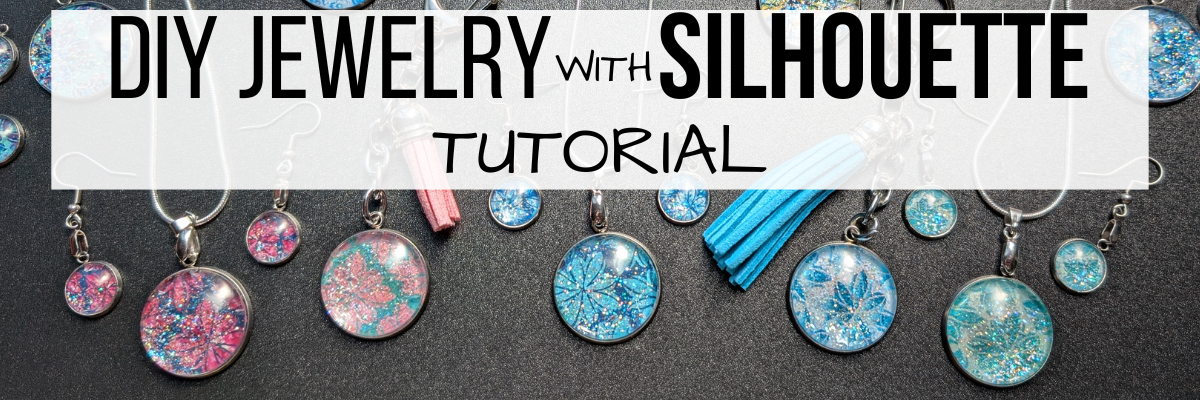
Jewelry making just got a whole lot more creative! In this tutorial, I’ll show you how to design and create dazzling custom jewelry pieces — perfect for pendants, earrings, bag tags, keychains, and more — using Silhouette with stencil designs and a variety of patterns. From selecting your supplies to following step-by-step instructions, you’ll learn how to turn simple materials into stunning, personalized accessories that sparkle. Whether you’re making gifts or adding a touch of charm to your own style, this project is a fun way to blend creativity, craftsmanship, and a little bit of shimmer.

Scroll down for the full tutorial, or check out the video version for a closer look! You can also download the printable supply list and step-by-step instructions PDF to craft along at your own pace.

Affiliate links may be present in the following blog post and as an Amazon Associate, I earn from qualifying purchases.

A close-up of a hand holding a glittery jewelry piece with a blue and white floral design, surrounded by various colorful jewelry pieces on a crafting table.

DIY Custom Jewelry Supplies

Steps to Create Custom Jewelry with Silhouette

*Tutorial written in Silhouette Studio version 4.5.812
Blog post is photo heavy

Open the Silhouette Studio software and set the page size/media size to Letter or whatever size you are printing on.

Screenshot of Silhouette Studio software interface displaying a blank design area and various design tools on the left side.

Open the Registration Marks Panel and turn on the registration marks for print and cut. Click the Restore Defaults button to reset the defaults for your most accurate print and cut results.

Screenshot of Silhouette Studio software showing the page setup with registration marks, dimensions, and options highlighted.

Save the file using File > Save and select a location on your hard drive to keep your work safe.

Measure the jewelry blanks to know what size to create the design at.

In Silhouette Studio, using the Drawing Tools on the left, select the Draw Ellipse tool, hold down the Shift key and draw a circle. This will create a perfect circle.

Screenshot of the Silhouette Studio software interface demonstrating the 'Draw an Ellipse' tool and page setup options for designing custom jewelry pieces.

Using the Scale Tools, adjust the size of the circle to the size of the jewelry measurement. I adjusted the circle to 1″.

Since I am filling the circle with a pattern and colors, I made an offset to create a manual print bleed. This ensures that exact size I need for the pendant is cut, it will not have white edges on it. I have no issues with print and cut using Silhouette as I follow the same steps every single time. However, it is one of the most common issues we see with troubleshooting with users and it’s usually due to something in the setup.

Silhouette has a 1/16″ off cut that is within the normal range of accuracy with the machines. Adding your own “print bleed” is just another way you can ensure success with your project turning out how you like it. There is also an automatic print bleed option in the Silhouette software, but it doesn’t always yield the look you want.

Open the Offset Panel. Select Offset and adjust the distance of the offset as desired. Set yourself up for success with this keeping in mind that 1/16″ off cut possibility. I used an offset of 0.110″. There is no magic number here and it can vary for all projects.

Screenshot of Silhouette Studio interface showing the design area with a circular shape and offset settings for creating custom jewelry designs.

Open the stencil design. I am using a Hand Carved flower stencil by Kassy’s Parlour . The steps taken here may vary depending on the design you choose to work with.

Silhouette Studio software interface displaying a floral stencil design on a black background, with a workspace layout visible.


In order to fill the design with color, the design needs to be a cut file. If using an image file such as a png or jpeg, then you would need to trace the design to get “cut” lines to fill in certain areas with color.

For this design, first change the fill color to transparent. This makes the next steps easier to work with.

  • Right click and choose Release Compound Path.
  • Move the outer line away.
  • Left click and drag across all the remaining pieces to select all, then right click, and choose Make Compound Path.
  • Add a fill color back to the design to see how it looks.

Again, these steps may vary depending on the design you are working with. If you want to follow my exact steps, I’d recommend grabbing the Hand Carved flower stencil by Kassy’s Parlour so you are working with the exact file I’m using.

Screenshot of Silhouette Studio software displaying a floral stencil design for custom jewelry creation, showcasing the design area and settings.

Copy and paste the stencil file to the print and cut project mat. Using the corner bounding box, scale the design down to fit within the circle offset and position as desired. Right click on the stencil design and choose Send to Back. Select everything and make a copy. Then save the file.

Screenshot of Silhouette Studio interface displaying a design for custom jewelry, featuring patterns and shapes prepared for cutting and printing.

I actually made 2 copies and pulled the stencil design away so you could see it on the left side. The copies will come in handy in the next steps.

On the original design, hold the Shift key down and select the circle offset and the stencil design by clicking on them. Open the Modify Panel on the right side and select Crop. Now the design is cropped to the offset circle.

Screenshot of the Silhouette Studio software interface showing a floral design on a circle with crop and modify options highlighted.

Once Crop is selected, it will break all the pieces of the stencil design apart. Make sure to Group the pieces back together. I use Ctrl+G to group as the keyboard shortcut.

Also, when using the Crop tool, the outer offset circle is now gone. This is where the copies come in handy. Make a copy of the offset circle from the left side and move it onto the design mat. Select the new offset circle, the cropped stencil design and the original circle; then use the Align tools to Center it together.

Screenshot of Silhouette Studio software showing design workspace with a floral design and circular shape, demonstrating alignment tools.

Make a copy of this completed design and pull it off to the left side. Then save the file.

If the wrong circle was selected when using Crop, simply use the Undo feature and go back to start again.

For this design, since we created our own print bleed, we only need to cut the inside circle and not the offset or the stencil design. Hold the Shift key down and click on the offset circle and stencil design to select them, then click on the Send tab and choose No Cut. This will turn the cut line off for the offset & stencil design. You can do this step at the end of the process too, however, if you remember before you make copies, then it can be a little bit easier.

Screenshot of Silhouette Studio software displaying a floral stencil design within a circular cut area, highlighting cut settings for crafting custom jewelry.

Now it is ready to start filling it with a pattern and colors. If you want to use different patterns and background colors, make additional copies and space across the page.

I am using patterns from the Silhouette library. These are mostly files I’ve purchased from the Silhouette Design Store over the years and I have quite the collection. You can add your own patterns to the Silhouette library Patterns folder, however, I do caution users on doing so as patterns can be large files and quickly eat up storage space in your Silhouette cloud storage. I typically use the drag and drop method for bringing in patterns from an outside location. More details on Pattern Fill HERE.

Select the stencil design on the first one. Then either open the Library tab or click on the Show/Hide Library icon in the bottom left corner. Show/Hide Library will do a split screen of the Silhouette Library which can sometimes be easier when designing and less flipping back and forth on the screen.

Screenshot of the Silhouette Studio software interface displaying a design with circular shapes filled with a floral pattern. The left panel shows design tools, while the top menu includes options for design, store, and library access.

Select the Patterns Folder in the Silhouette library on the left side and then choose a pattern. This will fill the selected object on the design mat with that pattern.

Screen capture of Silhouette Studio software interface showcasing various design patterns and a project of circular pendants with floral designs.

When working in the split screen, you can adjust the sections on the library if needed. This will depend on the computer screen size you are working on. Move the mouse cursor over the line the arrow points to above and then you will see a slider double arrow cursor to adjust the sections to see more of the pattern fill library. To go back to the full screen Design tab, simply click on the Show/Hide Library icon again and it will close.

Repeat this process for all the additional designs. I used a variety of different patterns for my pendants. Sometimes you really don’t know how it will print out and you may like some better than others once printed.

If you want to adjust the patterns further, open the Fill Color Panel – Tab 3 and you have additional options to Scale, Pan, Rotate, etc.

Screenshot of a computer screen showing the Silhouette Studio software interface with floral pendant designs being edited.

For the backgrounds, I chose to pull a color from each pattern and use that as the background color. Select the offset circle, then open the Fill Color Panel – Tab 1 and using the eyedropper tool, select a color from within the pattern. It may help to zoom in on the design to select the color you want.

Screenshot of Silhouette Studio software showing the design interface with a circle shape highlighted, instructional options for grouping elements, and a color fill palette.

If the colored circle covers the design, as shown above, right click and choose Send to Back. This happens because we made a copy of the offset and added it on top of the design and we need to reorder it.

If you don’t like the color, simply repeat the steps and select another color until you find one you like. Repeat these steps for all of the designs.

Screenshot of Silhouette Studio software displaying three circular pendant designs filled with colorful floral patterns and a color fill panel on the right.

You can also use the Custom Color slider in the bottom of the Fill Color Panel to move the dot around to change the color to different shades of the color palette or even enter a HEX code at the bottom too.

I chose to print 2 copies of each pattern so I could make different projects with each or if I messed one up, I had a spare.

A digital design workspace displaying circular pendant templates with various floral patterns in different colors arranged in two rows.

Continue to fill the page as desired. When the page is full, click File > Print and print the page. I printed onto Epson Presentation Paper – Matte and used the high quality photo matte settings.

Here is a look at one of my design pages before I printed it.

Screenshot of a Silhouette Studio design workspace showing various colorful circular pendant designs alongside design workspace tools.

When doing a print and cut, set yourself up for success! Here are a couple tips that can help eliminate a lot of the issues we see users have with print and cut.

  • Use the default registration marks. This is where the most accurate print and cut results will occur consistently. Adjusting the marks or making them smaller increases the chance of a misread and off cut.
  • Keep the design out of the crosshatched area of the design screen. This is the safety zone for the optical eye to read the registration marks. Any colors or design aspects within that crosshatched area can interfere with an accurate reading.
  • Use a Silhouette cutting mat. The Silhouette machines are calibrated specifically for a Silhouette cutting mat. 3rd party mats are not typically the same page margins around the outer edges of the adhesive area and can cause issues with print and cut.
  • Place the printed page in the top left corner of the adhesive area on the grid exactly as it shows on the Silhouette software screen.
  • Hold the mat level or slightly elevated so the mat remains level as the registration marks are read. If the mat is hanging down in front of the machine it can cause it to bubble up in the middle between the rollers and this can affect how the registration marks are read. You can easily test this by simply loading your cutting mat and let it fall, then lift it up. You should be able to see the mat will flatten out in between the rollers when supported.
  • Have good lighting and not variable lighting or shadows. We have seen users have issues with print and cut simply by the amount of light from morning to afternoon. If your room lighting changes throughout the day, it can affect print and cut results. Avoid harsh shadows as well. Shining a bright light directly at the machine can also interfere with the optical eye reading the marks correctly. Shiny materials such as glossy surfaces or holographic can also interfere with an accurate reading as well as the light bounces off the material.
    Keep in mind that the optical eye is not a high level of intelligence. It is simply a laser eye that turns on and is looking for black registration marks in a very, very specific location on the page.
    The machine creates it’s own light, so technically it should be able to read the marks even with the lid closed.
A Silhouette cutting machine with a printed sheet featuring various colorful circular designs on a cutting mat.

The Epson Presentation Paper – Matte is a lighter weight paper and I love the print quality of images on it. I will use a slightly older cutting mat for this paper and used the Copy Paper settings with a blade depth of 2.

A variety of colorful, patterned circular cutouts placed on a Silhouette cutting mat, ready for crafting.

Once the machine has done it’s magic, then I like to remove the main paper first and I can carefully go back and remove all the circles. To help with any curling on materials, I will flip my mat over and peel the mat away from the material. I have to tell myself to slow down so I don’t tear the designs sometimes too! It’s not the machines fault if I tear it getting it off the cutting mat.

Next, it’s time to add the sparkle with the Mod Podge Sparkle and a foam brush. On a safe surface, give each of the designs a good coating of the Mod Podge Sparkle and let that dry. I use a silicone mat for easy clean up.

A desktop workspace with various colorful circular jewelry pieces, some with floral designs, alongside crafting supplies like glue, a foam brush, and a wooden stick.

The first ones I made, I only used one layer of Mod Podge Sparkle. The second round, I added a second layer and let that dry completely before the next step. The double layer added even more sparkle and I felt it just added a bit more to the pendants. The design on the left has one layer of Mod Podge Sparkle on it versus 2 layers as shown on the right side.

Close-up of two pendant designs featuring colorful floral patterns and glitter, one with a blue background and the other with a transparent resin finish.

Once it’s completely dry, then I applied a thin layer of E6000 to the inside of the jewelry pendant and carefully added the design on top and spun it around a bit. This helps to spread out the adhesive evenly. Make sure all areas are secure and let the E6000 dry completely before the next steps.

A variety of custom jewelry pieces featuring colorful floral designs in circular bezels, arranged on a crafting surface with glue and tools nearby.

Once it’s dry completely, then add a thin layer of E6000 on the top of the design and a thin layer on the backside of the pendant glass. Then apply the glass on top of the design and spin it around to spread the adhesive evenly. Press to secure it completely. If you add too much glue, then it can seep out the edges and blur on the glass globe, but you want enough to have an even thin layer between the globe and design.

A hand holding a round pendant featuring a blue and glittery floral design, with several additional pendants in the background on a work surface.

Let this dry completely before adding jewelry hardware and then admire your projects.

An assortment of DIY custom jewelry pieces including earrings, pendants, and keychains featuring colorful floral designs encased in clear resin.

Here are a couple close up photos of the completed projects.

A set of custom jewelry pieces featuring a pendant, earrings, and charms, with a blue and white leaf design and glitter effects, along with a blue tassel.

Once you get started, it’s hard to stop creating.

A collection of handmade jewelry pieces including pendants, earrings, and keychains, showcasing colorful, glittery designs set in silver bezels against a dark background.

I had so much fun creating this mess… I mean these projects! They turned out fabulous! Sometimes you just need to allow yourself to get started and see where the project will take you.

Additional Resources on the Silhouette Tools Used in this Tutorial:

Save this for future reference by pinning the image below.

A close-up view of custom DIY jewelry featuring blue pendants and matching earrings with glittering effects displayed on a fabric surface.

Enjoy !

THANK YOU for your support! How can you help? Click HERE & buy a coffee.
Every little bit helps with the cost of running the site.

Silhouette Classes

Never stop learning! Let me help you take the anxiety out of learning with Silhouette and get to creating faster! My Silhouette classes are heavily focused on software, so you can take the skills & techniques taught and apply them to many future projects!

Silhouette step-by-step Classes by Silhouette Secrets+

Silhouette Secrets+ with EllyMae
**This post may contain affiliate links. What that means is that I may receive compensation if you purchase through the links I have provided. The price you pay for the product or service is not higher but I may get compensated for sharing.

Posted on 4 Comments

New! Silhouette Heat Pen Setup & Foiling

The Silhouette Heat Pen is compatible with the new Cameo 5, Curio 2, and Portrait 4 (with adapter included with machine).

Affiliate links may be present in the following blog post and as an Amazon Associate, I earn from qualifying purchases.

I’ve been testing out the new heat pen and wanted to share how to set it up in the Silhouette software. I will be demonstrating on the Curio 2, but the setup process is the same in the Silhouette software no matter which machine you are using that is compatible.

This written tutorial will be photo heavy.
I also have a video tutorial on the Silhouette Secrets+ YouTube channel HERE
and a printable PDF available as a free download exclusively for confirmed newsletter subscribers.

Join the Newsletter

Subscribe to get our latest content by email.
    We respect your privacy. Unsubscribe at any time.

    Supplies Used in This Tutorial

    Optional supplies:

    How to Set Up the Silhouette Heat Pen for Foiling

    Step 1 – Set up cutting mat by placing cardstock on the cutting mat.

    For Curio 2 users only – tape Silhouette cutting mat to debris tray securely.
    It is NOT recommended to use the heat pen on top of the electrostatic bed. You do not want to damage the electrostatic bed or it will not function properly and will need to be replaced.

    Silhouette Heat Pen Setup Curio 2

    Step 2 – Unpack the Silhouette Heat Pen set and select the items you want to use.

    Silhouette Heat Pen Unpacking

    The Silhouette Heat Pen set includes a 1 mm heat pen, 2.5 mm heat pen, roll of Silhouette masking tape, roll of gold foil, and roll of silver foil. 0.5 mm, 1 mm, and 2.5 mm heat pen, roll of Silhouette masking tape, roll of gold foil, and a roll of silver foil.

    I used the 2.5 mm heat pen and the gold foil for this tutorial.

    Step 3 – Install the Silhouette heat pen in the Tool 2 carriage and a Silhouette blade in the Tool 1 carriage of the machine.

    Silhouette Heat Pen Installation

    The Portrait 4 only has 1 tool housing and will need the power adapter installed prior to installing the Silhouette heat pen (power adapter is included with the Portrait 4 – do not throw it away or lose it). Check out the Portrait 4 unboxing HERE for more information.

    Do not worry if the light does not turn on immediately on the front of the Heat Pen. It will come on as the project is set up.

    Step 4 – Set up design in the Silhouette software to foil & then cut.
    You do not want to cut the foil. Silhouette makes it easy for us to set it up for one action and then the other.

    First, set up the Page Setup Panel for the machine you are using, the cardstock size and orientation.

    Silhouette Studio Heat Pen Setup

    I selected the design I wanted – Hi by Diva Watts DesignDesign #399489 and drew a rounded rectangle around the design with the Drawing Tools on the left side.
    Then with both the design and the rectangle selected, I used the Center Align tool in the top Quick Access Toolbar (QAT).

    Placing the design at the bottom of the sheet of material can make it easier to set up the foiling process and you don’t have to work around the housing. With the Cameo and Portrait machines, it will also make it easier to remove the foil as you do not want to unload the mat between the foiling and cut process.

    Silhouette Studio Hot Foil Design Setup

    Select the design and open the Specialty Tools Panel in the top right corner, directly below the Page Setup Panel. Choose the Heat Pen Panel and choose your fill pattern and spacing. I used the cross-hatched pattern and the default fill which showed as 0.016″.

    Then I changed the line color of my foiling design to blue using the QAT Line Color option in the top left corner. This is going to allow us to use the Send by Line Color option and set up the design for foiling first and the cut second.

    Click the Send button in the top right corner.

    Silhouette Send by Line Color

    Choose the Line option at the top right of the Send tab. Uncheck the red color. Keep the blue color checked and select the “2” option for Tool 2.

    *Tip – I do not use the pause option between foiling and cutting as pause does not always work properly.

    When the Silhouette Heat Pen is recognized in the software, a pop up will come up and ask if you want to start heating the Heat Pen.

    Silhouette Heat Pen Message

    There is no default material setting for the Silhouette Heat Pen currently in the software, but that is no problem. We can create one simply by clicking on the More button in the bottom right of the Send tab. This opens up the Advanced Material Settings and we can set up a material for our foiling.

    Silhouette Custom Setting Setup

    Click the plus sign on the right side to create a new material. Name the new material to designate what you want. Choose the machine model when asked and then select Carriage 2.

    Silhouette Custom Setting Setup Foil Action

    Next, select the larger + sign and select Add Foil Action.

    Silhouette Foil Action Setup

    With Carriage 2 still selected, click on the Sketch Action and choose Remove Action.

    Silhouette Custom Setting Save

    Adjust the settings for the foil, choose Save, and click the X in the top right corner.

    I started with a Force of 10. The only way to know what will work for your material, foil, design, and heat pen is to test it. Start with a small design and test, test, test!

    Silhouette Heat Pen Test

    Next, select the new material you created. The setting will be at the bottom of the materials list as a user defined setting.

    Verify that the correct color is the one you are changing and that the blue is the color that will be sent to foil.

    Step 5 – While the pen is heating, add foil on top of the cardstock in the exact location of the design.

    Start by taping the diagonal corners and pulling it as smooth as possible.

    Silhouette Foil Setup

    Then tape the other 2 corners. Adjust as needed until it is securely held and as smooth as possible. Any movement in the foil can cause the heat pen to catch and the project to be lost.

    Silhouette Foil Setup Cardstock

    Step 6 – When the Silhouette Heat Pen shows as Ready, click the Send button to send the job to foil.

    If using the Silhouette Curio 2, you will need to do the manual height detection. The height detection does not work accurately on clear or shiny surfaces, so you want to follow the directions to manually detect the height in the software. Check out the video tutorial for a visual on how I do this HERE.

    With the Heat Pen set up properly, the auto height detection is automatically disabled to allow for you to set the height manually. This is important to get an accurate reading of the thickness of the material with the Curio 2.

    Silhouette Foil Check

    Peek at foiling job when complete. Sometimes if it didn’t foil properly, you could send again if you don’t move the foil too much.

    Silhouette Heat pen Foil

    If it’s successful, remove the tape, save and reuse it.

    If using a Silhouette Cameo 5 or Portrait 4 , do NOT unload the cutting mat.

    Step 7 – Send the job to cut.

    Silhouette Heat Pen Cut

    Uncheck the blue cut line and check the red cut line. The blue lines will turn off and the bold red cut line should turn on. Select the appropriate cut setting for your material. Then click Send.

    Step 8 – Carefully remove the cut piece.

    Silhouette Heat Pen Project

    Keep in mind that if you have the force too high, it can cement the cardstock down to the cutting mat. Be careful removing it and a Silhouette spatula works nicely to help lift it without damaging it.

    Silhouette Heat Pen Project Removal with Spatula

    I also tested with Spellbinders hot foil and We R Makers Foil Quill Foil and both worked well.

    Silhouette Hot Foil Testing

    If cardstock does stick to the cutting mat, carefully remove it with a scraper, but don’t press too hard and remove the adhesive on the mat.

    Silhouette cleaning mat with scraper

    Just be careful and do not dig into the cutting mat with it.

    Silhouette clean mat

    Ta-da! Clean mat!

    This little scraper tool is also amazing at removing little bits of a cut design quickly and easily. Check out this video where I show that HERE.

    Silhouette Heat Pen Projects and Testing

    Have fun and just play!!!

    Check out the video tutorial on the Silhouette Secrets+ YouTube channel HERE
    and grab the printable PDF available when you confirm the newsletter subscription HERE.

    Save this for future reference by pinning the image below.

    Silhouette Heat Pen Pinterest

    Enjoy !

    THANK YOU for your support! How can you help? Click HERE & buy a coffee.
    Every little bit helps with the cost of running the site.

    Silhouette Classes

    Never stop learning! Let me help you take the anxiety out of learning with Silhouette and get to creating faster! My Silhouette classes are heavily focused on software, so you can take the skills & techniques taught and apply them to many future projects!

    Silhouette step-by-step Classes by Silhouette Secrets+

    **This post may contain affiliate links. What that means is that I may receive compensation if you purchase through the links I have provided. The price you pay for the product or service is not higher but I may get compensated for sharing.
    Posted on 7 Comments

    10 Creative Acrylic Sign Decor Ideas for Every Season and Style

    Silhouette Secrets+ with EllyMae

    Acrylic sign decor is a versatile and stylish way to enhance any space, whether you’re sprucing up your home for the holidays or adding a personal touch to your everyday surroundings. With endless design possibilities, acrylic signs offer the perfect blend of elegance and creativity for seasonal and year-round decor. In this post, we’ll showcase 10 creative acrylic sign decor ideas that are easy to make and guaranteed to inspire, whether you’re a seasoned crafter or just starting with your Silhouette cutting machine. Get ready to elevate your decor game with these stunning designs!

    10 examples of acrylic sign décor for seasonal or everyday décor

    Affiliate links may be present in the following blog post and as an Amazon Associate I earn from qualifying purchases.

    Acrylic Sign Decor Autumn theme with Silhouette

    Autumn Shows Us How Beautiful design by Silhouette – Design #383335

    Basic supplies for all sign decor

    How to Create Acrylic Sign Decor:

    Gather the supplies for your sign.

    Paint the backside of the design with acrylic paint in the color(s) of your choice.
    Let this completely dry before moving on to the next step.

    Measure the size of your acrylic sign. Draw a rectangle the same size as the sign. If using an odd shape, make sure to measure inside of the narrowest part of the sign.

    Acrylic Sign Template for Sizing
    Red rectangle shows narrow part of an odd shaped sign. Draw your design template that size to make sure your design fits within the sign space.

    Select your design and size it inside of your drawn rectangle to best fit the shape you are working with.
    Some designs will work better within a certain shape or portrait vs landscape orientation.

    Cut adhesive vinyl in the color(s) of your choice.
    Weed away the excess vinyl around the cut design.
    Apply to the front side of the acrylic sign using transfer tape.

    Hang your sign by the twine attached (if applicable) or use a wood stand.
    Note: test your acrylic thickness with your wood stands – this may vary depending on the acrylic purchased and stands used.

    Create signs to change out seasonally with your decor or just for general home decor purposes to enjoy all year long!

    Store acrylic signs in page protectors when not in use to minimize any scratching on the acrylic sign or acrylic paints used. I will also wrap them in bubble wrap when storing as well.

    I’ve created a few more signs to share with you and hopefully spark your creative thought process in how you can use this technique to fit your style.

    Thankful Grateful Blessed Acrylic Sign Decor

    Design used: Thankful Grateful Blessed design by Silhouette – Design #388089

    Believe in the Magic of Christmas Acrylic Sign Decor

    Designss used:

    I don't have ducks in a row. I have squirrels and they are at a rave acrylic sign decor.

    Designs used:

    This house runs on love laughter and inappropriate humor acrylic sign decor.

    Designs used:

    Crafting Forever - Housework Whenever acrylic home decor

    Design used: Crafting Forever Housework Whenever by Jillibean Soup – Design #295547

    Laundry Acrylic Sign Decor

    Design used: Laundry Schedule by Lori Whitlock – Design #93059

    Everyone wants to change the world acrylic sign decor

    Design used: Change the Toilet Paper Roll by Jillibean Soup – Design #285168

    Bee Yourself Acrylic Sign Decor

    Designs used:

    Happy Fall Acrylic Sign Decor

    Design used: Happy Fall Autumn Phrase by Angele Kamp – Design #227654

    Hopefully those have given you some ideas to start creating your own acrylic decor!

    I had the incredible opportunity to teach this class at Silhouette HQ for a Michaels Live YouTube tutorial, where I shared tips, techniques, and inspiration for creating stunning acrylic sign decor using a Silhouette cutting machine. You can catch the full tutorial and learn along with me by watching it HERE.

    Find more Silhouette tutorials on the website HERE.

    Save this for future reference by pinning the image below.

    Acrylic Sign Decor Pinterest

    Enjoy !

    THANK YOU for your support! How can you help? Click HERE & buy a coffee.
    Every little bit helps with the cost of running the site.

    Silhouette Classes

    Never stop learning! Let me help you take the anxiety out of learning with Silhouette and get to creating faster! My Silhouette classes are heavily focused on software, so you can take the skills & techniques taught and apply them to many future projects!

    Silhouette step-by-step Classes by Silhouette Secrets+

    Silhouette Secrets+ with EllyMae
    **This post may contain affiliate links. What that means is that I may receive compensation if you purchase through the links I have provided. The price you pay for the product or service is not higher but I may get compensated for sharing.
    Posted on Leave a comment

    Layered Mandala Paper Decor

    Just a quick post to share what I had to create this week.

    Affiliate links may be present in the following blog post and as an Amazon Associate I earn from qualifying purchases.

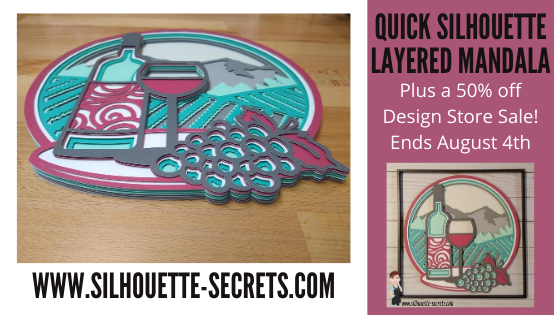
    This Wine Scene Vineyard Multi Layer Mandala design by Doesjie , jumped in my cart.
    It can be found at Design Bundles or Creative Fabrica,
    When my youngest came downstairs to see what I was doing, she said “That is so you!”.
    They know me so well!

    This layered mandala is cut from 8 pieces of cardstock and is 11″ wide.

    I used 3-D foam tape to stick the layers together to give it dimension.

    I was so glad that I ordered some new 3-D foam tape to try as this was a large design and took a bit. Here is the pile of backing off the tape after I finished.

    So far I am loving this Double Sided Foam Tape I bought in bulk – find it HERE on Amazon. There are several sizes available but I think it works great for large projects like this that require a lot of dimension.

    For more tips on cutting and assembling layered mandalas check out this post HERE.

    Now I’m off to find the perfect background paper for this design to place it in a shadow box.

    For more 3D Designs by Doesjie check out their store at:
    Design Bundles
    Creative Fabrica

    Save this for future reference by pinning the image below.

    Enjoy!

    SS Logo snip it
    **This post may contain affiliate links. What that means is that I may receive compensation if you purchase through the links I have provided. The price you pay for the product or service is not higher but I may get compensated for sharing.