Posted on Leave a comment

One Tag Design, 4 Creative Craft Projects

Silhouette Secrets+ with EllyMae

Creativity doesn’t have to start from scratch—sometimes it begins with one simple design. In this Crafting Creativity feature, I’m sharing how one tag design by Rabea Bilz can be taken far beyond its original purpose. With a single file as the foundation, we’ll explore four creative tag craft projects that spark ideas and show just how versatile a good design can be. From paper crafting to dimensional and decorative projects, this is all about inspiration, creative possibilities, and seeing your designs in a whole new way.

Affiliate links may be present in the following blog post and as an Amazon Associate, I earn from qualifying purchases.

Four pink tag designs with dotted outlines, featuring different shapes including rectangular, oval, and triangular tags, presented in a creative layout.

Crafting Creativity with a Layered Tag Design

Don’t feel limited to using a design for just one project. When you start thinking outside the box, a single file can open the door to countless creative possibilities. Try mixing materials, changing sizes, or adapting the design for completely different purposes—you may be surprised by what you can create. I hope this inspires you to stretch your creativity and even expand your supplies in new ways as you discover just how versatile your designs can be.

Project #1 – Layered Tag Design with Print and Cut

A collection of various holiday-themed gift tags featuring illustrations of trees, reindeer, and decorative elements, displayed on a crafting table with tools and materials.

After I had the tags assembled I decided to grab a couple Gelly Roll pens and add a few special touches to the print and cut design.

A workspace scene featuring various gift tags designed with holiday themes, including reindeer and Christmas trees. Nearby, Gelly Roll pens in red, pink, and yellow are placed next to the tags. A cutting machine is visible in the background.

Just a little bit of additional color or shine can really make things stand out on custom projects.

A close-up of a festive gift tag featuring a reindeer design with a decorative border, held by a hand. Several more tags and colorful gel pens are visible in the background.

Supplies Used:

Additional Resources:

Project #2 – Monogrammed Faux Leather Bag Tags

I created these as a custom monogrammed bag tag, but they could also be keychains or even a gift tag that’s reusable, multi-purpose, or part of the gift itself. 

Two layered tag designs featuring the letters 'E' and 'V' adorned with floral illustrations, displayed on a craft mat next to a crafting machine.

These are double sides bag tags. Make sure to mirror the design when creating a double-sided design so that it will match up exactly. For these particular shapes, they are symmetrical, so it’s not a necessity, but it is a good habit to get into, especially if you did not create the design yourself. This way the front and back will line up exactly with each other.

Two metal tags featuring detailed designs: one with flowers and crystals, and the other with a cute calf illustration, both attached to keychains.

I used Siser Easyweed Adhesive HTV in the middle to glue the layers together. Faux leather or leatherette can also be glued with fabric glues, but I’m really loving the ease of use with the Siser Easyweed Adhesive HTV. Cut the HTV the same shape as the tag and then press on the backside of one, remove the carrier sheet and line up the layers and press again. Done!

A workspace featuring a Silhouette cutting machine, various crafting supplies, and tags ready for decorating. The image shows colored materials, a cutting mat, and decorative elements indicating a crafting project.

Supplies Used:

Additional Resources:

Project #3 – Shaker Tags

Have you ever created a shaker card? What about a shaker tag? Or any other “shaker” project. Basically, to create a shaker, you are making a “pocket” where some material such as glitter, sequins, or fake snow can be contained.

I saw these new Gingerbread Cookie designs by Rabea Bilz and knew I had to use them!

Three shaker tags featuring a gingerbread man, a reindeer, and a Christmas tree design on a crafting workspace with various supplies and a cutting machine in the background.

This design is 4 layers. The background is a solid piece of cardstock, then a layer of Kraft cardstock with the Gingerbread design, a layer of clear transparency to hold the snow in, and then a final layer of the Kraft cardstock. Here is a look at my file in the Silhouette Studio software.

Screenshot of Silhouette Studio software displaying shaker tag design pieces, including a Christmas tree, a reindeer, and a gingerbread character.

Rather than use my machine to cut the transparency, I simply used a scrap piece of cardstock to cut a template for the size I needed and then used scissors to cut the transparency down to size. This saved time finding the right cut settings and saved a blade since cutting plastic can dull it quicker.

Crafting workspace featuring layered tag designs made of cardstock, scissors, adhesive tape, and a cutting machine.

Once the pieces are all cut, it’s time to assemble. I used the Precision Glue Press to adhere the Gingerbread layer to the backing and then set that part aside to dry. Next I used an adhesive tape runner to secure the transparency to the backside of the top layer. Then added double sided foam tape to the edges. Since it’s a shaker project, it has to be completely taped off so the shaker bits are contained.
Then I added in the fake snow. You will have to test how much to add. Too much and it won’t move around easily.
Then carefully remove the backing off the foam tape and secure the back layer over top of the foam tape.

And then the fun part – give it a shake!

A hand holding a layered tag design featuring a gingerbread decoration with fake snow inside, showcasing a DIY crafting project.

I don’t know which one is my favorite.

A hand holding a gingerbread man shaker tag with a transparent layer, set against a crafting workspace featuring scissors and a silhouette machine.

The Moose, Gingerbread Boy, or the Tree?

A hand holding a layered shaker tag featuring a Christmas tree and gingerbread man design, with snow-like material inside.

Supplies Used:

Additional Resources:

Project #4 – Ornaments

For this one, I used the tag design to create ornament designs that could be sent to my Glowforge to cut, but you could also create ornaments with other materials that could be cut with the Silhouette machine such as cardstock, acetate, adhesive vinyl, sketch pens, and more!

Three decorative Christmas tags featuring 'Merry Christmas' text, the year '2025', and a snowflake design on a wooden background.

Check out the video on making the interactive ornament HERE.

An interactive ornament DIY project featuring layered wooden designs, showcasing the year 2025 and decorated snowflakes, with a finger pointing to the ornament.

Supplies Used:

Additional Resources:

A great big thank you to Rabea Bilz for contributing the free file for the Silhouette Secrets+ newsletter! If you missed grabbing the free design during the month, grab it HERE and start creating!

Find designs by Rabea Bilz at:

Follow along with Rabea Bilz on Instagram HERE

Each month I offer a free file for Silhouette Secrets+ newsletter subscribers. I love designing in the Silhouette Studio software and have shared some of my creations as well as look forward to collaborating with more artists in the future too!

Silhouette Secrets+ Newsletter

Never miss out on the news, tips, “secrets”, deals, classes, and more that I share on Silhouette Secrets+. Sign up for the newsletter and get information delivered to your inbox every Friday.
Unsubscribe at anytime.

Sign up for the weekly newsletter HERE to have information delivered direct to your inbox and grab each month’s new freebie.

I hope this inspired you to look at your designs a little differently! It’s amazing how a single file can turn into so many unique projects when you let creativity lead the way. I loved exploring new themes and possibilities while showcasing just how versatile this design can be. If you’re craving even more inspiration, helpful tips, and creative project ideas, be sure to visit the Crafting Creativity section on the Silhouette Secrets+ website — click HERE to explore what’s waiting for you!

Save this for future reference by pinning the image below.

A collection of crafted tags showcased around a cutting machine, featuring festive designs including a tree, an 'E' monogram, and holiday messages, all highlighting creative project possibilities.

Enjoy !

THANK YOU for your support! How can you help? Click HERE & buy a coffee.
Every little bit helps with the cost of running the site.

Silhouette Classes

Never stop learning! Let me help you take the anxiety out of learning with Silhouette and get to creating faster! My Silhouette classes are heavily focused on software, so you can take the skills & techniques taught and apply them to many future projects!

Silhouette step-by-step Classes by Silhouette Secrets+

Silhouette Secrets+ with EllyMae
**This post may contain affiliate links. What that means is that I may receive compensation if you purchase through the links I have provided. The price you pay for the product or service is not higher but I may get compensated for sharing.

Posted on 1 Comment

Crafting with Silhouette: Leatherette, Faux Leather & Heat Foiling Tips

Silhouette Heat Foiled Leatherette Bookmarks
Silhouette Secrets+ with EllyMae

Ready to take your Silhouette crafting skills to the next level? In our latest LIVE tutorial, we demonstrated the exciting world of working with leatherette, faux leather, and adding dazzling details with heat foiling using the Silhouette Heat Pen. Whether you’re creating personalized accessories, decorative pieces, or custom gifts, these techniques will help you achieve professional-looking results with ease. If you missed it, don’t worry—we’ve got all the tips, tricks, and must-know details right here! And I am sharing more tips below too!

Affiliate links may be present in the following blog post and as an Amazon Associate, I earn from qualifying purchases.

Silhouette Heat Pen Magic Live Tutorial on the Silhouette Secrets+ YouTube channel

We had such an amazing time during this month’s Live Silhouette Tutorial! The session was packed with valuable tips, tricks, and techniques to help you elevate your crafting game. I walked through the entire process of creating a bookmark shape, adding a design, and using the Silhouette Heat Pen for stunning foiled details. Plus, I shared insider tips on using the Knife Tool and so much more!

Grab your favorite drink, get comfy, and check out the replay on the Silhouette Secrets+ YouTube channel under the Live section. Don’t miss the chance to learn and create along with us! And that’s not all! I have a couple more tips I wanted to elaborate on below to help you be more successful in your Silhouette journey!

Silhouette Heat Foiled Bookmarks with Silhouette Leatherette

What if you don’t have a newer model machine that can utilize the Silhouette Heat Pen? No problem, the same tips, techniques, and tricks I shared in the video and below can still be useful. I’ve included additional resources below as well for users with older model machines.

When I asked the viewers if they wanted to see more, they said yes! They stuck around while I set up another design but this time with a fill option. Don’t believe that little timer in the Silhouette Studio software!!! The filled design took around 10 minutes to foil completely. That was twice as long as the estimated timer in Silhouette.

In the live, I also mentioned some tips about tool storage with the new powered tools and I wanted to share a bit more about that.

On the backside of the powered tools are prongs that connect into the powered tool housing on the Silhouette Cameo 5, Portrait 4, or Curio 2. Here is a look at the Silhouette Heat Pen used for foiling.

Silhouette Heat Foil Pen

If these prongs get damaged, the powered tools will no longer work. The new tools are not cheap, so I would recommend storing them safely where they will not get beat up. In the video, I shared a brief glimpse at the storage I’m using, which is a storage container by Creative Options.

Options Storage Container for Silhouette Heat Foil Pen & other Powered Tools

This works well for the storage of many Silhouette tools as you can see. The Silhouette Gold and Silver Foil have their own space so they won’t get damaged. The sections are adjustable so I’m able to partition the Silhouette powered tools off and store them so their prongs are not going to get knocked into anything else that could damage them. I also have my Silhouette Power Engraver in this container along with a couple blades and the Silhouette Embossing Tools.

Options Storage Container for Silhouette Powered Tool housing

My Options container is part of a larger Creative Options system that can house even more supplies too! I love the color of it too!

Creative Options Storage Container

I shared even more storage tips in this blog post HERE.

One of the other tips that I mentioned in the video that is very important for using these new Silhouette powered tools. That is to keep the machine clean and free of dust and debris.

Silhouette Cameo 5 Powered Tool Housing

Any dirt or debris that gets in the powered tool housing connection or on the prongs of the powered tools can affect the functionality of those tools.

Silhouette Leatherette Bookmarks with Heat Foiled Design

I want you to be as successful with your Silhouette machines and tools as possible!

Additional Resources:

And I know I mention that the end of the Live video that I will record another video sharing the tassel creation, however, when I got started making it, I found I’m no expert on this topic. So I’m sharing the video I followed to create my tassels by Notches Sewing found HERE.

Silhouette Leatherette and Heat Foiled Projects

Here is a list of the supplies I used for creating these foiled leatherette projects:

Save this for future reference by pinning the image below.

Silhouette Heat Foiled Projects Pinterest

Enjoy !

THANK YOU for your support! How can you help? Click HERE & buy a coffee.
Every little bit helps with the cost of running the site.

Silhouette Classes

Never stop learning! Let me help you take the anxiety out of learning with Silhouette and get to creating faster! My Silhouette classes are heavily focused on software, so you can take the skills & techniques taught and apply them to many future projects!

Silhouette step-by-step Classes by Silhouette Secrets+

Silhouette Secrets+ with EllyMae
**This post may contain affiliate links. What that means is that I may receive compensation if you purchase through the links I have provided. The price you pay for the product or service is not higher but I may get compensated for sharing.

Posted on Leave a comment

Cutting Faux Leather with Your Silhouette: Essential Tips

I’ve wanted to write a faux leather tutorial with tips for Silhouette for a long time, but other things seemed to jump in front of it on my to-do list. So when Amy announced her Faux Leather event, I made it a goal to really dive in and create with some faux leather.

Affiliate links may be present in the following blog post and as an Amazon Associate, I earn from qualifying purchases.

Amy Romeu, hailed as the Queen of Faux Leather by many, recently hosted an event that I attended. I had a great time crafting along with her videos and picked up a lot of great tips that can help in being successful in cutting faux leather with any cutting machine.

Before we get too far in, let’s cover a few things about faux leather that will help in the process.

Faux Leather Information

Can Silhouette machines cut faux leather? Yes!
Can Silhouette machines cut ALL faux leather? NO!
Can all cutting machines cut ALL faux leather? NO!

Faux leather is such a broad term, just like “genuine” leather is. Cutting some faux leathers is easy, some pose greater difficulty, and others simply do not cut well at all.

Factors influencing whether a Silhouette or another machine can cut faux leather include:

  • Color – Yes! Many users don’t know this, but color affects how materials cut. Different colors go through different processes in the production and that can affect how it cuts. Some can be tougher than others due to coloring.
  • Backing – Faux leathers can have a variety of backing on it. Some don’t have any and are soft and pliable. While others can have a mesh, woven backing which can be difficult to cut through.
  • Texture – Faux leathers can come in all kinds of textures such as embossed, glitter, sequins, etc. This will affect how it cuts. Just think of a blade trying to bounce over a texture material to cut a clean line. Texture affects it! The texture also influences the ease of cutting by hand. The same is true for a cutting machine.
  • Thickness – There is a wide array of thicknesses for faux leather. Super thin ones can be too pliable and just smoosh around on the cutting mat. Thicker ones may need multiple passes to cut through and a longer blade such as the Deep Cut blade.
  • Composition – Faux leather is such a broad term. The definition of “faux” is artificial or fake. So keep in mind that faux leather is fake leather.
    What it is made of?
    A wide variety of things. Plastic mostly. For instance, I ordered some leather on Amazon and it is PU Leather. It is by definition, artificial leather, crafted from a thermoplastic polymer commonly employed in the production of furniture or shoes.
    Faux leather = fake leather = plastic

Supplies I Used:

Faux Leather Varieties
Craft Chameleon Warehouse Faux Leather Supply

So the first place to start is to gather your supplies for whatever you are working on. I was so excited for these projects and I knew I would be creating several, so I pulled out all my faux leathers and my scrap HTV. I have several boxes of scrap HTV and it’s a great way to use it by adding it to faux leather projects.

Supplies for Faux Leather Projects

Keep it a secret, but I actually obtained more faux leather than shown because I needed to test several during these projects. And once I went down that rabbit hole, I found many patterns I wanted to collect.

Faux Leather Variety
Faux leather from The Polka Dotted Peach

Tips for Cutting Faux Leather with Silhouette

  • Cut the faux leather down to size and give yourself some extra space for taping down the edges to the cutting mat.
  • Place the faux leather front facing down on the cutting mat, so you are cutting through the backside first.
    **NOTE: if cutting real leather, DO NOT place it face down or you can ruin the finish on the real leather. That can be a very expensive mistake!
Tape Faux Leather to a Silhouette Cutting Mat

  • Utilize a reliable sticky cutting mat to secure the materials in place during the cutting process. Using a brayer to smooth the materials down to secure it. If the materials shift during the cut, the cut may fail, or your blade might become stuck.
  • Securely tape down the material edges. I found that using longer pieces of tape not only ensured a better hold but also reduced the risk of it getting caught in the machine during cutting. You can also reuse painter’s tape if removed carefully at the end.
  • For best results, keep the painters tape away from the edges of the cutting mat so it is not going under the rollers. Any change in the surface area under the rollers and it can cause it to lose grip or the left and right roller to not move at the same rate, which can cause issues.
  • When using a Silhouette cutting mat, you can use the grid for exact placement for lining up your materials and your design. If you load the mat properly, the on-screen design will align with the Silhouette cutting mat. Third party cutting mats may not line up and it will be a guessing game for design placement and alignment.
Faux Leather Tips for Silhouette

  • Give yourself a good allowance and grace because you may still mess up, just like I did in the photo above. I would recommend that you cut a little bit excess of the faux leather and not try to cut through the painters tape as it can affect the cut results. The cut was ok in this instance, but it went off my faux leather, so I ended up cutting another truck piece.
  • For tips on lining things up check out this tutorial HERE. I use this method all the time and still make mistakes. Remember to “measure twice, cut once.” But, I find I make the most mistakes if I’m rushing or I tell myself it will be just a quick project.
  • Test cut, test cut, test cut!!!
  • I used a 2 mm Manual blade for all of my faux leather cuts. This blade is the equivalent of the older style Premium blade, it’s just redesigned to fit directly into the newer model machines housing without needing an adapter.
    The 2 mm Manual blade (or Deep Cut blade) allows you to go from 1-20 in the blade depth settings. All faux leather will vary and some can be cut with a regular blade that is 1-10 settings, while others may need a higher blade depth than 10. Test cuts are the way you will know.
  • Do not unload the mat after you cut!!! Check to see how well it cut.
    Having a thread or two is not a bad thing! Grab a sharp pair of scissors and simply snip it.
Check the cut on the Faux Leather after Silhouette cuts

  • If it does not lift easily or has more than just a few threads hanging on, send the cut again. If you have not unloaded the cutting mat, it should cut again in the exact same place. If you unload the cutting mat, it will be a hope and a prayer trying to get it lined up perfectly again to cut in the same place.
Clean cuts on Faux Leather with Silhouette

  • Some faux leathers may take more than 1 pass and this is why test cutting is such an important step. I write down the settings that worked for each of the materials I test and keep a log so I can refer back to it. It is not a bad thing to use more than 1 pass with certain projects. I find with thicker materials, you can get a cleaner cut when you are not trying to force the machine to do it all at once time. However, for thinner materials such as adhesive vinyl or regular cardstock, multiple passes shouldn’t be necessary if the blade is installed properly.

For more details on what blade depth and force are, check out this in-depth tutorial on the Silhouette Send tab HERE.

Cut Success with Silhouette and Faux Leather

  • Once the cut is successful, unload the mat, remove the painter’s tape – it can be reused and carefully peel away the excess. Snip any threads as you carefully remove the excess so you do not stretch the design.
  • When cutting, check the blade regularly for debris stuck to it or inside the cap. The fibers of the faux leather can hinder the cut results.
  • It is perfectly normal to have to increase the settings of the blade as you cut materials. A blade cutting any material is going to dull with usage. Keep in mind that you are cutting through plastic and fibers. That will cause a blade to wear differently than other materials.

For this design I used the Red Truck Ornament file from Amy Romeu and there is a front and back layer cut from faux leather that will be glued together. The rest of the design is cut from HTV, so I swapped out my blade for my HTV blade and set up my cutting mat to cut different colors of scraps at the same time.

Cut by Color in Silhouette Studio

I used the Cut by Fill Color so I could set up different cut settings for my Smooth HTV versus my Glitter HTV. The Autoblade did all the work to change the settings once set up. Check out this tutorial HERE for tips on cutting by line or fill color – they are the same.

Cut multiple colors at once on a Silhouette Cutting Mat

And then I set up my cutting mat to match exactly what I had set up on the Silhouette software. Check out tips on cutting multiple colors at the same time HERE.

Red Truck Faux Leather Ornament

Then I simply weeded the design and pressed the pieces on according to Amy’s instructions. I also cut this design out of cardstock and adhesive vinyl too! The faux leather ornament is on the left and the cardstock ornament is on the right.

Check out Amy Romeu’s YouTube video HERE for instructions on the assembly. Even though she is using a Cricut machine to cut, the process and tips are useful.

I was having so much fun cutting faux leather that I couldn’t stop and wanted to test more!

Next, I used this Silver Embossed Leather from Craft Chameleon with the Initial Ornament file.

Embossed Faux Leather Initial

I followed the same tips as above and taped it securely to my cutting mat.

Secure Faux Leather with Painters Tape on a Silhouette Cutting Mat

If you compare this photo to the first one, you’ll notice that the backing differs on the white versus this silver embossed piece. That can affect the cut settings and results. The woven backing texture can be a bit more difficult to cut and may require higher settings and more passes to cut cleanly.

I used the 2 mm Manual blade (equivalent of the Deep Cut blade).
Blade depth – 9
Force – 30
Passes – 2-3
however, that was still not a clean cut, so I then increased the Blade depth to 11 and did 2 more passes.

In this case, the Embossed texture on the front is uneven and can affect the cut.

Embossed Faux Leather Initial Ornament

I did not have all the supplies to finish this out as Amy did, so I used what I had on hand and made my own holly berries and leaves. The holly leaves are drawn from scratch in Silhouette Studio. If you want to learn how, I show step-by-step in the Designing in Silhouette Studio – Creating Keepsake Ornaments class HERE. I cut the leaves from cardstock, painted some small craft balls, and then glued it all onto the ornament.

Check out Amy Romeu’s Initial Faux Leather Ornament YouTube video HERE for more details on this project. I picked up a neat trick for tying bows and ornament hangers in Amy’s videos, so make sure to check that out too!

In both the designs shown above, the faux leather was cut for the front and the backside and then glued together so it had a finished look. But for this next project, I used Siser Metal HTV and adhered it to the backside of the white faux leather from Craft Chameleon before cutting.

Faux Leather with HTV backing

I pressed it once with the carrier sheet on and then a second time without the carrier sheet for just a few seconds. The second press allows the texture of the faux leather to show through and it is gorgeous! Photos do not do it justice.

Faux Leather Earrings with Silhouette

But keep in mind, anytime you add something to a material, that can change the cut settings.

I used the 2 mm Manual blade (equivalent to the Premium blade).
Blade depth – 10
Force – 30
Passes – 1
And I probably could have done one more pass.

Now, what you’ll notice is that all of the pieces are still attached. However, they easily popped out and I only had a few threads to snip. This actually worked better for the next steps as I could keep it all organized in one place until I was ready to press.

Snowflake Faux Leather Earrings

I loved the finished look of the Siser Metal HTV on the backside! And I used up a few scraps of Glitter HTV, not much, but it is the perfect project for those scraps that you might have.

Check out the video on these Faux Leather Holiday Earrings HERE by Amy Romeu.

And here is one more faux leather design cut with my Silhouette.

Cardinal Faux Leather Ornament

This was using the Cardinal Christmas Ornament Design and a piece of blue patterned faux leather from The Polka Dotted Peach.

Find the Faux Leather Cardinal Ornament video HERE on Amy’s YouTube channel.

I had so much fun creating along with this event and now have faux leather for many more projects.

I hope those tips help you to be successful with cutting faux leather with your Silhouette machine.

You can still purchase the VIP package for the Faux-La-La Crafting Fun and join in on the fun. You get the files for all the projects, all the videos in one place, a printable guide, and more! Check it out HERE for all the details.

Faux Leather Event

Save this for future reference by pinning the image below.

Pinterest Faux Leather with Silhouette

Enjoy !

THANK YOU for your support! How can you help? Click HERE & buy a coffee.
Every little bit helps with the cost of running the site.

Silhouette Classes

Never stop learning! Let me help you take the anxiety out of learning with Silhouette and get to creating faster! My Silhouette classes are heavily focused on software, so you can take the skills & techniques taught and apply them to many future projects!

Silhouette step-by-step Classes by Silhouette Secrets+

Silhouette Secrets+ with EllyMae
**This post may contain affiliate links. What that means is that I may receive compensation if you purchase through the links I have provided. The price you pay for the product or service is not higher but I may get compensated for sharing.
Posted on 2 Comments

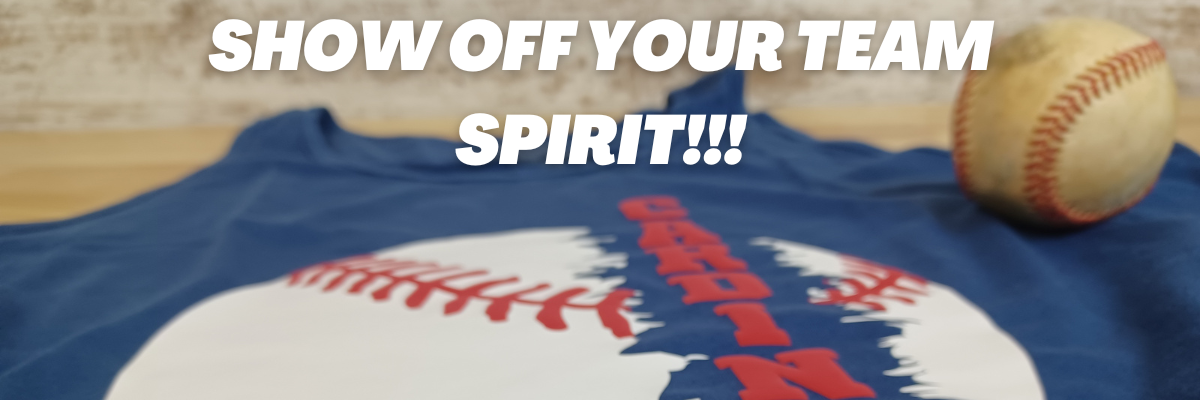
Show Off Your Team Support!!!

If you have a cutting machine, the possibilities are wide open for being able to show off your team spirit! You could make or embellish anything from shirts, bags, earrings, decals, and so much more!!!

And you can do it without using any trademarked images too!
I see so many trademark infringements daily and it’s such as hot topic that I wanted to share some ways that you can show your team spirit with other design ideas.

I have always been a sports fan and played several different sports growing up. Moving locations across the U.S. over the years we have gotten into supporting the local teams where we move.
When we moved to the St. Louis region, my friends warned me… Don’t become a Cardinals fan! I had no idea what they were talking about. I didn’t really follow baseball.

And then the first thing the Orthodontist told us was,
“The only thing to do around here is watch baseball.”
And that the rest is history!

Now I am a baseball fan. In fact, I’m watching right now as I type this post.

No matter what your team or sport, we can still be friends and you can find designs that you like and will show your team spirit off.

I hope this sparks some creative thinking for your future projects!
Here are just a few that I’ve created.

Affiliate links may be present in the following blog post and as an Amazon Associate I earn from qualifying purchases.

Siser Easyweed HTV T-shirt with Baseball theme

Supplies used:
Distressed baseball SVG from Franky Design found HERE
White Siser Easyweed HTV
Goodfellow t-shirt from Target

Cardinals Baseball design with Siser Easyweed HTV & Puff HTV

Supplies used:
Baseball Custom Name svg by SVGStoreShop
LW Coach Font by Lori Whitlock – Design #274417
White Siser Easyweed HTV
Wine Siser Easy Puff HTV
Make Market Women’s Tank from Michaels

I am so excited for this one! Like jump up and down, spin around in a happy dance excited!!!
I have tried and tried to get Siser Easy Puff to look good and puff up correctly.
And I did it! Yay! I think my past problems were my press and getting accurate temperature.

This time I used my new Siser Heat Press and it worked! Even when I had to press it a 2nd time, I didn’t lose the puff completely!

Siser Puff HTV with a Cardinals Baseball Design

It would probably be a bit puffier if I didn’t have to press that 2nd time, but I am still doing a happy dance that I got it to puff up. I know what errors I was making and I will continue to “perfect the puff”.

Siser Easy Puff is such a neat texture on blanks and I cannot wait to make more!

Don’t give up! If you’ve had issues with a project, just keep trying. Figure out what might be wrong and then try again. The Siser Easy Puff does require a very specific temperature, time, and pressure. But, I knew someday I would get it, if I just kept trying.

Custom Stadium bag with baseball design using Oracal 651 adhesive vinyl

Supplies used:
Baseball Let’s Do This by Sarah Hurley – Design #440716
Oracal 651 Adhesive vinyl in black and red
Clear Stadium Bag

Custom baseball spirit gear to wear and take to the game

And I’m ready for the game at Busch Stadium!

Oh! One more thing!!!

Earrings to complete the outfit!!!
This is a pair I made last year when we went to the game.

Faux Leather baseball earrings for spirit wear at the game

Supplies used:
Baseball earrings svg by MagicArtLab
Red Siser Easyweed HTV
E6000 glue
White faux leather/leatherette from Craft Chameleon
Fish hook earring hardware
Jewelry Pliers – used 2 pair

Sometimes it is hard to stop once I get doing down the path of creating. There is always something more that I want to do!

Here are a few more designs I have purchased for my future projects as well.

Baseball SVG Template Bundle 2 by SVG Cuttables
This one contains 27 designs that could be customized for your use if you are a baseball fan.

Baseball Patches by Moonlark Designs

I actually have this one already printed on Siser Easycolor DTV but just haven’t settled on what to put it on or how to position it.

Siser EasyColor DTV baseball designs - printable HTV

Anyone else get something cut and then have a hard time committing? Or maybe you get hung up deciding on a design to cut, that’s also what takes me a long time to decide on. I really don’t know what my hold up is. It is just a t-shirt and I could always print and cut more Siser EasyColor DTV. I just have to do it!

If you have not played with Siser EasyColor DTV, I love it! I have made quite a few shirts with it and have had great results.
Find more information on Siser EasyColor DTV
HERE.

And a few more designs I have plans for….
Baseball Distressed svg by Planet of Magic
Baseball Distressed svg by AlexSVGStudio
Distressed Baseball svg by MoveAsBees

I might have a thing for distressed designs.

But you may not like my style or you may find other designs that catch your eye or are looking for a completely different sport!
Check out the list of recommended design sites HERE and search for your topic of choice at each. Add them to your wishlist if you don’t want to buy right now so you can come back to easily find them later.

Save this for future reference by pinning the image below.

Show off your team spirit with custom designs Pinterest

I would love to create!
Feel free to share on the Silhouette Secrets+ with EllyMae Facebook group or the Creating with Siser – Juliet & Romeo Cutting Machines Facebook Group.

Enjoy !

THANK YOU for your support! How can you help? Click HERE & buy a coffee.
Every little bit helps with the cost of running the site.

Silhouette Classes

Never stop learning! Let me help you take the anxiety out of learning with Silhouette and get to creating faster! My Silhouette classes are heavily focused on software, so you can take the skills & techniques taught and apply them to many future projects!

Silhouette step-by-step Classes by Silhouette Secrets+

SS Logo snip it
**This post may contain affiliate links. What that means is that I may receive compensation if you purchase through the links I have provided. The price you pay for the product or service is not higher but I may get compensated for sharing.
Posted on 9 Comments

Leatherette Earrings & Earring Card Projects

Affiliate links may be present in the following blog post and as an Amazon Associate, I earn from qualifying purchases.

Who doesn’t love a surprise? And that is just what I received when Silhouette America asked if I wanted to check out their new Mystery box.

When I opened the box, look what I saw:

IMG_5534

Plus a pack of the Kraft Adhesive paper that arrived on my doorstep, it must have forgotten to jump in the box and was just another bonus to the mystery box.

Kraft Paper

And now the fun part of playing with these materials.

I grabbed some designs from the Silhouette Design Store and tackled something I’ve had on my project list.

IMG_5560_edited

I used the Leatherette package and the sketch pens to create these earrings and earring cards.

First, I started off making the earring holders.
I cut several different styles but I ended up really liking Design #14057 by Loni Stevens.

Earring holder file

But, I knew I could add to the earring holder, so I decided to dress them up a bit with the Silhouette sketch pens. I received the Metallic set in my mystery box and after testing several, the silver was my favorite.
I could have told you that before I tested, but I still gave all the colors a chance.

Zoom on stitches and name

To make the dashed sketch line:
– Make a copy of the outer edge of the earring holder design
Resize the copy a little smaller – either by the Scale panel or by dragging the corner bounding box
– Use the Line Style Panel and change the style of the line to a dashed line
– Also under the Line Style Panel change the color of the line to black.
– Select the dashed line, click on the Send Tab and then click on the
Action by: Line at the top –
this means the Cameo will perform the actions we tell it to by the Line Color
Cut by Line color

– Grab the black color option and move it to the top spot –
this action will be performed first
– Change the Tool No. to the blue circle (blue circle = Tool 2)
– Select your Material – Cardstock
– Change the Action to Sketch
– Check & set up the Cut settings for the red line

Now when the design is Sent, it will first sketch the design that has been changed to a black Line color – the dashed line and then after will cut the lines that are red.

Next, I used the Nouradilla Script Font and added my name and Silhouette Secrets to the earring holder as well. Change the line color to black under the Line Style Panel and it will sketch at the same time as the dashed line.

Once I started cutting, it was hard to stop. I do love how this Leatherette cut so smoothly. I started with brand new blade and mat and I believe it made a big difference in how cleanly it cut. In fact, the more I cut and the less sticky my mat became, the cuts weren’t as crisp. A sticky mat makes a big difference.

IMG_5566

This was the first set I cut and might be my favorite. It is Leaf Earring design by Lilium Pixel SVG – Design #266977. The only thing I changed on this file was I released the Compound Path and deleted the top circle for the hardware. After I deleted the circle in each, I selected the entire design and then chose Make a Compound Path again.

I then made a copy of the earring design and right clicked and Flipped horizontally. This made a 2nd copy that I could glue together and make the back have a finished look. I used a Xyron Sticker Maker permanent adhesive to do this.

IMG_5568_resized

Lined Leaf Earrings by Amanda McGee – Design #275057
Leaves Earrings by Amanda McGee – Design #275058
This design was modified to take out the top circles like the first file and then cut & glued together with the Xyron Permanent Adhesive.

IMG_5561_resized

Tear Drop Earrings by Sweet Elsie – Design #273510
– Ungroup the design
– Release the Compound Path and deleted the hardware circle at the top.
– Make a copy and Scale the copy down a little
– Make another copy and Scale it down a little more
– Cut each out of a different color and layer on the earring hardware

You could also use glue and adhere the layers down to each other but I chose to let them hang loose.

Rather than try to get each design to match, I deleted one of the original designs, made my copies and resized how I liked and then make a copy of the entire design before I cut. Then both earrings matched exactly.

IMG_5562

Leaf Earrings by Lori Whitlock – Design #268363
I once again ungrouped the design, released the compound path and then deleted the top circle. You might see a pattern here.
It is nothing to do with the Designer’s file, but for the Double J Earwire hardware I had from Craft Chameleon, it was easier to make my own hardware hole.

IMG_5567_resized

Drop Earrings by Sweet Elsie – Design #273506
I did the same technique with making copies and resizing as I did with the Tear Drop earrings above.

IMG_5565_resized

Layered Feather Earrings by Amanda McGee – Design #275059
This file was cut exactly as it opened.
Again, you could glue the layers down if that is your desired look.

IMG_5563_resized

For this set, I took the Tear Drop Earrings by Sweet Elsie – Design #273510 and then added a dingbat from the Valentine Dingbats Font by Lori Whitlock – Design #243211.
– Make a copy of the Tear Drop design
– Add the dingbat shape from the font to one of the designs
– Select both the earring shape and the dingbat shape, then make a compound path
– Cut each shape out of the colors
– Glue the layers together

All of the earrings above were cut from the Silhouette Leatherette using the Leatherette cut settings in the program and it worked beautifully.
Leatherette cut settings

Again, I did start with a brand new blade and mat, which I believe was very helpful.

The Silhouette cutting mat is very important and the material sticking to the mat for the entire cut is key to getting crisp, clean cuts for all materials.
If the material moves as the blade is going around, it cannot connect exactly and you end up with crunched corners, cuts not connected, frustration and possibly a mess.

I’d suggest always having an extra Silhouette mat & blade on hand for any projects you are doing.

Save this for future reference by pinning the image below.

Leatherette (Pinterest Pin)

Enjoy !

THANK YOU for your support! How can you help? Click HERE & buy a coffee. Every little bit helps with the cost of running the site.

Silhouette Classes

Never stop learning! Let me help you take the anxiety out of learning with Silhouette and get to creating faster! My Silhouette classes are heavily focused on software, so you can take the skills & techniques taught and apply them to many future projects!

Silhouette step-by-step Classes by Silhouette Secrets+

**This post may contain affiliate links. What that means is that I may receive compensation if you purchase through the links I have provided. The price you pay for the product or service is not higher but I may get compensated for sharing.