Posted on Leave a comment

One Tag Design, 4 Creative Craft Projects

Silhouette Secrets+ with EllyMae

Creativity doesn’t have to start from scratch—sometimes it begins with one simple design. In this Crafting Creativity feature, I’m sharing how one tag design by Rabea Bilz can be taken far beyond its original purpose. With a single file as the foundation, we’ll explore four creative tag craft projects that spark ideas and show just how versatile a good design can be. From paper crafting to dimensional and decorative projects, this is all about inspiration, creative possibilities, and seeing your designs in a whole new way.

Affiliate links may be present in the following blog post and as an Amazon Associate, I earn from qualifying purchases.

Four pink tag designs with dotted outlines, featuring different shapes including rectangular, oval, and triangular tags, presented in a creative layout.

Crafting Creativity with a Layered Tag Design

Don’t feel limited to using a design for just one project. When you start thinking outside the box, a single file can open the door to countless creative possibilities. Try mixing materials, changing sizes, or adapting the design for completely different purposes—you may be surprised by what you can create. I hope this inspires you to stretch your creativity and even expand your supplies in new ways as you discover just how versatile your designs can be.

Project #1 – Layered Tag Design with Print and Cut

A collection of various holiday-themed gift tags featuring illustrations of trees, reindeer, and decorative elements, displayed on a crafting table with tools and materials.

After I had the tags assembled I decided to grab a couple Gelly Roll pens and add a few special touches to the print and cut design.

A workspace scene featuring various gift tags designed with holiday themes, including reindeer and Christmas trees. Nearby, Gelly Roll pens in red, pink, and yellow are placed next to the tags. A cutting machine is visible in the background.

Just a little bit of additional color or shine can really make things stand out on custom projects.

A close-up of a festive gift tag featuring a reindeer design with a decorative border, held by a hand. Several more tags and colorful gel pens are visible in the background.

Supplies Used:

Additional Resources:

Project #2 – Monogrammed Faux Leather Bag Tags

I created these as a custom monogrammed bag tag, but they could also be keychains or even a gift tag that’s reusable, multi-purpose, or part of the gift itself. 

Two layered tag designs featuring the letters 'E' and 'V' adorned with floral illustrations, displayed on a craft mat next to a crafting machine.

These are double sides bag tags. Make sure to mirror the design when creating a double-sided design so that it will match up exactly. For these particular shapes, they are symmetrical, so it’s not a necessity, but it is a good habit to get into, especially if you did not create the design yourself. This way the front and back will line up exactly with each other.

Two metal tags featuring detailed designs: one with flowers and crystals, and the other with a cute calf illustration, both attached to keychains.

I used Siser Easyweed Adhesive HTV in the middle to glue the layers together. Faux leather or leatherette can also be glued with fabric glues, but I’m really loving the ease of use with the Siser Easyweed Adhesive HTV. Cut the HTV the same shape as the tag and then press on the backside of one, remove the carrier sheet and line up the layers and press again. Done!

A workspace featuring a Silhouette cutting machine, various crafting supplies, and tags ready for decorating. The image shows colored materials, a cutting mat, and decorative elements indicating a crafting project.

Supplies Used:

Additional Resources:

Project #3 – Shaker Tags

Have you ever created a shaker card? What about a shaker tag? Or any other “shaker” project. Basically, to create a shaker, you are making a “pocket” where some material such as glitter, sequins, or fake snow can be contained.

I saw these new Gingerbread Cookie designs by Rabea Bilz and knew I had to use them!

Three shaker tags featuring a gingerbread man, a reindeer, and a Christmas tree design on a crafting workspace with various supplies and a cutting machine in the background.

This design is 4 layers. The background is a solid piece of cardstock, then a layer of Kraft cardstock with the Gingerbread design, a layer of clear transparency to hold the snow in, and then a final layer of the Kraft cardstock. Here is a look at my file in the Silhouette Studio software.

Screenshot of Silhouette Studio software displaying shaker tag design pieces, including a Christmas tree, a reindeer, and a gingerbread character.

Rather than use my machine to cut the transparency, I simply used a scrap piece of cardstock to cut a template for the size I needed and then used scissors to cut the transparency down to size. This saved time finding the right cut settings and saved a blade since cutting plastic can dull it quicker.

Crafting workspace featuring layered tag designs made of cardstock, scissors, adhesive tape, and a cutting machine.

Once the pieces are all cut, it’s time to assemble. I used the Precision Glue Press to adhere the Gingerbread layer to the backing and then set that part aside to dry. Next I used an adhesive tape runner to secure the transparency to the backside of the top layer. Then added double sided foam tape to the edges. Since it’s a shaker project, it has to be completely taped off so the shaker bits are contained.
Then I added in the fake snow. You will have to test how much to add. Too much and it won’t move around easily.
Then carefully remove the backing off the foam tape and secure the back layer over top of the foam tape.

And then the fun part – give it a shake!

A hand holding a layered tag design featuring a gingerbread decoration with fake snow inside, showcasing a DIY crafting project.

I don’t know which one is my favorite.

A hand holding a gingerbread man shaker tag with a transparent layer, set against a crafting workspace featuring scissors and a silhouette machine.

The Moose, Gingerbread Boy, or the Tree?

A hand holding a layered shaker tag featuring a Christmas tree and gingerbread man design, with snow-like material inside.

Supplies Used:

Additional Resources:

Project #4 – Ornaments

For this one, I used the tag design to create ornament designs that could be sent to my Glowforge to cut, but you could also create ornaments with other materials that could be cut with the Silhouette machine such as cardstock, acetate, adhesive vinyl, sketch pens, and more!

Three decorative Christmas tags featuring 'Merry Christmas' text, the year '2025', and a snowflake design on a wooden background.

Check out the video on making the interactive ornament HERE.

An interactive ornament DIY project featuring layered wooden designs, showcasing the year 2025 and decorated snowflakes, with a finger pointing to the ornament.

Supplies Used:

Additional Resources:

A great big thank you to Rabea Bilz for contributing the free file for the Silhouette Secrets+ newsletter! If you missed grabbing the free design during the month, grab it HERE and start creating!

Find designs by Rabea Bilz at:

Follow along with Rabea Bilz on Instagram HERE

Each month I offer a free file for Silhouette Secrets+ newsletter subscribers. I love designing in the Silhouette Studio software and have shared some of my creations as well as look forward to collaborating with more artists in the future too!

Silhouette Secrets+ Newsletter

Never miss out on the news, tips, “secrets”, deals, classes, and more that I share on Silhouette Secrets+. Sign up for the newsletter and get information delivered to your inbox every Friday.
Unsubscribe at anytime.

Sign up for the weekly newsletter HERE to have information delivered direct to your inbox and grab each month’s new freebie.

I hope this inspired you to look at your designs a little differently! It’s amazing how a single file can turn into so many unique projects when you let creativity lead the way. I loved exploring new themes and possibilities while showcasing just how versatile this design can be. If you’re craving even more inspiration, helpful tips, and creative project ideas, be sure to visit the Crafting Creativity section on the Silhouette Secrets+ website — click HERE to explore what’s waiting for you!

Save this for future reference by pinning the image below.

A collection of crafted tags showcased around a cutting machine, featuring festive designs including a tree, an 'E' monogram, and holiday messages, all highlighting creative project possibilities.

Enjoy !

THANK YOU for your support! How can you help? Click HERE & buy a coffee.
Every little bit helps with the cost of running the site.

Silhouette Classes

Never stop learning! Let me help you take the anxiety out of learning with Silhouette and get to creating faster! My Silhouette classes are heavily focused on software, so you can take the skills & techniques taught and apply them to many future projects!

Silhouette step-by-step Classes by Silhouette Secrets+

Silhouette Secrets+ with EllyMae
**This post may contain affiliate links. What that means is that I may receive compensation if you purchase through the links I have provided. The price you pay for the product or service is not higher but I may get compensated for sharing.

Posted on Leave a comment

Glowforge® Aura – new “craft” laser

Affiliate links may be present in the following blog post and as an Amazon Associate I earn from qualifying purchases.

Did you hear? Glowforge® recently announced the release of a new “craft” laser machine called Aura™. You can find the Glowforge® Aura™ at Michaels or Joann stores currently.

A “craft” laser sounds pretty cool and enticing. I think one thing that’s appealing to most is the price tag. While other models of Glowforge® have increased in price, the Glowforge® Aura™ is coming into the market at $1299 $1199. This is a lot less than a larger Glowforge® model, so I can see how it might be appealing.

But, I think there is more to it than just the price to consider.

Is the Glowforge® Aura™ right for you?

I cannot answer that, but I can give you some information about it and some things to think about in your decision making process.

I currently own a Glowforge® Pro and having a laser machine is pretty cool. I love using the Silhouette Studio Business Edition to create designs for use in the laser and I even have class on it too (more on that below).

While having a laser machine is cool, I think there are some things to note about it before diving in. And I would highly recommend doing your own research as well too! I’ll share some resources for more information at the end.

Things to Think About

“Craft” laser machine

What does that mean? Basically, it’s not as powerful as the other models of Glowforge® lasers. If you are looking for a laser machine to produce items to sell, this may not be the machine for you. The Aura™ is not going to be an efficient, high production machine. It is slower than other Glowforge® models, much slower.

The Glowforge® Aura™ is a 6 watt diode laser machine. This is what makes it slower than the other models of Glowforge® that are CO2 machines. To compare, the Glowforge® Pro, which is the model I have, is a 45 watt CO2 laser. From what I’ve seen in comparison watching it all unfold, it is about 4 times slower than the Glowforge® Pro.

Since it is a diode laser at 6 watts, it cannot cut all of the same materials that the CO2 lasers can. So make sure to research that as well to make sure it’s going to cut what you want.

The Glowforge® Aura™ has a bed that is 12″ x 12″. The smaller footprint is also what makes it a “craft” laser and more appealing for a crafter’s space.

Filter or Venting

Just like it’s bigger laser friends, the Glowforge® Aura™ has to be vented or used with a filter. This is something to consider before you purchase any laser.

I have my Glowforge® Pro vented out of a window in my space. I open the window and place the venting prop that my husband built in the window and close it down. It is constructed out of scrap plywood, nothing fancy.
We have pets, so leaving the window open while using the machine is not ideal.

He installed a dryer vent on the outside of the window prop, so it opens when the Glowforge® fan turns on.

If you live in an area that has fluctuating temperatures, I would recommend having a system that you can pull the venting back inside when not in use.

Glowforge® did release an air filter that can be used with the Glowforge® Aura™. It is $399 to purchase and is a replaceable filter. However, I have not been able to find any information on how much a replacement filter is. They do not seem to be available yet. The Glowforge website says the filter has a lifetime of 100 hours of printing.

On that note, I have followed several Glowforge® groups in the past 2 years and always see comments about users who cannot get replacement filters as they are always out of stock. It does not seem to be a matter that they sell out quickly, but they have been low inventory the last few years. If you are looking into a Glowforge®, I would highly recommend joining some Facebook groups and watch the posts and comments as part of your research.

Personally, I’d recommend venting it out a window if you are able to do that.

WIFI Connection

In order to use a Glowforge® laser machine, you have to be connected to WIFI at all times when using the software/app and machine. This means you need a good internet connection. And it requires a 2.4 GHz WIFI connection. It does not work off a 5 GHz connection.

The filter for the Glowforge® Aura™ connects by WIFI as well.

Materials

Another area you will want to research is materials. Materials used in the Glowforge® or any laser machine need to be laser safe. Not all materials are laser safe and some can be toxic when used with a laser.

I’d highly recommend starting with proof grade materials. This takes the guess work out of the settings and gives you a better chance of success quickly.

What are proof grade materials? These are Glowforge® materials that they know work in the machine. Materials by Glowforge® have a QR code on it and the camera reads it and recognizes the material. This makes getting started easier than a bunch of testing to find out what settings work.

Safety

A laser machine is fire. The machine should never be left unattended or running without supervision.

I’d recommend having a fire extinguisher or fire suppressant next to the laser machine just in case.

Another thing I’d highly recommend is laser safety glasses. While the Glowforge® Aura™ is a lower wattage laser, you only get one set of eyeballs. Please be safe in your use with lasers.

Maintenance

One of the biggest things I see that users run into problems with their machines is in the maintenance. Keeping the machine clean and following the cleaning instructions will help to increase the lifespan of your machine and decrease the likelihood of running into issues. A lot of issues can be prevented if the machine is cleaned regularly.

The materials that are used in the Glowforge® will make a difference in how often it needs cleaned. For instance, cutting or engraving wood produces different dust than cutting and engraving acrylic.

Location, Location, Location

Think about where you would put a laser machine. According to the Glowforge® website, the recommended operating temperature is 60 degrees F – 75 degrees F.

A location that is not temperature controlled can affect the lifespan of the equipment. Too hot or too cold of temperatures is not good for laser equipment.

The Glowforge® Aura™ has a 12 month warranty, however, if you are not following the guidelines recommended by Glowforge®, the warranty does not cover that. It is not their fault if you are operating outside of the recommendations.

Read more on the details HERE

Terminology

Glowforge® uses the term “printing” for everything. Even though it’s a laser that cuts and engraves, “print” is the terminology they use. So just keep that in mind when you are researching. It is not a printer like we think of that prints with ink on paper.

That is a lot of information, but I hope that it’s given you a few things to think about in your decision making process.

Resources

Silhouette and Glowforge®

If you do have a laser machine and it uses svg files, you can design in the Silhouette Studio Business Edition software and export it as a svg to use with the laser machine. I love the ability to customize and create my own designs to use with my Glowforge® Pro.

By request I designed a class called Creating SVG files in Silhouette Studio – Great for Laser machine owners or designers! The class shows you how to create a design for use in the laser machine and I show a demonstration with bringing it into the Glowforge® app/software to cut with your machine.

Glowforge® Aura Information

This was not written with the intention of detouring you from getting a Glowforge® Aura™, but to provide information for you to make the best decision for you.
As I mentioned above, I would highly recommend doing your own research to make sure that the machine you choose is going to be right for you. If you are an occasional user, it may not be worth the investment in a laser at this time or the Glowforge® Aura™ might be just right for you. If you are a business owner or looking to invest in a machine to get started with selling laser products, you might find that a bigger, faster machine is more efficient and will save you time and money for running a business.

If you are looking at a larger Glowforge model, click HERE to save a bit. With my referral link you could get the equivalent of $500 USD off a Pro, $250 USD off a Plus, and $125 USD off a Basic.

Here are a few additional resources for Glowforge® and the Glowforge® Aura™:

Glowforge website
Country Chic Cottage
Hey Let’s Make Stuff
Jennifer Maker

I hope that has helped to give you some thinking points on if a laser is the right equipment to add to your space!

Enjoy !

THANK YOU for your support! How can you help? Click HERE & buy a coffee.
Every little bit helps with the cost of running the site.

Silhouette Classes

Never stop learning! Let me help you take the anxiety out of learning with Silhouette and get to creating faster! My Silhouette classes are heavily focused on software, so you can take the skills & techniques taught and apply them to many future projects!

Silhouette step-by-step Classes by Silhouette Secrets+

SS Logo snip it
**This post may contain affiliate links. What that means is that I may receive compensation if you purchase through the links I have provided. The price you pay for the product or service is not higher but I may get compensated for sharing.
Posted on Leave a comment

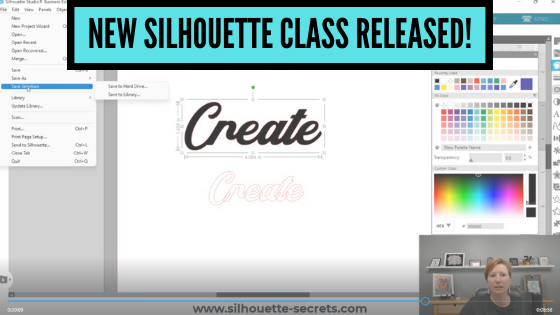
New Silhouette Class Released!

This class has been in creation for a long while and I first want to send a great big THANK YOU to Marjorie DiFiore with Atlanta Stylish Point!

Marjorie contacted me last year about a need she was seeing in brand new Silhouette Studio software users who did not necessarily own a Silhouette cutting machine, but were using the Silhouette Studio Business Edition to create for use in other programs or machines. We have worked together and she has answered my numerous questions regarding svg files, specifically in use with a GlowForge laser machine.
THANK YOU Marjorie!

Due to our big move, the class creation was delayed a bit, but I am excited to announce it is now available on my Teachable site!
With more to come in the future!

Check out the new class HERE

Silhouette Studio Software Basics to Create SVG Files

In this Silhouette Studio software class we use basic tools to create and export a svg file. We will discuss the important factors to know before creating svg files, how to install fonts, use basic tools to create a svg file, demonstrating using the exported file in the Glowforge App, and a bonus video on 3 additional tools in Silhouette Studio that can help in your design creations.

Who is this class for?
This class is for
– those who are laser machine owners and want to get started learning to use the Silhouette Studio software to design and export files in svg format to use with the laser machine
– if you are a beginner Silhouette user who wants to learn how to create svg files, this class is going to cover the basics of getting started with Silhouette and creating a simple svg file
– beginners to Silhouette Studio in general – the class covers several of the basic tools to get started creating your own designs using fonts. The class also discusses more advanced features of exporting as a svg file.

What if you do not own a laser machine can you still take the class?
Of course! The information will be relevant to anyone who wants to get started creating in the Silhouette software with the option to export as a svg file using the Silhouette Studio Business Edition upgrade.

Affiliate links are present in the following supply list and as an Amazon Associate, I earn from qualifying purchases
The cost to you is no different, but I may earn a commission by you using the links provided.

Class Supplies:

– Silhouette Studio Software
– Silhouette Studio Business Edition Upgrade
*this is discussed in class why it’s needed and how to get it
Optional fonts used in class:
– Radicals Font by Plusstore – main class demo
– Bohemian Script font – Silhouette Design Store or Creative Fabrica – Bonus class demo photo

Class Content

Section 1 – Important Factors Supporting PDF download
Section 2 – Important Factors to Create a SVG File – 20 minutes
Section 3 – Installing Fonts – 6 minutes
Section 4 – Creating a SVG Design in Silhouette Studio – 39 minutes
Section 5 – Demonstration of Exported Design in the Glowforge App – 16 minutes
Section 6 – Bonus: Additional Tools in Silhouette Studio – 16 minutes
Additional Resources
Class Conclusion

This class is available on my Teachable site

HERE

I currently have 22 different Silhouette classes available on Teachable.
These are all step-by-step video classes that are taught just like an in-person class.
The best part about being available online is that you can view the class anytime and as many times as needed to practice the technique.
Check out all the available classes

HERE

I would love to see what you are creating with your Silhouette software or machines!
Feel free to post on my Facebook group at 
Silhouette Secrets with EllyMae.

Save this for future reference by pinning the image below.

Enjoy !

This image has an empty alt attribute; its file name is logo.jpg

THANK YOU for your support! How can you help? Click HERE & buy a coffee.
Every little bit helps with the cost of running the site.

SS Logo snip it
**This post may contain affiliate links. What that means is that I may receive compensation if you purchase through the links I have provided. The price you pay for the product or service is not higher but I may get compensated for sharing.