Posted on — Leave a comment

Join me to Create Unique Designs in Silhouette Studio

I have just released a new class and I’m so excited to share with you as we use many tools in the Silhouette Studio software to create unique designs.

New Silhouette Class!!!

Creating Unique Designs in Silhouette Studio – Choose Your Own Project

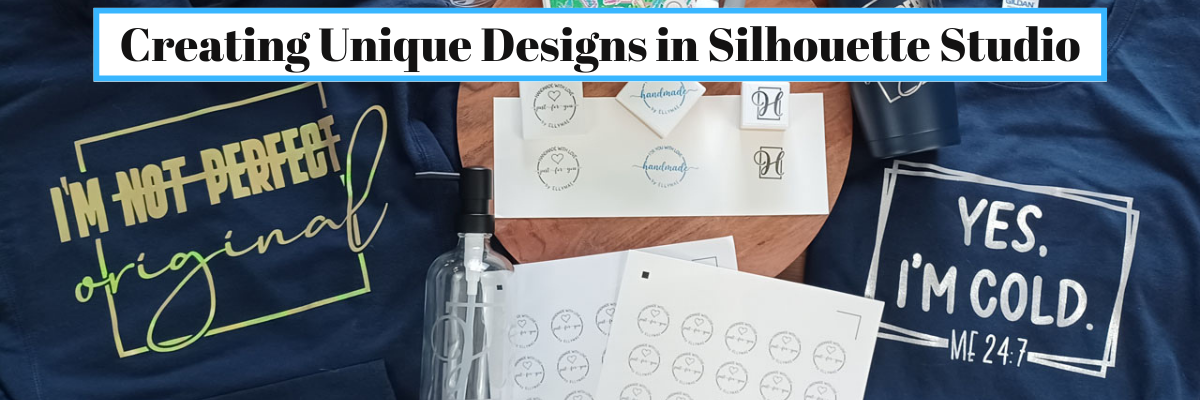
In this class you will learn how to create all of these designs in the photo above and you can choose what you want to create as a finished project.
Choose to make one or choose them all!

In this step-by-step class, we put the Silhouette Studio tools to work for us! This class is designed for all levels of users to follow along and create. A few of the tools we will discuss and use are: drawing tools, compound paths, text, offset, knife, glyphs, text to path, and more!

This is a custom design created by YOU could be used for all kinds of projects from adhesive vinyl, HTV, Mint stamps, stencils, and more!

I share examples of different finished projects with the techniques used and include optional supplies for additional projects on the class supply list.

As a bonus, I have also included a demonstration of Citristrip etching on a powder coated tumbler using a design created as the stencil.

Check out all of the details for this class HERE

Here are a few closer photos of the projects I created when testing and developing the class.

Affiliate links may be present in the below and as an Amazon Associate I earn from qualifying purchases. What that means is that I may receive compensation if you purchase through the links I have provided. The price you pay for the product or service is not higher but I may get compensated for sharing.

Sweatshirt created with:
Siser Aurora HTV – Goldish
I’m Not Perfect by Tanya Batrak – Design #326840

Long Sleeve Shirt
– Siser Sparkle – Snowstorm White Glitter
– BFC Magic Marker Font by Blush Fonts
– BFC Shiplap Bold font by Blush Fonts

Mint Stamps
– Mint Stamp Machine
– Mint Stamp Kit
– Mint Stamp Ink color of choice

Stickers
– Silhouette Sticker Paper – Silhouette or Amazon
– Staples Sticker Paper

Fonts
– BFC Basically Semi Bold Handwriting Font by Blush Fonts
– Dahlia by Graphix Line Studio

Glass Etching soap dispensers
– Babylone Script font by Almeera Studio

And another Citristrip etched tumbler that turned out AMAZING!
Supplies:
– Powder Coated Tumbler – not all tumblers work
– Oracal 651
– Transfer Tape
– Citristrip Paint Stripper
– Painters Tape
– Gloves, paper towels, water, weeding tool
– Optional:
– Artesprix Project Mat mentioned in the demo video – 2 size available

While those are the projects I created, you could do anything you want! I’ve provided a list of supplies depending on what you would choose to do or you might even have other ideas after working through the class design portion.

CLICK HERE FOR MORE CLASS INFORMATION

Or check out all the Silhouette classes on my Teachable site HERE.

I’d love to see what you create!
Feel free to post on the Silhouette Secrets+ with EllyMae Facebook Group HERE.

I also put out 2 new videos on the Silhouette Secrets+ YouTube channel with supporting information to this class.

Setting up Stickers in Silhouette for Print and Cut

Check it out HERE

Silhouette Mint Stamp Machine – Step-by-step to Creating a Stamp

Check it out HERE

There are so many possibilities that you can do in the Silhouette Software!
Get started today!

Save this for future reference by pinning the image below.

Enjoy !

THANK YOU for your support! How can you help? Click HERE & buy a coffee.
Every little bit helps with the cost of running the site.

Silhouette Classes

Never stop learning! Let me help you take the anxiety out of learning with Silhouette and get to creating faster! My Silhouette classes are heavily focused on software, so you can take the skills & techniques taught and apply them to many future projects!

Silhouette step-by-step Classes by Silhouette Secrets+

Silhouette Secrets+ with EllyMae
**This post may contain affiliate links. What that means is that I may receive compensation if you purchase through the links I have provided. The price you pay for the product or service is not higher, but I may get compensated for sharing.
Posted on — Leave a comment

February Featured Class & Silhouette “Secrets”

Silhouette “Secrets” – February 2023

February Featured Class and Coupon Code

This month’s features class is

Glass Etching with Your Silhouette

This is a great technique to use for personalized gifts!

In this class, we use the Silhouette software to create stencils for glass etched projects.

I chose to use several different shaped objects in the class to show tips for them all. You do not have to etch the same objects, but it’s good to know tips for multiple shapes. Not all glass objects can be etched. Tempered glass and some types of cookware cannot be etched due to the composition of it. The only real way to know is to test it or learn from others.

We will use the Silhouette Studio software to size the stencils, cut stencils with the Silhouette machine from both Oracal 651 & Oramask 813, transfer the stencils to get a good seal, and then etch with etching cream.

Glass etching is a great way to create unique projects that can be used for home décor, gifts, and more!

Check out the full class description, supply list, and class content HERE.

And use coupon code GLASS2023 to save $5 off this class.
Good through 2/28/23.
There are now 2 purchase options.
A 60-day access and a lifetime access. This is also NEW for 2023!

New Silhouette Curio Class Released

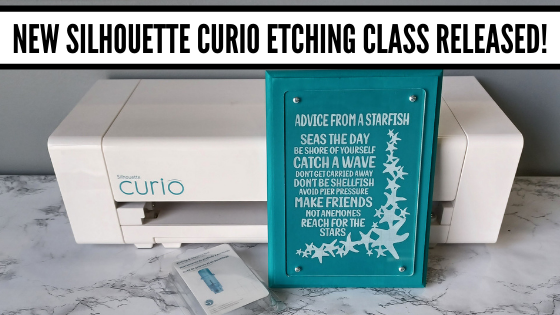
I have updated and released a new Beginner Acrylic Etching Curio Class.
This new class is updated to include information on the Silhouette Studio v4.5+ changes, tips on working with acrylics.

In this step-by-step class we will discuss the supplies for etching acrylics with the Silhouette Curio and the entire process to get set up etching acrylics. I will share all of my tips & tricks for getting a good etch on acrylics. This class is designed to give you the tools and resources so you can test and etch on any acrylics that you might be able to source.

Check out the full class description and supply list HERE.

Silhouette “Secrets”
– Because some things are just too good not to share! –

Silhouette “Secret” #1

If you are a paper crafter, you may have heard of the Dreaming Tree website. They have some awesome files!
This past month I shared a way that can save you time when working with their files, especially if they have many pieces to the file.
That is the SVG Merge program.

Check out more details on that HERE

Silhouette “Secret” #2

Troubleshooting cut issues is one of the top searches on both my website and the Silhouette Secrets+ YouTube channel.
This month I wanted to share the Troubleshooting Silhouette Cut Issues with EllyMae video. These steps can solve 98%+ of any cutting issues that we see posted.

Whether you are experiencing cutting issues currently or just want to tuck this away for future reference, it has already helped many users get back to cutting faster!

Make sure to Like and Subscribe if you want to be notified of future content released on YouTube!

Silhouette “Secret” #3

I just released a new blog post on Silhouette Library Issues & Troubleshooting Tips.
I have been seeing more posts on social media of the library not syncing or missing files, which means some of you may also be experiencing the same thing.

Check out this new post HERE
I am sharing quite a bit of information in it. Once I started to write it all out more and more just kept flowing and like my tagline says
– Because some things are just too good not to share! –
I have a hard time not sharing it all for you!

I hope this month’s “secrets” help you to be more successful with your Silhouette!

Silhouette Secrets+ Sponsor

CrafterCuts, a Silhouette Authorized reseller is a sponsor for my Silhouette Secrets+ Teachable site.

And I have a coupon code to save 10% on your order
Use code SECRETS at CrafterCuts
Get free shipping with a $35 order
I always recommend having extra blades and mats on hand for your projects this year!
You will also find this information under the NEW “Sponsor” tab at the top of the Silhouette Secrets+ Teachable site HERE.

Also check out the latest blog post on all of the Recommended Retailers and Font sites HERE.
Thank you for your support! Each time you use an affiliate link to make a purchase, it supports me and what I do. You do not pay any more for that product, but I may get credit for the referral.

I also have a “Buy Me a Coffee” option as well on Ko-Fi because I know not everyone buys new supplies each month, but many still asked for a way to support Silhouette Secrets+.
Thank you all for your continued support of my small business!

Watch for more from me on the Silhouette Secrets+ blog and YouTube channel this month!

Find all the current Silhouette classes on my Teachable site HERE.

Find me online at: Silhouette Secrets+ Blog – https://bit.ly/3CnLZ8s
Silhouette Secrets+ FB Page – https://www.facebook.com/SilhouetteSecretsplus
Silhouette Secrets+ FB Group – https://www.facebook.com/groups/silhouettesecretsplus
Silhouette Secrets+ Instagram – https://www.instagram.com/silhouettesecretsplus/
Swift Creek Customs FB Page – https://www.facebook.com/swiftcreekcustoms
Swift Creek Customs FB Group – https://www.facebook.com/groups/swiftcreekcustoms

SS Logo snip it

**This post may contain affiliate links. What that means is that I may receive compensation if you purchase through the links I have provided. The price you pay for the product or service is not higher but I may get compensated for sharing.

Posted on — Leave a comment

New Silhouette Class Released

Creating a Custom Knockout Design in Silhouette Studio

New Silhouette class available on my Teachable site HERE.

This class is one I created for the May 2022 All Things Silhouette Conference and it was a hit! The attendees took the class ideas and ran with it. I loved seeing all of their creations and it really inspired me to want to create even more.

I’ll be honest and typically after all the time that goes into the testing, recording, and editing to create a new class – I usually am “over” the class topic and it might be awhile for me to do it again. For instance, my Foil Quill didn’t get unpacked for a year after teaching at an ATS conference a few years back.
But, this class has been different as I see all the creations coming in. I am sharing a few of those below the class information so make sure to keep scrolling below.

This is a step-by-step class that explores the complete process of creating your own unique design. We start with downloading an image, tracing, discuss compound paths, text, offset, and the modify-subtract tools. This class is jam-packed with information that will help you in many future projects!

Check out the full class details

HERE

I am including the list of supplies I used in the class below.
Affiliate links may be present in the below and as an Amazon Associate I earn from qualifying purchases. What that means is that I may receive compensation if you purchase through the links I have provided. The price you pay for the product or service is not higher but I may get compensated for sharing.

Class Supplies:

-Silhouette machine, blade, cutting mat
– Paint Stroke design from Pixabay – Download HERE – how to download will be included in the class – alternate options are listed below as well
– Hello Friend Brush Script Font by Gina Marshall – Design #271670
– Optional Text Design by Silhouette Secrets – download HERE or use text style of choice
– Patterned HTV, Transfer Mask (if needed), Solid color HTV of your choice
– Sparkleberry Ink Patterned HTV – Staci’s Watercolor HTV used in class photo
Use code SILSECRETS to save 10% at Sparkleberry Ink
– Transfer Mask for Sparkleberry HTV
– Siser Easyweed color to match – Siser Easyweed Sky Blue used in class photo
– Shirt, tote, pillow, or other blank to press on

Optional design options:- Brush Stroke design alternatives – no tracing needed: Design #400679, Design #405377, Design #240013, Design #398421, Design #314334, Design #290326, Design #393147,
– Other Sparkleberry Ink combinations: Watercolor Wash (video class), Confetti Blue, etc.

I have also included a list of the class content in the description on Teachable.
There is a lot of information packed into this class. The best part is once you are registered, you can watch at your convenience and as many times as needed to really soak in the information.
Check out all the details HERE.

During the All Things Silhouette Conference attendees will post their completed project photos in our private Facebook group and WOW! I was blown away with their creations and the variety of different patterns, shapes, and text used in this class.

It truly shows that the techniques learned in the class can be used in many different ways for all users.

Custom Knockout Show & Tell

Here are a few that I received permission from the creators to share with you all.

Design Creation by C following the Custom Knockout Class
Design Creation by Paula P. following the Custom Knockout Class
Design Creation by Renee H. following the Custom Knockout Class
Design Creation by Nikki H. following the Custom Knockout Class
Design Creation by Sheri S. following the Custom Knockout Class
Design Creation by Darlene T. following the Custom Knockout Class
Design Creation by Michele M. following the Custom Knockout Class

There were so many fabulous creations!
It is a good thing it was not a contest as I could not have picked just one!

When creating a class, I always have several demos that I’ve created in the testing and recording times of the course. Here are a few more I created using this same technique.

I do not necessarily like the feel of glitter HTV on a shirt that I wear, but I still love the look of glitter. This is Siser Glitter HTV applied to a piece of fabric and then I glued the fabric to the photo backing.

Here is the same design with a different pattern on a tote bag.

And once you start, sometimes it’s hard to stop, especially when you have a stash of patterned HTV.

And one more!

I have had this patterned HTV for several years and never found a design that I wanted to use it for. This pattern reminds me of a Lisa Franks design and it was perfect for this Inspire and Create design by Donna Downey – Design #32502.

And now after seeing all the creations from those who’ve already done the class, I have so many more ideas. I’ll have new shirts for the rest of the year!

Check out this class

HERE

And I would love to see what you create with it!
I’d love to see what you are creating with your Silhouette software & machines!
Feel free to post on my Facebook group at 
Silhouette Secrets with EllyMae.

Save this for future reference by pinning the image below.

Enjoy !

This image has an empty alt attribute; its file name is logo.jpg

THANK YOU for your support! How can you help? Click HERE & buy a coffee.
Every little bit helps with the cost of running the site.

Or if you are looking for more in-depth, step-by-step classes, check out all of my online Silhouette classes on my Teachable site HERE.

SS Logo snip it
**This post may contain affiliate links. What that means is that I may receive compensation if you purchase through the links I have provided. The price you pay for the product or service is not higher but I may get compensated for sharing.
Posted on — Leave a comment

New Silhouette Curio class released!

I have so much fun playing with my Silhouette Curio and all the things it can do!
I want to share that with you!
Join me in this Silhouette Curio class to create an acrylic etched panel!
Check out the class HERE.

This is an Advanced Beginner Curio class that will cover the setup step-by-step to getting the Curio ready to etch, creating a template in Silhouette Studio for the etching, and then creating the design to be etched. You will create your own word art design using tools in the Silhouette Studio software! Tips are shared throughout the video class for getting successful etches with your Silhouette Curio machine.

Check out the class

HERE

Here is a sneak peek at the class content and the videos included:

Supplies & Setup Video – 17:55 minutes

Creating the Etched Acrylic Panel Template in Silhouette Studio – 31:30 minutes
– Using the drawing tools to create a template
– Creating template with nail holes to avoid
– Alignment Tools
– Move By Tool

Designing & Etching the Acrylic Panel in Silhouette Studio – 1 hour 3 minutes
– Opening Starfish border Design #3653
– Compound paths
– Text Tool
– Creating the design with multiple lines of text
– Creating “word art” with text
– Adding an etch fill
– “Secret” to getting a tighter etch fill
– Setting up the Curio to etch
– Etching
– Finish and assembly

Class Supplies:

Affiliate links are present in the following supply list and as an Amazon Associate, I earn from qualifying purchases. The cost to you is no different, but I may earn a commission by you using the links provided.

-Silhouette Curio machine
– Silhouette Etching Tool
– New Silhouette Curio Cutting mat – highly recommend a sticky mat
– Starfish border Design by Calli Arroyo – Design #3653
– Fish Grill font by 7nTypes – Design #292330
– 4” x 6” Acrylic Panel with 4 holes from Craft Chameleon
– Double sided sticky tape from Craft Chameleon
– 6” x 8” Basswood board by Walnut Hollow – Amazon or Walnut Hollow
– #4 x ½” Sheet Metal Screws
– Dark colored paint or stain
– Paint brush
– Screwdriver
– Hand drill
– Weeding tool
– Optional: baby wipes, Teflon sheet, apron

Optional:
– LW Wide Marker Font by Lori Whitlock – Design #82132
– Acrylic Panel no holes from Craft Chameleon
– Wood stand

Additional Resources

No matter how many times I etch a project, even the same design, I still do a little happy dance when it’s finished!

Find this class on my Teachable site HERE

I love being able to customize my gifts & projects with the Silhouette Curio!

Want more ideas of what you can create with your Curio?
Check this out – Gift Ideas with your Silhouette Curio

Just getting started with your Curio?
The possibilities are endless in what you can create!
Check out the other Silhouette Curio class on my Teachable site HERE.

I would love to see what you are creating with your Silhouette software or machines!
Feel free to post on my Facebook group at 
Silhouette Secrets with EllyMae.

Save this for future reference by pinning the image below.

Enjoy !

This image has an empty alt attribute; its file name is logo.jpg

THANK YOU for your support! How can you help? Click HERE & buy a coffee.
Every little bit helps with the cost of running the site.

SS Logo snip it
**This post may contain affiliate links. What that means is that I may receive compensation if you purchase through the links I have provided. The price you pay for the product or service is not higher but I may get compensated for sharing.
Posted on — Leave a comment

Silhouette & Michaels Class

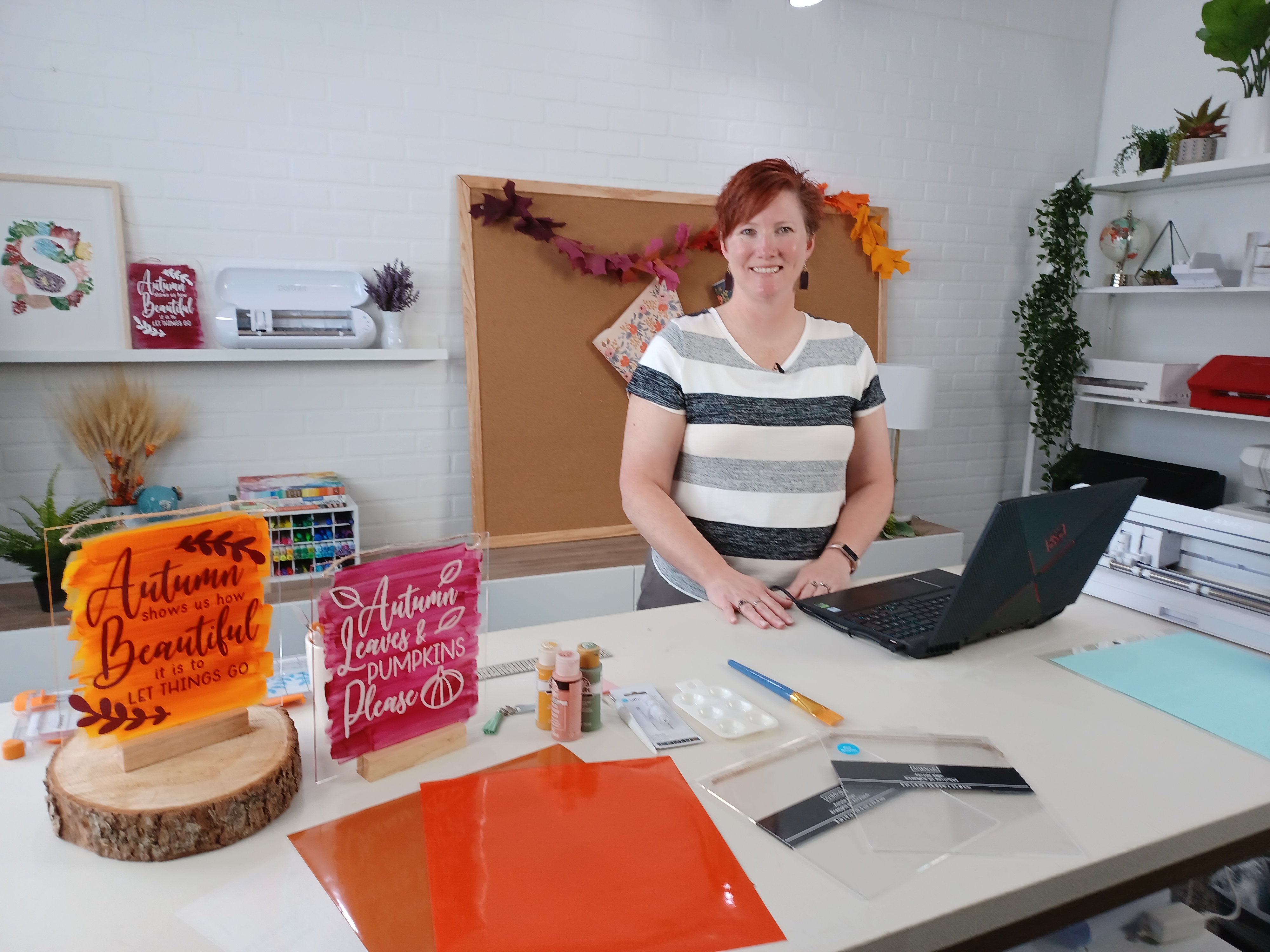
Yesterday I was able to teach a class from the Silhouette Headquarters in Utah.

It was a beautiful fall day.

Here is a peek at the look at the Silhouette video and photography studio before we started the Zoom class.

The video recording is now available for viewing on the Michaels YouTube channel.

Check it out HERE

For more ideas of what you can do with the acrylic sign decor that I demoed in the Silhouette & Michaels Zoom class, check out this post HERE.

After the Silhouette and Michaels Zoom class, we did a quick Facebook Live on the Silhouette America Facebook page.

Check that out HERE

I hope I will see what you are creating with your Silhouette software & machines soon!
Feel free to post photos or questions on my Facebook group at 
Silhouette Secrets with EllyMae.

Save this for future reference by pinning the image below.

Enjoy!

This image has an empty alt attribute; its file name is logo.jpg

THANK YOU for your support! How can you help? Click HERE & buy a coffee.
Every little bit helps with the cost of running the site.

Or if you are looking for more in-depth, step-by-step classes, check out all of my online Silhouette classes on my Teachable site HERE.

SS Logo snip it
**This post may contain affiliate links. What that means is that I may receive compensation if you purchase through the links I have provided. The price you pay for the product or service is not higher but I may get compensated for sharing.


Posted on — 6 Comments

Silhouette Sketching Class – Step-by-step

Silhouette Secrets+ with EllyMae

Silhouette Sketch pens & Sketch Pen Design Class

Just released!
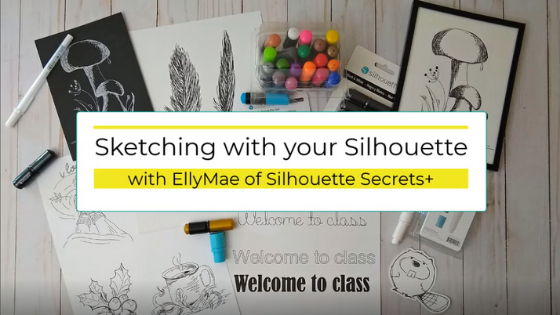
New online video class with tips, tricks, and troubleshooting for sketching with your Silhouette.

I had no idea how popular this class would be when I submitted it for the May All Things Silhouette Conference. I had a limited window of opportunity right after conference to get this recorded and edited, but I’m happy to announce that after 18 hours of video production – IT’S HERE!!!

Silhouette Sketch Class HERE

This is a total video time of around 2 hours, however, the class will take approximately 3 hours to complete with all the sketching and design time.

In this class you will learn all about sketch pens & creating sketch designs. We discuss different pen styles, adapters, sketch designs, fonts, filling designs, and trouble-shooting too.
We will be doing some testing, demos, and finished projects.
At the end of the class, you will have a better understanding of what works and doesn’t work for sketching with your Silhouette machine.
This class can be completed with a Portrait, Cameo, or Curio machine.

Check out the class HERE

Affiliate links may be present in the following blog post and as an Amazon Associate, I earn from qualifying purchases.

There are some differences between the different Silhouette model machines on the supplies you might need for this class, so I am including the class supply information below.

Sketching Supplies:

Cameo 4, Cameo Plus, Cameo Pro, and Portrait 3 owners

Either:

a Silhouette blue sketch pen adapter
with Silhouette black bodied pens

Or

a Silhouette Type B pen holder and pens that fit
Pens I’ve tested: Sharpie Pen S-Gel, Sharpie Pen Style, Pilot G2 Gel Fine 0.7 mm, Gelly Roll Classic 06 Black, Gelly Roll white, Gelly Roll Moonlight 10 Ice Cream Smooth

Cameo 3, Cameo 2, Cameo 1, Curio, Portrait 1 or 2 owners

Either:

Silhouette black bodied pens or white bodied pens

Or

A Silhouette Type A pen holder and pens that fit
*pens listed above with links

Other supplies:

Designer Edition upgrade (or higher) in the software to unlock Line Effects
– Design #65898 Mushroom Sketch by Tanya Batrak
– Design #271670 Hello Friend Brush Script by Gina Marshall (optional)
– Design #79759 Cancun Sketch font by Dresden Carrie (optional)
– 5+ sheets of white cardstock
– Silhouette cutting mat
– Silhouette blade
– 5” x 7” black frame (optional)

Full Sketching class HERE

Save this for future reference by pinning the image below.

Enjoy !

THANK YOU for your support! How can you help? Click HERE & buy a coffee.
Every little bit helps with the cost of running the site.

Silhouette Classes

Never stop learning! Let me help you take the anxiety out of learning with Silhouette and get to creating faster! My Silhouette classes are heavily focused on software, so you can take the skills & techniques taught and apply them to many future projects!

Silhouette step-by-step Classes by Silhouette Secrets+

Silhouette Secrets+ with EllyMae
**This post may contain affiliate links. What that means is that I may receive compensation if you purchase through the links I have provided. The price you pay for the product or service is not higher, but I may get compensated for sharing.
Posted on — Leave a comment

New Silhouette Class – Text in Silhouette Studio

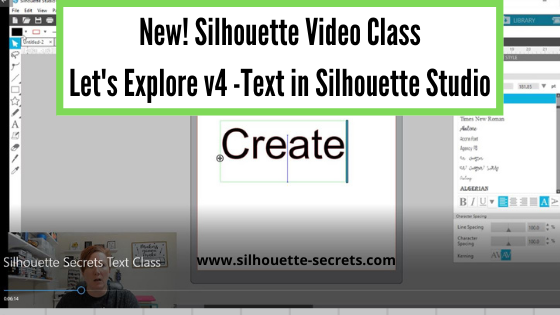
Let’s Explore v4 – Text in Silhouette Studio

New Silhouette course released on my Teachable site today!

Click HERE to go to the class directly.

This is a 50 minute Silhouette Studio v4 software class all about Text.
We will explore all about text to get you started in the Silhouette Studio v4 software including:

Text tool
Text Style Panel
How to get accurate text sizing
Resizing text
Font families
Welding
Script fonts
Offsetting text
Tracing text
Installing fonts, and
Glyphs

Expand your skills in the Silhouette software by learning all about text in Silhouette Studio in this 50 minute video course.

Check out all the Silhouette course available HERE on my Teachable site!

I love to see what you are creating with your Silhouette machines!
Feel free post on the
Silhouette Secrets+ Facebook Group.

Save this for future reference by pinning the image below.

Enjoy!

This image has an empty alt attribute; its file name is logo.jpg

THANK YOU for your support! How can you help? Click HERE & buy a coffee.
Every little bit helps with the cost of running the site.

Or if you are looking for more in-depth, step-by-step classes, check out all of my online Silhouette classes on my Teachable site HERE.

SS Logo snip it
**This post may contain affiliate links. What that means is that I may receive compensation if you purchase through the links I have provided. The price you pay for the product or service is not higher but I may get compensated for sharing.
Posted on — 4 Comments

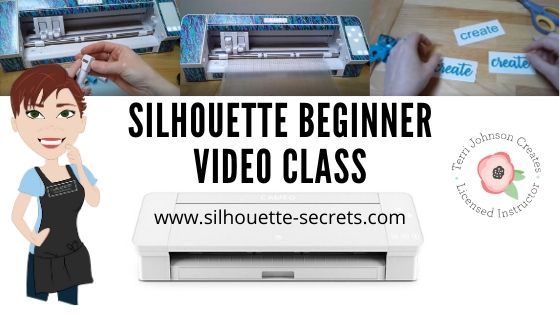
Just Released – Beginner Video Class

I have helped so many users these past few weeks on Facebook who are frustrated and having issues getting the Cameo 4 setup for their first cuts.
So, I set to work this week on creating a Beginner video class.

This video class is created in the same way I would teach a private face-to -face lesson to a new student.

Even though this is labeled a “beginner” class, there is still a lot of information in it that I think any user could get out of it. But, it is a video course that I believe can also get a user started from opening the box to getting their first cuts.
I have also included a bonus 24 minutes video on my troubleshooting tips and things I look for when cuts aren’t going as planned.
Whether you are a brand new user or one with a little experience, I think it contains some tips for all users.

While this class features a Cameo 4 in the setup and presentation, the setup tips and instruction for the first cuts apply to all Silhouette machines.
If you are a Curio user, I would suggest also checking out the Curio Unboxing video on YouTube and the Let’s Explore – The Curio – Getting Started post on the blog.

What does this class contain?

Course outline:

Pre-course: Cameo 4 Unboxing video
I highly recommend watching this before starting the main course
This video is also available on my YouTube channel HERE.

Main Course
Cameo Setup & Blades – 20 minute video
Designing in Silhouette & First Cuts – 1 hour 12 minute video
Bonus – Blade cleaning & Troubleshooting – 24 minute video

Additional Resources mentioned in the video

If you are having issues with your cuts or are nervous about getting started, this video course is full of information to get your Cameo out of the box, setup properly, and cutting.

Check it out HERE

You can see all of the video courses available on my Teachable site HERE

Silhouette Secrets+ Teachable Classes

I hope this will help get you feeling a little more comfortable with your new Silhouette machine or one that’s been calling your name for awhile.

Save this for future reference by pinning the image below.

I would love to see what you create!
Feel free to post on my Facebook group at Silhouette Secrets with EllyMae.

Enjoy!

SS Logo snip it
**This post may contain affiliate links. What that means is that I may receive compensation if you purchase through the links I have provided. The price you pay for the product or service is not higher but I may get compensated for sharing.

Share this: