Posted on 1 Comment

Heat Pen Panel – Silhouette Specialty Tools

Silhouette Heat Pen Panel
Silhouette Secrets+ with EllyMae

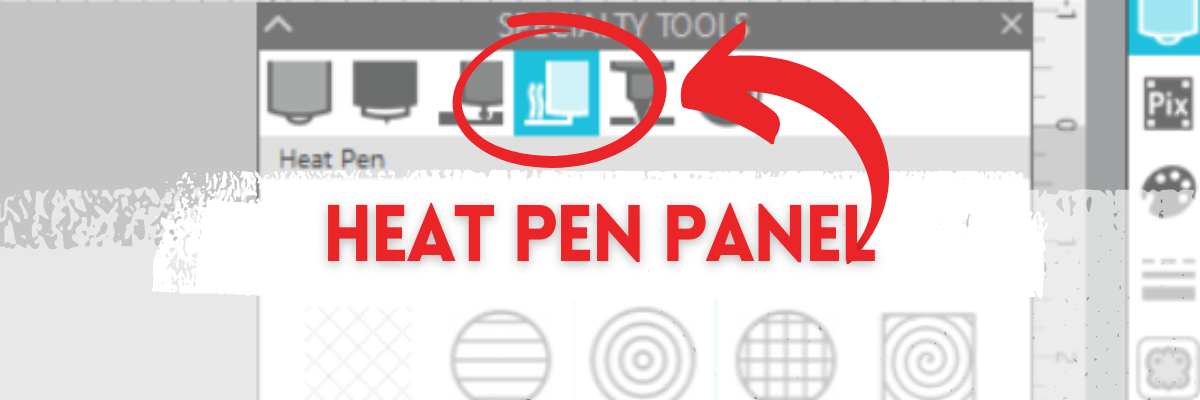
Under the new Specialty Tools Panel on Tab 4 in Silhouette Studio, is the Heat Pen Panel.

This tutorial was written in Silhouette Studio version 4.5.770.

The Specialty Tools Panel was released in v4.5+ software versions. If you don’t see it on the right side of the Silhouette Studio, your software version may be older than v4.5.

Affiliate links may be present in the following blog post and as an Amazon Associate, I earn from qualifying purchases.

The Silhouette Heat Pen is one of the new powered tools that was announced and released in September 2023. It is compatible with the Silhouette Cameo 5, Portrait 4, and Curio 2.

Silhouette Heat Pen - Foil on Cardstock

The Silhouette Heat Pen can be found at CrafterCuts, Silhouette America, or Amazon.
CrafterCuts has free shipping on orders over $35 and use code SECRETS to save 10% on supplies & accessories (not valid on machines).
Silhouette America has free shipping on orders over $50 if you are a Silhouette Club member.

Specialty Tools Panel – Heat Pen – Tab 4

Here is a look at the details of the Heat Pen Panel in Silhouette Studio.

Silhouette Heat Pen Panel - Specialty Tools

1 – Heat Pen Fill Patterns – choose from None, Lined, Concentric, Cross-hatched, and Spiral

Silhouette Heat Pen Fill Patterns

All designs will vary in how the pattern fills in the area. I used Hi by Diva Watts Design – Design #399489 and at the size shown, there isn’t much inside the Concentric Pattern fill at a 0.079 spacing. Testing is the only way to know what fill pattern and spacing will look good on the finished project.

2 – Spacing – Increase or decrease the grid spacing between the lines of the pattern. A spacing of 0.004″ will fill in the design more, but depending on the pattern chosen, there can still be some bare spots.

Silhouette Concentric Fill Pattern 0.004" spacing

In this example, the Concentric fill pattern at a 0.004″ spacing fills in most areas, but there are still some white spaces in certain areas. Zoom in on your designs so you can see the tight fills and how each pattern fills in the designs.

Silhouette Heat Pen Concentric Fill Zoomed In

These spaces may or may not affect the outcome of the final project. Testing is the the only way to know what will work and all designs will vary.

This is another area where you are changing a lot of data at one time, so be patient with your computer if it is thinking.

3 – Angle – Change the angle of the fill pattern.

4 – Release Heat Pen Fill – selecting this option will take the fill from an editable fill pattern and makes it a vector design.

When using this feature, be aware that once the fill has been released and file saved and closed, it is a permanent change to that file. If the design needs to be adjusted, you would need to start over.

Silhouette Heat Pen

Here are a few examples created with the Silhouette Heat Pen.

Silhouette Heat Pen Examples

Check out the full tutorial and written instructions on using the Silhouette Heat Pen HERE.

I tested several brands of hot foil with the Silhouette Heat Pen and here are the supplies I used when testing and creating the projects shown above.

Supplies Used

Optional supplies:

Additional Resources:

  • Silhouette Curio 2 additional resources found HERE

Silhouette Studio Specialty Tools Panel Tabs (coming soon)

  • Specialty Tools Panel – Tab 1 – Emboss Panel details HERE
  • Specialty Tools Panel – Tab 2 – Score & Emboss – details HERE
  • Specialty Tools Panel – Tab 3 – Power Engraver – details HERE
  • Specialty Tools Panel – Tab 4 – Heat Pen – details above

Save this for future reference by pinning the image below.

Silhouette Heat Pen Pinterest

Enjoy !

THANK YOU for your support! How can you help? Click HERE & buy a coffee.
Every little bit helps with the cost of running the site.

Silhouette Classes

Never stop learning! Let me help you take the anxiety out of learning with Silhouette and get to creating faster! My Silhouette classes are heavily focused on software, so you can take the skills & techniques taught and apply them to many future projects!

Silhouette step-by-step Classes by Silhouette Secrets+

Silhouette Secrets+ with EllyMae
**This post may contain affiliate links. What that means is that I may receive compensation if you purchase through the links I have provided. The price you pay for the product or service is not higher but I may get compensated for sharing.
Posted on 1 Comment

Power Engraver – Silhouette Specialty Tools Panel

Silhouette Curio 2 Power Engraver Panel
Silhouette Secrets+ with EllyMae

Under the new Specialty Tools Panel on Tab 3 in Silhouette Studio, is the Power Engraver Panel.

This tutorial was written in Silhouette Studio version 4.5.770. The Specialty Tools Panel was released in v4.5+ software versions. If you don’t see it on the right side of the Silhouette Studio, your software version may be older than v4.5.

Affiliate links may be present in the following blog post and as an Amazon Associate, I earn from qualifying purchases.

The Power Engraver is specific to the Silhouette Curio 2 and is one of the new powered tools that was announced and released in September 2023.

Silhouette Curio 2 Power Engraver

The Silhouette Power Engraver is designed to be used along with the Curio 2 Debris Tray, which helps to contain any debris from the materials being etching.

Silhouette Power Engraver for the Curio 2

The backside of the Power Engraver features a power plug that sits in the Carriage 2 housing and powers the device through the Silhouette Curio 2 machine. The end of the tool is a router tip that spins to perform the engrave process. It functions like a Dremel tool and sounds like one too. The sound changes depending on the materials being used.

And I’ll just say – I love it!

Specialty Tools Panel – Power Engraver – Tab 3

Here is a look at the details of the Power Engraver Panel in Silhouette Studio.

Silhouette Power Engraver Panel

1 – Power Engraver Etch Fill Patterns – choose from None, Lined, Concentric, Cross-hatched, and Spiral

Silhouette Power Engraver Tool

2 – Spacing – Increase or decrease the grid spacing between the lines of the pattern. The dark red star shows a 0.004″ spacing – a really tight etch fill

Silhouette Power Engraver Fill Spacing

This is another area where you are changing a lot of data at one time, so be patient with your computer if it is thinking.

3 – Angle – Change the angle of the etch pattern.

4 – Release Engraving Fill – selecting this option will take the fill from an editable fill pattern and makes it a vector design.

This can be helpful if you are trying to stack multiple layers of etch for engraving on harder materials. It is not necessary to do this with simple etch designs or softer materials such as acrylic.

When using this feature, be aware that once the fill has been released and file saved and closed, it is a permanent change to that file. If the design needs to be adjusted, you would need to start over.

Silhouette Curio 2 Power Engraver

Here are a few examples of etching on acrylic with the Silhouette Power Engraver.

Silhouette Curio 2 Acrylic Etching with Power Engraver

I’ve had a lot of fun creating with the Silhouette Curio 2 and Power Engraver!

Find more details on etching with the Curio 2 in this post Beginner Acrylic Engrave/Etch with the Silhouette Curio 2 found HERE.
I share the supply list used for the projects and also details on the Silhouette Curio 2 – Beginner Acrylic Engrave Class that will take you step-by-step through the process. The class aims to quickly help you succeed in etching on the Curio 2.

Additional Resources:

  • Silhouette Curio 2 additional resources found HERE

Silhouette Studio Specialty Tools Panel Tabs (coming soon)

  • Specialty Tools Panel – Tab 1 – Emboss Panel details HERE
  • Specialty Tools Panel – Tab 2 – Score & Emboss – details HERE
  • Specialty Tools Panel – Tab 3 – Power Engraver – details above

Find the Silhouette Curio 2, Power Engraver Tool, and the Curio Debris Tray at either CrafterCuts, Silhouette America, or Amazon.
CrafterCuts has free shipping on orders over $35 and use code SECRETS to save 10% on supplies & accessories (not valid on machines).
Silhouette America has free shipping on orders over $50 if you are a Silhouette Club member.

Save this for future reference by pinning the image below.

Silhouette Specialty Tools Power Engraver Panel

Enjoy !

THANK YOU for your support! How can you help? Click HERE & buy a coffee.
Every little bit helps with the cost of running the site.

Silhouette Classes

Never stop learning! Let me help you take the anxiety out of learning with Silhouette and get to creating faster! My Silhouette classes are heavily focused on software, so you can take the skills & techniques taught and apply them to many future projects!

Silhouette step-by-step Classes by Silhouette Secrets+

Silhouette Secrets+ with EllyMae
**This post may contain affiliate links. What that means is that I may receive compensation if you purchase through the links I have provided. The price you pay for the product or service is not higher but I may get compensated for sharing.
Posted on 6 Comments

Silhouette Specialty Tools Panel – Score & Emboss

Score & Emboss with Silhouette
Silhouette Secrets+ with EllyMae

Under the new Specialty Tools Panel on Tab 2 in Silhouette Studio, is the Score & Emboss Panel.

This tutorial was written in Silhouette Studio version 4.5.770. The Specialty Tools Panel was released in v4.5+ software versions. If you don’t see it on the right side of the Silhouette Studio, your software version may be older than v4.5.

Affiliate links may be present in the following blog post and as an Amazon Associate, I earn from qualifying purchases.

The score & emboss process is designed to cut a shallow line before embossing, intending to deepen the embossing.

Silhouette Score & Emboss Panel

This option is available to Silhouette Curio 1, Silhouette Curio 2, and Silhouette Cameo 5 model owners. If one of these machines is not plugged in and recognized, the panel will gray out, and you may not be able to select the options.

Specialty Tools Panel – Score & Emboss – Tab 2

Here is a look at the details of the Score & Emboss Panel.

Silhouette Score & Emboss Panel Details

1 – Tool Selection – Choose either the Fine or Wide Embossing tool according to what you are using.

Fine Embossing tool is a 1 mm tip and designated by a light blue/green top.
Wide Embossing tool is a 3 mm tip and designated by a darker blue top.

Silhouette Embossing Tools

2 – Passes – choose the number of passes for the tool to complete from 1 – 10
3 – Fill – check this to add a fill to the object selected.
4 – Apply Score & Emboss Lines – selecting this confirms to the software that you want to apply both these actions to the selected object

Score & Emboss on the Send Tab in Silhouette

Once you apply the Score & Emboss, clicking on the Send tab will display both a red cut line and a blue emboss line around the design.

Silhouette Score & Emboss Send Tab

Carriage 1 performs the red cut line with a blade installed, and Carriage 2 performs the blue emboss line with the embossing tool.

To be honest, I tested both with and without the Score line and it did not make a difference that I could tell with my cardstock, except that scoring increased the time & caused more debris. All cardstock will vary and testing is the only way to know what will work best with your brand and thickness of cardstock.

Here is a look at just embossing cardstock with the Silhouette Curio 2.

Silhouette Curio 2 Embossing Cardstock

Here is a look at the Score & Emboss results. I noticed that it created debris and separation in some areas where it scored and embossed.

Silhouette Score & Emboss Results

Results may vary depending on the actual cardstock being used. Silhouette does have a Score & Emboss paper that they recommend for this method. However, you can test with any cardstock and simply select the Score & Emboss Paper as the material on the Send tab.

Tips to Keep in Mind with Score & Emboss

When using the Score & Emboss feature, keep in mind that it increases the time for the project to complete because you have 2 tools working consecutively. Depending on what you tell the software to do, it can be a lot of data to process, so be patient with your computer if it is thinking.

Embossing is available on the following Silhouette model machines: Curio 1, Curio 2, Cameo 5.

The Silhouette Embossing tools (fine & wide tip) work in conjunction with the Silhouette 12″ x 12″ Embossing mat.

At the time of publishing this post, a bug persists in the Silhouette software for the Silhouette Cameo 5 causing it not to emboss where it shows on the screen. I will not release a tutorial until this bug is fixed, as I don’t want users to ruin their $30 embossing mat, as I did on the first try.

Silhouette Embossing Mat Cameo 5

If you do attempt to do this with the Silhouette Cameo 5, I would highly recommend that you use a full 12″ x 12″ sheet of cardstock to protect the entire emboss mat surface.

Cutting completely through a material on top of the Silhouette Embossing mat is not recommended as it can damage the embossing pad and tear it up.

As new information is released and the bugs are fixed, I will add additional resources for embossing.

  • Silhouette Cameo 5 additional resources found HERE
  • Silhouette Curio 2 additional resources found HERE

Silhouette Studio Specialty Tools Panel Tabs (coming soon)

  • Specialty Tools Panel – Tab 1 – Emboss Panel details HERE
  • Specialty Tools Panel – Tab 2 – Score & Emboss – details above
  • Specialty Tools Panel – Tab 3 – Power Engraver – details HERE

Save this for future reference by pinning the image below.

Silhouette Score & Emboss Pinterest

Enjoy !

THANK YOU for your support! How can you help? Click HERE & buy a coffee.
Every little bit helps with the cost of running the site.

Silhouette Classes

Never stop learning! Let me help you take the anxiety out of learning with Silhouette and get to creating faster! My Silhouette classes are heavily focused on software, so you can take the skills & techniques taught and apply them to many future projects!
Silhouette step-by-step Classes by Silhouette Secrets+

Silhouette Secrets+ with EllyMae
**This post may contain affiliate links. What that means is that I may receive compensation if you purchase through the links I have provided. The price you pay for the product or service is not higher but I may get compensated for sharing.
Posted on 1 Comment

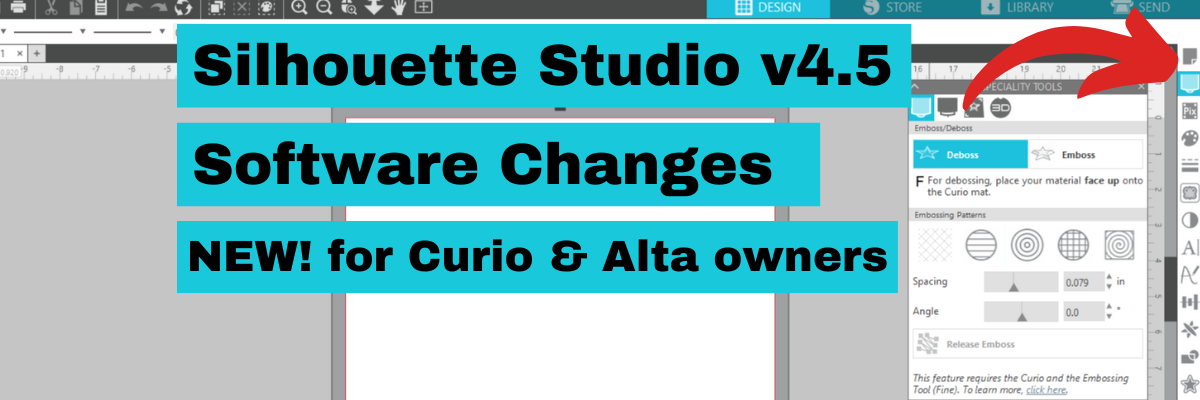
Silhouette Software Updates – Curio & Alta Owners

Changes. No one really likes them, but they are a fact of life!

That is no different in the Silhouette Studio software. Today I am sharing a new change in the Silhouette Studio software in versions of v4.5 and higher.

This change affects Curio & Alta owners most, but all users will notice a new icon appear on the right side of the Silhouette Studio software after updating to version 4.5+.

While I am NOT recommending to update to v4.5 versions at this moment unless you absolutely have to, I do want to make you aware of the change so you don’t panic when you see it.

In the top right corner of the Silhouette Studio software on versions of v4.5 and higher, you will now see a new icon that is called Machines Featured Panel.
This is where the Curio Panels and the Alta Panel is now located.

Here is a little bit closer look.

Nothing has disappeared, it is just in a new location.

If you have purchased one of my Silhouette Curio classes on the Silhouette Secrets+ Teachable site, I have now added a new video section in to the beginning of each class that explains this update.

You can also find a quick video showing the update on the Silhouette Secrets+ YouTube channel HERE.

Hope this information helps when you see that odd new icon show up on your software.

Again, at the time I’m writing this, I am still not recommending v4.5.152 which is the current version. There are some not so nice bugs in it.

Let me know in the comments below if you have questions.

Save this for future reference by pinning the image below.

Enjoy !

THANK YOU for your support! How can you help? Click HERE & buy a coffee.
Every little bit helps with the cost of running the site.

Looking for more in-depth, step-by-step classes, check out all of my online Silhouette classes on my Teachable site HERE.

SS Logo snip it
**This post may contain affiliate links. What that means is that I may receive compensation if you purchase through the links I have provided. The price you pay for the product or service is not higher but I may get compensated for sharing.
Posted on 3 Comments

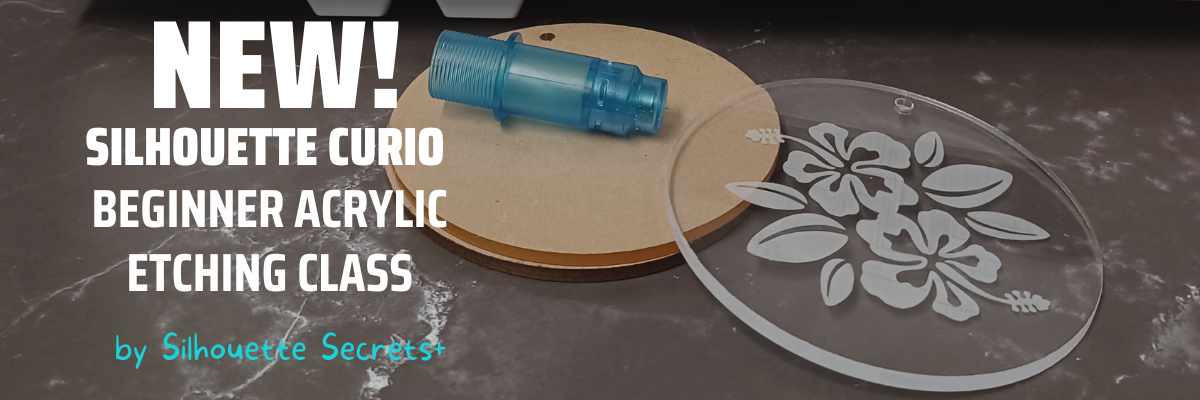
New Silhouette Curio Acrylic Etching Class Released

I’ve just released this new Silhouette Curio Beginner Acrylic Etching Class on the
Silhouette Secrets+ Teachable site!

This new Curio etching class has been designed to show how the Silhouette Studio software has changed in v4.5 software (don’t worry, you do NOT need to update), but I show you how it has changed.
And I designed this class with tips for all acrylics in general, not just from one source.

In this step-by-step class we will discuss the supplies for etching acrylics with the Silhouette Curio and the entire process to get set up etching acrylics. I will share all of my tips & tricks for getting a good etch on acrylics. This class is designed to give you the tools and resources so you can test and etch on any acrylics that you might be able to source.
Plus bonus information on etching on other size blanks too!

Find it HERE on the Silhouette Secrets+ Teachable site

I am also including the class supply list and the supplies I shared in the bonus examples too!
This information is also in the class description on the Silhouette Secrets+ Teachable site and again in the class as a downloadable PDF document too!

Affiliate links may be present in the below and as an Amazon Associate I earn from qualifying purchases. What that means is that I may receive compensation if you purchase through the links I have provided. The price you pay for the product or service is not higher but I may get compensated for sharing.

Supply list

– Silhouette Curio Machine with all platforms & cutting mat
– Silhouette Etching Tool
– Acrylic Blanks
143Vinyl Acrylic Blanks can be found HERE
*I will update and add more as I test with new vendors
– Double sided tape
Hibiscus Flower Bunch by Samantha Walker – Design #10873
Digital Calipers or a ruler with mm
– Sharp point weeding tool

– Additional Supplies shown in bonus information
Acrylic Square Blank for LED Base
Acrylic Circle for LED Base
Shape template files available from 143Vinyl for acrylics purchased
Sea Turtle Wisdom design by Jillibean Soup
Not All Storms Come to Disrupt design by Jillibean Soup
Wood base from Amazon
LED light base from Amazon (optional)

I designed the class so you can start with the small design and then apply the same exact techniques to larger projects such as these below. In the bonus information I share tips on how to work with these different size acrylic blanks.

The biggest thing is TO JUST GET STARTED!

The Silhouette Curio is an awesome machine and I share why in this new class. Get it out and start creating fabulous projects with it!

I hope you will join me and then share your creations on the Silhouette Secrets+ Facebook Group!

I have several more Silhouette Curio Classes available on my Teachable site HERE
as well as other Silhouette Classes too!

Save this for future reference by pinning the image below.

Enjoy!

THANK YOU for your support! How can you help? Click HERE & buy a coffee.
Every little bit helps with the cost of running the site.

SS Logo snip it
**This post may contain affiliate links. What that means is that I may receive compensation if you purchase through the links I have provided. The price you pay for the product or service is not higher but I may get compensated for sharing.
Posted on Leave a comment

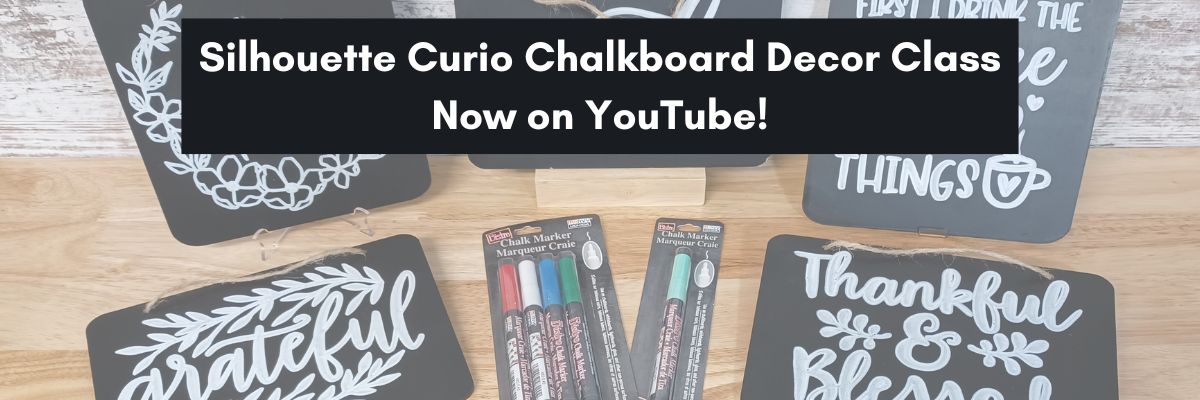
Silhouette Curio Chalkboard Class

This is not something I do often, well in fact, it’s the first time ever!
I just published one of my step-by-step Silhouette Curio classes to the
Silhouette Secrets+ YouTube channel.

It can also be found for Free on my Silhouette Secrets+ Teachable site HERE, if you prefer not to watch through YouTube.

This is a rare “wild hair” because classes take a lot of time to develop, test, record, and edit.
But, why not mix things up a bit this year!

If you have a Curio, this is a fun project to do!

This is the full, step-by-step course. Nothing is left out or skipped over to shorten it for YouTube release. I share so many tips to working with the Curio in this video, it would be hard to chop it up.
In fact, I edited the videos again to add 2 bonus videos to the end so you can see it all exactly as I created it.
The full class is 1 hour and 30 minutes long and you can view it all!

Supply list

Affiliate links may be present in the below and as an Amazon Associate I earn from qualifying purchases. What that means is that I may receive compensation if you purchase through the links I have provided. The price you pay for the product or service is not higher but I may get compensated for sharing.

These are the supplies I used in this class to create these chalkboards:
– Silhouette Curio machine, Silhouette small base cutting mat, Curio platforms and base
– Chalkboard sign – Michaels – 6.6” square, arrow shape, rectangle shape
Michaels bulk chalkboard options – rectangle 8 pk, arrow 8 pk, Square 8 pk
or Amazon
NOTE: chalkboards can vary in thickness – it needs to be under 5 mm thick & fit on the Curio base
No frames or borders. Remove any twine attached.

Create by Cali Arroyo – Design #215617
Bistro Chalk Marker by Marvy Uchida White
– Optional: Bistro Markers Colors – Fluorescent, Primary
– Silhouette Pen Holder Type A – Silhouette America, Amazon
Digital Calipers – highly recommend for Curio projects
– Ruler with mm
White Chalk
– Clean Towel
– Notepad & pen
– Optional designs also featured: Design #317171, Design #404761, Design #304784,
Design #400058, Design #229894, Design #154513
Optional: extra twine, scissors

I hope you’ll join me in creating fabulous projects with your Silhouette Curio!
Find all the Silhouette Curio classes on my Teachable site HERE.

Save this for future reference by pinning the image below.

Find the video on the Silhouette Secrets+ YouTube channel
or on my
Silhouette Secrets+ Teachable website.

Enjoy!

THANK YOU for your support! How can you help? Click HERE & buy a coffee.
Every little bit helps with the cost of running the site.

SS Logo snip it
**This post may contain affiliate links. What that means is that I may receive compensation if you purchase through the links I have provided. The price you pay for the product or service is not higher but I may get compensated for sharing.
Posted on Leave a comment

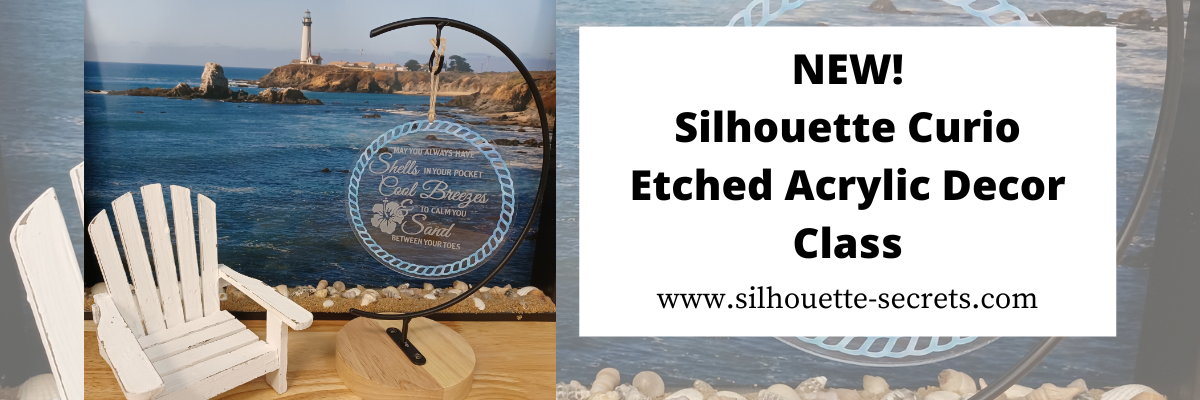
Etched Acrylic Décor Class Released

New! I’ve just released the a new Silhouette Curio class on my Teachable site!

Etched Acrylic Decor with the Silhouette Curio

Not only do we set up to etch on acrylic, but I also share how to cut adhesive vinyl on the Curio and why I added it onto this project.

Check it out

HERE

and join me in this class to create a unique décor item and learn more about the Silhouette Curio!

I am also including the list of supplies that I used in the class if you’d like to create along with me.

Affiliate links may be present in the below and as an Amazon Associate I earn from qualifying purchases. What that means is that I may receive compensation if you purchase through the links I have provided. The price you pay for the product or service is not higher but I may get compensated for sharing.

Class Supplies:
– Silhouette Curio machine
Silhouette Etching tool – use code 10OFF to save 10% at Silhouette America
– Silhouette black blade (ratchet) or premium blade – if cutting vinyl with the Curio
– (2) Silhouette Curio cutting mats – Very important! – 1 mat for cutting & 1 mat for etching
**Cutting adhesive vinyl can also be done on a Cameo or Portrait, but the class will show cutting with the Curio
Double sided tape from Craft Chameleon
Beach Blessing design by Deborah Stine – Design #62386
Rope Frames Circle by Snapdragon Snippets – Design #30736
Curio Etching Kit by Craft Chameleon
Kit includes: (3) 5” Round Acrylic discs, (1) Curio Etching 5” round template, (1) Diamond Tip Reamer, (1) twine, (3) 6”x 6” adhesive vinyl – random colors/patterns
– Transfer Tape
Optional: Adhesive vinyl of color choice
Digital Calipers – highly recommend

Check out all 11 Curio classes on my Teachable site HERE.

As well as all available Silhouette classes HERE.
And…. for those who’ve read this far I’ll give a little hint – I have 1 more Silhouette class releasing very soon too!

I’d love to see what you are creating with your Silhouette software & machines!
Feel free to post on my Facebook group at 
Silhouette Secrets with EllyMae.

Save this for future reference by pinning the image below.

Enjoy !

This image has an empty alt attribute; its file name is logo.jpg

THANK YOU for your support! How can you help? Click HERE & buy a coffee.
Every little bit helps with the cost of running the site.

Or if you are looking for more in-depth, step-by-step classes, check out all of my online Silhouette classes on my Teachable site HERE.

SS Logo snip it
**This post may contain affiliate links. What that means is that I may receive compensation if you purchase through the links I have provided. The price you pay for the product or service is not higher but I may get compensated for sharing.
Posted on Leave a comment

Chalkboard Décor with the Curio

Just a quick post today to share my newest Silhouette class. It is a Silhouette Curio class that I was in the process of creating for an in-person event before everything was shut down a couple years ago. I finally picked it back up where I left off and it is now available for all to view anytime after you’ve registered on my Teachable site.

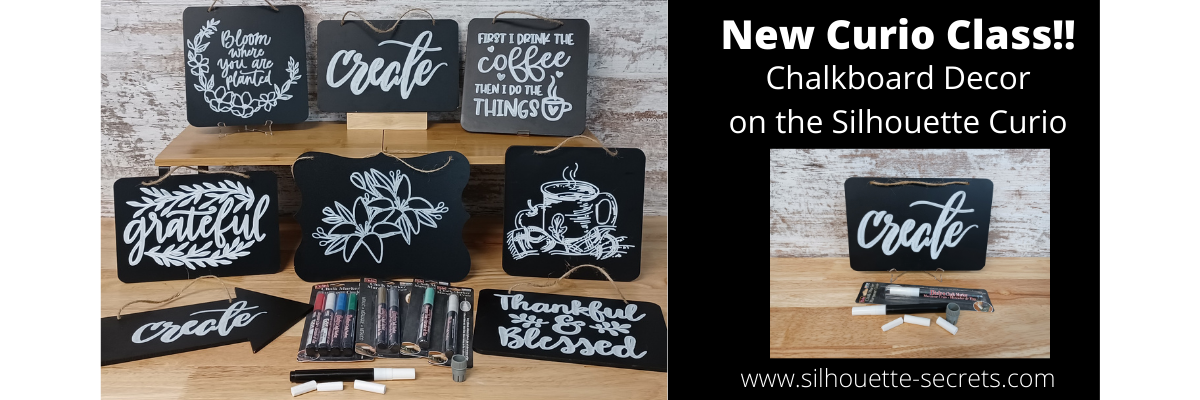
New! Chalkboard Decor with the Silhouette Curio class is now available.

This is a step-by-step class on using a chalk marker in the Silhouette Curio to sketch directly on a chalkboard.
Find the class and full details on my Teachable site HERE

Check out the demo video on my YouTube channel HERE.

I had so much fun playing with the chalk marker and these chalkboard signs.
Here are a few more that I created

Affiliate links may be present in the below and as an Amazon Associate I earn from qualifying purchases. What that means is that I may receive compensation if you purchase through the links I have provided. The price you pay for the product or service is not higher but I may get compensated for sharing.

These are the supplies I used in this class to create these chalkboards:
– Silhouette Curio machine, Silhouette small base cutting mat, Curio platforms and base
– Chalkboard sign – Michaels – 6.6” square, arrow shape, rectangle shape
Michaels bulk chalkboard options – rectangle 8 pk, arrow 8 pk, Square 8 pk
or Amazon
NOTE: chalkboards can vary in thickness – it needs to be under 5 mm thick & fit on the Curio base
No frames or borders. Remove any twine attached.

Create by Cali Arroyo – Design #215617
Bistro Chalk Marker by Marvy Uchida White
– Optional: Bistro Markers Colors – Fluorescent, Primary
– Silhouette Pen Holder Type A – Silhouette America, Amazon
Digital Calipers – highly recommend for Curio projects
– Ruler with mm
White Chalk
– Clean Towel
– Notepad & pen
– Optional designs also featured: Design #317171, Design #404761, Design #304784,
Design #400058, Design #229894, Design #154513
Optional: extra twine, scissors

I have so many more ideas I want to try and test!

I hope you will join me in this Silhouette class!
Check out the full details on my Teachable site HERE

Whether you join or not, I’d love to see what you are creating with your Silhouette software & machines!
Feel free to post on my Facebook group at 
Silhouette Secrets with EllyMae.

Save this for future reference by pinning the image below.

Enjoy !

This image has an empty alt attribute; its file name is logo.jpg

THANK YOU for your support! How can you help? Click HERE & buy a coffee.
Every little bit helps with the cost of running the site.

Or if you are looking for more in-depth, step-by-step classes, check out all of my online Silhouette classes on my Teachable site HERE.

SS Logo snip it
**This post may contain affiliate links. What that means is that I may receive compensation if you purchase through the links I have provided. The price you pay for the product or service is not higher but I may get compensated for sharing.
Posted on Leave a comment

New Silhouette Curio class released!

I have so much fun playing with my Silhouette Curio and all the things it can do!
I want to share that with you!
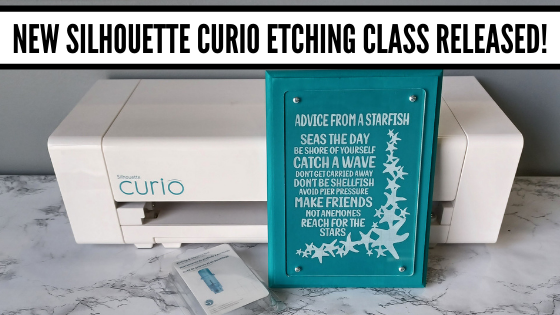
Join me in this Silhouette Curio class to create an acrylic etched panel!
Check out the class HERE.

This is an Advanced Beginner Curio class that will cover the setup step-by-step to getting the Curio ready to etch, creating a template in Silhouette Studio for the etching, and then creating the design to be etched. You will create your own word art design using tools in the Silhouette Studio software! Tips are shared throughout the video class for getting successful etches with your Silhouette Curio machine.

Check out the class

HERE

Here is a sneak peek at the class content and the videos included:

Supplies & Setup Video – 17:55 minutes

Creating the Etched Acrylic Panel Template in Silhouette Studio – 31:30 minutes
– Using the drawing tools to create a template
– Creating template with nail holes to avoid
– Alignment Tools
– Move By Tool

Designing & Etching the Acrylic Panel in Silhouette Studio – 1 hour 3 minutes
– Opening Starfish border Design #3653
– Compound paths
– Text Tool
– Creating the design with multiple lines of text
– Creating “word art” with text
– Adding an etch fill
– “Secret” to getting a tighter etch fill
– Setting up the Curio to etch
– Etching
– Finish and assembly

Class Supplies:

Affiliate links are present in the following supply list and as an Amazon Associate, I earn from qualifying purchases. The cost to you is no different, but I may earn a commission by you using the links provided.

-Silhouette Curio machine
Silhouette Etching Tool
– New Silhouette Curio Cutting mat – highly recommend a sticky mat
Starfish border Design by Calli Arroyo – Design #3653
Fish Grill font by 7nTypes – Design #292330
4” x 6” Acrylic Panel with 4 holes from Craft Chameleon
Double sided sticky tape from Craft Chameleon
– 6” x 8” Basswood board by Walnut Hollow – Amazon or Walnut Hollow
#4 x ½” Sheet Metal Screws
– Dark colored paint or stain
– Paint brush
– Screwdriver
Hand drill
– Weeding tool
– Optional: baby wipes, Teflon sheet, apron

Optional:
LW Wide Marker Font by Lori Whitlock – Design #82132
Acrylic Panel no holes from Craft Chameleon
Wood stand

Additional Resources

No matter how many times I etch a project, even the same design, I still do a little happy dance when it’s finished!

Find this class on my Teachable site HERE

I love being able to customize my gifts & projects with the Silhouette Curio!

Want more ideas of what you can create with your Curio?
Check this out – Gift Ideas with your Silhouette Curio

Just getting started with your Curio?
The possibilities are endless in what you can create!
Check out the other Silhouette Curio class on my Teachable site HERE.

I would love to see what you are creating with your Silhouette software or machines!
Feel free to post on my Facebook group at 
Silhouette Secrets with EllyMae.

Save this for future reference by pinning the image below.

Enjoy !

This image has an empty alt attribute; its file name is logo.jpg

THANK YOU for your support! How can you help? Click HERE & buy a coffee.
Every little bit helps with the cost of running the site.

SS Logo snip it
**This post may contain affiliate links. What that means is that I may receive compensation if you purchase through the links I have provided. The price you pay for the product or service is not higher but I may get compensated for sharing.
Posted on Leave a comment

Silhouette Curio Etched Ornaments

Looking for a unique décor or gift idea?
Acrylic etched items can be just the thing.

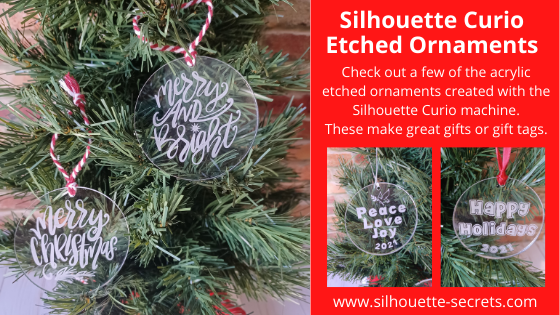
Etched Acrylic Ornaments with the Silhouette Curio

Affiliate links may be present in the following blog post and as an Amazon Associate I earn from qualifying purchases.

Take a 3″ acrylic circle and customize it however you like.
Add a simple saying with the date or jazz it up even more.
These acrylic circles could be used for tree ornaments, gift tags, bag tags, and more!

Here are a couple that I created for a Curio demonstration at the Craft Chameleon Fall Open House.
Check out the replay of this demo HERE.

The supplies for this project include:
– a Silhouette Curio machine
Silhouette Etching tool
3″ acrylic round from Craft Chameleon
Curio template for 3″ round from Craft Chameleon
– Double sided tape from Craft Chameleon
– designs of your choosing

The above designs are ones that I created myself and made using fonts and designs.
Grab those designs for free
HERE

If you’d like to create your own here are the fonts I used:
Happy Holidays – CC Too Much Fun Bold Font
Peace, Love & Joy – CC Gobsmacked Solid Font
Merry Christmas – CC Elegande Font

But, you can also take a design and size it down to fit in the 3″ circle to etch with as well. My only caution is to give yourself clearance around the edges of the acrylic and the hole at the top. If the tool catches on the edge or the hole, it will throw the etch off and you have a dud.

Here are a few examples of ornaments I’ve created and I’ll share the links to the designs I used.

Merry Christmas Ornament by Sweet Afton – Design #333980
Merry & Bright Ornament by Sweet Afton – Design #333981

Merry Ornament by Sweet Afton – Design #337453
Snowflake design created with the Drawing Tools in Silhouette Studio – more details found HERE

I love doing a combination of etching and adding vinyl to give it colors, dimension, and make it “pop”.
Dear Santa Design by Craft Chameleon
Noel Ornament design by Sweet Afton – Design #334450

This design is one I created for a Silhouette Curio etching class that is available on my Teachable site.
Keep in mind that designs you have can be used on many different blanks from ornaments to coasters, etc.

There are so many gift ideas that you can create with your Silhouette machine and even more options when you have a Silhouette Curio.

Check out more gift ideas created with the Curio machine HERE.

At the time of writing this, Swing Design still has Curio machines available.
Find those HERE.

You will also need a Silhouette Etching Tool for etching projects.
These are a little difficult to come by right now because of manufacturing and shipping delays worldwide, but keep on checking. Once you have the machine, you have the biggest part.
Find Silhouette etching tools here:
Silhouette America
Amazon

I do not recommend 3rd party etching tools as they can void the machine warranty and I had more blank spots in the etch when I used them. The Silhouette etching tool has given me the best results and I etch a lot when I’m developing classes.

The worldwide shortage on supplies, manufacturing, and shipping delays affect so many things including but not limited to Silhouette products. They are coming, but there is nothing that can be done but wait as we all work through these times we are in.

This little machine is a fantastic machine and will make fabulous projects for years to come.
Check out more Curio projects in my virtual demo table on YouTube HERE

I currently have 8 Curio classes on my Teachable site that will take you from Beginner to more advanced projects.
Find those HERE

I would love to see what you are creating with your Silhouette machines or software.
Feel free to post photos or questions on my Facebook group at 
Silhouette Secrets with EllyMae.

Save this for future reference by pinning the image below.

Enjoy!

This image has an empty alt attribute; its file name is logo.jpg

THANK YOU for your support! How can you help? Click HERE & buy a coffee.
Every little bit helps with the cost of running the site.

If you are looking for more in-depth, step-by-step classes, check out all of my online Silhouette classes on my Teachable site HERE.

SS Logo snip it
**This post may contain affiliate links. What that means is that I may receive compensation if you purchase through the links I have provided. The price you pay for the product or service is not higher but I may get compensated for sharing.