Posted on 2 Comments

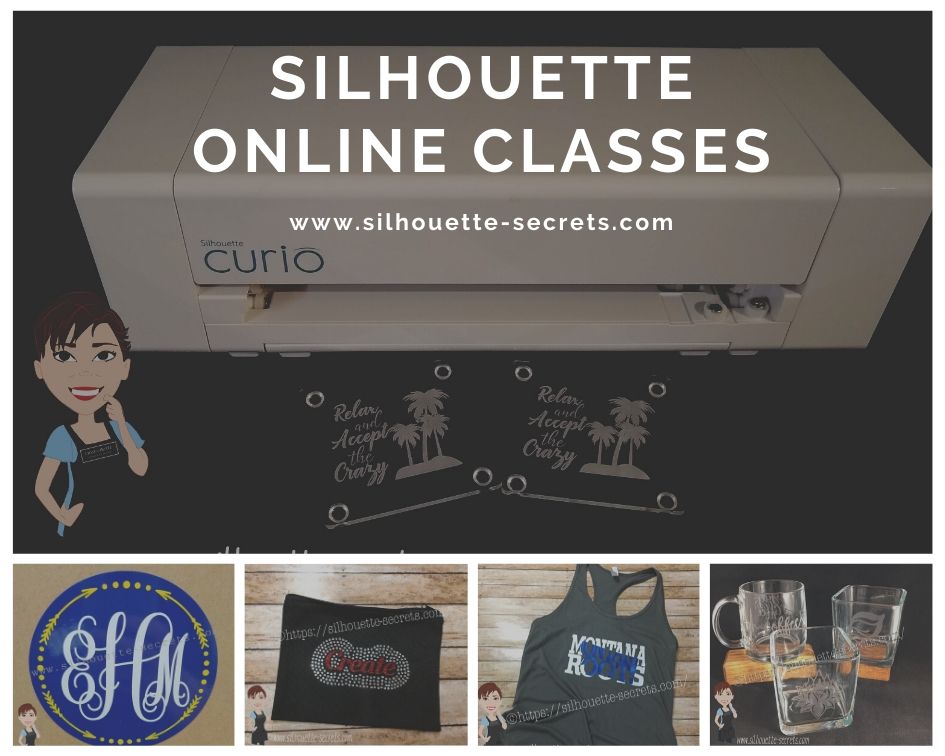
New! Silhouette Online Classes

I get a lot of requests to put my classes online. And it’s been a work-in-progress and a learning experience too!

I currently have 7 Silhouette classes available online on my Teachable site. These have been developed in response to requests by my students and followers.

Silhouette online classes

These classes are created in the Silhouette Studio v4 software and include all my tips, tricks, and supply lists to complete each class. All of the classes are created using the same class content that I use when teaching a hands-on, in-person lesson and have as little video editing as possible, in order for you to get the full class effect.
You don’t want to hear me bumble over one tongue-twisting word 10 times, watch the Curio etch for 40 minutes, or see the frustration of a mic not working, so there are some areas that are edited or the speed increased (etching).

What are the online video classes available?

1. Basic Acrylic Etching with the Silhouette Curio

SilSecrets Curio Etching copy

This is a 1 hour video class that is step-by-step in setting up a design, setting up the Curio, and etching on acrylic using the Silhouette Curio.

The Silhouette Curio is an amazing machine that can accommodate thicker materials and works great for etching on metal and acrylic.
If you are just getting started or have an interest in the Curio, check out the
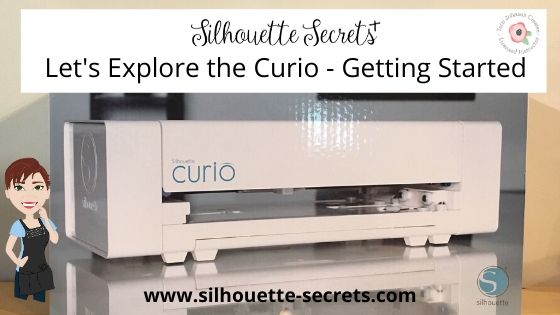
Let’s Explore the Curio – Getting Started post.

This little machine can definitely add that personal touch to projects that others cannot.
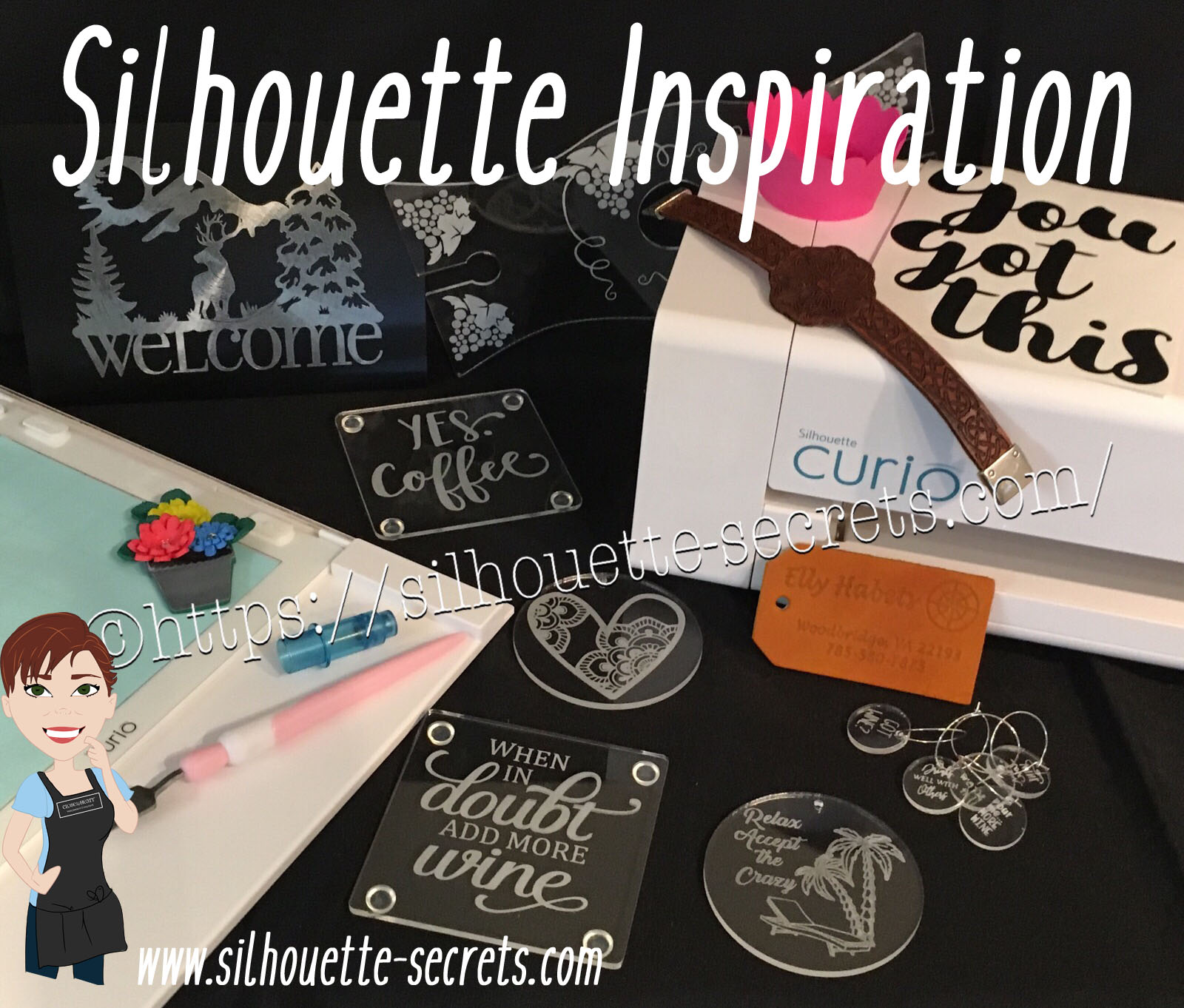
Check out this post on Silhouette Inspiration to see a few more projects I’ve created with the Silhouette Curio.

Silhouettesecrets+Curio_projects

2. Creating a vinyl decal & layering vinyl using the Silhouette

Sil_Secrets_layeredvinyl copy

This is a 1 hour class showing the entire process of creating, cutting, and layering an adhesive vinyl decal in the Silhouette Studio software.

This class uses the Monogram Script Arrow font by Rivka Wilkins to create a 3 color decal using Oracal 651 adhesive vinyl.

3. Cutting & Layering HTV in Silhouette Studio

Layered vinyl copy

This is a 45-minute video class that is a step-by-step process of cutting & applying a multi-color HTV design.

I used the Sparkle Like a Unicorn design by Sarah Hurley with Siser HTV to create this body suit gift in the video class.

4. Glass Etching with Silhouette

Silhouette-Secrets+_GlassEtchingPhoto copy

This glass etching video class is approximately 1 hour and 13 minutes showing the process of setting up a design to create a stencil for glass etching, cutting a stencil with Oracal 651 adhesive vinyl & Oramask 813, and using Etchall glass etching cream.

5. Heat Transfer Print & Cut with Silhouette

CQLG3491 copy

In this 35-minute video class go through the step-by-step process of creating a print & cut design, printing on heat transfer paper, cutting, and applying the heat transfer paper.
This class can apply to all print and cut projects no matter what material you are printing on.

I used a Flamingo Clipart Mega Pack for the design and JetPro SS Heat Transfer Paper from Heat Press Nation for this class.

6. Creating a Knockout Design with HTV
Bonus HTV & Subtract

SilSecrets_Knockout copy

This is a 1 hour video class to create a HTV Knockout design with Silhouette Studio, cutting, and applying the HTV. A short bonus software video with using HTV & subtracting the design is also included.

I used the USA States Dingbat Font by Sandi Idleman and Siser HTV in this class.

7. Creating a Rhinestone Design in Silhouette Studio

SilSecrets_Rhinestone copy

This is a 45 minute class creating a rhinestone design in the Silhouette software, cutting from rhinestone template material, and applying the rhinestone design to a zippered bag.

I used Siser Glitter HTV,  rhinestone materials from The Rhinestone World, and a Cotton Zipper bag from Craft Chameleon in this class.
The Designer Edition software upgrade or higher is required to create a rhinestone design in the Silhouette software.

Why online classes?

Every user is going to vary in where they are located. Maybe they cannot get to an in-person lesson with an instructor, a workshop, or an event. Maybe their schedule does not work for booking a lesson in-person. It can vary for all users.

Each user learns differently. Some people can learn by reading a tutorial and pick it up with no issues, while others prefer a video that they can pause and re-watch whenever they want. What I have learned by doing in-person lessons is that there can be a lot of information discussed during a 1 hour lesson and rarely do students remember everything that was discussed. This is one reason that I also provide a follow up email to my in person students to highlight some of the topics discussed. With a video lesson, you can control that and hear it again when you need to.

Video class suggestions

As I mentioned above, these classes were created at the request of students and followers. Feel free to provide suggestions on video classes that you would like to see by joining my Facebook group – Silhouette Secrets+ with EllyMae or sending an email to silhouettesecretsplus@gmail.com

I do keep a list of videos to create and there are several in the process, but they do take time to create. It has definitely been a learning process for me. I know the Silhouette software and love teaching that, but recording, video editing software, video hosting sites…. that is all a new world to me.

I would love to see how you are using your Silhouette machines!
Feel free to post on my Facebook group at Silhouette Secrets with EllyMae.

Enjoy!

SS_Signature copySS Logo snip it

**This post may contain affiliate links. What that means is that I may receive compensation if you purchase through the links I have provided. The price you pay for the product or service is not higher but I may get compensated for sharing.
Posted on 7 Comments

Silhouette Curio Beginner Etching

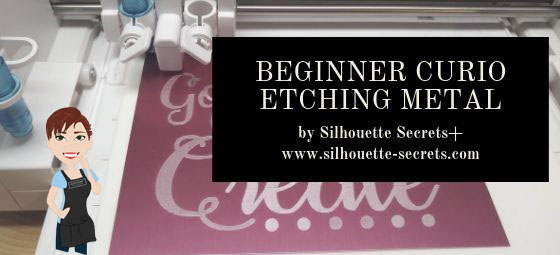
Today I am guest over on the Terri Johnson Creates blog giving my “secrets” to getting started etching with your Silhouette Curio.

beginner curio Etching metal header copy

Head on over to her blog and find out more HERE.

If you have not taken that baby out of the box yet, check out this unboxing video

And more tips to getting started on this post – The Curio – Getting Started.

I hope this helps you to get the Curio out of the box or uncover it from it’s “safe” place and get to playing with it.

And join me at the All Things Silhouette Conference in November where we will have several different Silhouette Curio classes available.

Don’t have a Curio yet, but are in the market? Here are 3 places to shop for one:
Silhouette America
Swing Design
Amazon

I would love to see what you create – feel free to post on my Facebook group at
Silhouette Secrets+ with EllyMae.

Enjoy!

SS_Signature copySS Logo snip it

**This post may contain affiliate links. What that means is that I may receive compensation if you purchase through the links I have provided. The price you pay for the product or service is not higher but I may get compensated for sharing.

Posted on 3 Comments

Silhouette Inspiration

Today I am headed out to the June 2019 All Things Silhouette conference and I have to tell you while it may be a lot of work to prep and set up for the conference, I always come back knowing more than I did before & feeling inspired by all that I see at this conference.

So today, I’m going to share a few projects I’ve been working on and hope I can pass on some of this inspiration that I feel when I attend the conference.

First, here are a few acrylic etching projects that I’ve completed with my Silhouette Curio in preparation for the classes I’m teaching at the All Things Silhouette Conference & for display during classes.

SilhouetteSecrets_Coaster_ATS19 copy

This is an acrylic coaster from Craft Chameleon and I created a design and added text to it to be etched on the backside of the coaster. These come in a set of 4 coasters and it is the perfect gift to customize.

Curio template coaster copy

I love that Craft Chameleon has Curio templates that have been created to work specifically with their acrylic shapes. While the Curio is amazing in the fact that it can return to the exact spot & continue working even after the platform is unloaded (if the platform is loaded correctly), these templates are so helpful in being able to make sure the designs are in the same place the material is placed.

SilhouetteSecrets_Phone_ATS19

An Acrylic phone stand etched with the Silhouette Curio.

These are another great gift idea as pretty much everyone has a phone. And if any of you are like me, I will set my phone down on my desk and it is soon under some notebook or stack of papers. It even has a slot for the charging cord to keep your phone charging as it’s on the stand. And both pieces of the acrylic stand can be etched as the Curio template has a space to fit both pieces.

I love that there are so many possibilities and the ability to create custom items with the Silhouette machines.

Acrylic disc

This is a 5″ acrylic disc that is etched with a Beach Blessing by Deborah Stine – Design #62386 from the Silhouette Design Store.

Something to keep in mind when you are etching acrylic or any raised surface, is to keep the Silhouette tool away from the edges or any holes in the material. This 5″ disc has a hole in the top for adding a means to hang or attach it to an item. If the Silhouette tool comes near the hole or edge, it can hang up on it and cause the blade housing to move out of alignment, which can alter where the design etches. The more you design & work with the Curio, you will get a feel for what that safety zone is and how the tool housing moves.

Since I could not etch close to the edges and hole of the acrylic disc, I cut a Rope Frame from adhesive vinyl to add to the front of the disc. Once the vinyl was added, I took a little round file and poked out the hole so the disc could still be hung.

This is just another way you can mix and match different materials.

The Curio can accommodate thicker materials with it’s unique platform system. This means that not only can it etch on acrylic & metal but it can still cut paper, vinyl & HTV. The difference is in how you stack the platforms. For thin materials under 1 mm, all of the platforms must be stacked in order for the machine to cut properly. That means that a 2+2+1+cutting mat are all required to get a clean cut.

For more tips on getting started with the Silhouette Curio, check out this post HERE.

Here are a couple more items I created this week before packing my Curio up for the trip. It never fails that I want to get “just one more” project done before I have to pack.

These are 15/16” clear discs that work well as bracelet charms or wine charms, they are also from Craft Chameleon.

IMG_20190605_084648543 copy

This is a Honu Turtle design by Suzanne Cannon from the Design Store.
The Honu turtle is a symbol of wisdom and good luck. Who doesn’t need more of that?

I found this design while trying to decide what to put on my beach tote bag for my recent trip to the Silhouette Summit. I love that you can use the designs in many ways and for more than 1 project.
Check out all the neat things I experienced at the 2019 Silhouette Summit HERE.

IMG_20190505_192112821

Here is another charm I created for my new bracelet. This one is a design that LeighBee Designs created specifically for my class attendees at the All Things Silhouette Conference.

IMG_20190605_095913145 copy

Make sure to grab the Curio template for these discs too! It makes it so easy to line up the project.

There are so many fun things you can create. For anyone with a Silhouette Curio machine, I would suggest just getting it out and playing with it. It is the best way to learn.

Silhouettesecrets+Curio_projects

Now while so far, most of the photos shown have all been created with the Curio, I love all my Silhouette machines equally (shhhhhh don’t tell them).

Another one of my favorite things to do is print and cut projects. I have had so much fun creating with Colorjet III printable Heat Transfer material by Specialty Materials in preparation for my class at the ATS conference.

Silhouette_Secrets+PNC

This tote bag was created by using Colorjet III Heat Transfer paper for light materials and the Silhouette Cameo 3. I used the Summer Flower Bundle by Echo Park from the Silhouette Design Store and set the project up as a Print and Cut project. Check out these tips HERE on this Print and Cut Part 3 – Images post to see exactly how I set it up.

I’ll be sharing more projects I created with this Colorjet III Heat Transfer next week after my class at the June 2019 All Things Silhouette Conference.

I hope that this post has inspired you in some way and you get time to create with your Silhouette machines soon!

Feel free to post your comments and questions below or on my Facebook group at Silhouette Secrets with EllyMae.

Enjoy!

SS_Signature copySS Logo snip it

**This post may contain affiliate links. What that means is that I may receive compensation if you purchase through the links I have provided. The price you pay for the product or service is not higher but I may get compensated for sharing.
Posted on 16 Comments

Let’s Explore – The Curio – Getting started

There is this little Silhouette machine called the Silhouette Curio that came into my studio and has quickly grown to be another favorite tool.

IMG_8837 copy

Now, I have to admit that the first day I opened the box, I did holler upstairs to my husband and say something like “I think I made a mistake. I don’t get this machine.”
But, at that point and time there was not much out there to tell you how to get started with it.
Now, the more I use it, the more I love it!!!

So I thought I’d share a few tips to get you started with it.

Silhouette Secrets+ – Curio tips

Platforms

The Curio differs from the Cameo in that it uses a platform system to accommodate thicker materials. The Curio has a clearance of 5 mm and the platforms are added or taken away from the base to bring the height up or down as needed.

This machine comes with a 8.5 in. x 6 in. base and platforms labeled 2, 2, 1, 1 = cutting mat, and 1 = embossing mat.

IMG_8838 copy

The platforms are stacked on the base for a total number of 6 to reach the height for the machine to work.
Each material that is used will vary in the number of platforms needed to use with the machine.

For instance, if you have a thin material under 1 mm, you would use a total platform stack of 6. This would be for materials such as cardstock, adhesive vinyl, heat transfer vinyl, or the Silhouette metal etching sheets. These are thin materials and need all the platforms in to reach the height needed to perform the task.

What I can tell you from lots of testing is that each material you get will be different and testing is the very best answer.

For example, I get my acrylic for etching from Craft Chameleon and it is 3 mm thick. I get a good etch using a platform stack of 2+1+the cutting mat and the Silhouette etching tool. If you add this up, it equals a total of 7. Yes, that is more than 6, but my etch comes out well.

Silhouette-Secrets.com_etchedpanel

Every material and brand of material will vary in what works best. Testing is the answer.

Curio must be recognized by the software

With the Silhouette software open, plug the Curio in to the computer and turn it on.

IMG_8844 copy

Next, click on the Send tab in the top right corner.

Send tab copy.jpg

Then gently load the base in the Curio machine and push the Load button. When the base is loaded you should get a message that a new machine has been plugged in and the Emboss Panel will then be unlocked for you.

You will see at the bottom of the Send tab that the Curio now shows Ready instead of Syncing.

Curio ready copy.jpg

With the v4.2 software version, the Emboss Panel will not unlock the first time a Curio is plugged in until you have loaded the base in the machine. This is how it recognizes that a new Curio has been plugged in.

Curio base position

The Curio machine is unique in a way that the machine can be paused and unloaded in the middle of a project and then be reloaded and continue in the exact place it left off. This is if the Curio base is loaded into the machine correctly.

There is a notch on the side of the Curio base.

IMG_8842 copy

This notch must be loaded into the machine past the front of the machine in order to orient the blade into the correct starting position.

IMG_8843 copy

How far past the front? There is no magic area, just past the front of the machine. I always push mine in so it is well inside the machine before pushing the Load button on the side.

Emboss Panel

Once the Curio is recognized, the Emboss Panel in the software is unlocked. This allows you to fill designs with different patterns and fills.

Emboss panel copy

The Emboss panel is where I do most of the designing for etching. Each user will vary in what they like to use as an emboss fill. I prefer a tight etch and often use the Cross hatched fill with a small spacing. Check out this post on the Emboss Panel for a detailed explanation of the entire panel.

Test the materials and have fun!

There are so many options in creating with this machine and you will learn so much from just playing with it.

Here are a few projects I’ve created with the Silhouette Curio.

SilhouetteSecrets+_acryliccoaster

These acrylic coasters are from Craft Chameleon and etched with the Silhouette Etching tool. The Silhouette Etching tool is not typically in the original Curio purchase, unless it is a special bundle. So you will need to order that separately.

SilhouetteSecrets+_leathertooling

Above is a leather bracelet that I designed and tooled with several tools in the Silhouette Curio. The Curio did not cut clean through the tooling leather, but it cut most of the way through and then I could use scissors to cut the rest.

SilhouetteSecrets+_metaetching

This is a Silhouette metal etching sheet and what I recommend for a beginner to start etching with and practice. I would suggest creating smaller designs and using the entire sheet to practice. It is double sided too, so more bang for your buck!

Check out this virtual demo table on my Youtube channel of many Curio projects I’ve done HERE.

Need a little more help getting started with the Curio?
These classes and tutorials may help:
Beginner Setup & First Cuts on Cardstock & Vinyl online class HERE
Beginner Metal Etching tutorial HERE
Basic Acrylic Etching online class HERE

Don’t have a Curio yet, but are in the market? Here are 3 places to shop for one:
Silhouette America
Swing Design
Amazon

Save this for future reference by pinning the image below.

I would love to see what you create – feel free to post on my Facebook group at
Silhouette Secrets+ with EllyMae.

Enjoy!

SS Logo snip it

**This post may contain affiliate links. What that means is that I may receive compensation if you purchase through the links I have provided. The price you pay for the product or service is not higher but I may get compensated for sharing.

Posted on 2 Comments

Silhouette Showcase

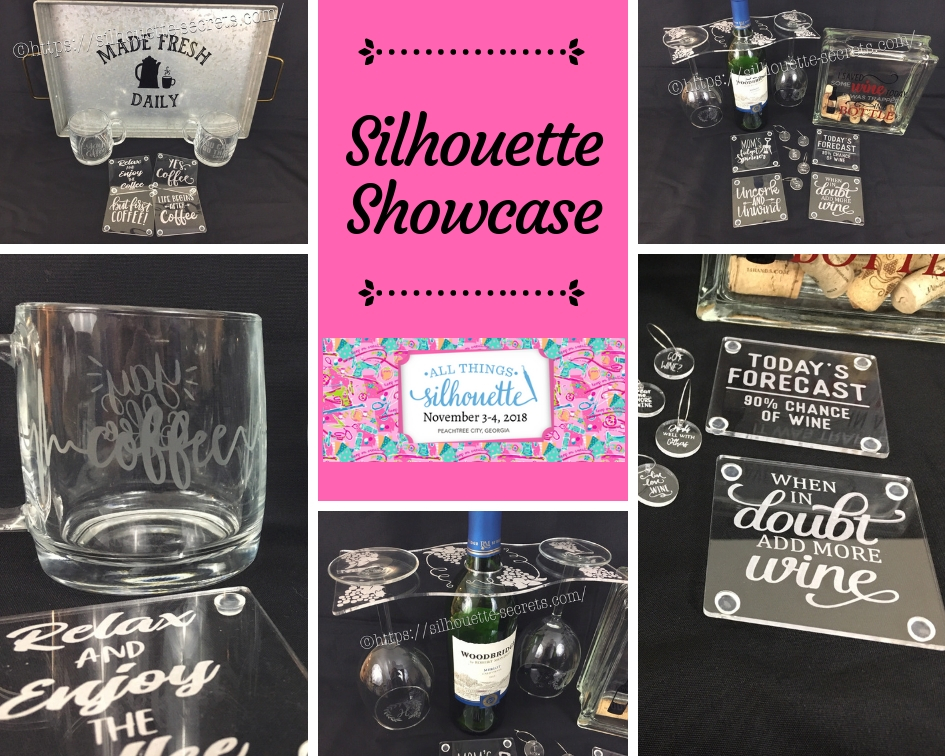
This year I am honored to be teaching several classes at the 2018 All Things Silhouette Conference hosted by Terri Johnson Creates. An option at the conference is participating in the Silhouette Showcase. This is a chance to show off things that you have made using your Silhouette machines or software and is open for all levels of users. Each person who enters gets an extra ticket to a prize drawing and while the staff is excluded from winning, we can display items in the hopes of inspiring others and showing all the possibilities with Silhouette.

I was so excited to be able to make up a few things to display during this event and wanted to share those with you.

Silhouette Showcase

Not sure what you start your day with, but mine is coffee.
So I started with this coffee inspired collection.

watermark_30-10-2018_05-07-37PM

Metal serving tray with Oracal 651 vinyl.
This design was created with Lori Whitlock’s Fresh Eggs fontDesign #263759 and Coffee Dingbats FontDesign #223050 using the Warp Feature in the Silhouette software. I use Oracal transfer tape for all my vinyl decal applications. Acrylic

Glass etched coffee mugs.
These glass mugs were purchased from Target and work well for etching. I used Oracal 651 vinyl for my etching stencil and Etchall cream for a great etch every time. For the mug on the left, I used Yay Coffee by Dawn Nicole Designs – Design #188578 and Coffee Pulse by Sophie Gallo – Design #149882. For the mug on the right, I used You Can Do This – Coffee by Jillibean Soup – Design #218802.

watermark_31-10-2018_10-58-37AM

Acrylic coasters etched with the Silhouette Curio machine.
I used the emboss panel in the Silhouette software to create the etched design.
These acrylic coasters can be found at Craft Chameleon and I would recommend purchasing the Curio template as well.
The designs used to create the coasters are:
Yes. Coffee by Kolette Hall – Design #171334
But First Coffee by Lilium Pixel SVG – Design #242962
Life Begins After Coffee Arrow Quote by Sarah Hurley – Design #258161
Relax and Enjoy the Coffee by Silhouette Secrets+ using History font by JumboDesign – Design #268580 and The Memories Sans Font Duo by Nursery Art – Design #276602.

watermark_31-10-2018_12-30-50PM

If you have followed me in my “Let’s Explore v4” series or on my Facebook page or group, you may know that I enjoy a glass of wine at the end of the day.
So of course, a wine collection set is right up my alley.

watermark_30-10-2018_05-07-06PM

Acrylic wine bottle caddy etched with the Silhouette Curio and the large Curio base.
This acrylic wine bottle caddy can be found at Craft Chameleon and the design file is included with the purchase of the acrylic blank. I would suggest the Curio large base template as well, it makes etching this blank so easy.

watermark_31-10-2018_11-00-00AM

Glass etched wine glasses.
For the etching stencil, I once again used the Oracal 651 vinyl and Etchall etching cream. The Monogram Wreath Font by Kristen Magee – Design #260225 was used to create these personalized glasses.

Wine cork collector.
This glass block was found in a craft store and Siser Easy PSV Merlot & black and Oracal 651 gray vinyl applied to the front.
The design is I Saved Some Wine Today Phrase by Kolette Hall – Design #131228 from the Silhouette Design Store.

watermark_31-10-2018_11-00-23AM

Acrylic wine charms etched with the Silhouette Curio.
These wine charms are 15/16″ clear acrylic circles and wine charm rings from Craft Chameleon.
Designs used to create the wine charms are:
Pour Me…. More Wine by Sophie Gallo – Design #203872
Live Love Wine by Kolette Hall – Design #158086
Drinks Well With Others by Kelly Lollar Design from SoFontsy
Screw It design – Freebie from Silhouette School
Got Wine design – created using the Buddy Mac font by Missy Meyer from SoFontsy

watermark_31-10-2018_10-59-39AM

Acrylic coaster etched with the Silhouette Curio machine.
These acrylic coasters from Craft Chameleon are a great way to personalize any gift.
The designs used on the coasters are:
Mom’s Fidget Spinner by Sweet Afton – Design #202772
Today’s Forecast 90% Chance of Wine by Jillibean Soup – Design #212800
Uncork and Unwind Arrow Quote by Sarah Hurley – Design #236620
Add More Wine by Megan Hardy Designs – Design #124514

For the Silhouette Showcase, a recipe is included with each display item.

I used the Silhouette Print and Cut feature to create recipes.

Print and Cut Coffee

Don’t forget when doing a print and cut, to select all the objects that you do not want to cut out and then choose the No Cut option on the Send Tab.
For instance, all I want is the outside edge to cut, so all the Cut lines except the outside edge need to be turned off.

Print and Cut coffee lines off

I started my Silhouette journey with paper crafting and continue to have a passion for it as well as all the other neat things you can do with it such as vinyl, glass etching & acrylic with the Curio, etc.

IMG_6482

I could have just left it at that, but of course, I didn’t. I added a little detail to the back that makes it stand up even more.

IMG_6483

This easel adds the perfect touch to my recipe, so I am easily able to transport it on the plane and display it at the Silhouette Showcase.
This is a file by Lori Whitlock called Easel for Back of CardDesign #76159 and I have used it many times when creating paper crafts.

SilhouetteShowcase

I hope you have enjoyed seeing the projects I created using my Silhouette software and machines for the Silhouette Showcase at the 2018 All Things Silhouette Conference.

Enjoy!

I love seeing what you are creating with your Silhouette machines!
Feel free to post on my Facebook group at Silhouette Secrets with EllyMae.

SS_Signature copySS Logo snip it

**This post may contain affiliate links. What that means is that I may receive compensation if you purchase through the links I have provided. The price you pay for the product or service is not higher but I may get compensated for sharing.