Posted on 5 Comments

Silhouette America Home Office Tour

Another one of my dreams has come true! A Silhouette Home Office Tour!

IMG_20190909_162031317_HDR

I had the privilege of getting invited to the Silhouette Cameo 4 launch and they offered a home office tour. We flew directly from the Silhouette Getaway weekend to Utah & with a quick drop off of our luggage to the hotel, headed to Silhouette Headquarters.

It was so inspiring to see all the creative projects displayed around the office!

There are 2 things that I cherish the most about any of my Silhouette travel adventures. First, the people! The relationships with those people. That is what this is all about! Whether it’s a hands on retreat, workshop, All Things Silhouette Conference, or even my Facebook page and groups – it’s all about the people! I love that many of those who have attended lessons with me are now great friends and it blooms into so much more than just teaching them how to use their Silhouette. That is the connection that brings us together.

Second, the creative inspiration! It is all around.
No matter where I go I see projects that inspire me to Create!

Since I could not take you all along with me, I wanted to share my experience as much as I can. I am going to share some of my favorite parts of the Silhouette Home Office tour.
(Note – post contains many photos – so it will take time to load)

Libby photo

On our way to the Home Office tour. My friend and colleague Libby Ashcraft with Libby’s Loft. Libby and I have been roommates for a couple years when we travel to the Silhouette events and she helps me in so many ways. I am not a sewer, so she fields many of my questions on that niche of things.

Ben

Ben Wood with Silhouette America has become my friend and resource through the All Things Silhouette Conference. He was the head of Silhouette support when I first met him and as recently moved to a new role in Silhouette and we caught him right as he was leaving for the day. I have bugged Ben many times with a large variety of questions regarding Silhouette software and am always appreciative of his time and answers back to me. I will miss his Troubleshooting class at ATS Conferences, but want to congratulate him on his new position.

Group photo

Left to right: Spencer Livingston (Silhouette), Sarah Cannon (Silhouette), Libby Ashcraft, Barbara Foster, Terri Johnson, EllyMae Habets, Julie Huggins, Lycia Evanoff, Mandy Graham, Sierra Dungan (Silhouette).

This is the reception area of the Silhouette Home Office.
I am very blessed to have met each and every one of these people in this photo.

There were so many fabulous creative projects on display and I could have probably spent hours just photographing them all. In fact, they did have to circle back around at one point because we were loitering a little long with some Silhouette creative project designers. It was pretty funny!

Spencer

Spencer Livingston, Silhouette VP, with 10 years of Silhouette evolution.

Warehouse copy

On our tour was the Silhouette warehouse, which is at the back end of the Silhouette office. This may not look that exciting, but I loved seeing it! All these Silhouette goodies under one roof!

Studio

A glance at the newly re-decorated Studio where the magic happens in the videos Kelly Wayment creates and the new Maker’s Studio video that are posted on the Silhouette America Facebook page.

Studio shelves copy

Another view in the Silhouette Video Studio. Look at all those pretty colors and the video lighting stand-in when there is not a real person available for the job. It is amazing all the little details that go into creating a video.

Project shelves Showroom copy

Creative projects that are in the Office Showroom. I wish my Studio looked that great.

Project shelves copy

And many more projects created by Silhouette Creative Designers.

Chameleon photo

3D Chameleon – Design by Mesh & Crafts – Chameleon – Design #287227

Cake boxes copy

So many neat projects! These boxes are created with Cake Box design by Daniela Moscone in the Silhouette Design Store.

Coral cut on cardstock copy

Can the Silhouette machines cut intricate designs? I know I have had success with it but I also see many struggle too. This is a coral design cut out of cardstock that was hanging in the office. It can take some practice, good quality cardstock, and a sharp blade.

Faux Stained Glass dragonfly copy

Faux stained glass dragonfly created with Silhouette Shrink Plastic. I just do not have enough time for all these projects that can be created with the Silhouette machines.

Faux Stained glass butterfly copy

Another faux stained glass project. This butterfly is gorgeous and the photo does not do it justice. The projects that the Creative designers create are amazing and I would love to spend an entire day with them (write that down on the bucket list).

Faux Agate Art copy

Now, these Agate Art projects first caught my eye at the Silhouette Summit in May where there was one on display. These photos do not capture the beauty of these creations made from Silhouette Shrink Plastic. But, if you want to know how they are created, check out the Shrink Plastic Agate Art on the Silhouette 101 blog HERE. It is great to see all these amazing projects by Silhouette but it also adds to my ever growing project creation list that I’d like to do.

Sparkleberry Goody Bags

I spy Sparkleberry HTV on those goody bags being prepared for the Cameo 4 launch. I’ll share more on the Cameo 4 launch coming soon.

Now, you may be wondering where the other photos of the office are. Well, it is much like any other offices you may visit. The inside areas of the office space are filled with cubicles that house the retail, support, creative designers, and other desks.
All around the edges of the office are more offices.

IMG_20190909_170531425 copy

And I mentioned that I was one of the lingering tour attendees, talking with the creative designers and discussing product ideas. Our tour guides looped back around and found us pretty quick though and as the tour was coming to an end, the Product tester’s office was pointed out to me and I snapped a quick photo. There isn’t much to see but I did get to pick his brain at the Cameo 4 launch about all the materials he had been testing for the Cameo 4.
This is another section of the office that I would love to spend a full day observing.

Cameo 4- header copy

I can’t wait to get my Cameo 4 and start my own testing and sharing with you all too!
I was #4 to pre-order my Cameo 4 from Silhouette America as soon as it went live!
Pre-order yours direct from Silhouette America and get FREE shipping with my code SILSECRETS by clicking HERE.

Or you can also grab bundles at Heat Press Nation and Swing Design!

Whether you decide to get one now or stay with your current machine, I encourage you to get it out and play with it! All of the Silhouette machines are great machines & none are obsolete!

Silhouette Live

What did you think? Feel free to let me know what your questions are and what you thought of the tour on my Facebook group at Silhouette Secrets with EllyMae.

I’m off to work on classes for the All Things Silhouette Conference which I heard only had about 30 tickets left.
I hope you enjoyed my glimpse of the tour I received at the Silhouette Home Office.

All Things Silhouette Conference Collage

Photos of my current classes at the All Things Silhouette Conference.

Enjoy!

SS_Signature copySS Logo snip it

**This post may contain affiliate links. What that means is that I may receive compensation if you purchase through the links I have provided. The price you pay for the product or service is not higher but I may get compensated for sharing.
Posted on 3 Comments

Silhouette Inspiration

Today I am headed out to the June 2019 All Things Silhouette conference and I have to tell you while it may be a lot of work to prep and set up for the conference, I always come back knowing more than I did before & feeling inspired by all that I see at this conference.

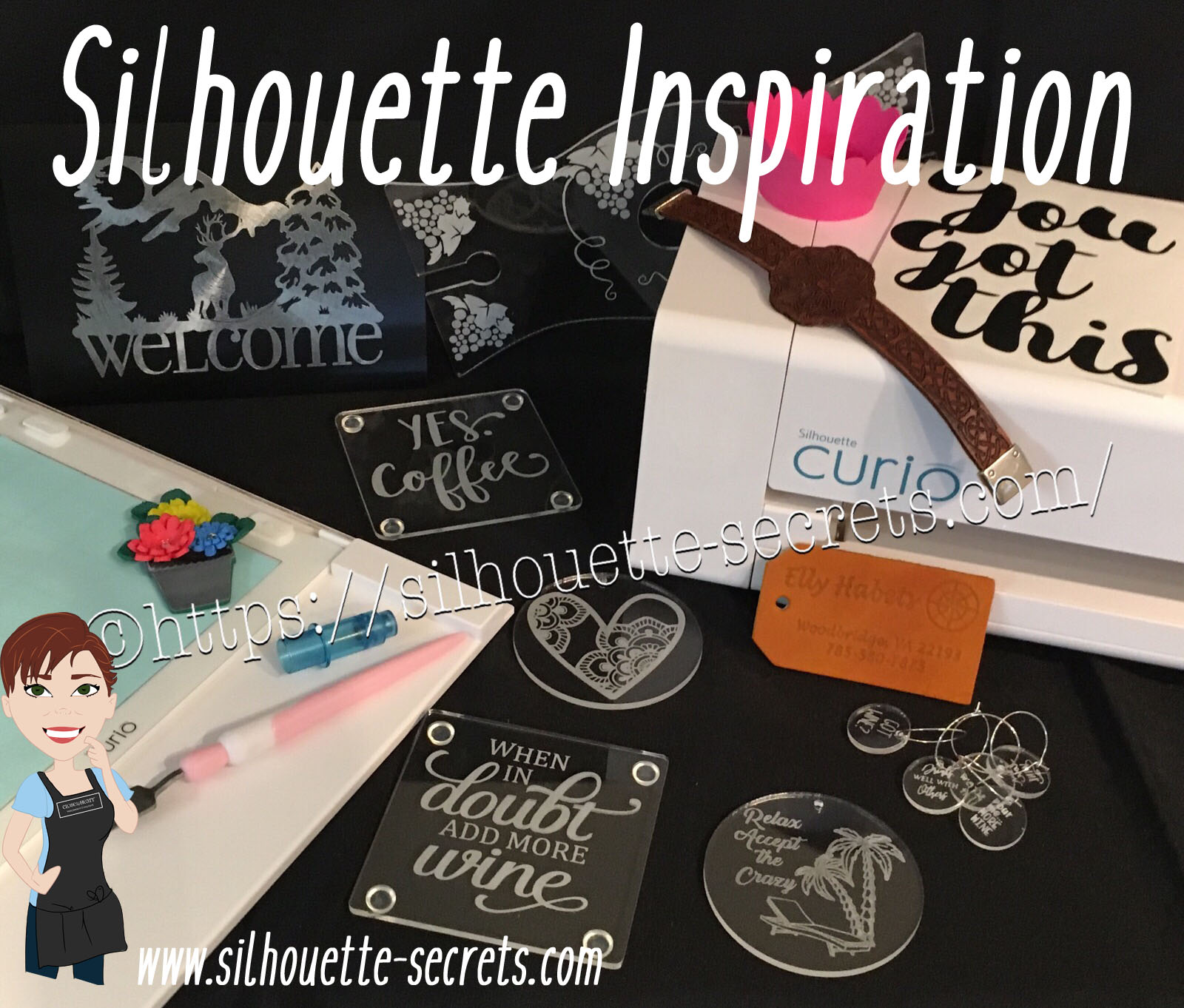
So today, I’m going to share a few projects I’ve been working on and hope I can pass on some of this inspiration that I feel when I attend the conference.

First, here are a few acrylic etching projects that I’ve completed with my Silhouette Curio in preparation for the classes I’m teaching at the All Things Silhouette Conference & for display during classes.

SilhouetteSecrets_Coaster_ATS19 copy

This is an acrylic coaster from Craft Chameleon and I created a design and added text to it to be etched on the backside of the coaster. These come in a set of 4 coasters and it is the perfect gift to customize.

Curio template coaster copy

I love that Craft Chameleon has Curio templates that have been created to work specifically with their acrylic shapes. While the Curio is amazing in the fact that it can return to the exact spot & continue working even after the platform is unloaded (if the platform is loaded correctly), these templates are so helpful in being able to make sure the designs are in the same place the material is placed.

SilhouetteSecrets_Phone_ATS19

An Acrylic phone stand etched with the Silhouette Curio.

These are another great gift idea as pretty much everyone has a phone. And if any of you are like me, I will set my phone down on my desk and it is soon under some notebook or stack of papers. It even has a slot for the charging cord to keep your phone charging as it’s on the stand. And both pieces of the acrylic stand can be etched as the Curio template has a space to fit both pieces.

I love that there are so many possibilities and the ability to create custom items with the Silhouette machines.

Acrylic disc

This is a 5″ acrylic disc that is etched with a Beach Blessing by Deborah Stine – Design #62386 from the Silhouette Design Store.

Something to keep in mind when you are etching acrylic or any raised surface, is to keep the Silhouette tool away from the edges or any holes in the material. This 5″ disc has a hole in the top for adding a means to hang or attach it to an item. If the Silhouette tool comes near the hole or edge, it can hang up on it and cause the blade housing to move out of alignment, which can alter where the design etches. The more you design & work with the Curio, you will get a feel for what that safety zone is and how the tool housing moves.

Since I could not etch close to the edges and hole of the acrylic disc, I cut a Rope Frame from adhesive vinyl to add to the front of the disc. Once the vinyl was added, I took a little round file and poked out the hole so the disc could still be hung.

This is just another way you can mix and match different materials.

The Curio can accommodate thicker materials with it’s unique platform system. This means that not only can it etch on acrylic & metal but it can still cut paper, vinyl & HTV. The difference is in how you stack the platforms. For thin materials under 1 mm, all of the platforms must be stacked in order for the machine to cut properly. That means that a 2+2+1+cutting mat are all required to get a clean cut.

For more tips on getting started with the Silhouette Curio, check out this post HERE.

Here are a couple more items I created this week before packing my Curio up for the trip. It never fails that I want to get “just one more” project done before I have to pack.

These are 15/16” clear discs that work well as bracelet charms or wine charms, they are also from Craft Chameleon.

IMG_20190605_084648543 copy

This is a Honu Turtle design by Suzanne Cannon from the Design Store.
The Honu turtle is a symbol of wisdom and good luck. Who doesn’t need more of that?

I found this design while trying to decide what to put on my beach tote bag for my recent trip to the Silhouette Summit. I love that you can use the designs in many ways and for more than 1 project.
Check out all the neat things I experienced at the 2019 Silhouette Summit HERE.

IMG_20190505_192112821

Here is another charm I created for my new bracelet. This one is a design that LeighBee Designs created specifically for my class attendees at the All Things Silhouette Conference.

IMG_20190605_095913145 copy

Make sure to grab the Curio template for these discs too! It makes it so easy to line up the project.

There are so many fun things you can create. For anyone with a Silhouette Curio machine, I would suggest just getting it out and playing with it. It is the best way to learn.

Silhouettesecrets+Curio_projects

Now while so far, most of the photos shown have all been created with the Curio, I love all my Silhouette machines equally (shhhhhh don’t tell them).

Another one of my favorite things to do is print and cut projects. I have had so much fun creating with Colorjet III printable Heat Transfer material by Specialty Materials in preparation for my class at the ATS conference.

Silhouette_Secrets+PNC

This tote bag was created by using Colorjet III Heat Transfer paper for light materials and the Silhouette Cameo 3. I used the Summer Flower Bundle by Echo Park from the Silhouette Design Store and set the project up as a Print and Cut project. Check out these tips HERE on this Print and Cut Part 3 – Images post to see exactly how I set it up.

I’ll be sharing more projects I created with this Colorjet III Heat Transfer next week after my class at the June 2019 All Things Silhouette Conference.

I hope that this post has inspired you in some way and you get time to create with your Silhouette machines soon!

Feel free to post your comments and questions below or on my Facebook group at Silhouette Secrets with EllyMae.

Enjoy!

SS_Signature copySS Logo snip it

**This post may contain affiliate links. What that means is that I may receive compensation if you purchase through the links I have provided. The price you pay for the product or service is not higher but I may get compensated for sharing.
Posted on 1 Comment

Aloha Tuesday!

As this post is being published, I will be somewhere over the United States making my way from the East Coast to the islands of Hawaii to attend the Silhouette Summit!

Summit photo

I am so excited & honored to be attending the Silhouette Summit 2019 and it is a dream come true for me.

This will be my first time in Hawaii and I had to make a new tote to carry stuff to the beach in.

Honu Turtle by Suzanne Cannon Design #291495
Hibiscus Monogram by Sophie Gallo Design #135110
Monogram Script Arrow by Rivka Wilkins Design #82335

What is the Silhouette Summit?

It is Silhouette America’s annual partner event that is held in Honolulu, Hawaii. This year Silhouette, Inc. is celebrating it’s 10th year as a company and has exciting announcements planned.

I am so excited to meet many others in the Silhouette Industry and I love networking with others who share my same love for the Silhouette products.

As an attendee we will attend presentations and meetings about what is coming up this next year for Silhouette, Inc.
I can’t wait to share with you all that is coming!
And as soon as we have been given permission, I will share with all of you!

I will be traveling with several of my friends/colleagues and I know we are all so very excited for this opportunity.
While I’m away I encourage you to check out their sites as well.

Libby Ashcraft with Libby’s Loft
Libby's Loft

Lycia Evanoff with Caught By Design
Caught by Design

Julie Huggins with Sew Craft N’Spired
Sew Craft NSpired

and alphabetically last but not least is my good friend and mentor
Terri Johnson with Terri Johnson Creates
Terri Johnson Creates

And don’t forget to pop into the “Let’s Explore v4” series section at the top of this blog to get some tips on the Silhouette Studio v4.
My main focus in teaching Silhouette is the software. I believe learning the ins and outs of the software is key. It opens up endless possibilities.

What I have learned being in this Silhouette industry is that no one person can do it all. We each come from different backgrounds, which means that each one brings a new perspective to the wide, open world of what the Silhouette can do.

We can all learn from each other and I can’t wait to see what I can learn at this year’s Silhouette Summit.

While not everyone can be in Hawaii, there are still a few seats remaining at the All Things Silhouette Conference coming up in June. But hurry, it is almost sold out again. Only 3 weeks after returning from Summit, I’ll be headed for the ATS Conference!
I can’t wait to show everyone what I’ve been working on for classes!

ATS-logo.slider.2019-1024x419

This is an amazing conference with many Silhouette Industry leaders teaching lecture and hands on classes. Plus, attendees will be one of the first to see some of the new Silhouette products being released!! What a bonus!

The All Things Silhouette Conference is a gathering of Silhouette enthusiasts with lecture classes, hands on classes, vendor shopping, a Silhouette Showcase, T-shirt contest, make and takes, prizes, and so much more! I would highly recommend it to everyone!

Lots of information is this post! I hope you have time to check it out this week!

IMG_20190505_192203756
Hawaii Explosion Box by Daniela Moscone – Design #253510

Aloha for now!

Feel free to post your comments and questions below or on my Facebook group at Silhouette Secrets with EllyMae.

Enjoy!

SS_Signature copySS Logo snip it

**This post may contain affiliate links. What that means is that I may receive compensation if you purchase through the links I have provided. The price you pay for the product or service is not higher but I may get compensated for sharing.

Posted on 2 Comments

Let’s Explore Silhouette v4 in 2018 & 2019

Wow! 2018 has sure gone by fast!

There has been so much that has happened – what a year!

I started the year with the goal to have a blog post every week and I only missed 1-2 weeks, so I’m counting that as a success! On to next year!

I started the year out with a series called Let’s Explore v4 and have learned so much going through the software in detail. There are some features that I had never used and I learned so much as I researched and played with it. This program is so powerful and it continues to amaze me all the time.

SS cover photo copy

This Let’s Explore v4 series has been so popular that I will continue it into 2019 and I’ve created a special section on the blog for it all. Find it HERE.

There is still so much more to explore and more new features coming with the v4.2 release.

In addition to the series, I added some projects in here and there that I used the tools in the Silhouette v4 software to complete.

Collage Projects 2019

Layered vinyl acrylic ornaments

Cutting cards with the Silhouette

Back to School bag tags

“Tank” top

SilhouetteShowcase

Vinyl, Glass etching, acrylic etching – oh my!

WM

Faux leather earrings with Silhouette Leatherette

Header photo

Custom Shadow box with the Silhouette

Copy of Collage projects 2018-2

Subtracting text to create word art

Using Multiple files to create a design

Pop up cards

Creating rhinestone designs

Cutting without a mat

Cutting without a mat

Copy of Copy of Collage projects 2018-3

Hot Mess with the Silhouette

Layering vinyl

Bus Driver Appreciation

Teacher gifts

What a year! My absolute favorite thing about the Silhouette is creating projects and being able to show others how to do it too!

Make sure to join my Facebook group – Silhouette Secrets+ with EllyMae and share your projects there – I love seeing what you are doing.

If you are looking for personal instruction – check out the Silhouette Instruction & Events tab at the top of the blog.

What coming in 2019?

Classes, workshops, TJC Hands on Silhouette Spring Retreat, Intermediate Curio Workshop at Craft Chameleon in St. Louis, All Things Silhouette Conferences in June & November, more Let’s Explore v4 and who knows what else will be added to the calendar.

Classes

Here are just a few that I held in 2018


Keep checking on the Silhouette Instruction & Events tab for future classes.

TJC Silhouette Spring Hands On Retreat

March 1-3, 2019
Woodbridge, VA
Staff & Instructor
Silhouette-Spring-Retreat
Find out more information and register HERE!

Intermediate Curio 1 day Workshop at Craft Chameleon

March 2019
St. Louis, MO
More details coming soon!

All Things Silhouette Conference 2019

June 8-9, 2019
Peachtree City, GA
Staff & Instructor

ATS-logo.slider.2019-1024x419

Find out more details & register HERE for the June All Things Silhouette Conference.
New this ATS – Pre-day hands on classes! The Ultimate ATS package!

Silhouette-Getaway_02-1024x597

Silhouette Getaway
September 6-8, 2019
Peachtree City, GA

ATS-logo-slider-11-2019-1024x419

All Things Silhouette Conference
November 9-10, 2019
Peachtree City, GA

I want to thank everyone for following Silhouette Secrets+ in 2018 and want to wish everyone a Happy New Year!

Looking forward to what 2019 brings!

Enjoy!

SS_Signature copySS Logo snip it

**This post may contain affiliate links. What that means is that I may receive compensation if you purchase through the links I have provided. The price you pay for the product or service is not higher but I may get compensated for sharing.

Posted on 6 Comments

Silhouette Studio – Adding cut settings & exporting

I just recently returned from the All Things Silhouette Conference and I always learn so many things. Even though I’ve been using the Silhouette software for over 6 years now, I learn all kinds of new things everyday. However, at ATS Conference, there is such a gathering of so many great instructors and students, that it just blows my mind how many things I pick up.

Even though I was on staff and an Instructor at this year’s ATS Conference, I learned things in all the classes whether I was a helper in or ones I taught.
That is what makes this so amazing!

IMG_6576

I attended Ben Wood’s – Tips Tricks and Troubleshooting class and even though I troubleshoot issues on many FB groups daily, I do not know it all and never will. I picked up so much from this class and many things I suggest when users have issues were reinforced in this class. Ben is the head of Silhouette support and we had a chance to ask him our questions.

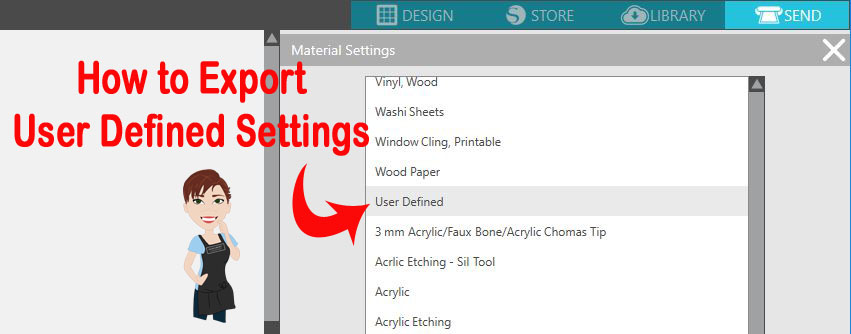
One thing (out of the many I learned) that stood out to me was how to Export User Defined Settings.

What are User Defined Settings?

This is when you create your own custom settings in the Silhouette software and save those settings. And now I know how to export those as well, just in case something happens either to the software or to load to a new computer.

First let’s look at the Material Settings under the Send tab in the Silhouette Studio version 4.
There are 2 sections to this area – Preset Settings and User Defined Settings.

Preset Settings

These are the settings that Silhouette has provided for us. The settings are what have been tested with Silhouette products. However, I find that the preset settings work for me about 98% of the time with other brands of materials. I always do a test cut first, just in case it does need to be tweaked.
But, you do pick up tips as you go, such as, I have always cut most cardstock with the Textured Cardstock setting and it works well for me.

These are found under the Send tab in the top right corner of Silhouette Studio & then under the Material drop down menu.

Material Settings copy copy

User Defined Settings

These are settings you can create and add to the Silhouette software for future use.

They are found at the bottom of the Materials drop down menu when you scroll down. When a new setting is added, it will appear at the very bottom of the list, but after the software is shut down and reopened, these settings will appear in alphabetical order under the User Defined section.

Material Settings - User Defined copy

Now, the next question is – how do you add a User Defined Setting and save it?

Adding User Defined Settings

  1. On the Send tab, click on the 3 dots for the Advanced Material Panel.Advanced cut setting copy
  2. Click on the + to Add New material
    Add New Material copy
  3. Type the name & hit Enter. Choose a name you will remember – include settings for quick reference.For example: Curio Platforms used – add that number at the end or if you are using multiple settings for a project with different Force settings, add the Force number at the end.New Material type copy
  4. Click on the Large + if you are adding a different action than Cut.
    The options are: Cut, Score, Emboss, Stipple and Etch. Each action tells the Silhouette machine to move the tools a bit differently.Actions added copy
  5. Click back on the Cut action and choose “Remove Action” – if it is not needed.
    It will depend on the project you are creating on what action you would use.
    For example: I taught the Acrylic Etching class at the November 2018 All Things Silhouette Conference, for class we added a specific setting to etch the acrylic with the Curio machine. When the Etch action is added, the Cut action is no longer needed because we are not using a cutting blade for the project. Since each action functions differently and tells the tools to work in a different pattern, the Cut action needs to be removed.
    Remove Cut Action copy
  6. Double check & verify the settings stay the same. Then click Save.
    If you type them sometimes they will revert or not hold vs using the arrows to adjust.
    Click Save copy
  7. Hit X to Exit Advanced Settings
    X out copy
  8. Then choose the new setting you have created in the Materials Drop down box and verify that the settings saved correctly.
    Verify settings saved

Now, what happens after you create these custom settings? What if your computer crashes, software has a glitch, you have to uninstall the software & reinstall, you get a new computer or you want to share these settings with students?

You can export these settings and save to safe location to be able to import them back in if needed.
Pretty amazing, right? I know!
This is only 1 thing I learned at the All Things Silhouette Conference that I didn’t know before.

Exporting User Defined Settings

  1. Click on the Advanced Materials Settings under the Send tab.Advanced cut setting copy
  2. Right click on the Material setting & choose Export.Export UDS copy copy
  3. If for some reason these settings disappear or you get a new computer, right click on the Advanced Materials Panel and choose Import.Import USD copy

How to Export Multiple User Defined Settings 

Export multiple settings copy copy

  1. Select the material setting.
  2. Hold down the Shift key and select additional material settings.
  3. Then right click and choose Export Selected Items.

This will come in handy on so many projects! Whether you have your own cut settings you like to use or have specialty products that are not in the presets.

Make sure that you go check out Terri Johnson Creates blog and sign up to get notified for new information released. The next All Things Silhouette Conference will be announced soon and I have it on my calendar for 2019.

Enjoy!

SS_Signature copySS Logo snip it

**This post may contain affiliate links. What that means is that I may receive compensation if you purchase through the links I have provided. The price you pay for the product or service is not higher but I may get compensated for sharing.


