Posted on 7 Comments

All Things Silhouette – 2019 November Highlights

It is always a bittersweet feeling after a weekend teaching at an event. We just wrapped up the All Things Silhouette November 2019 Conference and it was fantastic!

What is the All Things Silhouette Conference about? 

It’s about the people! The people who are all gathered together with the common interest of “Silhouette” in common.

We come together, we laugh, we learn, we connect, we share, and we laugh some more!

IMG_20191108_210747493 copy

We all work hard for months before the conference, during the conference, and yes even after the conference! It takes a great team to make all the pieces of the puzzle fit into place.

And it all started with this lady right here! Terri Johnson Creates is the vision & working power behind the All Things Silhouette Conference, TJC Licensed Instructor Program, and many other Silhouette related events.

IMG_20191109_081242523

While I have worked side-by-side with her for a couple years now, it is rare that we remember to take a photo during the event. That has to be the hardest thing for me to remember to do at an event is to take photos.

Check out the upcoming 2020 events that are planned on the Terri Johnson Creates website HERE.

The All Things Silhouette Conference brings together the top of the Silhouette Industry leaders who share their knowledge, techniques, testing, and skills with the conference attendees. Here are a few of us at the end of the conference. Again, photos of the entire group are rare. We are rarely in the same place at the same time the entire weekend.

FB_IMG_1573469140739
(left to right: Terri Johnson Creates, Libby Ashcraft, Sarah Cannon (Silhouette), EllyMae Habets (Silhouette Secrets+), Kelly Wayment (Finding Time to Create), Cindy Eckhoff (Smart Silhouette), Julie Huggins (Sew Craft N’Spired), Kathryn Geddy, Amy Robinson (Silhouette Design Store Designer), Lori Whitlock (Silhouette Design Store Designer), Mags Bonham, Cindy Pope

The connections that are made at the Silhouette events are priceless!

During this ATS event, I taught several classes using the Silhouette Curio.

If you are a Curio owner, you may have realized by now that it can create really cool projects. However, it can take some time to create those and those projects are not always possible to achieve in the hour & 15 minute class time during the regular ATS weekend. From feedback provided by the attendees, a Friday pre-ATS event has been added. This is an add-on to the regular ATS package called the Ultimate Experience.

This is the 2nd time I’ve taught a Curio Boot Camp session. It is very popular and sells out quickly once it’s posted. While it is posted as a 3 hour class, you just never know what will pop up in class and we did go over in time, but everyone was so involved in creating their own designs that you could hear a pin drop in the class. I don’t think they wanted to leave even after their project finished etching.

Curio Boot Camp project

This is a 4″ x 6″ acrylic panel from Craft Chameleon that is etched with the Silhouette Curio. This design is the Sunflower Heart Mandala by Jennifer Wambach in the Silhouette Design Store.
Thank you to both Craft Chameleon and Jennifer Wambach for sponsoring this class!

During the regular ATS weekend I taught the Basic Acrylic Etching class and I showed them how to set up the design to be etched. This design was created in the Silhouette software using basic shapes – check out this post on Drawing Tools to see how you can create your own snowflake too.

Sil_Secrets_Basic Etch

And then a little change of pace. We used the Foil Quill on a faux leather Traveler’s Notebook using the Silhouette Curio. I love the Curio because when you load the base properly, the cutting mat lines up exactly with the cutting mat on your Silhouette software screen. This means that you can place the design on your design screen and then place your materials in the same place on the cutting mat and it will line up.
Check out this The Curio – Getting Started for more information on the Curio.

Sil_Secrets_Foil Compasspic copy

Thank you to Lori Whitlock for providing the Compass design for this class.
It was a big hit!

Collage Travelers Journal copy

And then the final class I taught was a 2 hour class on Saturday evening. We created an etched snowflake home decor project on a 5″ acrylic disc using the Silhouette Curio.

Sil_Secrets_Etchedhomedecor

Thank you to our class sponsors:
Craft Chameleon for the 5″ acrylic disc and Diamond Tip Reamer
H & H Sign Supply for the Glass Etched Vinyl & Oratape Transfer Tape
Snapdragon Snippets in the Silhouette Design Store for the Snowflake Poem Design #72245

Unfortunately, due to some computer issues and things out of our control, we did not get to etch these ornaments in the Basic Acrylic Etching class. While we never like to see it happen, sometimes it does. And, I did not want them to leave empty handed, so I told them all to stop at the registration desk and pick up an etched ornament the next day.

IMG_20191110_073623821 copy

After my last class of the day on Saturday night, I utilized the Curio classroom and connected to 6 machines to etch the 30 ornaments. With the Silhouette Studio Business Edition upgrade, you can use multiple machines at a time. I really was not sure how many machines I would be able to use at once, especially when you are using an etch design as it can be a larger data file. It was either going to be a success or a fail. But, my computer easily ran the 6 Curios etching at the same time. Check out this post on Using Multiple Machines to see how to switch between machines in the software.

Next time, I’ll see how many I can really hook up to my computer and run. There is no limit to the number of machines that can be used with the Business Edition upgrade, except what your computer can handle. This will be dependent on your computer specifications and the number of usb ports you have available to connect to. If you have too many machines going it could max out your computer processing power and that could mean anything from a lag to a crash. But, you never know until you try something out.

And when I wasn’t teaching the class, I was helping out in the classes and every single one I learn something new in. I wish I could clone myself to be in them all.

I had a moment to jump on a Curio machine and complete this design on a Embossable Foil that Kelly Wayment with Finding Time to Create was teaching in the Basic Curio class. I had never used Embossable Foil before & I love it!
I’ve added this to my Black Friday shopping list – stay tuned for that announcement!

IMG_20191109_114859823 copy

It is absolutely amazing what these Silhouette machines are capable of! And I am so grateful for all the blessings that being a Silhouette owner has brought into my life. Now, that may sound odd but, as I started this post out – it is all about the people. Through the commonality of Silhouette I have met so many people who mean so much to me.

My biggest fault at these events is not getting enough photos, especially when I’m teaching. But here are a few I was able to snap.

Courtesy of Cindy Chapko a fellow TJC Licensed Instructor in Arkansas

IMG_20191110_075936352

A shirt made by Jane McClure. This reminds me of our recent trip to Salt Lake City, UT for the Cameo 4 launch except we were all in a mini van. Check out this post on the Silhouette Home Office Tour HERE.

IMG_20191110_082145384

Here is the backside of the shirts that Jane and her group made. These are amazing!

Dee and I had to do a couple retakes to show off her newly etched bracelet that she created in a Curio class with Mags Bonham. By the 3rd photo, no one looked like they were getting punched. We had some good laughs though!

IMG_20191110_135736347

And my hair made it on another shirt! Looks like it’s time for a little color for me.

FB_IMG_1573277476610

It was a fabulous weekend and each All Things Silhouette Conference keeps getting better and better! I was writing down class ideas before the weekend was even over!

Make sure to get signed up for the November 2020 All Things Silhouette Conference as soon as registration opens. It will fill quickly with only 1 conference next year. Sign up to be notified on Terri Johnson Creates blog HERE.

While the weekend is always physically exhausting because we are on the go, it is also creatively renewing. All the creative energy, the Silhouette love, the knowledge floating around, the ideas & techniques shared…. it renews & refreshes you in a way that is so hard to put into words.

It gets your wheels spinning and ideas flowing. And I typically hit the ground running or most times while the airplane wheels are still in the air, I’m typing away on my phone jotting down more ideas.

While I tell myself I am going to take a break after each event, I feel recharged after and don’t want those ideas to run away.

On with the research and testing for the next event.
Can’t wait to share the final projects with you all!

Now, while we have to wait a whole year for the next All Things Silhouette Conference, that doesn’t mean you cannot get inspired or spread inspiration to others.

I would love to see your projects & I know others in my group do too! Feel free to post on my Facebook group at Silhouette Secrets with EllyMae.

Enjoy!

SS_Signature copySS Logo snip it

**This post may contain affiliate links. What that means is that I may receive compensation if you purchase through the links I have provided. The price you pay for the product or service is not higher but I may get compensated for sharing.

Posted on 5 Comments

Silhouette America Home Office Tour

Another one of my dreams has come true! A Silhouette Home Office Tour!

IMG_20190909_162031317_HDR

I had the privilege of getting invited to the Silhouette Cameo 4 launch and they offered a home office tour. We flew directly from the Silhouette Getaway weekend to Utah & with a quick drop off of our luggage to the hotel, headed to Silhouette Headquarters.

It was so inspiring to see all the creative projects displayed around the office!

There are 2 things that I cherish the most about any of my Silhouette travel adventures. First, the people! The relationships with those people. That is what this is all about! Whether it’s a hands on retreat, workshop, All Things Silhouette Conference, or even my Facebook page and groups – it’s all about the people! I love that many of those who have attended lessons with me are now great friends and it blooms into so much more than just teaching them how to use their Silhouette. That is the connection that brings us together.

Second, the creative inspiration! It is all around.
No matter where I go I see projects that inspire me to Create!

Since I could not take you all along with me, I wanted to share my experience as much as I can. I am going to share some of my favorite parts of the Silhouette Home Office tour.
(Note – post contains many photos – so it will take time to load)

Libby photo

On our way to the Home Office tour. My friend and colleague Libby Ashcraft with Libby’s Loft. Libby and I have been roommates for a couple years when we travel to the Silhouette events and she helps me in so many ways. I am not a sewer, so she fields many of my questions on that niche of things.

Ben

Ben Wood with Silhouette America has become my friend and resource through the All Things Silhouette Conference. He was the head of Silhouette support when I first met him and as recently moved to a new role in Silhouette and we caught him right as he was leaving for the day. I have bugged Ben many times with a large variety of questions regarding Silhouette software and am always appreciative of his time and answers back to me. I will miss his Troubleshooting class at ATS Conferences, but want to congratulate him on his new position.

Group photo

Left to right: Spencer Livingston (Silhouette), Sarah Cannon (Silhouette), Libby Ashcraft, Barbara Foster, Terri Johnson, EllyMae Habets, Julie Huggins, Lycia Evanoff, Mandy Graham, Sierra Dungan (Silhouette).

This is the reception area of the Silhouette Home Office.
I am very blessed to have met each and every one of these people in this photo.

There were so many fabulous creative projects on display and I could have probably spent hours just photographing them all. In fact, they did have to circle back around at one point because we were loitering a little long with some Silhouette creative project designers. It was pretty funny!

Spencer

Spencer Livingston, Silhouette VP, with 10 years of Silhouette evolution.

Warehouse copy

On our tour was the Silhouette warehouse, which is at the back end of the Silhouette office. This may not look that exciting, but I loved seeing it! All these Silhouette goodies under one roof!

Studio

A glance at the newly re-decorated Studio where the magic happens in the videos Kelly Wayment creates and the new Maker’s Studio video that are posted on the Silhouette America Facebook page.

Studio shelves copy

Another view in the Silhouette Video Studio. Look at all those pretty colors and the video lighting stand-in when there is not a real person available for the job. It is amazing all the little details that go into creating a video.

Project shelves Showroom copy

Creative projects that are in the Office Showroom. I wish my Studio looked that great.

Project shelves copy

And many more projects created by Silhouette Creative Designers.

Chameleon photo

3D Chameleon – Design by Mesh & Crafts – Chameleon – Design #287227

Cake boxes copy

So many neat projects! These boxes are created with Cake Box design by Daniela Moscone in the Silhouette Design Store.

Coral cut on cardstock copy

Can the Silhouette machines cut intricate designs? I know I have had success with it but I also see many struggle too. This is a coral design cut out of cardstock that was hanging in the office. It can take some practice, good quality cardstock, and a sharp blade.

Faux Stained Glass dragonfly copy

Faux stained glass dragonfly created with Silhouette Shrink Plastic. I just do not have enough time for all these projects that can be created with the Silhouette machines.

Faux Stained glass butterfly copy

Another faux stained glass project. This butterfly is gorgeous and the photo does not do it justice. The projects that the Creative designers create are amazing and I would love to spend an entire day with them (write that down on the bucket list).

Faux Agate Art copy

Now, these Agate Art projects first caught my eye at the Silhouette Summit in May where there was one on display. These photos do not capture the beauty of these creations made from Silhouette Shrink Plastic. But, if you want to know how they are created, check out the Shrink Plastic Agate Art on the Silhouette 101 blog HERE. It is great to see all these amazing projects by Silhouette but it also adds to my ever growing project creation list that I’d like to do.

Sparkleberry Goody Bags

I spy Sparkleberry HTV on those goody bags being prepared for the Cameo 4 launch. I’ll share more on the Cameo 4 launch coming soon.

Now, you may be wondering where the other photos of the office are. Well, it is much like any other offices you may visit. The inside areas of the office space are filled with cubicles that house the retail, support, creative designers, and other desks.
All around the edges of the office are more offices.

IMG_20190909_170531425 copy

And I mentioned that I was one of the lingering tour attendees, talking with the creative designers and discussing product ideas. Our tour guides looped back around and found us pretty quick though and as the tour was coming to an end, the Product tester’s office was pointed out to me and I snapped a quick photo. There isn’t much to see but I did get to pick his brain at the Cameo 4 launch about all the materials he had been testing for the Cameo 4.
This is another section of the office that I would love to spend a full day observing.

Cameo 4- header copy

I can’t wait to get my Cameo 4 and start my own testing and sharing with you all too!
I was #4 to pre-order my Cameo 4 from Silhouette America as soon as it went live!
Pre-order yours direct from Silhouette America and get FREE shipping with my code SILSECRETS by clicking HERE.

Or you can also grab bundles at Heat Press Nation and Swing Design!

Whether you decide to get one now or stay with your current machine, I encourage you to get it out and play with it! All of the Silhouette machines are great machines & none are obsolete!

Silhouette Live

What did you think? Feel free to let me know what your questions are and what you thought of the tour on my Facebook group at Silhouette Secrets with EllyMae.

I’m off to work on classes for the All Things Silhouette Conference which I heard only had about 30 tickets left.
I hope you enjoyed my glimpse of the tour I received at the Silhouette Home Office.

All Things Silhouette Conference Collage

Photos of my current classes at the All Things Silhouette Conference.

Enjoy!

SS_Signature copySS Logo snip it

**This post may contain affiliate links. What that means is that I may receive compensation if you purchase through the links I have provided. The price you pay for the product or service is not higher but I may get compensated for sharing.

Posted on 6 Comments

Silhouette Studio – Adding cut settings & exporting

I just recently returned from the All Things Silhouette Conference and I always learn so many things. Even though I’ve been using the Silhouette software for over 6 years now, I learn all kinds of new things everyday. However, at ATS Conference, there is such a gathering of so many great instructors and students, that it just blows my mind how many things I pick up.

Even though I was on staff and an Instructor at this year’s ATS Conference, I learned things in all the classes whether I was a helper in or ones I taught.
That is what makes this so amazing!

IMG_6576

I attended Ben Wood’s – Tips Tricks and Troubleshooting class and even though I troubleshoot issues on many FB groups daily, I do not know it all and never will. I picked up so much from this class and many things I suggest when users have issues were reinforced in this class. Ben is the head of Silhouette support and we had a chance to ask him our questions.

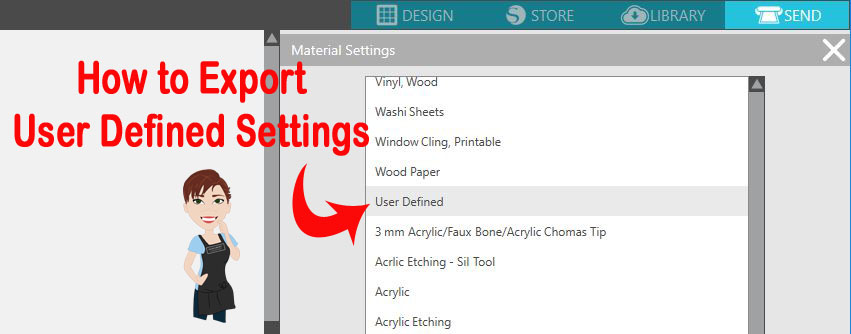
One thing (out of the many I learned) that stood out to me was how to Export User Defined Settings.

What are User Defined Settings?

This is when you create your own custom settings in the Silhouette software and save those settings. And now I know how to export those as well, just in case something happens either to the software or to load to a new computer.

First let’s look at the Material Settings under the Send tab in the Silhouette Studio version 4.
There are 2 sections to this area – Preset Settings and User Defined Settings.

Preset Settings

These are the settings that Silhouette has provided for us. The settings are what have been tested with Silhouette products. However, I find that the preset settings work for me about 98% of the time with other brands of materials. I always do a test cut first, just in case it does need to be tweaked.
But, you do pick up tips as you go, such as, I have always cut most cardstock with the Textured Cardstock setting and it works well for me.

These are found under the Send tab in the top right corner of Silhouette Studio & then under the Material drop down menu.

Material Settings copy copy

User Defined Settings

These are settings you can create and add to the Silhouette software for future use.

They are found at the bottom of the Materials drop down menu when you scroll down. When a new setting is added, it will appear at the very bottom of the list, but after the software is shut down and reopened, these settings will appear in alphabetical order under the User Defined section.

Material Settings - User Defined copy

Now, the next question is – how do you add a User Defined Setting and save it?

Adding User Defined Settings

  1. On the Send tab, click on the 3 dots for the Advanced Material Panel.Advanced cut setting copy
  2. Click on the + to Add New material
    Add New Material copy
  3. Type the name & hit Enter. Choose a name you will remember – include settings for quick reference.For example: Curio Platforms used – add that number at the end or if you are using multiple settings for a project with different Force settings, add the Force number at the end.New Material type copy
  4. Click on the Large + if you are adding a different action than Cut.
    The options are: Cut, Score, Emboss, Stipple and Etch. Each action tells the Silhouette machine to move the tools a bit differently.Actions added copy
  5. Click back on the Cut action and choose “Remove Action” – if it is not needed.
    It will depend on the project you are creating on what action you would use.
    For example: I taught the Acrylic Etching class at the November 2018 All Things Silhouette Conference, for class we added a specific setting to etch the acrylic with the Curio machine. When the Etch action is added, the Cut action is no longer needed because we are not using a cutting blade for the project. Since each action functions differently and tells the tools to work in a different pattern, the Cut action needs to be removed.
    Remove Cut Action copy
  6. Double check & verify the settings stay the same. Then click Save.
    If you type them sometimes they will revert or not hold vs using the arrows to adjust.
    Click Save copy
  7. Hit X to Exit Advanced Settings
    X out copy
  8. Then choose the new setting you have created in the Materials Drop down box and verify that the settings saved correctly.
    Verify settings saved

Now, what happens after you create these custom settings? What if your computer crashes, software has a glitch, you have to uninstall the software & reinstall, you get a new computer or you want to share these settings with students?

You can export these settings and save to safe location to be able to import them back in if needed.
Pretty amazing, right? I know!
This is only 1 thing I learned at the All Things Silhouette Conference that I didn’t know before.

Exporting User Defined Settings

  1. Click on the Advanced Materials Settings under the Send tab.Advanced cut setting copy
  2. Right click on the Material setting & choose Export.Export UDS copy copy
  3. If for some reason these settings disappear or you get a new computer, right click on the Advanced Materials Panel and choose Import.Import USD copy

How to Export Multiple User Defined Settings 

Export multiple settings copy copy

  1. Select the material setting.
  2. Hold down the Shift key and select additional material settings.
  3. Then right click and choose Export Selected Items.

This will come in handy on so many projects! Whether you have your own cut settings you like to use or have specialty products that are not in the presets.

Make sure that you go check out Terri Johnson Creates blog and sign up to get notified for new information released. The next All Things Silhouette Conference will be announced soon and I have it on my calendar for 2019.

Enjoy!

SS_Signature copySS Logo snip it

**This post may contain affiliate links. What that means is that I may receive compensation if you purchase through the links I have provided. The price you pay for the product or service is not higher but I may get compensated for sharing.