Posted on 2 Comments

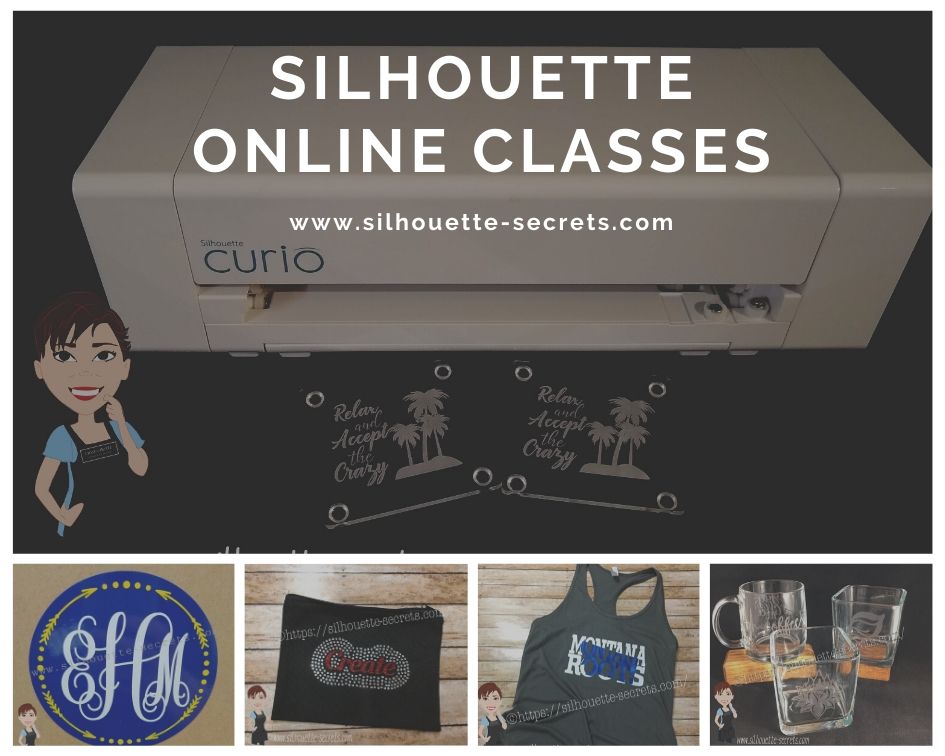
New! Silhouette Online Classes

I get a lot of requests to put my classes online. And it’s been a work-in-progress and a learning experience too!

I currently have 7 Silhouette classes available online on my Teachable site. These have been developed in response to requests by my students and followers.

Silhouette online classes

These classes are created in the Silhouette Studio v4 software and include all my tips, tricks, and supply lists to complete each class. All of the classes are created using the same class content that I use when teaching a hands-on, in-person lesson and have as little video editing as possible, in order for you to get the full class effect.
You don’t want to hear me bumble over one tongue-twisting word 10 times, watch the Curio etch for 40 minutes, or see the frustration of a mic not working, so there are some areas that are edited or the speed increased (etching).

What are the online video classes available?

1. Basic Acrylic Etching with the Silhouette Curio

SilSecrets Curio Etching copy

This is a 1 hour video class that is step-by-step in setting up a design, setting up the Curio, and etching on acrylic using the Silhouette Curio.

The Silhouette Curio is an amazing machine that can accommodate thicker materials and works great for etching on metal and acrylic.
If you are just getting started or have an interest in the Curio, check out the
Let’s Explore the Curio – Getting Started post.

This little machine can definitely add that personal touch to projects that others cannot.
Check out this post on Silhouette Inspiration to see a few more projects I’ve created with the Silhouette Curio.

Silhouettesecrets+Curio_projects

2. Creating a vinyl decal & layering vinyl using the Silhouette

Sil_Secrets_layeredvinyl copy

This is a 1 hour class showing the entire process of creating, cutting, and layering an adhesive vinyl decal in the Silhouette Studio software.

This class uses the Monogram Script Arrow font by Rivka Wilkins to create a 3 color decal using Oracal 651 adhesive vinyl.

3. Cutting & Layering HTV in Silhouette Studio

Layered vinyl copy

This is a 45-minute video class that is a step-by-step process of cutting & applying a multi-color HTV design.

I used the Sparkle Like a Unicorn design by Sarah Hurley with Siser HTV to create this body suit gift in the video class.

4. Glass Etching with Silhouette

Silhouette-Secrets+_GlassEtchingPhoto copy

This glass etching video class is approximately 1 hour and 13 minutes showing the process of setting up a design to create a stencil for glass etching, cutting a stencil with Oracal 651 adhesive vinyl & Oramask 813, and using Etchall glass etching cream.

5. Heat Transfer Print & Cut with Silhouette

CQLG3491 copy

In this 35-minute video class go through the step-by-step process of creating a print & cut design, printing on heat transfer paper, cutting, and applying the heat transfer paper.
This class can apply to all print and cut projects no matter what material you are printing on.

I used a Flamingo Clipart Mega Pack for the design and JetPro SS Heat Transfer Paper from Heat Press Nation for this class.

6. Creating a Knockout Design with HTV
Bonus HTV & Subtract

SilSecrets_Knockout copy

This is a 1 hour video class to create a HTV Knockout design with Silhouette Studio, cutting, and applying the HTV. A short bonus software video with using HTV & subtracting the design is also included.

I used the USA States Dingbat Font by Sandi Idleman and Siser HTV in this class.

7. Creating a Rhinestone Design in Silhouette Studio

SilSecrets_Rhinestone copy

This is a 45 minute class creating a rhinestone design in the Silhouette software, cutting from rhinestone template material, and applying the rhinestone design to a zippered bag.

I used Siser Glitter HTV,  rhinestone materials from The Rhinestone World, and a Cotton Zipper bag from Craft Chameleon in this class.
The Designer Edition software upgrade or higher is required to create a rhinestone design in the Silhouette software.

Why online classes?

Every user is going to vary in where they are located. Maybe they cannot get to an in-person lesson with an instructor, a workshop, or an event. Maybe their schedule does not work for booking a lesson in-person. It can vary for all users.

Each user learns differently. Some people can learn by reading a tutorial and pick it up with no issues, while others prefer a video that they can pause and re-watch whenever they want. What I have learned by doing in-person lessons is that there can be a lot of information discussed during a 1 hour lesson and rarely do students remember everything that was discussed. This is one reason that I also provide a follow up email to my in person students to highlight some of the topics discussed. With a video lesson, you can control that and hear it again when you need to.

Video class suggestions

As I mentioned above, these classes were created at the request of students and followers. Feel free to provide suggestions on video classes that you would like to see by joining my Facebook group – Silhouette Secrets+ with EllyMae or sending an email to silhouettesecretsplus@gmail.com

I do keep a list of videos to create and there are several in the process, but they do take time to create. It has definitely been a learning process for me. I know the Silhouette software and love teaching that, but recording, video editing software, video hosting sites…. that is all a new world to me.

I would love to see how you are using your Silhouette machines!
Feel free to post on my Facebook group at Silhouette Secrets with EllyMae.

Enjoy!

SS_Signature copySS Logo snip it

**This post may contain affiliate links. What that means is that I may receive compensation if you purchase through the links I have provided. The price you pay for the product or service is not higher but I may get compensated for sharing.
Posted on 2 Comments

Let’s Explore Silhouette v4 in 2018 & 2019

Wow! 2018 has sure gone by fast!

There has been so much that has happened – what a year!

I started the year with the goal to have a blog post every week and I only missed 1-2 weeks, so I’m counting that as a success! On to next year!

I started the year out with a series called Let’s Explore v4 and have learned so much going through the software in detail. There are some features that I had never used and I learned so much as I researched and played with it. This program is so powerful and it continues to amaze me all the time.

SS cover photo copy

This Let’s Explore v4 series has been so popular that I will continue it into 2019 and I’ve created a special section on the blog for it all. Find it HERE.

There is still so much more to explore and more new features coming with the v4.2 release.

In addition to the series, I added some projects in here and there that I used the tools in the Silhouette v4 software to complete.

Collage Projects 2019

Layered vinyl acrylic ornaments

Cutting cards with the Silhouette

Back to School bag tags

“Tank” top

SilhouetteShowcase

Vinyl, Glass etching, acrylic etching – oh my!

WM

Faux leather earrings with Silhouette Leatherette

Header photo

Custom Shadow box with the Silhouette

Copy of Collage projects 2018-2

Subtracting text to create word art

Using Multiple files to create a design

Pop up cards

Creating rhinestone designs

Cutting without a mat

Cutting without a mat

Copy of Copy of Collage projects 2018-3

Hot Mess with the Silhouette

Layering vinyl

Bus Driver Appreciation

Teacher gifts

What a year! My absolute favorite thing about the Silhouette is creating projects and being able to show others how to do it too!

Make sure to join my Facebook group – Silhouette Secrets+ with EllyMae and share your projects there – I love seeing what you are doing.

If you are looking for personal instruction – check out the Silhouette Instruction & Events tab at the top of the blog.

What coming in 2019?

Classes, workshops, TJC Hands on Silhouette Spring Retreat, Intermediate Curio Workshop at Craft Chameleon in St. Louis, All Things Silhouette Conferences in June & November, more Let’s Explore v4 and who knows what else will be added to the calendar.

Classes

Here are just a few that I held in 2018


Keep checking on the Silhouette Instruction & Events tab for future classes.

TJC Silhouette Spring Hands On Retreat

March 1-3, 2019
Woodbridge, VA
Staff & Instructor
Silhouette-Spring-Retreat
Find out more information and register HERE!

Intermediate Curio 1 day Workshop at Craft Chameleon

March 2019
St. Louis, MO
More details coming soon!

All Things Silhouette Conference 2019

June 8-9, 2019
Peachtree City, GA
Staff & Instructor

ATS-logo.slider.2019-1024x419

Find out more details & register HERE for the June All Things Silhouette Conference.
New this ATS – Pre-day hands on classes! The Ultimate ATS package!

Silhouette-Getaway_02-1024x597

Silhouette Getaway
September 6-8, 2019
Peachtree City, GA

ATS-logo-slider-11-2019-1024x419

All Things Silhouette Conference
November 9-10, 2019
Peachtree City, GA

I want to thank everyone for following Silhouette Secrets+ in 2018 and want to wish everyone a Happy New Year!

Looking forward to what 2019 brings!

Enjoy!

SS_Signature copySS Logo snip it

**This post may contain affiliate links. What that means is that I may receive compensation if you purchase through the links I have provided. The price you pay for the product or service is not higher but I may get compensated for sharing.

Posted on 31 Comments

Let’s Explore v4 – Setup Panel – Tab 2

Welcome back to my new series “Let’s Explore v4“!
If you are just joining me you can check out my first post of the series HERE – about Tab 1 of the Page Setup Panel.

Today I am going to be going through the features of Tab 2 on the Page Setup Panel in Silhouette Studio v4.
This panel is located on the right side of your v4 software at the very top.

Tutorial written in v4.1.206

Affiliate links may be present in the following blog post and as an Amazon Associate I earn from qualifying purchases.

This panel is about your Grid spacing. Do you want your Grid to show? Do you want your designs or fonts to ‘Snap to grid’? What increments do you want your grid to show at? What color do you want your grid?

So let’s jump in and go through each option that is available to you. It is all a matter of personal preference and once you understand what each feature does, then you can decide what you want to use.

1 – Show Grid
This option allows you to turn the Grid lines on or off on your Design mat. These grid lines can be useful when you are designing and spacing out objects.Show Grid copy

2 – Snap to Grid
If you have this option checked then your design will jump from grid line to grid line. If you un-check this option you have more control over moving your design in smaller increments.

3 – Show Guides
By checking this option, you can pull “Guides” down from the top ruler or over from the right side ruler. If you click on the ruler, either on the top or right side and hold down and drag, it will drag a “guide” line out and you can place it where you’d like on your design mat. This is another tool used to line up designs or for example make sure you have a design in a square. These “guide” lines do not cut and they do not save to your file. Rulers are an upgrade feature, therefore this is an option only for those who have the Designer Edition upgrade or higher.Guides copy

4 – Snap to Guides
This works the same way as the ‘Snap to Grid’ feature does. If you have it checked and have placed guides on your Design mat, when you move your design, it will snap to the guide lines you have placed.

5 – Ruler
You can turn the rulers that are along the top & right side on & off by selecting this. Rulers are an upgrade feature available in the Designer Edition upgrade or higher.

6 – Crosshairs
This will toggle a cross-hair pointer at the end of your mouse pointer on your screen. If you look closely, you can see the lines running horizontally & vertically from the red square.
Cross hairs_copy

7 – Square vs Isometric
You can choose whether your grid lines show up in a square pattern or for further design purposes, you can change them to an Isometric pattern. Below on the left, I have Square chosen and on the right I have chosen the Isometric.

8 – Spacing
This is used to change the spacing of your grid lines to the increment you want. You can change the spacing by using the slider bar left or right, highlight & type a new number or by the arrow keys to the right of the number.

9 – Divisions
You can choose the number of divisions that your grid spacing is divided into. Below you will see I have my grid spacing set at 2″ for both photos, but the photo on the left I have my Divisions set for 5 and on the right my Divisions are set at 10.

10 – Color
You can change the color that your grid lines show on the screen. There are several colors pre-selected to choose from or you can select a custom color from the color box.Color

These are the features of the Page Setup Panel – Tab 2.
Most of these features are used for designing purposes within the software and you will find each user develops their own preferences for what they see on their screen.

I like to have my mat revealed 100%, while another user may not like that look at all. Now, you know what each feature is and what it does, so you can decide how you like your design mat to look when you are using the software.

I did mention that a few of the features are upgrade features. This means that in order for them to appear on your screen you would need a software upgrade. There are 3 steps of upgrades – Designer Edition, Designers Edition+, and Business Edition. You can find out what features are unlocked with each software upgrade by viewing the chart HERE at the Silhouette America website.
If you would like to purchase an upgrade to your software, I recommend buying through an authorized Silhouette retailer such as Swing Design. After your purchase, you are sent a instant code and can enter the code and activate your upgrade immediately.
Click HERE to be directed to the Swing Design site.

I hope you have enjoyed learning more about the Silhouette Studio v4 software today.

I have made a video of everything covered in the series today.
Check it out here:

The design used in today’s video is called Drink Your Wine We Have Crafts to Do by Lori Whitlock and can be found HERE.

Feel free to post your questions & project photos on my Facebook group at Silhouette Secrets with EllyMae.

Save this for future reference by pinning the image below.

Enjoy !

THANK YOU for your support! How can you help? Click HERE & buy a coffee.
Every little bit helps with the cost of running the site.

Looking for more in-depth, step-by-step classes, check out all of my online Silhouette classes on my Teachable site HERE.

SS Logo snip it
**This post may contain affiliate links. What that means is that I may receive compensation if you purchase through the links I have provided. The price you pay for the product or service is not higher but I may get compensated for sharing.
Posted on 37 Comments

Let’s Explore v4 – Page Setup Panel

Today I’m kicking off a new series called “Let’s Explore v4”. Each week I will highlight a new Panel available in Silhouette Studio v4 and explain a bit about that panel.

One of my goals as a TJC Licensed Silhouette Instructor is to not “reinvent the wheel”. There are lots of great posts, tutorials and videos that are a wealth of information and if you are on my Silhouette Secrets+ Facebook Page or Group, you will see that I share information from other colleagues and industry leader who I think you may benefit from. You will see me post links to their pages, share their information and link them up in my blog posts. Why? I am not in competition with them, we can all learn from multiple sources and what I’ve found is there is always something new to learn with the Silhouette Studio software & the Silhouette machines.

Now on to the fun stuff! I am using Silhouette Software v4.1.201, this information can be found under the Help>About in the software. If you are using an older software version, then my screen will look very different than yours and some of the options may not be available to you. If you’d like to upgrade your software to the latest version, you can find the upgrade HERE on the Silhouette America site, v4.1.206 is the most recent and it will work for these tutorials. You do not want to choose the Beta version unless you know the software very well and are able to spot a bug or two that may be in the program and report that back to Silhouette.

Page Setup Panel

The Page Setup Panel is located on the right side at the top of your Panel bar. Click on it and the Panel will pop up. Now with v4, you can move your panels around – this is called Floating Panels. If you grab the Blue area where it says Page Setup, you can move that panel around and drop it where you like. These Panels will stay open if you do move them on your screen, so it is a nice feature instead of having to keep clicking on the Panel icons on the right side.

Page Setup copy

If your Panel is not letting you grab and move it, check out the Preferences under Edit > Preferences. Under Defaults, change the Panel mode to ‘Flexible Panel Mode’.

Preferences - Flexible Panel mode copy

Now let’s break down the first tab in the Page Setup Panel.

LEv4-Page Setup copy

  1. Page Size – Here you can select the Automatic (machine) size and it will default to whichever machine you have plugged in to your computer or the last recognized connection. Click on the drop down arrow and you have many selections to choose from including a Current Printer option, if you have one connected.
  2. Width & Height – You can make the page size any size from 12″ wide to 10′ long. If I choose to change my Page size to 10″ x 12″, notice how it adjusts the white page or the red cut border (if Show Cut Border is checked). Something to note, if you have your page size set and your design is outside of that page size, it will not cut outside of the Page border. Custom page size
  3. Orientation – this will flip your page either vertical or horizontal on your mat.
  4. Cutting Mat – The Silhouette Cameo can cut any material that has a backing, such as vinyl & HTV without a mat. It can cut materials up to 10 feet long and this is how you accomplish that. You can tell the software you are cutting with ‘None’ or you can choose a 12″ x 12″ or 12″ x 24″ mat or several other options for other machines. Below you will notice that my Cut border is the full dimension of my mat. I have my Preferences set to ‘Cut to Edge of mat’. It does not always cut to the very edge, but it comes close. When you choose to cut with a mat, you are telling the software that it needs to feed that mat in to a certain location before it can begin cutting. It should only be cutting on the grid area of your mat. If it happens to cut higher than that, go check if you have it set to cut without a mat.Mat-Cut Border Now in the photo below, I have chosen Cutting Mat ‘None’ and I want to point out a few differences. You will see that the Cut border (red line) starts immediately at the top of the page. If your design is right at the top of the design mat, when you load your vinyl, it will begin cutting exactly where you have placed it on your screen. Also note, the Cut border on the left & right side. You lose about 1/4″ of cuttable space on both sides of your vinyl when you cut with no mat. This is the allowance that the machine needs to grip the vinyl in the machine. And you will see the Cut border end approximately 1″ from the back end of the page size, this is again cuttable space that is lost so the machine can hold that vinyl in the machine to finish the cut.No Mat - cut borderWhile you can cut without a mat, I personally prefer to use my mat any time that my material will fit on it. It provides stability and there is less that can go wrong, such as your vinyl sliding.Now, if you do decide to cut without a mat, I would strongly suggest investing in a roll feeder. I just used this for a large cut job and it worked beautifully and I did not have to babysit it as much as without. Here is what that looks like: Roll Feeder You can find the Silhouette roll feeder HERE.
  5. Reveal – This one is a favorite of mine. At 0% your design mat shows a white space that equals your page size. As you slide the bar up it starts to reveal the grid lines of the mat underneath that are the exact match to your Silhouette cutting mat. At 100%, it shows your entire cutting mat grid area and this is how I prefer to use my software most of the time.
  6. Rotate – this rotates the orientation of your mat on the screen. It is for visual purposes only and does not actually rotate your design or the way the mat is fed into the Cameo. Notice the photo on the left, it is at 0 degrees – the arrow is facing up. The arrow is the direction you load your Silhouette mat into the machine, it matches the arrow on the physical Silhouette mat. I have placed a design from the Silhouette store (Design #181402) on my mat, so you can see how it changes. Now, look at the photo on the right, I have changed the Rotate to 270 degrees and the arrow is now pointed to the left. This option rotates your entire mat and anything on your mat, but it does not change where your design will cut on your mat. It will still cut in the top left corner because you are loading the mat into the Cameo with the arrow pointing in.
  7. Show Print Border – If you check the box next to it, a gray box will appear on your screen. This is the Print Border for the current printer you have connected to your computer. It shows you the maximum border that you can put a design at to be able to print it on a material. Show Print Border
  8. Show Cut Border – This is another feature that I always have checked. As you can see in the photo above, I have the Show Cut Border feature checked and it shows a red line around what my maximum cut border is. I have it set to Letter size paper, so it is showing me it will cut to and 8.5″ x 11″ space. If I change my Paper size to 12″ x 12″, it will expand to the full 12″ x 12″ and outline my grid on my mat, as seen in several photos above.

I encourage you to check out each of these features in the Page Setup Panel and as you click on them, you will see things change on your screen. If you have an understanding of how these features work, you can spot and fix a problem when you notice something is not right.

I hope you have enjoyed the first session of “Let’s Explore v4.”

I am EllyMae with Silhouette Secrets+ and my goal as a TJC Licensed Silhouette Instructor is to teach the Silhouette Studio software. Once you know how to do things in the software, you have the skills to create any design for a project that you want.

Check out my Silhouette Instructions and Events tab for more information on Personalize Silhouette Instruction.

Have fun Exploring your Silhouette Software v4!

Enjoy !

THANK YOU for your support! How can you help? Click HERE & buy a coffee. Every little bit helps with the cost of running the site.

Looking for more in-depth, step-by-step classes, check out all of my online Silhouette classes on my Teachable site HERE.

SS Logo snip it

**This post may contain affiliate links. What that means is that I may receive compensation if you purchase through the links I have provided. The price you pay for the product or service is not higher but I may get compensated for sharing.

Posted on 3 Comments

Personalizing items

As I approached my first instruction class, I wanted to create a Demo book to show interested Silhouette customers projects that I had completed with my Silhouette Cameo.

img_4033

I took the new Sea Glass photo album from Close to My Heart and decided to add some vinyl to the front cover to personalize it a bit.

img_4043

I took some Oracal 631 Black vinyl, even though it’s temporary, I have great luck with it sticking and if I want to re-design it, I can just peel it off and stick a new one on.
I used the hinge method to apply it to get it positioned where I wanted on the album.
By doing this, you apply a piece of painter’s tape across the center to secure it on the album. Then, lift one half of the vinyl up & peel the backing off and cut the extra backing off.
Then you can lay the vinyl down on the album and burnish to your album.

img_4045

Then you can remove the painter’s tape and are able to work with the other half of the design.

img_4047

Remove the rest of the backing and you can smooth down the vinyl to your album.

img_4048

Burnish it down really well and slowly peel back the transfer tape. This one did take a little bit of finesse to get it off the transfer tape.

img_4049

I ended up applying this design in two pieces as my first cut of my logo was a bit too delicate and didn’t cut correctly. I just changed the font style and cut it again.

img_4050

The finished project turned out great and it shows customers…. the Possibilities really are endless!!!

img_4051

What can you create with a little bit of vinyl?

ss_signature-copy

Posted on Leave a comment

TJC Licensed Instructor

A few weeks ago, I had the honor of attending Terri Johnson Creates first Licensed Instructor class. I was ecstatic when I saw her announce the opening of her first Licensing event and I had to sign up immediately.

img_3606

Why?
Well, I’m a Silhouette fanatic and have been since I first started using the machine.
I started out using a Cricut machine and found it very limiting….
Why could I not change the image and adjust it how I wanted it to be?
I was very familiar with their Design program, but did not like how little I had control over.
Then I won a Silhouette Portrait in a digital scrapbooking challenge and that changed everything. The first time I used the machine I knew that I need the bigger Cameo.
Yep, I upgraded immediately. I fell in love with it.

 Now, almost 4 years later I am a graduating member of the TJC Instructor program.
Several times I have thought back to years before that when a friend told me about this awesome machine that she just knew I would love and had so much potential.
Boy, do I wish I had listened to her sooner (you should have pushed harder Bobbi)!

instructor-liscensing-logo

Since the retreat, I have been working on a business plan & this new blog site.
It’s a work in progress and I plan to show all the projects that I work on right here.
I am an avid crafter at heart and love to try all kinds of projects to see if they will turn out.

I am so glad that I was able to attend this training and can’t wait to see what is to come.
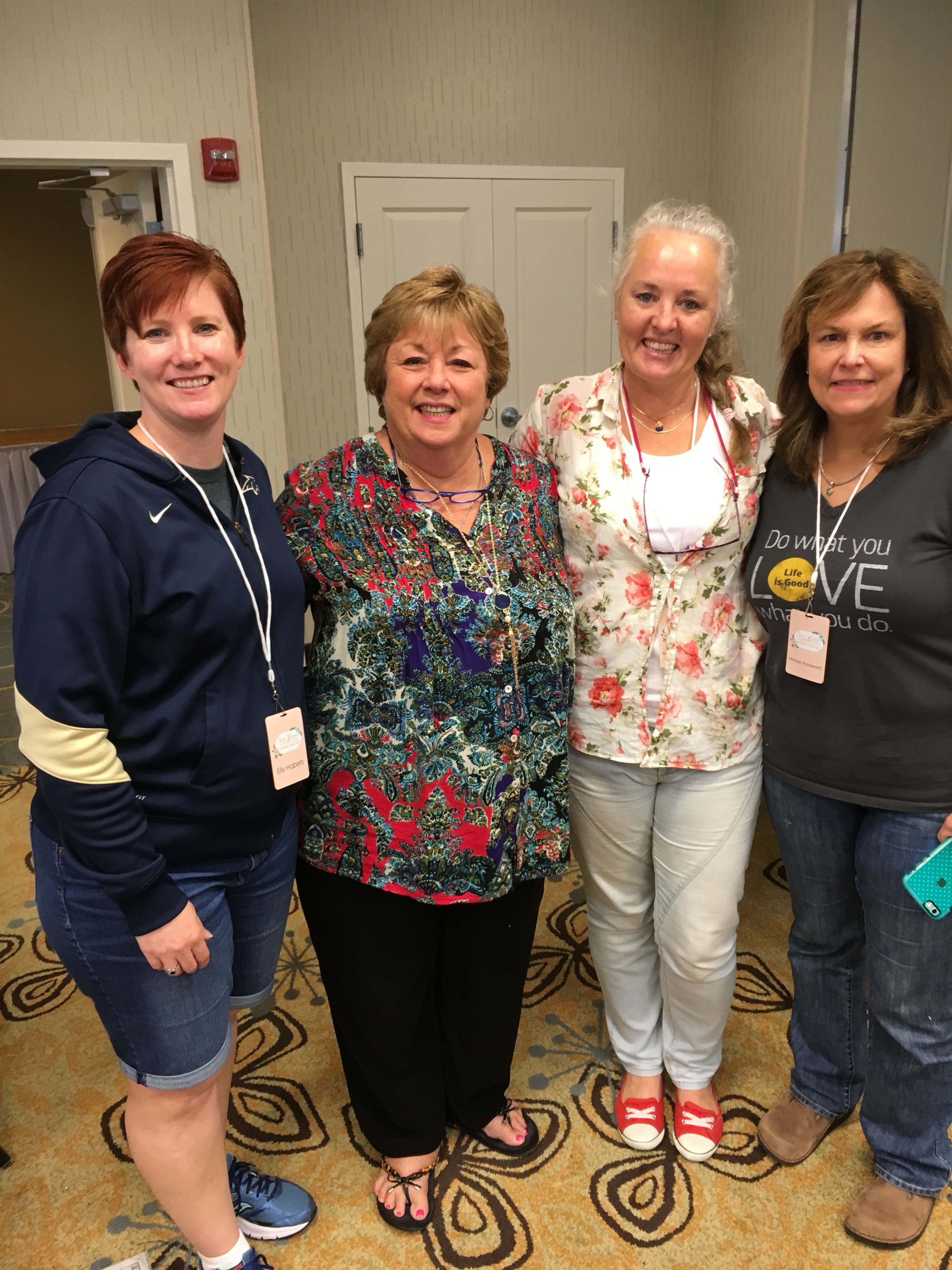
Here is the 1st graduating class of the TJC Instructor Programtjc-photo

If you are interested in learning more about TJC Instructor Program you can visit Terri’s website for more information.
Terri Johnson Creates

Stay tuned for more projects, tips, training and personal instruction.
Details will be posted on this site as I get everything ironed out.

ss_signature-copy