Posted on 8 Comments

12+ Tips for Etching with the Silhouette Cameo 5

Can you etch with the Silhouette Cameo 5?

With the release of software version v4.5.760, the answer is now yes.
Silhouette Studio v4.5.760 was released to the current version as of December 12, 2023 and it now has the capabilities to use the Silhouette Punch Tool to etch from the Carriage 2 housing. It is designed for etching on the Silhouette Metal Etching sheets and that is the preset that is in now in software v4.5.760.

Affiliate links may be present in the following blog post and as an Amazon Associate, I earn from qualifying purchases.

You can read all the release notes for Silhouette Studio v4.5.750 HERE.

I have tested this and it does work. While I am glad there is finally a good use for the Silhouette Punch Tool, I’d recommend reading through this completely for more information. I didn’t find the Silhouette Punch Tool particular efficient or effective. It took more time to setup and actually complete the “punch” action on adhesive vinyl or HTV than it would take to weed the design. But, that is also a personal preference as well. Those of us who have been working with those materials for a longer period of time have developed more efficient ways to just “get things done.”

Now, the first thing I will say is that it is slow. It is not a fast process to etch. The default settings for the Silhouette Metal Etching Sheets in the Silhouette Studio v4.5.760 software are Force 1 and Speed 1. This is what I tested at.

Does it etch? Yes!

Is this what users wanted? Yes! So Silhouette listened and implemented it.

As far as what it can etch? My recommendations are thin materials. Thin as in the same thickness as the Silhouette Metal Etching Sheets thin. I did test with a 3 mm piece of acrylic and it was a no-go. To my surprise, the material just barely cleared the roller bar. I could hear it skim the bottom of the inside of the machine as I fed the mat in and out. The Silhouette Punch Tool did clear the top of the acrylic. These are the first 2 factors that I looked at before even attempting to set up an etch.

Silhouette Cameo 5 Etch Acrylic

However, when I sent a simple sketch design to etch, the force of 1 was too great for that thickness of material and it went all wonky. I immediately pressed the Emergency Stop (power button) and cancelled the job.

Silhouette Cameo 5 Etch Acrylic Fail

Recommendations & Tips for Etching with the Cameo 5

Tip #1

Read this entire post first before you decide to update to the v4.5.760. This will depend on when you are reading this post.
On November 28, 2023, Silhouette Studio v4.5.760 entered Open Beta. At the time that I write this post, this version has not been out long and there are not many users using it. I always recommend waiting when any new version is released until we see how it’s going to affect users. At this moment, as I write this, I have no idea what could pop up and only time will tell. I am part of the Silhouette Beta testing team and can report issues directly to them. This version skipped the Beta testing team and was released directly to the Open Beta, so there hasn’t been much user testing yet.

Tip #2

I would suggest starting out with a simple design to test it first. I first used the Joy, Love, Peace, Christmas Tree sketch design by Kristen Magee with the recommended Silhouette Metal Etching Sheets if you can find them or another thin metal blank designed for etching.

Silhouette Cameo 5 Etching Metal Sheets

Tip #3

If the etch goes off course or gets stuck at any time or if you notice that your Autoblade is not adjusting properly or the cut is not in the correct placement after you have etched, you may need to do a blade housing reset.

If the housing is not in proper alignment, it will not hit the alignment holes to adjust the blade properly.

Unplug the machine, then carefully move the blade housing all the way to the right and all the way to the left. Do this 3 more times and leave it on the right side. Plug it back in and turn it on. The housing should align to the correct location.
This is called a blade housing reset and it is a regular part of machine usage since the Cameo 3 and the Autoblade was first introduced.

Check out this video HERE for more troubleshooting tips that solve most cut issues.

Tip #4

Use thin blanks to start and to test with. The etch settings released for v4.5.760 are designed for the Silhouette Metal Etching sheets and the force default is as low as it will go. If you use thicker materials, it may not work well as I mentioned above with my testing on the 3 mm acrylic.

Tip #5

Don’t expect speed. The default setting for Silhouette Metal Etching Sheets in the software is a speed of 1. While it does allow you to increase the speed, higher speed is not always better for etching projects.
As I was doing a large etch project, I felt it was slow, but when I compared it to my older etchings on the Silhouette Curio 1 with the Metal Etching Sheet defaults, the speed was the same.

Tip #6

Stay close to your Silhouette Cameo 5. If needed, you can quickly press the Emergency Stop (power button) on the Cameo 5 for the project to immediately stop. The job is lost, but it can prevent a bigger mess from happening.

Tip #7

Draw shapes as templates to design within for getting the best possible alignment of the design on the blank. I drew a rectangle 5″ x 7″ in the software and placed it at the 2″ x 2″ grid line on the virtual cutting mat. Then I placed my blank on the cutting mat with the top left corner at the 2″ x 2″ mark.

Silhouette Studio Etching Setup

This will only work for proper placement if you are using a Silhouette cutting mat and you load the mat properly. The on screen virtual mat and the Silhouette machine are calibrated for the exact dimensions and margins on a Silhouette cutting mat. Third party cutting mats will not line up and may be thicker, which can also affect the results of etching as well, as it will increase the height of the project.

Silhouette Metal Etching Sheet Setup

Make sure after you have drawn the shape for alignment, that you click on the Send tab and choose No Cut under Carriage 1 so it will not cut or etch that shape. It is simply a template to design within and how to line up your blank on the cutting mat.

Silhouette Cameo 5 Etch

Tip #8

Secure your blank to be etched with painters tape. Any movement in the blank on the cutting mat during etching will result in the etch being off. Etching is permanent and there is no way to “fix” when an etch is off.

Tip #9

Create templates when using smaller metal blanks that are not as easy to place. Place cardstock on the cutting mat, draw a shape that fits your size blank, cut that shape from the cardstock, DO NOT remove the cutting mat from the machine and secure your blank in place.
If the cutting mat is unloaded from the machine, it most likely will not line up exactly right again.

Silhouette Cameo 5 Template for Etching

Tip #10

If you are etching a large project such as a full 5″ x 7″ Silhouette metal etching sheet, plug in the USB cord and use it with a direct connection!!! I sent this job to etch and it said it would be 114 minutes.

After almost 2 hours etching, it stopped and I got a notice on the software that it had lost the connection with my computer. This project is lost. There is no way to restart it.

Silhouette Metal Etching Sheet Fail

To be honest, I should know better! The Curio 1 was hardwired to the computer and I would etch projects that took hours on it. Bluetooth is great, but there are so many things that can interfere with it.
If you are etching, plug in by USB cord and choose that connection so it’s a hard wire connection.

Tip #11

Do not trust the timer. The timer is rarely ever correct. I mentioned the estimate was 114 minutes. I started the job at 11:04 am and at 12:56 pm it lost the connection and it still had a ways to go to finish up.

Tip #12

I used the Emboss/Deboss Panel using the Deboss option with the crosshatched pattern at a 0.004″ spacing. This panel is unlocked to me because I have a Curio 1 and Curio 2. It may not be available for all users if you do not have a Curio model machine. If it’s not, you would need to use the Sketch Panel as a fill option.

Test – Test – Test! The only way to know if something is going to work for you is to test it!

Even though this was a lost etched project, it helped me to see how the machine would do and I now have my Silhouette Cameo 5 plugged in by USB cord for my next project.

Oh and two last tips!!!

Protect your cutting mat! Be careful unloading and removing any etch piece. Etching creates a dust or shavings that have been removed from the surface. Those stick very, very well to a cutting mat and will affect the lifespan of your cutting mat. A dirty mat will not hold materials well.

Silhouette Metal Etching Dust

Keep your machine clean! The debris created from etching could cause future issues if the machine is not kept clean. Especially with the optical eye and print and cut if the debris is getting under the housing. Here is my blade housing after etching the test subjects this afternoon.

Silhouette Metal Etching Debris

You can see debris sticking to the bottom of the housing. I will be cleaning my machine after this etching. A can of compressed air may be worth having on hand if you decide to etch with your machine. Be careful not to get any of the debris in your eyes or to inhale it.

Silhouette Metal Etching Clean Up

And a lint roller works great for picking up the debris before it spills onto the cutting mat too!

Additional Projects I tested

Metal 1″ Disc

Silhouette Metal Etching Charm

This is a 1″ metal disc from Amazon. You can see the tool marks in the metal blanks from the etch fill. It is a pretty rough texture when you run your fingers across it. This photo shows an up close look at that. For all of the etchings I used the crosshatch fill at the 0.004″ spacing.

Metal Business Card

Silhouette Metal Etching Business Card

This is an Anodized Metal Business Card blank with my logo etched using the same settings. I prefer a much smoother etch and feel the solid platform of the Curio machines does a better job for stability. But, this may also be the quality of the etch using the Silhouette Punch Tool on the Curio 2 as well. I will be testing that in the future and will update once I know more.

Silhouette Metal Etching Sheet #2

But, of course, I couldn’t stop there. Now that my machine is plugged in by the USB cord and won’t lose the connection, I decided to have another go at it while I finished up the details on the blog post.

Silhouette Metal Etching Prep

This time I used Dream Create Inspire Arrow Quote by Sarah Hurley to set up for the etch. The timer estimated 92 minutes and 28 seconds for the complete etch.

Silhouette Metal Etching Dream Create Inspire

It ended up taking 101 minutes to complete.

Silhouette Metal Etching Success

One other thing to mention that did happen on this project is to keep in mind that any debris build up during the project can cause areas not to be etched well.

Silhouette Metal Etching Skipping

This is only visible up close on the blank, but if you get blank areas, this could be why. There is no real easy way to prevent that since you cannot pause and remove the blank like you could with the Curio 1. So just something to keep in mind when etching.

Here’s a look at all the projects that I completed for this blog post that were successful.

Silhouette Cameo 5 Metal Etching Projects

Supplies I used:

Do I recommend it?

While the Silhouette Cameo 5 has the ability to etch, I still feel the Silhouette Curio 2 is the better machine and provides a much cleaner etch quality. The Silhouette Curio 2 with the Power Engraver has a pretty smooth finish to the etching versus the rough edges of the Punch Tool in the Cameo 5. However, the Power Engrave tool is a broader tipped engraving tool, like a Dremel tool. For more details on the Silhouette Curio 2 click HERE.

While it is not my preferred method, it is now an option in the Silhouette Studio software and I know many users will be wanting to test it out.

If you have any questions please let me know in the comments below.

Save this for future reference by pinning the image below.

12+ Tips for Etching with the Silhouette Cameo 5

Enjoy !

THANK YOU for your support! How can you help? Click HERE & buy a coffee.
Every little bit helps with the cost of running the site.

Silhouette Classes

Never stop learning! Let me help you take the anxiety out of learning with Silhouette and get to creating faster! My Silhouette classes are heavily focused on software, so you can take the skills & techniques taught and apply them to many future projects!

Silhouette step-by-step Classes by Silhouette Secrets+

Silhouette Secrets+ by EllyMae
**This post may contain affiliate links. What that means is that I may receive compensation if you purchase through the links I have provided. The price you pay for the product or service is not higher but I may get compensated for sharing.
Posted on 4 Comments

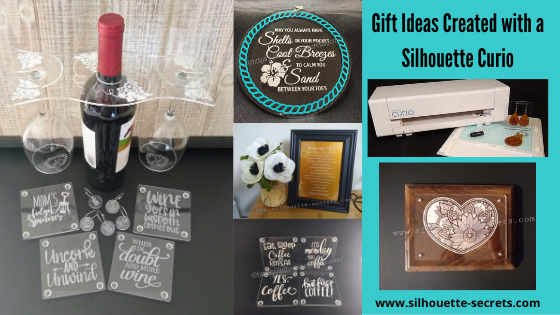
Gift ideas with your Silhouette Curio machine

I love that with the Silhouette machines you can create custom gifts that are unique to be given out. Or if you end up really liking it, keeping if for yourself – shhhhh!

A few weeks back I did a post on gift ideas you can create with your Silhouette Cameo or Portrait. Well the great news is, all of those ideas could also be completed with a Curio as well, since the Curio can cut all the same materials that the Cameo or Portrait can.
Check out that post here:
5 Gift ideas created with Your Silhouette

Today, I have more gift ideas that can be created with your Silhouette Curio machine.
These gift ideas are specific to the Curio as the Cameo and the Portrait are not designed for etching. For a little bit more information on that check out this post here:
Etching with your Silhouette machine

Instead of rushing at the end of the year, let’s start thinking about it, making lists, gathering supplies, and getting things done now.
Then we can enjoy the time later!
Just make a list of the gifts you have already done and put the list & gifts in a safe place.
Just remember where that “safe” place is.

Affiliate links may be present in the following blog post and as an Amazon Associate I earn from qualifying purchases.

Gifts with the Silhouette Curio

1 – Acrylic etched ornament or decor

Noel Design by Sweet Afton – Design #334940

Supplies used:
Silhouette Etching tool
3″ round Acrylic disc from Craft Chameleon found HERE
3″ round Curio Template from Craft Chameleon found HERE
Oracal 651 Green adhesive Vinyl
Oracal 651 Red adhesive Vinyl
Vinyl retailers:
Expressions Vinyl, Heat Press Nation, Swing Design,
U.S. Cutter, The Vinyl Spectrum

Beach Blessing by Deborah Stine – Design #62386
Snowflake Wonder Circle Poem by Snapdragon Snippets – Design #72245

Supplies used:
Silhouette Etching tool
5″ Round acrylic disc from Craft Chameleon found HERE
5″ Circle Curio Template from Craft Chameleon found HERE
Oracal 651 Teal adhesive Vinyl for Beach Blessing decor
Etched Vinyl for Snowflake decor
Vinyl retailers:
Expressions Vinyl, Heat Press Nation, Swing Design,
U.S. Cutter, The Vinyl Spectrum

Acrylic Etching classes:
Basic Acrylic Etching Class
Basic Acrylic Etching & Design Class

Supplies used:
Silhouette etching tool
4″ x 6″ acrylic photo panel from Craft Chameleon found HERE
Wood blank
Screws
Paint or stain

Class:
Heart Mandala Acrylic Etched Silhouette video course

2 – Acrylic etched light base

Supplies used:
Silhouette Etching tool
Lighted base for Curio with round insert by Craft Chameleon found HERE
Curio Template by Craft Chameleon found HERE

Acrylic Etching classes:
Basic Acrylic Etching Class
Basic Acrylic Etching & Design Class

3 – Acrylic etched coasters

Supplies used:
Silhouette Etching Tool
Acrylic coaster from Craft Chameleon found HERE
Coaster Curio template from Craft Chameleon found HERE
Eat, Sleep, Coffee Repeat by Sophie Gallo – Design #230872
Less Monday More Coffee by Tanya Batrak – Design #209927
Yes. Coffee by Kolette Hall – Design #171334
But first Coffee by Lilium Pixel Svg – Design #242962

4 – Wine themed set

Supplies used:
Silhouette Etching Tool
Wine Caddy
Acrylic Wine Caddy from Craft Chameleon – found HERE
Curio wine caddy template from Craft Chameleon – found HERE
Silhouette Curio Large Base – Silhouette America, Swing Design, or Amazon
Wine Charms
15/16″ acrylic disc from Craft Chameleon – found HERE
Wine Charm Rings from Craft Chameleon – found HERE
15/16″ Curio Template from Craft Chameleon – found HERE
Wine themed coasters
Acrylic Coaster from Craft Chameleon – found HERE
Coaster Curio template from Craft Chameleon found HERE
Mom’s Fidget Spinner by Sweet Afton – Design #202772
Uncork & Unwind by Sarah Hurley- Design #236620
Wine Goes in Wisdom Comes Out by Sarah Hurley- Design #279372
When in Doubt Add More Wine by Megan Hardy Designs – Design #124514

Acrylic Etching classes:
Basic Acrylic Etching Class
Basic Acrylic Etching & Design Class

5 – Embossed key fob & earrings

Flower by Wild Pilot – Design #274519

Supplies used:
ReaLeather Tooling Leather – Hobby Lobby
Silhouette Fine Embossing Tool – comes with the Curio
Key ring
Rivets – screw rivet or hammer set rivets by Tandy (I do not recommend cheap ones)
Rivet Setter if needed – Amazon
Leather Punch – Michaels or Amazon – highly recommend if working with leather
Jump rings
Fishhook earrings
Bent Nose pliers (2)
Eco Flo Gel Antique – Tan
Wool Dauber
Sponge – Michaels or Amazon

Class:
Leather Embossing class with Silhouette Curio

6. Personalized etched metal sheet in a frame

Anniversary gift

Supplies used:
Silhouette etching tool
Silhouette metal etching sheets
5″ x 7″ black frame

Metal Etching classes:
Beginner Metal Etching class
Advanced Beginner Metal Etching with placement

7. Etched Metal Bottle Openers

Supplies used:
Silhouette Etching Tool
Stainless Steel Bottle Openers from Craft Chameleon – found HERE
Curio Bottle Opener template from Craft Chameleon – found HERE

Hopefully this have given you some ideas of things you can create with your Silhouette Curio and give as gifts and the resources to find the supplies. These are things that you could personalize with all kinds of ideas and give through out the year for all occassions.
I love that I can make custom creations with my Silhouette machines!

I love to see what you are creating with your Silhouette machines! Feel free post on the
Silhouette Secrets+ Facebook Group.
We love to see what you are doing and creating with your Silhouette machines!

Save this for future reference by pinning the image below.

Enjoy!

This image has an empty alt attribute; its file name is logo.jpg

THANK YOU for your support! How can you help? Click HERE & buy a coffee.
Every little bit helps with the cost of running the site.

Or if you are looking for more in-depth, step-by-step classes, check out all of my online Silhouette classes on my Teachable site HERE.

SS Logo snip it
**This post may contain affiliate links. What that means is that I may receive compensation if you purchase through the links I have provided. The price you pay for the product or service is not higher but I may get compensated for sharing.
Posted on 1 Comment

Silhouette Curio Get Started Creating Fabulous Projects

The hardest part of creating something is choosing the design that I want to commit to.
I was searching for a 50th Anniversary card to create and nothing looked right to me.

Then I saw a project on my Silhouette Secrets+ with EllyMae Facebook group that a member was creating and it was an inspiration
(Thank you Patti!).

Sometimes that is all it takes. Seeing a project that someone else is creating and it sparks that creative energy and all the pieces just fall into place.

Today, I am here to share the finished project and how you can get started creating amazing things with the Silhouette Curio.

Affiliate links may be present in the following blog post and as an Amazon Associate I earn from qualifying purchases.

I always like to create gifts that are unique and with the Curio that is possible. With the ability to etch on metal or acrylic, I can create a customized gift in no time. But, sometimes I still need a creative jump-start. I know many of my Facebook group members love and can’t wait to see what is posted in the Show and Tell on Saturdays.
It is a great place to share your Silhouette creations, projects in-progress, or see what others might be creating with their machines.

The above metal etching project was created with the Silhouette Curio, Silhouette Etching tool, and the Silhouette metal etching sheets. These Silhouette metal etching sheets are what I recommend for any new user to start with when wanting to learn etching with the Curio.

How can you learn the Curio?

There are a couple ways you can get started with this awesome little machine.

1 – Check out this Unboxing video on Youtube to see how to set up the machine – HERE.

2 – Curio Beginner Setup & First Cuts with Cardstock & Vinyl video course HERE

3 – Let’s Explore the Curio – Getting Started blog post HERE

4 – Beginner Curio Etching Metal written tutorial found HERE

5 – Beginner Curio Metal Etching Video Course HERE

6 – Basic Acrylic Etching with the Curio video course HERE

7 – Etching Photos with the Curio found HERE

8 – Curio Advanced Beginner – Metal Etching placement video course HERE

8 – Embossing Leather with the Curio can be found HERE

The Curio is a fantastic machine and takes some time to learn.
But it is so worth it when you do!

I would love to see what you are creating with your Silhouette machines.
Feel free to post photos or questions on my Facebook group at 
Silhouette Secrets with EllyMae.

Don’t have a Curio machine yet, but want to add it to your tools?
Find it here:
Silhouette America
Amazon

Save this for future reference by pinning the image below.

Enjoy!

SS Logo snip it
**This post may contain affiliate links. What that means is that I may receive compensation if you purchase through the links I have provided. The price you pay for the product or service is not higher but I may get compensated for sharing.
Posted on Leave a comment

Curio Virtual Retreat – Round 2

The first Curio Virtual Retreat was such a success and we had so many requests to do it again, that it is now scheduled for August 14-16, 2020.

This event is limited to 40 attendees and the best part is no travel!
Right from your own computer, tv, or other viewing source.
You work at your own pace to follow all of the step-by-step video courses.
Join us on the weekend of August 14-16 for Zoom calls and online support.
Class kits will be mailed to you and include written handouts too!

Check out this Curio Retreat Highlights post to see a little bit about what happened at our last event.

I loved seeing all the projects that the attendees created and shared with us after going through the step-by-step classes.
These include:
– Curio Basics & Setup
– Curio Tips
– Metal Etching
– Acrylic Etching
– Leather Embossing
– Sketching on Wood

And the projects keep rolling in that they are creating since attending the event!
I love seeing them all!

The weekend includes:
– Class kits mailed to you to complete all the projects
– Instructional step-by-step video classes that are available for you to watch for 30 days following the event
– Online support through scheduled Zoom calls and a private Facebook group

Student Testimonies

Here are a few reviews from the previous weekend:

“The event exceeded my expectations. The prerecorded segments were excellent. Really far better than anything I have found in the internet.” Doug B.

“The virtual retreat was very educational. The ability to be able to follow along with notes, pause the video, take my own notes, at my own pace was amazing and increased my comfort level and education experience.” Charlee R.

“I appreciated all the experience and effort that went into the written materials and the instructional videos – so thorough yet easy to follow! It was great to be able to re-watch portions of the videos while working through the projects. The Zoom chats and the Facebook group were fun and perfectly rounded out this virtual retreat. I will definitely attend in the future!” – Linda M

“Learned a ton from the virtual Curio retreat this weekend and had so much fun completing the projects! EllyMae is a fabulous teacher and we had a lot of great support throughout the weekend. Thank you TJC for this wonderful event!” Kathy S.

“At first I wondered how this would work. Worried about not having the hands on mostly. But I will have to say that it turned out better than I could have ever imagined. Loved that I could watch the video, pause and rewind, and repeat. The notes were great and I believe they will help me in re-creating new projects.” Nancy C

Curio Demos

Want to see a virtual demo table of things I’ve created using my Curio?
Check out this video on my YouTube channel HERE.

And here is a little demo of the Curio in action embossing on leather.

Registration

Register HERE for this event!
Attendance is limited to 40 attendees.

I always love to see what you are creating!
Feel free to post photos or questions on my Facebook group at 
Silhouette Secrets with EllyMae.

Enjoy!

SS Logo snip it

**This post may contain affiliate links. What that means is that I may receive compensation if you purchase through the links I have provided. The price you pay for the product or service is not higher but I may get compensated for sharing.

Posted on 2 Comments

Silhouette Curio Virtual Retreat Highlights

We just wrapped up the first Silhouette Curio Virtual retreat this past weekend that was hosted by Terri Johnson Creates and it was a success! 3 days of diving into Curio projects that included metal etching, acrylic etching, leather embossing, more acrylic etching, and sketching on wood.

This event was originally scheduled as a hands-on retreat, but due to the current situation we made the decision not to cancel it but to move it to a virtual online retreat. Students received class supply kits, written instructions, access to recorded video lessons for each project, video conference calls for discussion & questions, and support through our private Facebook group during the event.

Let me tell you, I have been testing these class projects for months, over and over. And by the end of an event, I will admit I sometimes feel that I just don’t need another project with my initial on it.

But, these attendees blew me away. They watched the video classes and created some fabulous projects! I hope these project photos will inspire you just like they have me!

Silhouette Metal Etching

Affiliate links may be present in the following blog post and as an Amazon Associate I earn from qualifying purchases.

Thank you Silhouette for sponsoring this class using the Silhouette metal etching sheets!

Acrylic Etched Coasters with the Curio

Thank you Craft Chameleon for sponsoring this class.

We used the Acrylic Coaster, Curio Coaster Template and Mandala Heart design by Sophie Gallo – Design #275077.

Embossed Leather Earrings & Key Fob

Thank you to Silver Creek Leather Co. for sponsoring this class.
We used ReaLeather tooling leather in this project with the Silhouette Embossing Tool.

Check out this short video showing the Curio in action on the leather.

Etched Acrylic Panel & Silhouette Design

Thank you Craft Chameleon for sponsoring this class.

Sketching on Wood

We used the Pine Cone sketch design by Tanya Batrak – Design #236611 for the main sketching design and then the attendees got creative and branched out.

While we could not meet in person due to the circumstances, we had a great time meeting together in the first Virtual Curio retreat.

For more information on the Silhouette Curio, check these out:
Curio Unboxing Video
Let’s Explore – The Curio – Getting Started
Beginner Curio Metal Etching
Basic Acrylic Etching with the Curio

The feedback we received from the event was amazing!
Here are just a few of the reviews from this weekend.

“I was glad when it was announced that this would be a virtual class. I wasn’t going to be able to attend otherwise. I was a little skeptical of taking a virtual class like this since I am not self motivated to watch online videos. But I found that I was very motivated to keep up with the class schedule and projects. Loved being able to watch the classes and stop, back up, and go over a technique several times if I needed to. Would love to take more classes like this with Terri and Elly. Fantastic instructional classes and awesome instructors. Thank you for taking us to another level of learning.” Carol R

“A truly wonderful virtual experience. It was so relaxing to go at your own pace and rewind the videos when you “didn’t quite get it” as many times as you needed or refer back to the written instructions when that worked better. Terri and EllyMae were always there for you when you needed to reach out and the ZOOM calls opened you to questions and answers you might not have thought about. I would definitely take another virtual class. You can see just how much time and detail was put in to these classes. Thank you Terri and EllyMae for a fantastic experience and loving all the knowledge I gained.” Jean S

“Thanks so much for offering this virtually. We had contact with other participants through Zoom, the projects were varied and fun, and the instruction was superb!. The videos were well-organized, thorough, and well paced. It was helpful to be able to go back and repeat sections. The workbook is an excellent resource going forward. I hope you continue to offer virtual retreats. “ Boo M.

“This retreat was a blast! Everything – from materials to instruction sheets to instructional videos – was so thought out down to the tiniest detail. Terri and EllyMae, as well as the retreat helpers, are experts in all things Curio – how it works, how to troubleshoot, about the materials, cut/etch settings, Silhouette software, etc. They are genuine, professional, personable, and very patient. I learned some new techniques and how to use some materials I had never thought of. My mind is now in overdrive thinking of all the projects and possibilities. I would so do this again – either in person or virtual.” Leigh W

“This was an outstanding weekend. I would definitely take another class in this format. I had all my materials available to me in my space, I was able to go at my own pace & could rewind if I needed to listen to something again. I loved it!! Judy A.”

Those are just a few and I’ll share more in the future.

We are all finding ourselves in a new time with the current events happening and this virtual retreat was definitely a new experience for us all.

Make sure to get signed up on the Terri Johnson Creates blog and subscribe to this blog on the right side to get notified for future events!
You will also find us on Facebook at:
Terri Johnson Creates Page
All Things Silhouette Facebook Group
Silhouette Secrets+ Page
Silhouette Secrets + with EllyMae Facebook Group

Save this for future reference by pinning the image below.

We want to say a great big THANK YOU to all our sponsors!
From class sponsorship’s to goody bag items to your support, we cannot do this without YOU!
Atlanta Stylish Point
Craft Chameleon
Silhouette America
Silver Creek Leather Co.
Sparkleberry Ink
THANK YOU!

I’d love to see what you are creating with your Silhouette!
Feel free to post photos or questions on my Facebook group at 
Silhouette Secrets with EllyMae.

Enjoy!

SS Logo snip it
**This post may contain affiliate links. What that means is that I may receive compensation if you purchase through the links I have provided. The price you pay for the product or service is not higher but I may get compensated for sharing.
Posted on 7 Comments

Silhouette Curio Beginner Etching

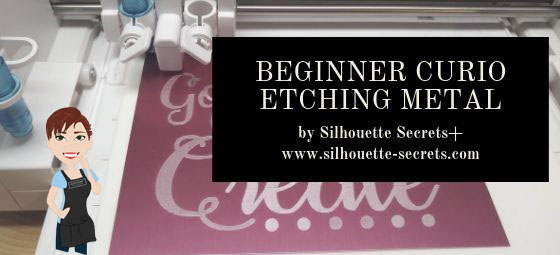
Today I am guest over on the Terri Johnson Creates blog giving my “secrets” to getting started etching with your Silhouette Curio.

beginner curio Etching metal header copy

Head on over to her blog and find out more HERE.

If you have not taken that baby out of the box yet, check out this unboxing video

And more tips to getting started on this post – The Curio – Getting Started.

I hope this helps you to get the Curio out of the box or uncover it from it’s “safe” place and get to playing with it.

And join me at the All Things Silhouette Conference in November where we will have several different Silhouette Curio classes available.

Don’t have a Curio yet, but are in the market? Here are 3 places to shop for one:
Silhouette America
Swing Design
Amazon

I would love to see what you create – feel free to post on my Facebook group at
Silhouette Secrets+ with EllyMae.

Enjoy!

SS_Signature copySS Logo snip it

**This post may contain affiliate links. What that means is that I may receive compensation if you purchase through the links I have provided. The price you pay for the product or service is not higher but I may get compensated for sharing.

Posted on 14 Comments

Let’s Explore v4 – Emboss Panel

The Emboss Panel is such neat feature. Currently, it is only available to those who have plugged in a Curio machine.

It can be found on the right side of the Silhouette Studio v4 software and looks like a star with a shadow.

Emboss panel copy

Since this is a currently a Curio feature only, if you have not plugged a Curio into your computer, the Panel will be grayed out. If you hover over the icon, you get this message.

Emboss warning

So keep that in mind if you are looking at it along with me.

Emboss detail copy
  1. Deboss – the design will be created as seen on the screen & will press the design down into the material exactly as seen on screen.
    For example, if using cardstock, it will create a valley where the design is.
    Emboss – the design is flipped horizontally so it is mirrored BUT it does not show this on the screen. You will place your material face down on the embossing mat and the design will be pressed mirrored. When it’s finished, you will flip it over and the design should be raised on the side that was face down on the mat.
  2. F – This tells you which way to put the material on the mat. For deboss, put the material face up.
    F Deboss
    For emboss, put the material face down.
    F Emboss
  3. Embossing Patterns – Choose between 5 options: none, lined, concentric, cross hatched, or spiral.
    Lined
    Line Pattern
    Concentric
    Concentric Pattern
    Cross hatched
    Cross hatched pattern.JPG
    Spiral
    Spiral
    Each design will vary in which pattern may look better for the emboss. Again it is a matter of personal preference. I prefer the look of the cross hatched pattern, especially when etching on acrylic. But, that is just my preference, you should play with the patterns and decide what you like.
  4. Spacing – Increase or decrease the grid spacing between the lines of the pattern. This is 0.005 spacing – a really tight DebossSpacing smallIf we zoom in on the design, you will see the pattern.
    Spacing small zoom

    Here the deboss is 0.025.

    Spacing larger

    This is another area where you are changing a lot of data at one time, so be patient with your computer if it is thinking.

    If the pattern spacing is smaller than what the Silhouette can process, then you will end up with a blue square or a square with an X in it.

    Error spacing
    Use the up arrow and increase the spacing just a bit or delete and type in a number just a bit higher than the current spacing, until the box disappears. Remember, be patient and go slow, it is processing a lot of data.


    Above 0.015 was too small but increasing to 0.025 there was no longer the error.

    Error spacing2
  5. Angle – Change the angle of the deboss or emboss pattern.
  6. Release Emboss – Releases the lines of the emboss pattern. When you are satisfied with the pattern, click on the Release Emboss button.Once the emboss/deboss is released, you could add another pattern on top if you chose to.

Here is the flower design (Floral Elements Design #191146) embossed on a piece of Silhouette Score & Emboss paper. This was embossed using the Silhouette fine tip embossing tool and 3 different embossing patterns.

Flower emboss

Now, while I have not been that impressed with the emboss ability on cardstock, it is just not deep enough for my liking,  I do love using the emboss features on materials such as metal and acrylic.

Silhouette Metal Etching Sheet
Metal etching 2
Home Sweet Home Montana by Jennifer Wambach Design #148502

Metal etching 1
Welcome Elk by Sophie Gallo Design #89012

Acrylic

acrylic etching
Acrylic coaster blanks from Craft Chameleon
Eat, Sleep, Coffee Repeat by Sophie Gallo Design #230872
Less Monday More Coffee by Tany Batrak Design #209927
Yes, Coffee by Kolette Hall Design #171334
But First Coffee by Lilium Pixel SVG Design #242962

I hope you have learned a little bit about the Emboss Panel today. The Curio machine very quickly because a favorite of mine and now I can’t put it away.

Here are a few more a things to help you get started on the Curio.
The Curio – Getting Started with the Curio
Silhouette Curio Beginner Metal Etching
Basic Acrylic Etching Video Class

I’d love to see what you are creating with your Silhouette machine.
Feel free to post over on my Facebook group at Silhouette Secrets with EllyMae.

Enjoy!

SS Logo snip it

**This post may contain affiliate links. What that means is that I may receive compensation if you purchase through the links I have provided. The price you pay for the product or service is not higher but I may get compensated for sharing.