Posted on 2 Comments

3 Ways to Customize Acrylic Shapes with Silhouette

I’m in love with these Layered Snowflake Arabesque Tile acrylic shapes from Craft Chameleon. They come in a wide variety of colors and I’ve been using them for testing. I want to share 3 methods I tested, my results with each, and which one is my favorite at the end – you might be surprised.

Affiliate links may be present in the following blog post and as an Amazon Associate, I earn from qualifying purchases.

Layered Acrylic Shapes Snowflakes Craft Chameleon

I am calling these ornaments, but they can be so much more. Gift tags, ornaments, stand alone decor item, and more!

3 Ways to Customize Acrylic Shapes with Silhouette

  1. Etching Acrylic with the Silhouette Curio 2 Power Engraver – Let It Snow Design
  2. Etching Acrylic with the Silhouette Curio 2 Punch Tool – top left Snowflake saying
    (the Curio 1 and Silhouette etching tool can do this too – more info below)
  3. Adhesive Vinyl Decal – any cutting machine can do this with good quality vinyl!

1 – Etching Acrylic with the Silhouette Curio 2 Power Engraver

I have been doing a lot of testing with the Silhouette Curio 2 and just had to try this with the new Silhouette Power Engraver Tool.

Silhouette Curio 2 Power Engraver Acrylic Etching

I have had great results with the Silhouette Power Engraver. However, it is not a fine detail engraving tip. When you are working with it, you want to keep that in mind and may need to adjust the design to work with it.

I have a full step-by-step class the Silhouette Secrets+ Teachable site on setting up for etching/engraving on acrylic with the Silhouette Curio 2 including how to get exact placement on shapes. I share all the things that worked and those that did not in the class too!
Find all the details and see more examples of my etching tests HERE.

Silhouette Curio 2 Power Engraver Etched - Engraved Acrylic

The etch is pretty subtle on the colored acrylic. Acrylic blanks are also one of the most difficult things to photograph too! Right up there with glass objects.

I love the sparkle of the top layer of this acrylic shape.

Check out a quick look at the Silhouette Power Engrave Tool in action on the Silhouette Secrets+ YouTube channel HERE.

Supplies used:

Silhouette Curio 2, Curio Debris Tray, Silhouette Cutting Mat, Silhouette Power Engraver, Let It Snow by Jamie Lane Designs, Layered Snowflake Arabesque Tile acrylic shape, lint roller, super glue, craft clamps, ribbon
*use code SECRETS at CrafterCuts to save 10% on Silhouette supplies – does not apply to new machines

For more details on the Silhouette Curio 2 click HERE.

2 – Etching Acrylic with the Silhouette Curio 2 Punch Tool

With the release of Silhouette released version v4.5.760+, which means the Silhouette Punch Tool has been unlocked for etching with both the Silhouette Curio 2 and the Silhouette Cameo 5. I have been testing the Silhouette Punch Tool for etching with both models of machines.

For more details on etching with the Silhouette Cameo 5 and Punch Tool check out this post HERE.
Note: etching on the Silhouette Cameo 5 is designed for Silhouette metal etching sheets and not for acrylics – more details in my blog post

The Silhouette Punch Tool is supposed to be the etching tool for finer details with the Silhouette Curio 2 and Cameo 5. While it does etch, it definitely is no where near the same quality of etch as the Silhouette Curio 1 was with the Silhouette etching tool.

If you have a Silhouette Curio 1, I would recommend hanging on to it and get that baby out to etch on acrylic. It does a fantastic job.

However, the Silhouette Curio 2 is here to stay. It is the new machine model and the Silhouette Curio 1 is no longer manufactured. Honestly, the Curio 1 had a really, really long lifespan for a machine model. I am surprised that it was manufactured for so long.

The Silhouette Curio 2 and the Silhouette Cameo 5 has a specialized Carriage 2 housing that allows not only for specialty tools, but also a higher force. While the Carriage 1 housing on Silhouette models is an up and down motor, the Carriage 2 housing on Silhouette model machines is a round and round motor. This means that it is different than the Silhouette Curio 1 machine that was designed over 10 years ago. Different machine, different results.
I’ll have more details on the blog later about all of that.

Bottom line is – the Silhouette Punch Tool does etch.

Check out a quick look at the Silhouette Curio 2 & Punch Tool in action on the Silhouette Secrets+ YouTube channel HERE.

Supplies used:

Silhouette Curio 2, Curio Debris Tray, Silhouette Cutting Mat, Silhouette Punch Tool, Snowflake Kisses Holiday Wishes Design, Layered Snowflake Arabesque Tile acrylic shape, lint roller, super glue, craft clamps, ribbon
*use code SECRETS at CrafterCuts to save 10% on Silhouette supplies – does not apply to new machines

For more details on the Silhouette Curio 2 click HERE.

3 – Adhesive Vinyl Decal

I used Oracal 651 white adhesive vinyl and cut this with the Silhouette Cameo 5 using the Silhouette Autoblade.

Yes! The Silhouette Autoblade!

Silhouette Cameo 5 Detailed Vinyl Cut with Autoblade

I selected the Vinyl Glossy setting and increase the blade depth to a 2. Actual cut settings that will work for you will depend on your material, machine, and blade life. Test cuts are the only way you will know what works for you. Find more information on Perfect Cut Settings HERE.

One of the big key factors is you want high quality adhesive vinyl and good quality transfer tape for detail works. Low quality vinyl can just be a mess and more of a headache than the money it tricked you into saving. If you have ever cut low quality vinyl or old vinyl, you are nodding right now and know exactly what I mean!

Silhouette Oracal 651 Vinyl Cut with Autoblade

Now, yes, I lost the dots to my i’s. But holy smokes! This is tiny details! At this size, I could care less about those little dots on the i’s. I can either cut more and add them or add in a different embellishment to the project.

Silhouette Oracal 651 Fine Detail Cut with Autoblade

One of the things that can help when cutting this small is adding Weeding Lines to the design and it definitely helped in this small detail cut.
For more details on adding Weeding Lines click HERE.
For designs like this, I prefer to draw my own weeding lines. It takes just a little more time in the setup and cutting process, but it can be 100% worth it to save you headache when weeding.

I have more tips on cutting small fonts & designs HERE too!

Silhouette Oracal 651 Vinyl Fine Detail Cut with Autoblade

Check out a quick look at weeding this design on the Silhouette Secrets+ YouTube channel HERE.

Supplies used:

Silhouette Cameo 5, Silhouette Autoblade – Type B, Silhouette Cutting Mat, Oracal 651 White adhesive vinyl, AT65 Transfer Tape, Snowflake Kisses Holiday Wishes Design, Layered Snowflake Arabesque Tile acrylic shape, super glue, craft clamps, ribbon
*use code SECRETS at CrafterCuts to save 10% on Silhouette supplies – does not apply to new machines

My Favorite

Out of all 3 methods, this one has to be my favorite because it really stands out. And the best part is, anyone with a cutting machine could do this method!

Silhouette Cameo 5 Detailed Adhesive Vinyl Decal with Autoblade

I hope that gives you some ideas how you can create and customize with acrylic shapes. You are not limited to Snowflake Arabesque Acrylics either! Craft Chameleon has a wide selection of acrylic blanks. The 3″ clear acrylic rounds are my favorite and I make sure to stock up each time I order.

Save this for future reference by pinning the image below.

Enjoy !

THANK YOU for your support! How can you help? Click HERE & buy a coffee.
Every little bit helps with the cost of running the site.

Silhouette Classes

Never stop learning! Let me help you take the anxiety out of learning with Silhouette and get to creating faster! My Silhouette classes are heavily focused on software, so you can take the skills & techniques taught and apply them to many future projects!

Silhouette step-by-step Classes by Silhouette Secrets+

**This post may contain affiliate links. What that means is that I may receive compensation if you purchase through the links I have provided. The price you pay for the product or service is not higher but I may get compensated for sharing.
Posted on Leave a comment

Etched Acrylic Décor Class Released

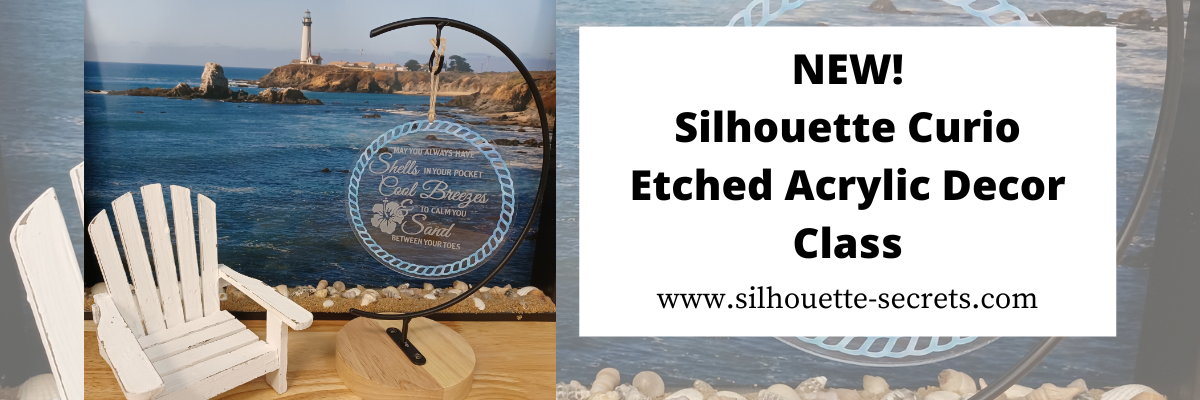
New! I’ve just released the a new Silhouette Curio class on my Teachable site!

Etched Acrylic Decor with the Silhouette Curio

Not only do we set up to etch on acrylic, but I also share how to cut adhesive vinyl on the Curio and why I added it onto this project.

Check it out

HERE

and join me in this class to create a unique décor item and learn more about the Silhouette Curio!

I am also including the list of supplies that I used in the class if you’d like to create along with me.

Affiliate links may be present in the below and as an Amazon Associate I earn from qualifying purchases. What that means is that I may receive compensation if you purchase through the links I have provided. The price you pay for the product or service is not higher but I may get compensated for sharing.

Class Supplies:
– Silhouette Curio machine
Silhouette Etching tool – use code 10OFF to save 10% at Silhouette America
– Silhouette black blade (ratchet) or premium blade – if cutting vinyl with the Curio
– (2) Silhouette Curio cutting mats – Very important! – 1 mat for cutting & 1 mat for etching
**Cutting adhesive vinyl can also be done on a Cameo or Portrait, but the class will show cutting with the Curio
Double sided tape from Craft Chameleon
Beach Blessing design by Deborah Stine – Design #62386
Rope Frames Circle by Snapdragon Snippets – Design #30736
Curio Etching Kit by Craft Chameleon
Kit includes: (3) 5” Round Acrylic discs, (1) Curio Etching 5” round template, (1) Diamond Tip Reamer, (1) twine, (3) 6”x 6” adhesive vinyl – random colors/patterns
– Transfer Tape
Optional: Adhesive vinyl of color choice
Digital Calipers – highly recommend

Check out all 11 Curio classes on my Teachable site HERE.

As well as all available Silhouette classes HERE.
And…. for those who’ve read this far I’ll give a little hint – I have 1 more Silhouette class releasing very soon too!

I’d love to see what you are creating with your Silhouette software & machines!
Feel free to post on my Facebook group at 
Silhouette Secrets with EllyMae.

Save this for future reference by pinning the image below.

Enjoy !

This image has an empty alt attribute; its file name is logo.jpg

THANK YOU for your support! How can you help? Click HERE & buy a coffee.
Every little bit helps with the cost of running the site.

Or if you are looking for more in-depth, step-by-step classes, check out all of my online Silhouette classes on my Teachable site HERE.

SS Logo snip it
**This post may contain affiliate links. What that means is that I may receive compensation if you purchase through the links I have provided. The price you pay for the product or service is not higher but I may get compensated for sharing.
Posted on Leave a comment

Silhouette Curio Etched Ornaments

Looking for a unique décor or gift idea?
Acrylic etched items can be just the thing.

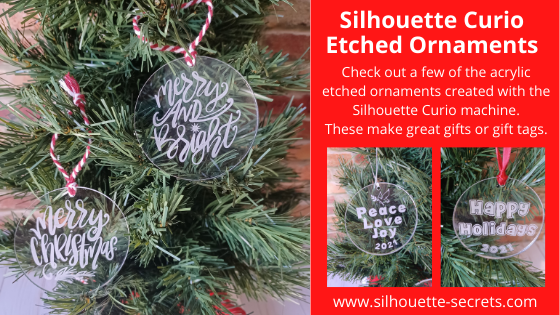
Etched Acrylic Ornaments with the Silhouette Curio

Affiliate links may be present in the following blog post and as an Amazon Associate I earn from qualifying purchases.

Take a 3″ acrylic circle and customize it however you like.
Add a simple saying with the date or jazz it up even more.
These acrylic circles could be used for tree ornaments, gift tags, bag tags, and more!

Here are a couple that I created for a Curio demonstration at the Craft Chameleon Fall Open House.
Check out the replay of this demo HERE.

The supplies for this project include:
– a Silhouette Curio machine
Silhouette Etching tool
3″ acrylic round from Craft Chameleon
Curio template for 3″ round from Craft Chameleon
– Double sided tape from Craft Chameleon
– designs of your choosing

The above designs are ones that I created myself and made using fonts and designs.
Grab those designs for free
HERE

If you’d like to create your own here are the fonts I used:
Happy Holidays – CC Too Much Fun Bold Font
Peace, Love & Joy – CC Gobsmacked Solid Font
Merry Christmas – CC Elegande Font

But, you can also take a design and size it down to fit in the 3″ circle to etch with as well. My only caution is to give yourself clearance around the edges of the acrylic and the hole at the top. If the tool catches on the edge or the hole, it will throw the etch off and you have a dud.

Here are a few examples of ornaments I’ve created and I’ll share the links to the designs I used.

Merry Christmas Ornament by Sweet Afton – Design #333980
Merry & Bright Ornament by Sweet Afton – Design #333981

Merry Ornament by Sweet Afton – Design #337453
Snowflake design created with the Drawing Tools in Silhouette Studio – more details found HERE

I love doing a combination of etching and adding vinyl to give it colors, dimension, and make it “pop”.
Dear Santa Design by Craft Chameleon
Noel Ornament design by Sweet Afton – Design #334450

This design is one I created for a Silhouette Curio etching class that is available on my Teachable site.
Keep in mind that designs you have can be used on many different blanks from ornaments to coasters, etc.

There are so many gift ideas that you can create with your Silhouette machine and even more options when you have a Silhouette Curio.

Check out more gift ideas created with the Curio machine HERE.

At the time of writing this, Swing Design still has Curio machines available.
Find those HERE.

You will also need a Silhouette Etching Tool for etching projects.
These are a little difficult to come by right now because of manufacturing and shipping delays worldwide, but keep on checking. Once you have the machine, you have the biggest part.
Find Silhouette etching tools here:
Silhouette America
Amazon

I do not recommend 3rd party etching tools as they can void the machine warranty and I had more blank spots in the etch when I used them. The Silhouette etching tool has given me the best results and I etch a lot when I’m developing classes.

The worldwide shortage on supplies, manufacturing, and shipping delays affect so many things including but not limited to Silhouette products. They are coming, but there is nothing that can be done but wait as we all work through these times we are in.

This little machine is a fantastic machine and will make fabulous projects for years to come.
Check out more Curio projects in my virtual demo table on YouTube HERE

I currently have 8 Curio classes on my Teachable site that will take you from Beginner to more advanced projects.
Find those HERE

I would love to see what you are creating with your Silhouette machines or software.
Feel free to post photos or questions on my Facebook group at 
Silhouette Secrets with EllyMae.

Save this for future reference by pinning the image below.

Enjoy!

This image has an empty alt attribute; its file name is logo.jpg

THANK YOU for your support! How can you help? Click HERE & buy a coffee.
Every little bit helps with the cost of running the site.

If you are looking for more in-depth, step-by-step classes, check out all of my online Silhouette classes on my Teachable site HERE.

SS Logo snip it
**This post may contain affiliate links. What that means is that I may receive compensation if you purchase through the links I have provided. The price you pay for the product or service is not higher but I may get compensated for sharing.