Posted on 2 Comments

New Computer Tips

New computer – Now what?

Are you a Silhouette owner and just got a new computer? Not sure where to go from there?

It is pretty easy to get setup and running with a new computer and I’m going to share a few tips.

First when you get a new computer, be prepared that it will take a little bit for it to be ready for you to start using. There will be some computer setup instructions for you to follow. And if you are a PC owner, you may find that you have a lot of Windows updates that need to install in order to get it ready for use.
Be patient and let it setup correctly. I know you are excited, believe me, I was too when I got my new computer last year. But, there really is no rushing it.
The updates will finish when they finish.

Silhouette Studio Software Installation

When you get a new computer, you will first need to download the software on to the new computer.
This can be found on the Silhouette America website.
Click on Software & then Get Software

Next, you will see a web page that will show all the software from Silhouette that’s available.

For the Silhouette cutting machines, you will select the Silhouette Studio option.

You will need to start with the Basic software. The current version is listed at the top.

For Legacy versions, continue scrolling down the page.

Choose the current version and then click on the either the Mac or the Windows option. This will download the installer to your computer and you will open that to start the installation.

Click HERE to go directly to the Software download page.

There may be some pop ups that come up that need approval in order to proceed. Watch the bottom task bar for any flashing shields if the pop up doesn’t actually pop up.

Bottom taskbar copy.jpg

If a flashing shield appears, click on it and then approve all the pop ups.

Once the installation is complete, you can open the Silhouette Software.

If by chance you have a new Windows PC and it is running in S mode, it will not let any program that is outside of the Microsoft Store install on the computer. You will need to take it out of S mode in order to install any programs, including the Silhouette software.
For more information on how to take it out of Windows S mode click HERE.

Silhouette Studio Upgrades

Affiliate links may be present in the following blog post and as an Amazon Associate I earn from qualifying purchases.

Silhouette software upgrades include Designer Edition, Designer Edition Plus, and Business Edition. These upgrades unlock features that are in the software. To see what each upgrade unlocks, click the comparison area to find out more information.
Find this HERE

This will bring up a chart you can scroll down through to see what features are with each upgrade.

Check out my favorite features of the software upgrades HERE in this post on
Software Upgrade – My Favorite Features.

Upgrades activation on current software

If you are using a software version of v4.4.554 or higher, you do not need to enter your upgrade codes in the software. Click on Help – Apply Upgrade Edition and enter your log in information. Do NOT enter your upgrade codes. Once you log in with your Silhouette account info, your upgrade should be active on any computer you log in to.

This is a new feature and is only available in software versions of v4.4.554 or higher. The upgrade can only be active on 3 computers at a time. If you log into a 4th computer, it will deactivate on the oldest computer that has not been active.

For more information on this in detail, check out this post
Let’s Explore v4 – How to Activate an Upgrade

Upgrades activation on legacy software

For older software, software upgrades do not automatically activate when you download the Silhouette software to a new computer. If you have ever entered an upgrade code, you will need enter the upgrade codes in the order that you purchased them for it to activate on the new computer. So if you purchased the Designer Edition and then the Business Edition later, you would need to enter the code for Designer first and then Business next. If you try to enter Business Edition first, you will get an error and it will not activate.

If you are a brand new user, there is a new system that is in process and you can activate the upgrade on the Silhouette America website to be used on any computer you log into. This is still very new and only available for those that are brand new and have never entered an upgrade code as of 10/15/21.

If you do not remember what the codes were, you can easily access them under your Silhouette account information in the Silhouette Design Store. Open the Silhouette Design Store, make sure you are signed in, move the mouse over the person icon in the top right corner, and then choose Account Settings.

Design Store screenshot copy.jpg

Then click on the License Keys section.

Log into the Silhouette Library

Once the software is open, click in the top right corner on the Library tab.

Library tab copy.jpg

Enter your Silhouette Account information and all of the files that are in the Silhouette Cloud should Sync up. It will depend on how many files you have in your Silhouette library on how long it will take to fully sync. Another hurry up and wait moment.

Plug in Silhouette machines to computer & turn on

If you have an older model Silhouette machine of a Cameo 3 or older, the free files download to the library once the machine is recognized. Plug in the Silhouette machine, turn it on, and click on the Send tab.
Once it has recognized the machine, then the files will download to the library.
You will need to do this for ALL machines that you have had plugged into your software to get those free files to download.

If you have multiple machines, click on the little machine icon in the bottom right corner of the Send tab to choose the machine you want active.

This will also unlock any panels that are associated with a particular machine such as the Emboss Panel for the Curio or the Stipple Panel for the Cameo 4, Cameo 3, Portrait 2, and Curio machines.

Exporting files on old computer

Note: this is only needed if files cannot be recovered in another way

If there are files that did not show up when you logged in and the library synced, the first reason would be they are the free with machine and I would suggest looking at the above information again. If you have done that, then it could be because those files were only stored on the Local User section of the old computer. This will be dependent on the Silhouette software version you were using before. If you were using a version prior to v4.1, you will find more tips on exporting the library in this post – Library Tips (v4.1).

If you have a library backup file, it can then be imported into the Silhouette library by clicking on your name in the top left of the Library and choose Library Import, then select the location of the file backup.

Screenshot from v4.4.892

But this only needs to be done if files are missing and you cannot get them to sync up any other way.

Install fonts on the new computer

Keep in mind that when you set up a new computer, you are starting from scratch. That means you will need to install any program or file that you were using on the old computer, if you want it on the new computer. This includes fonts. The new computer comes loaded with the default fonts only and these can vary by computer.

While I have heard of others being able to copy and paste the entire font file from their computer programs folders on the old computer and then pasting it into the new computer fonts folder, I was unable to do this on my new computer. I had to right click on the font and choose “Install for All Users”.

Luckily, I had saved all my font files that I’ve collected onto a folder in my external hard drive, so I could access them direct from the external drive. While I still had to install over 500 fonts, I did get to also pick and choose which ones I really “needed” on the new computer.

I have had 2 new computers in the last several years and on one I had to install each font and on the other, some worked by copy and paste.

Keep in mind that if you created designs using certain fonts, when you open the design file, if that font is not installed on the computer you are using to open the file, the font will revert to the default font style on that computer.

Export User Designs from Silhouette Library – New Feature!

If you have downloaded the current version or a version higher than v4.4.552, there is also a new feature that allows you to export all User Designs from the library as individual files.

Click on your name in the top left corner of the library tab and choose Export User Created Designs.

While I do NOT recommend storing your personal files in the Silhouette library, there are times that it is handy when you are accessing files on multiple computers or using Pattern Fills in the Silhouette software.

One big thing to note

when exporting these User Designs is that it will export the entire library folder structure. However, any designs from the Silhouette Design Store, the folders will be empty. Only the user created designs will be exported. This is due to the proprietary nature of the .studio files and to protect the designers of those files from theft.

I would HIGHLY recommend using this export feature when you update to the software of v4.4.552 or higher because it is a really nice feature.
However, as a general note, I do not recommend that all users update to this version or higher. There are many factors that I consider before advising a user on whether they should update. It really comes down to the user’s choice, however, before I make a recommendation I do ask for more information.
If you would like to know what I’d recommend for your situation, feel free to post on the
Silhouette Secrets+ with EllyMae Facebook group and we can take a look at the factors.

Keep in mind that the Silhouette library is not designed as an all inclusive storage area but as a syncing device. This is one reason the Silhouette cloud storage is limited in size. All users get 1 GB of storage space, but if you are a Silhouette Club Member or a Silhouette Design Store Subscriber, you get 5 GB of storage.

I hope this helps you start enjoying that new computer and your Silhouette software a little bit quicker!
The biggest tip I can say is to be patient! I am not the most patient person when it comes to setting up a new computer, but if I tell myself that in the beginning sometimes it helps.

We love seeing what you are creating with your Silhouette machines or software.
Feel free to post photos or questions on my Facebook group at 
Silhouette Secrets with EllyMae.

Save this for future reference by pinning the image below.

Enjoy!

This image has an empty alt attribute; its file name is logo.jpg

THANK YOU for your support! How can you help? Click HERE & buy a coffee.
Every little bit helps with the cost of running the site.

Or if you are looking for more in-depth, step-by-step classes, check out all of my online Silhouette classes on my Teachable site HERE.

SS Logo snip it
**This post may contain affiliate links. What that means is that I may receive compensation if you purchase through the links I have provided. The price you pay for the product or service is not higher but I may get compensated for sharing.
Posted on Leave a comment

New Curio Class Released!

Just a quick post to give a heads up that I’ve released a new Curio etching class on my Teachable site.

Etched Metal Cake Server Class with the Curio

This is a step-by-step class showing how to etch an odd shaped object on the Curio machine. I share how I secure the cake server on the Curio cutting mat and use shape templates to place the design and size it for the etching. Plus a trick to getting a tighter etch fill for harder surfaces like these stainless steel servers.

Supplies used in this class are:
– Silhouette Curio small cutting mat
– Silhouette Curio Etching/Stippling Tool – Click here to find at Silhouette or Amazon
*Watch for these to come in stock soon 😉
– Silhouette Curio small base with ALL platforms – please double check that you have all the platforms – a 2+1+cutting mat
– Metal Cake Server from Amazon
Monogram Wreath Font by Kristen Magee – Design #260225

Check out all of the Curio classes available on my Teachable site HERE

Create unique and custom gifts and projects with the Curio.
Check out this post HERE on more gift ideas of what you can do with the Silhouette Curio.

The Curio is a fantastic little machine that can do so much!

Want to see more Curio projects? Check out the virtual demo table video that I created for our past Curio virtual retreats on my YouTube Channel HERE.

I’d love see what you create!
Feel free to post on the
Silhouette Secrets+ Facebook Group.

Save this for future reference by pinning the image below.

Enjoy!

This image has an empty alt attribute; its file name is logo.jpg

THANK YOU for your support! How can you help? Click HERE & buy a coffee.
Every little bit helps with the cost of running the site.

Or if you are looking for more in-depth, step-by-step classes, check out all of my online Silhouette classes on my Teachable site HERE.

SS Logo snip it
**This post may contain affiliate links. What that means is that I may receive compensation if you purchase through the links I have provided. The price you pay for the product or service is not higher but I may get compensated for sharing.
Posted on Leave a comment

Etched Acrylic Coasters with the Curio

What happens when you move into a furnished apartment with wood furniture? My husband says to me, “We should have brought coasters.”

No problem! Pull out the Curio, pick out a couple of designs and the Curio is etching away.

I may be working on the dining room table, but I am happy to have the Curio out and running.

Affiliate links may be present in the following blog post and as an Amazon Associate I earn from qualifying purchases.

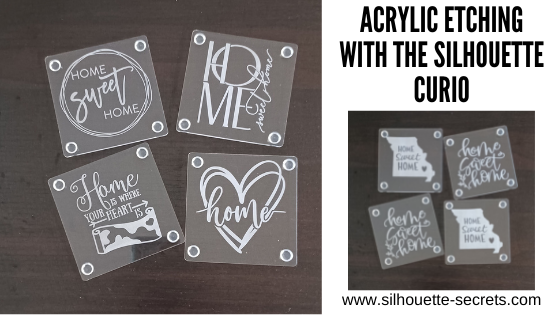
I picked up a few designs from the Silhouette Design Store, grabbed some acrylic coasters from my stash, my Curio coaster template, and the Curio machine did all the work.

Home Sweet Home by Diva Watts Designs – Design #346725 (top left)
Home Sweet Home by Diva Watts Designs – Design #346001 (top right)
Home is Where the Heart Is by Graphic House Design – Design #333473 (bottom left)
Home Hearts by Sophie Gallo – Design #318625 (bottom right)

Home Sweet Home Missouri by Jennifer Wambach – Design #148499
Home Sweet Home by Diva Watts Designs – Design #347923

And now the furniture will be protected….
well, if we can get the kids to use them.

Do you have a Curio and it’s just sitting there?
Get it out and play!

I’ve been teaching Curio classes for a couple of years now and have several available on my Teachable site HERE.

If you are interested in Acrylic Etching with the Curio, I would suggest the Basic Acrylic Etching with the Silhouette Curio class or the Acrylic Etching & Design with the Curio class.

If you are not a Curio owner, here is more information on etching with the Silhouette machines and why I highly recommend getting a Curio –
Etching with Your Silhouette Machine.

I would love to see and hear about what you are creating on my Facebook group at 
Silhouette Secrets with EllyMae. If you have questions feel free to post below or on the Facebook group too!

Save this for future reference by pinning the image below.

Enjoy!

This image has an empty alt attribute; its file name is logo.jpg

THANK YOU for your support! How can you help? Click HERE & buy a coffee.
Every little bit helps with the cost of running the site.

Or if you are looking for more in-depth, step-by-step classes, check out all of my online Silhouette classes on my Teachable site HERE.

SS Logo snip it
**This post may contain affiliate links. What that means is that I may receive compensation if you purchase through the links I have provided. The price you pay for the product or service is not higher but I may get compensated for sharing.
Posted on 25 Comments

Perfect Cut Settings for Silhouette

Silhouette Secrets+ with EllyMae

I know everyone is always looking for the “perfect cut settings” with Silhouette.
Well, let’s just start with

That is a myth!

What you will see is many “suggested settings”.
Even in the Silhouette software, there are “preset settings“.
These are just a starting point.

Why?

Well, the first reason is
Not all materials are created the same.
You may have variances in products even within the same brand, colors, style, etc. There is no magic one size fits all cut setting.
This is why you will see so many “suggestions” from user’s when someone asks on a Facebook post. It is also why you will see each different retailer have their own “suggested settings.”

Materials pictured: Leather, Cardstock, Felt, Faux Leather, Crepe Paper, Fabric, Vinyl

The next reason is
There are many other factors that play into it.
The settings that might work for one user may not work for another because the factors may not all be the same.

The biggest of these factors is whether the blade is installed properly and adjusting correctly.
This is still the #1 cutting error issue and it affects ALL Silhouette machines.

Cameo 3 Autoblade and Silhouette black “ratchet” blade installation

This is one of the best things you can learn to do for yourself & to save yourself headache in the future. It doesn’t matter if you are an experienced user or a beginner. If the blade is not installed properly with no gap and adjusting properly, you WILL have cut issues.
This is an important step no matter what blade type you are using. If you have a gap between the lip of the blade and the housing, you will most likely experience inconsistent cut results.

This is how the blade should be installed on a Cameo 4, Cameo Plus, Cameo Pro, or Portrait 3.

There should be absolutely no gap between the lip of the blade and the housing.
AND the lock on the front of the blade needs to be pushed in completely.

For those using the Autoblade watch as the machine does it’s “tap dance” at the beginning of the cut, does the red line inside the blade adjust properly and to the correct number?

If it does not, we can start troubleshooting it with a photo of the blade installed with the cutting mat or vinyl loaded if you post on the Silhouette Secrets+ Facebook group or check out this video by Silhouette America on Cutting Machine Maintenance and how to Reset the Motor at 4:38 in the video. This should reset the housing so that it is properly aligned to hit the adjustment holes correctly.

After the blade installation other factors that play into a cut are:

Blade life? How old is the blade? Or more importantly, how much as it been used.

What else has the blade cut? I would recommend keeping dedicated blades for each material you do cut. This can increase the lifespan of the blades and get you better cuts. For instance, glitter eats a blade and can sometimes even take chunks out of it. If you’ve cut glitter and then go back to cutting vinyl, it may not cut well again. Or another examples is cutting cardstock. Paper dulls a blade at a different rate than vinyl.
This is one reason that fabric people & people who sew have separate scissors for cutting fabric vs paper scissors.
Also keep in mind that thicker, denser materials are going to dull a blade faster than thin materials.

Cutting with a 3rd party mat? Third party mats can be different sizes and thicknesses. This can affect the cut quality. It is not recommended to use 3rd party mats for many reasons. It can affect not only the cut quality but also the lifespan of the machine’s rollers as well.

Is the cutting strip damaged? This is a rubber strip under the blade housing that provides the pressure from the bottom of the mat/material. Any nicks, dings, holes, slices in it can affect the cut.
Find more details on the cutting strip HERE.

Are you re-sticking your mats? Re-sticking mat can cause all kinds of cutting issues. It can gum up the machine or blades. It can cause the rollers to not function properly. It is not advised.

Cheap materials? Sometimes it’s a get what you pay for situation. Cheap vinyl/htv, etc. can be a headache and it may not be that you are doing anything wrong, it’s just difficult to work with.

Silhouette machine model? Yes, each machine can vary because they are different.

All of these are factors that can affect the cut quality.

Affiliate links may be present in the following blog post and as an Amazon Associate I earn from qualifying purchases.

So what do you do?

TEST CUT

Test cuts are going to be your BEST FRIEND!

I start with the preset in the software that is the closest material to what I’m using.

For instance, if I’m cutting a solid color Heat Transfer, I select Heat Transfer Smooth and do a test cut with the recommended settings. If I’m cutting Oracal 651, I start with the Vinyl – Glossy setting. If it doesn’t cut, adjust the cut settings and do another test cut. I recommend only changing 1 thing at a time and doing a new test cut. If you change too many things at once, you don’t really know what worked.

As you do this more and more, you will start to see patterns. For instance, on the Cameo 4 models I find I have to increase the blade depth up 1 on almost all materials.

There are 2 ways you can do a test cut.

1 – Use the Test Cut feature in the Silhouette software on the Send tab.

The default test cut option is in the upper left corner of either the mat or the material loaded.

If you need to move the test cut to do it again, you can do so in 2 ways. You will need to move the test cut to the exact location you want it to cut on your material.

To do this, use the arrows keys next to the test cut button on the Send tab in the software or the arrows on the Cameo touch panel on the right side.

To move the housing, you will need to move it both over to the right and down. The housing will perform the test cut in the exact location it is placed. If it is only moved over to the right, it will cut the top of the cutting mat.

Or the second way to do a test cut is use a shape or object.

I use a capital B that I type out and then I will place it on my virtual mat where my design is not located at. I love this way because it is faster than adjusting the housing and a bit more accurate since you place it where you want.

Click on the Send tab, click exactly on the design to select it and choose No Cut to turn the cut lines off on the design and only cut the capital B.

Select the material you are cutting and click the Send button at the bottom of the Send tab to cut the B. Did it cut? If not, adjust the settings, move the B and send it to cut again.

It is much better to use a small section of material to make sure the settings will work versus sending a full 20″ design and it didn’t cut well. This will save you both time and headache.

Note: if doing a print and cut project, you do not want the test cut to cut from the top left of the printed page or it can interfere with the reading of the registration marks.

You can also either change the Line Color or the Fill Color of the B and then use the Cut by Line or Cut by Fill color options to turn the cut lines on or off.

This was one of the habits that I found the hardest to get into. I was a Silhouette user for many years before I knew about the test cut feature. But, if you think about it, it makes complete sense and it will save you time, materials, and headache in the long run!

While there are NO one size fits all “cut settings”, the more you cut, you will get familiar with what you are working with.

Once you have found those “perfect” cut settings for your material, you can create a custom setting in Silhouette for your materials. Find out more on Custom Cut Settings HERE.
And if you do use custom cut settings, make sure you are backing those up or writing them down somewhere too!

Now the next question I see all the time is “How long should a blade last?

Again, there is no “perfect” answer to this!

As a beginner I do feel you will go through blades and cutting mats faster than an experienced user.
Why?

Because you are learning!
Learning how this work, learning how things cut, learning what works and what doesn’t.
As you continue to cut things, you will find tips and tricks that work for you!

Many of the same factors go into the blade life as the cut settings, such as materials you are cutting or settings you are using.

While I know that may not be the news you want to hear – that there is no “magic” button to cut all materials, I hope that it will help save you some frustration and headache in the long run.
Test cut, test cut, test cut. Now repeat it to yourself!

Whether you are a new user or an experienced user, I would love to see what you create with your Silhouette machines & software.
Feel free to post photos or questions on my Facebook group at 
Silhouette Secrets with EllyMae.

Save this for future reference by pinning the image below.

Enjoy !

THANK YOU for your support! How can you help? Click HERE & buy a coffee.
Every little bit helps with the cost of running the site.

Silhouette Classes

Never stop learning! Let me help you take the anxiety out of learning with Silhouette and get to creating faster! My Silhouette classes are heavily focused on software, so you can take the skills & techniques taught and apply them to many future projects!

Silhouette step-by-step Classes by Silhouette Secrets+

Silhouette Secrets+ with EllyMae
**This post may contain affiliate links. What that means is that I may receive compensation if you purchase through the links I have provided. The price you pay for the product or service is not higher but I may get compensated for sharing.

Posted on 4 Comments

Gift ideas with your Silhouette Curio machine

I love that with the Silhouette machines you can create custom gifts that are unique to be given out. Or if you end up really liking it, keeping if for yourself – shhhhh!

A few weeks back I did a post on gift ideas you can create with your Silhouette Cameo or Portrait. Well the great news is, all of those ideas could also be completed with a Curio as well, since the Curio can cut all the same materials that the Cameo or Portrait can.
Check out that post here:
5 Gift ideas created with Your Silhouette

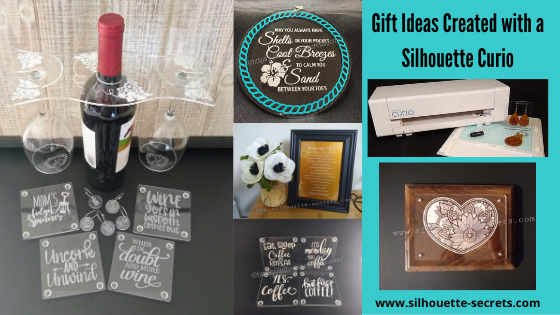
Today, I have more gift ideas that can be created with your Silhouette Curio machine.
These gift ideas are specific to the Curio as the Cameo and the Portrait are not designed for etching. For a little bit more information on that check out this post here:
Etching with your Silhouette machine

Instead of rushing at the end of the year, let’s start thinking about it, making lists, gathering supplies, and getting things done now.
Then we can enjoy the time later!
Just make a list of the gifts you have already done and put the list & gifts in a safe place.
Just remember where that “safe” place is.

Affiliate links may be present in the following blog post and as an Amazon Associate I earn from qualifying purchases.

Gifts with the Silhouette Curio

1 – Acrylic etched ornament or decor

Noel Design by Sweet Afton – Design #334940

Supplies used:
Silhouette Etching tool
3″ round Acrylic disc from Craft Chameleon found HERE
3″ round Curio Template from Craft Chameleon found HERE
Oracal 651 Green adhesive Vinyl
Oracal 651 Red adhesive Vinyl
Vinyl retailers:
Expressions Vinyl, Heat Press Nation, Swing Design,
U.S. Cutter, The Vinyl Spectrum

Beach Blessing by Deborah Stine – Design #62386
Snowflake Wonder Circle Poem by Snapdragon Snippets – Design #72245

Supplies used:
Silhouette Etching tool
5″ Round acrylic disc from Craft Chameleon found HERE
5″ Circle Curio Template from Craft Chameleon found HERE
Oracal 651 Teal adhesive Vinyl for Beach Blessing decor
Etched Vinyl for Snowflake decor
Vinyl retailers:
Expressions Vinyl, Heat Press Nation, Swing Design,
U.S. Cutter, The Vinyl Spectrum

Acrylic Etching classes:
Basic Acrylic Etching Class
Basic Acrylic Etching & Design Class

Supplies used:
Silhouette etching tool
4″ x 6″ acrylic photo panel from Craft Chameleon found HERE
Wood blank
Screws
Paint or stain

Class:
Heart Mandala Acrylic Etched Silhouette video course

2 – Acrylic etched light base

Supplies used:
Silhouette Etching tool
Lighted base for Curio with round insert by Craft Chameleon found HERE
Curio Template by Craft Chameleon found HERE

Acrylic Etching classes:
Basic Acrylic Etching Class
Basic Acrylic Etching & Design Class

3 – Acrylic etched coasters

Supplies used:
Silhouette Etching Tool
Acrylic coaster from Craft Chameleon found HERE
Coaster Curio template from Craft Chameleon found HERE
Eat, Sleep, Coffee Repeat by Sophie Gallo – Design #230872
Less Monday More Coffee by Tanya Batrak – Design #209927
Yes. Coffee by Kolette Hall – Design #171334
But first Coffee by Lilium Pixel Svg – Design #242962

4 – Wine themed set

Supplies used:
Silhouette Etching Tool
Wine Caddy
Acrylic Wine Caddy from Craft Chameleon – found HERE
Curio wine caddy template from Craft Chameleon – found HERE
Silhouette Curio Large Base – Silhouette America, Swing Design, or Amazon
Wine Charms
15/16″ acrylic disc from Craft Chameleon – found HERE
Wine Charm Rings from Craft Chameleon – found HERE
15/16″ Curio Template from Craft Chameleon – found HERE
Wine themed coasters
Acrylic Coaster from Craft Chameleon – found HERE
Coaster Curio template from Craft Chameleon found HERE
Mom’s Fidget Spinner by Sweet Afton – Design #202772
Uncork & Unwind by Sarah Hurley- Design #236620
Wine Goes in Wisdom Comes Out by Sarah Hurley- Design #279372
When in Doubt Add More Wine by Megan Hardy Designs – Design #124514

Acrylic Etching classes:
Basic Acrylic Etching Class
Basic Acrylic Etching & Design Class

5 – Embossed key fob & earrings

Flower by Wild Pilot – Design #274519

Supplies used:
ReaLeather Tooling Leather – Hobby Lobby
Silhouette Fine Embossing Tool – comes with the Curio
Key ring
Rivets – screw rivet or hammer set rivets by Tandy (I do not recommend cheap ones)
Rivet Setter if needed – Amazon
Leather Punch – Michaels or Amazon – highly recommend if working with leather
Jump rings
Fishhook earrings
Bent Nose pliers (2)
Eco Flo Gel Antique – Tan
Wool Dauber
Sponge – Michaels or Amazon

Class:
Leather Embossing class with Silhouette Curio

6. Personalized etched metal sheet in a frame

Anniversary gift

Supplies used:
Silhouette etching tool
Silhouette metal etching sheets
5″ x 7″ black frame

Metal Etching classes:
Beginner Metal Etching class
Advanced Beginner Metal Etching with placement

7. Etched Metal Bottle Openers

Supplies used:
Silhouette Etching Tool
Stainless Steel Bottle Openers from Craft Chameleon – found HERE
Curio Bottle Opener template from Craft Chameleon – found HERE

Hopefully this have given you some ideas of things you can create with your Silhouette Curio and give as gifts and the resources to find the supplies. These are things that you could personalize with all kinds of ideas and give through out the year for all occassions.
I love that I can make custom creations with my Silhouette machines!

I love to see what you are creating with your Silhouette machines! Feel free post on the
Silhouette Secrets+ Facebook Group.
We love to see what you are doing and creating with your Silhouette machines!

Save this for future reference by pinning the image below.

Enjoy!

This image has an empty alt attribute; its file name is logo.jpg

THANK YOU for your support! How can you help? Click HERE & buy a coffee.
Every little bit helps with the cost of running the site.

Or if you are looking for more in-depth, step-by-step classes, check out all of my online Silhouette classes on my Teachable site HERE.

SS Logo snip it
**This post may contain affiliate links. What that means is that I may receive compensation if you purchase through the links I have provided. The price you pay for the product or service is not higher but I may get compensated for sharing.
Posted on 2 Comments

New! Curio Etching Classes released!

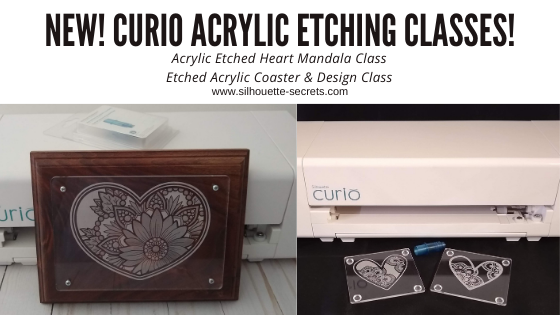
Just a quick note to share 2 new Curio acrylic etching classes that I’ve released on my Teachable site.

Acrylic Etched Coasters & Design with the Curio – found HERE

In this 1 hour 18 minute video class we will go through the step-by-step process of setting up an etch design in the Silhouette Studio software, setting up the Silhouette Curio machine to etch, and etching an acrylic blank. We will etch this coaster design 2 ways and work through the design process to get a different look for each coaster.
This class goes beyond just the basics of etching and dives into changing a design up and filling it with different emboss fills to achieve a different end result.

Curio Etched Heart Mandala Class – Advanced Beginner – found HERE

In this 1 hour 50 minute video class we will go through the step-by-step process of setting up a heart mandala etch design in the Silhouette Studio software, setting up the Silhouette Curio machine to etch, etching on an acrylic panel, and mounting it to a backing board.

All of my online Silhouette classes can be found HERE.
These are step-by-step classes taught exactly the same as if we were face-to-face.

I would love to see what you create with your Silhouette!
Feel free to post on my Facebook group
Silhouette Secrets with EllyMae.
If you have questions feel free to post below or on the Facebook group too!

Save this for future reference by pinning the image below.

Enjoy!

This image has an empty alt attribute; its file name is logo.jpg

THANK YOU for your support! How can you help? Click HERE & buy a coffee.
Every little bit helps with the cost of running the site.

Or if you are looking for more in-depth, step-by-step classes, check out all of my online Silhouette classes on my Teachable site HERE.

SS Logo snip it
**This post may contain affiliate links. What that means is that I may receive compensation if you purchase through the links I have provided. The price you pay for the product or service is not higher but I may get compensated for sharing.
Posted on 2 Comments

New! Curio cover file created

It’s here! I finally was able to create the cover file and cut vinyl to decorate one of my Curio machines!

Affiliate links may be present in the following blog post and as an Amazon Associate I earn from qualifying purchases.

I used a Sparkleberry Ink pattern called Sea Glass Watercolor to create this cover.

And if you look really close you can you can see the sparkle from the Glitter Laminate that I applied on top of it before I cut it.

Grab this free cut file
HERE

This is the Curio machine I take when I teach classes at events, so I’ll definitely be able to tell which one is mine.
Note: I did not cover the inside of the lid as it has instructions on it, but you could measure and create your own if you wanted to cut that too!

I will be 100% honest in that I wasn’t sure if I was going to like it. I debated on the pattern to use on it and asked my kids and my husband for their thoughts. In the end, I chose one and just did it. And I love it! It was the perfect pattern.

Check out the cover files I’ve created for the Cameo 3 and Cameo 4 too!

Check out how I created these files in this post HERE and then grab the cut files here:
Cameo 3 cover cut file
Cameo 4 cover cut file

I would love to see what you do with your Silhouette!
Feel free to post on my Facebook group
Silhouette Secrets with EllyMae.
If you have questions feel free to post below or on the Facebook group too!

Save this for future reference by pinning the image below.

Enjoy!

This image has an empty alt attribute; its file name is logo.jpg

THANK YOU for your support! How can you help? Click HERE & buy a coffee.
Every little bit helps with the cost of running the site.

Or if you are looking for more in-depth, step-by-step classes, check out all of my online Silhouette classes on my Teachable site HERE.

SS Logo snip it
**This post may contain affiliate links. What that means is that I may receive compensation if you purchase through the links I have provided. The price you pay for the product or service is not higher but I may get compensated for sharing.
Posted on 4 Comments

Etching with your Silhouette machine

Today we are going to talk about etching with the Silhouette machines.

I am seeing a lot of questions regarding which Silhouette machines can etch and we are going to get into some of the nitty gritty details about it.

Updated 1/1/9/2024
New machine models with etching abilities
The Silhouette Curio 2 – more information HERE.
The Silhouette Cameo 5 can etch on Silhouette metal etching sheets. It is limited in etching capabilities due to the clearance on the machine.
More details on Etching with a Cameo 5 HERE.


Which Silhouette machine is designed for etching?

The Silhouette Curio is designed for etching.
It is the only machine that is designed by Silhouette for etching.

We will go into more details farther down on why.

Can I etch with my Silhouette Cameo or Portrait?

First, the Cameo or Portrait machines were not designed for etching.
This means that if you do decide to etch with the machine it can void the warranty on the machine and my biggest concern for you is it may decrease the lifespan on the machine.

How will it decrease the lifespan of my machine if I etch?

Etching is much more taxing on the housing than if you were just cutting.
Why? When you are etching, you are scratching away the surface of a harder material such as metal or acrylic. This is more taxing on the machine as it moves back and forth.

As an example, let’s take a look at this heart design. On the left side you can see the cut lines of a regular cut file. On the right side is the same file that I have etched on my Curio.

Now, I’ll zoom in on the etch file and you will see that this file has hundreds or thousands more lines in it that need to “etch” to fill the design in. Again, keep in mind that etching takes more force to scrap away the surface of the harder material vs just cutting through a material such as vinyl or cardstock.
It is a completely different action.

While some users will say they tried it and it worked, the Cameo or Portrait machines were not designed for this purpose. Which means that the machines were not tested for etching and the additional wear and tear it may have on your machine.

Yes, while it may work ok. What are the long term effects of that etching on your machine?
Let’s take a look at the Cameo 4 as an example.

Tools
To etch with it, users are squishing a 3rd-party tool into the adapter (if needed) and then squishing the tool into the housing. Over time, if you stretch that housing or put additional force on the tool holder, it could break or stretch. Third-party tools are often heavier than a normal Silhouette blade and could affect the tool housing with long term use.
Silhouette does not have an etching tool designed for the Cameo or Portrait because it is not something the machine was designed or tested for.
Click HERE for official information on 3rd-party tools in the Silhouette machine.

The clearance of the machine.
This will all depend on the machine you are using and how much clearance it has.
Most often I see tool marks in the materials that are etched on a Cameo 4 or a Portrait because it just does not have the proper clearance needed to not only fit the blank under the roller bar and under the tool tip once it’s installed.
A Cameo 4 has a clearance of 3 mm.

Bottom line – the lifespan of your machine.
How is the etching going to affect the lifespan of your machine?
On the Cameo 4, Tool 1 housing is the only housing for using a regular cutting blade in it and Tool 2 housing is for specialty blades. This is due to the 2 different motor types in the machine. They are designed for different purposes.
If your Tool 1 housing gets broken or is not functioning properly, you are toast!
You now have a Cameo 4 machine that can only utilize Tool 2 tools.
This is my biggest concern for users who are seeing that etching can be done with a Cameo or Portrait! I don’t want you to decrease the lifespan on your machine or encounter future issues because you have chosen to etch with it.

If something happens to your machine, who is responsible for replacing it? You!
Not the person who encouraged you to etch with it.
Not Silhouette because the machine was not designed for etching in the first place.

I know this is not what you want to hear, but my biggest concern is for YOU, your machine, and your success!
If you etch with your Cameo or Portrait it is a DO AT YOUR OWN RISK.
What I don’t want is someone doing it without knowing the risks and then being totally devastated when their machine no longer works properly.

For more details on the warranty on a Silhouette machine, click HERE.

The Silhouette Curio

Now, let’s talk about the Silhouette Curio and why it is the machine designed for etching.

Update: The Silhouette Curio 1 is no longer manufactured, however, it is still a great machine and you may still find it available used. The Silhouette Curio 2 was released in September 2023.

Stable base
The Curio has a solid, stable base that must be used when cutting or etching. There are 2 sizes. A small base which has a cutting mat space of 6″ x 8.5″ and a large base which has a cutting mat space of 8.5″ x 12″. The Curio cannot be used without a base and you cannot “trick” the Curio to use a large cutting mat on a small base or vice versa.

Adjustable platforms to accommodate thicker materials
The Curio base comes with several adjustable platforms which allow for up to 5 mm clearance. The platforms are stacked on the base and the embossed number plus the material thickness should add up to a 6, which is equal to 6 mm.

This platform system is what enables you to be able to place a 3 mm acrylic blank or a piece of tooling leather in the Curio and still have the clearance to work with the material.

Silhouette etching tool

The Silhouette etching tool is the only one designed by Silhouette for the Curio machine. I have used other 3rd party tools to test and I find that I get the best, most consistent etch with the Silhouette etching tool.

Yes, you do have to replace it as it wears down. Keep in mind you are scratching away at a hard surface when you are etching. It is just like replacing a blade. For me, the results are better with the Silhouette etching tool than any other, so it is well worth the cost of a replacement versus blanks with areas missing an etch.

Emboss Panel unlocked
When a Curio is plugged in and recognized by the software, the Emboss Panel is unlocked.
I feel this is the best method for the etch fills.

Each user will vary in what they prefer, but I like a tight cross-hatched etch fill to give me the best filled in look. Each design will vary in what is going to look the best and often you do not know how it will look until you’ve tested it.

Etch Action
In the Silhouette software, there are different “actions” for the different functions.
For instance, cut vs sketch vs etch vs Kraft cut vs Rotary cut, etc.

Each of these actions tells the software/machine to send the data in a different way.
When you choose the etch action you are telling the software exactly what you are doing with the tool and machine.
In my experience, the Emboss Panel with the etch action is much less data intensive on the Silhouette software and takes less time to etch vs using the Sketch Action or the Line Effects Panel.

Exact placement due to tool orientation to the same location
One of the best features of the Silhouette Curio is that if you have loaded the base properly, the tool housing aligns to the EXACT same place every single time!
This is awesome for placing your blanks on the cutting mat as the Silhouette design screen matches the cutting mat exactly.
Yes, on a Silhouette or Portrait the cutting mat on screen and physically match as well, but you also have user input when you load the cutting mat that can throw the alignment off.
That is less likely to happen with the Curio as long as the base is properly loaded.

For more information on how to set up and load the base in the Curio check out this post
The Curio – Getting Started.

Now, will the machine eventually wear out. Yes!
My original Curio is starting to see some wear and tear on it. However, I etch more than the “average” user. Since I teach classes at events, online, and private lessons – I have thousands of more machine hours into my Curio than most users would have. When I am preparing for a class, I will etch or emboss the same design over and over again to test the settings, time the design, and to write/create the class. For instance, for my Leather Embossing class, I have hundreds of hours into this class from researching to recording the class and here are just a few of the samples I created during the entire 6 month process of creating the class.

When I create an acrylic etching class, I may have a stack of acrylics 30 high that I’ve done testing on. It is all a process and I test the settings over and over to get the best etch results that are reproducible by a student who would be taking or viewing the class.

I etch way more than the “average” user and my machine is still etching 2+ years later.
I do wish there was a machine hours counter on it, so I could share with you how many real machine hours I have invested in it.
Again, I am seeing a bit of wear and tear on it, but I purchased a back up Curio machine because I do use it so much.

The average user should be able to see years of etching with their Silhouette Curio machine if it’s used and cared for properly.

You have heard the saying “The right tool for the job.”, right?
Well, in this case, I could not agree more.
Again my biggest concern for you is your machine, the machine’s life-span, and your success.

The Curio is a fantastic machine!

Need help getting started with the Curio?
Check out this post
Silhouette Curio Get Started Creating Fabulous Projects
for resources no getting started with the Curio

Want to see more projects created with the Silhouette Curio?
Check out this YouTube video collection of a “demo table” I created for a Curio event this past year.

Click the video above to open in YouTube if viewing in your email.

None of these can be completed on the Cameo or Portrait due to the clearance.

Interested in getting a Curio?
Check out Silhouette America, or Swing Design for Curio machines.

Now the Curio is a bit different to set up and get started with and the number one thing you will need time. This machine can do fabulous things, but you will need to learn how to set it up properly. I do believe that anyone can do these same types of projects!
Check out all of my Silhouette classes on the Curio on my Teachable site HERE.

I would love to see and hear about what you are creating on my Facebook group at 
Silhouette Secrets with EllyMae. If you have questions feel free to post below or on the Facebook group too!

Save this for future reference by pinning the image below.

Enjoy!

This image has an empty alt attribute; its file name is logo.jpg

THANK YOU for your support! How can you help? Click HERE & buy a coffee.
Every little bit helps with the cost of running the site.

Or if you are looking for more in-depth, step-by-step classes, check out all of my online Silhouette classes on my Teachable site HERE.

SS Logo snip it
**This post may contain affiliate links. What that means is that I may receive compensation if you purchase through the links I have provided. The price you pay for the product or service is not higher but I may get compensated for sharing.
Posted on Leave a comment

Silhouette Classes – 2 new classes released!!!

This week I released 2 new classes on my Teachable site.
A Silhouette print & cut class and a Curio metal etching placement class!

Here are the details of each class:

Silhouette Print and Cut – Basics to Design Files to Troubleshooting

Join me in 2+ hours of video course that covers Silhouette Print & Cut from step-by-step setup, to working with many different file types for print and cut, and my troubleshooting tips. This course is divided out into 3 main videos covering each of these topics in depth.
By following these steps & tips, print and cut can expand your Silhouette skills.
Let’s take the anxiety out of print and cut and get started.

Course includes:
Class Overview
Class Supply List

Print and Cut – Part 1 – Step-by-step Setup Video – 1 hour 3 minutes
– Step-by-Step setup for print and cut
– Establishing a baseline print and cut
– Print and cut a single design
– Print and cut with a sticker set

Print and Cut – Part 2 – Designs and more Video – 1 hour 6 minutes
– working with excess backgrounds on designs
– print and cut with text
– print and cut with Color Fonts
– turning a cut file into a print and cut – 3 examples
– altering a cut file to create a print and cut – 2 examples
– tips on registration marks
– print and cut in large format

Print and Cut – Part 3 – Troubleshooting Tips Video – 18 minutes
In this section we will discuss 11 tips for troubleshooting print and cut when things don’t work and tips for getting the best success.

Check out this online video course on my Teachable site HERE.

Curio Advanced Beginner – Metal Etching placement video course

Course includes:
Class Overview
Class Supplies list

Basics of the Curio video – 38 minutes

Advanced Beginner Curio – Metal etching with blanks & placement on the Curio video – 24 minutes
– Setting up the Curio base to etch with the blank
– Measuring the blank
– Securing the blank
– Setting up the Silhouette design mat for the etch design
– Design placement for etching on blanks
– Tips for working with text & alignment
– Emboss fill for etching
– Etching on the Curio
– Examples of etching on blanks

Check out this new Curio class HERE

If you are looking to expand on your Silhouette skills and want to dive in and learn from all of my testing and tricks, check out the rest of the Silhouette courses available:

Silhouette Beginner Setup & First Cuts
Silhouette Print and Cut – Basics to Design Files to Troubleshooting
Curio Setup & First Cuts with Cardstock & Vinyl
Beginner Curio Metal Etching
Curio Advanced Beginner Metal Etching Placement
Basic Acrylic Etching with the Curio
Embossing Leather with the Curio
Creating a vinyl decal & layering using the Silhouette Studio software
Cutting & Layering HTV in Silhouette Studio
Glass Etching with Silhouette
Heat Transfer Paper Print & Cut Lesson with Silhouette
Creating a Knockout Design with HTV & Bonus HTV & Subtract
Creating a Rhinestone Design in Silhouette Studio

All of these are designed as step-by-step classes that are taught just like an in-person lesson.

The more you get into Silhouette and start playing with it the more you will pick up. Sometimes it can be overwhelming and testing can take a long time to get it just right. Let’s take that anxiety out of your Silhouette projects and get started!

For more information and to see each class details – CLICK HERE.

I would love to see and hear about what you are creating on my Facebook group at 
Silhouette Secrets with EllyMae.

Save this for future reference by pinning the image below.

Enjoy!

This image has an empty alt attribute; its file name is logo.jpg

THANK YOU for your support! How can you help? Click HERE & buy a coffee.
Every little bit helps with the cost of running the site.

Or if you are looking for more in-depth, step-by-step classes, check out all of my online Silhouette classes on my Teachable site HERE.

SS Logo snip it
**This post may contain affiliate links. What that means is that I may receive compensation if you purchase through the links I have provided. The price you pay for the product or service is not higher but I may get compensated for sharing.
Posted on 1 Comment

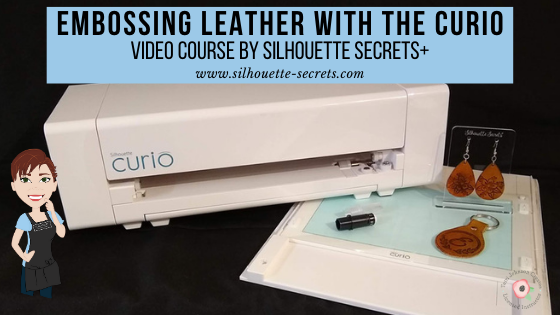
Embossing Leather with the Silhouette Curio

I am so excited to be able to release this new video course on embossing leather with the Silhouette Curio!

We have held 2 Curio virtual retreats in 2020 and it has been a big hit for Curio projects!
Click HERE to go directly to the class or keep on reading for more information.

I have to say, while this has to be the class that has taken the most time to research, write, record, and produce; it is also one of my favorites too!

These are just a few of the test subjects that were made during the creation of this Curio course.

And now you can join me in creating fabulous embossed leather projects with your Curio too! I share all my tips and tricks in how I created these leather embossing projects in the Silhouette software step-by-step in this Embossing Leather with the Silhouette Curio.

What does the video course include?

This is a 1 hour and 56 minute video course that goes step-by-step through the process of creating the embossing design in the Silhouette software, embossing and cutting the leather, finishing and dying the leather, and assembly of the earrings and key fob.

In addition to the Embossing Leather course, I have also added a Basics of the Curio Video (38 minutes) at the beginning of the course for those who are just getting started with the Curio or need a refresher.

Here is the full course content:

Class Extras (at the beginning to get you started):
Curio Unboxing video – viewable on YouTube here: https://youtu.be/bYllH6Inl3M
Class Supplies List – complete list of supplies used in the video course
Basics of the Curio video – 38 minutes

Leather Embossing with the Silhouette Curio Video Course – 1 hour 56 minutes
Part 1 – Setup of the design in the Silhouette software using the Emboss Panel for the earrings & key fob design
Part 1.1 – Embossing & cutting the design on tooling leather with the Curio
Part 2 – Final cuts and burnish of the leather key fob and earrings
Part 3 – Leather dying & final assembly of hardware
Additional Resources
Class Conclusion
Terms of Use

Click HERE to access the
Embossing Leather with the Curio course!

Check out this brief video on the Curio in action embossing on leather to see what you will be doing in the video class.

Are you excited?
I hope this video course opens up new ideas and sparks that creative energy to create fabulous things with your Curio!

Check out all of my Silhouette classes available on my Teachable site
HERE!

I cannot wait to see what you create with your Silhouette Curio!
Feel free to post photos or questions on my Facebook group at 
Silhouette Secrets with EllyMae.

Save this for future reference by pinning the image below.

Enjoy!

SS Logo snip it
**This post may contain affiliate links. What that means is that I may receive compensation if you purchase through the links I have provided. The price you pay for the product or service is not higher but I may get compensated for sharing.