Posted on Leave a comment

New Silhouette Class Released

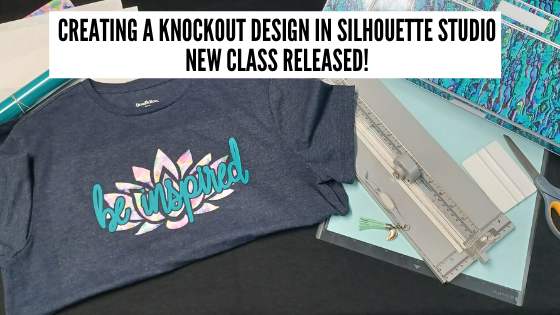
Come join me in learning about your Silhouette software and cutting HTV to create a knock out design. We will use several tools in the Silhouette Studio software to create this design.

Check out the full class HERE.

This is a step-by-step class from creating the knockout design, cutting patterned & solid HTV, pressing 2 layers of HTV, and bonus design tips for alternate designs ideas.

Class Supplies list

Affiliate links are present in the following supply list and as an Amazon Associate, I earn from qualifying purchases
 The cost to you is no different, but I may earn a commission by you using the links provided.

– Silhouette machine – any model will work
– Silhouette blade
– Silhouette cutting mat
Sparkleberry patterned HTV or pattern/color of your choice
Use code SILSECRETS to save 10% at Sparkleberry Ink
Heat Transfer Mask for patterned HTV (required if using Sparkleberry patterns or other types of patterned HTV without a carrier sheet)
*Note: patterned HTV and glitter HTV require 2 different masks – glitter requires a High Tack mask in case you decide to go with that
Siser Easyweed HTV solid
– Blank to put the design on – I am using a T-shirt
– Weeding tool – EK Tools Reverse Tweezers are my tool
Vinyl Squeegee
Scissors
– Heat Press – I am using a Craft Pro 15″ x 15″ heat press from Heat Press Nation
Teflon Sheet or Parchment Paper
Paper trimmer (optional – but handy)
T-shirt Ruler Placement Guide – (optional)
Heat Press Pads or Pillows – (optional) this helps with the seams on a blank if it cannot be placed off the press area

Find all the class details HERE on my Teachable site.

Find all of my Silhouette classes on the Teachable site HERE.

I would love to see what you are creating with your Silhouette software or machines!
Or if you have any questions, feel free to post photos or questions on my Facebook group at 
Silhouette Secrets with EllyMae.

Save this for future reference by pinning the image below.

Enjoy !

This image has an empty alt attribute; its file name is logo.jpg

THANK YOU for your support! How can you help? Click HERE & buy a coffee.
Every little bit helps with the cost of running the site.

Or if you are looking for more in-depth, step-by-step classes, check out all of my online Silhouette classes on my Teachable site HERE.

SS Logo snip it
**This post may contain affiliate links. What that means is that I may receive compensation if you purchase through the links I have provided. The price you pay for the product or service is not higher but I may get compensated for sharing.
Posted on 1 Comment

New Silhouette class – Glass Etching

Let me tell you, this class was challenging. Teaching how to use Silhouette is the easy part that I can do with my eyes closed (maybe most of the time). However, the tech issues, it was non-stop for me this round. And not Silhouette tech issues, but everything else, from recording software to the editing process.
It was driving me batty!
But 2 days and many hours later, I got it finished, with a few cuss words at the editing/recording software.

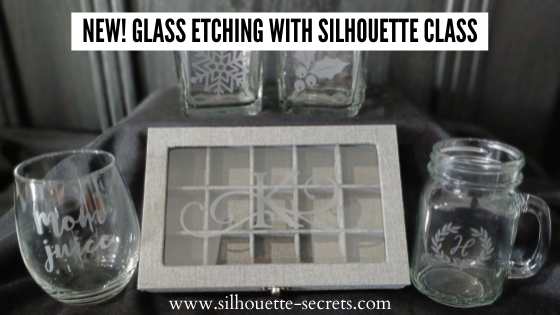
Glass etching is not difficult to do and I share my tips & tricks in this 1 hour 42 minute video class. In the class, I share cutting tips for measuring, sizing, and cutting 4 different stencils on 2 different materials. I cut from Oracal 651 and Oramask 813. Then I also demonstrated and provided tips to applying the stencils to 4 different shaped objects.
For the class, you do not have to use the same glass objects or do all of the projects, but it will give you ideas so you could use a wide variety of blanks.

The most difficult part of glass etching is getting a good photo of it due to the glass and glare.

Find all the details on the class

HERE

Affiliate links may be present in the following blog post and as an Amazon Associate I earn from qualifying purchases.

I’ve included the class supply list below to help prepare for what I used in the class.

Supplies needed:

– Silhouette machine
– Etchall Etching Cream – Amazon or – Etchall.com use code silhouettesecretsplus and save 10%
*This class uses Etchall cream. Using other brands of etching cream may not yield the same results. Etchall can be reused so is a great investment.
– Oracal 651 or 631
– Oramask 813
– Transfer tape
– Alcohol swabs
– Silhouette spatula or popsicle stick
– Painters Tape
– Rubber gloves
– Access to a sink & paper towels

Glass products demonstrated:
– Stemless wine glass
Mason jar drinking glass
– Jewelry box: Gray, White, or Burlap
– Glass Candle holders from Dollar Tree

*Not all glass items can be etched. Tempered glass cannot, cookware from Ikea cannot, etc. The only way to know is to test it out for sure.

**You do not have to have the same items that I am using for class, but I will share some tips for these different shaped objects using the items in the photo above.

Designs used in class demonstration:
– Holly from Christmas design by Sarah Hurley – Design #334881
Snowflakes by Erica Digital Designs – Design #379892
Monogram Wreath Font by Kristen Magee – Design #260225
Split & Full Flourish Monogram E (class demo) or Split & Full Flourish Monogram K (class photos) – by artist Kolette Hall
– Mom Juice created with a bold font
* These are just design examples and do not have to be exact. We will discuss design tips in the class and what can be easier to get a good etch with.

It is so fun to be able to customize glass items for gifts and Silhouette makes that easy.

Here are a few more things that I have etched with the same techniques as we cover in the class.

Glass coffee mug from Target
You Can Do This – Coffee design by Jillibean Soup – Design #218802

Glass Cookie Jar from Michaels etched for K pod storage
Coffee Canister Label by Chameleon Cuttable – Design #349557

More etched jewelry boxes I made for Christmas gifts
Split & Full Flourish Monogram – G by Kolette Hall – Design #128840
Split & Full Flourish Monogram – A by Kolette Hall – Design #128858

Glass etching is a great way you can personalize a gift too!

Like 25 glass mason jars from Michaels to be filled with candy as Thank You gifts.
Add a Print and Cut thank you note and ta-da!

Yes! Etchall etching cream works on glass and slate!

Slate serving trays from Johnson Plastics
Eat Drink and Be Thankful by Jillibean Soup – Design #280222
Monogram Family by Lori Whitlock – Design #271080

So many options! I hope that has given you some ideas.
Check out the Glass Etching with Silhouette class HERE and start perfecting your technique today!

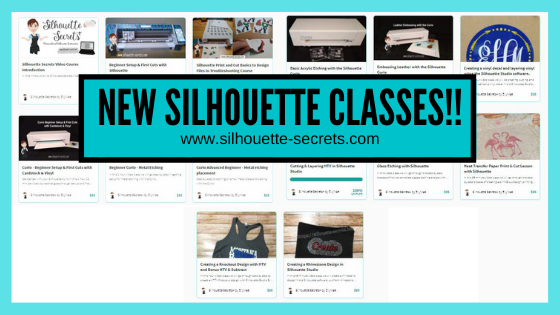
Or check out the 19 other Silhouette classes available on my Teachable site HERE.

I’d love seeing what you are creating with your Silhouette machines or software.
Feel free to post photos or questions on my Facebook group at 
Silhouette Secrets with EllyMae.

Save this for future reference by pinning the image below.

Enjoy!

This image has an empty alt attribute; its file name is logo.jpg

THANK YOU for your support! How can you help? Click HERE & buy a coffee.
Every little bit helps with the cost of running the site.

Or if you are looking for more in-depth, step-by-step classes, check out all of my online Silhouette classes on my Teachable site HERE.

SS Logo snip it
**This post may contain affiliate links. What that means is that I may receive compensation if you purchase through the links I have provided. The price you pay for the product or service is not higher but I may get compensated for sharing.
Posted on 7 Comments

10 Creative Acrylic Sign Decor Ideas for Every Season and Style

Silhouette Secrets+ with EllyMae

Acrylic sign decor is a versatile and stylish way to enhance any space, whether you’re sprucing up your home for the holidays or adding a personal touch to your everyday surroundings. With endless design possibilities, acrylic signs offer the perfect blend of elegance and creativity for seasonal and year-round decor. In this post, we’ll showcase 10 creative acrylic sign decor ideas that are easy to make and guaranteed to inspire, whether you’re a seasoned crafter or just starting with your Silhouette cutting machine. Get ready to elevate your decor game with these stunning designs!

10 examples of acrylic sign décor for seasonal or everyday décor

Affiliate links may be present in the following blog post and as an Amazon Associate I earn from qualifying purchases.

Acrylic Sign Decor Autumn theme with Silhouette

Autumn Shows Us How Beautiful design by Silhouette – Design #383335

Basic supplies for all sign decor

How to Create Acrylic Sign Decor:

Gather the supplies for your sign.

Paint the backside of the design with acrylic paint in the color(s) of your choice.
Let this completely dry before moving on to the next step.

Measure the size of your acrylic sign. Draw a rectangle the same size as the sign. If using an odd shape, make sure to measure inside of the narrowest part of the sign.

Acrylic Sign Template for Sizing
Red rectangle shows narrow part of an odd shaped sign. Draw your design template that size to make sure your design fits within the sign space.

Select your design and size it inside of your drawn rectangle to best fit the shape you are working with.
Some designs will work better within a certain shape or portrait vs landscape orientation.

Cut adhesive vinyl in the color(s) of your choice.
Weed away the excess vinyl around the cut design.
Apply to the front side of the acrylic sign using transfer tape.

Hang your sign by the twine attached (if applicable) or use a wood stand.
Note: test your acrylic thickness with your wood stands – this may vary depending on the acrylic purchased and stands used.

Create signs to change out seasonally with your decor or just for general home decor purposes to enjoy all year long!

Store acrylic signs in page protectors when not in use to minimize any scratching on the acrylic sign or acrylic paints used. I will also wrap them in bubble wrap when storing as well.

I’ve created a few more signs to share with you and hopefully spark your creative thought process in how you can use this technique to fit your style.

Thankful Grateful Blessed Acrylic Sign Decor

Design used: Thankful Grateful Blessed design by Silhouette – Design #388089

Believe in the Magic of Christmas Acrylic Sign Decor

Designss used:

I don't have ducks in a row. I have squirrels and they are at a rave acrylic sign decor.

Designs used:

This house runs on love laughter and inappropriate humor acrylic sign decor.

Designs used:

Crafting Forever - Housework Whenever acrylic home decor

Design used: Crafting Forever Housework Whenever by Jillibean Soup – Design #295547

Laundry Acrylic Sign Decor

Design used: Laundry Schedule by Lori Whitlock – Design #93059

Everyone wants to change the world acrylic sign decor

Design used: Change the Toilet Paper Roll by Jillibean Soup – Design #285168

Bee Yourself Acrylic Sign Decor

Designs used:

Happy Fall Acrylic Sign Decor

Design used: Happy Fall Autumn Phrase by Angele Kamp – Design #227654

Hopefully those have given you some ideas to start creating your own acrylic decor!

I had the incredible opportunity to teach this class at Silhouette HQ for a Michaels Live YouTube tutorial, where I shared tips, techniques, and inspiration for creating stunning acrylic sign decor using a Silhouette cutting machine. You can catch the full tutorial and learn along with me by watching it HERE.

Find more Silhouette tutorials on the website HERE.

Save this for future reference by pinning the image below.

Acrylic Sign Decor Pinterest

Enjoy !

THANK YOU for your support! How can you help? Click HERE & buy a coffee.
Every little bit helps with the cost of running the site.

Silhouette Classes

Never stop learning! Let me help you take the anxiety out of learning with Silhouette and get to creating faster! My Silhouette classes are heavily focused on software, so you can take the skills & techniques taught and apply them to many future projects!

Silhouette step-by-step Classes by Silhouette Secrets+

Silhouette Secrets+ with EllyMae
**This post may contain affiliate links. What that means is that I may receive compensation if you purchase through the links I have provided. The price you pay for the product or service is not higher but I may get compensated for sharing.
Posted on 2 Comments

Upcoming Free Silhouette Class

LIVE Silhouette class with Michaels and Silhouette America!

Just a quick heads up to join me at 11 am MT on Wednesday, October 20, 2021 as I will be teaching a live class from Silhouette Headquarters in Salt Lake City, UT.
This class is hosted by Michaels and Silhouette America and is an online class so all can join.

Click HERE to register for this class.

This class is designed for all Silhouette users from beginner to advanced. I will share some tips in the Silhouette software that can make your projects easier to work with. Join me as we create this custom acrylic sign and stay tuned on the blog for more ideas of how you can customize your own signs for home decor or seasonal use too!

Check out the full class details and supply list HERE.
This class is happening live at 11 am MT on October 20, 2021.

I have loved watching these Silhouette classes online and pick up new tips each time I do from all the instructors.

I would recommend gathering your supplies, watch the live class with me (or the recording after it’s posted), and then start making your own creations. The classes are only an hour long, so sit back and soak up the information shared so you are not rushed to create along with me.
For those that cannot join us at the live event time, the class will also be uploaded to Michaels YouTube channel once the video is processed. Usually within 24-48 hours.

Following the Zoom class, I will be joining Silhouette on their Facebook page live to answer your questions and share a few of my favorite projects!
Make sure to tune in live if you can to ask any questions your may have for me.
If you cannot join in live, I will answer any questions posted after as soon as I am near a computer.

And since I’ve got your attention, I also want to let you know where you can find past classes that Silhouette has done with Michaels.

Check out the Michaels YouTube channel and scroll through the videos to find more Silhouette videos.

Each month of classes are posted on the Silhouette 101 blog as well.
Make sure to sign up for notifications there too!

I hope to “see” you there!

I love seeing what you are creating with your Silhouette machines or software.
Feel free to post photos or questions on my Facebook group at 
Silhouette Secrets with EllyMae.

Enjoy!

This image has an empty alt attribute; its file name is logo.jpg

THANK YOU for your support! How can you help? Click HERE & buy a coffee.
Every little bit helps with the cost of running the site.

Or if you are looking for more in-depth, step-by-step classes, check out all of my online Silhouette classes on my Teachable site HERE.
SS Logo snip it
**This post may contain affiliate links. What that means is that I may receive compensation if you purchase through the links I have provided. The price you pay for the product or service is not higher but I may get compensated for sharing.
Posted on Leave a comment

Silhouette Classes – 2 new classes released!!!

This week I released 2 new classes on my Teachable site.
A Silhouette print & cut class and a Curio metal etching placement class!

Here are the details of each class:

Silhouette Print and Cut – Basics to Design Files to Troubleshooting

Join me in 2+ hours of video course that covers Silhouette Print & Cut from step-by-step setup, to working with many different file types for print and cut, and my troubleshooting tips. This course is divided out into 3 main videos covering each of these topics in depth.
By following these steps & tips, print and cut can expand your Silhouette skills.
Let’s take the anxiety out of print and cut and get started.

Course includes:
Class Overview
Class Supply List

Print and Cut – Part 1 – Step-by-step Setup Video – 1 hour 3 minutes
– Step-by-Step setup for print and cut
– Establishing a baseline print and cut
– Print and cut a single design
– Print and cut with a sticker set

Print and Cut – Part 2 – Designs and more Video – 1 hour 6 minutes
– working with excess backgrounds on designs
– print and cut with text
– print and cut with Color Fonts
– turning a cut file into a print and cut – 3 examples
– altering a cut file to create a print and cut – 2 examples
– tips on registration marks
– print and cut in large format

Print and Cut – Part 3 – Troubleshooting Tips Video – 18 minutes
In this section we will discuss 11 tips for troubleshooting print and cut when things don’t work and tips for getting the best success.

Check out this online video course on my Teachable site HERE.

Curio Advanced Beginner – Metal Etching placement video course

Course includes:
Class Overview
Class Supplies list

Basics of the Curio video – 38 minutes

Advanced Beginner Curio – Metal etching with blanks & placement on the Curio video – 24 minutes
– Setting up the Curio base to etch with the blank
– Measuring the blank
– Securing the blank
– Setting up the Silhouette design mat for the etch design
– Design placement for etching on blanks
– Tips for working with text & alignment
– Emboss fill for etching
– Etching on the Curio
– Examples of etching on blanks

Check out this new Curio class HERE

If you are looking to expand on your Silhouette skills and want to dive in and learn from all of my testing and tricks, check out the rest of the Silhouette courses available:

Silhouette Beginner Setup & First Cuts
Silhouette Print and Cut – Basics to Design Files to Troubleshooting
Curio Setup & First Cuts with Cardstock & Vinyl
Beginner Curio Metal Etching
Curio Advanced Beginner Metal Etching Placement
Basic Acrylic Etching with the Curio
Embossing Leather with the Curio
Creating a vinyl decal & layering using the Silhouette Studio software
Cutting & Layering HTV in Silhouette Studio
Glass Etching with Silhouette
Heat Transfer Paper Print & Cut Lesson with Silhouette
Creating a Knockout Design with HTV & Bonus HTV & Subtract
Creating a Rhinestone Design in Silhouette Studio

All of these are designed as step-by-step classes that are taught just like an in-person lesson.

The more you get into Silhouette and start playing with it the more you will pick up. Sometimes it can be overwhelming and testing can take a long time to get it just right. Let’s take that anxiety out of your Silhouette projects and get started!

For more information and to see each class details – CLICK HERE.

I would love to see and hear about what you are creating on my Facebook group at 
Silhouette Secrets with EllyMae.

Save this for future reference by pinning the image below.

Enjoy!

This image has an empty alt attribute; its file name is logo.jpg

THANK YOU for your support! How can you help? Click HERE & buy a coffee.
Every little bit helps with the cost of running the site.

Or if you are looking for more in-depth, step-by-step classes, check out all of my online Silhouette classes on my Teachable site HERE.

SS Logo snip it
**This post may contain affiliate links. What that means is that I may receive compensation if you purchase through the links I have provided. The price you pay for the product or service is not higher but I may get compensated for sharing.
Posted on 1 Comment

Embossing Leather with the Silhouette Curio

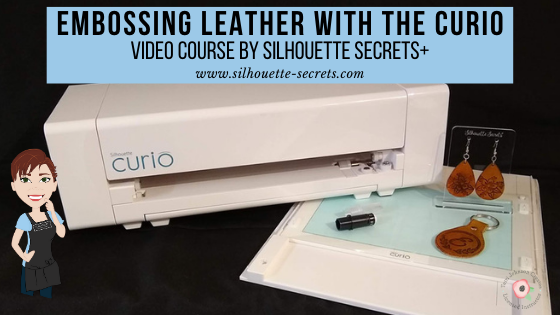
I am so excited to be able to release this new video course on embossing leather with the Silhouette Curio!

We have held 2 Curio virtual retreats in 2020 and it has been a big hit for Curio projects!
Click HERE to go directly to the class or keep on reading for more information.

I have to say, while this has to be the class that has taken the most time to research, write, record, and produce; it is also one of my favorites too!

These are just a few of the test subjects that were made during the creation of this Curio course.

And now you can join me in creating fabulous embossed leather projects with your Curio too! I share all my tips and tricks in how I created these leather embossing projects in the Silhouette software step-by-step in this Embossing Leather with the Silhouette Curio.

What does the video course include?

This is a 1 hour and 56 minute video course that goes step-by-step through the process of creating the embossing design in the Silhouette software, embossing and cutting the leather, finishing and dying the leather, and assembly of the earrings and key fob.

In addition to the Embossing Leather course, I have also added a Basics of the Curio Video (38 minutes) at the beginning of the course for those who are just getting started with the Curio or need a refresher.

Here is the full course content:

Class Extras (at the beginning to get you started):
Curio Unboxing video – viewable on YouTube here: https://youtu.be/bYllH6Inl3M
Class Supplies List – complete list of supplies used in the video course
Basics of the Curio video – 38 minutes

Leather Embossing with the Silhouette Curio Video Course – 1 hour 56 minutes
Part 1 – Setup of the design in the Silhouette software using the Emboss Panel for the earrings & key fob design
Part 1.1 – Embossing & cutting the design on tooling leather with the Curio
Part 2 – Final cuts and burnish of the leather key fob and earrings
Part 3 – Leather dying & final assembly of hardware
Additional Resources
Class Conclusion
Terms of Use

Click HERE to access the
Embossing Leather with the Curio course!

Check out this brief video on the Curio in action embossing on leather to see what you will be doing in the video class.

Are you excited?
I hope this video course opens up new ideas and sparks that creative energy to create fabulous things with your Curio!

Check out all of my Silhouette classes available on my Teachable site
HERE!

I cannot wait to see what you create with your Silhouette Curio!
Feel free to post photos or questions on my Facebook group at 
Silhouette Secrets with EllyMae.

Save this for future reference by pinning the image below.

Enjoy!

SS Logo snip it
**This post may contain affiliate links. What that means is that I may receive compensation if you purchase through the links I have provided. The price you pay for the product or service is not higher but I may get compensated for sharing.
Posted on 3 Comments

Let’s Explore – 5 Silhouette Resources

Today I want to provide a few resources that can help you on your Silhouette journey. I call it a journey because there is so much to learn with the Silhouette software and projects, there is really no end. We are all on this journey together and we have all started at the same place – The Beginning – at one time or another.

5 Silhouette Resources

Tutorial written in Silhouette Studio v4.3.372
Affiliate links may be present in the following blog post and as an Amazon Associate I earn from qualifying purchases.

1 – Silhouette Studio User Manual in the software

Open the Silhouette software. Click on the Help menu in the top left corner.

A User Manual will open as a PDF document.

Use the Page numbers at the top to advance to a particular page or on the computer keyboard click Ctrl+F at the same time and a Find window will pop up and you can search by keywords.

2 – Shortcuts

Did you know that there are shortcuts in the Silhouette software? These are keystrokes that toggle tools and features on and off.

The shortcuts diagram can be found at the end of the User’s Manual in the software. Using the page numbers, type in 118, then hit enter and it will take you to the last page of the manual for the diagram. This can be printed out for reference.

My favorite shortcuts are Ctrl+Z for Undo and Ctrl+G for Group.

3 – Silhouette Handbook in the Silhouette Design Store

The Silhouette handbook is a free ebook in the Silhouette Design Store.
Grab it HERE.

This book has over 350 pages of Silhouette information packed into it.

Once you download the handbook it will show in the Silhouette library when it is synced and can be accessed under the Ebooks folder in the library tree.

Double click on it and it will open the PDF document. Ctrl+F will also bring up a Finder window that you can search by a keyword.

Or you can download it direct to your hard drive and open it from there. You can even print out pages from the book for hard copy reference.

4 – Silhouette 101 blog & tutorials

The Silhouette 101 website is packed full of information that can be helpful to new and seasoned users. It is not just for creative inspiration but you will find machine manuals, tutorials, free classes, and free e-books on there as well.

Click on the Getting Started section and see machine manuals.

Click on the Tutorials section and you will see free ebooks, software how tos, and projects as well.

Click on the Videos and you will see classes, software tutorials, and more.

So many great things can be found on the Silhouette 101 website in addition to the project blog posts.

5 – Silhouette Secrets+ website

The “Let’s Explore v4” series has been going strong for a couple of years now and is so much more than I imagined when I first started writing it.

The Silhouette software is so powerful that it is amazing how much I have learned in writing detailed posts on the different tools and features in the software.
There is always something new to learn.

Join me in this “Let’s Explore v4” journey as we learn all the details of the tools and features in the software.

Silhouette classes are another great way to dive into the software and really learn a particular task or project.

I’ve been teaching Silhouette classes for the past 4 years and this past year launched my online courses. I created these courses at the request of my students as they wanted to access them when they had time available and be able to re-watch them.

At the top of the blog is a Silhouette Instructions & Events tab.
Click on that and the first option is Online Video Classes.

From there click the link to my Teachable site to see all the courses available.

This will open up the Teachable site and you can see all the classes available.

The most popular class so far is the Beginner Setup & First Cuts with Silhouette.

The best way to learn the Silhouette is to play, play, play. It is just like learning anything else new, it will take time to learn and to perfect! The biggest thing I can encourage you to do is to be patient with yourself!
I hope this has helped to give you a few ideas of where to look for more information!

I would love to see your creations!
Feel free to post photos or questions on my Facebook group at 
Silhouette Secrets with EllyMae.

Save this for future reference by pinning the image below.

Enjoy!

SS Logo snip it
**This post may contain affiliate links. What that means is that I may receive compensation if you purchase through the links I have provided. The price you pay for the product or service is not higher but I may get compensated for sharing.
Posted on Leave a comment

Curio Virtual Retreat – Round 2

The first Curio Virtual Retreat was such a success and we had so many requests to do it again, that it is now scheduled for August 14-16, 2020.

This event is limited to 40 attendees and the best part is no travel!
Right from your own computer, tv, or other viewing source.
You work at your own pace to follow all of the step-by-step video courses.
Join us on the weekend of August 14-16 for Zoom calls and online support.
Class kits will be mailed to you and include written handouts too!

Check out this Curio Retreat Highlights post to see a little bit about what happened at our last event.

I loved seeing all the projects that the attendees created and shared with us after going through the step-by-step classes.
These include:
– Curio Basics & Setup
– Curio Tips
– Metal Etching
– Acrylic Etching
– Leather Embossing
– Sketching on Wood

And the projects keep rolling in that they are creating since attending the event!
I love seeing them all!

The weekend includes:
– Class kits mailed to you to complete all the projects
– Instructional step-by-step video classes that are available for you to watch for 30 days following the event
– Online support through scheduled Zoom calls and a private Facebook group

Student Testimonies

Here are a few reviews from the previous weekend:

“The event exceeded my expectations. The prerecorded segments were excellent. Really far better than anything I have found in the internet.” Doug B.

“The virtual retreat was very educational. The ability to be able to follow along with notes, pause the video, take my own notes, at my own pace was amazing and increased my comfort level and education experience.” Charlee R.

“I appreciated all the experience and effort that went into the written materials and the instructional videos – so thorough yet easy to follow! It was great to be able to re-watch portions of the videos while working through the projects. The Zoom chats and the Facebook group were fun and perfectly rounded out this virtual retreat. I will definitely attend in the future!” – Linda M

“Learned a ton from the virtual Curio retreat this weekend and had so much fun completing the projects! EllyMae is a fabulous teacher and we had a lot of great support throughout the weekend. Thank you TJC for this wonderful event!” Kathy S.

“At first I wondered how this would work. Worried about not having the hands on mostly. But I will have to say that it turned out better than I could have ever imagined. Loved that I could watch the video, pause and rewind, and repeat. The notes were great and I believe they will help me in re-creating new projects.” Nancy C

Curio Demos

Want to see a virtual demo table of things I’ve created using my Curio?
Check out this video on my YouTube channel HERE.

And here is a little demo of the Curio in action embossing on leather.

Registration

Register HERE for this event!
Attendance is limited to 40 attendees.

I always love to see what you are creating!
Feel free to post photos or questions on my Facebook group at 
Silhouette Secrets with EllyMae.

Enjoy!

SS Logo snip it

**This post may contain affiliate links. What that means is that I may receive compensation if you purchase through the links I have provided. The price you pay for the product or service is not higher but I may get compensated for sharing.

Posted on Leave a comment

Silhouette Online Classes

NEW!!!
Curio Beginner Setup & First Cuts with Cardstock & Vinyl class released.

Curio Beginner Setup & First Cuts with Cardstock & Vinyl

This 1 hour and 12 minute video class includes:
– Setting up a design page using a Silhouette file to cut
– Setting up the software to cut cardstock
– Setting up the Curio to cut cardstock
– Test cuts
– Setting up a design page using a Silhouette file to cut adhesive vinyl
– How to move a test cut
– Weeding adhesive vinyl
– Applying transfer tape to adhesive vinyl

Find this class information HERE.

Don’t own a Curio, no problem! Other Silhouette classes are available too!
Click HERE for the full list or keep scrolling below to view.
These classes are created in the Silhouette Studio v4 software and include all my tips, tricks, and supply lists to complete each class. All of the classes are created using the same class content that I use when teaching a hands-on, in-person lesson and have as little video editing as possible, in order for you to get the full class effect.

Silhouette Beginner Setup & First Cuts – Get started the with Cameo

Basic Acrylic Etching with the Silhouette Curio

Cutting & Layering HTV in Silhouette Studio

Glass Etching with Silhouette

Heat Transfer Paper Print & Cut lesson with Silhouette

Creating a vinyl decal & layering vinyl using the Silhouette software

Creating a Knockout Design with HTV and Bonus HTV & Subtracting

Creating a Rhinestone Design in Silhouette Studio

However, you learn the Silhouette machine, the best way is to play, play, play.
Each user may be different in how they learn best.
I get a lot of requests for online classes.
Want to see student testimonies?
Click HERE.

What ever tools you use to learn your Silhouette machine, the key is to do it!
Don’t let it sit in the box. Get it out and start playing with it!

Enjoy!

Want to save this information for later – pin the image below!

SS Logo snip it
**This post may contain affiliate links. What that means is that I may receive compensation if you purchase through the links I have provided. The price you pay for the product or service is not higher but I may get compensated for sharing.
Posted on 7 Comments

All Things Silhouette – 2019 November Highlights

It is always a bittersweet feeling after a weekend teaching at an event. We just wrapped up the All Things Silhouette November 2019 Conference and it was fantastic!

What is the All Things Silhouette Conference about? 

It’s about the people! The people who are all gathered together with the common interest of “Silhouette” in common.

We come together, we laugh, we learn, we connect, we share, and we laugh some more!

IMG_20191108_210747493 copy

We all work hard for months before the conference, during the conference, and yes even after the conference! It takes a great team to make all the pieces of the puzzle fit into place.

And it all started with this lady right here! Terri Johnson Creates is the vision & working power behind the All Things Silhouette Conference, TJC Licensed Instructor Program, and many other Silhouette related events.

IMG_20191109_081242523

While I have worked side-by-side with her for a couple years now, it is rare that we remember to take a photo during the event. That has to be the hardest thing for me to remember to do at an event is to take photos.

Check out the upcoming 2020 events that are planned on the Terri Johnson Creates website HERE.

The All Things Silhouette Conference brings together the top of the Silhouette Industry leaders who share their knowledge, techniques, testing, and skills with the conference attendees. Here are a few of us at the end of the conference. Again, photos of the entire group are rare. We are rarely in the same place at the same time the entire weekend.

FB_IMG_1573469140739
(left to right: Terri Johnson Creates, Libby Ashcraft, Sarah Cannon (Silhouette), EllyMae Habets (Silhouette Secrets+), Kelly Wayment (Finding Time to Create), Cindy Eckhoff (Smart Silhouette), Julie Huggins (Sew Craft N’Spired), Kathryn Geddy, Amy Robinson (Silhouette Design Store Designer), Lori Whitlock (Silhouette Design Store Designer), Mags Bonham, Cindy Pope

The connections that are made at the Silhouette events are priceless!

During this ATS event, I taught several classes using the Silhouette Curio.

If you are a Curio owner, you may have realized by now that it can create really cool projects. However, it can take some time to create those and those projects are not always possible to achieve in the hour & 15 minute class time during the regular ATS weekend. From feedback provided by the attendees, a Friday pre-ATS event has been added. This is an add-on to the regular ATS package called the Ultimate Experience.

This is the 2nd time I’ve taught a Curio Boot Camp session. It is very popular and sells out quickly once it’s posted. While it is posted as a 3 hour class, you just never know what will pop up in class and we did go over in time, but everyone was so involved in creating their own designs that you could hear a pin drop in the class. I don’t think they wanted to leave even after their project finished etching.

Curio Boot Camp project

This is a 4″ x 6″ acrylic panel from Craft Chameleon that is etched with the Silhouette Curio. This design is the Sunflower Heart Mandala by Jennifer Wambach in the Silhouette Design Store.
Thank you to both Craft Chameleon and Jennifer Wambach for sponsoring this class!

During the regular ATS weekend I taught the Basic Acrylic Etching class and I showed them how to set up the design to be etched. This design was created in the Silhouette software using basic shapes – check out this post on Drawing Tools to see how you can create your own snowflake too.

Sil_Secrets_Basic Etch

And then a little change of pace. We used the Foil Quill on a faux leather Traveler’s Notebook using the Silhouette Curio. I love the Curio because when you load the base properly, the cutting mat lines up exactly with the cutting mat on your Silhouette software screen. This means that you can place the design on your design screen and then place your materials in the same place on the cutting mat and it will line up.
Check out this The Curio – Getting Started for more information on the Curio.

Sil_Secrets_Foil Compasspic copy

Thank you to Lori Whitlock for providing the Compass design for this class.
It was a big hit!

Collage Travelers Journal copy

And then the final class I taught was a 2 hour class on Saturday evening. We created an etched snowflake home decor project on a 5″ acrylic disc using the Silhouette Curio.

Sil_Secrets_Etchedhomedecor

Thank you to our class sponsors:
Craft Chameleon for the 5″ acrylic disc and Diamond Tip Reamer
H & H Sign Supply for the Glass Etched Vinyl & Oratape Transfer Tape
Snapdragon Snippets in the Silhouette Design Store for the Snowflake Poem Design #72245

Unfortunately, due to some computer issues and things out of our control, we did not get to etch these ornaments in the Basic Acrylic Etching class. While we never like to see it happen, sometimes it does. And, I did not want them to leave empty handed, so I told them all to stop at the registration desk and pick up an etched ornament the next day.

IMG_20191110_073623821 copy

After my last class of the day on Saturday night, I utilized the Curio classroom and connected to 6 machines to etch the 30 ornaments. With the Silhouette Studio Business Edition upgrade, you can use multiple machines at a time. I really was not sure how many machines I would be able to use at once, especially when you are using an etch design as it can be a larger data file. It was either going to be a success or a fail. But, my computer easily ran the 6 Curios etching at the same time. Check out this post on Using Multiple Machines to see how to switch between machines in the software.

Next time, I’ll see how many I can really hook up to my computer and run. There is no limit to the number of machines that can be used with the Business Edition upgrade, except what your computer can handle. This will be dependent on your computer specifications and the number of usb ports you have available to connect to. If you have too many machines going it could max out your computer processing power and that could mean anything from a lag to a crash. But, you never know until you try something out.

And when I wasn’t teaching the class, I was helping out in the classes and every single one I learn something new in. I wish I could clone myself to be in them all.

I had a moment to jump on a Curio machine and complete this design on a Embossable Foil that Kelly Wayment with Finding Time to Create was teaching in the Basic Curio class. I had never used Embossable Foil before & I love it!
I’ve added this to my Black Friday shopping list – stay tuned for that announcement!

IMG_20191109_114859823 copy

It is absolutely amazing what these Silhouette machines are capable of! And I am so grateful for all the blessings that being a Silhouette owner has brought into my life. Now, that may sound odd but, as I started this post out – it is all about the people. Through the commonality of Silhouette I have met so many people who mean so much to me.

My biggest fault at these events is not getting enough photos, especially when I’m teaching. But here are a few I was able to snap.

Courtesy of Cindy Chapko a fellow TJC Licensed Instructor in Arkansas

IMG_20191110_075936352

A shirt made by Jane McClure. This reminds me of our recent trip to Salt Lake City, UT for the Cameo 4 launch except we were all in a mini van. Check out this post on the Silhouette Home Office Tour HERE.

IMG_20191110_082145384

Here is the backside of the shirts that Jane and her group made. These are amazing!

Dee and I had to do a couple retakes to show off her newly etched bracelet that she created in a Curio class with Mags Bonham. By the 3rd photo, no one looked like they were getting punched. We had some good laughs though!

IMG_20191110_135736347

And my hair made it on another shirt! Looks like it’s time for a little color for me.

FB_IMG_1573277476610

It was a fabulous weekend and each All Things Silhouette Conference keeps getting better and better! I was writing down class ideas before the weekend was even over!

Make sure to get signed up for the November 2020 All Things Silhouette Conference as soon as registration opens. It will fill quickly with only 1 conference next year. Sign up to be notified on Terri Johnson Creates blog HERE.

While the weekend is always physically exhausting because we are on the go, it is also creatively renewing. All the creative energy, the Silhouette love, the knowledge floating around, the ideas & techniques shared…. it renews & refreshes you in a way that is so hard to put into words.

It gets your wheels spinning and ideas flowing. And I typically hit the ground running or most times while the airplane wheels are still in the air, I’m typing away on my phone jotting down more ideas.

While I tell myself I am going to take a break after each event, I feel recharged after and don’t want those ideas to run away.

On with the research and testing for the next event.
Can’t wait to share the final projects with you all!

Now, while we have to wait a whole year for the next All Things Silhouette Conference, that doesn’t mean you cannot get inspired or spread inspiration to others.

I would love to see your projects & I know others in my group do too! Feel free to post on my Facebook group at Silhouette Secrets with EllyMae.

Enjoy!

SS_Signature copySS Logo snip it

**This post may contain affiliate links. What that means is that I may receive compensation if you purchase through the links I have provided. The price you pay for the product or service is not higher but I may get compensated for sharing.