Posted on Leave a comment

Let’s Explore v4 – Pattern Fill

It is so neat what you can do in the Silhouette Studio software and with just a few clicks can have a completely different look.

Today we are going to explore the Pattern Fill in the Silhouette Studio software.

Tutorial written in Silhouette Studio v4.4.552
Affiliate links may be present in the following blog post and as an Amazon Associate I earn from qualifying purchases.

What would you use a digital pattern for?

This is a great option for being able to print your own projects. A digital pattern can be added to a shape to cut or even an entire page printed of that pattern.

There are so many options you have for projects that you can complete with it. Stickers, cards, scrapbook pages, patterned cardstock, sublimation, etc.

Check out the end of this post for more tutorials on using patterns in projects.

Software upgrade feature

Adding custom patterns to the Silhouette Studio library is a Designer Edition upgrade feature. If you are currently using the Basic Silhouette software, you will be able to use patterns from the Silhouette Design store in this same manner, but will not be able to add custom patterns directly to the library as shown below.

With the Silhouette Basic software, you can open a jpeg or a png file directly into the software and then use the Crop tool to crop the pattern to your shape.
More details on the Crop tool HERE

Digital Patterns

I had previously cut a pattern out of Sparkleberry Ink Bubble Up HTV and it turned out fantastic, so I contacted the owner at Sparkleberry Ink and asked if it was possible to get a digital version to be able to use for printing.

Thank you Sparkleberry Ink for adding this set to your digital pattern options!

Grab it HERE at Sparkleberryink.com.
Make sure if you are planning to use this for business or selling products that you grab the Commercial Use license!

Adding Patterns to the Silhouette Library

Open Silhouette Studio.

Download and unzip the patterns. Open the folder where the patterns are located. I am using Windows Explorer folder to view the file location.

Now, select the patterns in the folder and drag them into the Patterns folder on the Silhouette Library tree. They can either be added to the main Patterns folder or into a sub-folder you have created.

The Silhouette library will need to sync and then Ta-da!
The patterns should now show in the folder that you moved them to.

Now I have 2 new patterns to play with in my Silhouette software.

There are a couple things to be aware of when using digital patterns.

Digital patterns are photo files. This means that they can be large data files.

Adding digital patterns to your library does take up Silhouette cloud storage space. There is a limit to Silhouette cloud storage, so be mindful of that when adding patterns to the library.

Since they are large photographic images, it can take longer for them to sync, open, and manipulate in the software. This in some part will vary by each user and how their computer can handle those large amounts of data.

Save your files often, especially if trying to add a lot of patterns to 1 file.

How to Use Patterns in Silhouette Studio

Open the design you want to use in the Silhouette software.

I am using a file from Design Bundles called Mandala Breathe by On the Spot Studio.

There are a couple things I want to mention about this file in particular. I am using it because it is one I’ve previously used and I loved it. However, I did have to do some work to the file to use it as it was shown and have 2 separate colors. I will have a future tutorial on how I altered it in order to achieve the look I wanted.

The other thing I want to mention on this file is….. holy edit points!

Edit points are the data points that the Silhouette software and machine read in order to cut. It has to connect the dots (edit points) to make the cut. In this particular file and can be common in mandala designs, it has a LOT of edit points.

You could try to click the Simplify button in the Edit Points panel, but sometimes it changes the look of the design or doesn’t make a big enough difference.

In this case, the file cuts fine at the size it opens, but if you were to scale it down and try to cut it, you may not have great results. This is because those edit points then are just squished into a smaller area. It still has to hit every single one of them to cut.

If you have ever experienced a file that you have scaled down and it just tears up the material or doesn’t cut right, this may be why.

Learn more about Edit Points HERE. They are a great tool to know how to use.

In this tutorial, we are using digital patterns for printing, so I do not need to cut it, but wanted to mention it for future reference.


Select the part of the design that you want the fill applied to by clicking on it.

Next, click on this little icon in the bottom left corner of the Design Tab screen. This is the Show/Hide Library and when you are working with patterns it helps to view the patterns at a larger size.

This will open up the library in a split screen with the Design Tab.
I prefer to look at my patterns this way but you can also find them under the
Fill Color Panel – Tab 3.

Look at the difference in the size of the pattern icons in the Pattern Fill Panel vs using the Show Library tab. It’s easier on my eyes to use the split screen.

With the part of the design you want to fill selected, click on the pattern and it will fill with the pattern you selected.

So cool! And you would never know that this pattern is actually made up of bubbles.

But that’s not all – there is more!

Click on the Show/Hide Library icon again to collapse the library split screen.

Once the design is filled with the digital pattern, it can be adjusted.

Open the Fill Color Panel – Tab 3 and click on the Advanced Options section.

You can adjust several things about the pattern that can give you a different look – angle, scale, pan pattern, etc. I was just playing around with this Bubble Up pattern and it was amazing how a few changes could give it a different look.

On the left, the pattern is scaled up 295% and on the right the pattern is at 100%.

Such neat options!

Now, you may have guessed…. that’s not all!

Use the Fill Color Panel eye dropper to pick up a color from the pattern to fill in the 2nd part of the design.

And you have a custom colored design using a digital pattern in the Silhouette Studio software.

This particular design I sent to my Epson F-170 sublimation printer and then pressed it to a shirt.

I love how it turned out when pressed on the shirt.

So many options that you could use with digital patterns.

Don’t forget to grab these digital patterns from Sparkleberry Ink.

Here is an example of the Bubble Up – Green with the same design.

Want to dive in more to digital patterns?

Here are a couple more blog tutorials I have written over the last couple years with digital pattern projects.
Let’s Explore v4 – 3-D Tank Project
Let’s Explore – Pattern Fill
Let’s Explore v4 – Patterns, Print Bleed, Show/Hide Library

What would you use patterns for?

I would love to see what you are creating with your Silhouette software or machines!
Or if you have any questions, feel free to post photos or questions on my Facebook group at 
Silhouette Secrets with EllyMae.

Save this for future reference by pinning the image below.

Enjoy !

This image has an empty alt attribute; its file name is logo.jpg

THANK YOU for your support! How can you help? Click HERE & buy a coffee.
Every little bit helps with the cost of running the site.

Or if you are looking for more in-depth, step-by-step classes, check out all of my online Silhouette classes on my Teachable site HERE.

SS Logo snip it
**This post may contain affiliate links. What that means is that I may receive compensation if you purchase through the links I have provided. The price you pay for the product or service is not higher but I may get compensated for sharing.
Posted on Leave a comment

New Silhouette Class Released

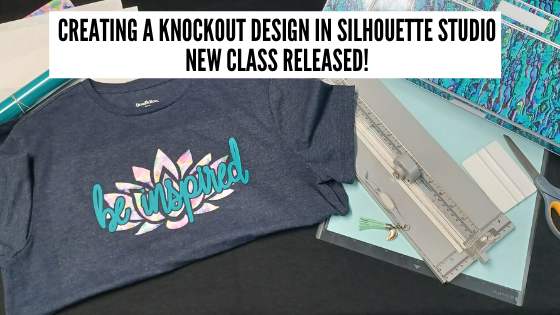
Come join me in learning about your Silhouette software and cutting HTV to create a knock out design. We will use several tools in the Silhouette Studio software to create this design.

Check out the full class HERE.

This is a step-by-step class from creating the knockout design, cutting patterned & solid HTV, pressing 2 layers of HTV, and bonus design tips for alternate designs ideas.

Class Supplies list

Affiliate links are present in the following supply list and as an Amazon Associate, I earn from qualifying purchases
 The cost to you is no different, but I may earn a commission by you using the links provided.

– Silhouette machine – any model will work
– Silhouette blade
– Silhouette cutting mat
Sparkleberry patterned HTV or pattern/color of your choice
Use code SILSECRETS to save 10% at Sparkleberry Ink
Heat Transfer Mask for patterned HTV (required if using Sparkleberry patterns or other types of patterned HTV without a carrier sheet)
*Note: patterned HTV and glitter HTV require 2 different masks – glitter requires a High Tack mask in case you decide to go with that
Siser Easyweed HTV solid
– Blank to put the design on – I am using a T-shirt
– Weeding tool – EK Tools Reverse Tweezers are my tool
Vinyl Squeegee
Scissors
– Heat Press – I am using a Craft Pro 15″ x 15″ heat press from Heat Press Nation
Teflon Sheet or Parchment Paper
Paper trimmer (optional – but handy)
T-shirt Ruler Placement Guide – (optional)
Heat Press Pads or Pillows – (optional) this helps with the seams on a blank if it cannot be placed off the press area

Find all the class details HERE on my Teachable site.

Find all of my Silhouette classes on the Teachable site HERE.

I would love to see what you are creating with your Silhouette software or machines!
Or if you have any questions, feel free to post photos or questions on my Facebook group at 
Silhouette Secrets with EllyMae.

Save this for future reference by pinning the image below.

Enjoy !

This image has an empty alt attribute; its file name is logo.jpg

THANK YOU for your support! How can you help? Click HERE & buy a coffee.
Every little bit helps with the cost of running the site.

Or if you are looking for more in-depth, step-by-step classes, check out all of my online Silhouette classes on my Teachable site HERE.

SS Logo snip it
**This post may contain affiliate links. What that means is that I may receive compensation if you purchase through the links I have provided. The price you pay for the product or service is not higher but I may get compensated for sharing.
Posted on Leave a comment

2 Quick Cards to cut in Silhouette

I cannot believe it is December already!
I have been trying to get some projects done that have been on my list.
And time just seems to evaporate.
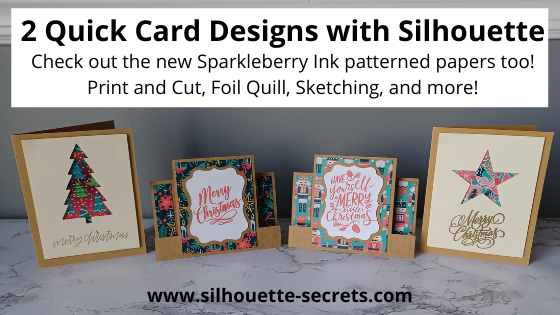
So today I’m going to share 2 quick cards that I’ve been working on.

And the best part about these 2 card designs is that they can be used all year long and for all occasions. Simply change the patterned paper, shapes used, and sentiments and you have birthday, wedding, anniversary, congratulations, or just because cards too!

Affiliate links may be present in the following blog post and as an Amazon Associate I earn from qualifying purchases.

I’ve been playing with the new Sparkleberry Ink patterned papers and I love them!
Now all of the fantastic Sparkleberry patterns are available in a cardstock media.
These are printed directly at the Sparkleberry Ink shop as they are ordered and I’d recommend having a paper trimmer on hand to square up the edges.
Check them out HERE and use my code SILSECRETS to save 10% on your order anytime.

Here are the supplies I used in both these card designs:
8.5″ x 11″ Kraft cardstock
12″ x 12″ Kraft cardstock
12″ x 12″ Sparkleberry Paper
(use code SILSECRETS to save 10% on your Sparkleberry Ink purchases)
Foam Tape
3L Adhesive Tape Runner

The first is a card design that I created using the Drawing Tools and Flexishapes tools in the Silhouette software.

I had hoped to have the full written tutorial on how I created this file, but time just escapes. In most cases, it takes longer to write the tutorial up than it does to create the project.
So I’m sharing the cut file with you, so you can just get to cutting.

Grab the cut file HERE

For the sentiment on the card, you can use any combination of things.

In the photo above, I used the Merry Christmas Vintage sentiment by Chameleon Cuttables – Design #390094 and then did a print and cut onto Kraft Cardstock.
I follow the same steps every single time I do a print and cut and it’s one of my favorite things to do. Check out this post “Let’s Explore v4 – Print and Cut Basics” for setup and tips to getting a successful Print and Cut.

You could also use the Foil Quill and add the sentiments.

For this set I added different sentiments to each card front.

For tips on how to use the Foil Quill check out this post –
Silhouette Cameo 4 – Beginner Foil Quill

I used the following designs on the cards above and below:
Sketch Merry Christmas Handwritten by Kristen Magee – Design #299750
Merry Christmas Horizontal by Chameleon Cuttables – Design #390085
Merry Christmas by Echo Park – Design #306724
Merry Christmas by Lori Whitlock – Design #280787
Merry Christmas with Flourishes by Lori Whitlock – Design #107539
Sketch Handwritten Merry Christmas Phrase by Kristen Magee – Design #301185

Or you could sketch on the card fronts too!

Sketch designs like Design #299750 or #301185 will be quicker to sketch out and are ready to go. In order to fill in text for the Foil Quill or when Sketching, you would use the Line Effects (Sketch) panel to create the fill. Keep in mind the tighter the Sketch fill, the longer it takes to complete the design as it has to sketch all the lines. I used a crosshatched sketch fill with a 0.020 spacing.

Sketching can be so much fun to create unique projects with.
For more in-depth training and a step-by-step class covering the aspects of Sketching, check out the
Sketch Pen & Sketch Pen Design Class on my Teachable site HERE

You could also use stamps and stamp the sentiment on the front of the card front too!

There are so many options with Silhouette!

The second card design is a quick card that any user could cut from beginner to advanced and put together. So it’s perfect for a new user or anyone who is just looking for a neat, quick card to cut and assemble.

Mix and match the patterned papers and sentiments and you have several different designs.

This is a Center Panel Step Card by Lori Whitlock – Design #39775.

The sentiment designs I used are:
Have Yourself A Merry Little Christmas Handlettering by Loni Harris – Design #232198
We Wish You A Merry Christmas by Chameleon Cuttables – Design #334183
Merry Christmas by Sophie Gallo – Design #309990
Merry Christmas by Echo Park – Design #306724

I added the sentiments to a print and cut page and had them done in no time.

Again, I use the same steps each time I set up a print and cut project and I rarely have any issues with it cutting properly.
Check out those tips HERE.

I hope that has given you a few ideas of how you could quickly complete a project. You may even have all the supplies on hand.

I’d love seeing what you are creating with your Silhouette machines or software.
Feel free to post photos or questions on my Facebook group at 
Silhouette Secrets with EllyMae.

Save this for future reference by pinning the image below.

Enjoy!

This image has an empty alt attribute; its file name is logo.jpg

THANK YOU for your support! How can you help? Click HERE & buy a coffee.
Every little bit helps with the cost of running the site.

Or if you are looking for more in-depth, step-by-step classes, check out all of my online Silhouette classes on my Teachable site HERE.
SS Logo snip it
**This post may contain affiliate links. What that means is that I may receive compensation if you purchase through the links I have provided. The price you pay for the product or service is not higher but I may get compensated for sharing.
Posted on 13 Comments

Cameo 4 Cover and more!

Look what I did!
(Read to the end and you’ll find a surprise!)

SilSecrets_Cover copy

*This post may contain affiliate links. Please see the bottom of the post for more information.

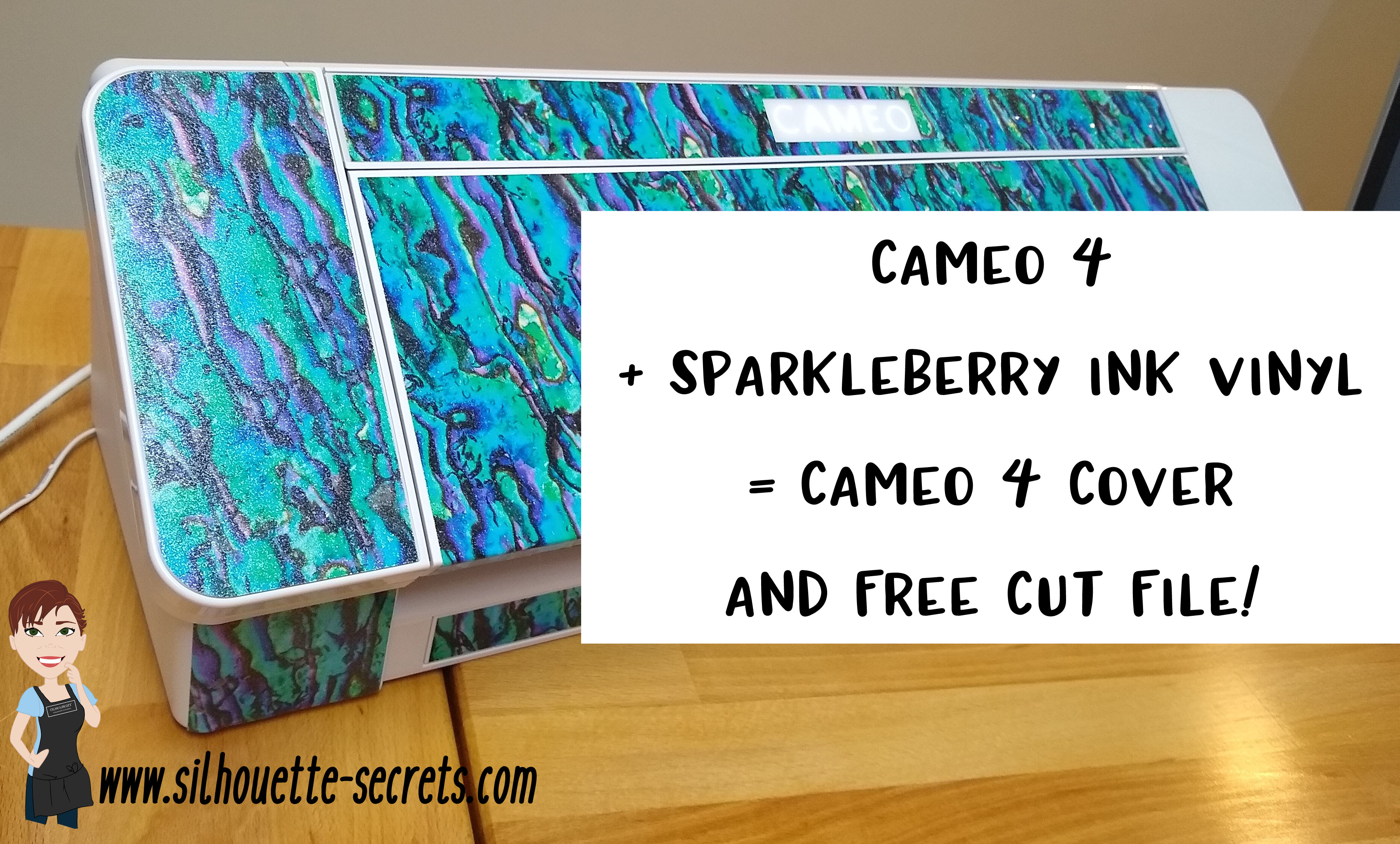
Now, usually I am not one who can decide what design to put on my machine. But, when I saw Sparkleberry Ink release this Laura’s Abalone design, I just knew what I wanted to do with it.

Note: you will need a piece of Sparkleberry Ink vinyl or other brand that is at least 12″ x 24″ long.

I created this Cameo 4 cover all by using a tape measure, the drawing tools in the Silhouette software, and cutting test cuts of the templates to make sure they would fit before cutting my precious Sparkleberry Ink vinyl.

So how did I do it?

I started out by measuring each space that I wanted to add a piece of vinyl to and writing that down.

IMG_20191016_190707132

Cameo 4 cover_updated copy

Then I chose the draw rectangle tool in the software and created a rounded rectangle (6.285″ x 2.420) for the top left panel (E).

Drawing rounded rectangle copy

Next, I drew a rectangle (6.285″ x 2.687″). I used the Align tools to center the rectangles together and then moved them together until the total width of the panel was 2.682″. Then I selected both the rounded and regular rectangle and made a copy, this way I have an original shape to go back to. And I’m so glad I did because I had to cut this one a couple of times to get the right rounded rectangle angles.

Next, I right clicked and chose Weld.

Weld copy

Then I cut it from cardstock to see how well it fit. Here are a few of the pieces I test cut to see how they would work for the panels.

IMG_20191016_165058335 copy

Then I continued to measure each and draw the shapes according to those measurements.

IMG_20191016_165117249 copy

By cutting it out of cardstock, I could place the cardstock up to the space available and see how it fit. If it was too big, I could scale it down. If it was too small, I could scale it up a little bit.

I added all my pieces of my design to a “working file” that I saved, just in case something happened.

Working file copy

Once I knew the piece would fit, I then moved it to my original cut file and positioned it on the mat, so I could get the most out of the 12″ x 24″ cutting space.

Silhouette file photo copy

Then I did something daring. I wanted mine to have sparkle to it. So I took a 12″ x 24″ piece of Glitter Laminate Overlay and I applied it to the top of the Sparkleberry InkLaura’s Abalone adhesive vinyl.

Why is this daring? Well, anytime you add a layer on top of another layer, you have the chance of getting bubbles. But, I went for it!

I followed these instructions HERE for using the Glitter Laminate Overlay and it worked! Would I recommend this for all users – No, probably not. I would definitely recommend practicing with a smaller piece first. But, sometimes you just have to go for it 😉 !

IMG_20191011_200646477 copy

Look at it sparkle!

This is definitely one of those times that you feel all giddy when a project is coming together. If you look really close on the right side in the photo above, you may even see a few bubbles. I’m good with that.

IMG_20191011_205303758 copy

After all the pieces were cut, I cut them apart, added transfer tape and started applying 1 panel at a time. I of course started with the largest panel first, the cover.
Well, at this point – might as well go big.

IMG_20191011_205311771 copy

Since this Laura’s Abalone pattern was directional, I realized after I cut the first one, I had turned a couple of the panels to fit on the mat and that affected the way the pattern was. So I ended up re-cutting a few pieces so the entire pattern matched.
(I corrected that in the final cut file – see below)

IMG_20191012_082222452 copy

I was happy with it as it shows above, however, my kids came to inspect it and my 10 year old said, “Mom, what about the top? Aren’t you going to do the top pieces, so when the lid is open, it all flows.”

Very good point!

Cameo 4 cover copy

And the final pieces were created.

Updated – 1/12/20 to include right panel & UK top panel option
IMG_20200112_093933194 copy

Now, is it perfect? Nope, it has a few bubbles in it. But, I’m ok with that and hopefully as it settles, those will work themselves out or I can help them a little bit.

But, I have to say I love it!
It sits on my desk next to my computer and just sparkles at me.

Now, I did all the measuring and test cutting, but you don’t have to!

Feel free to grab this free cut file of the Cameo 4 cover I created HERE.

Silhouette file photo copy

Cameo 4 cover FREE cut file

Header photo copy

Now, what if you do not have a Cameo 4 yet or don’t plan to buy one? Well, you can still use some pretty Sparkleberry Ink vinyl to add a little color to your Cameo if you would like, no matter what model you have.

I’ve updated and created a full cover file for the Cameo 3 model as well.
Grab this free cut file HERE

Cameo 3 cover example copy

I did cut without a mat when creating this one since it is a larger surface area, however, you could use a 12″ x 24″ cutting mat as well and arrange the pieces on it. Just keep in mind that if you pattern has a direction to it, you want to keep the same consistency in how the pattern goes across the cuts.

I’d also suggest going slow and taking your time when applying, especially on the lid. It is a large surface to get lined up. In this cut file, the pieces are designed slightly smaller than the actual panel sizes, so there is a little bit of machine color showing through to break up the pattern.

For more details on cutting without a mat, check out this post HERE.

Cameo 3 and 4 copy

Cameo 3-4 lid closed copy

I did not cover the inside of the Cameo 3 lid as it has some instructions inside. If you would choose to do so, I would recommend measuring the inside and then drawing a rectangle that same size. I used cardstock and cut out a piece that was the same length top to bottom and held it up to the machine to make sure it was the correct size, before I committed a full sheet of adhesive vinyl.

Or if you have other model machines, grab this Silhouette Cameo Cover Template from the Silhouette Design Store, some of your favorite Sparkleberry Ink vinyl & maybe some Glitter Laminate Overlay too and get to cutting.
*Note this file contains cuts for the Cameo 1 panels, Cameo 2 panels, and Cameo 3 lid.

Silhouette cover

I would love to see how you decorate your Silhouette machine!

Here is my Silhouette Mint Stamp machine decorated in another Sparkleberry Ink pattern called Cute Crawlers Lime.

IMG_20190831_190213600

Feel free to post your machine decoration or any Silhouette projects on my Facebook group at Silhouette Secrets with EllyMae.

Enjoy!

SS_Signature copySS Logo snip it

**This post may contain affiliate links. What that means is that I may receive compensation if you purchase through the links I have provided. The price you pay for the product or service is not higher but I may get compensated for sharing.