Posted on 1 Comment

Create a Shaped Edge Card in Silhouette

Have you ever had a design that just kept “talking” to you and creating more ideas to be made with it?
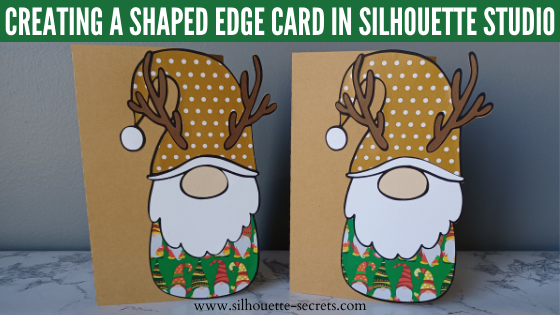
My gnome design file took on a life of it’s own and one project after another came to mind. In this post I’m sharing how I created a Gnome Shaped Edge card. I am using the same design from the last post found HERE where I used this simple Reindeer Gnome design by Lilium Pixel SVG to create a layered cut file.

Affiliate links may be present in the following blog post and as an Amazon Associate I earn from qualifying purchases.

Then the ideas just kept coming and this shaped edge card came to life.

Gnome Shaped Edge Card Design

In just a few steps create a shaped edge card base.

Creating a Gnome Shaped Edge Card

Start with a card base.
The standard sizes for U.S. are 4.25″ x 5.5″ or a 5″ x 7″ card.
However, you can create the card base any size you want.
Keep in mind that you want it to fit in an envelope if mailing.

Silhouette Studio Create a Card Base

Here are 2 ways you can create the card base:
Draw your own using a rectangle and a line – check out how to do that HERE
or use the Project Wizard to create the card base – more on how to do that HERE.

Make sure that the score line is ungrouped from the outside edge of the card base.
In the photo above, you can see there is a gray selection box around both the outer edge and the score line in the middle. This means that they are no longer grouped together.

Open the design to use for card edge onto the same design mat as the card base.

Silhouette Studio Creating Gnome Shaped Edge Card
Gnome layered design created in this tutorial found HERE

Check out the tutorial on
Creating a Layered Cut File from an Outline HERE

Next, move the design to the right side of the card base so the right edge of the design is on the right edge of the card base.

Silhouette Studio Gnome Shaped Edge Card Creation

Scale the design to fit exactly from the top to bottom of the card base.
Use the corner bounding box to scale the design down. Keep the design within the boundaries of the card base you’ve created so you know it will fit in the envelope after it’s cut.

Gnome Shaped Edge Card Design Creation

Now that it is the size we need, make a copy and pull to one side.

Using the design that is still on the card base, ungroup it if necessary and move the pieces off. We only need to work with the background/outline of the design since we have a copy of the original.

Gnome Shaped Edge Card Design Outline

Double click on the card base outer edge to bring up edit points.
Edit points are the data points that create a design. The Silhouette machine “connects the dots” in order to complete the cut.

Silhouette Studio Edit Points

For more detailed information on edit points check out this post –
Let’s Explore v4 – Edit Points HERE.

With the Edit Points active, click at the top of the gnome shape to add an edit point.

Silhouette Studio Add Edit Points

Next, grab the top right corner and move it inside the gnome shape.

Silhouette Studio Move Edit Points

Now click at the bottom of the gnome shape to add an edit point.

Silhouette Studio Alter Edit Points

Next, grab the bottom right corner and move it inside the gnome shape.

Silhouette Studio Gnome Shaped Edge Card Design

Select both the card outer edge and the gnome shape.
Do not select the score line.
To select, click off the shapes to deactivate the edit points. Then click back on the gnome shape, hold the Shift key down, and click on the outer card base line.

Silhouette Studio Select Gnome Shape and Card Base

With both selected, right click and choose Weld.
If the shape was filled with color when welded, the entire shape will take on that color. It may also bring it to the front. Right click and choose Send to Back and/or change the fill color as needed.

Silhouette Studio Weld Gnome Shape to Card Base

Move the original copy of the design on top of the shaped edge and it should fit together.

Silhouette Studio Gnome Design Shaped Edge Card

Ta-da! You’ve created a shaped edge card.

Cut all the pieces and glue together to create a unique card.

Gnome Shaped Edge Card Finished Project

Check out the full video tutorial on my YouTube channel HERE.

I would love to see what you are creating with your Silhouette software or machines!
Feel free to post photos or questions on my Facebook group at 
Silhouette Secrets with EllyMae.

Save this for future reference by pinning the image below.

Gnome Shaped Edge Card Design Pinterest

Enjoy !

THANK YOU for your support! How can you help? Click HERE & buy a coffee.
Every little bit helps with the cost of running the site.

Silhouette Classes

Never stop learning! Let me help you take the anxiety out of learning with Silhouette and get to creating faster! My Silhouette classes are heavily focused on software, so you can take the skills & techniques taught and apply them to many future projects!

Silhouette step-by-step Classes by Silhouette Secrets+

Silhouette Secrets+ with EllyMae
**This post may contain affiliate links. What that means is that I may receive compensation if you purchase through the links I have provided. The price you pay for the product or service is not higher but I may get compensated for sharing.
Posted on Leave a comment

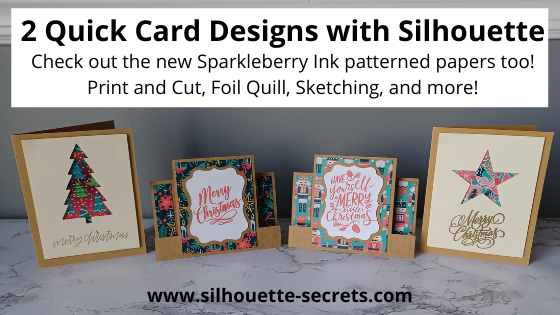
2 Quick Cards to cut in Silhouette

I cannot believe it is December already!
I have been trying to get some projects done that have been on my list.
And time just seems to evaporate.
So today I’m going to share 2 quick cards that I’ve been working on.

And the best part about these 2 card designs is that they can be used all year long and for all occasions. Simply change the patterned paper, shapes used, and sentiments and you have birthday, wedding, anniversary, congratulations, or just because cards too!

Affiliate links may be present in the following blog post and as an Amazon Associate I earn from qualifying purchases.

I’ve been playing with the new Sparkleberry Ink patterned papers and I love them!
Now all of the fantastic Sparkleberry patterns are available in a cardstock media.
These are printed directly at the Sparkleberry Ink shop as they are ordered and I’d recommend having a paper trimmer on hand to square up the edges.
Check them out HERE and use my code SILSECRETS to save 10% on your order anytime.

Here are the supplies I used in both these card designs:
8.5″ x 11″ Kraft cardstock
12″ x 12″ Kraft cardstock
12″ x 12″ Sparkleberry Paper
(use code SILSECRETS to save 10% on your Sparkleberry Ink purchases)
Foam Tape
3L Adhesive Tape Runner

The first is a card design that I created using the Drawing Tools and Flexishapes tools in the Silhouette software.

I had hoped to have the full written tutorial on how I created this file, but time just escapes. In most cases, it takes longer to write the tutorial up than it does to create the project.
So I’m sharing the cut file with you, so you can just get to cutting.

Grab the cut file HERE

For the sentiment on the card, you can use any combination of things.

In the photo above, I used the Merry Christmas Vintage sentiment by Chameleon Cuttables – Design #390094 and then did a print and cut onto Kraft Cardstock.
I follow the same steps every single time I do a print and cut and it’s one of my favorite things to do. Check out this post “Let’s Explore v4 – Print and Cut Basics” for setup and tips to getting a successful Print and Cut.

You could also use the Foil Quill and add the sentiments.

For this set I added different sentiments to each card front.

For tips on how to use the Foil Quill check out this post –
Silhouette Cameo 4 – Beginner Foil Quill

I used the following designs on the cards above and below:
Sketch Merry Christmas Handwritten by Kristen Magee – Design #299750
Merry Christmas Horizontal by Chameleon Cuttables – Design #390085
Merry Christmas by Echo Park – Design #306724
Merry Christmas by Lori Whitlock – Design #280787
Merry Christmas with Flourishes by Lori Whitlock – Design #107539
Sketch Handwritten Merry Christmas Phrase by Kristen Magee – Design #301185

Or you could sketch on the card fronts too!

Sketch designs like Design #299750 or #301185 will be quicker to sketch out and are ready to go. In order to fill in text for the Foil Quill or when Sketching, you would use the Line Effects (Sketch) panel to create the fill. Keep in mind the tighter the Sketch fill, the longer it takes to complete the design as it has to sketch all the lines. I used a crosshatched sketch fill with a 0.020 spacing.

Sketching can be so much fun to create unique projects with.
For more in-depth training and a step-by-step class covering the aspects of Sketching, check out the
Sketch Pen & Sketch Pen Design Class on my Teachable site HERE

You could also use stamps and stamp the sentiment on the front of the card front too!

There are so many options with Silhouette!

The second card design is a quick card that any user could cut from beginner to advanced and put together. So it’s perfect for a new user or anyone who is just looking for a neat, quick card to cut and assemble.

Mix and match the patterned papers and sentiments and you have several different designs.

This is a Center Panel Step Card by Lori Whitlock – Design #39775.

The sentiment designs I used are:
Have Yourself A Merry Little Christmas Handlettering by Loni Harris – Design #232198
We Wish You A Merry Christmas by Chameleon Cuttables – Design #334183
Merry Christmas by Sophie Gallo – Design #309990
Merry Christmas by Echo Park – Design #306724

I added the sentiments to a print and cut page and had them done in no time.

Again, I use the same steps each time I set up a print and cut project and I rarely have any issues with it cutting properly.
Check out those tips HERE.

I hope that has given you a few ideas of how you could quickly complete a project. You may even have all the supplies on hand.

I’d love seeing what you are creating with your Silhouette machines or software.
Feel free to post photos or questions on my Facebook group at 
Silhouette Secrets with EllyMae.

Save this for future reference by pinning the image below.

Enjoy!

This image has an empty alt attribute; its file name is logo.jpg

THANK YOU for your support! How can you help? Click HERE & buy a coffee.
Every little bit helps with the cost of running the site.

Or if you are looking for more in-depth, step-by-step classes, check out all of my online Silhouette classes on my Teachable site HERE.

SS Logo snip it
**This post may contain affiliate links. What that means is that I may receive compensation if you purchase through the links I have provided. The price you pay for the product or service is not higher but I may get compensated for sharing.
Posted on 4 Comments

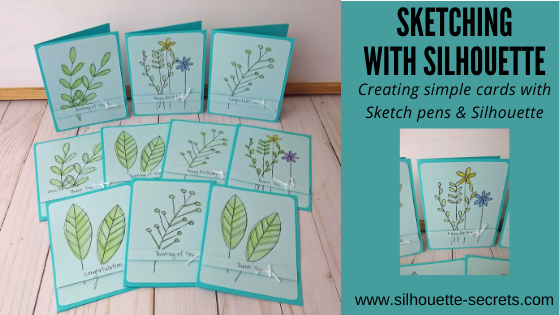
Sketching with Silhouette

Have you seen the classes that Silhouette and Michael’s have been hosting online?

I’ve been attending the Silhouette and Michael’s online classes when I see one that is of interest. In the most recent one that I attended, Kelly Wayment with Finding Time to Create showed how to create some simple cards by using sketch pens in the Silhouette software.

In these classes, I prefer to watch when they do the class live and then complete the project later at my own pace. I decided to make a couple sets to have on hand for different occasions.

Affiliate links may be present in the following blog post and as an Amazon Associate, I earn from qualifying purchases.

Check out this class on the Michael’s YouTube channel HERE.
Grab a cup of your favorite drink and sit back and watch Kelly create.
Then gather your supplies and make up a few cards to have on hand.

Check out all of the upcoming classes on the Michael’s website HERE.

It is always fun to learn something new and to expand on your skills and Silhouette techniques.

I would love to see what you create with your Silhouette!
Feel free to post on my Facebook group
Silhouette Secrets with EllyMae.
If you have questions feel free to post below or on the Facebook group too!

Save this for future reference by pinning the image below.

Enjoy!

This image has an empty alt attribute; its file name is logo.jpg

THANK YOU for your support! How can you help? Click HERE & buy a coffee.
Every little bit helps with the cost of running the site.

Or if you are looking for more in-depth, step-by-step classes, check out all of my online Silhouette classes on my Teachable site HERE.

SS Logo snip it
**This post may contain affiliate links. What that means is that I may receive compensation if you purchase through the links I have provided. The price you pay for the product or service is not higher but I may get compensated for sharing.
Posted on 11 Comments

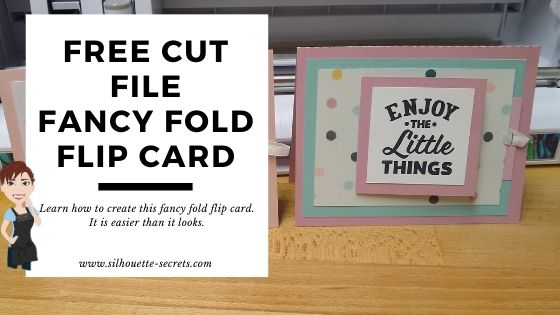
Create a Flip Action Interactive Card in Silhouette Studio: Step-by-Step Tutorial

Silhouette Secrets+ with EllyMae

What inspires you?

That may sound like an odd question. But, stop and think about it.

Where do you get ideas from? What sparks the creative thoughts flowing? Have you been feeling in a slump lately?

With everything going on right now, I am sure that many are not feeling like their peppy selves or are maybe finding a hard time feeling “creative”.

Keep looking!
Keep looking for that creative spark!

*Blog post updated 10/25/25

A few weeks back I saw a Virtual Crop being hosted by 2 fellow Close to My Heart Consultants. This Creative Collaboration duo team is made up of Susan Williams (USA) and Chris Robertson (Canada). I signed up last minute to attend it because I saw a couple card designs that I wanted to learn to recreate. I have followed Susan Williams before and purchased several of her scrapbook and card kits in the past. So I knew it would be good!

But, what I didn’t count on was how good it was for me! It really gave me a boost to watch them create and start creating along with them.

For this event, we were given a recipe sheet. What’s that?
It’s a page that tells you all the supplies needed to recreate the projects, dimensions needed to cut for each paper, plus tips along the way.

I took that and put it into the Silhouette software and created my own cut file for this card design. I reached out to Susan for permission and today I am sharing this free card file with all of you!
Thank you Susan Williams for permission to share!

Affiliate links may be present in the following blog post and as an Amazon Associate I earn from qualifying purchases.

First, gather the supplies needed to complete this card. It is really not much.

Supplies:

Creating the Cut File

Next, let’s take a look at this file in the Silhouette software.

I drew the card pieces using the drawing tools on the left side of the Silhouette software and then used the Scale panel to resize each to the exact dimensions that were provided to us in the recipe.

Drawing tools on the left
Transform Panel – Scale Tab on the right

To create the score lines, I used the line drawing tools and the Move by tool to place the score line exactly where I needed it on the card piece.

Next, with the line selected, I used the Line Style Panel to create a dashed line for the score line.

I followed the same steps to create the “faux stitching” lines. I duplicated the outside card piece shape, decreased the size, used the alignment tool to center, and then used the Line Style Panel to change it to a dashed line.

Grab the cut file HERE or click on the photo below

When you are ready to cut, open the cut file. Then choose File > Save As and save a new copy as the “working file”. This way you always have an original copy to go back to.
Now, move the text out of the way and move the pieces on and off the cutting mat as needed to cut out of each color.
I use the Textured Cardstock Setting in the software to cut almost all cardstock, but I prefer to cut smooth cardstock as textured can be a bit more finicky sometimes.

Then check out this video on how to assemble this card. I promise it is easier than it looks.

Additional options:

1. Use patterned paper

2. Stamp sentiments on cards

3. Print patterned paper
Using the print and cut process along with digital patterns in the Silhouette library, print your own patterns on cardstock for the pieces as desired.

How do you use the digital patterns & print and cut?
Check out these posts for more information on digital patterns and print and cut:
Print and Cut Basics
Patterns and Print Bleed
Let’s Explore v4 – Pattern Fill

4. Print Sentiments with print and cut.
Following the same steps above for print and cut, I moved copied the Sentiment pieces to a new design mat and made copies. Then I filled each with different sentiments.

You could either type out the text and choose a Text Style or use designs to fill the pieces.
I used a couple different Dingbat fonts to add sentiments in the pieces.
SG Inspirational Sentiments Dingbats by Sophie Gallo – Design #276558
SG Happy Birthday Dingbats by Sophie Gallo – Design #276562
Fancy Sentiments by Sarah Hurley – Design #273562

Cut a bunch and assemble to have on hand for any occasion. Leave the sentiment blank until needed, or stock up on cards you frequently use, such as Birthday or Anniversaries.

This is such a great card design and can be used for so many occasions all year long.

Save this for future reference by pinning the image below.

Enjoy !

THANK YOU for your support! How can you help? Click HERE & buy a coffee.
Every little bit helps with the cost of running the site.

Silhouette Classes

Never stop learning! Let me help you take the anxiety out of learning with Silhouette and get to creating faster! My Silhouette classes are heavily focused on software, so you can take the skills & techniques taught and apply them to many future projects!

Silhouette step-by-step Classes by Silhouette Secrets+

Silhouette Secrets+ with EllyMae
**This post may contain affiliate links. What that means is that I may receive compensation if you purchase through the links I have provided. The price you pay for the product or service is not higher but I may get compensated for sharing.

Posted on 7 Comments

Creating cards with your Silhouette

 I started my Silhouette journey as a paper crafter and that still has a big part of my heart. I love to play with paper and creating all kinds of projects with it. There is so much that can be done with the Silhouette but I feel that’s it’s just hard to do it all. And just like anyone else, I get a bug and have to go back to my roots.

I am also a Close to My Heart consultant and have been since right before we moved to Virginia 4 years ago. Gosh, I can’t believe it’s been that long. But I love to be able to combine the two. Close to My Heart has a great quality card stock and I love stamping as well.

So this year, I saw a card kit in the catalog and I just “had to have it”. Why? Who knows? But, it spoke to me and all the supplies to create it jumped in my cart.
That doesn’t happen to anyone else, right?

CTMH card kit.JPG

So this card kit has no Silhouette cuts in it. I didn’t use the software. I actually used the metal die Thin Cuts that come with the card kit and ran them through my Cuttlebug (although an svg file would be much easier if it were available).
So why am I writing about it?

IMG_20191205_105929398 copy

Well, even though I did nothing with my Silhouette for these cards, it gave me some creative inspiration. To be honest, I had hit a little bit of a slump.
I was testing & things weren’t going peachy, which can be frustrating.
So, I got busy doing, got busy creating, just followed the directions, and went with the flow. My kit arrived 2 days earlier than I expected and I dropped everything (including household chores) and started cutting, stamping, and assembling.

It took me longer than I thought to assemble the kit, but that was also because I thought it would be a great idea to make doubles. If I could make 15 cards, I might as well do 30 to send out. It always sounds like a good idea at the the beginning.

But one thing I do know, while I was working I was getting ideas of how to use these papers with my Silhouette and create a fold card design in the software. This was a design I had cut by hand a few years back when I was making card kits for my CTMH customers. I wasn’t focused on trying to come up with the ideas from scratch, they were just coming to me. All of a sudden it was “What about if I use these papers with my Z fold card design & stamp the images for the card?” or “What if I use a print and cut image on the front of the card?” and then “What if I created the file to give away?”
And it was back… that creative spark!

IMG_20191205_105313795 copy

And then one thing leads to another, the creative spark lights a fire. I remembered I had this little guy I had been saving to do Christmas Cards with for a long time.

I used the Print & Cut feature to cut out several Moose in Sleigh Christmas designs that would fit right on the front of the card.

Print & Cut Moose copy

This is Moose In Sleigh Christmas Print and Cut by Stinkin Cute Paper Piecings – Design #50960. And I have to admit, I have found him “stinkin’ cute”.

My new Cameo 4 registered and cut this design out beautifully.

IMG_20191204_141554050 copy

Adding it on to the front of this Z-fold card worked great!

IMG_20191205_105329983 copy

But maybe you don’t have time to create Christmas cards this year. That’s ok grab this FREE cut file below and create cards for all occasions throughout the year.

IMG_20191205_105338514 copy

I used Happy Birthday Layered by Deborah Stine – Design #57087 and turned the cut lines off, changed the color to match my patterned paper, set it up as a print & cut with the center front rectangle around it.

For more information on setting up a Print & Cut project check out Print & Cut – Part 1, Part 2 – Text, and Part 3 – Images.

Now, if you are still with me. Let’s get down to it – the FREE cut file. I hope this gets you excited to create your own cards.

Grab the FREE Z-fold cut file for this card HERE.

When you open the card file all of the pieces are stacked on top of each other so you can see where the pieces will be adhered after cutting. Move the pieces off and position them on the design cutting mat to cut each piece out. When I am cutting cards or layered designs, I like to cut several at a time and then I can sit and assemble them later while watching tv or when I just need a break.

Zfold card photo copy

Once all your pieces are cut, check out this video with tips to assemble the card.

This free z-fold card file was created by me completely in the Silhouette Studio software. I measured, drew rectangles, added score lines, and drew more rectangles to create the design. This is available to you for your own personal use and I hope that you enjoy creating with it.

I think we all hit a “creative block” sometimes and it is just good to stop and just create. Do something you love. Make something you’ve had on your list for awhile. Especially as we all go into this busy time of year, we can feel overwhelmed. Whether it’s because you just came out of an event, have continuous events going on, are filling orders, or just creating gifts for friends and family – stop and take a few moments for you today too! Whether that involves using your Silhouette or starting a project without it.
You never know when a creative idea will hit!

Now, off to get these addressed and mailed out for this year.

I would love to see what you create with this Z-fold cut file or any of your Silhouette projects that are bringing you joy today!

Feel free to post on my Facebook group at Silhouette Secrets with EllyMae.

Enjoy!

SS_Signature copySS Logo snip it

**This post may contain affiliate links. What that means is that I may receive compensation if you purchase through the links I have provided. The price you pay for the product or service is not higher but I may get compensated for sharing.

Posted on 3 Comments

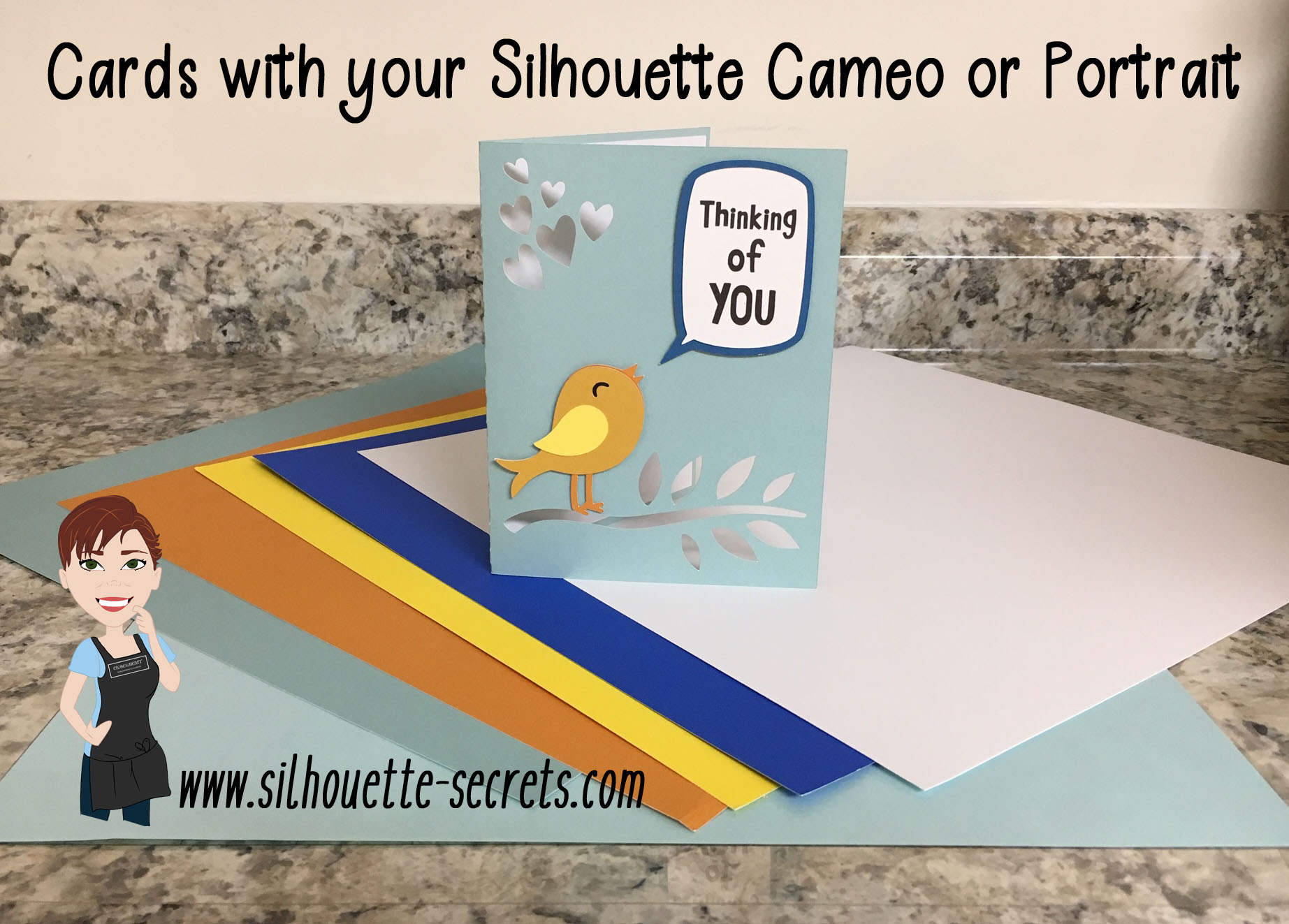
Cards with your Silhouette

Did you ever need a quick card?

Grab that cardstock and an easy cut file from the Silhouette Design Store.

img_7960 copy

I used Lori Whitlock’s Sympathy Card Thinking of YouDesign #258278. While the card says Sympathy, it could be used for a lot more than that. This was a pretty easy card to cut.

Open the Design and right click to ungroup the pieces.

ungroup

Next, move the pieces around on the mat and place the cardstock in the same location of the mat.
To see how I did this with Oracal vinyl as well, check out this post on the Acrylic ornaments HERE.

moving pieces copy

Tips

 – I use the Reveal Mat and increase it to 100% to see the grid lines of my cutting mat, so I can line up the material in the exact location and cut it down to the size needed with my paper trimmer.

– A sticky mat is important to hold down the entire piece of cardstock so it does not move while it’s being cut. A mat that is too sticky will hold the paper too tight and make it harder to get it off after it’s cut. De-stick your mat a few times on a clean cotton t-shirt or towel. I usually use my t-shirt I have one, as that is the quickest.
A mat that is not sticky enough and the paper is not held down for a crisp cut.

– I use the textured cardstock setting for almost all cardstock and it works well. It will lightly score the mat, but that is normal as you are cutting completely through a material.

– I like the cardstock packs from Michael’s to test and play with cutting cardstock. It cuts well and is inexpensive to play around with. I do prefer to cut smooth cardstock versus textured. I just found that there was more chance for a cut to not connect with the textured – again a really sticky mat will help with this and holding that textured cardstock in place.

– Play, play, play and you will pick up tricks and tips. Even experienced users still have issues, so if you do, it is all part of the process.
Keep on trying!

img_7962 copy

And use a bit of adhesive and you are finished.

You can get as detailed in card making as you want or as simple.

I would love to see what you create – feel free to post on my Facebook group at
Silhouette Secrets+ with EllyMae.

Enjoy!

SS_Signature copySS Logo snip it

**This post may contain affiliate links. What that means is that I may receive compensation if you purchase through the links I have provided. The price you pay for the product or service is not higher but I may get compensated for sharing.