Posted on Leave a comment

3 Ways to Work with Rhinestones

Have you seen all the possibilities with rhinestone designs?

In this post, I’ll share 3 ways you can work with rhinestones.

Rhinestone Design Created in Silhouette Studio

Affiliate links may be present in the following blog post and as an Amazon Associate I earn from qualifying purchases.

Let’s Add Bling!
3 Ways to Work with Rhinestones

1. Create Your Own Rhinestone Designs

If you have the Silhouette Studio software Designer Edition upgrade (or higher), you can easily create your own rhinestone designs that can be cut out of rhinestone flock.

Rhinestone Template Material

I share how the Rhinestone Panel in Silhouette Studio Designer Edition works in this tutorial in the Let’s Explore v4 series
Let’s Explore v4 – Rhinestones

I also have a step-by-step class where I share how to create 4 different rhinestone designs and give tips for working with pre-made rhinestone designs, how to make your own, and how make faux rhinestone designs as well!

Silhouette Design & Rhinestone Class

Designing with Rhinestones – Creating 4 Projects on Teachable HERE

And there are even more options!
If you have the Silhouette Studio Business Edition upgrade, you can also create the rhinestone design and export as a svg file. This means that other cutting machine users could also use the svg file or you could use a different machine to cut the rhinestone flock for the template as needed.
As always, you would need to test with your specific cutting machine to find out the cut settings that work best.

Check out these tutorials for more details on
Saving as a SVG file and Perfect Cut Settings

To create your own rhinestone designs does require some additional supplies. Here is a list of the supplies I used in the Designing with Rhinestones class.

Supply list

– Silhouette Studio Software
– Silhouette Studio Designer Edition upgrade
at Crafter Cuts (use code SECRETS to save 10%)
Check for additional sales at Silhouette America The Vinyl SpectrumSwing Design
Hot Fix Rhinestones
Rhinestone Template Material
Hot Fix Transfer Tape
Siser Glitter HTV
– Blanks: zipper bagshirt, bag, etc.
Trim paint brush
– Tools: Scissorssharp weeding toolSilhouette Pick Me Up ToolSilhouette Spatula
– Optional: Rhinestone scoop, Rhinestone Supplies at The Rhinestone World ,
Bead ScoopLarger Trim Paint brushPaper TrimmerLint RollerTool Kit
– Silhouette cutting machine (or another cutting machine model)
– Heat Source: Siser Heat Press

In the class, I used a few more project specific designs.
Find all the details HERE or directly on Teachable HERE.

2. Order Pre-Made Rhinestone Transfers

Maybe you don’t want to invest in the supplies to cut designs out of rhinestone flock and make your own.

You can still create with bling!

I recently ordered some rhinestone transfers from Heat Transfer Warehouse to test.

Sure I could have made them on my own, but once I saw the prices, I ordered a few.
Well, maybe more than a few!

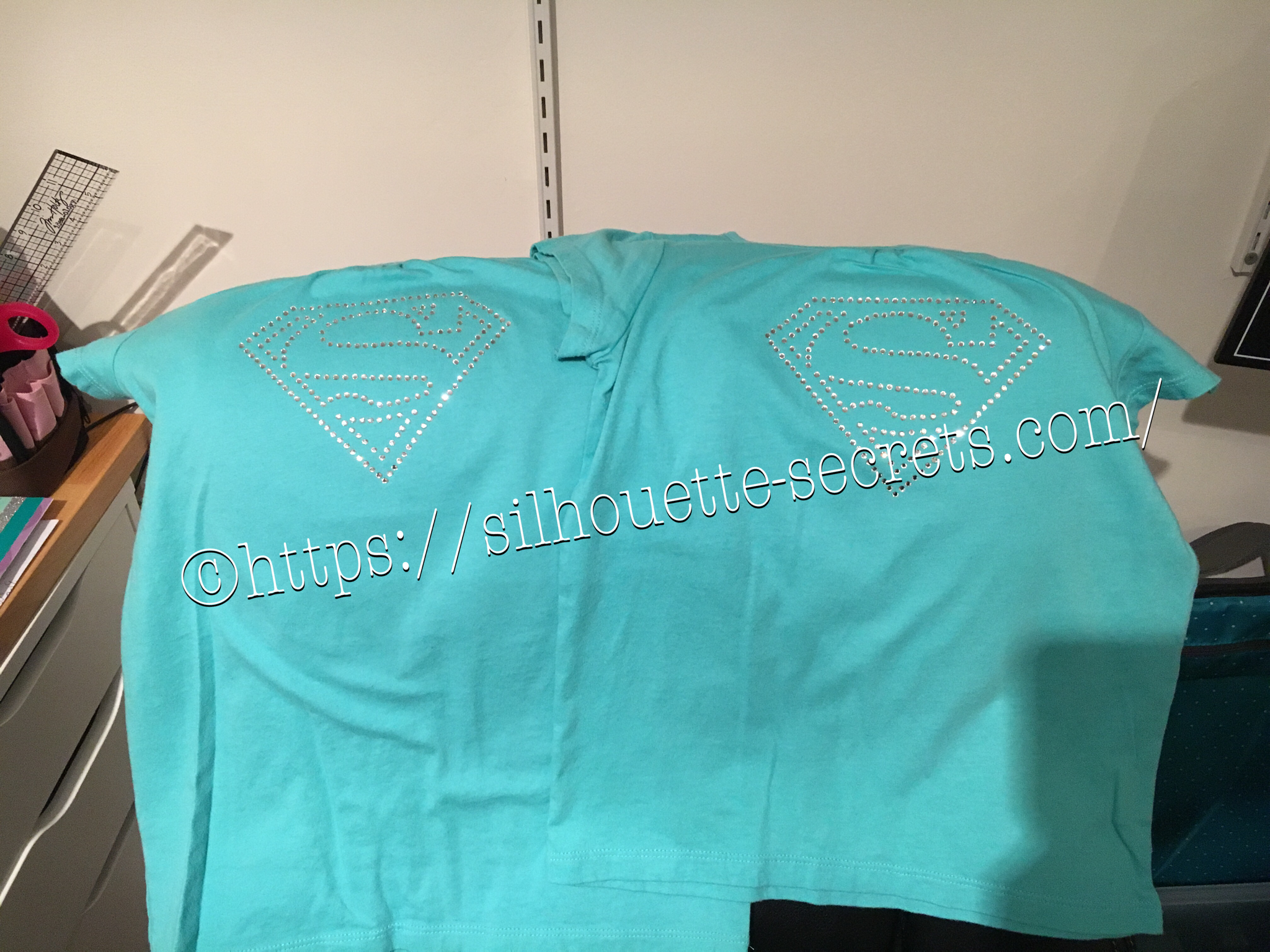
Here is one I ordered for my daughter to wear.

And of course I couldn’t pass this one up.

These are as easy as ordering and pressing according to the instructions.
Bing, bang, bling!

The most difficult part about rhinestone designs is getting a good photograph.
It is so hard to capture the sparkle and bling on these designs.
I have more to apply in the future too!

Check it out HERE

3. Order Custom Rhinestone Transfers

Do you have a custom design you want to have made with rhinestones?
Maybe you don’t have all the colors of the rhinestones you need or it is just too complex or it is cheaper to purchase than to create?

Heat Transfer Warehouse also offers custom transfers as well.

Custom Rhinestone Design by Heat Transfer Warehouse

Prices will vary depending on the size, color, and complexity of the design.

Check it out at Heat Transfer Warehouse HERE!

And have fun!
So many projects on my list for the future!
Hope you’ll continue on this journey with me!

Save this for future reference by pinning the image below.

3 Ways to Work with Rhinestone Designs with Silhouette

Enjoy !

THANK YOU for your support! How can you help? Click HERE & buy a coffee.
Every little bit helps with the cost of running the site.

Silhouette Classes

Never stop learning! Let me help you take the anxiety out of learning with Silhouette and get to creating faster! My Silhouette classes are heavily focused on software, so you can take the skills & techniques taught and apply them to many future projects!

Silhouette Step-by-Step Classes

SS Logo snip it
**This post may contain affiliate links. What that means is that I may receive compensation if you purchase through the links I have provided. The price you pay for the product or service is not higher but I may get compensated for sharing.
Posted on 1 Comment

Designing with Rhinestones and Silhouette Class

I have a new Silhouette class that I just released on my Teachable site!!!!

Affiliate links may be present in the following blog post and as an Amazon Associate I earn from qualifying purchases.

This class has been in creation for almost 6 months now and finally is out of my head and finished!
It has grown from just 1 project to 4 projects as I wanted to include several options for you to be able to customize your own projects.

Check out the full description of the class HERE

I’ll share a few photos below, give a brief explanation of what each sessions focuses on, and then share the supply list as well. However, there is also a downloadable supply list when you register for the Rhinestone class.

The class is designed so you can choose what you want to create and I guide you along the way to show you the possibilities and options you have.

This first session we discuss pre-made rhinestone designs and how you can use those in your creations, but the main focus is getting set up with the proper cut settings for your materials and using a small ready made design, so you can make sure it’s going to work first.
This part of the class can be completed with the Basic Silhouette Studio software.

I used a Paw Print rhinestone design by Rivka Wilkins because that is what my daughter selected, but I also show you how to navigate the Silhouette Design store to choose your own design too!

Then I have a brief session where I share some information on the different Silhouette machine models and how they might work with the Rhinestone feature.

The next session is where you really get to “create” your own unique design.
You will need the Silhouette Designer Edition upgrade or higher in order to unlock the Rhinestone Panel and create your own rhinestone designs.

We discuss text, different text styles, editing text to manipulate it how you want, and also how that affects your rhinestone design for the project. We also explore creating a rhinestone design, how your text option might affect that design, and how to edit the rhinestone pattern as needed for your desired outcome.

In this session of the class, we discuss fonts and specifically creating rhinestone designs from fonts. I share what works, what may not work, which font styles I think work the best, and how to manipulate the designs when they don’t turn out quite right.

As you’ll see in supply list below, I am sharing several different font styles in the class for each session so you can see on screen what happens. You do not have to buy all the font styles and I highly recommend you watch the class before you invest in too many font styles.

And this fourth session of the class started out as a “bonus” session and quickly grew a life of it’s own. We discuss turning shapes & designs into rhinestone patterns as well as creating a “faux” rhinestone look too!

And maybe one of the most valuable parts of the entire class is that I had a few things go wrong as I recorded the sessions, but I didn’t edit that out because these things happen to us all. Often times you see movie magic in recorded videos and everything looks 100% perfect and then when a user encounters an issue that didn’t happen in the video, they wonder what they did or why it’s not working for them.
In this class, when I encountered any issues, I share how I troubleshoot those issues, how I fixed them, and what I would do in the future.

As I mentioned at the beginning of this post, the class grew from what I originally intended it to be and I packed it full with tips and tricks that will help you in your future Silhouette projects!

I hope you’ll join me in this new Silhouette class!

Check it out HERE

I have also provided the supply list below, but there is a downloadable one in the class as well.

Supply list

– Silhouette Studio Software
– Silhouette Studio Designer Edition upgrade – Crafter Cuts (use code SECRETS to save 10%)
Check for additional sales at Silhouette America The Vinyl SpectrumSwing Design
Paw Print Rhinestone Design by Rivka Wilkins – Design #5445
Hot Fix Rhinestones
Rhinestone Template Material
Hot Fix Transfer Tape
Siser Glitter HTV
– Blanks: zipper bagshirt, bag, etc.
Trim paint brush
– Tools: Scissorssharp weeding toolSilhouette Pick Me Up ToolSilhouette Spatula
– Optional: Rhinestone scoop, Rhinestone Supplies at The Rhinestone World ,
Bead ScoopLarger Trim Paint brushPaper TrimmerLint RollerTool Kit
– Silhouette cutting machine (or another cutting machine model)
– Heat Source: Siser Heat Press

Optional Fonts – you DO NOT need all, but I share several examples in the class – I would recommend watching first to see which ones you’d like to use

Project #2 fonts

Beauford font
BFC Crafty Clutter by Blush Fonts – Design #423648
BFC Saturday Garden Bush by Blush Fonts – Design #435182
BFC Farm Hand Brush by Blush Fonts – Design #416052
Country Christmas Brush Script by Gina Marshall – Design #42528

Project #3 demos

Paw Print design by Silhouette – Design #313173
BFC Craft Table by Blush Fonts – Design #398778
BFC Honey Bears by Blush Fonts – Design #438560
LW Coach font by Lori Whitlock – Design #274417
Bestie CS Font by Cloud Studio – Design #414194
Dotcirful font by 7nTypes – Design #314551 (faux rhinestone font)
Sweet Pea Sketch font by Rivka Wilkins – Design #86121

Project #4 supplies

Siser Holographic HTV
Rhinestone Butterfly by Tanya Batrak – Design #188929
Heart Inverted Rhinestones by Samantha Walker – Design #6447
– (demo example only) Rhinestone Filled Flower by Sandi Idleman – Design #82666

Now, that may look like a lot of fonts, but I highly recommend you watch the class before purchasing any. You’ll find that you do not need them all, but you may like some of them for future projects.
I used several examples in each session to give you an idea of how you could customize your projects and show what works better and what might not work too!

Want to learn more?

Check out the full list of Silhouette classes on the
Silhouette Secrets+ Teachable site HERE.

Save this for future reference by pinning the image below.

Don’t miss out on any Silhouette tutorials, classes, or news!
Sign up below to get email notifications every time I publish a new blog post.
My goal is for 1 new post a week, unless there is exciting news to share in between.
I know we are all busy and daily emails are not my thing.

Enjoy !

THANK YOU for your support! How can you help? Click HERE & buy a coffee.
Every little bit helps with the cost of running the site.

Silhouette Classes

Never stop learning! Let me help you take the anxiety out of learning with Silhouette and get to creating faster! My Silhouette classes are heavily focused on software, so you can take the skills & techniques taught and apply them to many future projects!

SS Logo snip it
**This post may contain affiliate links. What that means is that I may receive compensation if you purchase through the links I have provided. The price you pay for the product or service is not higher but I may get compensated for sharing.
Posted on Leave a comment

Let’s Explore v4 – Advanced Rhinestones

There are so many neat features of the Silhouette Studio software as you move up in the software upgrades. The Advanced Rhinestone Panel is an option if you have the Designer Edition Plus or Business Edition upgrade.

Rhinestone Panel copy

At first glance or if you read the standard description, it may not seem like much of a feature, but let’s take a look at it more in depth.

Rhinestone Panel Detail copy

  1. Rhinestone Library – Contains images of rhinestone designs – 2 sectionsPre-set Images and Sizes – Choose which color and size that you would like to add to your design

    Rhinestone options

    User Rhinestones – designs can be added to the Rhinestone library by either drawing a shape or importing a photo

    Rhinestone Library - User section copy

  2. Size – Designates the size of the rhinestone chosen or the size of the rhinestone design you are creatingSize copy
    This will show grayed out if using a pre-set shape & size.

    If a shape is added to the rhinestone library, then a size can be designated and it is no longer grayed out.

    Size User created copy

  3. Add Selected Shape to Rhinestone Library – Add shape designs to the library for creating a new rhinestone option. Shapes can be drawn or imported from a photoAdd Selected Shape copy

    The default measurement can also be changed under the Preferences in the software. It can be set to inches (default), millimeters, centimeters, meters, inches or feet.

    Change measurement preference copy

    And then it will reflect in the panels that use measurements.

    Change measurement copy

    If the shape drawn is bigger than what is allowed, a pop up will appear stating this.

    Error size

  4. Draw Rhinestones – Single vs Multiple – Choose to draw one style of rhinestone designs or a multiple of designs from the library.Single – drawing rhinestone in repeat of 1 shape with a click of the mouse

    Draw Rhinestone Single click

    Multiple – Draw Rhinestone from a chosen list of varied designs pulled from rhinestone library.

    By clicking on the multiple option, a new option window expands and you can add or delete the order of the designs in the selection window.

    Draw Multiple pattern
    This would come in handy if you are trying to create a rhinestone pattern with different sizes.

    Or you can use the pre-set rhinestone designs and create a pattern too.

    Draw Multiple pattern on shape

  5. Angle – Change the angle of how the rhinestone design follows a shape.Standard = Rhinestones upright
    Center = Rhinestones point to center
    Perpendicular = Rhinestone align to contour

    Angle

  6. Spacing – Change the spacing between the rhinestones when applied to a shape.Spacing.JPG
  7. Angle Offset – Choose what angle the rhinestones are placed along a shape.Angle Offset.JPG
  8. Rhinestone placement – Choose how the rhinestones are placed – options are: Outer edge, perpendicular, or from center.Rhinestone Placement
  9. Draw Rhinestone – Single Click vs Replace – Add a rhinestone with a single mouse click or replace a rhinestone with a different rhinestone.Single = place 1 rhinestone with each click of the mouse
    Replace = Once a rhinestone is placed it can then be swapped out with a different rhinestone for another size or color
  10. Totals (All Shapes) – Gives a count of all the rhinestones on the mat or the image selected.Totals copy

 Now that we have explored the entire panel – what would you use this for?

Here I’ve created what is called a mock up and the design is laid on top of the photo of the tote bag.

Mock up photo

Now I may actually have to make the rhinestone decal for real.
Find out more information on creating a rhinestone template in the Let’s Explore v4 – Rhinestones post.

Have you played with the Rhinestone feature yet?
I would love to see your Silhouette projects! Feel free to post on my Facebook group at
Silhouette Secrets+ with EllyMae.

Enjoy!

SS_Signature copySS Logo snip it

**This post may contain affiliate links. What that means is that I may receive compensation if you purchase through the links I have provided. The price you pay for the product or service is not higher but I may get compensated for sharing.

Posted on 8 Comments

Let’s Explore v4 – Rhinestones

Bling, sparkle and wow!

Exploring the Rhinestone panel today!

This is a Designer Edition upgrade feature, so if you have the Basic software, you will not see this icon on the screen.

Rhinestone Panel copy

If you only have the Basic software, you can still cut rhinestone designs, but you cannot create rhinestone designs. The Silhouette Design store has many rhinestone designs that can be opened and cut with the Basic software.

The diamond icon is what how you can tell at a glance that it is a rhinestone design or you can use the search box and type in “rhinestone” and it will bring designs up.

Design Store Rhinestone files copy

With a rhinestone design, it comes it at a specific size to use with certain stone sizes, so they cannot be resized if you are using stones.

The description of the design will also tell you more information about the design, such as size, number of rhinestones, and rhinestone sizes needed.

Design Store description copy

With the Designer Edition upgrade to the Silhouette Studio software, you can create your own rhinestone designs in just a few clicks.

There are so many options in creating your own designs in this panel, let’s take a look.

*Please note – throughout the entire post I have filled the rhinestone design in with color so it can be seen better. When a rhinestone design it is not filled with a color.
Check out more information on the Fill Color Panel HERE.

Rhinestone Panel detail copy

  1. Rhinestone Effect – 3 options for rhinestone placement
    Edge Effect – places rhinestones around the edge of the designEffect Edge copyLinear Effect – this fills the design in a linear formationEffect Linear copy

    Here is another example of the linear effect

    Effect Linear demo2 copy

    Radial Effect – fills the design in a radial pattern

    Effect Radial copy

    Here is another example of the radial effect

    Effect Radial demo2 copy

  2. Rhinestone Size – 4 options: 6 ss, 10 ss, 16 ss, 20 ss
    ss stands for Stone SizeStone SizeChoose from the most popular stone sizes or adjust it to a custom size.Adjustable size copy
  3. Rhinestone Spacing – further customize the design by adjusting the spacing between the rhinestonesSpacing
  4. Draw Rhinestones – left click and hold the mouse button down and draw a design. The rhinestone pattern will follow your drawing and the stone size will be what is chosen above in Rhinestone size.Freehand copyHere is a the Freehand rhinestone in action:https://youtu.be/DopgVUlOshQ
  5. Release Rhinestones – releases all the rhinestone circles into individual design pieces. This allows you to manipulate the design even further by moving the rhinestone holes, adding more or deleting some. A selection box will appear around each rhinestone circle.Release RhinestonesZoomed in to see the selection boxes.Release Rhinestones zoomedHere I have moved some and added more to fill in the blank spaces.Freehand finish

    Something to keep in mind when you do release the rhinestones is you are breaking the file up from 1 object to LOTS of objects – each of those boxes around the hole is a new object. This means that it is a lot of data for your computer to process. Do not be surprised if you experience a little lag or it doesn’t react as fast as you’d like. This is normal and depends on the processing speed of your computer and how much data it can process at once.

    After adjusting the design, select the entire image and then Group it back together, so the file will move as 1 object.

    Rhinestone grouped

  6. Totals (all Shapes) – this tells how many rhinestones are either on the mat or if 1 object is selected, how many are in the design.When no objects are selected, it totals all the rhinestones on the mat file.Totals copyWhen 1 object is selected, it totals the rhinestone count for that 1 object.Totals selected copy

Rhinestone designs can be so much fun to create and design!

The design is then cut out of a rhinestone template material that can be reused over and over again to create fabulous rhinestone designs.

IMG_3996

And you have another customized project that you have created with the Silhouette machine.

temp

For a full online video course going step-by-step through the rhinestone process, check out the class on Designing with Rhinestones and Silhouette – Creating 4 projects

Supplies used in this post:
Love design by Silhouette Design #9651
Magic Flock rhinestone material, Hot Fix Transfer tape, and Rhinestones
from The Rhinestone World
Canvas Zipper bag from Craft Chameleon

Feel free to share your sparkly rhinestone projects on my Facebook group at
Silhouette Secrets+ with EllyMae.

Enjoy !

THANK YOU for your support! How can you help? Click HERE & buy a coffee. Every little bit helps with the cost of running the site.

Silhouette Classes

Never stop learning! Let me help you take the anxiety out of learning with Silhouette and get to creating faster! My Silhouette classes are heavily focused on software, so you can take the skills & techniques taught and apply them to many future projects!

SS Logo snip it
**This post may contain affiliate links. What that means is that I may receive compensation if you purchase through the links I have provided. The price you pay for the product or service is not higher but I may get compensated for sharing.

Posted on Leave a comment

Quick gift – I love Rhinestones 

Rhinestones – once you start, it’s addictive and you just want to make more. I held off as long as I could, until I took Terri Johnson Creates hands on retreat last July. In her class, we designed our own rhinestone design and cut it out. After that one design, I was hooked and started shopping in the Silhouette store for more. This one jumped out at me and I knew I’d be making some for my nieces in the future.

I had just ordered some supplies from The Rhinestone World and had the opportunity to make these as quick gifts to send with my husband on a trip.

img_6136

So with this magic flock you cut the design with your machine and then peel it off the backing – rip it like a band aid gets the best results. If it has cut well, the little holes will stay on the backing and you can just scrape them off…..

img_6137

You can then lay the sticky design down on a safe surface, press it and peel it back again to get more of the circles to stick out.

img_6138

I then look for any that didn’t come out, remove those and put it back on the backing paper.

img_6139

Now, sprinkle your rhinestones on top of your template and rub them around until all the holes are full. Once all the stones are in place, using heat transfer tape, lay it over top of your design and burnish. Carefully life it up and make sure the rhinestones are stuck to the heat transfer tape.

img_6144

img_6145 Place your heat transfer on the shirt where you want it and I used an iron with a board under it and lots of pressure on high heat with a teflon sheet to set the stones on the shirt.

img_6147 I love the ability to make a gift up really quickly and hope you enjoy making rhinestone designs as much as I do.

I would highly recommend attending a retreat by Terri Johnson Creates, you will learn so much and be able to try all kinds of new projects. The possibilities are endless with the Silhouette Cameo!!!

Enjoy !

THANK YOU for your support! How can you help? Click HERE & buy a coffee. Every little bit helps with the cost of running the site.

Looking for more in-depth, step-by-step classes, check out all of my online Silhouette classes on my Teachable site HERE.

SS Logo snip it
**This post may contain affiliate links. What that means is that I may receive compensation if you purchase through the links I have provided. The price you pay for the product or service is not higher but I may get compensated for sharing.