Posted on 8 Comments

Ultimate Guide to Cutting Small Fonts and Detailed Designs with Silhouette

Cutting small fonts and intricate designs with your Silhouette can be a game-changer for creating professional-looking projects, but it also comes with unique challenges. From selecting the right materials to fine-tuning your machine settings, every detail matters when working with tiny text or delicate patterns. In this ultimate guide, we’ll share proven tips, tricks, and techniques to help you achieve clean, precise cuts every time. Whether you’re crafting personalized gifts, labels, or detailed decorations, these strategies will take your Silhouette skills to the next level. Keep reading to unlock the secrets to cutting small fonts and detailed designs like a pro!

Affiliate links may be present in the following blog post and as an Amazon Associate, I earn from qualifying purchases.

Have you ever tried to cut something small and it just did NOT work? You may have ended up with a mess of whatever material you were cutting. Well, you are not alone! It happens and I have some tips to help!

Silhouette “Secrets” – Tips to Cutting Small Fonts & Designs

Tip #1 – Font Style Matters

  • Not all font styles are good for cutting small.

An example is distressed fonts – all of those little bits and areas that show up in red will need to be cut. When you make it smaller, it just makes those areas smaller too!

Distressed Font example - BFC Game Distressed Font - Not good for cutting small fonts

Example – BFC Game Distressed Font – Design #402770

  • I do not recommend cutting distressed fonts unless you are ready to test, test, test and have extra vinyl to use.

Tip #2 – Look at Edit Points

  • Look at the Edit Points of a design/font.
    Fonts may need to be ungrouped in order for edit points to show up.

Make a copy of your original text before ungrouping to look at edit points.

Edit points are the data points that the machine uses to cut the file.

Right click Ungroup the text. Double click on the text selected and the Edit Points = gray dots show up. All of those dots are what the machine uses to complete the cut. It has to connect the dots.

Lots of Edit Points are not good for cutting small fonts

If you scale the design down, it does not decrease the number of edit points, it just squishes them into a smaller space. Which can make cutting small or intricate designs even more difficult as the blade is moving to connect those dots in a smaller location.

When the Edit Points are activated, it should open the Edit Points Panel. If not, click on the Edit Points Panel on the left side tool bar.

Cutting Small Fonts - Edit Points Example

Simplifying the Edit Points can help to make it cut smoother.

However, you want to compare the original to the simplified version and see if there is any noticeable change in the design itself.

Comparison of Edit Points when cutting small fonts

Make a copy of the text before simplifying and then compare the before and after.

Click off of it to deselect it and compare the designs without the edit points active.

Did it change it enough? Did it change it too much?

Comparison of small text when cutting small fonts after edit points reduced

Some designs/fonts you will see a drastic change and others you may not notice it at all, but it will help in cutting quality.

Here is another example – Giraffe Zentangle Mandala by Wispy Willow Designs is an awesome design. If you have ever worked with a zentangle style design before, you know they can be intricate. This design opens at 12″ tall and here is a look at the edit points that make up this design. They are a necessary part of the design due to the detail of it.

Zentangle Design with lots of Edit Points

If you scale that design down to 3″ tall, all of those edit points are then squished together.

Zentangle Design Scaled Down with Lots of Edit Points

This is not a design that will not cut well at a small scale. That’s just not how it was designed because of it’s intricate detail. Zentangles are detailed and intricate designs.

In this case, simplifying the edit points probably still won’t yield good results. It was not designed to be cut small, but is amazing at a large size.

Want to learn even more about Edit Points? Check out this tutorial HERE.

Tip #3 – Use a Sharp blade

  • A sharp blade is going to cut much cleaner than a dull blade.
  • Having extra blades and cutting mats on hand will save you time, frustration, and money in the long run.
  • Keep separate blades for different materials. Just like having separate fabric and paper scissors! Different materials dull the blade at a different rate. This can also increase the lifespan on your blades.
  • Do not try to sharpen the blade. It is a myth that stabbing tin foil sharpens a blade. Metal cutting metal or stabbing metal does not sharpen a blade. That is like cutting a soda can with a kitchen knife, it only dulls it farther. If it does anything at all, it may clean adhesive off the blade or in a lot of cases we see, it can break the tip of your blade off and you end up with more troubles than you started with.
  • A brand-new blade is a great thing!

I always recommend having extra blades and cutting mats on hand! Grab some extras at CrafterCuts and use my code SECRETS to save 10% HERE.
Free shipping with orders of $35 or more at CrafterCuts!
Or grab some extras from Silhouette America HERE and use code SECRETS to save 5%.

Tip #4 – Test Cut, Test Cut, Test Cut!!!

  • When cutting small fonts, use that font as your test cut.
  • Type out a capital B to use as your test cut. It has straight lines, corners, and curves and you can see how it will be cut.
  • See more on test cuts HERE

Tip #5 – Use High Quality Adhesive Vinyl

  • Using high quality products can make all the difference! Having issues, try a new brand or a new piece.
  • Vinyl does have a shelf life and it can depend on how it’s stored. I’ve had some vinyl that I’ve used 7 years later, but others that didn’t last 3 years.
  • Usually, the way I know it’s no longer good is it is very difficult to release from the backing and I am having to work harder at it than I should.

Check out the Recommended Retailers header HERE for vinyl suppliers.

Tip #6 – Weeding Lines

  • Add weeding lines to your design to weed the adhesive vinyl in smaller portions.
  • Use the Line Drawing Tools to draw around small sections to work with it.
    This doesn’t look pretty but it can help so much!
Silhouette Studio Line Drawing Tool for Weeding Lines

Check out more on Weeding Lines HERE.

Tip #7 – Cut Extra Pieces

  • Small dots or periods are famous for getting lost. Simply make copies and cut a line of dots to add to your project as needed.
Make copies of small pieces that might be easily lost like dots of letters

  • If one letter gets messed up, simply re-cut one letter to add to the project. No need to recut the entire design.

Discover even more with the step-by-step class on the Silhouette Secrets+ Teachable site, where I guide you through creating the designs featured above. Check out the Easily Create Custom Gift Tags & Keepsake Ornaments in Silhouette class to bring your creativity to life!
View all of the classes available HERE.

Tip #8 – Reverse Weeding

  • After cutting, weed the large areas
Reverse Weeding can help with small designs and cutting small fonts

Then place the transfer tape onto the entire design.

Reverse Weeding for Cutting Small Fonts Demo

Weed it from the transfer tape.

Reverse Weeding From Transfer Tape

Now, this method takes practice. I hated it the first time I tried it because I did not like that the transfer tape stuck to my hand while weeding. However, it has come in handy with some projects I’ve done and that was the only way I could get it to transfer properly.

I hope those tips help you be successful with future cuts when working with small details and fonts!

These tips are also available as a printable for the Creative Community with EllyMae Forum members in the February 2026 Creative Vault.

Save this for future reference by pinning the image below.

Ultimate Guide to Cutting Small Fonts and Detailed Designs with Silhouette Pinterest

Enjoy !

THANK YOU for your support! How can you help? Click HERE & buy a coffee.
Every little bit helps with the cost of running the site.

Silhouette Classes

Never stop learning! Let me help you take the anxiety out of learning with Silhouette and get to creating faster! My Silhouette classes are heavily focused on software, so you can take the skills & techniques taught and apply them to many future projects!

Silhouette step-by-step Classes by Silhouette Secrets+

**This post may contain affiliate links. What that means is that I may receive compensation if you purchase through the links I have provided. The price you pay for the product or service is not higher but I may get compensated for sharing.
Posted on 2 Comments

Silhouette Test Cut – Very Important Tip!

Test Cuts

Test cut – VERY IMPORTANT feature that can save you materials & time.
Any time I am cutting a new material, I will use the test cut to make sure that I will get a good cut.

There is nothing like cutting a full design, unloading the cutting mat, and finding out it didn’t cut well. It’s a great learning opportunity but let’s save some time & materials and get the habit of a test cut.
I promise it will help.

Test Cut Methods

There are 2 ways I’ll share on how to do a test cut.

Make your own Test Cut.

I use a capital ‘B’ as my test cut object often. The biggest thing you want is something that has both corners and curves to it. This will give you a good indication of how it’s going to cut.

Test Cut B copy

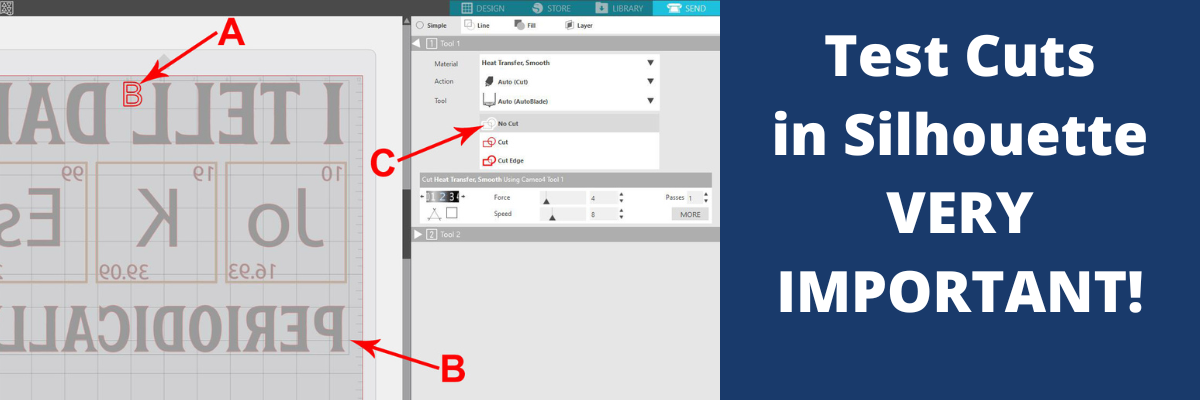
Place the test cut object – the letter ‘B’ in a space on the material that will not be cut with the design, as shown by the bold red A above.

Next, select the design by clicking on it. This is very important. You will see a gray selection box appear around the object on the screen that is selected, as shown by the bold red B. If there is no object on the screen selected, it will not change the Action.
With the design selected, choose No Cut next the bold red C above. This will turn the cut lines OFF for the design and it will only cut the letter ‘B’ as the test cut.

If it cuts well the first time, you can either move the ‘B’ off the design mat or delete it. Then turn the cut lines back on for the design by selecting it again & choosing Cut.

If it doesn’t cut well, move the ‘B’ to a different free space on the HTV and adjust the cut settings to get a good cut.

Test Cut in the Silhouette Software

In the bottom right corner of the Send tab is a little button that says Test. This will cut a small square with a triangle out of it in the top left corner of the cutting grid.

Test Cut copy

If the first test cut doesn’t work, you can move it by using the directional arrows next to the Test cut button.
You will need to move the test cut 2 to the exact location you want it to be cut at, where ever you leave the blade housing, that is where it will cut. So if you only move it over to the right, it will cut the top of your mat.

Test Cut buttons copy.jpg

You can also change which Tool does the Test cut by choosing 1 or 2.
On software versions prior to v4.3, it will show as a red circle (Tool 1) or a blue circle (Tool 2). This is for the Cameo 3, Cameo 4, and Curio machines only.

Troubleshooting

If the test cut is not cutting well after trying the above, did the blade adjust properly?
Watch the blade as it adjusts and cuts, is it set to the proper blade depth?

If the test cuts still are not coming out correctly, follow this video step-by-step

These steps when followed properly, solve 98% of cutting issues.
Hope this helps!

Save this for future reference by pinning the image below.

Enjoy !

This image has an empty alt attribute; its file name is logo.jpg

THANK YOU for your support! How can you help? Click HERE & buy a coffee.
Every little bit helps with the cost of running the site.

Or if you are looking for more in-depth, step-by-step classes, check out all of my online Silhouette classes on my Teachable site HERE.

SS Logo snip it
**This post may contain affiliate links. What that means is that I may receive compensation if you purchase through the links I have provided. The price you pay for the product or service is not higher but I may get compensated for sharing.
Posted on Leave a comment

March Featured Class & Silhouette “Secrets”

It’s time for the March news and sharing my Silhouette “Secrets” with you!

March Featured Class and Coupon Code

This month’s features class is

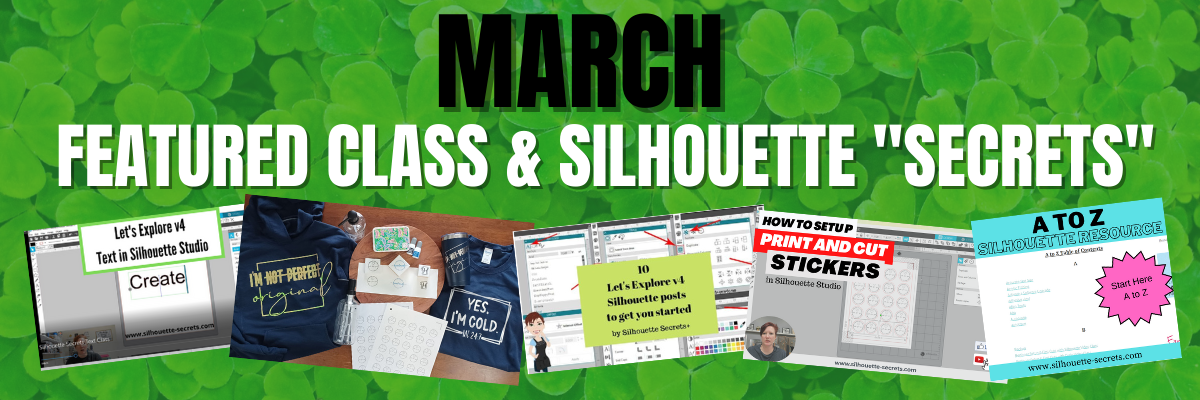
Let’s Explore v4 – Text in Silhouette Studio

In this class we explore Text in Silhouette Studio including:
– the Text Tool
– Text Style Panel
– How to get accurate text sizing
– Resizing text
– Font Families
– Welding
– Script Fonts
– Offsetting text
– Tracing text
– Installing fonts
– Glyphs

It cover all the aspects of text in Silhouette Studio that I see so many users ask about. Become a text expert with me and expand your skills!

Check out the full class description HERE.

And use coupon code TEXT2023 to save $5 off this class.
Good through 3/31/23.
There are now 2 purchase options.
A 60-day access and a lifetime access. This is also NEW for 2023!

New Silhouette Class Released

Creating Unique Designs in Silhouette Studio

In this class you will learn how to create all of these designs in the photo above and you can choose what you want to create as a finished project.
Choose to make one or choose them all!

In this step-by-step class, we put the Silhouette Studio tools to work for us! This class is designed for all levels of users to follow along and create. A few of the tools we will discuss and use are: drawing toolscompound pathstextoffsetknifeglyphstext to path, and more!

This is a custom design created by YOU could be used for all kinds of projects from adhesive vinyl, HTV, Mint stamps, stencils, and more!

I share examples of different finished projects with the techniques used and include optional supplies for additional projects on the class supply list.

As a bonus, I have also included a demonstration of Citristrip etching on a powder coated tumbler using a design created as the stencil.

Check out the full class description and supply list HERE.

Silhouette “Secrets”
– Because some things are just too good not to share! –

Silhouette “Secret” #1

Top 10 tools in Silhouette Studio

Text Tool, Fill Color Panel, Line Style Panel, Align Tools, Trace Panel, Drawing Tools, Replicate Panel, Offset Panel, Quick Access Toolbar (QAT), Edit Points

These are the Top 10 tools I think that Silhouette users can put to work for them right away. You probably use most of them without even thinking about them.

Check out more details on that HERE

Silhouette “Secret” #2

I released a couple new videos on the Silhouette Secrets+ YouTube channel last month. One of those is

How to Set up Print and Cut Stickers

In this video, I show how you can turn cut lines off for items you only want to print and not to cut.

Check out this new video HERE.

Make sure to Like and Subscribe if you want to be notified of future content released on YouTube!

Silhouette “Secret” #3

I have been writing Silhouette tutorials and teaching classes now for 6+ years. That’s a lot of information out there on the website to comb through.
I compiled all of it into an A to Z Silhouette Resource section on the blog.

Click on the keyword and it will take you to more resources on each topic.
Check it out HERE.

I hope this month’s “secrets” help you to be more successful with your Silhouette!

—–

I want to hear from you!
If you have any classes, tutorials, or techniques you would love to learn, please let me know on this Google Form below.

Silhouette Secrets+ Reader Survey HERE

I want to make sure I am putting out content that is relevant to my followers.
Thank you for taking the time to provide your feedback!

Silhouette Secrets+ Sponsor

CrafterCuts, a Silhouette Authorized reseller is a sponsor for my Silhouette Secrets+ Teachable site.

And I have a coupon code to save 10% on your order
Use code SECRETS at CrafterCuts
Get free shipping with a $35 order
I always recommend having extra blades and mats on hand for your projects this year!
You will also find this information under the NEW “Sponsor” tab at the top of the Silhouette Secrets+ Teachable site HERE.

Don’t forget to check out all of the Recommended Retailers and Font sites on the blog HERE.
Thank you for your support! Each time you use an affiliate link to make a purchase, it supports me and what I do. You do not pay any more for that product, but I may get credit for the referral.

I also have a “Buy Me a Coffee” option as well on Ko-Fi because I know not everyone buys new supplies each month, but many still asked for a way to support Silhouette Secrets+.
Thank you all for your continued support of my small business!

Watch for more from me on the Silhouette Secrets+ blog and YouTube channel this month!

Find all the current Silhouette classes on my Teachable site HERE.

Find me online at: Silhouette Secrets+ Blog – https://bit.ly/3CnLZ8s
Silhouette Secrets+ FB Page – https://www.facebook.com/SilhouetteSecretsplus
Silhouette Secrets+ FB Group – https://www.facebook.com/groups/silhouettesecretsplus
Silhouette Secrets+ Instagram – https://www.instagram.com/silhouettesecretsplus/
Swift Creek Customs FB Page – https://www.facebook.com/swiftcreekcustoms
Swift Creek Customs FB Group – https://www.facebook.com/groups/swiftcreekcustoms

Have a great month!

Posted on 3 Comments

How to Cut Multiple Colors at Once with Silhouette

This is a technique that I use with every single project I have that requires multiple colors to be cut. I find it saves me time, materials, and adhesive on my cutting mat since I’m only using smaller sections at a time and not ripping full sheets off the mat each time.

Check out this new video tutorial on my Silhouette Secrets+ YouTube channel HERE.

How to Cut Multiple Colors at Once with Silhouette video HERE.

Affiliate links may be present in the below and as an Amazon Associate I earn from qualifying purchases. What that means is that I may receive compensation if you purchase through the links I have provided. The price you pay for the product or service is not higher but I may get compensated for sharing.

I find that a good paper trimmer is one of my most essential tools in my crafting area.

My personal favorite is the EK Tools Rotary Paper Trimmer found HERE.
This is the one you see me use in the video.

But you can use any paper trimmer that cuts a straight line for doing this technique.

Hope those tips help to make your Silhouette projects go smoother!

I would love to see what you are creating with your Silhouette software or machines!
Feel free to post on my Facebook group at 
Silhouette Secrets with EllyMae.

Save this for future reference by pinning the image below.

Enjoy !

This image has an empty alt attribute; its file name is logo.jpg

THANK YOU for your support! How can you help? Click HERE & buy a coffee.
Every little bit helps with the cost of running the site.

Or if you are looking for more in-depth, step-by-step classes, check out all of my online Silhouette classes on my Teachable site HERE.

SS Logo snip it
**This post may contain affiliate links. What that means is that I may receive compensation if you purchase through the links I have provided. The price you pay for the product or service is not higher but I may get compensated for sharing.