Posted on Leave a comment

Just Released: The New Silhouette cloChé Heat Press

Silhouette cloChé Heat Press
Silhouette Secrets+ with EllyMae

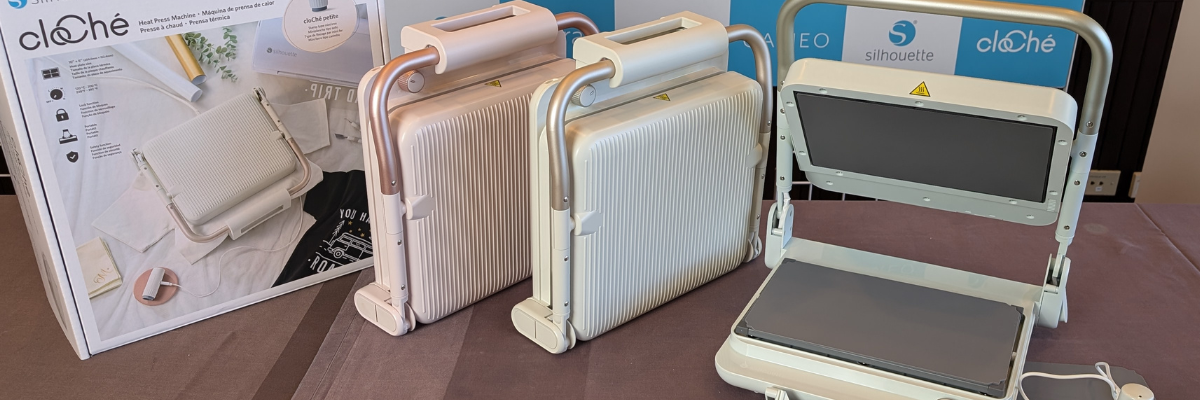
The wait is over – the Silhouette cloChé Heat Press has officially arrived in the U.S., and it’s making a stylish statement! Available in three gorgeous colors—Milky White, Chiffon Pink, and Ice Green.

Display of three Silhouette cloChé Heat Press machines in Milky White, Chiffon Pink, and Ice Green, set against a branded backdrop.

Affiliate links may be present in the following blog post and as an Amazon Associate, I earn from qualifying purchases.

The Silhouette cloChé Heat Press is available at Silhouette America HERE.

I went back and pulled footage from the demo room at 2024 Silhouette Summit where it was announced and released a new unedited video of the Silhouette cloChé Heat Press in action. Check out the quick demo video on the Silhouette Secrets+ YouTube channel HERE.

Image of the Silhouette cloChé Heat Press in Milky White, showing the product and packaging with a prominent text overlay stating 'NOW AVAILABLE!!!'

After the Silhouette Summit 2024, I published a detailed blog post sharing everything we learned about the Silhouette cloChé. If you are interested in seeing the specs, recommended usage, temperatures, duration of use, and more; please see the post Silhouette Summit 2024 – cloChé Heat Press HERE.

A close-up view of the Silhouette cloChé Heat Press in a stylish pink color, displayed on a table with a gray surface plate and an ergonomic handle.

The Silhouette cloChé Heat Press is currently only released in the U.S. and available through Silhouette America HERE.

At this time, there is no release date or information for international areas. If you are outside the U.S., please contact your Silhouette retailer for more information.

A close-up view of the back of three Silhouette cloChé Heat Press machines in different colors, showcasing their design and features.

Silhouette first announced a heat press with a prototype at the 2019 Silhouette Summit. It was big, clunky and only a prototype that was not functional. The new Silhouette cloChé heat press is a completely new design from what we saw originally. A sleek, modern look.

Three Silhouette cloChé Heat Press machines in Milky White, Chiffon Pink, and Ice Green displayed on a shelf with decorative items.

I will continue to share information on the new products released from Silhouette and watching to see who does add it to their craft rooms. I am still waiting on the new tools – Super Fine Power Engraver and the Leather Carving Knife to be available.

Save this for future reference by pinning the image below.

Display of the Silhouette cloChé Heat Press with its packaging and demo video title from Summit 2024, showcasing the heat press in an arts and crafts setup.

Enjoy !

THANK YOU for your support! How can you help? Click HERE & buy a coffee.
Every little bit helps with the cost of running the site.

Silhouette Classes

Never stop learning! Let me help you take the anxiety out of learning with Silhouette and get to creating faster! My Silhouette classes are heavily focused on software, so you can take the skills & techniques taught and apply them to many future projects!

Silhouette step-by-step Classes by Silhouette Secrets+

Silhouette Secrets+ with EllyMae
**This post may contain affiliate links. What that means is that I may receive compensation if you purchase through the links I have provided. The price you pay for the product or service is not higher but I may get compensated for sharing.

Posted on 1 Comment

Craft Pro Mug & Tumbler Press from Heat Press Nation – Easy Sublimation Projects for Beginners

Silhouette Secrets+ with EllyMae

I have been creating with the Craft Pro Mug & Tumbler Press from Heat Press Nation, and I wanted to share how easy it was to use. In this post, I’m walking you through my process from start to finish, including how I set up the sublimation designs in Silhouette Studio, how simple the pressing process was, and the finished mugs and tumblers I created. I’ve also included an unboxing video at the end so you can see exactly what comes with the press and why I think it’s a great tool for beginners or anyone looking to simplify their sublimation workflow.

Affiliate links may be present in the following blog post and as an Amazon Associate, I earn from qualifying purchases.

I purchased the Craft Pro Mug & Tumbler Press last year during the Black Friday sales and I have to admit that I didn’t unbox it right away. It sat there… whispering my name every time I walked by. By mid-January, I finally gave in, unboxed it, and set it up—and I have no idea why I waited so long! It was super easy to get started and even easier to use. Total win!

Here is a look at the first tumblers I pressed using the Craft Pro Mug & Tumbler Press.

A collection of four uniquely designed tumblers displayed next to a Craft Pro Mug & Tumbler Press. The tumblers feature vibrant illustrations, including a turtle, flowers, colorful birds, and an abstract design. Scissors, tape, and a heat-resistant glove are placed on a work surface.

Supplies I used for these projects:

These tumblers and coffee mugs could not be any easier. Literally, print and press the design and you have colorful, beautiful projects! I will say that equipment does make a difference. I also will admit that not all projects turn out 100% of the time, but there is usually a reason for that. In my case, it’s usually due to user error of some sort. I get in a hurry or grabbed the wrong blank that’s not in fact a sublimation blank, etc.

For these projects, I am using a Windows 11 computer and printing through Silhouette software to my Epson F170 with the full printer driver’s installed direct from the Epson website. I am not changing or adjusting anything. I then press the sublimation blanks according to the manufacturer’s instructions. All sublimation blanks can vary in time and temperature.

Creating Sublimation Tumblers

The first step for a successful full tumbler wrap is to measure your sublimation tumbler. They are not all created the same size. Even if you order several at once, it’s always a good idea to grab a tape measure and just check the size really quickly.

Next, open Silhouette Studio and draw a rectangle. Scale the rectangle to the size of the tumbler measurements and center it to the page.

I used a design called Sarcastic Birds Funny Tumbler Wrap. This particular design was created for a 20 oz tumbler and since I’m doing the full wrap, I simply dragged it from the saved location on my computer and held it over top of the rectangle in Silhouette Studio and it filled the entire rectangle.

Screenshot of Silhouette Studio software displaying a colorful design featuring three cartoon birds with the text 'CRAZY??? I prefer the term delightfully unhinged.'

I would recommend always checking the “Show Print Border” on the Page Setup Panel in Silhouette Studio. This will turn on a gray border around the page that shows you the maximum print border for the current printer and page size set by your computer/printer. This is also the first place where you can spot an issue, such as the wrong printer selected, etc. I switch between my Canon TS9521C and my Epson F170 printer all the time and the print borders are different for each printer.

Next, save your file. This is always a good habit to get into, especially when working with heavy graphic files. I recommend saving your files every so often to preserve your work.

Before you print, you want to make sure the correct printer is selected. Click on File > Print > Select Print on the Preview > Verify Printer selected.

Screenshot of the Silhouette Studio print settings window, displaying printer selection options and a colorful design with cartoon birds labeled 'CRAZY???'.

In this photo above, my regular printer is selected. That means the print border shown above will be what is set by the Canon TS9521C printer settings, not the Epson F170 sublimation printer.

If you have to switch printers or change page size, make the changes, click Apply and then cancel out of the windows back to the Design tab in the Silhouette Studio software. This will reset the print borders and settings to the correct printer.

Screenshot of Silhouette Studio software displaying colorful bird designs for a tumbler wrap, with design dimensions indicated.

Then proceed with printing by clicking File > Print > Print – verify the information is correct and send to your printer.

I show this process on the Silhouette Secrets+ YouTube channel in this video – Using the Print Menu in Silhouette Studio HERE.

Sublimation prints will print mirrored. If you are using a true sublimation printer, the default should be set to mirror it automatically. If you are using a converted printer for sublimation, then you may have to mirror the design yourself before printing.

After printing, make sure to let the ink dry completely before handling.

Applying Sublimation Transfer to Sublimation Tumblers

It’s always a good idea to test the pressure on the Craft Pro Mug & Tumbler Heat Press before you get it heated up. This will guarantee that your press is tight enough around the sublimation blank and it won’t heat up the blank in the process. If you add a sublimation print to a warm/hot surface, it has a chance of starting the ink transfer process.

Adjust the pressure on the press as needed and then turn the heat press on and set the time and temperature according the manufacturer’s instructions instructions for the sublimation blank.

While the press is heating, trim the sublimation prints down using a paper trimmer or straight edge.

A person's hand trimming a printed sublimation design featuring two cartoon birds with colorful feathers, using a paper trimmer on a wooden surface surrounded by craft supplies.

Clean the tumbler with an alcohol swab and a lint roller. This will remove any dust or debris on the tumbler. Dust and debris particles will absorb the ink and leave blue spots on the sublimation blank that are permanent.

Once the tumbler is dry after cleaning, wrap the sublimation print around the tumbler tight and tape securely. Make sure to place the print the right side up so you don’t press the design upside down on the tumbler.

I have tried many different ways to tape tumblers and I have to say this is one of those things that you have to practice with and you will get better and find what method works for you, your designs, and your tumblers.

A person's hand is wrapping sublimation paper around a stainless steel tumbler on a black surface, with a heat press machine and various crafting supplies nearby.

For these, I wrapped the sublimation print tight, matching up the paper edges and spinning it to tighten the paper around the tumbler. Then I taped completely around the tumbler in the middle, at the top, and at the bottom. You do not want any crinkles, wrinkles, bubbles, or uneven areas when wrapped. Any air that can get in between the paper and the tumbler when pressing can cause “ghosting”, which is blurred images and not a clean transfer.

Once the Craft Pro Mug & Tumbler Heat Press is up to temperature, I wrapped a sheet of parchment paper around the tumbler and slide it into the press. Then closed the press and pressed for the recommended time. Since it is a full wrap and the tumbler press does not completely surround the tumbler, it is rotated and pressed again so the entire surface is heat pressed.

Top view of a Craft Pro Mug & Tumbler Press on a wooden table, with a piece of parchment paper and a black silicone mat, scissors, and sublimation supplies nearby.

Sublimation is science. It is the process of turning the sublimation ink printed on the paper into a gas with the high heat and pressure. This gas transfers to the sublimation blank and binds to the polyester coating. Any empty space, debris, air, etc. between the print and the blank can interfere with the transfer process.

The more you do it, the better you will get. And you might as well get a box out and label it “DUDS”, because you will have them! It’s all part of the process.

Four sublimation tumblers with colorful and artistic designs, including flowers, tropical birds, and a pufferfish, displayed on a wooden surface.

Sublimation blanks are typically white and the images will show up the best on white sublimation blanks because sublimation ink is transparent. The tumbler on the left side is a Holographic Glitter Sublimation Tumbler and you can see how the colors are a bit different than the other 3 white sublimation tumblers.

I love how they all turned out! The hardest part is getting good photos of a round object. Since it is a tumbler wrap, you cannot see the entire image in a photo. Make sure to check out the unboxing video below for some full 360° views of the finished tumblers.

Additional Resources:

Creating Sublimation Coffee Mugs

Since I do not sell products, I don’t print as often as some who do daily sublimation projects. I was going several weeks without printing and was having a few issues. Sublimation ink is a different composition than regular inks, however, even with a regular inkjet printer, if it goes unused for some time, it can have issues and need maintenance.

After doing some maintenance to get my Epson F170 printing well again, I decided to try to make weekly prints, whether I have a project ready to press or not. A page printed weekly is less cost in maintenance than having to do multiple maintenance cycles.

Here is a look at one of the weekly test sheets I printed out a few weeks back.

Screenshot of Silhouette Studio design software showing a layout for sublimation prints with various colorful designs, including a turtle and humorous text graphics.

I had no real plan for the projects, just opened up my Creative Fabrica folder in my saved designs and started looking for designs that I might like to add to a future projects, such as a coffee mug. On the left side in the photo above, you can see the template shapes I drew out to size some of them. While I didn’t have a specific plan, I was thinking 3″ coasters, 11 oz., and 15 oz. coffee mugs might be a possibility.

Sublimation prints can be printed and sit for some time as long as they are in a temperature controlled environment and not subjected to moisture that would affect the paper or ink.

I love my new Sunset Turtle Coffee Mug! So bright and colorful!

And the whole reason I swapped out the tumbler attachment for the mug attachment was to press a design I created for an upcoming event. The swap between attachments was so easy! 8 screws out, switch the tumbler attachment for the mug attachment, and 8 screws in. Don’t forget to plug the new attachment into the power box on the Craft Pro Mug & Tumbler Press or it won’t heat up. Seriously, these things happen to us all!

Here is a look at the entire reason for kicking my butt into gear to get this blog post and unboxing video done. Check out the Upcoming Events page HERE or sign up to be notified by email when a new event opens for registration HERE.

A person holding a white coffee mug with the phrase 'CREATE WITH HEART' printed on it, in front of a Craft Pro Heat Press machine.

Since these designs are not full wraps, they do not need taped completely around the surface. I cleaned the sublimation coffee mugs, let them dry, then placed the sublimation print where I wanted it and secured the design with heat tape around the edges. You do want to get it tight against the mug so no air gets between the paper and mug.

Coffee mugs can be tricky near the handles. Again this just takes practice and depends on the blank itself. Make sure to secure the print as best you can for the best results.

And HAVE FUN creating!

A few of these tumblers have already found their way to friends and family as gifts and I have a couple tumblers and mugs for myself too!

Check out the unboxing video and a 360° view of the finished tumblers on the Silhouette Secrets+ YouTube channel HERE.

A collection of colorful sublimation tumblers displayed next to a Craft Pro Mug & Tumbler Press, showcasing various designs and a pair of scissors.

Save this for future reference by pinning the image below.

Various sublimation tumblers featuring colorful designs, displayed next to a Craft Pro Mug & Tumbler Press.

Enjoy !

THANK YOU for your support! How can you help? Click HERE & buy a coffee.
Every little bit helps with the cost of running the site.

Silhouette Classes

Never stop learning! Let me help you take the anxiety out of learning with Silhouette and get to creating faster! My Silhouette classes are heavily focused on software, so you can take the skills & techniques taught and apply them to many future projects!

Silhouette step-by-step Classes by Silhouette Secrets+

Silhouette Secrets+ with EllyMae
**This post may contain affiliate links. What that means is that I may receive compensation if you purchase through the links I have provided. The price you pay for the product or service is not higher but I may get compensated for sharing.

Posted on 3 Comments

Silhouette Summit 2024 – Part 1 – cloChé Heat Press

Silhouette cloChé Heat Press
Silhouette Secrets+ with EllyMae

I’m back from the Silhouette Summit 2024 event and will be sharing more information that I learned in the demo room and classes at the Summit event. There is a lot of information so it will be a series of blog posts to share all the details. Part 1 will include details about the new Silhouette cloChé (clo-shay) Heat Press and cloChé Petite.

Affiliate links may be present in the following blog post and as an Amazon Associate, I earn from qualifying purchases.

Silhouette cloChé Heat Press and cloChé Petite

It is cute, stylish, and has a slim line design that can be stored on a shelf when not in use. It is a heat press designed for the hobby crafter.

Silhouette cloChé Heat Press

Silhouette cloChé Heat Press

It will be released in 3 colors – Milky White, Chiffon Pink, and Ice Green. Additional colors may become available if retailers choose to have an exclusive option in the 7 additional options.

You can get a glimpse of those colors in the live video I shared walking the Silhouette Summit demo floor found HERE.

Details on the Silhouette cloChé Heat Press

Silhouette cloChé Heat Press Open

  • 6″ x 10″ heat platen
  • Approximately 10-11 lbs
  • L – M – H heat settings with options in between
    L – 250° F
    M – 320° F
    H – 400° F
    There is no digital display. In order to gauge the actual temperature, you would need a digital thermometer to read the temperature of the top platen.
  • 45 second timer
    There is no digital display and the timer is not adjustable.
  • 0.5 mm maximum thickness of materials pressed
  • Locking mechanism on the front
  • Voltage setting on backside of heat press
  • Silhouette cloChé Petite hand held press included with Silhouette cloChé Heat Press
  • Retail price $249.99 (price given at Summit ’24)
  • Release Date – Coming Soon
cloChé Heat Press Temperature Dial

Here is a look at the temperature dial on the Silhouette cloChé heat press. It has a L, M, and H setting, but can also be set in between those as well. (L = 250° F, M = 320° F, H = 400° F)

cloChé Heat Press Front View

Here is a look at the front locking mechanism. When the lid is closed, then it will fold up over top of the top platen handle and lock into place. Be gentle with the handle and do not force it closed or open. It will take some practice to get the hang of how it locks and unlocks.

Heat Press Side View

Here is a view from the side of the Silhouette cloChé Heat Press. The maximum thickness for materials is 0.5 mm. I would not recommend using thicker materials than what is recommended in the press.

cloChé heat Press Closed

Heating

To turn machine on, open heat press and then turn the dial. The Silhouette cloChé heats up with the lid open and comes to temperature fairly quickly from what we saw in the Summit demo.

Pressing Time

In the demos shown at the Silhouette Summit, the Silhouette cloChé they pressed the garment with HTV for 45 seconds as the first press, then said to cold peel the carrier sheet, then add a parchment paper on top and press another 45 seconds for a finishing press.

We did question this length of time and why they are using 45 seconds when most HTV is 15 seconds on average. There was never really a definite answer except, that’s what worked for the Silhouette cloChé heat press. We did not see the product packaging for the HTV they were using.

If you are using other brands of HTV, please test your garments and I’d recommend starting with the recommended settings for the actual HTV you are using. Grab a timer and set it for the recommended setting of the HTV brand.

I’d also recommend getting a digital thermometer so you can check the heat platen for an accurate temperature reading.

Auto Shut Off

There is an auto shut off when the Silhouette cloChé heat press is not in use. If the lid is open, after 15 minutes it will auto shut off. If the lid is closed, it will shut off after 2 minutes.

Duration of Use

It was stated that the Silhouette cloChé heat press was designed with a use time of 1 hour and then it needs a 30 minutes cool down period.

Silhouette cloChé Petite Handheld Press

Silhouette cloChé Petite

The Silhouette cloChé Petite shown on the right side of the photo above that is plugged into the heat press is a handheld press that has a heat platen approximately 1/2″ in diameter. It is designed for usage with small designs or rhinestones.

The Silhouette cloChé Petite comes with the Silhouette cloChé Petite Heat Press and can be stored on the backside of the heat press.

The Silhouette cloChé Petite is not sold separately at this time. We did recommend that it be considered as an option to sell separately.

cloChé Petite Storage on back of Heat Press

The Silhouette cloChé Petite does have to be plugged when using. It can be plugged directly into the Silhouette cloChé Heat Press or other suitable power sources. Please read the instructions that come with the Silhouette cloChé Petite for specific instructions.

It comes with a USB C to USB C cord that also can be stored on the backside of the Silhouette cloChé Heat Press. The Silhouette cloChé Heat Press does not have to be turned on for the Silhouette cloChé Petite to be used, but the heat press does need to be plugged in to an electrical outlet.

Recommended Usage of the Silhouette cloChé Petite

The Silhouette cloChé Petite does include instructions in the box and I would recommend reading through those thoroughly before use.

For use with HTV, cover the HTV with a protective sheet such as parchment paper and then tap the cloChé Petite on the HTV until adhered. For use with rhinestones, cover the rhinestone with protection and press the Silhouette cloChé Petite down until rhinestone is adhered. It is recommended to use a silicone mat or heat safe surface to press on top of with the Silhouette cloChé Petite. The silicone mat that comes with the Silhouette heat press can be used or I would recommend the Artesprix Protective Mat as well. I use the protective mat for many different projects.

Silhouette Summit Gift

We did receive a Silhouette cloChé Petite at the Silhouette Summit.

Overall, the new Silhouette cloChé Heat Press is cute and light weight. I’ve had several group members already comment with ideas for how to use it in their hobby craft business. It is designed for the hobby crafter and I would not recommend it for commercial use.

I have also created a Silhouette Summit playlist on the Silhouette Secrets+ YouTube channel that can be found HERE. I have a couple more to add to the video playlist on YouTube once they are edited, so make sure to like, subscribe, and click that bell for notifications.

Silhouette Summit 2024 – Part 2 – Cameo Pro MK II found HERE.

Save this for future reference by pinning the image below.

Silhouette Summit Announcements

Find more Silhouette tutorials and information under the A to Z to Silhouette section on the website HERE.

Silhouette Press Release found HERE.

Enjoy !

THANK YOU for your support! How can you help? Click HERE & buy a coffee.
Every little bit helps with the cost of running the site.

Silhouette Classes

Never stop learning! Let me help you take the anxiety out of learning with Silhouette and get to creating faster! My Silhouette classes are heavily focused on software, so you can take the skills & techniques taught and apply them to many future projects!

Silhouette step-by-step Classes by Silhouette Secrets+

Silhouette Secrets+ with EllyMae
**This post may contain affiliate links. What that means is that I may receive compensation if you purchase through the links I have provided. The price you pay for the product or service is not higher but I may get compensated for sharing.
Posted on 1 Comment

Unboxing a StarCraft 8 in 1 Heat Press

Today I’m excited to share a new tool I’ve received in my studio.
I will be unboxing a StarCraft 8-in-1 Heat Press but in a little bit different fashion.

First, let’s get all the disclaimers out of the way.

Affiliate links may be present in the below and as an Amazon Associate I earn from qualifying purchases. What that means is that I may receive compensation if you purchase through the links I have provided. The price you pay for the product or service is not higher but I may get compensated for sharing.

143 Vinyl did send me this heat press to test as an affiliate.
I am excited about this StarCraft 8-in-1 heat press because it includes several attachments that I do not have in my studio, such as a cup press and hat press.
All my opinions are my own.

I know the first question most will ask is….
Do I recommend this heat press?
And I want to start off with, so far so good.
I have done my first press with the cup press as you will see below and I was impressed with the results. I will be using it more and more in the future and will update things as I do.

StarCraft 8-in-1 Heat Press Unboxing

I did a time lapse video of my unboxing and first test with the StarCraft Heat Press which can be viewed on the Silhouette Secrets+ YouTube channel HERE

And I also took photos along the way to share the unboxing in this blog post.
Note: this post below will be photo heavy.

So let’s get started.

The StarCraft 8-in-1 Heat Press Photo Unboxing

This is a StarCraft 8-in-1 12″ x 15″ Swing Away Heat Press – Silver in color.

It is packed very well.

Remove everything from the box and remove all bubble wrapping.
One of the cup attachments is in the backside of the cup press, so make sure to check there too.

This StarCraft 8-in-1 Heat Press includes a hat attachment, Plate (8″ and 10″) attachment, Mug (9 oz, 11 oz, and 12oz) attachment, and Tumbler attachment (fits 20 oz and 30 oz)*
*Tumbler attachment is not for a full wrap
And heat safe gloves.

To attach the cup press, unhook the main platen electric cord on the front and the display cord on the bottom of the main press circuit board.
Plug the cup press main electric cord and the display cord in to the main circuit board.
This is how the cup press gets the information for time and temperature from the main press display.

Tip: test the object you are pressing on in the press before it’s heated up so you can make any adjustments for pressure prior to the press being hot.

Set the temperature and time on the press according to the blank you are using.
Consult the instructions from the manufacturer for the specific blank you are using for time & temperature.

With this StarCraft 8-in-1 Heat Press, it has 3 different modes that you can preset with settings to choose from. This is an awesome feature!

I found the mug press heated up very quickly.

First Test Press

I had a sublimation print from a few weeks back that I hadn’t used, so I just grabbed it to test with.
This sublimation print was designed in Silhouette Studio and printed direct from Silhouette Studio to my Epson F-170 Sublimation printer.

For hard surfaces, clean the blank with alcohol and let it dry.
This will get rid of any oils, dust, or debris that is on the blank.
Try not to touch the sublimation surface again.

Use a lint roller on the dry cup and roll it a few times. This will pick up any lint or fiber debris that is often unseen by the naked eye. Any fibers or specks on the sublimation blank can cause the ink to adhere to it and leave spots on the finished product.

Wrap the sublimation print to the object tightly and tape it securely using heat tape.
Sublimation works with both heat and pressure.

If the sublimation paper is not tight on the object it can cause ghosting of the ink.

I love this Multi-Roll Heat Tape Dispenser in the photo above. It rolls the heat tape through & then cuts small sections that are the perfect size to tape down areas of a project.
This way I don’t need a third hand to cut tape off.

When the heat press has come to the correct temperature, slide the mug carefully into the press.
If not using a full sheet of paper, make sure to use parchment paper to protect the press around your mug to prevent “ink blow-out” getting on your press platen.

I was so excited to do this test that I did not get my print centered on my mug as you can see in the photo above and following. But, it’s all a learning process!

Once the press time is done, using the heat safe gloves, carefully remove the cup and place on a heat safe surface. It will be VERY hot!

I am using an Artesprix Protective Project Mat that withstands up to 400 degrees Fahrenheit.
This protects my table tops and gives it a safe place to cool off.

Once cooled, carefully remove the sublimation paper and heat tape.
My cup was still pretty warm so I used my heat safe gloves and the Siser EasyWeeder tool to remove the paper and tape.

Once it was fully cooled, I could snap a few photos.

As this is my first practice press, I learned a lot!
But I am so excited with how it turned out because my previous attempts with my convection oven did not turn out as well as this.

On this side of the cup, there is some color fading at the bottom and along the edge.

This indicates to me that I needed greater pressure in that area.
So I will make sure to get my mug perfectly centered in the press and look at increasing the pressure on that side of the press.

This side turned out with just a bit of fading at the bottom of the mug. So I’ll look to increase the pressure on the bottom side of the press for next time.

But the side was perfect and a nice edge.

Now, this was just a test print I had lying around. I may not do a full-ish wrap in the future or I’ll make the print to fade out more on the edges on purpose, so it gradually lightens on purpose.
If you were just sublimating a design on each side, you wouldn’t have edges that close to the handle in most cases.

You can see the difference here in the edges. Complete and 100% user error on my part.
I know it and I know I was excited to test it. So that is completely on me.

Overall, I am very pleased with my first test on the StarCraft Heat Press and how it worked out.
I am excited with having these new tools in my studio and seeing what I can create with it in the future.

The next biggest challenge was finding a home for this new StarCraft 8-in-1 Heat Press.
I knew I wanted a dedicated space for it and it needs clearance to move as it swings out.

We have added several Husky Workbenches and an Adjustable Height Workbench to my studio area this past year and I really like how they are built and the wood tops. So I started looking for something that would work for this heat press station.

This Husky 4 drawer Rolling Tool Cabinet was perfect!
I also added the Hardwood Tool Cabinet Top for the toolbox and it fits perfectly! Plus I have dedicated storage space for the attachments, parchment paper, heat gloves, Teflon sheets, heat tape, and more.
And I can move it any where in the studio to use it, which works great if I’m making videos!

Now the ideas are flowing with more projects that I can complete with these new tools!

Make sure to check out the video time lapse of the entire unboxing process as well on the Silhouette Secrets+ YouTube channel HERE.

Thank you 143 Vinyl for letting me test this new-to-me tool!
I look forward to sharing more!

If you are looking for sublimation tutorials or using Silhouette Studio for sublimation, check out the Sublimation header on the blog HERE.

Save this for future reference by pinning the image below.

Enjoy !

This image has an empty alt attribute; its file name is logo.jpg

THANK YOU for your support! How can you help? Click HERE & buy a coffee.
Every little bit helps with the cost of running the site.

Or if you are looking for more in-depth, step-by-step classes, check out all of my online Silhouette classes on my Teachable site HERE.

SS Logo snip it
**This post may contain affiliate links. What that means is that I may receive compensation if you purchase through the links I have provided. The price you pay for the product or service is not higher but I may get compensated for sharing.
Posted on 13 Comments

Silhouette “Secrets” for HTV – Beginner Tips & Tricks

HTV or Heat Transfer vinyl is vinyl that has a heat activated adhesive that can be applied to fabrics and other materials.

I always recommend starting with high quality products and in my experience, you will have less headache when creating your projects. Throughout the post I will share what brands I used on the shirts created, tips to cutting & applying, and share recommendations on where I buy those supplies.

Final product copy

Affiliate links my be present in the following blog post and as an Amazon Associate I earn from qualifying purchases.

The Basics of Cutting HTV with Silhouette

Step 1 – Create the design you want to cut.

Step 2Place the HTV correctly on the cutting mat in the same location on the grid as what shows on the Silhouette Studio software or load the vinyl directly into the machine to cut without a mat (click HERE for more tips on Cutting without a Mat).

For most HTV, you will place the shiny side down on the cutting mat. This is the carrier sheet and you are cutting through the backside of the vinyl. However this is not for ALL types of vinyl. For instance, some patterned vinyl it is laid pattern side up, cut through the front, and then a Heat Transfer carrier sheet is applied to transfer it to the shirt.

Step 3 – Mirror the design, if needed. This is for most HTV, but not all.

Step 4 – Choose the cut settings for the brand of HTV.

Step 5 – Send to the machine to cut.

Now, that we have the basics, let’s take a look at specific examples.

Ultimately, how you cut the design is going to be dependent and differ depending on the design you use. For instance, is it a one color design? Is it a multi-color design? Are parts of the colors overlapping? Is the design layered?
In this post, we will cover some basics and cut with 1 color.

My first tip for a beginner or for any of my students is that while you can cut without a mat with the Silhouette machines (except the Curio), I still recommend cutting with a mat until you get used to how the machine cuts. Then when you are feeling comfortable you can branch out and test the waters with cutting without a mat. This will help eliminate a few possible issues that can occur as a beginner because you are simplifying things.

Two resources I want to share here are:

Tips to Get The Most Out of Your Silhouette Mat
This will come in handy to make those mats last longer
Cutting Without A Mat
When you are feeling adventurous or a bit more comfortable with your machine you can test this out. While the tutorial is written with a Cameo 3, the tips will apply to all machines you can cut mat-less with.

Let’s start simple and work up from there.

Note: In the following photos, you will see me using a Cameo 4 machine to cut. While I used my Cameo 4, these tips will apply to all Silhouette machines. I am using software version v4.3.353 in this tutorial.

One color designs

Step 1Create or find the design you want and open it on the Silhouette Design mat and size it as needed.
I am using “I Tell Dad Jokes” by Honeybee SVG – Design #293250 from the Silhouette Design Store.

Dad Jokes design copyThe first thing I like to do is to change the Transparency  on the Page Setup Panel to 0%, so I can see the grid lines of my mat (in v4.2 & prior it is referred to as Reveal).
This is how I know how big of a piece of HTV that I will need. I will cut my HTV piece down to 12″ x 10″ and place it on my cutting mat shiny side down. I use a paper trimmer to cut down my 12″ vinyl to the size I need.

There are several reasons I do this, but the main one is that it helps make my cutting mats last longer. I am only placing my material on the mat where I am cutting and no peeling a full sheet of material off the mat each and every time.
Why use that adhesive where it is not going to cut?
For more tips on the cutting mat click HERE.

Step 2 – Flip the design (also called mirror) on the Silhouette Design screen. Right click on the image and choose Flip Horizontally or Object > Mirror > Flip Horizontal.

Flip Horizontal copy

Why do we need to mirror? For most HTV, the carrier sheet is attached to the vinyl. This means that you place the HTV upside down (shiny side down) on your cutting mat and you cut through the backside of the HTV.

Shiny Side Down copy

Now, there are exceptions to this and you will learn as you go and start working with different materials. One of these exceptions is some patterned vinyl, like Sparkleberry Ink HTV. It is amazing vinyl, but since it is printed with a pattern on it with a special printer, you will lay it pattern side up and cut through the top and then use a Heat Transfer Mask to transfer the vinyl to the shirt or other material.

Here is an example of Sparkleberry Ink printed vinyl found in this post using the Subtract feature with HTV. The patterned vinyl was cut pattern side up and a transfer mask applied and then the solid Siser Easyweed was cut the same as this tutorial.

temp_1

The next thing to note is that there is a “HTV Mirror” pop up that you will get when you use a preset cut setting in the Silhouette software. I prefer to mirror (flip horizontal) the object myself so I know exactly where it is going to cut on the cutting mat. Since I have flipped my image, when I get to that pop up, I choose “Send As Is“.

Send As Is copy

While you can let the software “mirror” it for you, it flips the entire mat and does not reflect that visually on the screen. For example if I have a smaller design than what I’m cutting above, if I let the software mirror the design by using the Pop up when I send to cut, it will cut where the yellow square is. So if I have placed my HTV material on the left side of my mat as it shows on the design screen, it is not going to cut on my material.

NOTE: I’ve recently found there is a new bug in the v4.4 software – when letting the software mirror the image, it will also mirror the objects that are off the cutting mat as well.
I would highly recommend right clicking and choosing Flip > Horizontal and mirror the design yourself to avoid either of these issues.

Mirror pop up copy
Wine Bottled Up by Jillibean Soup – Design #242851

And also, it’s just habit because the Mirror pop up was not always around. However, it does save me on occasion when I have forgotten to mirror the design myself.

Step 3 – Cut the HTV to size and place on the cutting mat. I am using Siser Easyweed HTV in white for this project.

HTV on cutting mat copy

Now, something to note here is that when you order vinyl on a roll, it may not always be 12″ wide. This is pretty common as it is cut from a bigger roll originally.
Just like wood is not the exact size.
It is also the reason that I did not cut without a mat using this roll of Siser Easyweed HTV. It just barely fit under my rollers and I didn’t want to take the chance that it wasn’t securely in the machine. Plus it gave me a little more cut-able space by cutting it down and placing on the cutting mat.

Resize the design and make sure that the design on the screen shows in the same place as it is placed on the cutting mat.

Step 4 – Click on the Send tab in the top right corner to set up the cut settings.
Choose the material type in the Material drop down box.
I am using Siser Easyweed HTV and find that the Heat Transfer, Smooth option works well.To be honest, I find that the preset cut settings work well for almost all materials. But, keep in mind that blade sharpness, cutting mat stickiness, etc can all affect cut quality too!

Send tab copy

Step 5Test cut – VERY IMPORTANT feature that can save you materials & time.
Any time I am cutting a new material, I will use the test cut to make sure that I will get a good cut.

There is nothing like cutting a full design on HTV, unloading the cutting mat, and finding out it didn’t cut well. It’s a great learning opportunity but let’s save some time & materials and get the habit of a test cut.
I promise it will help.

There are 2 ways I’ll share on how to do a test cut.

1. In the bottom right corner of the Send tab is a little button that says Test. This will cut a small square with a triangle out of it in the top left corner of the cutting grid.

Test Cut copy

If the first test cut doesn’t work, you can move it by using the directional arrows next to the Test cut button.

Test Cut buttons copy.jpg

You can also change which Tool does the Test cut by choosing 1 or 2.
On software versions prior to v4.3, it will show as a red circle (Tool 1) or a blue circle (Tool 2). This is for the Cameo 3, Cameo 4, and Curio machines only.

2. Make your own Test Cut.
I use a capital ‘B’ as my test cut object often. The biggest thing you want is something that has both corners and curves to it. This will give you a good indication of how it’s going to cut.

Test Cut B copy

Place the test cut object – the letter ‘B’ in a space on the HTV that will not be cut with the design, as shown by the bold red A above.

Next, select the design by clicking on it. This is very important. You will see a gray selection box appear around the object on the screen that is selected, as shown by the bold red B. If there is no object on the screen selected, it will not change the Action.
With the design selected, choose No Cut next the bold red C above. This will turn the cut lines OFF for the design and it will only cut the letter ‘B’ as the test cut.

If it cuts well the first time, you can either move the ‘B’ off the design mat or delete it. Then turn the cut lines back on for the design by selecting it again & choosing Cut.

If it doesn’t cut well, move the ‘B’ to a different free space on the HTV and adjust the cut settings to get a good cut.

Step 6Load the cutting mat. After double checking the settings, load the cutting mat in the machine. The left edge of the cutting mat should line up with the line on the left side that the 2 arrows on the machine point to.

Loading mat copy

When using a cutting mat, the rollers should roll on the left and right edges of the cutting mat as shown by the 2 top red arrows in the photo above.

Step 7 – Click on the Send button in the bottom right of the Send tab. When the cut lines are turned ON you will see bold red cut lines around the design, on this Simple cut option.

Send button copy

If the HTV Pop up appears, click ‘Send As Is’ if you have mirrored (flip horizontal) the design yourself.

Send As Is copy.jpg

Step 8Before you unload the mat check that it cut well.
This is another great habit to get into.

Before unloading copyIf for some reason that it did not cut well, you could send it back through again for a 2nd pass. However, if you remove the cutting mat, you will not get it lined up in the exact same place and it won’t cut in the same spot.

Step 9Unload the cutting mat. 

Step 10 – Place the protective cover shiny side up on the table and flip the cutting mat upside down on top of it. Carefully peel the cutting mat away from the material. This is another way to help the material release and extend the life of the cutting mat – more tips HERE.

Flip Mat copy

Why do I place the protective cover down on the table with the shiny side up? First, it protects the mat in any areas that have the adhesive exposed. By placing the shiny side (i.e. non-stick) side up, it will stick to my mat and debris won’t.

Why do I flip the mat over and peel the mat away from the material?
First, it helps to release the material from the adhesive with less force. Pulling up on the material from the mat, adds more force which can pull the adhesive off the mat. Second, it will help with the material not curling when it’s taken off the mat. This works especially well with cardstock and paper materials.

Step 11Weed away the excess vinyl from the design. I start with the outer edge of the design when I weed so that I know where my letters are and am not “picking” at the design.

Weeding copy

As you do it, you will develop methods that work for you. Such as weeding tools. My personal favorite are the reverse tweezers from EK Tools. I love them so much that I have 3 pair, just in case one is put in a really “safe” place and I can’t find it when needed. I love the sharp tip for getting the vinyl started and then the tweezers to help peel it off.

Each brand, color, type of HTV will vary in how much you can see the cut lines. Some colors or glitter HTV are harder to see on. The more you do it the more comfortable you will get at what works.

Make sure to get all the little pieces like the insides of the A, D, P, etc. If I have a question as to what needs to be weeded out vs what stays, I look at the design on the screen to see what is filled with color and what is not.

And go slow, it’s not a band-aid you rip off. If you go slow and watch, if there is a spot that didn’t cut well, you can still salvage the design most times.

Step 12Press the HTV onto the shirt or other fabric object using the manufacturer recommendations.
I love that Siser has this on their site and also a handy app too!
Check out the full Siser site HERE.
On the Left side of the home page, move the mouse over the HTV header and it will expand. Choose your HTV type and then scroll down the page for the Cutter Settings and Application settings.

Siser settings

I set my heat press to 305 for 15 seconds for Siser Easyweed and it works every time.

Final product copy

And there you have a single color design, cut with the Silhouette, and pressed onto a shirt.

Q & A

Let’s talk about a few more things because I’m sure you have a question or two.

Do I recommend a heat press? Yes.
I recommend a heat press if you plan press a lot of HTV.
Especially if you plan to do a bunch of shirts or plan to make a business of this.
It will save you time & muscle power

Why do I recommend a heat press?
1. It is easier. Set the time. Set the temperature. Press for 15 seconds (or recommended time). And done!
2. Even pressure and more accurate heat.

What heat presses do I own?
I started with a use 15″ x 15″ Power Press that I received. It was great! These are often found on Amazon, however, be very careful in reading the reviews on the seller. I don’t think they are as good as they used to be and have seen them arrived damaged or non-functional. Just like anything else, check out the reviews.

I gave that heat press to a friend when I found a great deal on another 15″ x 15″ Craft Pro Press from Heat Press Nation. I LOVE that this has a slide out drawer on it and it was something I couldn’t pass up. The slide out drawer helps in getting the design placed on the shirt easier, so you are not reaching in under the hot top platen of the press.
Is it a necessity? No, but it sure is nice.

Heat Press copy

Personally, I need to have a 15″ x 15″ press. The shirt I pressed above is a 4XL shirt and I make those sizes often, so I feel it is well worth it.

But, if you don’t need that size, there is a Craft Pro 9″ x 13″ press with the slide out drawer as well. Find that HERE.

I also have this smaller press. I use this one when I am traveling for classes as it weighs only 35 lbs. The 15″ x 15″ press above is not 35 lbs.

stx-craft-2

This Pink Craft Press can be found here at Heat Press Nation or Swing Design.

What other products would I recommend when using HTV?
Pressing pads or pillows. What are these? These are items that you place inside a garment such as a tshirt or bodysuit to lift up the area you are pressing to keep the seams from interfering with the pressure you are applying. If you press a shirt and there is a seam in between the top & bottom of the press, the press hits that seam and doesn’t get full pressure down on the area of the shirt or garment that is needed. This can interfere with getting a good, solid adhesion with the HTV.

I have the Tee Pad It from Heat Press Nation and love them. It is cost effective as you get all 5 sizes for 1 low price.

tee-pad-it-set_1

Slide these in to the shirt under where the design will be placed, adjust the pressure on the heat press, and get that good pressure needed for the HTV to adhere.

Pressing pillows are another option, but I found they are a lot more expensive and condense a lot more when you press them, which if pressing multiple items can take longer.

Teflon sheets – I get mine on Amazon and they last a long time. This will help protect your top platen of the heat press or an iron.

EZ Off cleaner for when you have a boo-boo and accidentally melt HTV to the top platen of the press. Shhhhh…… it happens.
It can be found here are Heat Press Nation or on Amazon.

Do you have to have a heat press to use HTV? General answer – No.
However, you want a brand of vinyl that can be pressed with a home iron if you do not have a press. Siser is one of those brands. The 2 biggest factors with HTV is heat and pressure. You have to have both or the HTV will not adhere to the material and last. Some brands like ThermoFlex are designed to be used with a heat press.

If you only have a home iron or a Cricut Easy Press, I recommend checking out this video – How to Iron On Siser HTV by Joe at Siser for great tips on what to do and what not to do.

Can you over press HTV? Yes.
Again I’m going to refer you to the experts here in this video – lots of great tips!
Check out this video by Siser called Over Pressing HTV HERE.

Now, that is a lot of links and recommendations to throw at you.

Do you need them all right now? No. But, I want you to have the resources to go to on where to find the same products that I recommend.

For other product recommendations check out my Amazon store HERE or feel free to ask on my Facebook group at Silhouette Secrets with EllyMae.

I hope that this helps provide you with some “secrets” to getting started with HTV. Or even if you have already been using HTV, maybe you picked up a few tips. I would love to hear if you did!

If you want to dive deeper into HTV check out these 2 video courses I have available. They are step-by-step courses taught just as I teach an in-person class, but available at your convenience.
Cutting & Layering HTV in Silhouette Studio – 45 minute video class
Creating a Knockout Design with HTV & Bonus HTV & Subtract in Silhouette – 1 hr class

Did this information help? Don’t forget to Pin it for future use!

Beginner HTV Pin

Enjoy!

SS_Signature copySS Logo snip it

**This post may contain affiliate links. What that means is that I may receive compensation if you purchase through the links I have provided. The price you pay for the product or service is not higher but I may get compensated for sharing.