Posted on Leave a comment

Silhouette Tutorial: Layered Card Design with Brilliant Digital Kit

Silhouette Secrets+ with EllyMae

New video out on the Silhouette Secrets+ YouTube channel!!
In this video I share step-by-step how I created a layered card design in the Silhouette Studio software using a digital kit by Nitwit Collections.

A colorful greeting card featuring a purple butterfly, a red tulip, and the text 'brightest wishes for you' on a floral background, positioned in front of a cutting machine.

Affiliate links may be present in the following blog post and as an Amazon Associate, I earn from qualifying purchases.

This is the first Crafting Creativity project for the month of March that I shared with newsletter subscribers.

Watch this new video tutorial HERE.

A crafting setup showcasing two layered cards adorned with floral and butterfly designs, alongside crafting materials including tape and scissors. The text on the image promotes a step-by-step guide to designing layered cards with a digital kit.

I love the bright colors Knick Knack kit by Nitwit Collections. This kit is exclusive to newsletter subscribers for the month of March and then will be available in their shop for purchase later.

Image showcasing a collection of card designs featuring floral elements, butterflies, and decorative layers. The layout includes a bright and colorful card cluster with the text 'brightest wishes for you', accompanied by matching envelopes and various themed graphics.

Subscribe to the weekly newsletter HERE. It comes straight to your inbox each Friday.

Two decorative greeting cards featuring the text 'brightest wishes for you,' adorned with purple butterflies, red roses, and colorful floral patterns.

This Brilliant Living Knick Knack kit coordinates with the Brilliant Living Collection that can be found on the Nitwit Collections shop.

A colorful collage featuring various decorative elements and phrases related to celebration, joy, and friendship from the NitWit Collections' Brilliant Living Collection.

View this tutorial on creating a layered card in Silhouette Studio on the Silhouette Secrets+ YouTube channel HERE.

Save this for future reference by pinning the image below.

Two layered greeting cards featuring floral designs and butterflies, with the text 'brightest wishes for you.' A Silhouette cutting machine is visible in the background.

Enjoy !

THANK YOU for your support! How can you help? Click HERE & buy a coffee.
Every little bit helps with the cost of running the site.

Silhouette Classes

Never stop learning! Let me help you take the anxiety out of learning with Silhouette and get to creating faster! My Silhouette classes are heavily focused on software, so you can take the skills & techniques taught and apply them to many future projects!

Silhouette step-by-step Classes by Silhouette Secrets+

Silhouette Secrets+ with EllyMae
**This post may contain affiliate links. What that means is that I may receive compensation if you purchase through the links I have provided. The price you pay for the product or service is not higher, but I may get compensated for sharing.

Posted on Leave a comment

Silhouette Print and Cut with Waterslide

Do you try new things? At some point, you must have!
No one starts something and knows it from the beginning. At some point, you are a beginner at everything.

It’s that way with Silhouette, designing, cutting, new materials, and pretty much life!

At some point in it, you are a beginner and have never used a product before.

Affiliate links may be present in the below and as an Amazon Associate I earn from qualifying purchases. What that means is that I may receive compensation if you purchase through the links I have provided. The price you pay for the product or service is not higher but I may get compensated for sharing.

FAILURE OR SUCCESS?

Waterslide paper is new to me.

What do you do when something is new?
Practice and get extras because in my experience, things do not always work the first time!

I was asked if I wanted to test some products and this Koala Waterslide Decal Paper was in the list. So, why not?
Time to try something new!

And guess what? My first ones were a FAIL! A BIG FAT FAIL!
I tried on a plastic water bottle and it just flaked off. Since it was a plastic water bottle, I could not put it in the oven to cure, so I tried using a heat gun.

What happens when you fail at something? You try again and that is exactly what I did.

I grabbed some coffee mugs and tried again.

First, the Silhouette makes it so nice to get the designs a clean cut.
I set up the print and cut for the page and printed some extras too.

And then I let my Silhouette machine do the work.

I love print and cut, for more tutorials on setting up Print and Cut check out this section on the blog – HERE. I rarely have an issue with print and cut and that is because I follow the same steps every single time!

For me, that was the easy part! Now comes the stuff I am new at and need to practice!

For waterslide, you soak the image a bit to get it to release from the backing and then carefully slide it off the backing and on to the object.
This is the part that takes practice, at least for me. If you are too rough, the decal will tear. Also, if the design is round and you are placing on a conical shaped object, it increases the level of complexity a bit too.
And guess what I did? Round decals to go on a slightly conical shape.
Yep! I always choose the more difficult path!

In this case, I refer to the instructions. Over and over again because I want to get it right.

I did record my application process and you can watch that video on my YouTube channel HERE.

After I applied the decals I placed the mugs in the oven at the recommended time and temperature.

The results are….. SUCCESS!

Two of the decals I put on looks good, no rips, tears, or flaking.

But not all were successful – there were a couple FAILURES!

This one failed because I didn’t get it completely smooth. Again, round object on a slightly concave mug. Circular decals are some of the most difficult to work with on a conical shaped surface and you need to make sure it’s either small enough to be easier to work with or that you get it completely smooth before baking.

This failure could be affected by many different factors. I was testing to see if I could reuse a sublimation mug that didn’t turn out.
Factors that could have affected this one are the sublimation coating, the sublimation ink that is already on, and most likely also…. my technique and it wasn’t completely flat with all the air out of it.

The most important part is I learned a lot. And this is just going to take practice.

I have not given up on waterslide and I would encourage you to try it!
Always keep trying new things and testing.
You may not get it perfect the first or even the second time!
And that is OK!

If you are feeling adventurous to try new things, grab some of this Koala Waterslide paper and give it a go!

Waterslides are used often in modeling and in situations where you need some wiggle room in application when applying. With a sticker, you are pretty well committed once you stick the adhesive down, but with a waterslide, you have a little bit more forgiveness to position that decal.

You can also seal a waterslide with several methods after applying. That is beyond my expertise on this day and will be something new for me to learn in the future!

Here is a list of the designs I used in testing with this print and cut project:
Coffee Doesn’t Ask Silly Questions It Understands by Grace Lynn Designs – Design #395783
Coffee, Coffee, and more Coffee by Dawn Nicole Designs – Design #195664
Dead Without Coffee by Sophie Gallo – Design #420243
Not Without My Coffee by Sophie Gallo – Design #420297
This Good Mood Sponsored by Coffee by Sophie Gallo – Design #377578

I would love to see what you are creating with your Silhouette software or machines!
Feel free to post on my Facebook group at 
Silhouette Secrets with EllyMae.

Save this for future reference by pinning the image below.

Enjoy !

This image has an empty alt attribute; its file name is logo.jpg

THANK YOU for your support! How can you help? Click HERE & buy a coffee.
Every little bit helps with the cost of running the site.

Or if you are looking for more in-depth, step-by-step classes, check out all of my online Silhouette classes on my Teachable site HERE.

SS Logo snip it
**This post may contain affiliate links. What that means is that I may receive compensation if you purchase through the links I have provided. The price you pay for the product or service is not higher but I may get compensated for sharing.
Posted on 1 Comment

Siser EasyColor DTV with Silhouette

Have you heard?
If you have been following me on my Facebook or YouTube channels I hope you haven’t missed it!

Affiliate links may be present in the below and as an Amazon Associate I earn from qualifying purchases. What that means is that I may receive compensation if you purchase through the links I have provided. The price you pay for the product or service is not higher but I may get compensated for sharing.

I have been having a ball playing with the NEW Siser EasyColor DTV – printable heat transfer vinyl!

This combines one of my favorite features of Silhouette – Print and Cut – with the possibilities to put full color graphics on garments and objects with a home inkjet printer.

Yes, you read that right! Your home inkjet printer will work.
What printer do you need? Any high quality photo printer should work.

I am using a Canon TS9521C Craft Printer but you do not have to have this exact one.

I do like this printer because I have the capability to print on 12″ x 12″ cardstock, other large formats, and it has the rear feed tray.
Check out this post on How To Print & Cut Larger for more tips.

I wanted to drop in and share some of the tutorials and demos I’ve been doing with this Siser EasyColor DTV.

I ordered mine from The Vinyl Spectrum who has super fast shipping and I added a few Silhouette Autoblades to my order to reach that free shipping minimum.
For the super fast shipping I get, I’m happy to pay the shipping, however, I needed a few new blades anyhow.

Now, let’s get on to the EasyColor Information!
Check out each video description for more details and links to all the supplies used in each video.

Let’s start with the update after washing because I know many are wondering about the lifespan. First wash and the colors look the same and no lifting on the vinyl.
I did follow the care instructions on the Siser website.

Siser has said that they were seeing 20-25 washes before they saw changes in the colors. It will take me awhile to get up to 20 washes, so I’ll update every so often.

Now that you’ve seen the update and how it held up, let’s take a look at how I did this.

I am using a process called Print and Cut with the Silhouette. I released a new video tutorial on Print and Cut in less than 15 minutes to share how I set up the file and was successful in my cutting.

I also shared more tips on print and cut with Silhouette in this video,
Tips for Silhouette & Siser EasyColor DTV.
In the video, I share some of the most common reasons we see for cutting issues with Silhouette when using print and cut.

And then I shared more tips in this video,
Siser EasyColor DTV with Silhouette Print & Cut

I shared a few more tips for masking and pressing the EasyColor DTV in this video,
Siser EasyColor DTV Demonstration – Printable HTV

And I couldn’t stop, so I also shared
5 Tips for using Siser EasyColor DTV – Printable HTV

Now, this new material is not limited to shirts even though that might be what you see in the majority of testing going on right now.
I also used it on these cotton canvas zipper bags and I shared that HERE
Back-to-School Goody Bags with Siser DTV.

As you can tell, I’ve had a lot of fun with this new product!
I have used several other brands in the past and even taught classes with printable heat transfer paper. The major difference here is that this is actual heat transfer vinyl (not paper) that is printable AND I’ve been successful in getting it to mask and transfer without losing ink.

Make sure to check out the links in each video for the specific supplies I used and for more tips and tutorials on each one.
I want you to be successful with this product!

Grab some and just start playing with it!

Check out the Siser Application Instructions HERE.

I would love to see what you are creating with your Silhouette software or machines!
Feel free to post on my Facebook group at 
Silhouette Secrets with EllyMae.

Save this for future reference by pinning the image below.

Enjoy !

This image has an empty alt attribute; its file name is logo.jpg

THANK YOU for your support! How can you help? Click HERE & buy a coffee.
Every little bit helps with the cost of running the site.

Or if you are looking for more in-depth, step-by-step classes, check out all of my online Silhouette classes on my Teachable site HERE.

SS Logo snip it
**This post may contain affiliate links. What that means is that I may receive compensation if you purchase through the links I have provided. The price you pay for the product or service is not higher but I may get compensated for sharing.
Posted on Leave a comment

Printable Heat Transfer Vinyl

Affiliate links may be present in the below and as an Amazon Associate I earn from qualifying purchases. What that means is that I may receive compensation if you purchase through the links I have provided. The price you pay for the product or service is not higher but I may get compensated for sharing.

Last week Siser announced a new product called Siser EasyColor DTV. This new product is an actual Heat Transfer Vinyl that can be printed with a home, inkjet printer.

Up until now there has been a product on the market called Heat Transfer Paper, which many users get confused by and call printable HTV. But, it’s really not. It is paper, not actual vinyl. I’ve used several brands and had success with it and have even taught classes using it. Each brand may have different results.

Now, there is a new option out there. Siser EasyColor DTV and I’ve been testing it this past week. So far, I am loving it!

I wanted to share a bit about that process so I made up a “quick” video. I say “quick” because it is longer than I intended as I give a lot of tips about print and cut in the video. We troubleshoot thousands of Silhouette issues each week on social media and most times it is something that can easily be fixed to get successful print and cuts. So I shared several of those tips in the video.
I want YOU to be successful and it’s always best to practice the print and cut technique on copy paper or cardstock before using your more expensive materials such as EasyColor DTV.

Check out the new video on the Swift Creek Customs YouTube channel HERE.

Check out the description of the YouTube video for more resources and links to the supplies used in the tutorial.

Grab some of the new Siser EasyColor DTV and if you plan to do a print and cut grab the Low Tack Transfer Mask too! I got mine at The Vinyl Spectrum and had it super fast!

I have so many ideas to use this material with and cannot wait to share more!

I would love to see what you are creating with your Silhouette software or machines!
Feel free to post on my Facebook group at 
Silhouette Secrets with EllyMae.

Save this for future reference by pinning the image below.

Enjoy !

This image has an empty alt attribute; its file name is logo.jpg

THANK YOU for your support! How can you help? Click HERE & buy a coffee.
Every little bit helps with the cost of running the site.

Or if you are looking for more in-depth, step-by-step classes, check out all of my online Silhouette classes on my Teachable site HERE.

SS Logo snip it
**This post may contain affiliate links. What that means is that I may receive compensation if you purchase through the links I have provided. The price you pay for the product or service is not higher but I may get compensated for sharing.

Posted on 5 Comments

Silhouette Print and Cut with Foil Embellishments

Silhouette Secrets+ with EllyMae

Want to take your Silhouette projects to the next level? Print and cut designs with foil embellishments might be the next project for you!

Combining techniques such as adding Foil Quill accents to a print and cut project can give it a little pop.

This technique takes two amazing features and combines them together. It can be as simple or complex as you want to make it and the end result can be amazing and unique.

This post is inspired by my friend Teresa P. who does some amazing Foil Quill work and combines it with print and cut. The credit goes to her for this post as she is a big inspiration!

To get started with this combination, I would recommend being familiar with both the print and cut process and using the Foil Quill. Here are 2 basic tutorials:
Let’s Explore v4 – Print and Cut Basics
Silhouette Cameo 4 – Beginner Foil Quill

A few other tools to be familiar with in the Silhouette software for this technique are:
Let’s Explore v4 – Basic Trace
Let’s Explore v4 – Trace by Color
Let’s Explore v4 – Freehand Drawing Tools
Let’s Explore v4 – Drawing Tools

You won’t use all of these tools at the same time, but each tool serves a purpose and one may work better for you on a certain graphic versus another. You may find that you know more than you realize in the software.

What does it mean to combine a print and cut project with Foil Quill?
Basically, you are telling the software that you want to foil certain areas on top of a print and cut. Since a print and cut has registration marks, it can read where the design is on the page to know where you are telling it to foil.

However, each design may vary in what you need to do to tell it where to foil. You may have to create a “cut” line by tracing, drawing, etc. in order for it to know where you want to foil on top of the print and cut.

Tutorial written in Silhouette Studio v4.4.552
Affiliate links may be present in the following blog post and as an Amazon Associate, I earn from qualifying purchases.

How to Add Foil Accents to Print and Cut Projects

Set up print and cut page with the design to be used.

I am using Watercolor Almond Flowers Greeting Card by Graphic House Design – Design #398797.

On the Page Setup Panel – Tab 1, choose the machine, cutting mat, and media size.
Check the boxes next to Show Print Border and Show Cut Border.

Silhouette Studio Software showing design on the screen set up for print and cut.

Tip – It helps to place the design towards the bottom of the page if possible. You do not want to unload the mat after it’s foiled, so you can send the design to be cut after it’s foiled.

On the Page Setup Panel – Tab 3, turn the Registration Marks on and click the Restore Defaults button.

Tip: using the system defaults will give you the most accurate print and cut. I recommend using the defaults especially if you are just getting started with print and cut.

Use File > Print > Print to print the page.

Silhouette Studio Software showing a print window.

Tips:
– Once the page is printed, do not move the design on the page. If you accidentally move the design use the Undo button.
– This is a great time to use the Layers Panel and lock the layer with the graphic image
on it so it does not move. Create a new “working layer” to complete the following steps.

Place the printed page on the cutting mat in the exact location (top left corner) on the cutting mat as it shows on the design screen.

Silhouette Studio software showing where to place the printed page on the Silhouette cutting mat.

Using drawing tools or the trace panel, create cut lines where you want to add foil quill.

In this example, I used the Freehand Drawing Tools to trace around the areas of the design that I wanted to fill with the Foil Quill.

Silhouette Studio software showing drawing around elements on the page to create lines.

Add a fill to the shape using the Line Effects/Sketch fill panel.

Silhouette Studio software page showing how to fill in designs with sketch filles.

I used a crosshatched fill with 0.010″ spacing and an edge effect in the Line Style/Sketch Panel.

Set the sketch lines to a different color than the cut line color using the Line Style Panel – Tab 2.

I use red for my cut lines and blue for sketch lines.

Secure foil on top of the area to be foiled.

Shows the placement of foil on top of printed design for foil setup.

Tips:
– Use washi tape or a low tack tape to secure the foil onto the page. Be careful when removing so as not to tear the paper or remove the ink.
– Keep the foil & tape away from the registration marks area so it does not interfere with the reading of the print and cut.
– Make sure the foil is secure and will not catch as the mat moves back and forth in the machine.

Click on the Send tab. Choose the cut by Line Color.

Silhouette Studio software showing how to set up a project by Line Color.

Choose the Material settings on the Send tab for each color.

Uncheck the line color(s) for the cut lines and only have the Foil Quill lines checked.

Send it to foil.

Shows a glance at the foiling completed on the print and cut job.

DO NOT unload the cutting mat when finished.

Carefully check the foil and remove carefully.

Uncheck the foil color lines and check the cut lines.

Silhouette Studio software showing how to switch to the next step in the process on the Line Color tab.

Switch the tools from the Foil Quill to a blade if needed and send it to cut.

Finished photo of foil and print and cut project cut out.

Enjoy your foil accented print and cut design.

Finished photo of the foiling section on the print and cut project.

Now it’s time to practice!

Choose designs and then decide what will work best for creating the cut lines to fill with a line effect/sketch fill to foil accents with.

This could be a great addition to cards, stickers, scrapbook pages, or many more projects.

Here are a few examples I created using the same techniques.

Another project photo showing a foiled finished card with Happy Anniversary on it.
Anniversary card with sentiment & accents in gold foil.
Happy Anniversary created with Samantha Craft font found HERE.
Finished project foiled card with Happy Birthday to You on it.
Trace tool used for the geometric shapes and added sentiment in gold foil.
Geometric Floral Frame by Rhonna Farrer – Design #293654

Check out a quick demo video of the foiling process for the Happy Birthday card above on my YouTube channel HERE.

Photo of a floral Christmas wreath that has foiled elements added to it.
Christmas wreath accented with green & pink foils.
Christmas Wreath by Echo Park – Design #162745

Looking to add a Foil Quill to your tools?
Find it at Joanns, Amazon, Swing Design, Scrapbook Pal
Check out the supply list I used in the Foil Quill Beginner’s Tutorial HERE

I would love to see what you are creating with your Silhouette software or machines!
Or if you have any questions, feel free to post photos or questions on my Facebook group at 
Silhouette Secrets with EllyMae.
Check out the Foil Quill Album on the Facebook group HERE.

Save this for future reference by pinning the image below.

Enjoy!

THANK YOU for your support! How can you help? Click HERE & buy a coffee.
Every little bit helps with the cost of running the site.

Silhouette Classes

Never stop learning! Let me help you take the anxiety out of learning with Silhouette and get to creating faster! My Silhouette classes are heavily focused on software, so you can take the skills & techniques taught and apply them to many future projects!

Silhouette step-by-step Classes by Silhouette Secrets+

Silhouette Secrets+ with EllyMae

**This post may contain affiliate links. What that means is that I may receive compensation if you purchase through the links I have provided. The price you pay for the product or service is not higher but I may get compensated for sharing.

Posted on Leave a comment

Holiday decor with Silhouette

This year has definitely been an interesting one. I haven’t really felt like pulling all of the Christmas decorations out, but still wanted to do something.

While cruising on Pinterest one night, I saw this and thought it would be perfect for a bit different look on our buffet in our dining area this year.

Affiliate links may be present in the following blog post and as an Amazon Associate, I earn from qualifying purchases.

This is a Christmas village that is constructed out of black cardstock and the window inserts on printable vellum. So it was fairly easy to put together.
The file can be found HERE – on the Adventure in a Box website.
I purchased the full file so I was able to get right to the project instead of creating my own images.

Now, they hand cut all of the files, but I’m not much up for that. Since you can open PDF files in the Silhouette software directly with the Designer Edition upgrade or higher, you can bring it right into the Silhouette software to set up to cut for you.

Let’s take a look at how that is done.

Make sure you are using the PDF file for this design. I used the png images for the silhouette parts and it was not the same size as the PDF file silhouettes, so they were a little bit big for the cutouts of the houses.

First, like I said above, you will need at least the Designer Edition upgrade or higher to open the pdf file.

Download the file, save it to a safe place, and then unzip/extract the file.
Next, in the top left corner of the software choose File > Open in the Silhouette software and choose the PDF file.

When you open a PDF file, it will give you a couple of options. I always try the
Import as vector” first because in some cases, depending on how the file was created, it may open up with cut lines already done. The only way to know is to open as a vector and click on the Send tab to see if the cut lines are there.

If the PDF file has more than 1 page to it, you will want to choose which page to open first.

In this case, the first 3 pages are instructions, so we don’t need those at the moment. They can be handy for assembly if you need them. I chose Page 4 and then click on Import in the bottom right corner to open the file.

Now, use the Basic Trace, increase the threshold until it turns as smooth of yellow on the black as possible.

Now click Trace and then move the original design away. Since the original design does not have “score” lines to fold the building on for it to stand up, I added those in myself.

Using the Line Drawing tool on the left side, hold the Shift key down and draw a line that almost touches from one end to the next. I didn’t want the score line to cut edge to edge, so I made the line a little bit smaller.
Next, on the Line Style Panel on the right side, change the Style of the line to a dashed line. This will act like a score line and not be fully cut through and the cardstock can easily be folded on this line. Adjust the line between the outer cut lines as needed.

Select the entire design and the score lines and then right click and choose Group, so the entire design moves as one piece. Using the Transform Panel – Rotate Tab, rotate the design 90 degrees on the page.

Fill it with color to see what it will look like when cut. Now, save the design.

You will do this for all of the pages with the house designs.
Then I cut each out of black cardstock.

Next, we will open the next page of the PDF file for the silhouettes in the windows. Using File > Open once again, choose the PDF file, then page 5, and choose open as a vector.

This is how it will open up.

Next, using the Draw Rectangle tool on the left side, draw a rectangle around each of these window images. We do not need all of the black grid lines to print, only the images.
Make sure to give yourself some clearance around the images so there is area to add glue to.

Now, select the entire design and drawn rectangles.
You can either hit Ctrl+A to select all on the page or left click and hold the mouse button down and drag it across the entire design touching each object you want to select.
Then open the Modify Panel on the right side and choose Crop.

Now, let’s use the Transform Panel – Rotate Tab to turn the designs to work with a little bit easier.

Now, save this file.

I then opened up all of the silhouette files and cropped the images down. Then copied and pasted them all onto one design mat. And then we can set this file up as a Print and Cut project. I would suggest saving each Print and Cut page as a new design, just in case you have to go back and recut the pieces for some reason.

For tips on setting up a Print and Cut projects, check out this Print and Cut Basics post HERE.
I recommend printing using all of the defaults for the print and cut, for the best results.

Once you have the page setup with the registration marks, print each page on printable vellum. I used this I found on Amazon HERE.
I printed using the photo quality for matte paper. Printing at photo quality allows the ink to be laid down on the paper at a slower rate and allows it to dry better when working with specialty papers.

The first 2 pages I cut with had no issues what so ever and then the 3rd page would not cut correctly. I ended up printing it 5 times, just trying it over and over.
When I should have done this little trick in the first place.
Place white paper underneath the registration marks in each corner. This allows the optical eye a better chance at picking up only the registration marks printed and not other interference. Make sure the white paper is cut large enough that it would be the same size as the cross-hatched area for best results.

Keep in mind that the Silhouette optical eye is just a laser that turns on when you have registration marks on your page. This laser eye is looking for black marks on the page. However, it’s just a laser eye, it will pick up any black marks on the page. This includes the Silhouette grid lines if the paper is translucent or clear. This is also why the cross-hatched area around the registration marks is so important! And why, for the best results you should not have your design or cut lines in the cross-hatched area. As I said, it worked for the first 2 pages, but it didn’t like that 3rd page.

And that little trick was all it took for it to pick up the registration marks and cut accurately. Again, this is only something that might need to be added if the paper you are using is translucent or clear.

Once it’s all cut out of the black paper and the printable vellum, I used a bit of Scrapbook tape runner adhesive to glue it to the backside of the black cardstock, folded the score lines, and set it up.

I added some tea lights behind the designs to let it shine through and I have a new piece of holiday décor in our dining room.

Supplies used:
Christmas Village file – Adventure in a Box
Black Cardstock
Printable Vellum
Scrapbook Adhesive tape runner
Tealights

Whether you create the same file, design your own silhouette images to fit in the Christmas Village, or follow the same techniques as I used above for another project; I hope you will share that on my Facebook group here
Silhouette Secrets with EllyMae.
If you have questions feel free to post below or on the Facebook group too!

Save this for future reference by pinning the image below.

Enjoy!

This image has an empty alt attribute; its file name is logo.jpg

THANK YOU for your support! How can you help? Click HERE & buy a coffee.
Every little bit helps with the cost of running the site.

Or if you are looking for more in-depth, step-by-step classes, check out all of my online Silhouette classes on my Teachable site HERE.

SS Logo snip it
**This post may contain affiliate links. What that means is that I may receive compensation if you purchase through the links I have provided. The price you pay for the product or service is not higher but I may get compensated for sharing.
Posted on 1 Comment

Let’s Explore v4 – Color Fonts

Have you seen these new fun designs called Color Fonts?

I say “new” but they have been around for quite awhile. These have become very popular in the past year or so and the Silhouette Design Store has quite a selection of them.

Affiliate links may be present in the following blog post and as an Amazon Associate I earn from qualifying purchases.

What are Color Fonts?

These are actual font files that contain full graphic images for each letter in the font file. These are graphic images that would be used for print and cut projects. They are not cut files with individual pieces to fit together. It is one image per letter.
Some of these font files may also need to be installed directly onto your computer fonts folder in order to be fully assessible.
Check out Installing Fonts HERE.

The first important thing about Color Fonts is that you have to use a Silhouette Studio version of v4.2.279 or higher in order to access those. A user could still purchase these font styles in the Silhouette Design Store, however, they will not be able to access the file in Silhouette unless they have v4.2.279 or higher.

Next, let’s take a look at an example –
October Monogram Banner Color Font by ScrapNfonts – Design #332495

I am using the Text Tool on the left side, typing out a capital H, and then choosing the Font Style in the Text Style Panel on the right side.

You could also access the font characters under the Glyphs Panel for a specific font style as well. Click on the Text Style Panel – Tab 2 for the Glyphs and then double click on the glyph or character that you want to choose.
The Glyphs Panel is available to those who have the Designer Edition software upgrade or higher.

Notice that the glyphs do not show in full color in the panel, but when you double click on the glyph it will be added to the top left corner of the design mat and show in full color.
You can also increase the size of the icons using the slider bar at the bottom of the
Glyphs Panel.

After the glyph is on the page, click off to deselect it and click back on it one time and you can use the corner bounding box to resize it.

Color fonts are designed as a graphic design to be printed. These are not files that contain individual pieces to cut out and layer on a project.

Click on the Send tab to see the bold red cut lines around the design. You may notice that there are fuzzy, bold red cut lines around the design and that is because it is text. In the v4.3+ software versions, text automatically defaults to Cut Edge and why it appears fuzzy. You can click on the design to select it and then choose Cut and it will smooth out, however, it is only a visual on the screen and does not affect the cut
(unless you are working with text that needs to be welded).

Now for these Color Fonts for most projects, you will want to set it up as a print and cut project in order for the Silhouette machine to read where the design is on the printed page.
For tips on how to set up a Print and Cut project check out this Print and Cut Basics post
HERE.

There is one big thing to note about Color Fonts.

Color Fonts found in the Silhouette Design Store cannot be changed in any way such as welding, converting to path, or releasing the compound path. They have to be used in the exact format that they type out as or they will lose their color formatting.

Check out this quick video demonstration of changing the file.

Color Fonts can be a great addition to your Silhouette supplies!

Heat Transfer Paper applied to a canvas.

Have you tried Color Fonts?
Feel free to share on my Facebook group at 
Silhouette Secrets with EllyMae.

Save this for future reference by pinning the image below.

Enjoy!

This image has an empty alt attribute; its file name is logo.jpg

THANK YOU for your support! How can you help? Click HERE & buy a coffee.
Every little bit helps with the cost of running the site.

Or if you are looking for more in-depth, step-by-step classes, check out all of my online Silhouette classes on my Teachable site HERE.

SS Logo snip it
**This post may contain affiliate links. What that means is that I may receive compensation if you purchase through the links I have provided. The price you pay for the product or service is not higher but I may get compensated for sharing.
Posted on Leave a comment

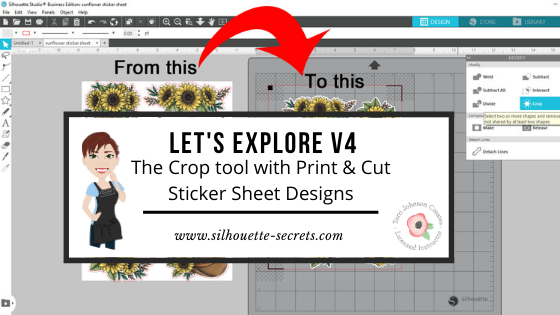
Let’s Explore v4 – Crop tool with Print & Cut stickers

Just a quick post to share a quick tip on using the Crop Tool with Print and Cut stickers that may not be individual pieces.

Tutorial written in Silhouette Studio v4.3.372
Affiliate links may be present in the following blog post and as an Amazon Associate I earn from qualifying purchases.

The design I used in this video is Sunflower Sticker Sheet by Wild Pilot – Design #324626 found in the Silhouette Design store.

Keep in mind that each design you use may be a little bit different. It just all depends on how the designer created it.

For more information on Print and Cut check out these posts:

Let’s Explore – Print and Cut Basics

Silhouette Studio Print and Cut Tips

I love seeing what you are creating with your Silhouette machines!
Feel free to post photos or questions on my Facebook group at 
Silhouette Secrets with EllyMae.

Save this for future reference by pinning the image below.

Enjoy!

SS Logo snip it
**This post may contain affiliate links. What that means is that I may receive compensation if you purchase through the links I have provided. The price you pay for the product or service is not higher but I may get compensated for sharing.
Posted on 7 Comments

Let’s Explore v4 – Patterns, Print Bleed & Show/Hide Library

It is so hard to just show one feature in a post. This post started out as a one to show you how to add patterns to your designs so that you can print unique creations and use digital papers. But, then it morphed.

Today we will talk about 3 features in the v4 software.

  • Adding patterns to your design to create unique projects
  • Print Bleed
  • Show/Hide Libary feature

What are patterns used for?

Patterns can add a unique element to your creations that you can print out.

You can access patterns under the Fill Color Panel – Patterns Tab located on the right side.

Affiliate links may be present in the following blog post and as an Amazon Associate I earn from qualifying purchases.

Filling a design with a pattern can open a whole new world of possibilities. I have these card pieces on my design mat and I want to fill them with one of the new digital pattern that’s available at Sparkleberry Ink called Choose Happy Digital Pattern Collection.
With everything going on right now, these patterns were released to bring out a little bright color and happiness. I saw them and knew I had to create something with them.

Select the objects you want to fill with the pattern and then in the Fill Color Panel – Patterns Tab (Tab 3), choose the Pattern you want to fill it with. And watch the magic happen.

I set up my page to do a Print and Cut and then printed a 12″ x 12″ page with my Canon TS9521C printer.

I use the same steps each time that I set up a print and cut project and have great success with it. It is one of my favorite things to do.
Find more information on print and cut check out these posts:
Print & Cut Basics
Print & Cut Tips
How to Print & Cut Larger with Silhouette

Adding patterns to the Silhouette library is a Designer Edition upgrade feature. Find out more about the Pattern Fill Panel HERE.

Print Bleed

Something that is new in the v4 software is a feature called Print Bleed.
What this does is it will bleed the outside edge of your design color out away from the design. This helps when you are doing a print and cut to eliminate a white border that you may have around the design.

The Print bleed can be found in the v4.4 software on the Page Setup Panel – Registration Marks Panel.

Print Bleed in v4.4

In previous versions of v4, the Print Bleed is found on Tab 1 of the Page Setup Panel.

Once the Print Bleed option is checked, then you can adjust the distance you want the bleed to have from the design. However, something to note here is that the print bleed does not show up on the design screen and it applies to all objects on your screen.

As each design is different, it can also affect designs differently. For instance, a design that is made up of different parts that are all individual pieces and colors, it will bleed all of those colors of the individual pieces. Print bleed works well on a single object, a graphic file, or print and cut design.

I printed 3 different patterns from the Sparkleberry Choose Happy Digital Patterns Collection and then I picked one from the Silhouette Design Store called Arrows Background Paper by Miss Kate Cuttables – Design #296677.

This time when I added the pattern I used a different method though. On the Design tab in the bottom left corner, there is now a Show/Hide Library option.

Show/Hide Library on Design Tab

Click on this little folder and the Library will expand out from the left side, so you have a split screen and can see both designs in the library and on the design mat at the same time.
Of course, your screen size will determine if this is a suitable feature for you to use or not.

Show Library Split Page Design Tab

Select the object on the screen and choose one of the patterns from the Patterns folder in the library and it will fill with that pattern.
This will work for adding other designs to your current design mat in the software too.
(Sometimes you may notice it will add an extra pattern piece, you can just delete what you don’t need.)

In the Advanced Options of the Fill Color Panel – Patterns tab (3rd tab), you will find options for panning the pattern, rotating it, or scaling it as well.

Sometimes I find it hard to see the little patterns that show up in the Patterns Tab on the Fill Color Panel. They are not well organized and the pattern photo is small, so using the Show Library split panel can be an option to make it easier to find a pattern you are looking for.

Cutting aftermath

Go big or go home, right? When I cut out papercraft projects that have several pieces to them, I tend to make extras. I can set these pieces aside to assemble at a later date or have extras on hand. In this case, I cut the pieces to make 6 each of 4 different pattern designs. So I have 24 cards that I can now send out to friends.

Card pieces

Once the file is set up in the Silhouette software is it just a matter of loading and unloading the cutting mat each time and I just started making piles for each set of cards.

Craftermath from cutting

A couple hours later and I had all the pieces to assemble these cards. About half way through I had the thought that I could hook up another machine and then cut from multiple machines at the same time to make it go faster. But, I was enjoying cutting with the Cameo 4 and didn’t go that route.

But it’s an option – check out how to use multiple Silhouette machines at the same time HERE.

24 finished cards

Now here is the really fun part!

Flip card video

I love being able to create custom designs with my Silhouette and make the cutting of all the pieces go so smooth. I embellished these cards with a few stamps from Close to My Heart and they are ready to send off.

What are you creating with your Silhouette today?
I’d love to see it over on my Facebook group at Silhouette Secrets with EllyMae.

Save this for future reference by pinning the image below.

Enjoy!

SS Logo snip it
**This post may contain affiliate links. What that means is that I may receive compensation if you purchase through the links I have provided. The price you pay for the product or service is not higher but I may get compensated for sharing.

Posted on 1 Comment

Let’s Explore v4 – Print & Cut Specialty Media

Specialty Media and Print & Cut with Silhouette

Affiliate links may be present in the following blog post and as an Amazon Associate I earn from qualifying purchases.

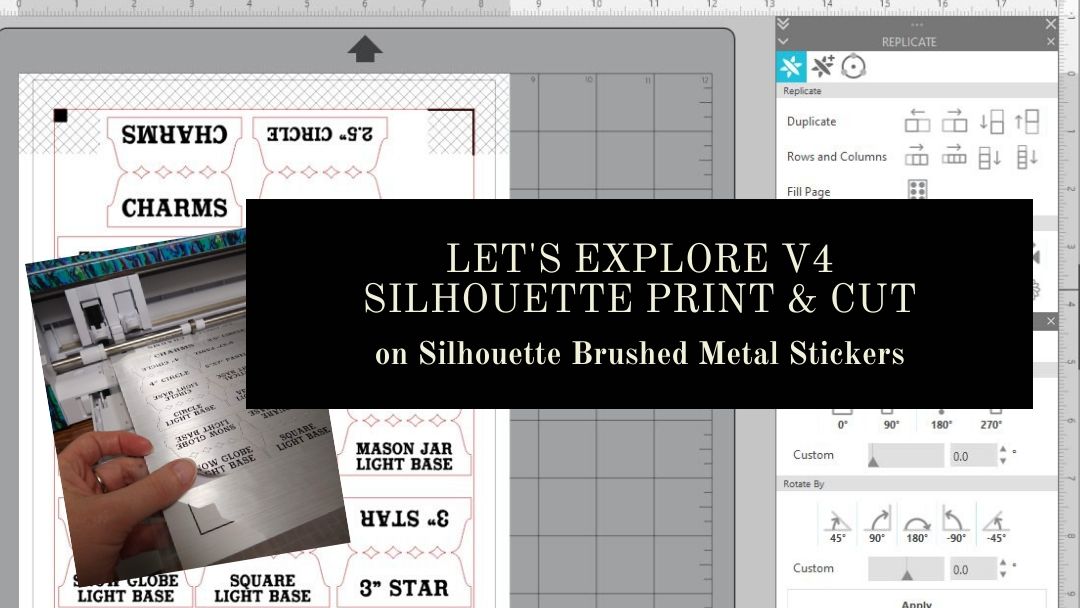
Silhouette recently released some new specialty media types and I think I’m in love with these new Brushed Metal Sticker Sheets.

Let’s take a look at how to this set up.

I first set up the design for print and cut, using all the defaults for the registration marks.
For a step-by-step tutorial on setting up print and cut, check out this post
Let’s Explore v4 – Print and Cut Basic.

Something to note for these specialty materials is that the instructions are very specific in saying to use the default settings for the registration marks. That is due to how the sticker sheets are set up. For the best results and printing quality, the corners of the sticker sheets are cut out so the marks can be read with more accuracy.

The corners are a matte finish vs the glossy finish of the sticker sheet area. This is not something that you notice until the package is opened.

I needed some labels for organizing my collection of Curio templates. I used a tab from the file 3 Tabs by Lori Whitlock – Design #6387 and added text to each of the tab sides using Vintage Sign Font by Lori Whitlock – Design #252472.

Using the Replicate Panel and the Rotate Panel, I could duplicate the text to add to the other side of the tabs.

I am using a Canon TS9521C printer and found that it needed to be printed using the Photo Paper Glossy setting with the print quality as High. Printing at the higher quality settings slows the rate that the image is printed which allows the ink to dry on the media longer before it is finished.

After the design is printed, click on the Send tab and I don’t want the text to cut out. All of the text needs to be selected, by clicking on it, and then choosing the No Cut option to turn the cut lines off.

You may notice that the text looks fuzzy. This is something that has changed in the v4 software. Text now defaults to Cut Edge on and why it is showing up as fuzzy. It will still cut and there is nothing wrong with the text or cut lines. However, by having the text default to Cut Edge, you no longer have to weld fonts that overlap. It will cut the edge of all the text that is connected versus cutting out each individual letter.

In this case, I don’t want the text to cut. But, it is something that has changed in the software and I see many questions on why it’s now fuzzy. If you want the text to show “normal”, then select all of it and choose “Cut” on the Send tab and the lines will clear up a bit. Just keep in mind that you will need to weld the text manually if you do that.

Since I only want the tabs to cut, I turned off all the Cut lines on the text.

The bold red cut lines will turn off on each object that is selected when the “no cut” option is chosen.

After it’s printed, place it on the Silhouette cutting mat, exactly as it shows on the Silhouette design screen. The page should be lined up in the top left corner of the cutting mat and on top of the cutting grid. For best results, you want it to be lined up exactly as it shows on the screen. This means that the page should be covering the grid lines on the left side and along the top edge in the top left corner.

Lining it up properly will help in getting an accurate reading on the registration marks. If the cutting grid is showing, then it can sometimes try to read the cutting grid instead of the printed registration marks and give you a registration error.

Make sure to load the cutting mat properly in the machine with the left edge of the mat next to the line on the left that the arrows point to.

I used the Cardstock – Textured setting to cut these Brushed Metal Sticker Sheets and it cut well.

A good habit to get into is to check the cut before pressing the Unload button. If the design did not cut well, then you could send it back through for a second pass.

I added the tabs onto sheet protector that I can easily slide the Curio Templates in and out of. This is just a portion of the templates I have, so it is going to be great that the ones I use the most are now labeled and organized.

Here is an example of these Curio Templates. These are designed to fit the Craft Chameleon acrylic blanks and help to hold the blank in place and line up the design to the template space.

These plastic Curio templates line up with the pegs on the Curio cutting base and then the acrylic blank sits down in it while etching. I still like to add a layer of double sided tape to my acrylic blank as well, just for another layer of security in holding it in place. The etch is permanent, so if that blank moves at all, it may not line up and etch in the correct location.

Now, I added these all in one location. I picked this accordion folder up a few months back when I first was brainstorming this idea and now I can find them a little easier.

Now, that is one more thing crossed off my to do list. Back to more Silhouette projects!

From now until April 15th, you can get 40% off materials at Silhouette when you use my code SILSECRETS and FREE shipping on orders over $50.

Check out more information on all the April sales happening at Silhouette in this post HERE.

Save this for future reference by pinning the image below.

I would love to see what you create!
Feel free to post on my Facebook group at Silhouette Secrets with EllyMae.

Enjoy!

SS_Signature copy
SS Logo snip it
**This post may contain affiliate links. What that means is that I may receive compensation if you purchase through the links I have provided. The price you pay for the product or service is not higher but I may get compensated for sharing.