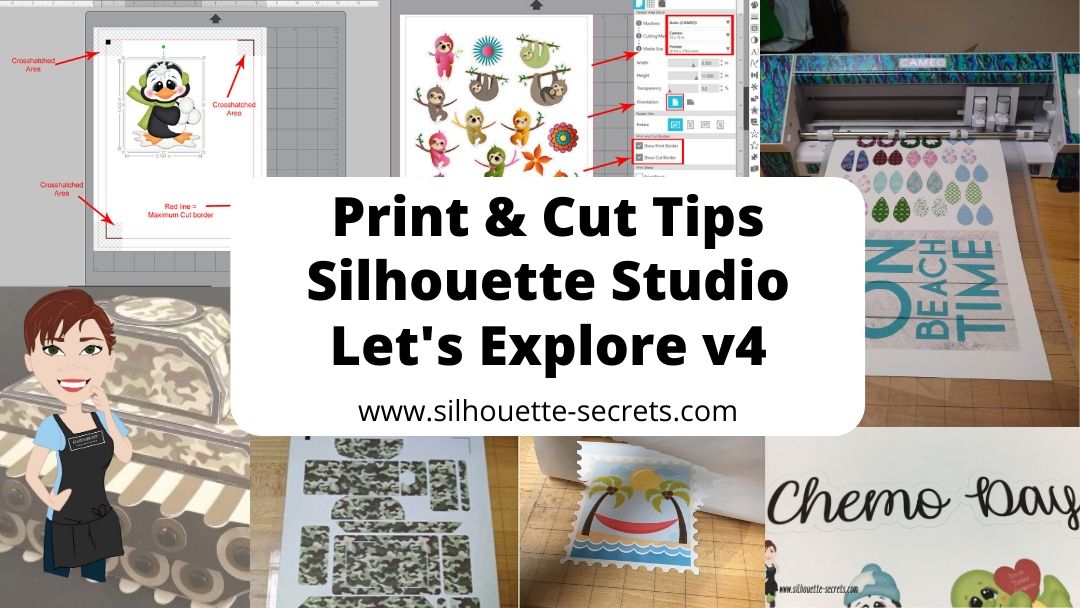
No matter what kind of print and cut project you are doing, I recommend starting with all the basics. I have several posts on print and cut and wanted to give you one landing page to check them all out at and decide which one is going to be the best for your situation.
Print and cut with the Silhouette is one of my favorites and it is often the one issue I troubleshoot a lot with users. Most often it is something that needs to be tweaked on the user’s end on why the Silhouette is not reading the marks. And there is no one solution fits all when it comes to troubleshooting and it’s not always what the user wants to hear, but the first step is to start at the beginning. Otherwise, it’s like throwing mud against a wall and seeing if it sticks. You can try all kinds of things and still end up with the same issue.
Print and Cut Basics is where I would suggest starting if you are new to Silhouette, new to print and cut, or are having problems getting the Silhouette to read your printed page. It is a step-by-step to doing a test print and cut to make sure it’s all working properly.
Print and Cut – Part 1 is a great place to start with setting up a design made for print and cut. It gives tips and tricks to getting the design set up correctly, printing within all the borders, and also several troubleshooting steps if you are having issues.
Print and Cut – Part 2 – Text will show you how to create text and discuss whether you want the text to cut, or how to change it so that text does not cut each piece out.
Want to cut larger than letter size? If you have a large format printer, you can cut several larger sizes. The main limit is how large the printer can print. Check out tips on How to Print & Cut Larger with Silhouette HERE.
With the release of v4.3, the Registration Marks Panel has had a little bit of a change. There is no longer options, but you can turn them on and off. Find out more here in Registration Marks & Print and Cut in v4.3.
Print and cut is another great option if you don’t have the exact paper pattern on hand to create a project. You can make your own and then cut it for your project. Check out how to use the Pattern Fill Panel HERE.
With the options of Pattern Fill in the software, it can definitely keep a project alive versus having to wait on finding that perfect piece of cardstock in the store. I used the Pattern Fill in this 3D Tank project also.
Pattern Fills
Affiliate links may be present in this blog post.
I see it asked often what the patterns in the Silhouette Design Store could be used for. They are a great option for creating unique projects or work in a pinch when you don’t have the right pattern to fit your projects.
Check out all the options for all kinds of patterns in the Silhouette Design Store HERE and then how to use them in the Let’s Explore v4 – Pattern Fills. I love that you don’t have to print the entire page with the pattern, but can fill any section of the design and manipulate that pattern to your liking by adjusting the pan and zoom.
Hopefully this has opened up some new doors to Silhouette projects for you!
I would love to see what you creating with your Silhouette machine! Feel free to post on my Facebook group at Silhouette Secrets with EllyMae.
Enjoy!
**This post may contain affiliate links. What that means is that I may receive compensation if you purchase through the links I have provided. The price you pay for the product or service is not higher but I may get compensated for sharing.
With the v4.3 software released, the Registration Marks panel had a small change as well. For software version of v4.3+, there is now an On or Off on the Registration Marks Panel – find the full details on the panel HERE. If you are using a software version prior to v4.3, then you will see it a little bit different and for almost all users, you would choose Type 1 registration marks – find the full details on that HERE.
No matter what version of v4 software you are using, the Basics of setting up a print and cut project are the same.
I follow the exact same steps each time and have great success with each print and cut project.
Print and Cut Basics
This tutorial is written using the v4.3.356 Silhouette studio software. For versions prior to v4.3 you may see a few differences in the software, the steps will be the same. However, you may find this Print and Cut Part 1 tutorial to be helpful too.
Affiliate links may be present in the following blog post and as an Amazon Associate I earn from qualifying purchases.
First, you want to start out by setting the design page up.
Step 1 – Open the Page Setup Panel – Tab 1 Step 2 – Choose the correct machine & cutting mat. Note: users prior to v4.3 will notice the Page Setup Panel is a little different too. Find out more on that HERE. Step 3 – Choose the Media size. I choose “Printer” as the option when using letter size paper. You will find it at the bottom of the drop down box for Media Size. *NOTE: for users with software v4.4.450 or higher – choose Letter size – there is a change in the software with “media” size I have found as of 12/15/20. I have reported it and will update the post as I know more information in the future Step 4 – Move transparency to 0%. This will help you see the page size better. Step 5 – Choose the Portrait Orientation. This is the orientation I recommend as I see the least amount of issues with it. Step 6 – Check the boxes next to Show Print Border and Show Cut border. This will show you the boundaries you have to work with.
Next, open the design onto the cutting mat by either right clicking on the file in the Silhouette library and choosing merge or using File > Merge.
This will merge the design directly onto the page you have just set up.
As with any new project, I would recommend doing a test first. This is why I start with all the default settings. A test print can save you a lot of headache and frustration just like a test cut when you are cutting new materials or a new design.
With a print and cut, design placement is very important. The design cannot be in the cross-hatched areas of the design screen or over the cut border that is shown on the screen. This is why I turn the Show Cut border on first on the Page Setup Panel.
Make sure the design is away from the cross-hatched area. This is the area that the optical eye on the Cameo needs to read the registration marks accurately in order to find the design on the page. Making this area smaller or placing a design in it, can result in either a registration marks error message or an inaccurate cut.
Now it is ready to print.
There are 2 ways to do this.
Click on the Printer icon in the top left corner. This will send the print job directly to the printer that is set as the default printer connected to your computer.
In the top left corner, choose File > Print and you will get a pop up of Printer options. (Ctrl + P)
The options vary by the printer you have connected to your computer.
Choose the printer to send the job to.
Tip: If you have a Preferences button, click on that and look for a “Preview before Printing” option. This is a great feature to see if it is going to print how you want it to before actually committing to the print job.
Check the Preview before Printing box.
Then click OK.
And choose Print.
A Printer menu will pop up and the design can be previewed before committing to printing.
Note: this will be dependent on the printer and what the printer setup settings are. Not every user will have this and it can vary, but never hurts to look for it.
Tip: Check to make sure that the bottom left registration mark will print completely. I see a lot of print and cut issues and one is the registration marks were outside the users printer margins and did not print. This means you will either get a registration error or it will cut inaccurately because it doesn’t have all the information to read it correctly.
Once you’ve verified the settings are correct, click on Print and it will send it to the current default printer.
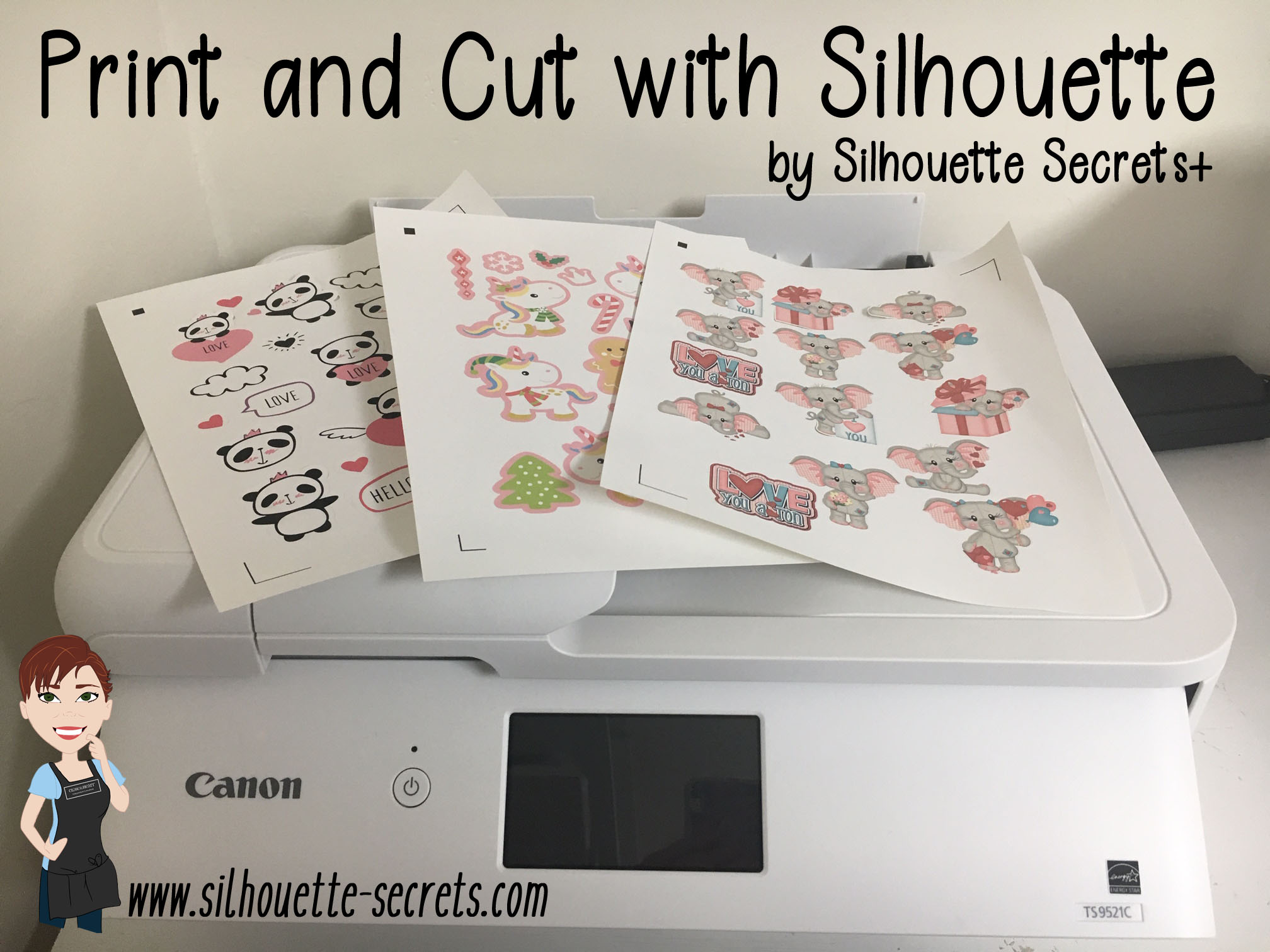
Grab it off the printer. I am using a Canon TS9521C Craft Printer and I love it. This printer has great quality and I love having the option to print on a 12″ x 12″ sheet of cardstock with it.
Place it on the Silhouette cutting mat exactly as it shows on the virtual design screen, in the top left corner of the cutting mat. Make sure that the page is covering the grid lines on the cutting mat, or the Cameo may try to read the black lines when it goes to register.
Load the left edge of the cutting mat next to the line on the left side of the machine.
Click on the Send tab in the top right corner and then choose the Material type you are cutting.
Once all the settings are correct, then choose the Send button in the bottom right corner.
Note: a test cut using the Test option in the software will result in part of the upper left registration mark being cut out and can interfere with reading the marks correctly. I would suggest doing a test cut on a spare piece of material or moving the test cut out of the top left corner.
I love print and cut!
I do the same steps every time when setting up the print & cut and rarely have an issue.
I find that in troubleshooting most print and cut issues, it is something in how it is set up or how the design printed. I recommend for all my students and those interested in print & cut, to start with all the default settings to establish a baseline before they start changing things up.
Now that we have a successful print and cut, let’s try another design.
Print and Cut Planner Stickers
Follow the same setup steps listed in the beginning of this tutorial for the Page Setup.
Use File Merge and open the design on the screen.
Open the Page Setup Panel – Tab 3 – Registration Marks and turn the marks on. Click Restore Defaults.
In the photo above, I have highlighted a few trouble areas of this design. On the left and right edge, the design is over the Cut border and in the bottom left corner, the design is in the cross-hatched area.
To fix this, I select the entire design & cut lines and then use the bounding box in the corner and scale it down just a bit to fit within the borders of my print and cut page. Then move the design to the center of the page.
Once it is all setup the same way, follow the same steps as listed above for printing and loading it in the machine. Click on the Send tab and choose the material type. I am using sticker paper for this set and Send it to the Cameo to cut.
Having print and cut issues? Feel free to post on the group and we will troubleshoot it with you.
Enjoy!
**This post may contain affiliate links. What that means is that I may receive compensation if you purchase through the links I have provided. The price you pay for the product or service is not higher but I may get compensated for sharing.
If you are using a v4.3 software version, you may have noticed that there are a few changes in the software panels from prior versions.
One of those panels is the Page Setup Panel – Tab 3 – Registration Marks, so let’s take a look at the difference.
If you are using version 4.0 to version 4.2, then the Page Setup Panel – Tab 3 will look like the one on the left side in the photo above – check out this post HERE for details on that.
If you are using version 4.3, then the Page Setup Panel – Tab 3 – Registration Marks will look like the one on the right.
As you can see the Registration Marks Style section has changed to an On or Off position now in version 4.3. While this is the only change you can see in this panel, when you are looking at videos or older tutorials, it will show the step to choose Type 1. This is great to know if you are new user to Silhouette or for someone just updating to the version 4.3 software.
But, while we are here, let’s review the Registration Marks Panel and explain what it all means.
The Registration Marks Panel is the 3rd tab in the Page Setup Panel, which is the top right icon.
The print and cut registration marks can also be toggled on by the keyboard shortcut letter ‘M’. I see this happen often when a user is typing with text and then clicks off of the text, but still tries to type letters. This can activate keyboard shortcuts and the marks will toggle on and off.
Now, first before we go into the details of this panel, let’s first set up the page for the print and cut. I follow the same steps every single time I set up a print and cut project and I rarely have any issues. We will go through them here briefly, but check out this Print and Cut – Part 1 tutorial for more details – HERE. Keep in mind that this tutorial was written in a software version before the On and Off change in this panel.
Affiliate links may be present in the following blog post.
Setting up a Print and Cut Page
Step 1 – Open the Page Setup Panel – Tab 1 Step 2 – Choose the correct machine & cutting mat. Step 3 – Choose the Media size. I choose “Printer” as the option when using letter size paper. You will find it at the bottom of the drop down box for Media Size. Step 4 – Move transparency to 0%. This will help you see the page size better. Step 5 – Choose the Portrait Orientation. This is the orientation I recommend as I see the least amount of issues with it. Step 6 – Check the boxes next to Show Print Border and Show Cut border. This will show you the boundaries you have to work with.
Now, that the page is set up, let’s move to the registration tab and turn the
Registration Marks On.
Some things to point out here.
When the Show Cut border box is checked on the Page Setup Panel – Tab 1, you will notice that the red cut boundary moves when you turn the registration marks On. Notice that the cut boundary is lined up with the registration marks that appeared on the page.
There is a cross-hatched area that shows up on the design screen. This does not print on your page. However, having a design, cut border, or background in this cross-hatched area can interfere with the optical eye reading the registration marks accurately. This can cause mis-cuts. Make sure that the design is away from the cross-hatched areas on the page.
Notice on the left and right side, I have circled and highlighted 2 problem areas. These would result in those 2 things not being cut completely, if there were no other errors because they are outside of the cut border.
I mentioned above, that I do the same exact steps every time I set up a print and cut project. The next step I do is click the Restore Defaults button.
I go to File > Print in the top left and make sure the printer is set up with the correct page settings for the printer I am using. If the Printer Setup has a Preview option, I would highly recommend using it to make sure that all of the registration marks will print correctly.
But, what about all the other options on the Registration Marks Panel?
Yes, there are more options. However, I would highly recommend for a beginner with print and cut, if you’ve ever had problems with print and cut, or if you have a new printer to start with the defaults and establish a baseline.
This will eliminate so many things that could be an issue that gives you a registration error or mis-cut.
It printed beautifully on the Silhouette white sticker paper! Make sure to place the printed page in the top left corner of the cutting mat exactly as the page shows on the design screen. Place the page on top of the grid lines on the cutting mat or the Cameo may try to read the grid lines instead of the registration marks.
The left edge of the mat, should line up with the line on the left on the Cameo that the 2 arrows point to.
Now, something I noticed after it printed was that the designer of the file had increased the line thickness of the cut lines, so when it printed the red lines printed too. This is not always desired, so make sure you double check the file before printing it out.
I love print and cut and I rarely have an issue with it registering or mis-cutting. This is why I want to stress the importance of using the defaults at least the first time to set you up for the best chance of success.
Registration Marks Panel Options
Once you have established a baseline with print and cut and have had success with the default settings, then I you can venture into testing the limits.
I often see users who have maxed out the registration marks to try to gain more space on their page and they end up with it not registering at all or if it does, the cut is far from accurate. While you can move the registration marks, each printer will vary in how far you can move those and still get an accurate cut.
This will take testing on your part to know what the limits are for your printer!
I rarely move my registration marks because I know at the defaults it cuts great every time. However, on the occasion I am feeling daring, I have moved them but tell myself the entire time that if it doesn’t cut, I will know why. While I’ve still been successful in moving the marks and getting accurate cuts, that is not what I see with the majority of users. So, just keep that in mind.
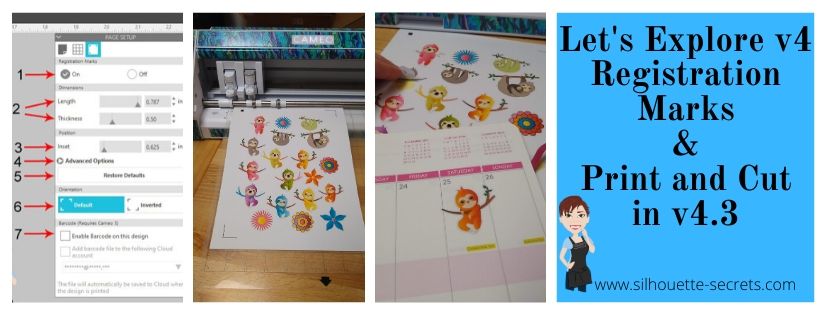
1 – On or Off – Turn the registration marks used for print and cut on or off by clicking the box next to each option.
2 – Length & Thickness – Adjust the length of the registration marks or the thickness of the marks.
3 – Inset – Adjust all 3 of the registration marks at the same time. The higher the number, the closer to the middle they move.
4 – Advanced Options – Click on the arrow and it expands with more options to adjust the individual insets of the print and cut area.
5 – Restore Defaults – This will reset the registration marks to the default settings.
This is the #1 thing that I feel can make all the difference in getting an accurate cut. I highly recommend starting with the defaults first and then as you feel more comfortable, you can start changing things up. Especially on a file that you have purchased that is set up as a print and cut file. It may not have been saved with the default settings for the Silhouette. The designer may have been able to print it with their printer at those marks, but yours may not be the same. Or you could encounter someone who has just designed it but never printed it to test it.
6 – Orientation – Default vs Inverted – This changed the direction of the registration marks on the mat. Notice the direction of the arrow on the cutting mat. Inverted placed it on the opposite corner of the mat & moves the registration marks on the page.
7 –Barcode – This adds a barcode to the side of your page and it stores all of the cut settings data in the bar code that the Cameo 3 will read. This is a Business Edition feature only. There is also the option to save the information to the cloud account that is associated with the email address used to log in.
I troubleshoot a lot on many platforms for print and cut and most often it is something that needs to be tweaked with the way the file is set up. Starting with those defaults will save you a lot of headache in the long run.
Don’t forget to Pin this image below to save these tips for the future!
I would love to see the projects you have created feel free to post on my Facebook group at Silhouette Secrets with EllyMae.
Enjoy!
**This post may contain affiliate links. What that means is that I may receive compensation if you purchase through the links I have provided. The price you pay for the product or service is not higher but I may get compensated for sharing.
Print and cut with the Silhouette software has so many options available. The past 2 weeks we have explored using a print and cut file (Part 1) and creating text (Part 2) to use in print and cut. This week we will explore creating a print and cut file from a jpeg or png image.
Print and Cut with Images
Open the jpeg or png file.
A jpeg may have a white background around the image and a png file can have a transparent background. These file types are both flattened graphic images, so they are no cut files.
Here I have opened both files to show the difference, but the same steps would be used for either file type.
Open the Trace Panel.
Step 1 – Click on Select Trace Area and draw a rectangle around the entire design.
Step 2 – Increase the Threshold up until the entire design has turned yellow.
Step 3 – Click on Trace and Detach. The image will be detached from the background and there will now be cut lines around the image and you have . As long as you make sure your design is as yellow as possible, it will trace around the edge.
Keep in mind that each design will vary in how it reacts.
Step 4 – Delete the extra portion of design background, as it’s no longer needed.
Set up the file as a Print and Cut
Step 1 – Move the file onto the Silhouette virtual mat. I used
Step 3 – Choose:
Page Size – Current Printer
Orientation – Portrait
Check the Show Print Border box
Check the Show Cut Border box
Step 4 – Click on the Page Setup Panel – Registration Marks tab.
Step 5 – Choose Type 1 Registration Marks for the Cameo, Portrait or Curio machine.
Step 6 – Click on the Restore Defaults button.
This will reset the registration marks and I would suggest using this as the starting point to get an accurate cut.
Step 7 – Move the design on the mat so it is not in the cross-hatched areas of the page. The optical eye on the Silhouette machine needs the cross-hatched area to read the registration marks accurately.
While the registration marks can be moved, I suggest for a new user to keep them on the defaults before it is sent to print. If the marks are moved, then I would suggest doing some test print and cuts on copy paper to make sure the cut is still accurate.
Check out more troubleshooting tips HERE on Part 1 of Print and Cut.
For more information on the Registration marks panel, check out the “Let’s Explore v4 – Registration marks” post HERE.
Step 8 – Next, click on the printer icon in the top left corner.
or
File > Print from the Menu
For more information on the Print Preview – check out Print and Cut – Part 1.
Step 9 – Double check that the page looks correct and that all 3 of the registration marks have printed.
Step 10 – Place the printed page on the cutting mat exactly as it shows on the screen, in the top left corner.
Step 11 – Click on the Send tab in the top right corner.
Step 12 – Click on the image to select it and choose Cut. The bold red cut lines should appear around the design.
Step 13 – Load the Silhouette mat in the machine and choose Send.
**This post may contain affiliate links. What that means is that I may receive compensation if you purchase through the links I have provided. The price you pay for the product or service is not higher but I may get compensated for sharing.
In Print and Cut – Part 1, I showed how to create a print and cut project from an already existing file that was set up for print and cut. In today’s post, we will create our own text and turn it into a print and cut file.
Print and Cut with Text
First, let’s go through how to set up a Print and Cut Project with text.
Set up the Page Size on the Page Setup Panel to “Current Printer”.
Choose Portrait Orientation.
Check Show Print Border – a gray box turns on around the maximum print edge. This is set by the current printer that your computer recognizes.
Show Cut Border – a red line turns on around the maximum cut edge of the page size. Anything outside this border will not cut.* Note: I choose the Portrait Orientation for Print and Cut projects because I troubleshoot many users with the issue of the registration marks not reading accurately when printed in Landscape Orientation. I believe this varies by the printer it is printed with and how the paper is pulled in to the printer. I suggest printing in the Portrait Orientation for best results.
Choose Type 1 Registration marks if you have a Cameo, Portrait or Curio machine.
Click Restore Defaults. This will reset the registration marks to the default location.
I recommend starting your print and cut projects here, especially for a beginner or if you have a new printer.*While the registration marks can be moved out (Registration Marks – Advanced Options), you will need to test how far you can move those and still get an accurate cut. I know may want to increase the area and squeeze as many designs into the print and cut area that they can, but it can come with some frustration. Do some test printing and then cut to see if the accuracy is affected on copy paper before using the more expensive materials. You will find out what the limits of your printer and Silhouette are.
Type out the text using the Text tool on the left side. Weld the text if necessary. *Make a copy of the original text if you do and move it to the side, just in case you need to make changes to the design later.
For more information on text and how it works, check out the Let’s Explore v4 – Text Style Panel post here.
Choose the font type from the Text Style Panel on the right side of Silhouette Studio.
Change the Line Style color of the text using the Line Style – Tab 2 – Line Color, so it is the same color as the filled text.
The default line color is red. Since, this text will be printed the line color may show in the printed page. In the photo above, there is a faint red line around the black text, this can show if printed like this.
Choose how you want the text to cut. Do you want just the text cut out or do you want it to have an outline?
To create an outline around the text, use the Offset Panel and adjust the spacing to get the desired effect, then Click Apply.After the Apply button is selected, any overlapping pieces of the offset created, will weld together.
Click on the Send tab to see how this will cut.The bold red lines indicate cut lines.
If this was sent to cut, the top text would cut out around the text and the bottom text would cut both around the text and the Offset.
For the example today, I only want the Offset to cut.
On the Send tab, Select the text cut line and then choose “No cut”, this will turn the bold red cut lines off.
*The key here is that the object you are turning the cut lines on or off for has to be selected. That means you have to click on it and a gray selection box will appear around it. If there is no object selected, the software has nothing to turn on or off.
Click back on the Design tab. Select the entire design and move it to the location on the page you want it to print. The design cannot be in the cross- hatched area of the page. The Cameo optical eye needs the cross-hatched area of the page to read the registration marks accurately. If the design is in the cross-hatched area, you may get a registration error or an inaccurate cut.
Do any final adjustments to the text before you send it to print. Once the page is printed, you cannot move anything on the page or you will have either registration errors or get an inaccurate cut.On the Design tab, I selected the Offset, right clicked and chose Release Compound Path.Then deleted the small inside pieces of the Offset that I didn’t need to cut.
Once the file is ready to go. Click on the Printer icon in the top left or File > Print.
For tips on Print Preview – check out the Print and Cut – Part 1 post here.
*Remember – do not move anything on the design mat after the page is printed.
Click on the Send tab. Select the Material.
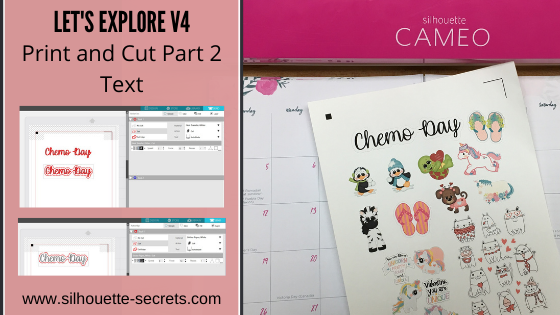
Load the printed page on the Silhouette cutting mat exactly as it shows on the virtual design mat – in the top left corner. You will notice that I added several other items to my page. These are other print and cut images that I know will be used, so I added them to fill up the sticker paper area.
Load the cutting mat next to the blue arrow on the left side of the Cameo machine.
Click on the Send button at the bottom of the Send tab.
Perfect print and cut!
I hope that helps get you started on your Print and Cut projects that use text.
Because there are so many details and ways you can use the print and cut feature, I am breaking it up in to several posts.
Have a suggestion on possible Silhouette topic you would like covered? Add it to this Facebook post on my Silhouette Secrets by EllyMae group HERE or email it to me at silhouettesecretsplus@gmail.com
Enjoy!
**This post may contain affiliate links. What that means is that I may receive compensation if you purchase through the links I have provided. The price you pay for the product or service is not higher but I may get compensated for sharing.
I love the print and cut option on the Silhouette software!
I’ve used it for many years and in this 2 part series I will share some tips with you for getting a successful print and cut.
A few weeks back I made up special Chemo day gift bags for a friend of mine who is a Planner gal. I found a few print and cut files that I knew she would like on the Silhouette Design Store and then set up to print them all out in the Silhouette software, then I let the Cameo machine do it’s work and cut out around them. I will say that every single one turned out perfectly!
First, find a Print and Cut design that you like. I am using the ML Panda Love Stickers from the Silhouette Design Store (this file is no longer available in the store).
This can be used for any print and cut file available – click HERE to see more Print & Cut designs.
Search by file type and narrow the search down in the Filter on the left side.
For instance, in the photo below, I searched Print & Cut Design Type & Planner for the keyword.
Open it in the Silhouette software.
Every file you open will be different in what it looks like when you open it and is based off how the Designer saved it.
Next, on the Page Setup Panel, adjust the Page Size to Current Printer. Also, check the boxes next to the Show Print Border and Show Cut Border. These are guides that will help in lining things up so they print on the page and are not outside of the cut area.
With the Reveal set at 0% you will see a white page that is the size of the Page Size you have chosen.
Then choose Type 1 Registration marks if you have a Cameo, Portrait or Curio.
If you have an older model machine before the Cameo 1, then you would use the Type 2 marks.
You will notice 3 marks appear on the Page. A square in the top left corner, a corner bracket in the top right corner and bottom left corner (this is with the Portrait Orientation – Page Setup chosen – this is the Orientation I recommend).
Tip for a beginner or for print and cut issues.
Click on the Restore Defaults button. This will reset the Registration marks to the default and this is where I suggest you start from.
While the registration marks can be moved, each printer will vary in how far they can be moved and still get an accurate cut. I suggest starting with the default registration marks and then you can test from there once you are familiar with the print and cut process.
Next, make sure that your Print and Cut design is inside of the Cut border. Notice that the Cut border has now moved in line with the 3 registration marks. Anything outside of that border will not cut and may interfere with the reading of the registration marks.
In the photo above, I need to move the design to the left because it is too close to the right cut line.
And the design cannot be in the cross hatched area of the print and cut. The optical eye of the Cameo needs this area to read those registration marks correctly. If the design is in the cross hatched areas, it can interfere with the optical eye reading and either give you an error or an inaccurate cut.
The cross hatched areas are across the top and the bottom left corner.
As I mentioned above, each file you open will be different. With this file, there are 2 parts to the print and cut design. One part is the graphic of the pandas and the second is the cut lines. If the design needs to be moved, make sure to select & move both parts together.
Once my design is moved away from the cut border and the cross hatched areas, it is ready to send to the printer.
There are 2 ways to do this.
Click on the Printer icon in the top left corner. This will send the print job directly to the printer that is set as the default printer connected to your computer.
In the top left corner, choose File > Print and you will get a pop up of Printer options. (Ctrl + P)
The options vary by the printer you have connected to your computer.
Tip: If you have a Preferences button, click on that and look for a “Preview before Printing” option. This is a great feature to see if it is going to print how you want it to before actually committing to the print job.
Check the Preview before Printing box.
Then click OK.
And choose Print.
A Printer menu will pop up and the design can be previewed before committing to printing.
Again, this will be dependent on the printer and what the printer setup settings are. Not every user will have this and it can vary, but never hurts to look for it.
Tip: Check to make sure that the bottom left registration mark will print completely. I see a lot of print and cut issues and one is the registration marks were outside the users printer margins and did not print. This means you will either get a registration error or it will cut inaccurately because it doesn’t have all the information to read it correctly.
Once you’ve verified the settings are correct, click on Print and it will send it to the current default printer.
Grab it off the printer.
Place it on the Silhouette cutting mat exactly as it shows on the virtual design screen, in the top left corner of the cutting mat.
Then load the cutting mat next to the line on the left that the arrows point to.
Click on the Send tab in the top right corner of the Silhouette software.
Choose the Material type.
I am using the Staples brand Sticker Paper and the preset for Sticker Paper – White works well for me.
Tip: If cutting a new material, use the test cut feature to test that material before you send the entire project. This can save you lots of headache on mis-cuts.
Once you click on the Send button on the bottom of the screen, the Cameo will then read the registration marks and begin the cut.
Perfect print and cut!
Save this to Pinterest for future reference
Troubleshooting Print and Cut
Did it not cut accurately or did you get a registration error? Here are a few things to check when you do run into an issue.
Do you have the correct registration marks chosen? Type 1 should be used for the Cameo, Portrait or Curio machines.
Did the registration marks print completely? I often see the bottom left registration mark did not print completely because it was outside of the printer margins. Check to make sure it printed completely and if not, then either move the registration mark slightly up or increase the Printer margins under the Printer Setup.
Is the design in the cross-hatched areas of the print and cut? This will interfere with the optical eye and can either result in a registration error or inaccurate cut around the design. Move the design away from the cross hatched area and reprint on copy paper until you get an accurate cut.
Did the registration marks get moved? Each printer will vary in how far out the registration marks can be moved and still read accurately. Click the Restore to Defaults and use those as a test to get an accurate cut. As you become more familiar with the process and your printer capabilities, you can move them out and test how far the limit is.
Were changes made to the file after the design was printed? This will result in inaccurate cuts because the design is no longer in the same place it was when it was printed. Re-print and do not move the design after printing.
Did the printer feed multiple pages through at a time? Or did you print more than one copy at a time? For best results, I suggest feeding one sheet of material in the printer at a time. Multiple copies printed can result in the paper being pulled in too quickly and then the print is off on the page and not accurate.
Is the printer low on ink? Ink quality can interfere with the optical eye reading the registration marks accurately.
Was it printed at high quality? Printing at a low quality can also affect how the optical eye reads the registration marks.
Still getting a registration error? Start over on a new design mat and go through each step again. Then print a test print on copy paper.
I hope these tips help you have a successful print and cut experience.
Pin this image to Pinterest to save for future reference
**This post may contain affiliate links. What that means is that I may receive compensation if you purchase through the links I have provided. The price you pay for the product or service is not higher but I may get compensated for sharing.
THANK YOU for your support! How can you help? Click the link to buy a coffee. Every little bit helps in the cost of running the site.









 * Note: I choose the Portrait Orientation for Print and Cut projects because I troubleshoot many users with the issue of the registration marks not reading accurately when printed in Landscape Orientation. I believe this varies by the printer it is printed with and how the paper is pulled in to the printer. I suggest printing in the Portrait Orientation for best results.
 *While the registration marks can be moved out (
 After the Apply button is selected, any overlapping pieces of the offset created, will weld together.
 The bold red lines indicate cut lines.

 Then deleted the small inside pieces of the Offset that I didn’t need to cut.


 You will notice that I added several other items to my page. These are other print and cut images that I know will be used, so I added them to fill up the sticker paper area.