Posted on 3 Comments

Silhouette Print and Cut Tips

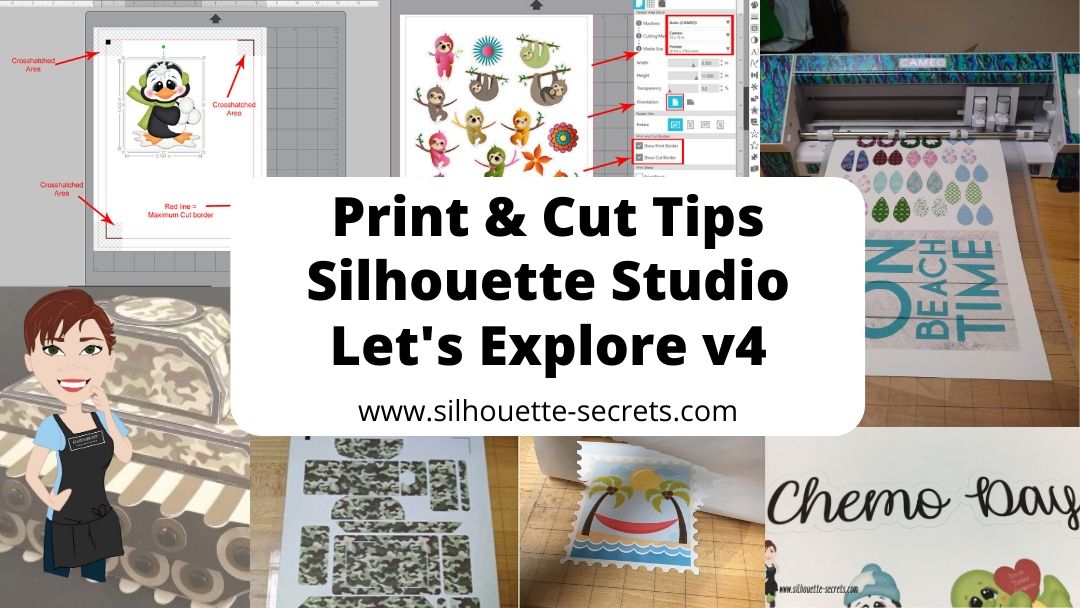
No matter what kind of print and cut project you are doing, I recommend starting with all the basics. I have several posts on print and cut and wanted to give you one landing page to check them all out at and decide which one is going to be the best for your situation.

Print and cut with the Silhouette is one of my favorites and it is often the one issue I troubleshoot a lot with users. Most often it is something that needs to be tweaked on the user’s end on why the Silhouette is not reading the marks. And there is no one solution fits all when it comes to troubleshooting and it’s not always what the user wants to hear, but the first step is to start at the beginning. Otherwise, it’s like throwing mud against a wall and seeing if it sticks. You can try all kinds of things and still end up with the same issue.

So let’s get you headed in the right direction.

Print and Cut Basics is where I would suggest starting if you are new to Silhouette, new to print and cut, or are having problems getting the Silhouette to read your printed page. It is a step-by-step to doing a test print and cut to make sure it’s all working properly.

Print and Cut – Part 1 is a great place to start with setting up a design made for print and cut. It gives tips and tricks to getting the design set up correctly, printing within all the borders, and also several troubleshooting steps if you are having issues.

Print and Cut – Part 2 – Text will show you how to create text and discuss whether you want the text to cut, or how to change it so that text does not cut each piece out.

Print and Cut – Part 3 – Images goes through the steps of creating a print and cut design out of a jpeg or png file that does not have cut lines.

Want to cut larger than letter size? If you have a large format printer, you can cut several larger sizes. The main limit is how large the printer can print. Check out tips on How to Print & Cut Larger with Silhouette HERE.

With the release of v4.3, the Registration Marks Panel has had a little bit of a change. There is no longer options, but you can turn them on and off. Find out more here in Registration Marks & Print and Cut in v4.3.

Print and cut is another great option if you don’t have the exact paper pattern on hand to create a project. You can make your own and then cut it for your project. Check out how to use the Pattern Fill Panel HERE.

With the options of Pattern Fill in the software, it can definitely keep a project alive versus having to wait on finding that perfect piece of cardstock in the store. I used the Pattern Fill in this 3D Tank project also.

Pattern Fills

Affiliate links may be present in this blog post.

I see it asked often what the patterns in the Silhouette Design Store could be used for. They are a great option for creating unique projects or work in a pinch when you don’t have the right pattern to fit your projects.

Silhouette Design Store Patterns Section

Check out all the options for all kinds of patterns in the Silhouette Design Store HERE and then how to use them in the Let’s Explore v4 – Pattern Fills. I love that you don’t have to print the entire page with the pattern, but can fill any section of the design and manipulate that pattern to your liking by adjusting the pan and zoom.

Hopefully this has opened up some new doors to Silhouette projects for you!

I would love to see what you creating with your Silhouette machine! Feel free to post on my Facebook group at Silhouette Secrets with EllyMae.

Enjoy!

SS_Signature copy
SS Logo snip it
**This post may contain affiliate links. What that means is that I may receive compensation if you purchase through the links I have provided. The price you pay for the product or service is not higher but I may get compensated for sharing.
Posted on 8 Comments

Let’s Explore v4 – Pattern Fill

In the past several weeks I have been using the Fill Pattern option in the Silhouette software to create my own papers for projects that I needed. While I have a large paper collection, there are just times I do run into a project, that I want a specific paper for and I don’t have it – like this 3D Tank project I complete a few weeks back.

Header Tank post

Last week, I started a project with my daughter and we only had wood patterned paper to make 1 of the project. So the Silhouette Design Store, my Silhouette software and my Canon printer came to the rescue.

IMG_20190731_205738918 copy

This Lath Decorative Board is created completely out of cardstock. Paper A is a retired patterned paper from my Close to My Heart collection and paper B is one that I filled with the pattern fill option and printed through my Canon printer onto white cardstock.

Pattern Fill header copy

I posted this on my Silhouette Secrets+ Facebook page  when I was working on the project and asked for guesses on which one was printed. Almost all the guesses were for A as the printed paper. This is a great option if you do not have the specific pattern in your stash that you need.

Sil_Secrets_PatternFill

If I don’t have the supplies on hand, it usually means that this project would have been put on hold for the time being, but now with the option to print and cut my own paper designs, I can get to crafting.
The project above is a Lath Board with Flowers Project by Nilmara Quintela from the Silhouette Design Store.

Let’s take a look at how you can use the Pattern Fill option to expand your options in Silhouette Projects.

The Fill Pattern tab is found on the right side under the Fill Color Panel – Tab 3.

Fill Pattern Panel2

This short video shows how easy it is to fill shapes with patterns from the Silhouette library.

Once you have your design set up with the pattern fill, you can use the Print and Cut feature to print the design out with your home printer and then cut on the Silhouette machine.
Check out this post Print & Cut – Part I for my tips for a successful Print and Cut.

I hope you learned something new today in the “Let’s Explore v4” series!
There are so many options in the Silhouette Software and the only way to learn is one thing at a time! I hope you get a chance to play around with this and more soon!

The designs used in this post can be found in the Silhouette Design Store:
Combat Tank 3D Box by Snapdragon Snippets
Lath Board with Flowers Project by Nilmara Quintela
Bracket Label Thank You Card by Lori Whitlock
Ink Splat Pattern by Loni Harris
Mermaid Scales Purple Pattern by Studio Illustrado
Hibiscus Paper by Miss Kate Cuttables
Canvas by Digital Pink Ink

I would love to see what projects you create! Feel free to post on my Facebook group at Silhouette Secrets with EllyMae.

Enjoy!

SS_Signature copySS Logo snip it

**This post may contain affiliate links. What that means is that I may receive compensation if you purchase through the links I have provided. The price you pay for the product or service is not higher but I may get compensated for sharing.


