Posted on Leave a comment

Holiday decor with Silhouette

This year has definitely been an interesting one. I haven’t really felt like pulling all of the Christmas decorations out, but still wanted to do something.

While cruising on Pinterest one night, I saw this and thought it would be perfect for a bit different look on our buffet in our dining area this year.

Affiliate links may be present in the following blog post and as an Amazon Associate, I earn from qualifying purchases.

This is a Christmas village that is constructed out of black cardstock and the window inserts on printable vellum. So it was fairly easy to put together.
The file can be found HERE – on the Adventure in a Box website.
I purchased the full file so I was able to get right to the project instead of creating my own images.

Now, they hand cut all of the files, but I’m not much up for that. Since you can open PDF files in the Silhouette software directly with the Designer Edition upgrade or higher, you can bring it right into the Silhouette software to set up to cut for you.

Let’s take a look at how that is done.

Make sure you are using the PDF file for this design. I used the png images for the silhouette parts and it was not the same size as the PDF file silhouettes, so they were a little bit big for the cutouts of the houses.

First, like I said above, you will need at least the Designer Edition upgrade or higher to open the pdf file.

Download the file, save it to a safe place, and then unzip/extract the file.
Next, in the top left corner of the software choose File > Open in the Silhouette software and choose the PDF file.

When you open a PDF file, it will give you a couple of options. I always try the
Import as vector” first because in some cases, depending on how the file was created, it may open up with cut lines already done. The only way to know is to open as a vector and click on the Send tab to see if the cut lines are there.

If the PDF file has more than 1 page to it, you will want to choose which page to open first.

In this case, the first 3 pages are instructions, so we don’t need those at the moment. They can be handy for assembly if you need them. I chose Page 4 and then click on Import in the bottom right corner to open the file.

Now, use the Basic Trace, increase the threshold until it turns as smooth of yellow on the black as possible.

Now click Trace and then move the original design away. Since the original design does not have “score” lines to fold the building on for it to stand up, I added those in myself.

Using the Line Drawing tool on the left side, hold the Shift key down and draw a line that almost touches from one end to the next. I didn’t want the score line to cut edge to edge, so I made the line a little bit smaller.
Next, on the Line Style Panel on the right side, change the Style of the line to a dashed line. This will act like a score line and not be fully cut through and the cardstock can easily be folded on this line. Adjust the line between the outer cut lines as needed.

Select the entire design and the score lines and then right click and choose Group, so the entire design moves as one piece. Using the Transform Panel – Rotate Tab, rotate the design 90 degrees on the page.

Fill it with color to see what it will look like when cut. Now, save the design.

You will do this for all of the pages with the house designs.
Then I cut each out of black cardstock.

Next, we will open the next page of the PDF file for the silhouettes in the windows. Using File > Open once again, choose the PDF file, then page 5, and choose open as a vector.

This is how it will open up.

Next, using the Draw Rectangle tool on the left side, draw a rectangle around each of these window images. We do not need all of the black grid lines to print, only the images.
Make sure to give yourself some clearance around the images so there is area to add glue to.

Now, select the entire design and drawn rectangles.
You can either hit Ctrl+A to select all on the page or left click and hold the mouse button down and drag it across the entire design touching each object you want to select.
Then open the Modify Panel on the right side and choose Crop.

Now, let’s use the Transform Panel – Rotate Tab to turn the designs to work with a little bit easier.

Now, save this file.

I then opened up all of the silhouette files and cropped the images down. Then copied and pasted them all onto one design mat. And then we can set this file up as a Print and Cut project. I would suggest saving each Print and Cut page as a new design, just in case you have to go back and recut the pieces for some reason.

For tips on setting up a Print and Cut projects, check out this Print and Cut Basics post HERE.
I recommend printing using all of the defaults for the print and cut, for the best results.

Once you have the page setup with the registration marks, print each page on printable vellum. I used this I found on Amazon HERE.
I printed using the photo quality for matte paper. Printing at photo quality allows the ink to be laid down on the paper at a slower rate and allows it to dry better when working with specialty papers.

The first 2 pages I cut with had no issues what so ever and then the 3rd page would not cut correctly. I ended up printing it 5 times, just trying it over and over.
When I should have done this little trick in the first place.
Place white paper underneath the registration marks in each corner. This allows the optical eye a better chance at picking up only the registration marks printed and not other interference. Make sure the white paper is cut large enough that it would be the same size as the cross-hatched area for best results.

Keep in mind that the Silhouette optical eye is just a laser that turns on when you have registration marks on your page. This laser eye is looking for black marks on the page. However, it’s just a laser eye, it will pick up any black marks on the page. This includes the Silhouette grid lines if the paper is translucent or clear. This is also why the cross-hatched area around the registration marks is so important! And why, for the best results you should not have your design or cut lines in the cross-hatched area. As I said, it worked for the first 2 pages, but it didn’t like that 3rd page.

And that little trick was all it took for it to pick up the registration marks and cut accurately. Again, this is only something that might need to be added if the paper you are using is translucent or clear.

Once it’s all cut out of the black paper and the printable vellum, I used a bit of Scrapbook tape runner adhesive to glue it to the backside of the black cardstock, folded the score lines, and set it up.

I added some tea lights behind the designs to let it shine through and I have a new piece of holiday décor in our dining room.

Supplies used:
Christmas Village file – Adventure in a Box
Black Cardstock
Printable Vellum
Scrapbook Adhesive tape runner
Tealights

Whether you create the same file, design your own silhouette images to fit in the Christmas Village, or follow the same techniques as I used above for another project; I hope you will share that on my Facebook group here
Silhouette Secrets with EllyMae.
If you have questions feel free to post below or on the Facebook group too!

Save this for future reference by pinning the image below.

Enjoy!

This image has an empty alt attribute; its file name is logo.jpg

THANK YOU for your support! How can you help? Click HERE & buy a coffee.
Every little bit helps with the cost of running the site.

Or if you are looking for more in-depth, step-by-step classes, check out all of my online Silhouette classes on my Teachable site HERE.

SS Logo snip it
**This post may contain affiliate links. What that means is that I may receive compensation if you purchase through the links I have provided. The price you pay for the product or service is not higher but I may get compensated for sharing.
Posted on 6 Comments

Scanning & Tracing in Silhouette Studio

Silhouette & School Projects

*this post was created using v4.3.353 of the Silhouette Studio software

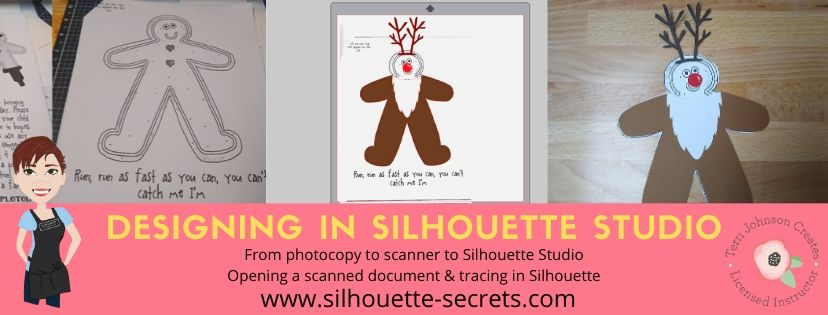
My daughter came home from school and said, “Mom, I have homework and it says to do it as a family.”

Gingerbread homework copy

Permission granted. Silhouette to the rescue!
Note: affiliate links may be present in this post

The hardest part of this project was getting my 6 year old to decide what she wanted to disguise the gingerbread man as.

We went shopping in the Silhouette Design Store for disguises. She thought about a reindeer, an elf, Santa, a boy elf, a girl elf, and about a hundred other options. Guess what she settled on? A reindeer – the very first choice. Of course!

Of all the designs we viewed in the store, she chose one that I had already collected in my library. Santa & Friends Photo Props by Kolette Hall – Design #35760 was perfect.

Santa props file.JPG

Sometimes picking out the design is the longest part of a project.

But, once she settled on the reindeer she said, “But he won’t have a costume on the rest of his body.”

Well, we can fix that.

I took the Gingerbread man page, slipped it into my scanner and clicked scan. This saved the file to my computer as a PDF document. Then my little one was amazed when I used File > Open and found the PDF file and it opened up in my Silhouette software.
To open a PDF file, the Designer Edition upgrade or higher is required.

Gingerbread Scan copy.jpg

Once the design was in my Silhouette Software, I used the Basic Trace feature to trace around the outer edge of the Gingerbread man.

Basic Trace copy

I increased the threshold on the trace to get the design to show as much yellow on the outer edge of the design and keep it as smooth as possible.

Keep in mind that each design you work with will be different and there is no magic number for the threshold or adjustments to the features under the Trace Panel. Adjust it until you feel you have the best yellow around the area you want to trace as you can get.

Then, I clicked on the Trace Outer Edge because I only needed the outside edge of the Gingerbread Man.

Trace copy

Now you may notice a few extra things traced. This will depend on the image you are tracing. These artifacts should be removed or they will cut with your image. Again, each design you trace is going to react a little different. This image is a photocopy of a design, so it picks up the little shadows and such on the paper.

Right click on the design and choose Release Compound Path. Now, you will see each artifact in this design is now broken into separate objects.

Release Compound Path copy

While all of the pieces are selected, hold down the Shift key on the keyboard and click on the main part of the Gingerbread Man. This will deselect him and all the other artifacts will remain selected. Press the Delete key on the keyboard and the artifacts will be no more.

Delete artifacts copy.jpg

Next, I told my daughter I was going to cut his head off. She gasped and then started laughing.

I double clicked on the Gingerbread Man to bring up the Edit Points. These little gray dots may look intimidating when they show up, but they are very useful.
Check out the “Let’s Explore v4 – Edit Points” post for more information HERE.

The first thing I noticed is that there are a lot of edit points. This can happen on any object you trace. In the Edit Points Panel, click on the Simplify option and see if it helps decrease the edit points without changing the shape of the design too much.

Edit Points Simplify copy

Again, each design is going to vary in how it reacts.

Simplified copy.jpg

Keep in mind a few things when you trace. First, it traces each design around the edges of the yellow that you have on the screen when you do a trace. This means if the image is pixelated, then will trace all those pixels.
And, each of those edit points is a data point that the Silhouette machine has to hit when it is cutting. It is how it tells the machine how to cut around the design you send to it. If there are a lot of edit points, it can sound odd cutting and take a long time as it makes it’s way connecting all those dots.

Now, that I have fewer edit points, I can move the edit points, delete the ones not needed, and adjust their directional nodes to bring the neckline down on the reindeer costume.

Reindeer neckline copy

And there is our reindeer/gingerbread man body.

Next, we discussed that reindeer have a white stomach. I tried using the Line Drawing tool – Draw a Polygon to draw my own ruffly white belly, but I just wasn’t feeling it.

But, the Santa beard from the Santa & Friends Photo Props was ruffly. I copied it from my other file and pasted it into this design.

Knife tool copy.jpg

I then held the Shift key down and drew my knife across the beard to cut the mustache off. I selected the mustache and deleted it. Then I double clicked on the beard to bring up the edit points and deleted the ones in the center as those are not necessary.

To select multiple edit points at the same time, hold down the Shift key and drag the mouse across all the ones you want to select. This will select multiples at a time and you can then adjust or delete them.

Santa beard edited copy

Now, let’s add this to our reindeer.

Reindeer white copy

I used the bottom middle bounding box to elongate the white of the belly.

Next, I wanted the neckline to match with the brown reindeer part of the costume. Select both the brown and the white of the reindeer and make a copy. Drag this copy off the design mat. Select the brown and white reindeer on the design mat again and open the Modify Panel and choose Crop.

Modify - Crop copy.jpg

The new shape has taken on the color of the bottom layer. Change the color back to white using the Fill Color Panel and you have 2 pieces that will fit back together.

Reindeer body copy

Want to see how it will look as a finished design?

This is what is commonly referred to as a “mock up”. Taking the design you have creating and layering it on top of the original photo.

Mock Up copy

We cut all the pieces out of cardstock and my 6 year old helped with each part. She enjoyed taking the mat off the cardstock.
Tip: To help the cardstock to release from the mat, flip the mat over and peel the mat away from the cardstock. This will help the adhesive release, keep the paper from curling, and keep the adhesive on the mat.
Check out this post “Tips to Get the Most out of the Silhouette Mat” for more tips.

IMG_20191205_102446498 copy

Then my daughter used her scissor skills to cut out the gingerbread man and I asked if she wanted to go find a glue stick to attach the pieces and she says, “Mom, can you just use your good glue?” I had to laugh at that as I pulled out my Scrapbook Adhesives EZ Tape Runner. Of course, I’d much rather use that than a glue stick.

Check out this video below to go through the same steps I have walked through above.

And we had our cleverly disguised Gingerbread Man that we created together. I am amazed at the Silhouette software all the time. While I am no designer, once in awhile I may have an idea or two. And you never known when you will want to take a Santa beard and turn it into reindeer fur.

So for a recap of the tools used in the Silhouette software:
Basic Trace
Release Compound Path
Edit Points
Line Drawing Tool – Draw Polygon
– Knife Tool
Modify Panel – Crop
Fill Color Panel

It didn’t seem like that many as we worked through the project, but we covered a lot. The best way to learn is to continue to create and do things in the software.
All of the above features are linked to detailed posts in the “Let’s Explore v4” series. When you get a chance take a look and then play with something new that you learned.

I would love to see what you create, feel free to post on my Facebook group at Silhouette Secrets with EllyMae.

Enjoy!

SS_Signature copySS Logo snip it

**This post may contain affiliate links. What that means is that I may receive compensation if you purchase through the links I have provided. The price you pay for the product or service is not higher but I may get compensated for sharing.