Skip to navigation Skip to content
Silhouette Secrets-Swift Creek Customs
  • Facebook
  • Pinterest
  • Instagram
  • A to Z – Silhouette Guide
  • Classes by EllyMae
    • All Products
    • My Courses
  • Creative Community Subscription
    • Creative Community Subscription
    • Creative Community with EllyMae – Forum
  • Buy Silhouette Supplies
  • Crafting Creativity – Inspiration
  • Supply & Retail Recommendations
    • Designs & Fonts
    • Recommended Suppliers
    • Free Files/Fonts
  • Upcoming Events
  • About Me
    • Contact Me
    • Student Testimonies
  • EllyMae’s Craft Supplies
  • Siser Juliet & Romeo Cutting Machines
  • Swift Creek Customs
  • A to Z – Silhouette Guide
  • Classes by EllyMae
    • All Products
    • My Courses
  • Creative Community Subscription
    • Creative Community Subscription
    • Creative Community with EllyMae – Forum
  • Buy Silhouette Supplies
  • Crafting Creativity – Inspiration
  • Supply & Retail Recommendations
    • Designs & Fonts
    • Recommended Suppliers
    • Free Files/Fonts
  • Upcoming Events
  • About Me
    • Contact Me
    • Student Testimonies
  • EllyMae’s Craft Supplies
  • Siser Juliet & Romeo Cutting Machines
  • Swift Creek Customs
  • $0.00 0 items
Home / Silhouette / Silhouette Cutting Issues – Cut by Line or Fill Color?
Posted on February 26, 2023February 23, 2023 by silhouettesecretsplus — Leave a comment

Silhouette Cutting Issues – Cut by Line or Fill Color?

I have noticed an increase in posts regarding cut issues when using the Cut by Line or Cut by Fill color option in Silhouette Studio.

Usually it’s along the lines of
“My machine isn’t working and is not adjusting to the correct settings I set.”

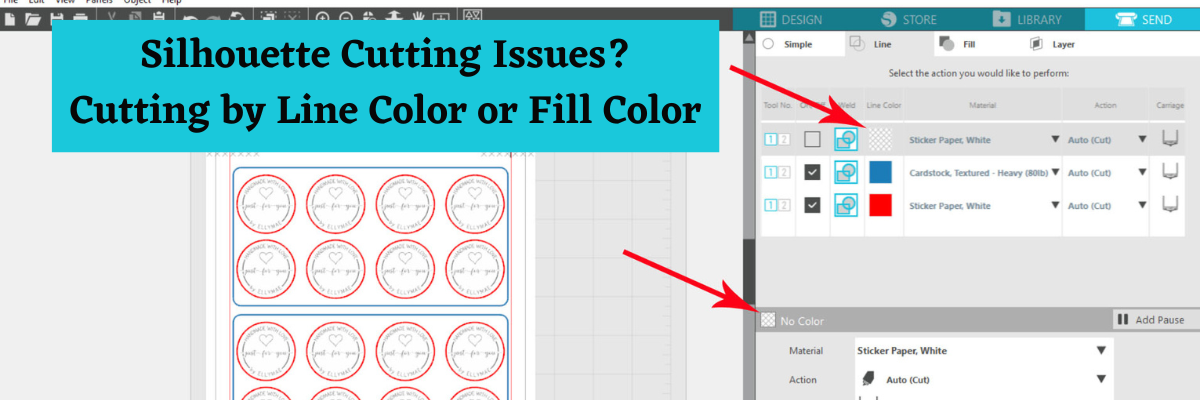
We can usually easily identify this issue by looking at a photo of the cut settings the user is using on the Send tab. If they show the Cut by Line Color or Cut by Fill option, I’m finding that the correct color was not selected when changing the settings.
The user has not specifically selected the color that they want to make changes to.
Just clicking on the box to check it to cut does NOT always select the color.

In the photo above, the “no color” option is the line color selected. This is shown by a gray selection indicator across the setting in the top panel on the right. On a MAC or on a dark background screen, this may be difficult to see the gray selection indicator.
Even though the “no color” is not checked to cut at the top, it is the material selected and shows in the bottom half of the Cut Settings panel on the right.

If you adjust the settings for this, it will be adjusting the color that isn’t even going to cut.

Make sure when you are setting up the cut settings, that you are paying close attention to which color is selected and showing in the bottom of the Send tab.
Click on the color box specifically and watch for the gray selection to indicate it’s selected.

I also have a video explanation of this up on the
Silhouette Secrets+ YouTube channel

Check out the video HERE on YouTube direct.

For more on the Cut by Line Color option, check out this post
Let’s Explore v4 – Send Tab – Line Option

For more detailed information on all the Send tab options, check out this post
Let’s Explore v4 – The Send Tab – Simple

I hope this little tid-bit of information helps to save some frustration in your Silhouette journey!

Save this for future reference by pinning the image below.

Enjoy !

THANK YOU for your support! How can you help? Click HERE & buy a coffee.
Every little bit helps with the cost of running the site.

Looking for more in-depth, step-by-step classes, check out all of my online Silhouette classes on my Teachable site HERE.

SS Logo snip it

**This post may contain affiliate links. What that means is that I may receive compensation if you purchase through the links I have provided. The price you pay for the product or service is not higher but I may get compensated for sharing.

Share this:

  • Share on Pinterest (Opens in new window) Pinterest
  • Share on Facebook (Opens in new window) Facebook
  • Print (Opens in new window) Print

Like this:

Like Loading...

Related


Discover more from Silhouette Secrets-Swift Creek Customs

Subscribe to get the latest posts sent to your email.

Categories: Silhouette, Uncategorized
Tags: Cut by color, Cut by Line, Cutting issues, Silhouette

Post navigation

Previous post: Drawing Designs using Object to Path & Tools in Silhouette Studio
Next post: Join me to Create Unique Designs in Silhouette Studio

Leave a ReplyCancel reply

THANK YOU for your support!
How can you help? Click the link to buy a coffee. Every little bit helps in the cost of running the site.
Silhouette Secrets+ Online
Silhouette Classes
Follow Blog via Email

Enter your email address to follow this blog and receive notifications of new posts by email.

Silhouette Secrets+ Amazon Shop
12 x 12 Cardstock Shop
www.dickblick.com
CLICK.BUY. CREATE. Shop Michaels.com today!
  • 2026
  • 2025
  • 2024
  • 2023
  • 2022
  • 2021
  • 2020
  • 2019
  • 2018
  • 2017
  • 2016
Copyright © 2026 Silhouette Secrets+
© Silhouette Secrets-Swift Creek Customs 2026
About MeBuilt with WooCommerce.
  • My Account
  • Search
  • Cart 0

Discover more from Silhouette Secrets-Swift Creek Customs

Subscribe now to keep reading and get access to the full archive.

Continue reading

Discover more from Silhouette Secrets-Swift Creek Customs

Subscribe now to keep reading and get access to the full archive.

Continue reading


Loading Comments...
 

    %d



